> ## Documentation Index
> Fetch the complete documentation index at: https://docs.requestly.com/llms.txt
> Use this file to discover all available pages before exploring further.

# Blocklist

> Blocklist allows you to disable Requestly Extension for certain websites.

***

Blocklist in Requestly allows users to disable the Requestly Extension for specific websites. This feature ensures that certain sites remain unaffected by Requestly’s modifications, making it particularly useful in sensitive or problematic scenarios.

<Warning>
  Available on Extension Version >=24.7.23 and Desktop app version >=1.8.1
</Warning>

<iframe className="w-full aspect-video rounded-xl" src="https://www.youtube.com/embed/YuI_v1EnuYc" />

## Why Use Blocklist?

* **Sensitive Information:** If a website contains sensitive data, you may prefer Requestly not to modify it in any way.

* **Compatibility Issues:** In cases where Requestly disrupts the functionality of a website, you can use Blocklist to exclude the website. (If you encounter such issues, please log an issue on <a target="_blank" href="https://github.com/requestly/requestly/issues/new/choose">GitHub</a>, and the team will address it ASAP. 🤝)

## How to Add Sites to Blocklist

Follow these steps to add sites to the Blocklist in Requestly:

<Steps>
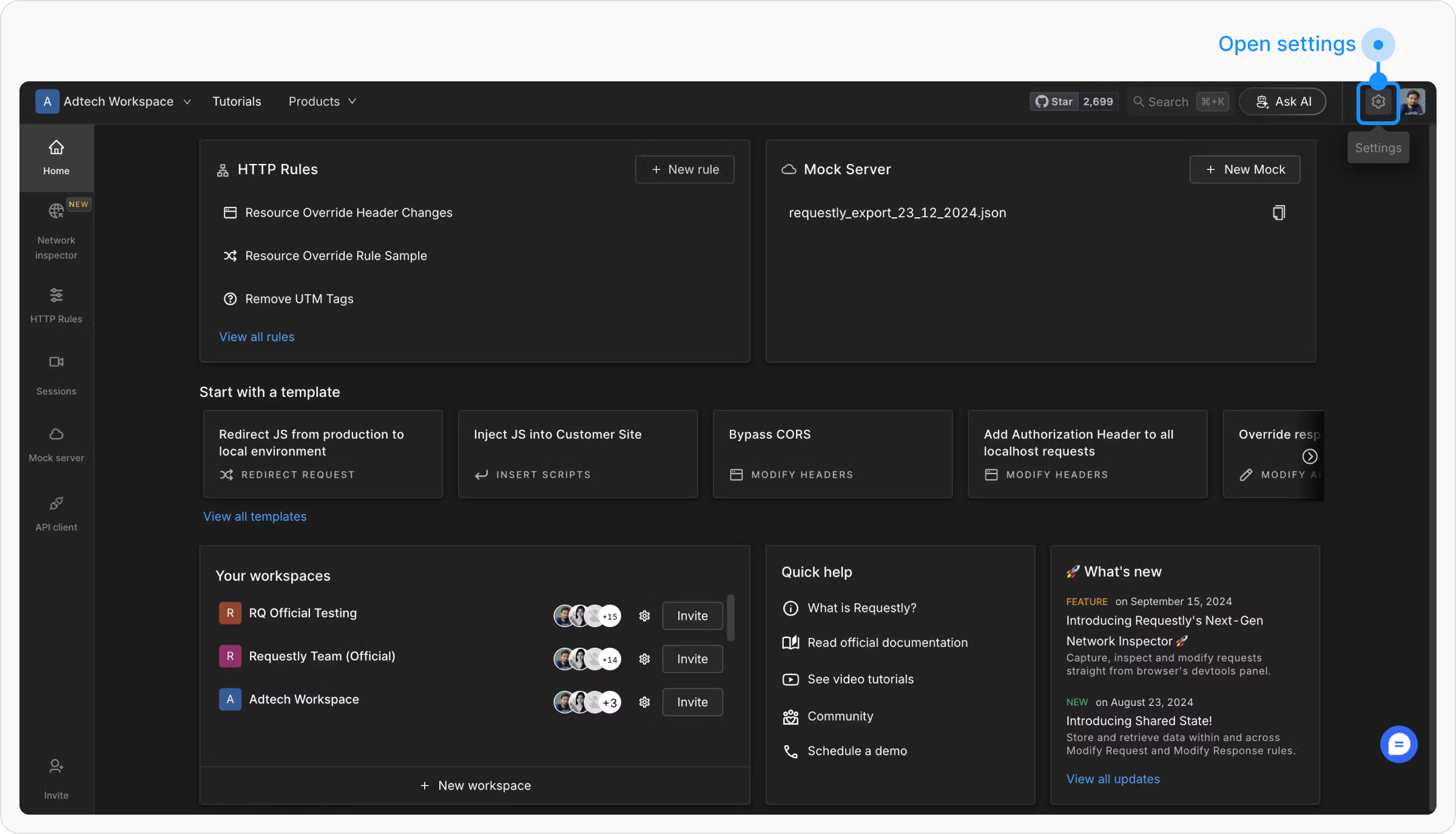
  <Step title="Access Settings">
    Navigate to the **Settings** section within the Requestly app.

    <img src="https://mintcdn.com/requestly/qIWXalHJdphCbP8R/images/blocklist/fc595c39-6ddd-403c-9d46-9880db361e2b.png?fit=max&auto=format&n=qIWXalHJdphCbP8R&q=85&s=fd0ddd2370d8433f41a2e0e5db2ef0fa" align="center" fullwidth="false" width="2400" height="1374" data-path="images/blocklist/fc595c39-6ddd-403c-9d46-9880db361e2b.png" />
  </Step>

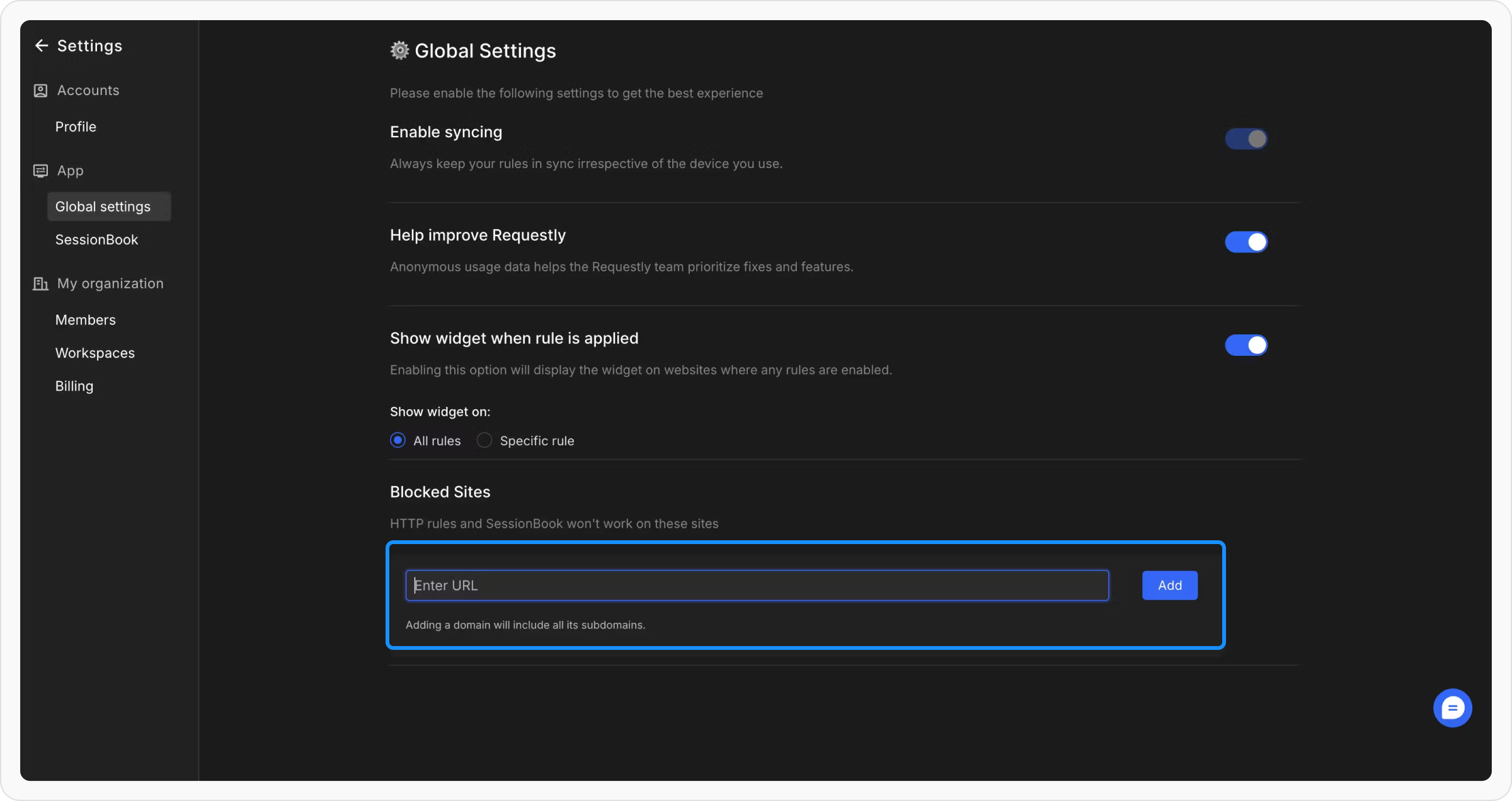
  <Step title="Navigate to the Global Settings Section">
    In the Global Settings menu, locate the **Blocked Sites** section. This is where you manage the websites or domains that you want to block.

    <img src="https://mintcdn.com/requestly/qIWXalHJdphCbP8R/images/blocklist/7a76c6e4-dfd1-4774-84f8-5949b2097873.png?fit=max&auto=format&n=qIWXalHJdphCbP8R&q=85&s=93a132e7093f0019939c075d3510ea35" align="center" fullwidth="false" width="2400" height="1272" data-path="images/blocklist/7a76c6e4-dfd1-4774-84f8-5949b2097873.png" />
  </Step>

  <Step title="Add Website/Domain">
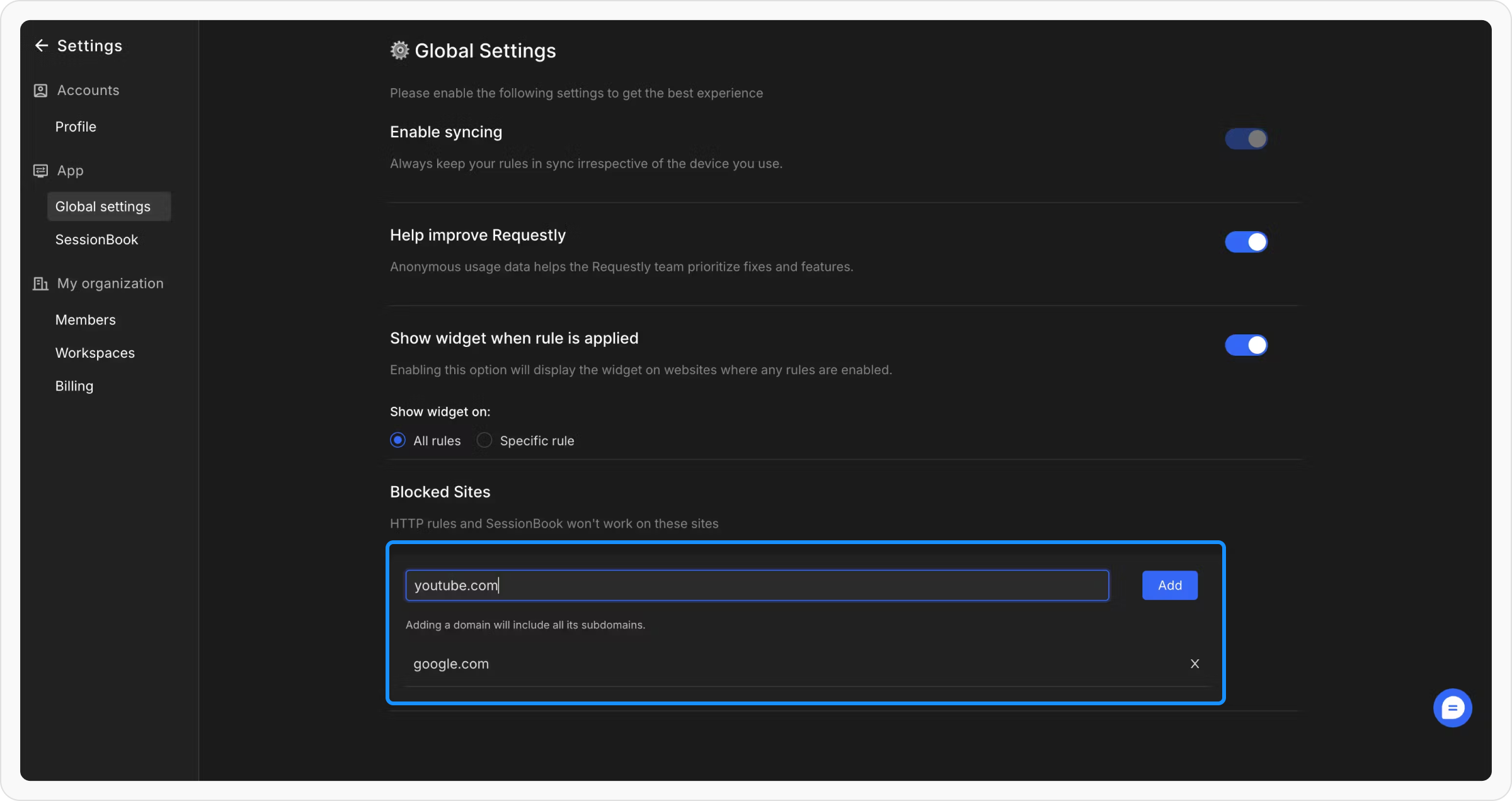
    Input the website or domain you want to block. Adding a domain, such as `example.com`, will automatically block all its subdomains (e.g., `a.example.com`, `b.example.com`, and `c.b.example.com`).

    <img src="https://mintcdn.com/requestly/qIWXalHJdphCbP8R/images/blocklist/03cd7da3-19a8-4ed8-adbe-40c9204ed320.png?fit=max&auto=format&n=qIWXalHJdphCbP8R&q=85&s=401d7934afcba0dd152fa95e99d7734c" align="center" fullwidth="false" width="2400" height="1272" data-path="images/blocklist/03cd7da3-19a8-4ed8-adbe-40c9204ed320.png" />
  </Step>
</Steps>

<Info>
  When a website is added to the Blocklist, the Requestly icon in the browser toolbar changes its appearance to indicate that the extension is disabled for that site.
  <img src="https://mintcdn.com/requestly/qIWXalHJdphCbP8R/images/blocklist/f00fa5ae-acaa-4b4c-9235-af455ab183fc.png?fit=max&auto=format&n=qIWXalHJdphCbP8R&q=85&s=d27a7c5a93f7a0a9ee6a30c9aec42c99" alt="" align="left" fullwidth="false" width="30" height="34" data-path="images/blocklist/f00fa5ae-acaa-4b4c-9235-af455ab183fc.png" />
</Info>