> ## Documentation Index
> Fetch the complete documentation index at: https://docs.requestly.com/llms.txt
> Use this file to discover all available pages before exploring further.
# Set up Microsoft Entra ID
> Set up SSO with Microsoft Entra ID
If your company uses [Microsoft Entra ID](https://www.microsoft.com/en-us/security/business/identity-access/microsoft-entra-id), you can set up the single sign-on feature for use with Requestly. This gives your employees the convenience of a one-click login, without using additional multi-factor authentication.
## Step 1. **Create an Microsoft Entra ID enterprise application**
1. Go to the **Microsoft Entra ID** portal.
2. Go to **Identity > Applications > Enterprise applications.**
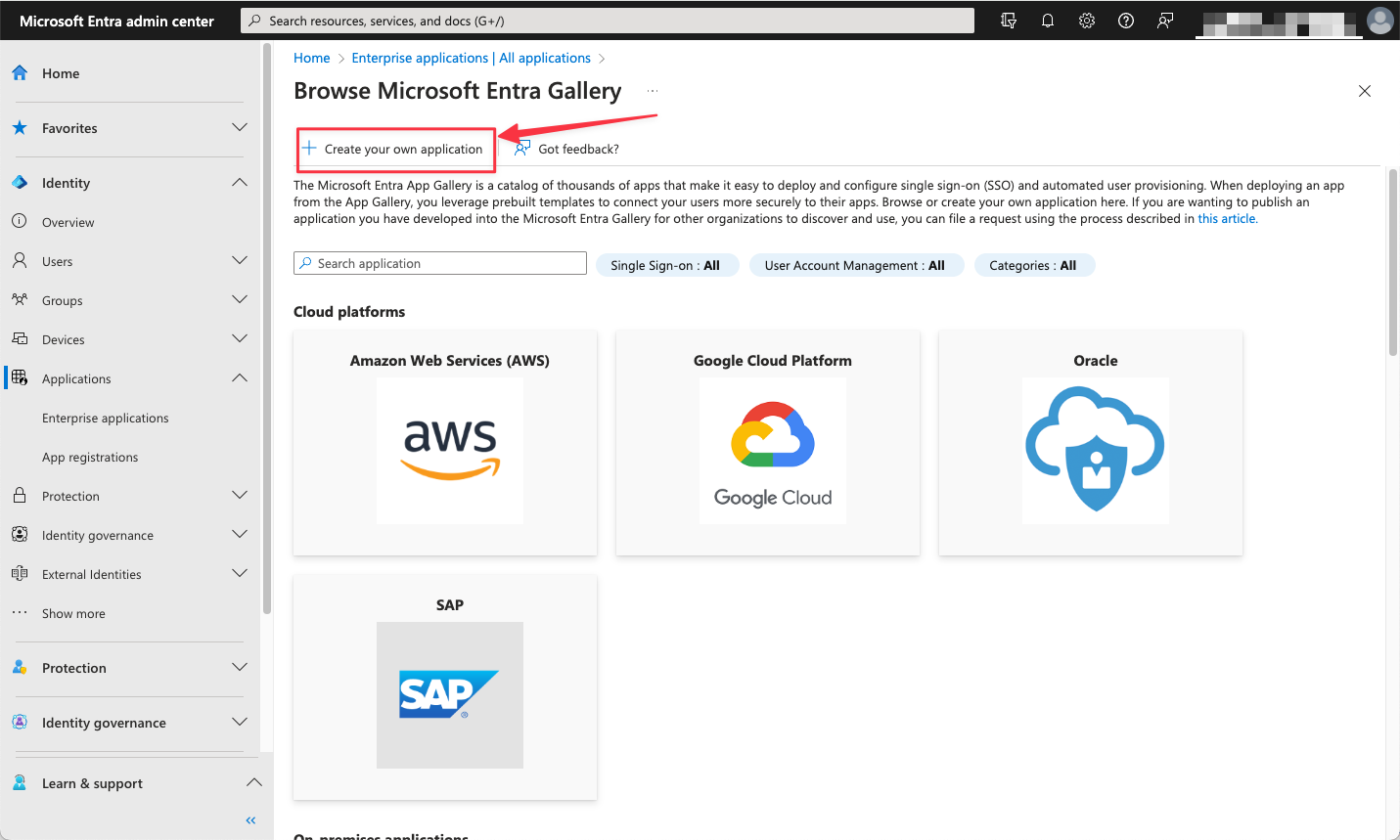
3. Click on **+** **New application.**
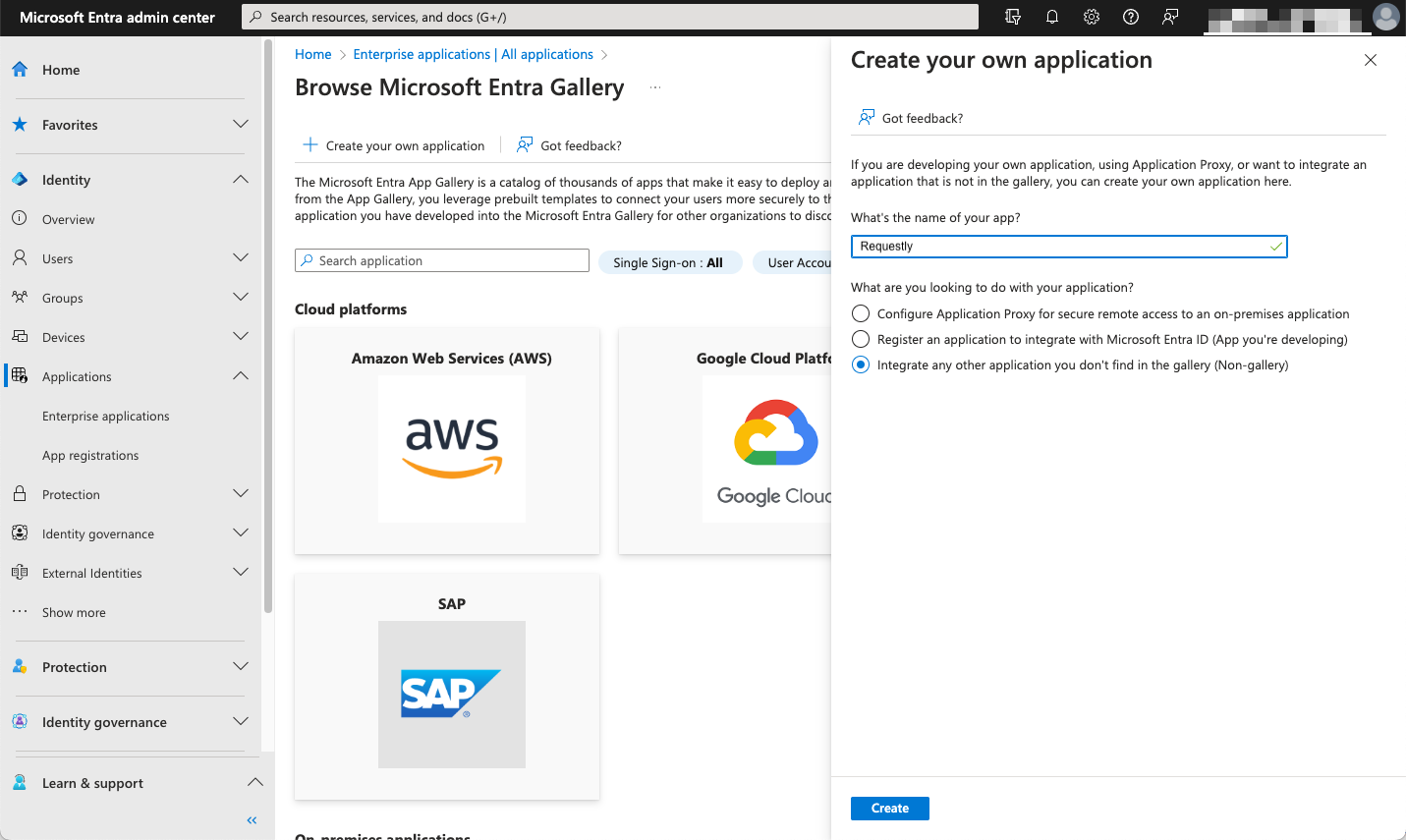
 4. Enter app name as desired, select **Integrate any other application you don’t find in the gallery (Non-gallery)**, and click **Create**
 5. After this you're redirected to the newly created Requestly application **Overview**.
## Step 2. Configure Microsoft Entra ID SAML Application
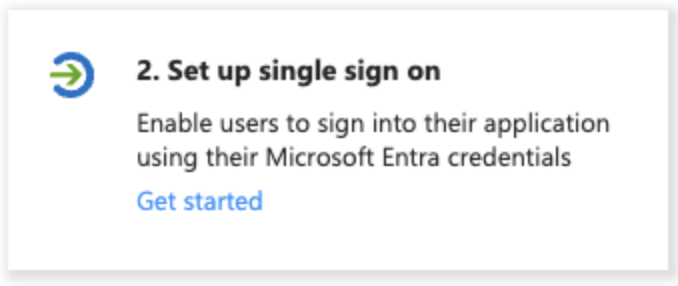
1. On the app's **Overview** page, select **2. Set up single sign-on**. You can assign users and groups later.
5. After this you're redirected to the newly created Requestly application **Overview**.
## Step 2. Configure Microsoft Entra ID SAML Application
1. On the app's **Overview** page, select **2. Set up single sign-on**. You can assign users and groups later.
 2. On the app's **Single sign-on** page, select **SAML** as the single sign-on method.
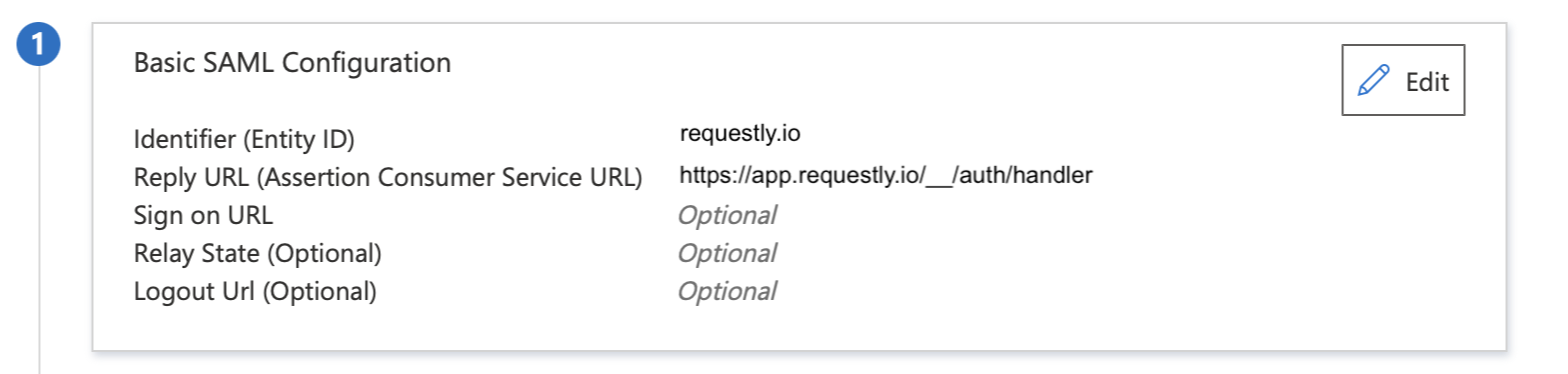
3. Under the **Basic SAML Configuration** section, click **Edit.**
4. Add the following values and **save**:
* **Identifier (Entity ID):** `urn:requestly.io`
* **Reply URL:** `https://app.requestly.io/__/auth/handler`
* **Sign on URL (optional):** Leave it empty. We don’t support IDP initiated SSO right now
2. On the app's **Single sign-on** page, select **SAML** as the single sign-on method.
3. Under the **Basic SAML Configuration** section, click **Edit.**
4. Add the following values and **save**:
* **Identifier (Entity ID):** `urn:requestly.io`
* **Reply URL:** `https://app.requestly.io/__/auth/handler`
* **Sign on URL (optional):** Leave it empty. We don’t support IDP initiated SSO right now
 ## Step 3. Setup SAML claims
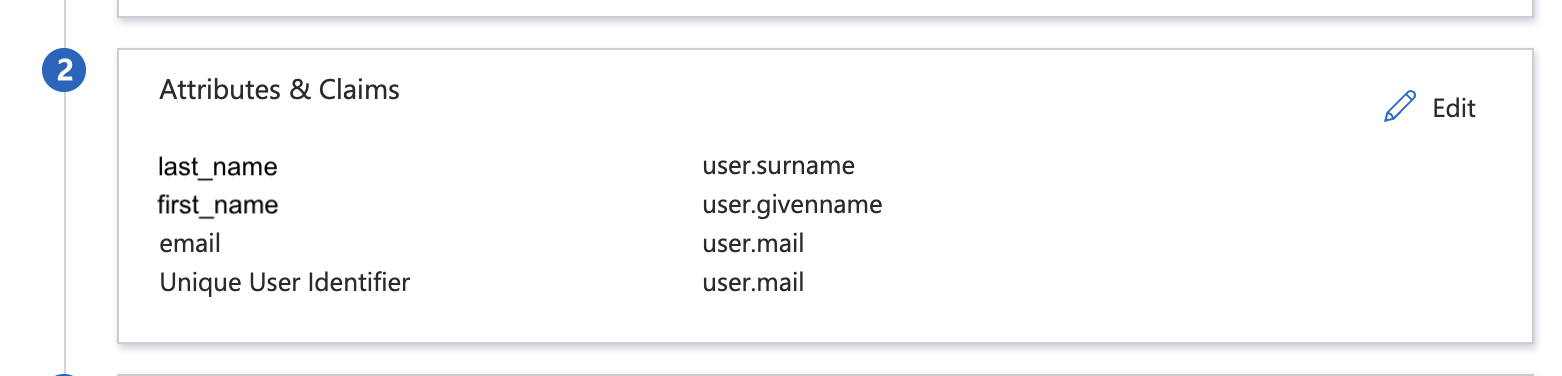
1. Under the **Attributes and Claims** section, click **Edit**.
2. Enter the following values:
| Unique User Identifier (Name ID) | user.mail |
| -------------------------------- | -------------- |
| first\_name | user.givenname |
| last\_name | user.surname |
| email | user.mail |
## Step 3. Setup SAML claims
1. Under the **Attributes and Claims** section, click **Edit**.
2. Enter the following values:
| Unique User Identifier (Name ID) | user.mail |
| -------------------------------- | -------------- |
| first\_name | user.givenname |
| last\_name | user.surname |
| email | user.mail |
 ## Step 4. Share SAML metadata with Requestly
1. Under **SAML Certificates** section, copy the **App Federation Metadata URL**.
2. Share the copied value with us `contact@requestly.io`
## Step 4. Share SAML metadata with Requestly
1. Under **SAML Certificates** section, copy the **App Federation Metadata URL**.
2. Share the copied value with us `contact@requestly.io`