> ## Documentation Index
> Fetch the complete documentation index at: https://docs.requestly.com/llms.txt
> Use this file to discover all available pages before exploring further.
# API Collections
> Organise and manage APIs with Requestly’s API Collections. Learn to create, rename, delete collections, use folders, and explore collection variables.
***
API Collections help developers and QA teams organize and group APIs for better management. They also offer additional features such as detailed API information and collection-specific variables. Let's explore how to create, manage, and utilize API Collections and their features.
## Create API Collection
**Step 1:** Click **+ New** and select **Collection**.
**Step 2:** Provide a descriptive name (e.g., “User Management APIs”) and hit **Enter**.
Once a collection is created, you can add requests and sub-collections.
## Rename API Collection
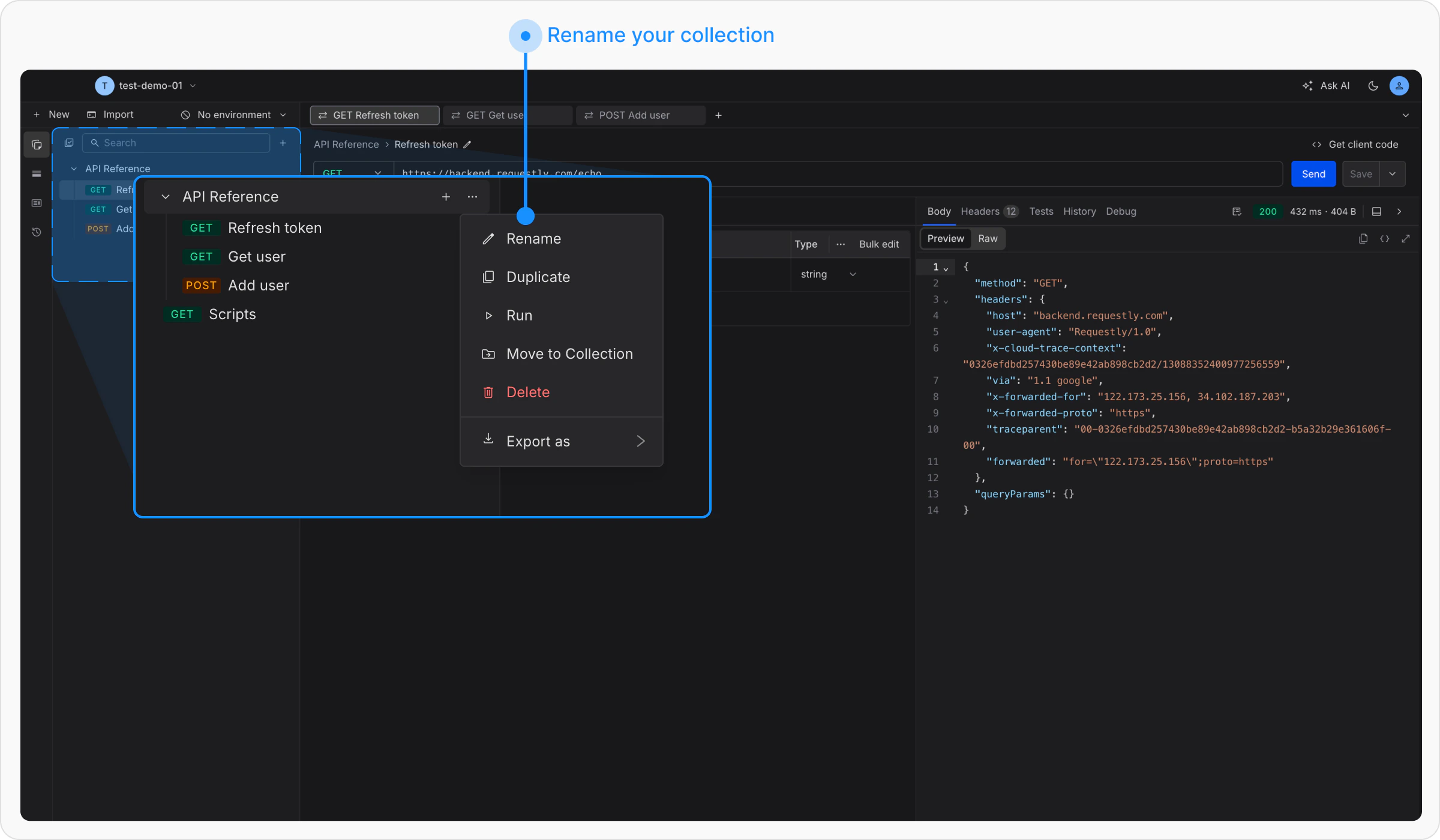
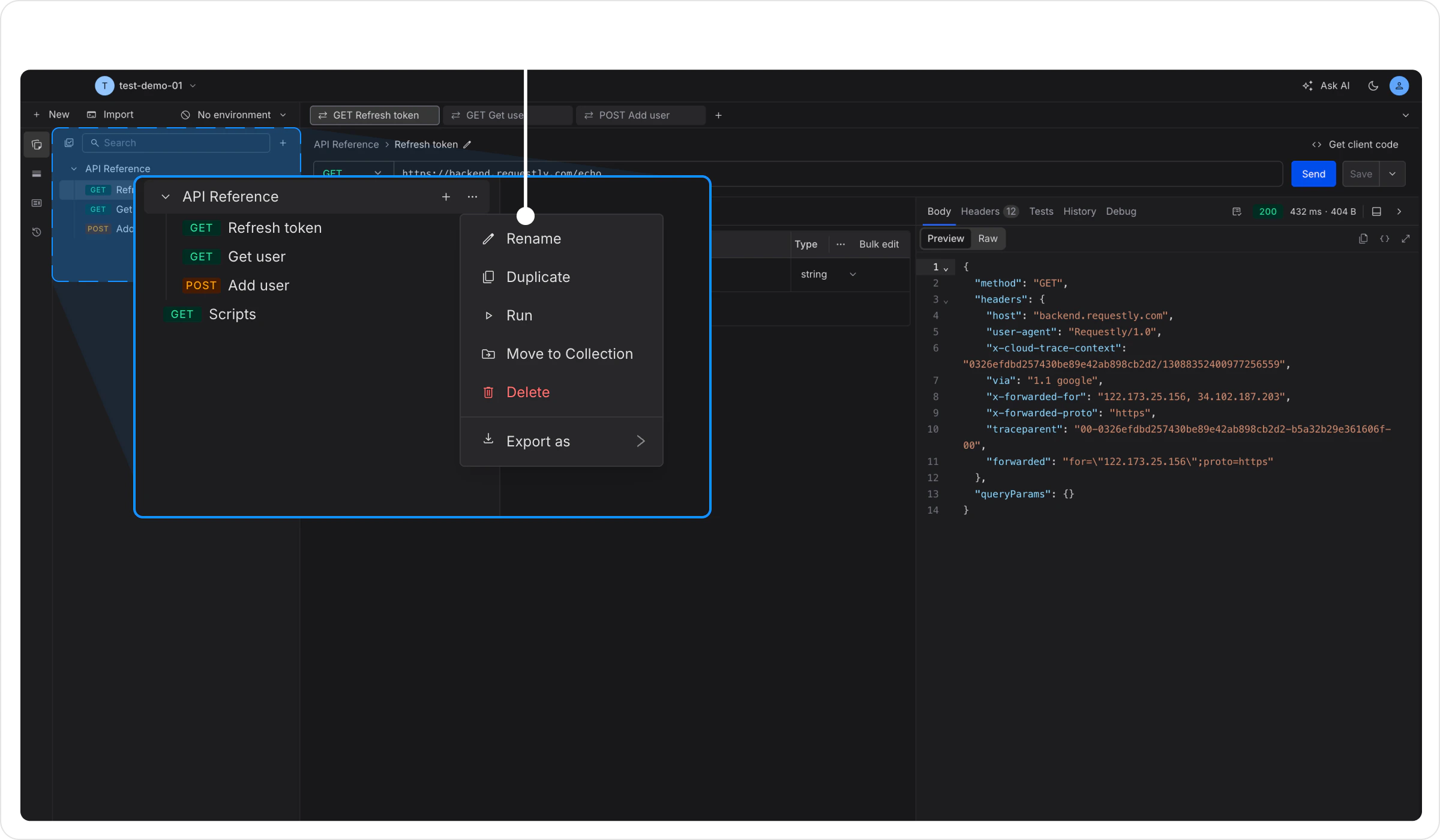
**Step 1:** Click the **More** icon next to the collection name you want to rename, then select Rename.
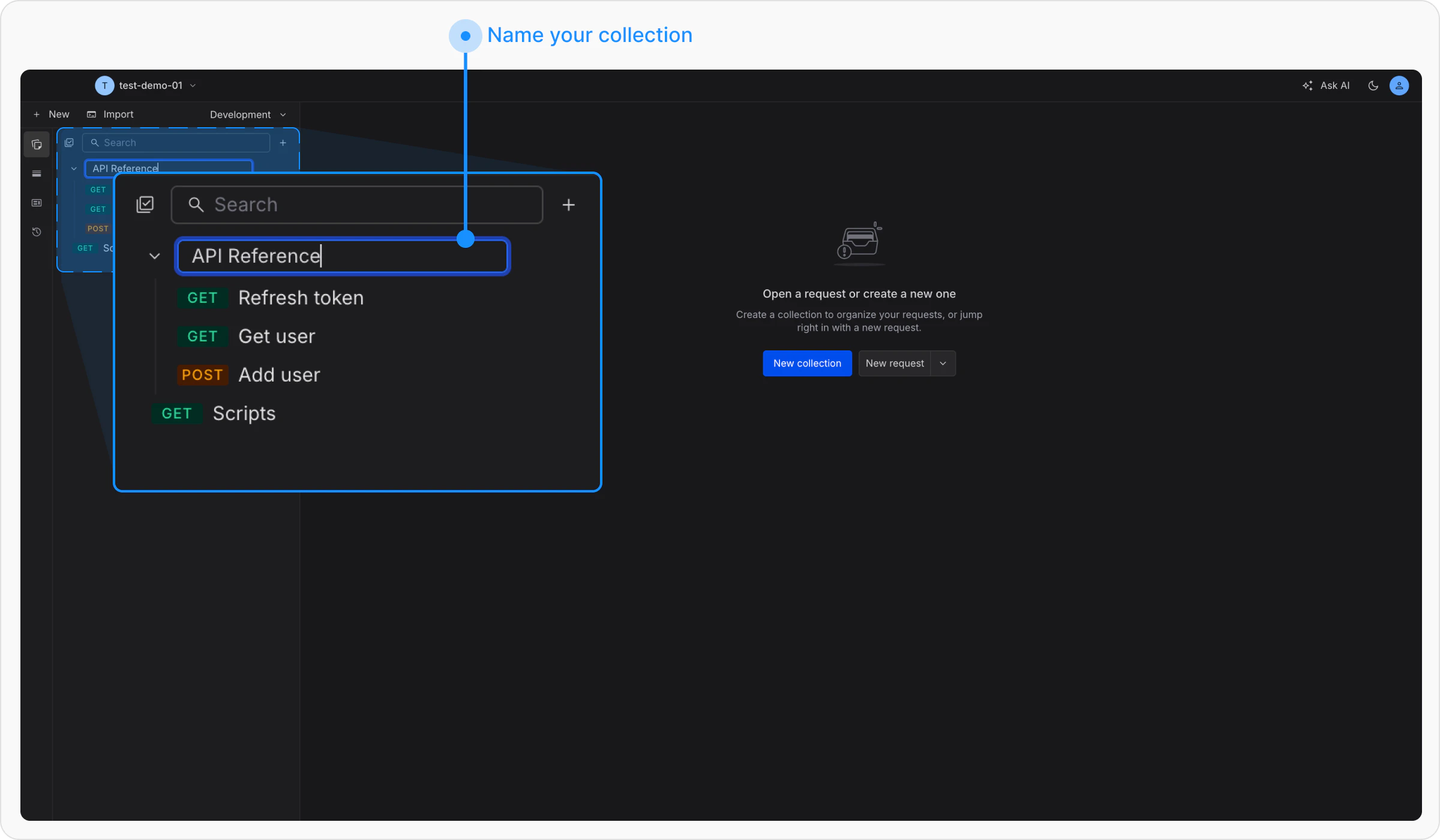
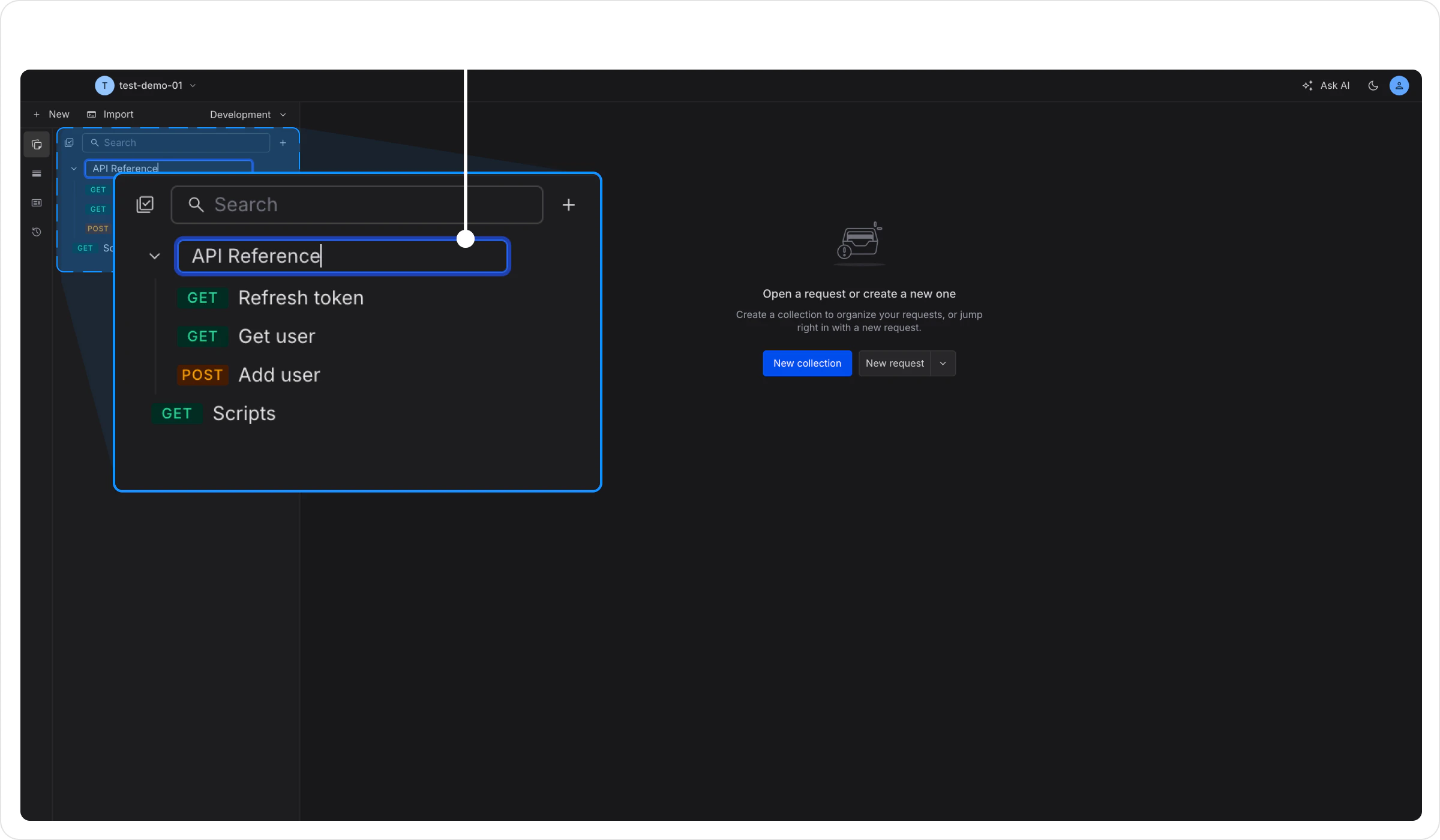
**Step 2:** An inline input field will appear with the current name. Update the name and press **Enter** to save the changes.
## Delete API Collection
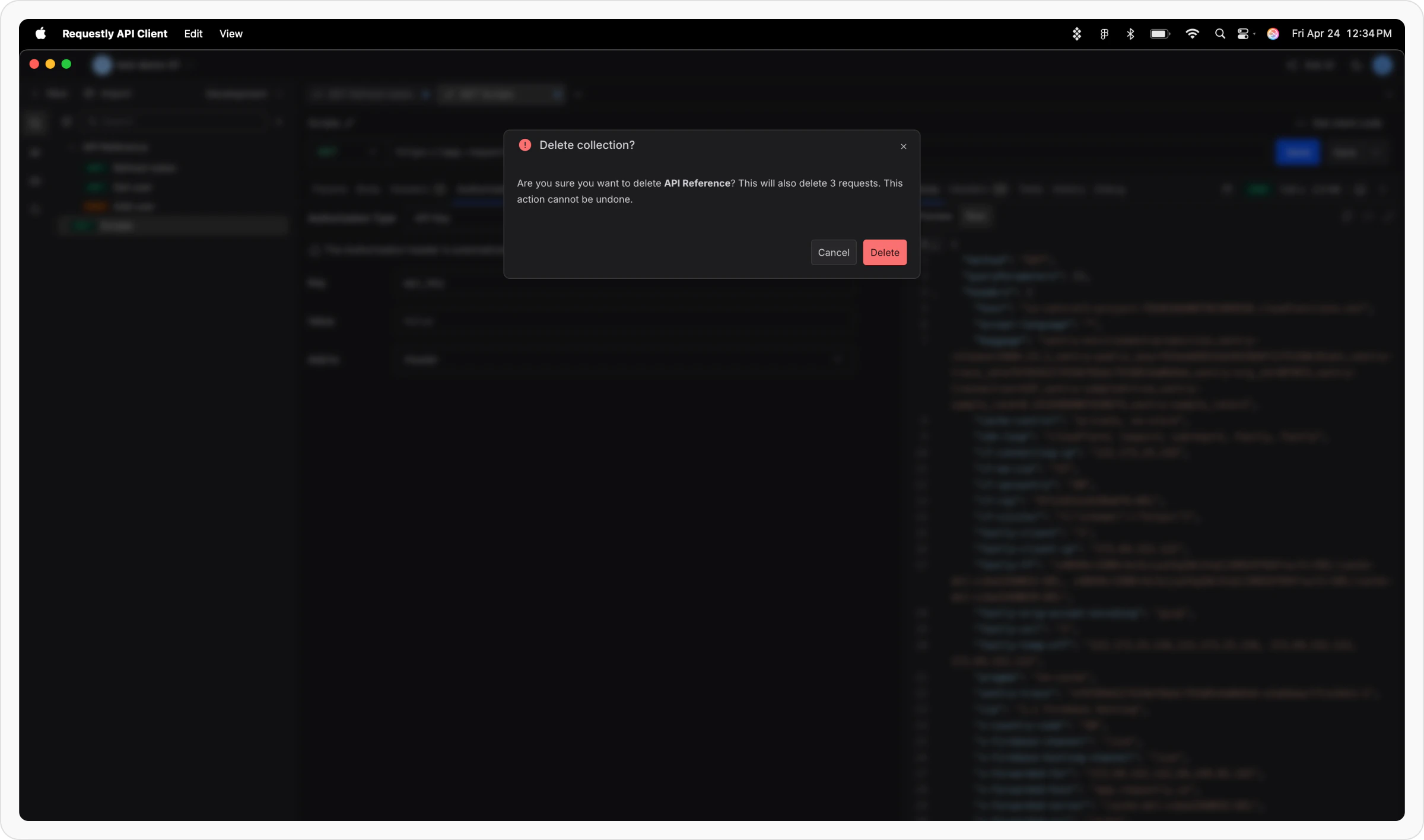
**Step 1:** Click the **More** icon next to the collection name and select `Delete`.
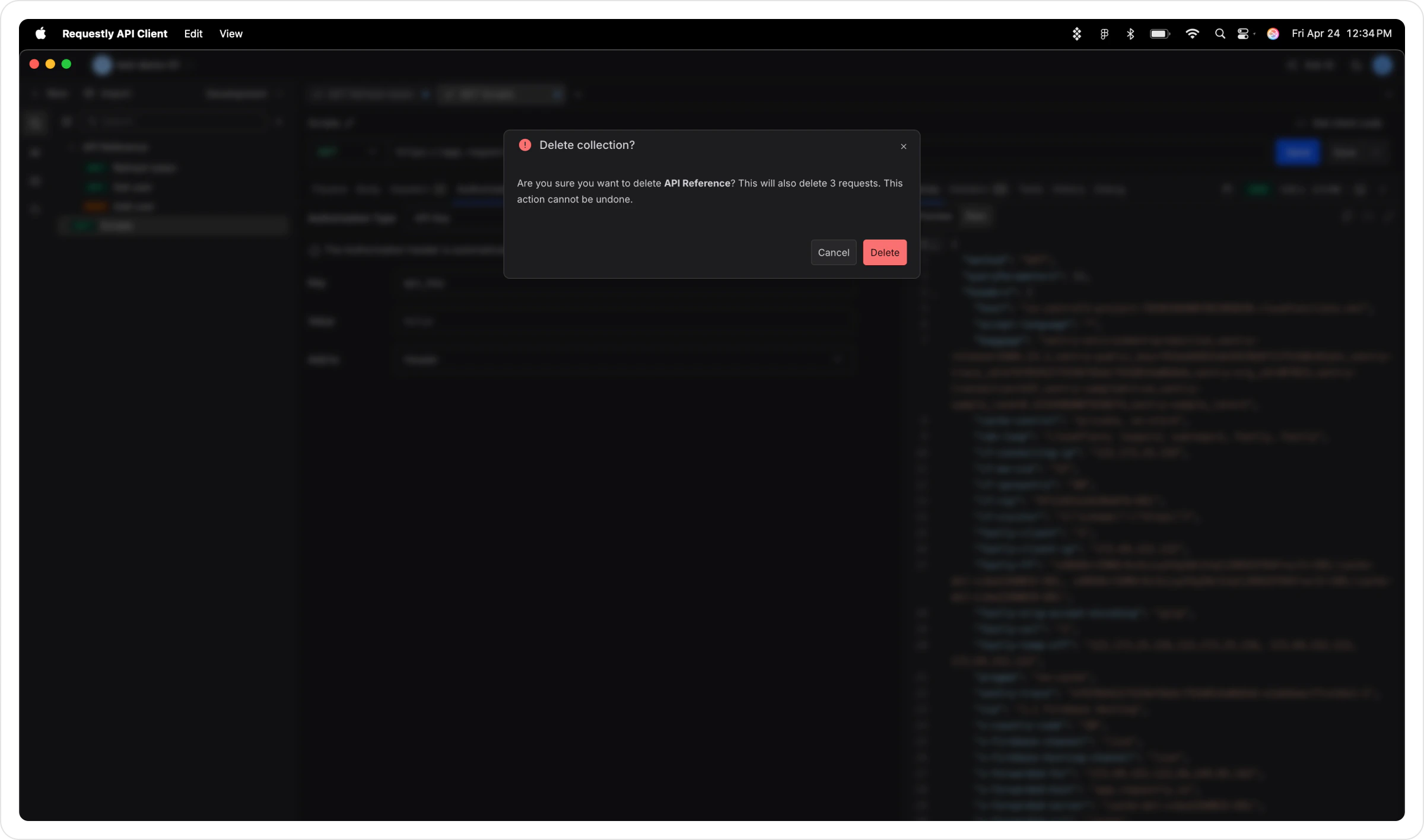
**Step 2:** Confirm the action in the Delete Collection prompt.
Make sure you are deleting the correct collection. Deleted collections in cloud projects can be restored within 7 days by contacting support. See the [Data Recovery Policy](../account/data-recovery) for details.
## Create Folders
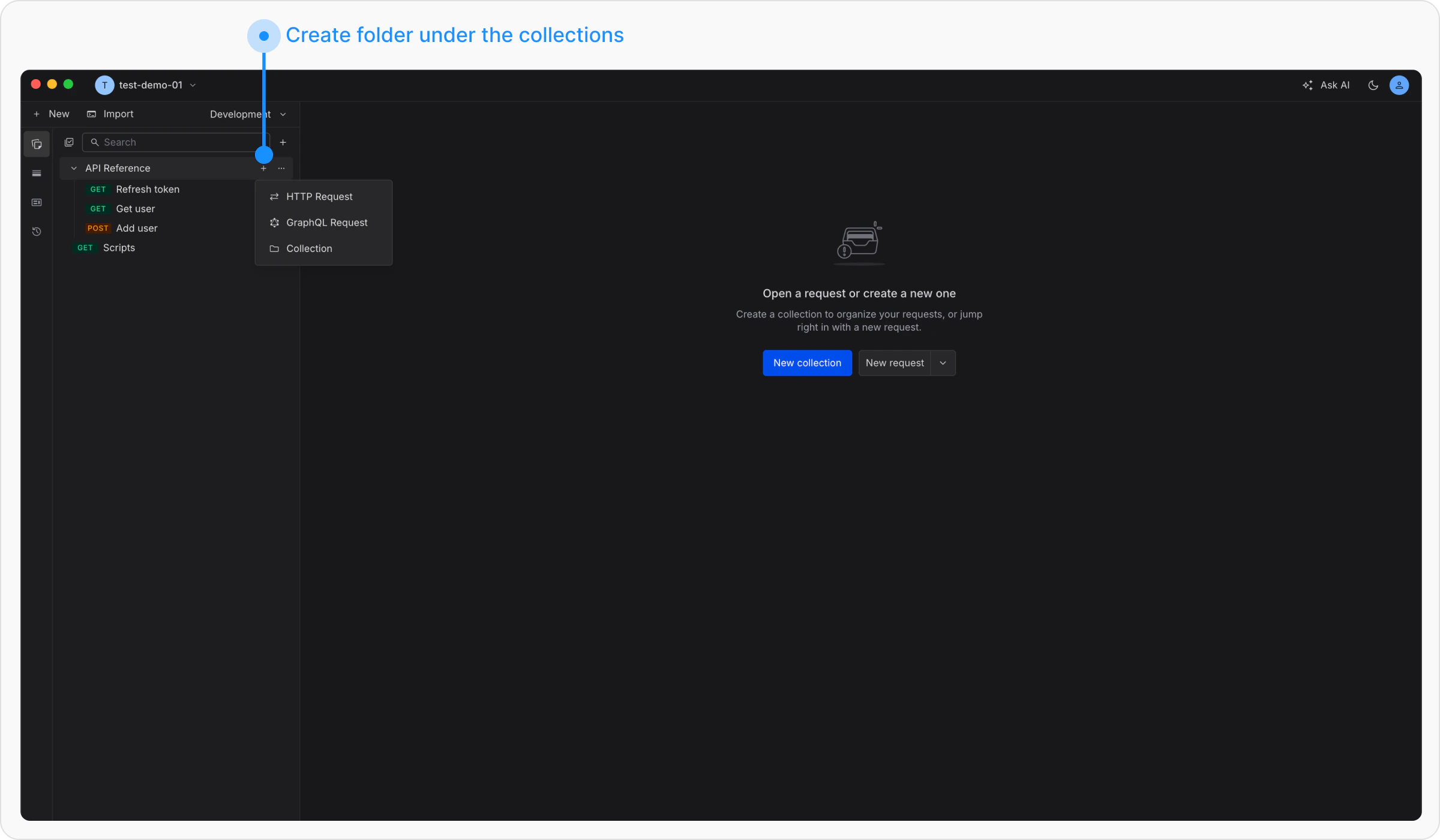
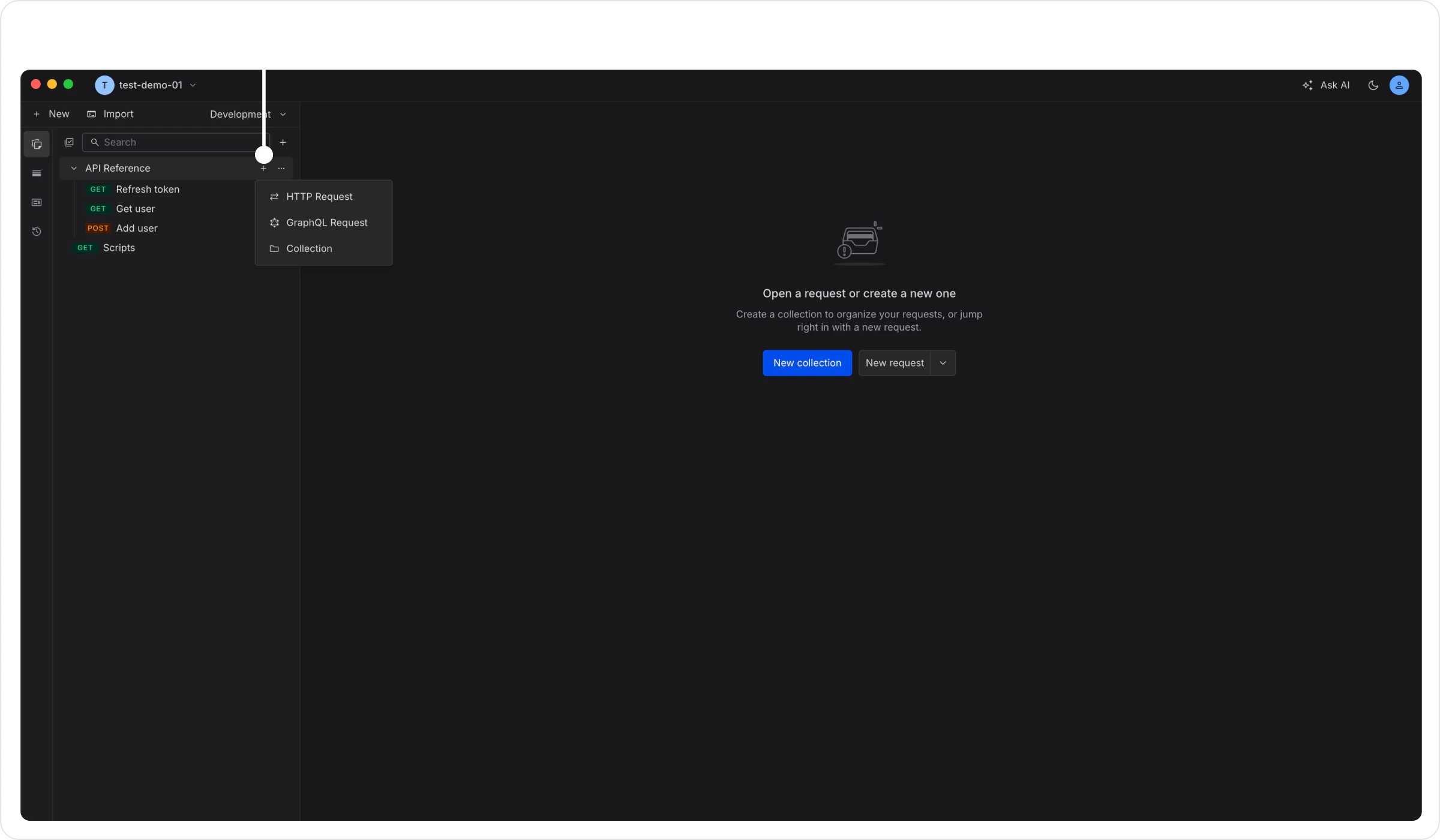
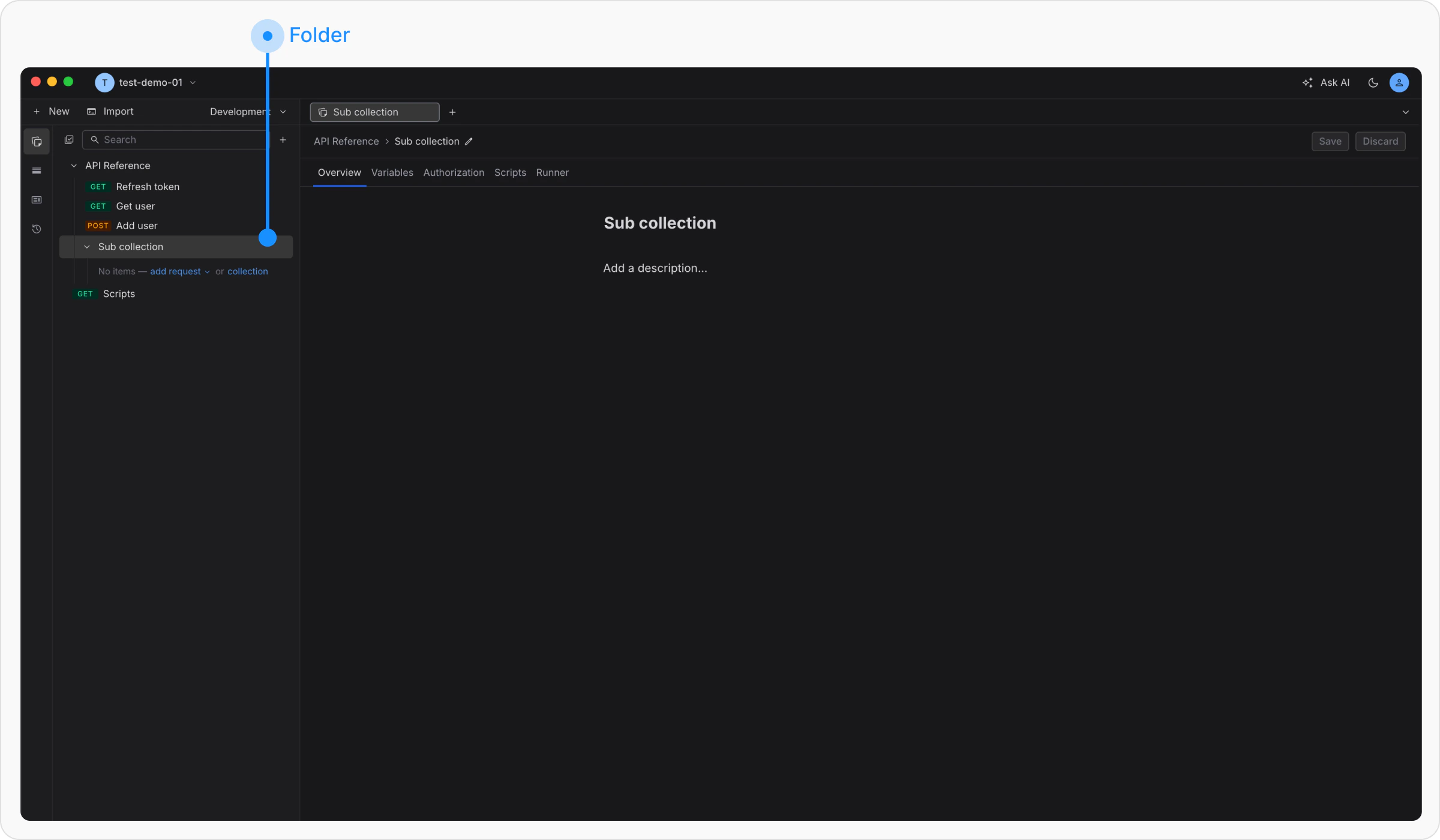
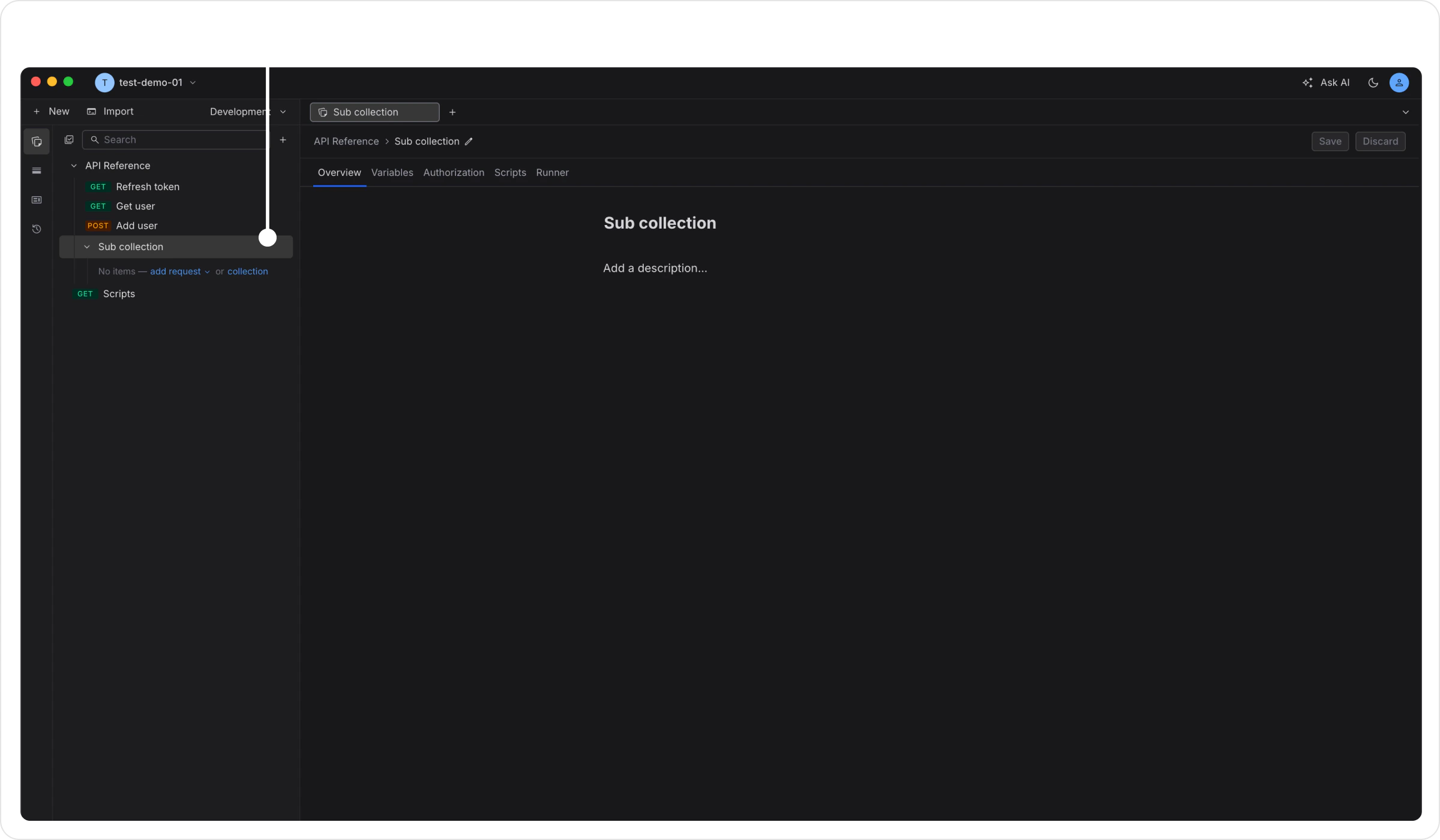
Folders allow you to create sub-groups within a collection. They can have their own collection variables and share all the features of a collection. Folders(Sub-Collections) inherit all the collection variables from its parent. However, You can override parent-collection variables by defining a collection variable inside the sub-collection.
**Step 1:** Click on the Add Folder icon next to the collection name.
**Step 2:** Provide a descriptive name (e.g., “Login APIs”) and press **Enter**.
## Collection Variables
Collections include a **collection variables** feature that allows you to define and manage reusable values specific to the collection. Collection Variables are defined as key-value pairs that work as the base set of variables for collections. They can be used in API definitions with double curly braces `{{collection_variable}}`
Learn more about this feature on the [Variables](/api-client/environments-and-variables) page.
## Collection Runner
The **Collection Runner** allows you to execute multiple API requests from a collection sequentially in a single run. It helps automate request workflows such as *login → create resource → fetch resource* while utilizing existing variables and scripting capabilities.
Use it to configure iterations, delays, and environments, view detailed run results, debug failed requests, and export summaries for analysis.
Learn more about this feature on the [**Collection Runner**](https://docs.requestly.com/api-client/collection-runner) page.
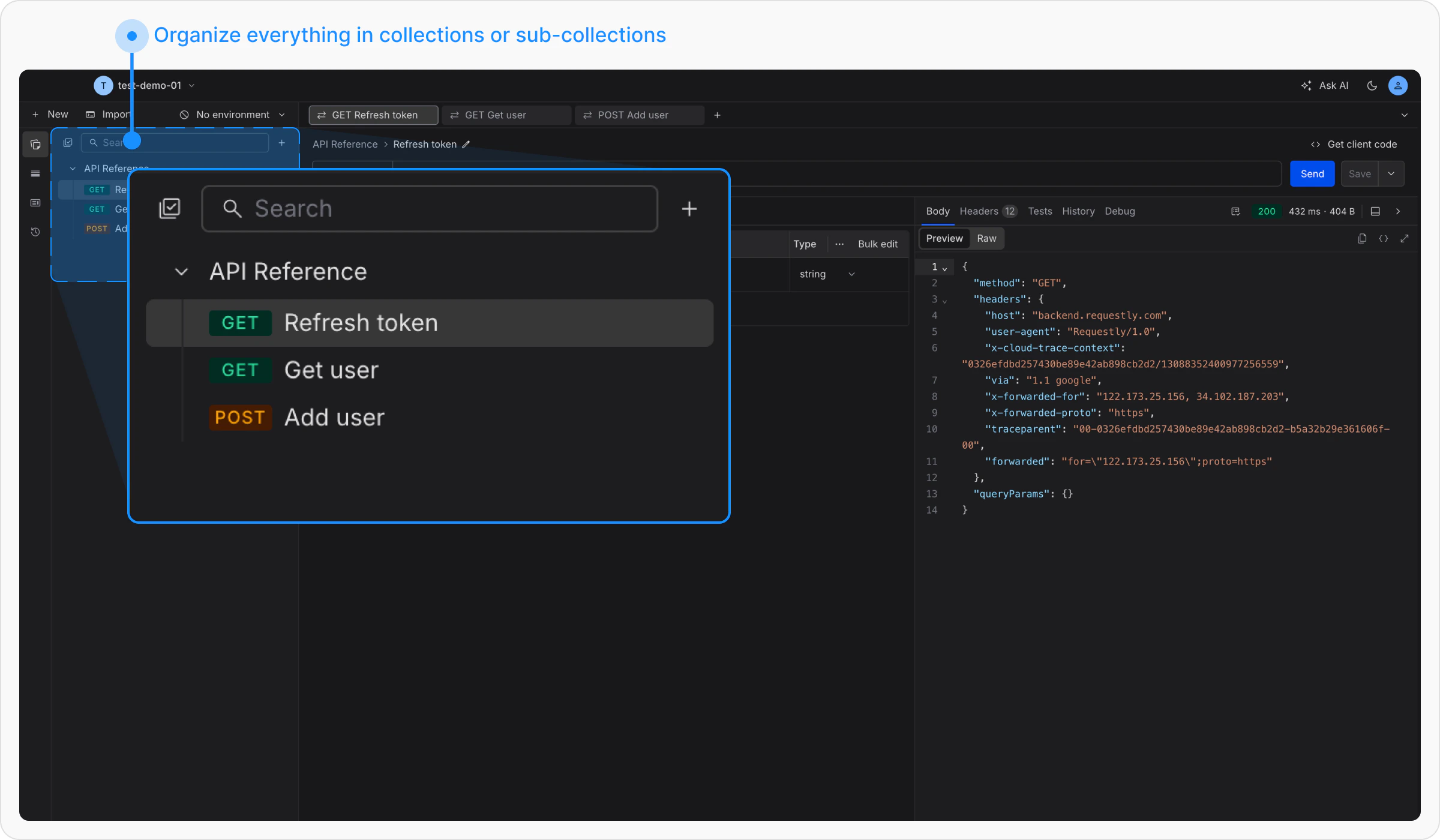
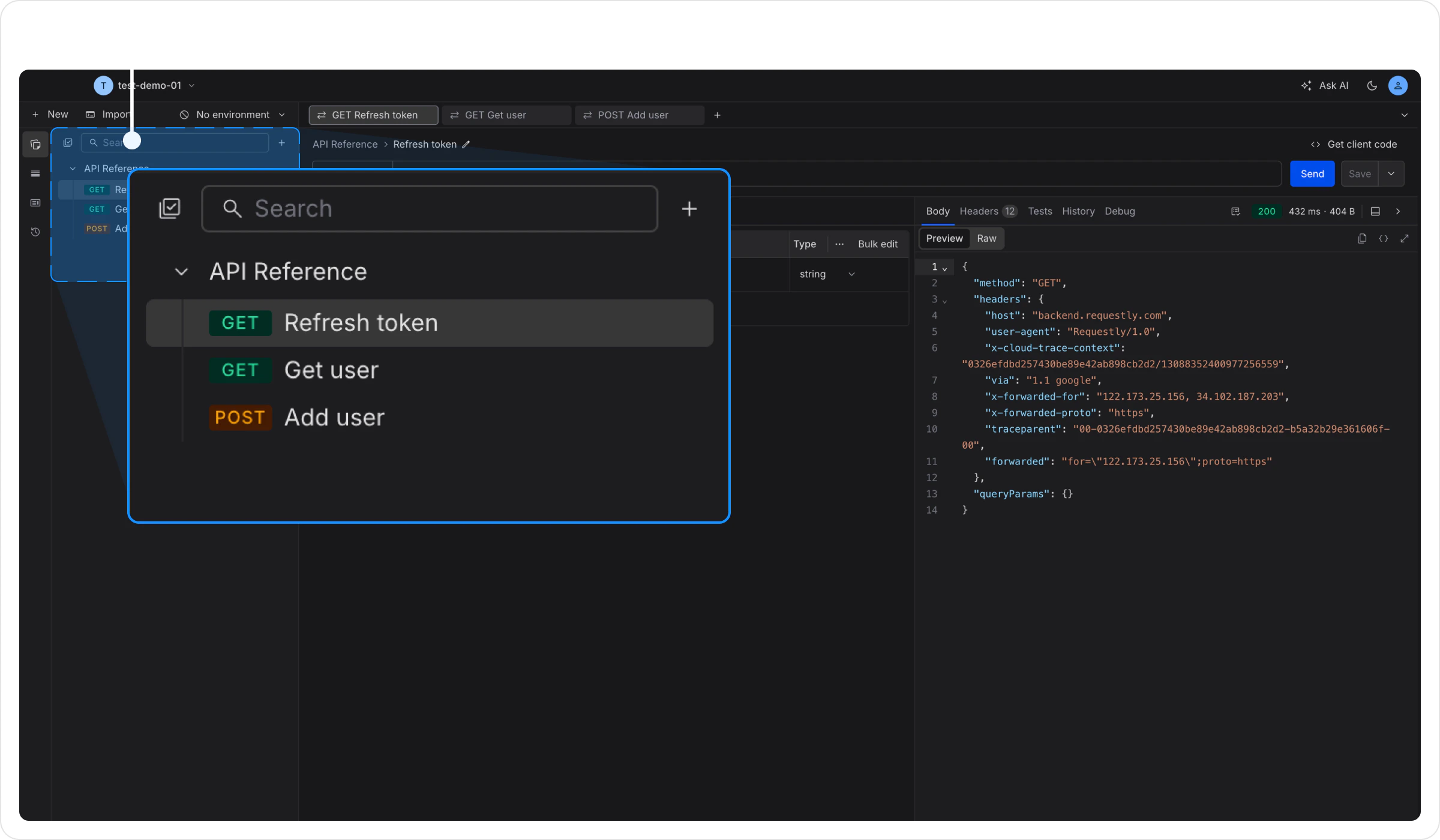 **Step 2:** Provide a descriptive name (e.g., “User Management APIs”) and hit **Enter**.
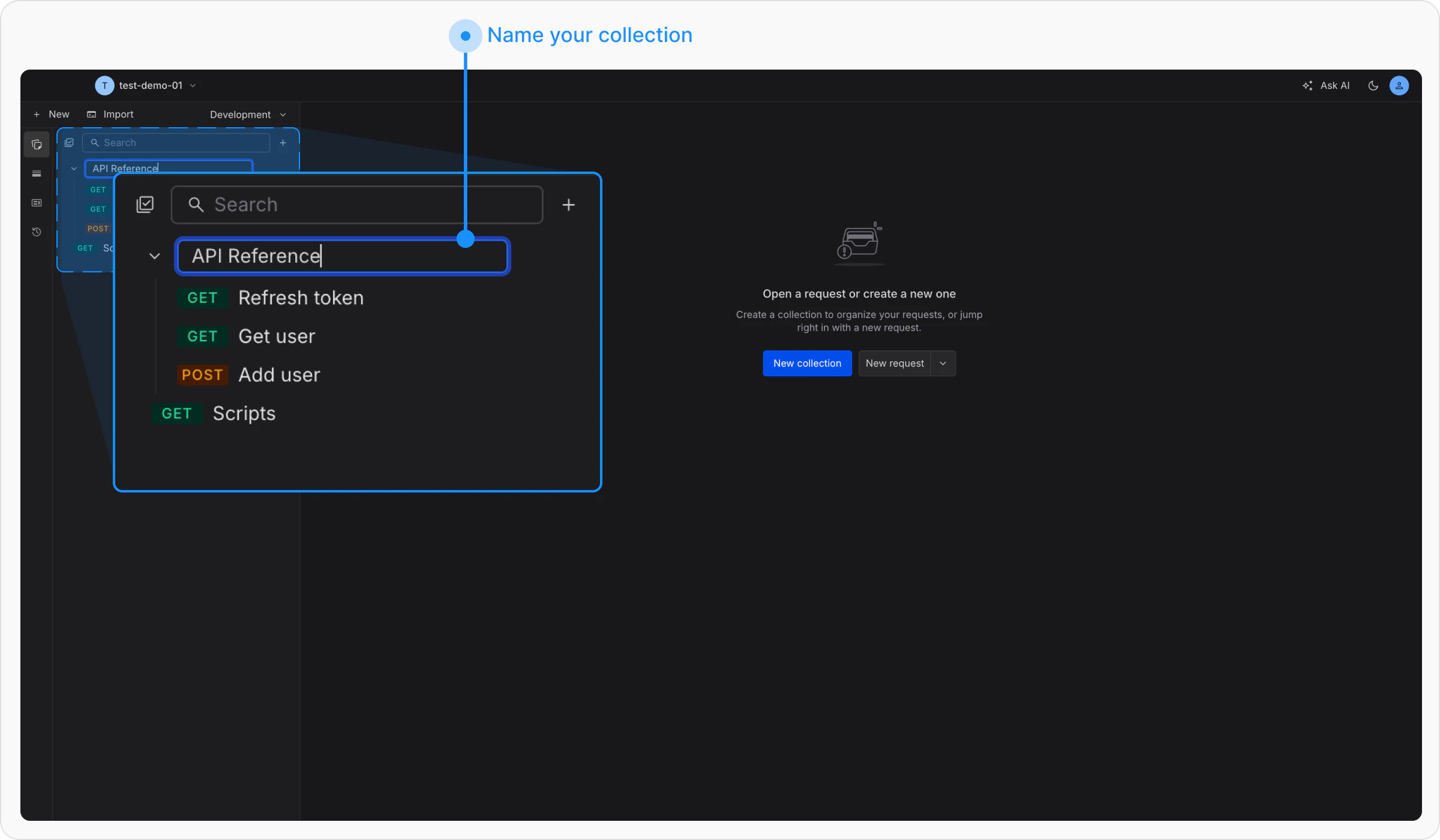
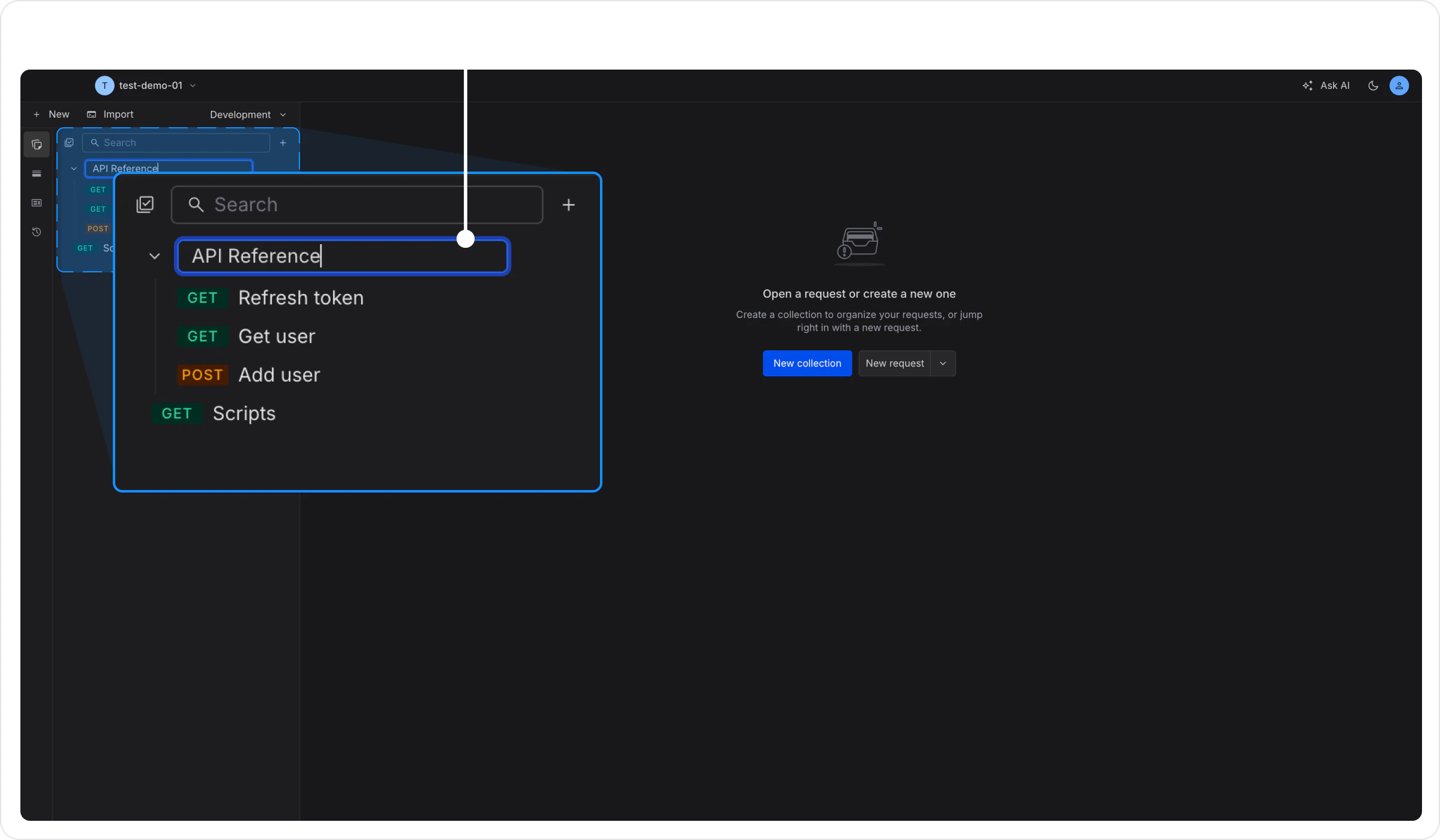 Once a collection is created, you can add requests and sub-collections.
## Rename API Collection
**Step 1:** Click the **More** icon next to the collection name you want to rename, then select Rename.
Once a collection is created, you can add requests and sub-collections.
## Rename API Collection
**Step 1:** Click the **More** icon next to the collection name you want to rename, then select Rename.
 **Step 2:** An inline input field will appear with the current name. Update the name and press **Enter** to save the changes.
 ## Delete API Collection
**Step 1:** Click the **More** icon next to the collection name and select `Delete`.
**Step 2:** Confirm the action in the Delete Collection prompt.
## Delete API Collection
**Step 1:** Click the **More** icon next to the collection name and select `Delete`.
**Step 2:** Confirm the action in the Delete Collection prompt.
 **Step 2:** Provide a descriptive name (e.g., “Login APIs”) and press **Enter**.
 ## Collection Variables
Collections include a **collection variables** feature that allows you to define and manage reusable values specific to the collection. Collection Variables are defined as key-value pairs that work as the base set of variables for collections. They can be used in API definitions with double curly braces `{{collection_variable}}`
Learn more about this feature on the [Variables](/api-client/environments-and-variables) page.
## Collection Runner
The **Collection Runner** allows you to execute multiple API requests from a collection sequentially in a single run. It helps automate request workflows such as *login → create resource → fetch resource* while utilizing existing variables and scripting capabilities.
Use it to configure iterations, delays, and environments, view detailed run results, debug failed requests, and export summaries for analysis.
Learn more about this feature on the [**Collection Runner**](https://docs.requestly.com/api-client/collection-runner) page.
## Collection Variables
Collections include a **collection variables** feature that allows you to define and manage reusable values specific to the collection. Collection Variables are defined as key-value pairs that work as the base set of variables for collections. They can be used in API definitions with double curly braces `{{collection_variable}}`
Learn more about this feature on the [Variables](/api-client/environments-and-variables) page.
## Collection Runner
The **Collection Runner** allows you to execute multiple API requests from a collection sequentially in a single run. It helps automate request workflows such as *login → create resource → fetch resource* while utilizing existing variables and scripting capabilities.
Use it to configure iterations, delays, and environments, view detailed run results, debug failed requests, and export summaries for analysis.
Learn more about this feature on the [**Collection Runner**](https://docs.requestly.com/api-client/collection-runner) page.