> ## Documentation Index
> Fetch the complete documentation index at: https://docs.requestly.com/llms.txt
> Use this file to discover all available pages before exploring further.
# Issues & Governance
> Read the Issues panel of a specification, understand which severities block actions, and suppress a governance rule you do not want to follow.
Every time you edit a specification, Requestly re-checks it and reports what it found in the **Issues** panel at the bottom of the spec editor. The panel is the one place that answers three different questions: is my document still valid, does it follow the API rules, and why is a button greyed out.
The panel has two tabs, and the difference between them matters:
* **Syntax**: the document could not be read, or a `$ref` in it points at something that does not exist. Everything here is an error.
* **Governance**: the document reads fine, but a rule about how an API should be described was not satisfied. Findings here carry a severity, and most of them do not block anything.
The panel docks to the bottom or to the right of the editor and collapses out of the way, using the controls on the panel itself. Clicking a tab while the panel is collapsed expands it.
## Read the Syntax tab
The Syntax tab lists two kinds of problem:
* **Parse errors**: the YAML or JSON is malformed. If the specification is saved as JSON, Requestly also rejects YAML-only constructs that plain JSON does not allow, so a file that is nearly-JSON is caught rather than quietly accepted.
* **Broken references**: a `$ref` cannot be resolved, either inside the document or against your project's [component library](/api-client/api-design/component-library). The same component referenced from three places produces three rows, each pointing at its own line.
Both kinds are always errors, and both block the actions listed under [What blocks and what only warns](#what-blocks-and-what-only-warns).
## Read the Governance tab
Governance checks come from the standard OpenAPI rule set, so the rules are the same ones your team probably already runs in CI.
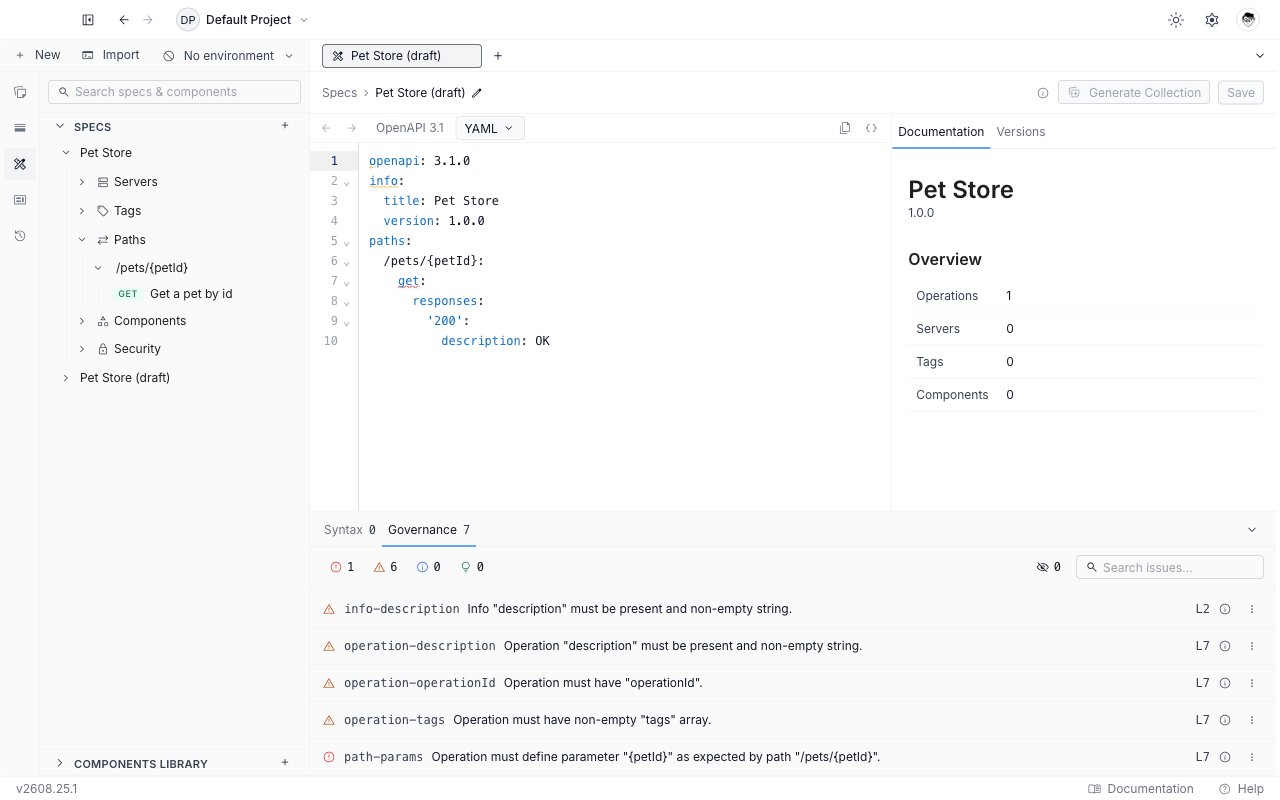
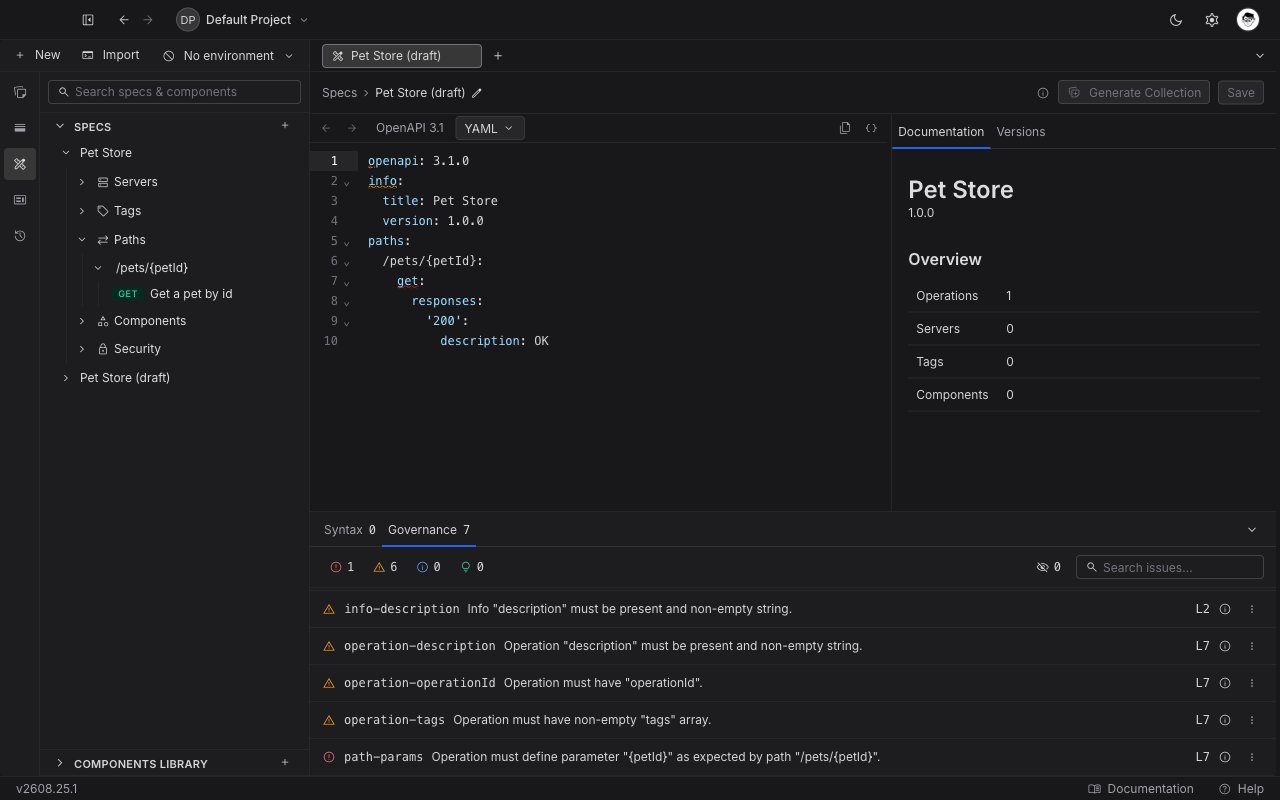 Each row reads left to right: a severity icon, the rule id that fired, the message, and the line it was found on.
* **Click the row** to jump the editor to that line. Issues also appear as inline markers in the editor itself, so you can work from either surface.
* **Hover the info icon** for the rule's own description, the path inside the document that the rule was looking at, and a **Learn more** link to the rule's reference page.
* **Open the three-dot menu** to suppress the rule. See [Suppress a rule](#suppress-a-rule).
Above the list, four chips filter by severity and show the count for each: **Errors**, **Warnings**, **Info** and **Hints**. Click a chip to filter by it, click it again to clear. With no chip selected, everything is shown. The search box next to them matches on both the message and the rule id, so typing `operationId` narrows to that rule.
The rule ids and the **Learn more** links come from Spectral's OpenAPI ruleset. Searching a rule id such as `path-params` finds the same reference page the link opens.
## What blocks and what only warns
This is the part worth getting exactly right, because it decides which buttons you can press.
| Severity | Shown as | Blocks Generate Collection, Update Collections and Release version? |
| -------- | ------------------ | ------------------------------------------------------------------- |
| Error | Red error icon | **Yes.** One error is enough. |
| Warning | Amber warning icon | No. |
| Info | Blue info icon | No. |
| Hint | Green lightbulb | No. |
Everything on the **Syntax** tab counts as an error, and so does any **Governance** finding whose severity is Error. Nothing else blocks. A specification with thirty warnings and no errors generates and releases perfectly well.
Most governance rules are warnings. The rules that carry Error severity are the ones where the document is genuinely wrong rather than merely unconventional, for example an operation whose path is `/pets/{petId}` but which never declares a `petId` path parameter.
While the check is still running, the same actions stay disabled and read "Checking validation...". Requestly will not act on a specification it has not finished checking, so give it a moment after a large edit.
When an action is blocked, its tooltip names the count, for example "3 errors blocking - check bottom panel". Click the greyed-out button anyway: Requestly opens the Issues panel on the **Governance** tab filtered to errors, so you land on the rows you have to clear.
## Suppress a rule
If a rule is not one your team follows, turn it off instead of editing your API to satisfy it.
Open the **Issues** panel, switch to **Governance**, and locate any row produced by the rule you want to stop seeing.
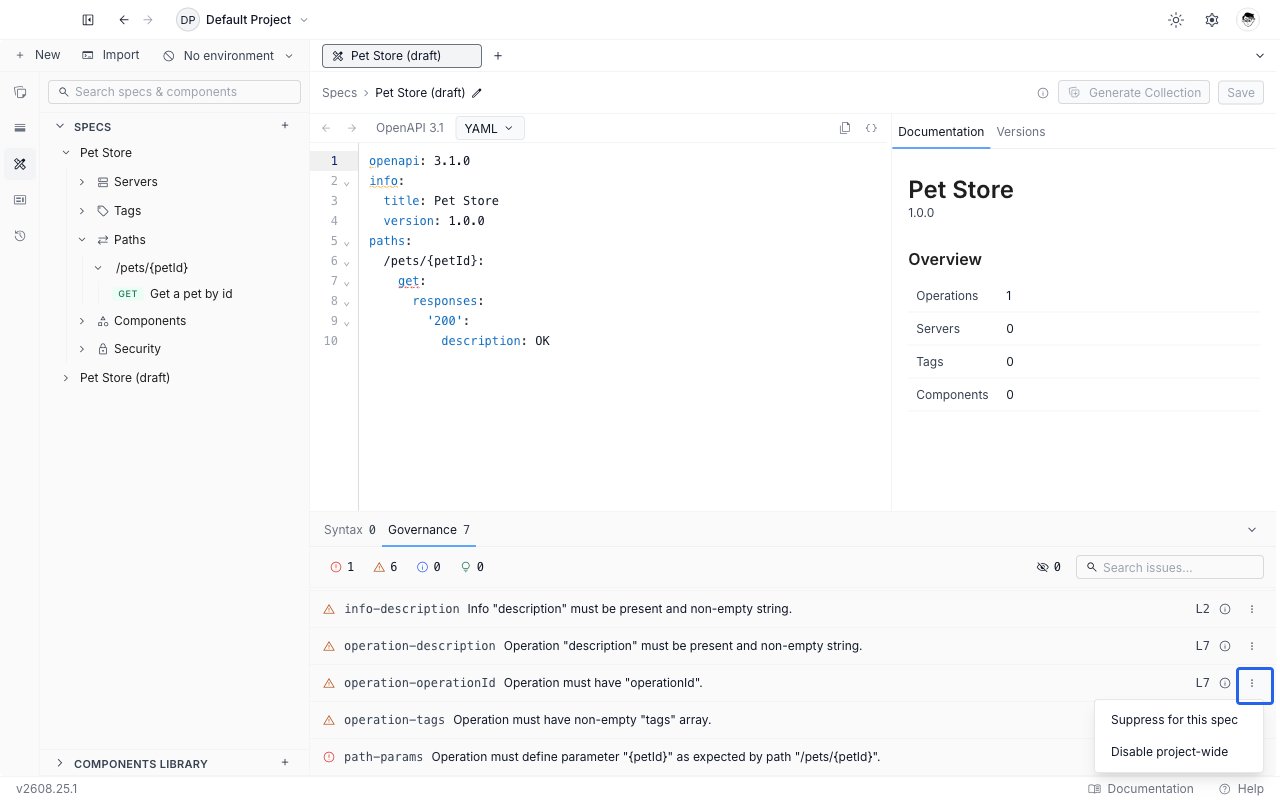
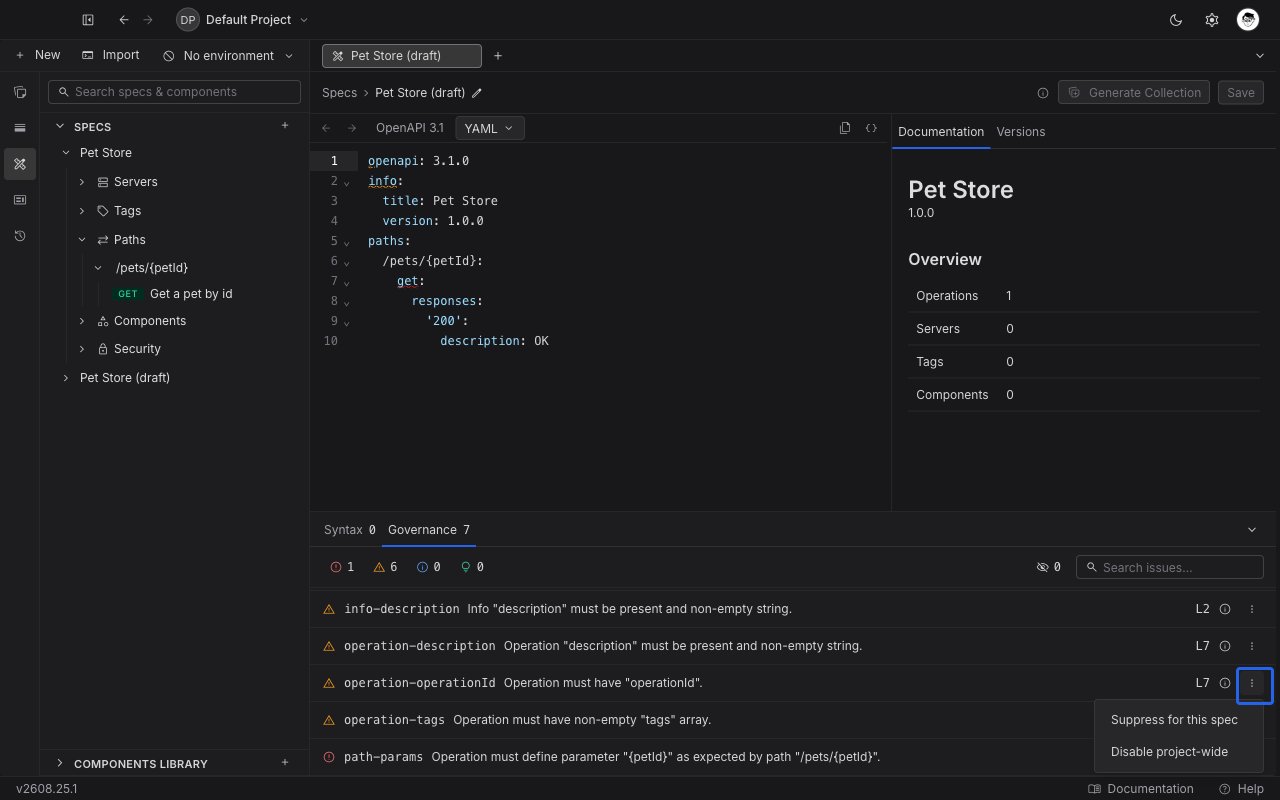
Click the three-dot button at the right of the row. Two choices appear:
* **Suppress for this spec**: the rule stops firing on this specification only.
* **Disable project-wide**: the rule stops firing on every specification in this project.
Each row reads left to right: a severity icon, the rule id that fired, the message, and the line it was found on.
* **Click the row** to jump the editor to that line. Issues also appear as inline markers in the editor itself, so you can work from either surface.
* **Hover the info icon** for the rule's own description, the path inside the document that the rule was looking at, and a **Learn more** link to the rule's reference page.
* **Open the three-dot menu** to suppress the rule. See [Suppress a rule](#suppress-a-rule).
Above the list, four chips filter by severity and show the count for each: **Errors**, **Warnings**, **Info** and **Hints**. Click a chip to filter by it, click it again to clear. With no chip selected, everything is shown. The search box next to them matches on both the message and the rule id, so typing `operationId` narrows to that rule.
The rule ids and the **Learn more** links come from Spectral's OpenAPI ruleset. Searching a rule id such as `path-params` finds the same reference page the link opens.
## What blocks and what only warns
This is the part worth getting exactly right, because it decides which buttons you can press.
| Severity | Shown as | Blocks Generate Collection, Update Collections and Release version? |
| -------- | ------------------ | ------------------------------------------------------------------- |
| Error | Red error icon | **Yes.** One error is enough. |
| Warning | Amber warning icon | No. |
| Info | Blue info icon | No. |
| Hint | Green lightbulb | No. |
Everything on the **Syntax** tab counts as an error, and so does any **Governance** finding whose severity is Error. Nothing else blocks. A specification with thirty warnings and no errors generates and releases perfectly well.
Most governance rules are warnings. The rules that carry Error severity are the ones where the document is genuinely wrong rather than merely unconventional, for example an operation whose path is `/pets/{petId}` but which never declares a `petId` path parameter.
While the check is still running, the same actions stay disabled and read "Checking validation...". Requestly will not act on a specification it has not finished checking, so give it a moment after a large edit.
When an action is blocked, its tooltip names the count, for example "3 errors blocking - check bottom panel". Click the greyed-out button anyway: Requestly opens the Issues panel on the **Governance** tab filtered to errors, so you land on the rows you have to clear.
## Suppress a rule
If a rule is not one your team follows, turn it off instead of editing your API to satisfy it.
Open the **Issues** panel, switch to **Governance**, and locate any row produced by the rule you want to stop seeing.
Click the three-dot button at the right of the row. Two choices appear:
* **Suppress for this spec**: the rule stops firing on this specification only.
* **Disable project-wide**: the rule stops firing on every specification in this project.
 The rule's rows disappear from the list and its counts drop. Suppression is saved immediately, so you do not have to save the specification afterwards, and it survives a reload.
Suppressing a rule that was reporting an error clears the block. Once the last error is gone, Generate Collection, Update Collections and Release version become available.
Suppression is per rule, not per occurrence: you cannot silence one line and keep the rule elsewhere in the same document. Suppressing in either scope silences the rule, and the two lists are kept separate: restoring a rule under **This spec** does not bring back one you disabled project-wide, and the reverse is also true. Restore a rule in the tab it was suppressed from.
## Review and restore suppressed rules
Suppressions are easy to forget, so the Governance tab keeps a running count of them. The button with the crossed-out eye, to the left of the search box, shows how many rules are suppressed across both scopes. Click it to open the **Suppressed rules** drawer.
The rule's rows disappear from the list and its counts drop. Suppression is saved immediately, so you do not have to save the specification afterwards, and it survives a reload.
Suppressing a rule that was reporting an error clears the block. Once the last error is gone, Generate Collection, Update Collections and Release version become available.
Suppression is per rule, not per occurrence: you cannot silence one line and keep the rule elsewhere in the same document. Suppressing in either scope silences the rule, and the two lists are kept separate: restoring a rule under **This spec** does not bring back one you disabled project-wide, and the reverse is also true. Restore a rule in the tab it was suppressed from.
## Review and restore suppressed rules
Suppressions are easy to forget, so the Governance tab keeps a running count of them. The button with the crossed-out eye, to the left of the search box, shows how many rules are suppressed across both scopes. Click it to open the **Suppressed rules** drawer.
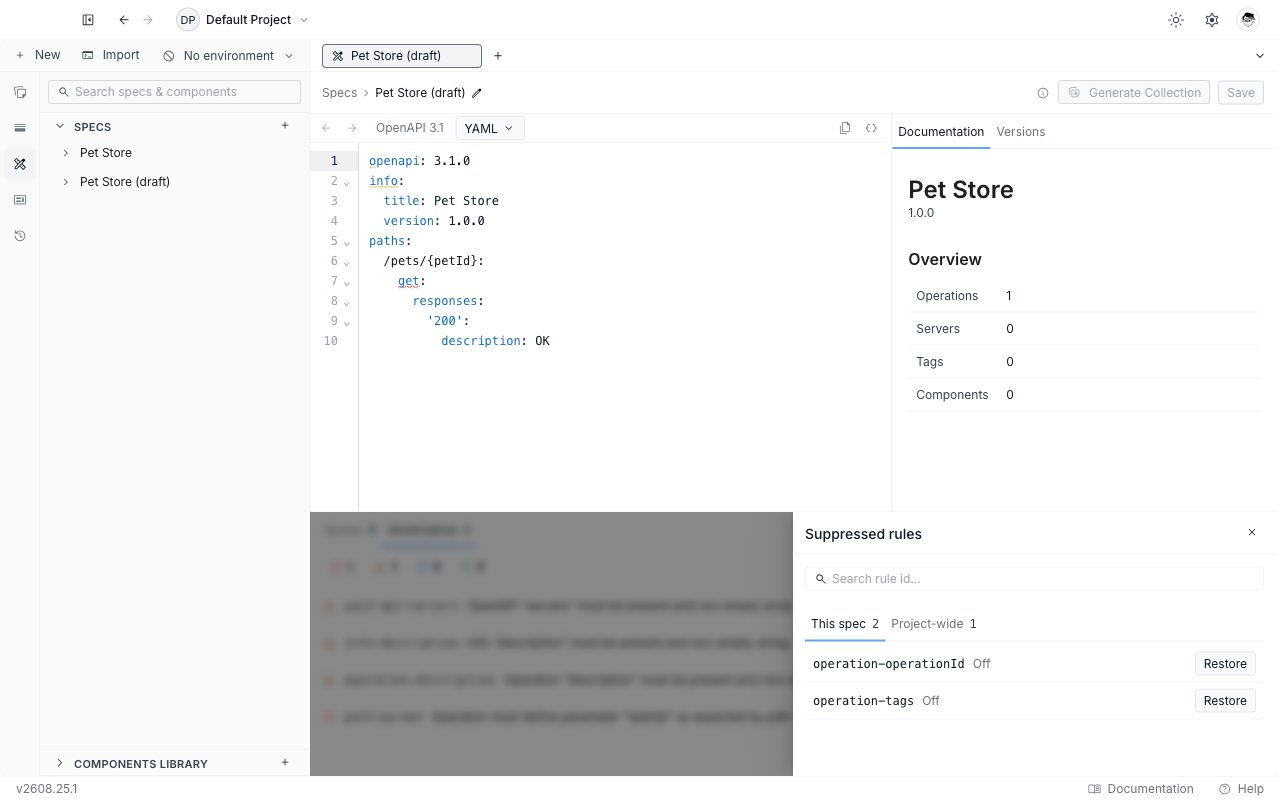
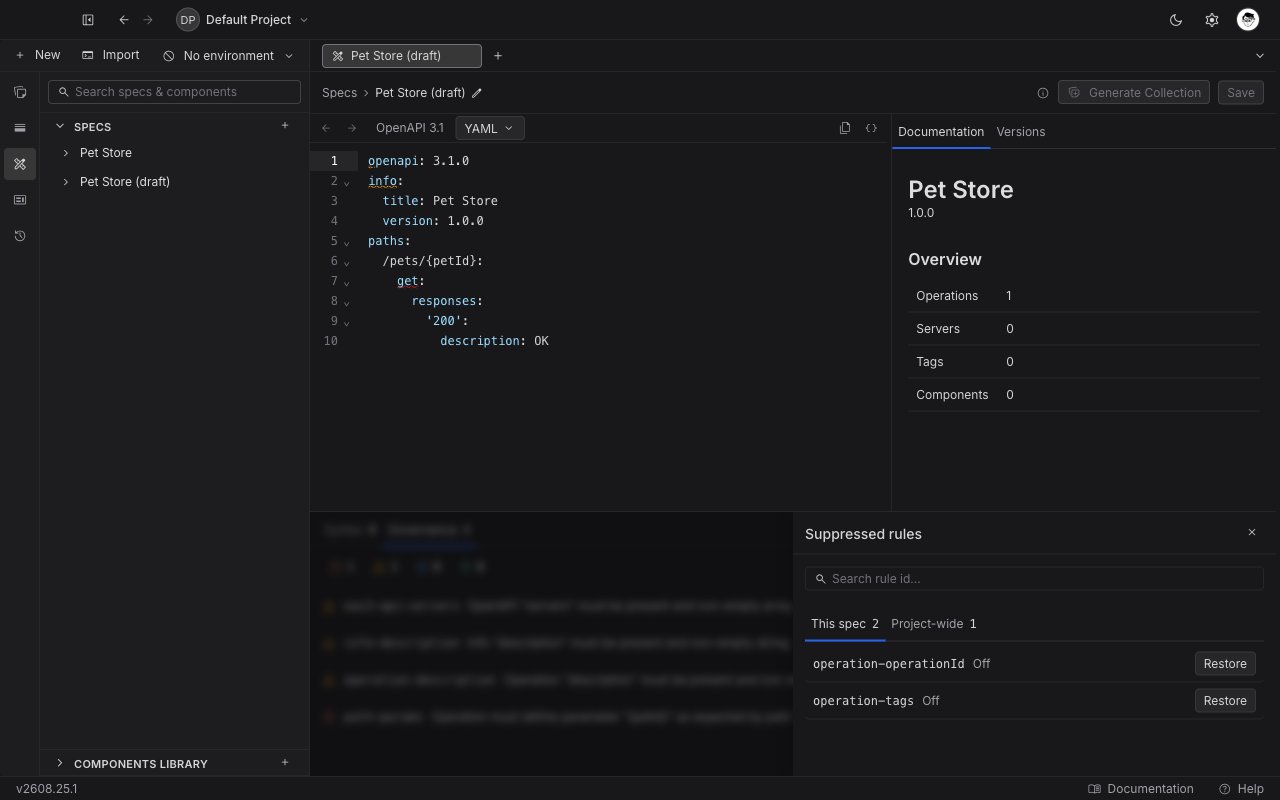 The drawer splits the list in two tabs, each with its own count:
* **This spec**: rules suppressed on the specification you have open.
* **Project-wide**: rules suppressed for every specification in the project.
Search by rule id to find one in a long list, then click **Restore** to bring the rule back. Restoring re-runs the checks, so any findings that rule was hiding reappear immediately, including errors that will block again.
## Next steps
* [Generate and update a collection from a specification](/api-client/api-design/sync-a-collection-from-a-specification), the first action the validation gate protects.
* [Release a version of a specification](/api-client/api-design/versions-and-releases), which is blocked by the same errors.
* [Create and edit a specification](/api-client/api-design/create-and-edit-a-specification) for the editor surface itself.
The drawer splits the list in two tabs, each with its own count:
* **This spec**: rules suppressed on the specification you have open.
* **Project-wide**: rules suppressed for every specification in the project.
Search by rule id to find one in a long list, then click **Restore** to bring the rule back. Restoring re-runs the checks, so any findings that rule was hiding reappear immediately, including errors that will block again.
## Next steps
* [Generate and update a collection from a specification](/api-client/api-design/sync-a-collection-from-a-specification), the first action the validation gate protects.
* [Release a version of a specification](/api-client/api-design/versions-and-releases), which is blocked by the same errors.
* [Create and edit a specification](/api-client/api-design/create-and-edit-a-specification) for the editor surface itself.