> ## Documentation Index
> Fetch the complete documentation index at: https://docs.requestly.com/llms.txt
> Use this file to discover all available pages before exploring further.
# Sync a Collection from a Specification
> Generate a runnable API collection from an OpenAPI specification, then keep it in step with the spec using Update Collections.
A specification describes your API. A [collection](/api-client/api-collections) is what you actually send requests with. API Design connects the two: generate a collection from a specification once, then push later spec changes into it whenever you want.
The sync only runs one way. The specification is the source of truth, and editing the generated collection never changes the specification. Anything you write in the collection that the spec does not describe stays in the collection alone.
That is the single most important thing on this page. If you change a path in the collection expecting the spec to follow, it will not, and the next update will flag your request as new.
## Prerequisites
* The specification is saved. A brand new, unsaved specification cannot generate a collection yet; the button explains that.
* The specification has at least one path. A document with an empty `paths` cannot produce a collection, and the button says so before you click.
* The specification has no blocking issues. See [Issues & Governance](/api-client/api-design/issues-and-governance) for which severities block.
* Your role can create and update items in the project. A viewer sees the buttons disabled with the reason.
## Generate a collection
Switch the API Client sidebar to **API Design** and open the specification from the **Specs** section.
In the editor toolbar, click **Generate Collection**. If the specification already has collections linked to it, the toolbar shows a **Collections** button instead: open it and click **+ Generate Collection** inside.
You can also start from the sidebar: open the specification's three-dot menu and choose **Generate collection**.
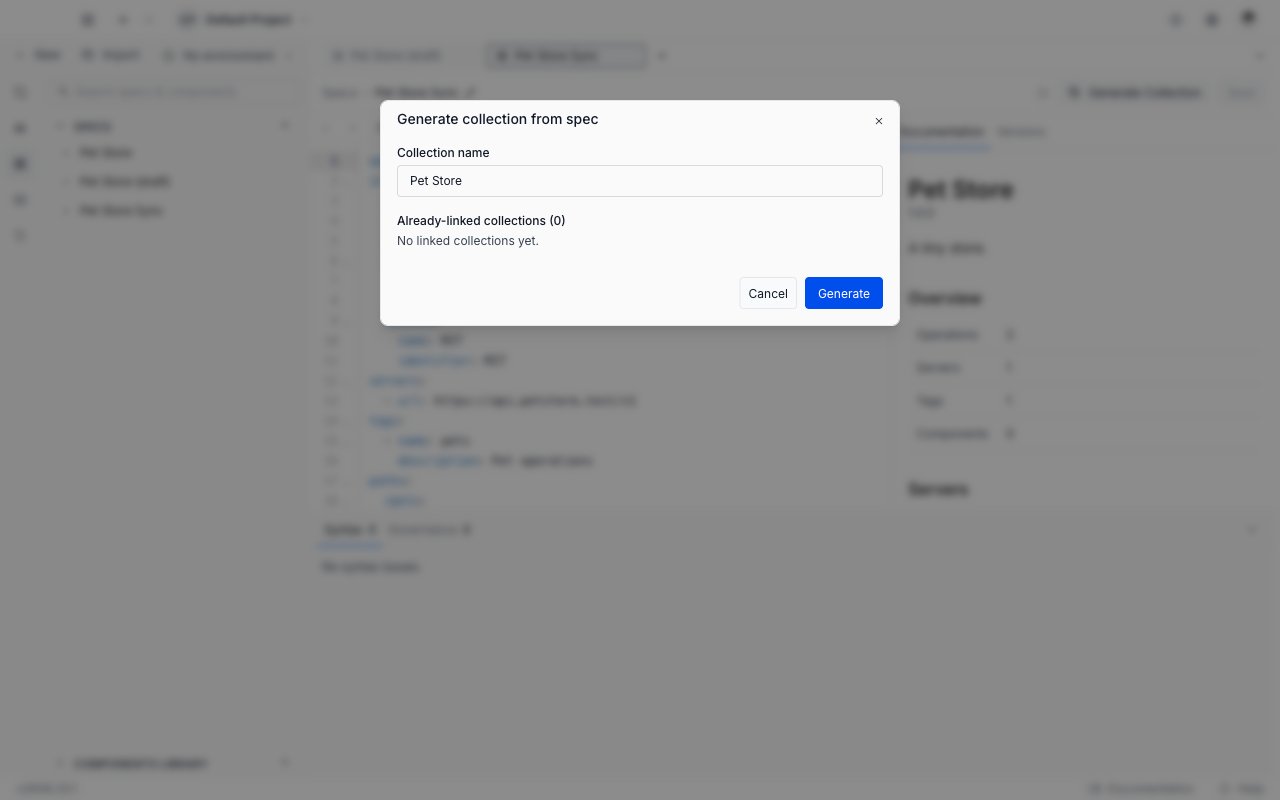
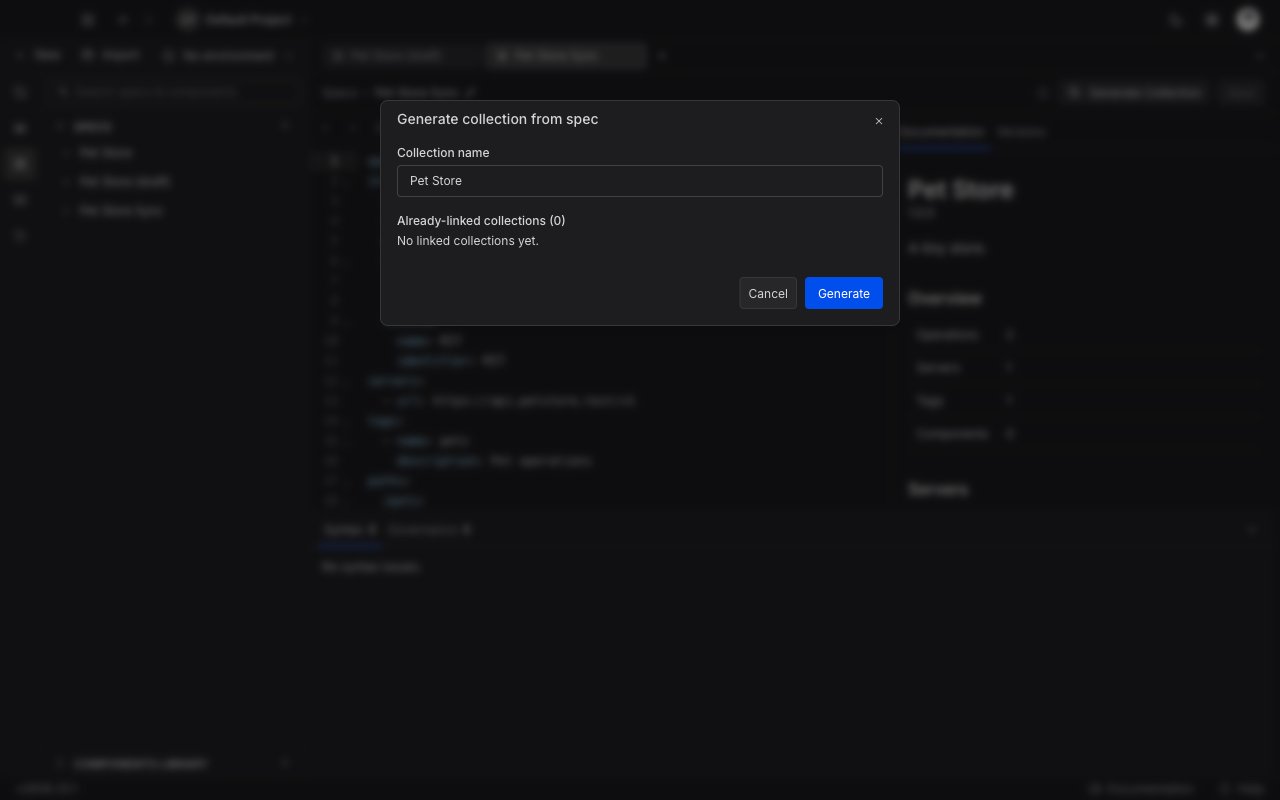 Type a name and click **Generate**. The dialog also lists any collections already linked to this specification, so you can tell whether you are about to create a duplicate.
A new top-level collection appears in the sidebar. Folders come from your URL path segments, and each operation becomes one request with its method, URL, headers, query parameters, path variables, body and content type already filled in.
Generate always creates a **new** top-level collection. You cannot attach an existing collection to a specification, and generated collections are always top level rather than nested inside another collection.
One specification can have several linked collections, which is useful when different teams want their own copy. Each one is tracked separately and updated separately.
## Keep a linked collection up to date
Once a collection is linked, Requestly watches the specification and works out what has drifted. You do not have to ask it to check.
When something has drifted, the toolbar button changes: it reads **Update Collections** with a count of pending changes and picks up a warning icon. Open it to see one row per linked collection.
Type a name and click **Generate**. The dialog also lists any collections already linked to this specification, so you can tell whether you are about to create a duplicate.
A new top-level collection appears in the sidebar. Folders come from your URL path segments, and each operation becomes one request with its method, URL, headers, query parameters, path variables, body and content type already filled in.
Generate always creates a **new** top-level collection. You cannot attach an existing collection to a specification, and generated collections are always top level rather than nested inside another collection.
One specification can have several linked collections, which is useful when different teams want their own copy. Each one is tracked separately and updated separately.
## Keep a linked collection up to date
Once a collection is linked, Requestly watches the specification and works out what has drifted. You do not have to ask it to check.
When something has drifted, the toolbar button changes: it reads **Update Collections** with a count of pending changes and picks up a warning icon. Open it to see one row per linked collection.
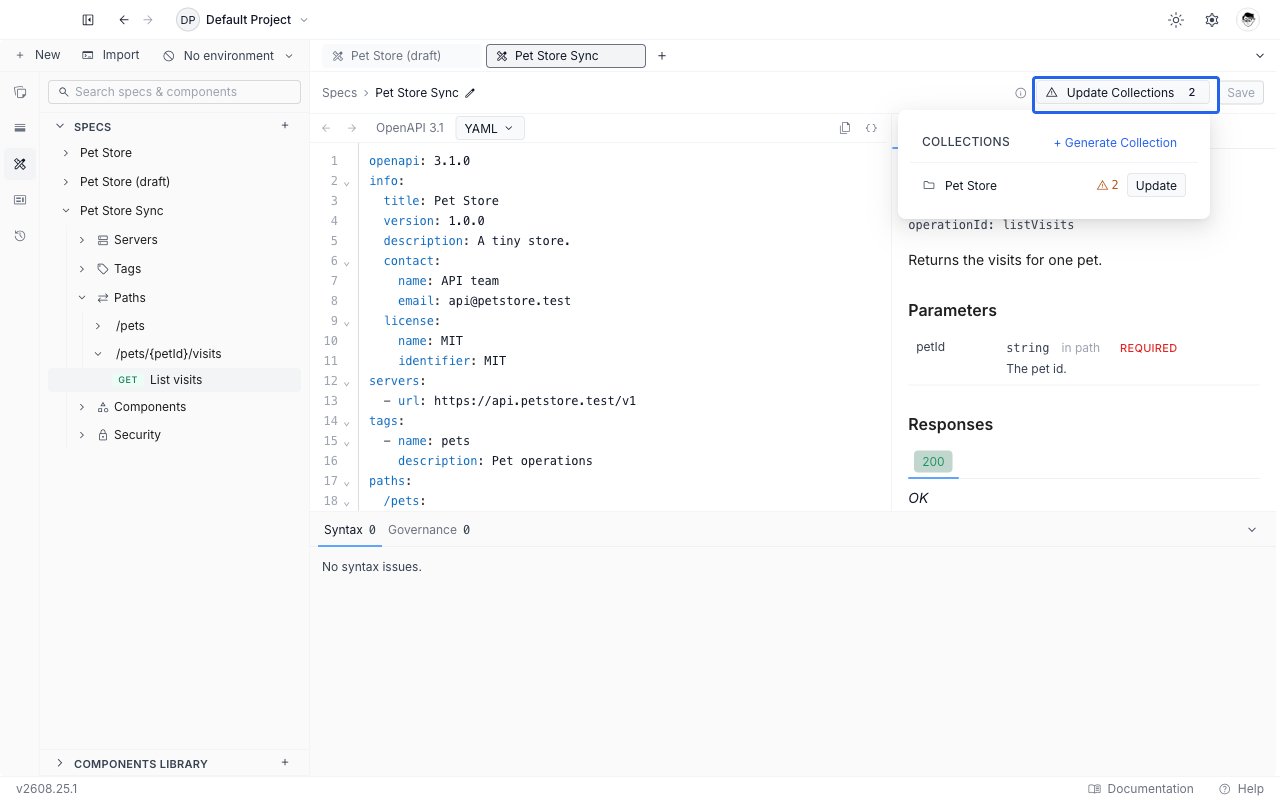
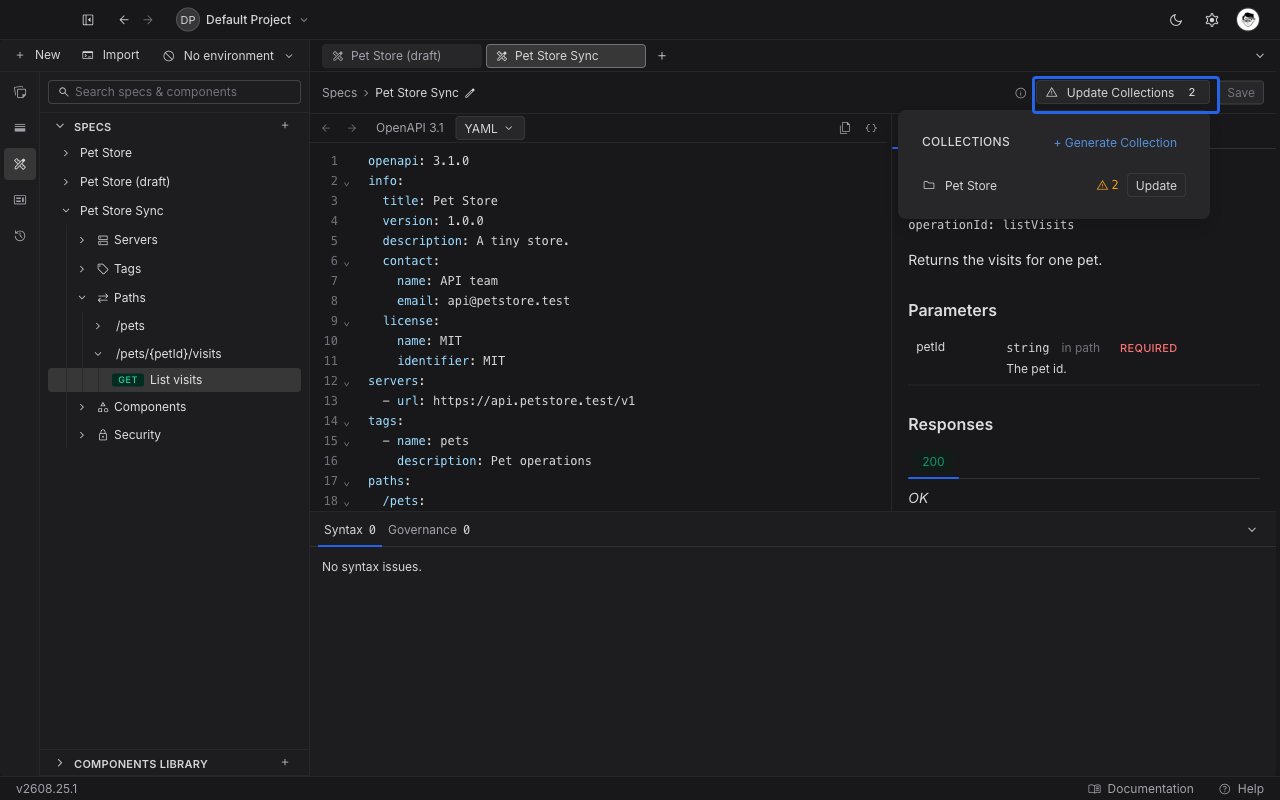 Each row shows the collection's name, an amber count when it has pending changes, and an **Update** button. Click the name to open that collection in a tab. If a row has nothing pending, its Update button is disabled and says "No pending changes".
Click **Update Collections** in the spec editor toolbar.
Requestly opens a preview of exactly what would change in that one collection. Nothing has been written yet.
Changes are grouped by kind, and each group has an info icon explaining what happens to your own edits. See [What the preview tells you](#what-the-preview-tells-you).
Each row shows the collection's name, an amber count when it has pending changes, and an **Update** button. Click the name to open that collection in a tab. If a row has nothing pending, its Update button is disabled and says "No pending changes".
Click **Update Collections** in the spec editor toolbar.
Requestly opens a preview of exactly what would change in that one collection. Nothing has been written yet.
Changes are grouped by kind, and each group has an info icon explaining what happens to your own edits. See [What the preview tells you](#what-the-preview-tells-you).
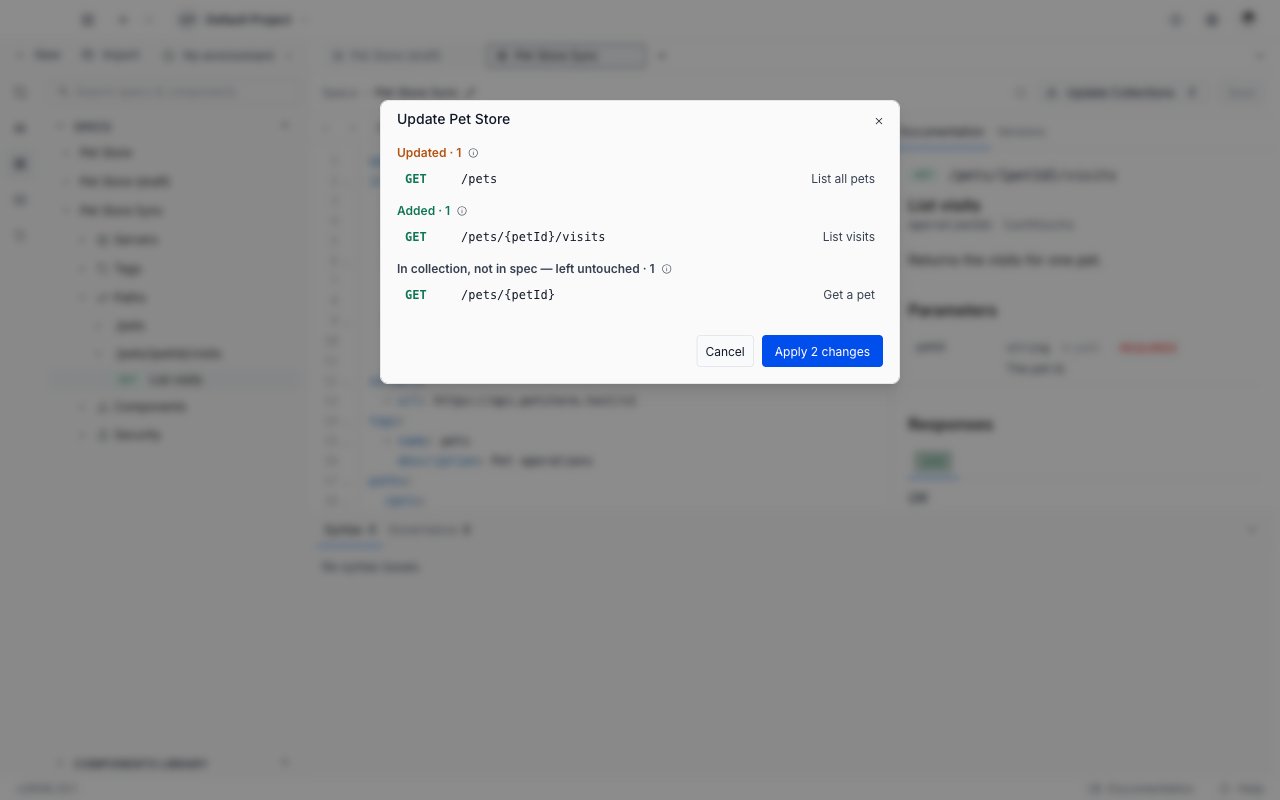
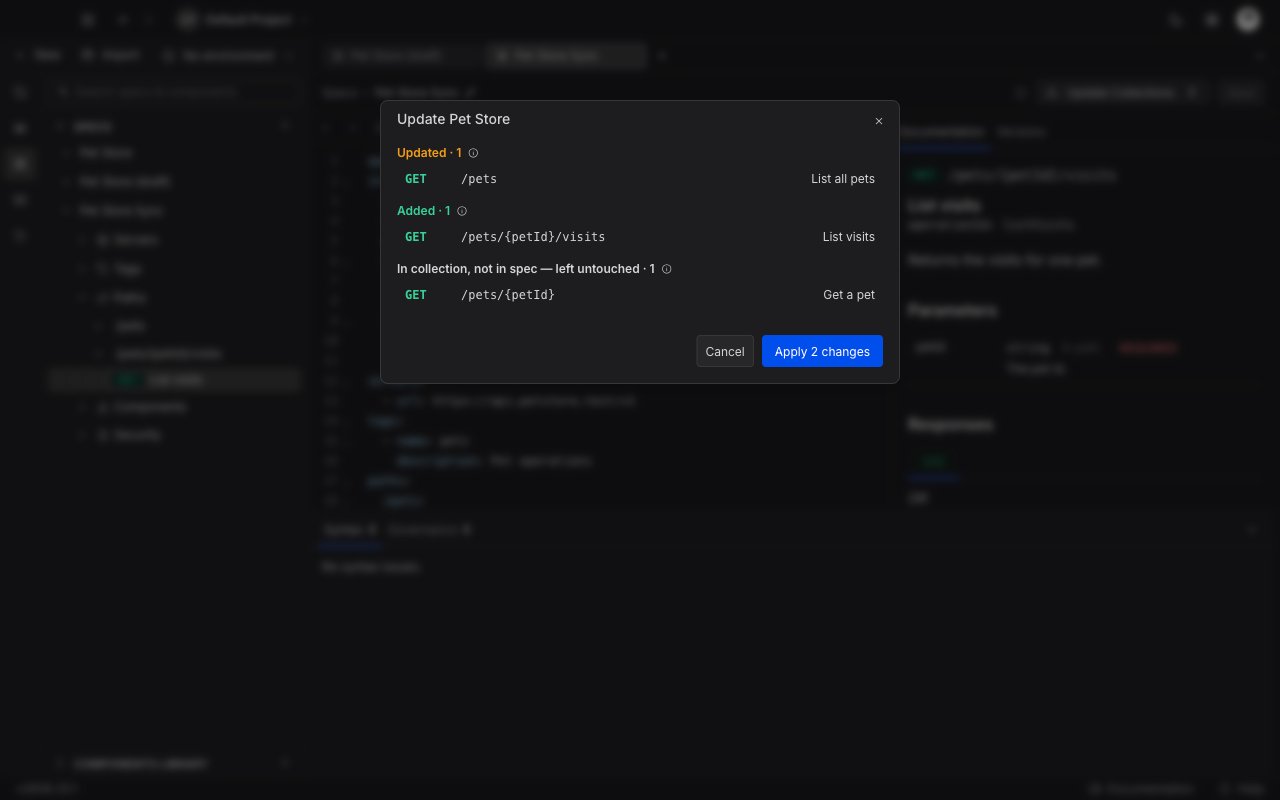 Click **Apply n changes**. Everything actionable in the preview is applied together; there is no per-row opt out. Requestly confirms how many changes landed.
After a successful apply, the toolbar button drops back to **Collections** with no count. That is how you know the collection matches the specification.
## What Update Collections tracks
Update applies content changes as well as structural ones, so an edit to a request body or a query parameter in the spec does reach the collection.
**Tracked:**
* Operations added, removed or renamed, by method and path
* Operations moved between folders
* An operation's summary or description
* Request headers, query parameters, path variables, body and content type
* Folder renames, and folder descriptions taken from your OpenAPI tags
* The linked collection's own description, taken from the specification's top-level description
**Not tracked:** response definitions, security schemes, examples and callbacks. The linked collection's **name** is also never overwritten, because you chose it when you generated the collection.
A similar info icon sits next to the toolbar button in the product, so you can check what is tracked without opening a preview.
## What the preview tells you
The preview is grouped so you can see the risk before you accept it. Each group's info icon states what survives.
| Group | What it means |
| ------------------------------ | -------------------------------------------------------------------------------------------------------------------------------------- |
| **Added** | New requests created under the matching path folder. |
| **Renamed** | The request's URL is updated in place. Your auth, body, headers and captured responses are preserved. |
| **Moved** | The request is re-parented to match the spec's path. Auth, body, headers and captured responses are preserved. |
| **Updated** | Spec-side content changed, such as a summary, description, parameter or body. Your auth, scripts and captured responses are preserved. |
| **Folders renamed** | The folder name is updated in place. Requests inside it, and their auth and variables, are preserved. |
| **Folders updated** | The folder description is updated from the OpenAPI tag. Folder auth, variables and scripts are preserved. |
| **Folders removed** | Folders left empty by moved requests are tidied up. |
| **In collection, not in spec** | Informational only. These requests have no operation in the specification. |
The last row is the one worth reading twice. Requests that exist in the collection but not in the specification are **never** deleted by Apply. They are listed so you know they are there, they are not counted in the change total, and you have to remove them yourself if you do not want them.
A request lands in that group for one of two reasons: it really was removed from the specification, or it cannot be expressed in one. Two requests that share the same path and method, such as two query-string variants of the same endpoint, collapse to a single operation, so one of them will always show up here.
## When the specification cannot be synced
* **Errors in the specification.** The Update and Generate buttons are disabled and the tooltip names the count, for example "2 errors blocking - check bottom panel". Click the disabled button to jump straight to the offending rows in the [Issues panel](/api-client/api-design/issues-and-governance).
* **The check has not finished.** Immediately after a large edit the buttons read "Checking validation..." and stay disabled until the check completes.
* **Unsupported features.** If your specification uses something the collection format cannot represent, the Collections popover lists it under an "unsupported features" note. The rest of the specification still generates and updates normally.
* **The specification was deleted while the preview was open.** Apply stops and tells you to reopen the specification.
## Next steps
* [Issues & Governance](/api-client/api-design/issues-and-governance) to clear whatever is blocking a sync.
* [Versions and releases](/api-client/api-design/versions-and-releases) to pin a snapshot of the specification for downstream consumers.
* [API Design overview](/api-client/api-design/overview) for how specifications, components and collections fit together.
Click **Apply n changes**. Everything actionable in the preview is applied together; there is no per-row opt out. Requestly confirms how many changes landed.
After a successful apply, the toolbar button drops back to **Collections** with no count. That is how you know the collection matches the specification.
## What Update Collections tracks
Update applies content changes as well as structural ones, so an edit to a request body or a query parameter in the spec does reach the collection.
**Tracked:**
* Operations added, removed or renamed, by method and path
* Operations moved between folders
* An operation's summary or description
* Request headers, query parameters, path variables, body and content type
* Folder renames, and folder descriptions taken from your OpenAPI tags
* The linked collection's own description, taken from the specification's top-level description
**Not tracked:** response definitions, security schemes, examples and callbacks. The linked collection's **name** is also never overwritten, because you chose it when you generated the collection.
A similar info icon sits next to the toolbar button in the product, so you can check what is tracked without opening a preview.
## What the preview tells you
The preview is grouped so you can see the risk before you accept it. Each group's info icon states what survives.
| Group | What it means |
| ------------------------------ | -------------------------------------------------------------------------------------------------------------------------------------- |
| **Added** | New requests created under the matching path folder. |
| **Renamed** | The request's URL is updated in place. Your auth, body, headers and captured responses are preserved. |
| **Moved** | The request is re-parented to match the spec's path. Auth, body, headers and captured responses are preserved. |
| **Updated** | Spec-side content changed, such as a summary, description, parameter or body. Your auth, scripts and captured responses are preserved. |
| **Folders renamed** | The folder name is updated in place. Requests inside it, and their auth and variables, are preserved. |
| **Folders updated** | The folder description is updated from the OpenAPI tag. Folder auth, variables and scripts are preserved. |
| **Folders removed** | Folders left empty by moved requests are tidied up. |
| **In collection, not in spec** | Informational only. These requests have no operation in the specification. |
The last row is the one worth reading twice. Requests that exist in the collection but not in the specification are **never** deleted by Apply. They are listed so you know they are there, they are not counted in the change total, and you have to remove them yourself if you do not want them.
A request lands in that group for one of two reasons: it really was removed from the specification, or it cannot be expressed in one. Two requests that share the same path and method, such as two query-string variants of the same endpoint, collapse to a single operation, so one of them will always show up here.
## When the specification cannot be synced
* **Errors in the specification.** The Update and Generate buttons are disabled and the tooltip names the count, for example "2 errors blocking - check bottom panel". Click the disabled button to jump straight to the offending rows in the [Issues panel](/api-client/api-design/issues-and-governance).
* **The check has not finished.** Immediately after a large edit the buttons read "Checking validation..." and stay disabled until the check completes.
* **Unsupported features.** If your specification uses something the collection format cannot represent, the Collections popover lists it under an "unsupported features" note. The rest of the specification still generates and updates normally.
* **The specification was deleted while the preview was open.** Apply stops and tells you to reopen the specification.
## Next steps
* [Issues & Governance](/api-client/api-design/issues-and-governance) to clear whatever is blocking a sync.
* [Versions and releases](/api-client/api-design/versions-and-releases) to pin a snapshot of the specification for downstream consumers.
* [API Design overview](/api-client/api-design/overview) for how specifications, components and collections fit together.