> ## Documentation Index
> Fetch the complete documentation index at: https://docs.requestly.com/llms.txt
> Use this file to discover all available pages before exploring further.
# Collection Runner
> Learn how to run collections, configure iterations, delays, and environments, reorder or skip requests, view and debug results, and export run summaries
**Collection Runner** enables you to execute multiple saved API requests from a collection in one go, sequentially, while leveraging existing variable and scripting features. Think of it as automating a workflow of requests\
(for example: login → create resource → fetch resource) in one run.
This documentation covers how to run collections, configure variables, view results, rerun or debug, explore automation options, and export results.
### Running a Collection
Follow these steps to run a collection using the Runner:
In the Collections sidebar, find the collection you want to execute and click the **Run** icon on menu option next to it.
*You can also click* ***Runner*** *from collections tab*
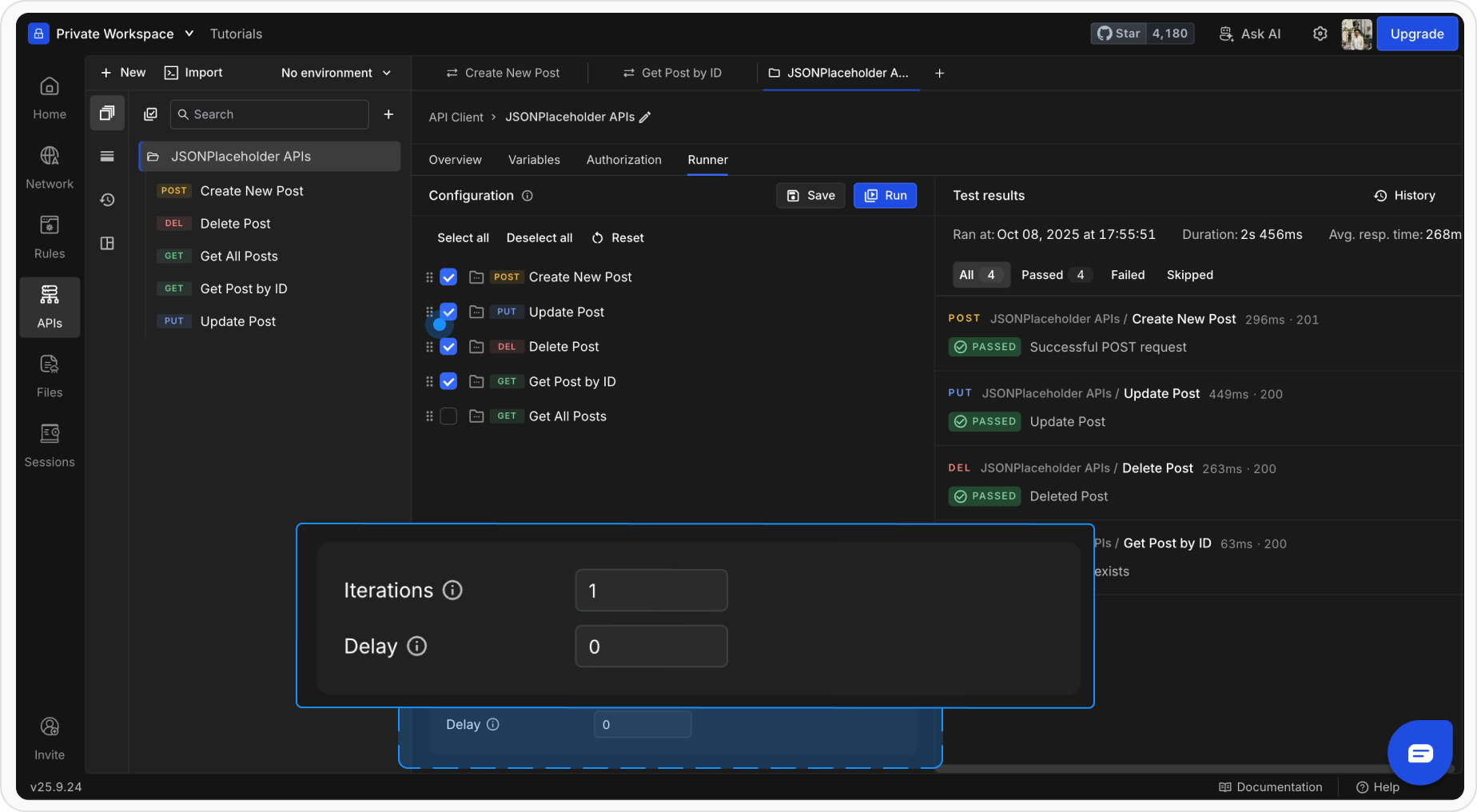
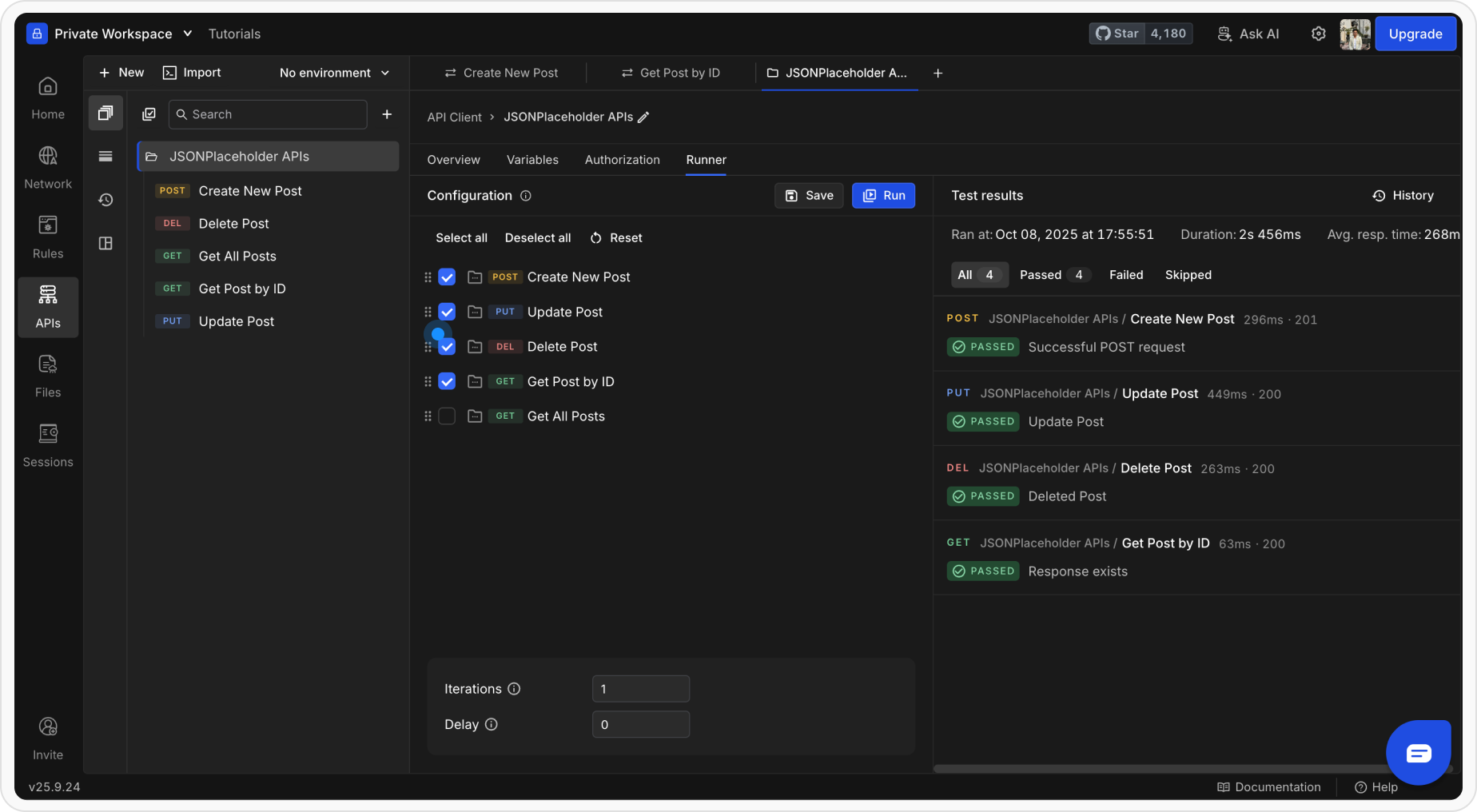
* **Iterations:** Number of times to execute the full collection
* **Delay:** Wait time between requests (milliseconds)
If you want your collection to run with an environment, select it using the environment selector at the upper left corner, then select the environment you want to use
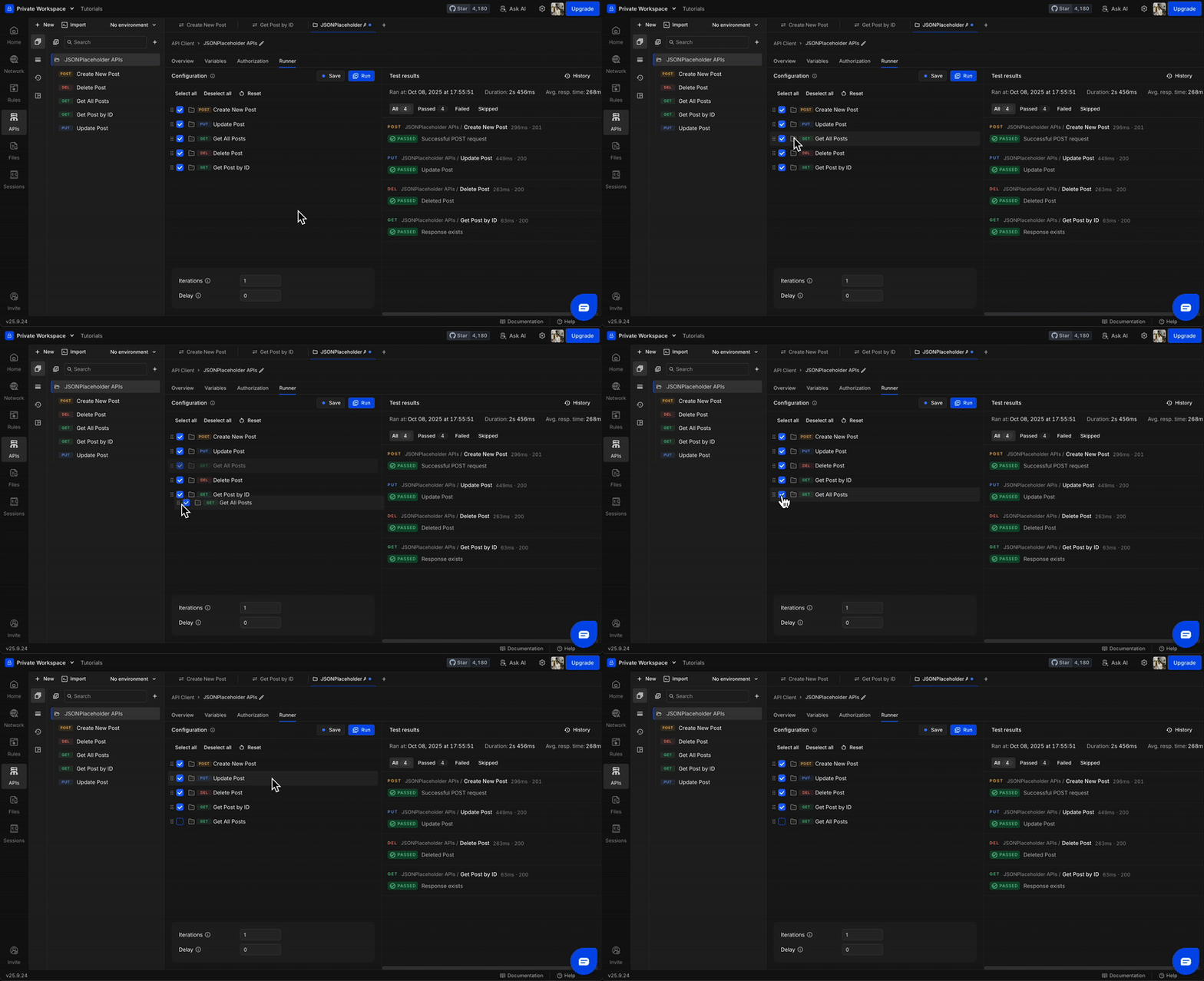
You can drag to reorder requests or uncheck ones you don’t want to include in this run.
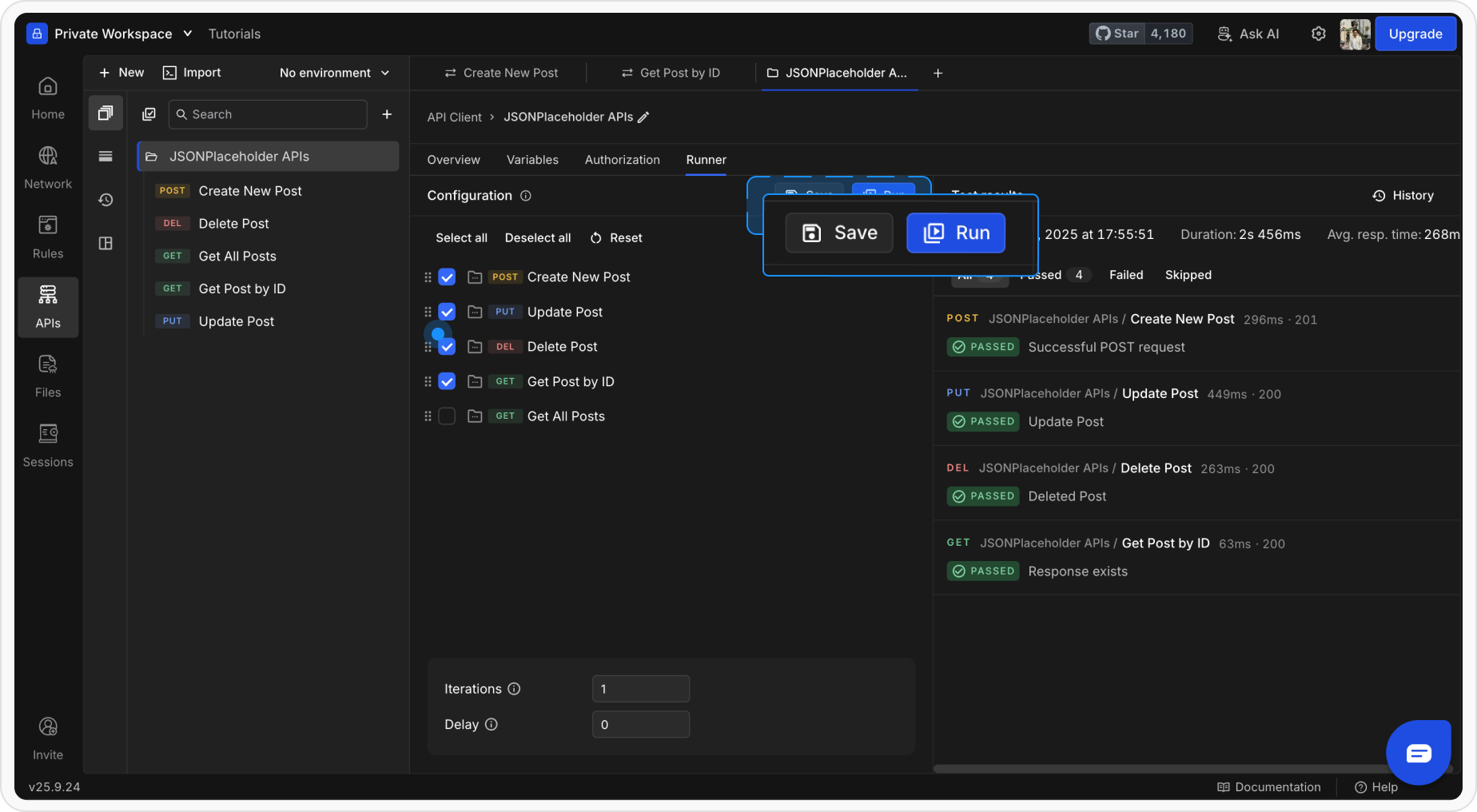
Click Save and then Run . The Runner will execute each request in order.
### How a Collection Runner Works
When you execute requests using the **Collection Runner**, here’s how things work:
#### Variable Resolution
* All `{{variable}}` placeholders resolve based on their **scope**.
* **Environment variables** override values from the global scope.
* **Collection-level variables** defined earlier are available to all requests within that collection.
#### Script Execution
* **Pre-request** and **Post-response** scripts execute as usual.
* You can **set or modify variables** dynamically during the run.
* Use `rq.expect(...)` for writing **test assertions** to validate responses.
#### Viewing Run Results
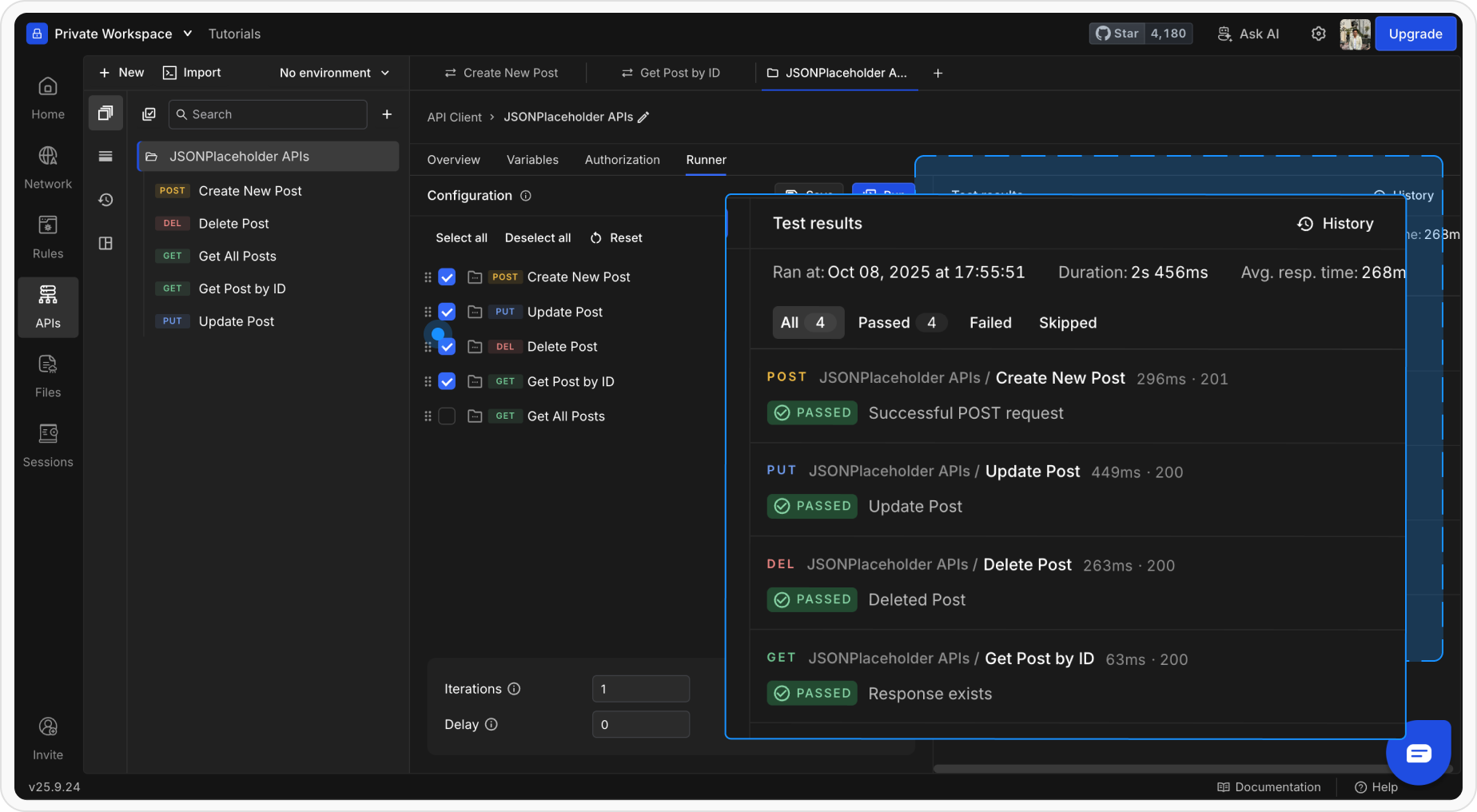
Once the run completes, the Runner displays a detailed **Run Summary**, including:
* Total number of requests executed
* Tests passed and failed
* Total duration and time taken
You can click on any request in the summary to view:
* Request details - URL, headers, and body
* Response data - status, headers, and body
* The result of each test assertion
## What's Next?
Use CSV or JSON data files to parameterize collection runs across multiple inputs.
Add assertions to validate response status, body, and headers on every run.
Set and modify variables dynamically during a run using pre/post scripts.
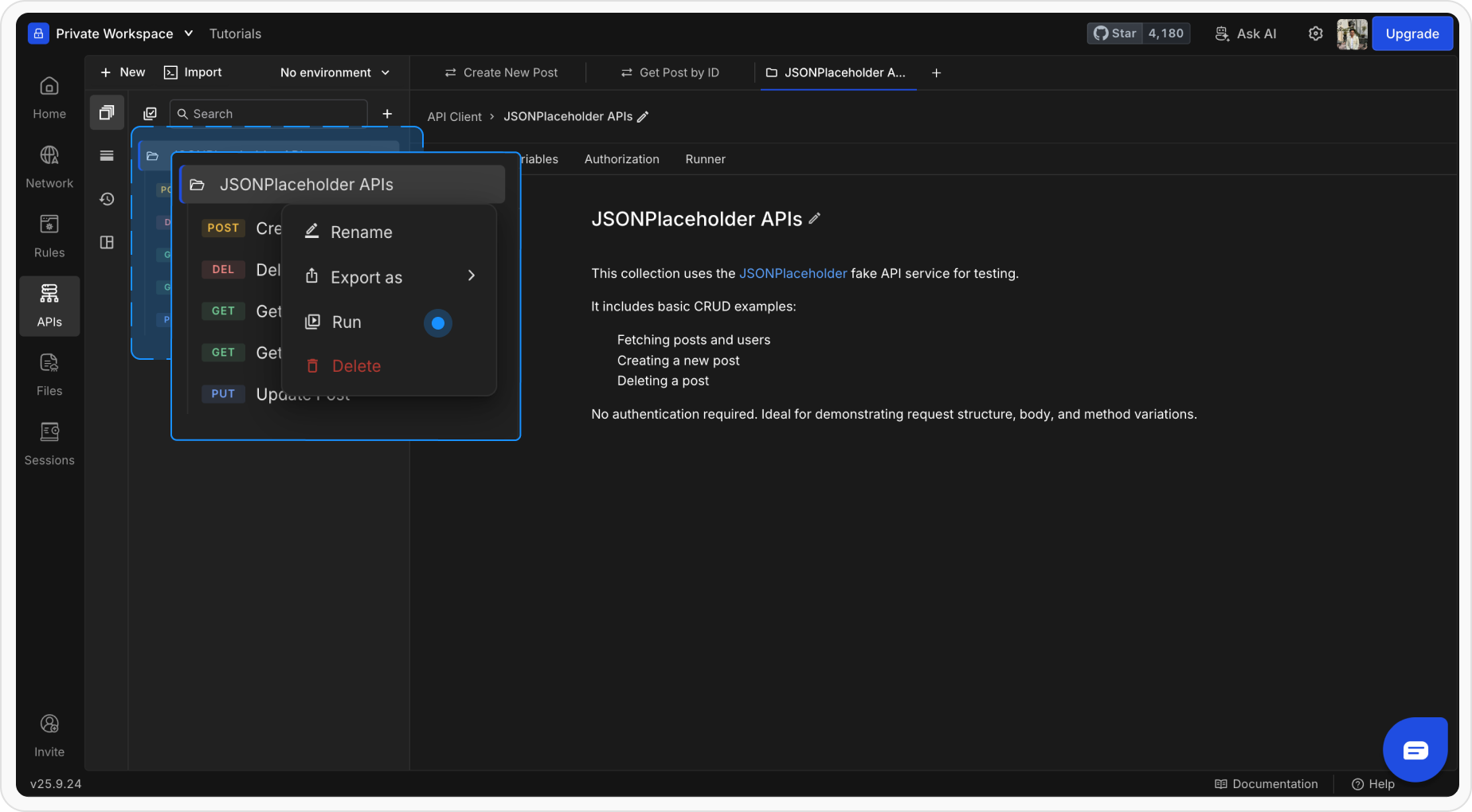 *You can also click* ***Runner*** *from collections tab*
 If you want your collection to run with an environment, select it using the environment selector at the upper left corner, then select the environment you want to use
 When you execute requests using the **Collection Runner**, here’s how things work:
#### Variable Resolution
* All `{{variable}}` placeholders resolve based on their **scope**.
* **Environment variables** override values from the global scope.
* **Collection-level variables** defined earlier are available to all requests within that collection.
#### Script Execution
* **Pre-request** and **Post-response** scripts execute as usual.
* You can **set or modify variables** dynamically during the run.
* Use `rq.expect(...)` for writing **test assertions** to validate responses.
#### Viewing Run Results
When you execute requests using the **Collection Runner**, here’s how things work:
#### Variable Resolution
* All `{{variable}}` placeholders resolve based on their **scope**.
* **Environment variables** override values from the global scope.
* **Collection-level variables** defined earlier are available to all requests within that collection.
#### Script Execution
* **Pre-request** and **Post-response** scripts execute as usual.
* You can **set or modify variables** dynamically during the run.
* Use `rq.expect(...)` for writing **test assertions** to validate responses.
#### Viewing Run Results
 Once the run completes, the Runner displays a detailed **Run Summary**, including:
* Total number of requests executed
* Tests passed and failed
* Total duration and time taken
You can click on any request in the summary to view:
* Request details - URL, headers, and body
* Response data - status, headers, and body
* The result of each test assertion
## What's Next?
Once the run completes, the Runner displays a detailed **Run Summary**, including:
* Total number of requests executed
* Tests passed and failed
* Total duration and time taken
You can click on any request in the summary to view:
* Request details - URL, headers, and body
* Response data - status, headers, and body
* The result of each test assertion
## What's Next?