> ## Documentation Index
> Fetch the complete documentation index at: https://docs.requestly.com/llms.txt
> Use this file to discover all available pages before exploring further.
# Set a Response Value as a Variable
> Capture a value straight out of a response body into an environment, collection, or global variable by right-clicking the selection, with no script to write.
A login call returns a token and your next request needs it. Rather than writing a post-response script for that, select the value in the response body, right-click it, and choose **Set as variable**. Requestly saves the selected text to a variable you name, in the scope you pick, ready to use as `{{variable_name}}`.
## Where you can use it
The action lives in the response panel of:
* HTTP requests
* GraphQL requests
* Saved examples of either
Other protocol clients, the Dev Tools network panel, and scheduled-run results do not offer it.
## Capture a value
Send the request and open the **Body** tab of the response panel.
Select the text in the response body. The action needs a text view of the body. A picture, a binary placeholder, or an HTML preview blocks the selection. Switch the format selector above the body to **Raw** first.
In a formatted JSON body, a double-click selects the value without its surrounding quote characters. Dragging across the quotes takes them with it, which is also fine: Requestly cleans the selection up for you when it fills the picker. See [Quoted JSON strings are saved without their quotes](#quoted-json-strings-are-saved-without-their-quotes).
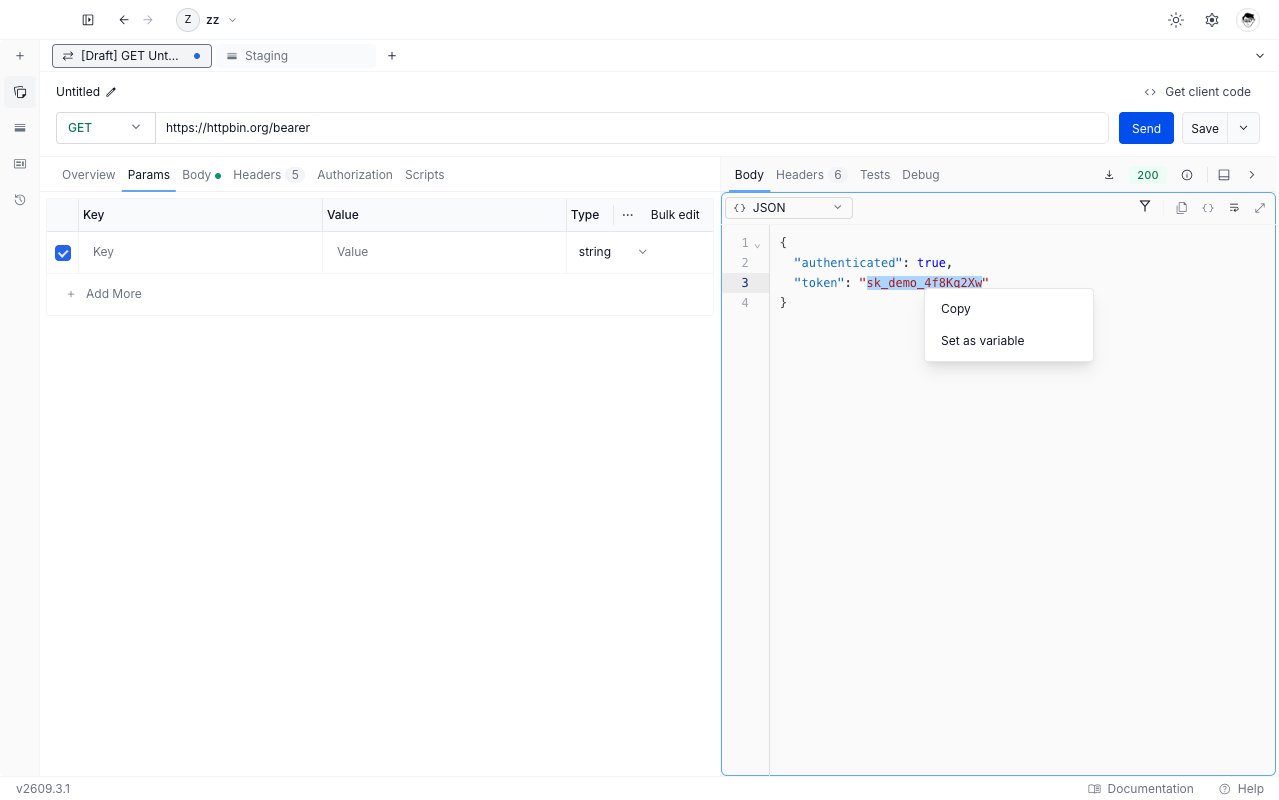
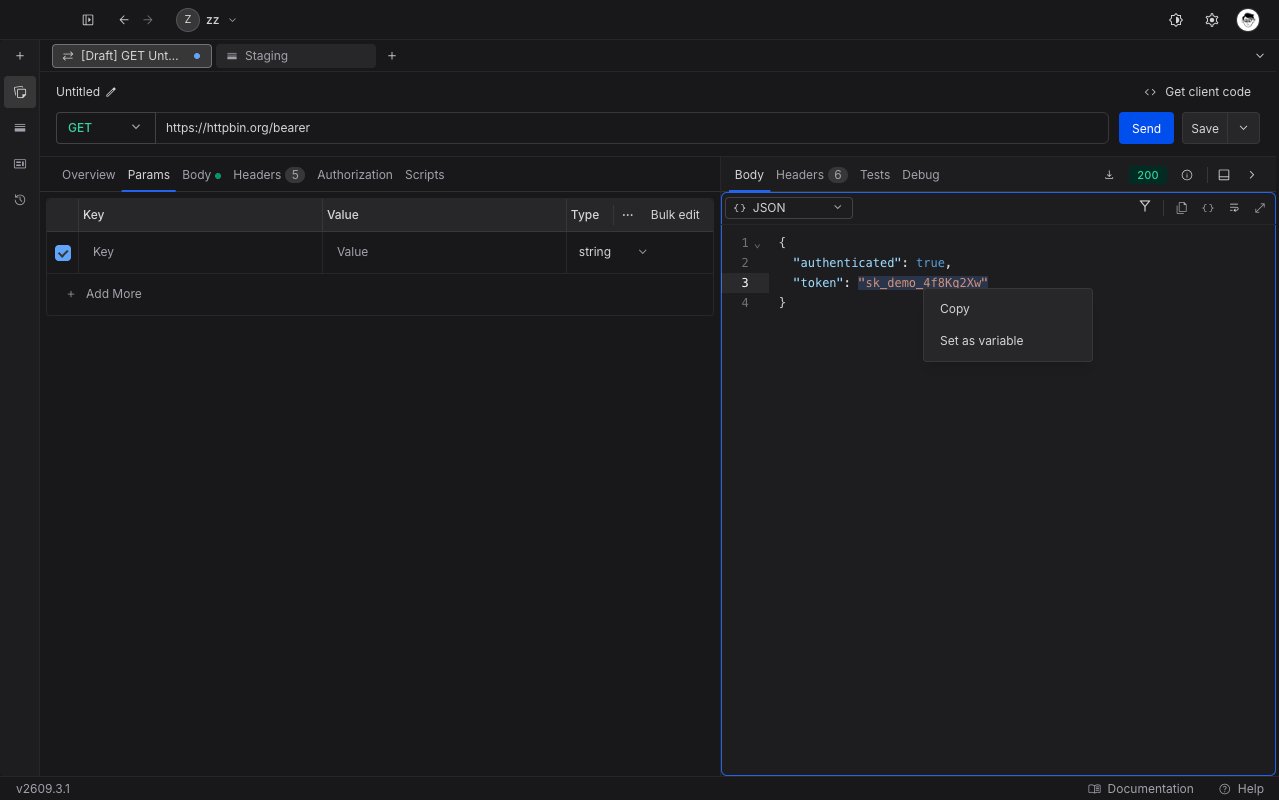
Right-click anywhere inside the selection. A short menu opens with **Copy** and **Set as variable**. Choose **Set as variable**.
 The picker opens with your selection already in **Current value**.
* **Name**: type a new name, or pick an existing one from the list for that scope to overwrite it. The list matches on any part of a name, not just the start.
* **Current value**: edit the captured text if you need to. For **String** and **Number** the field accepts line breaks, so a whole JSON object survives an edit intact. **Secret** masks the value in a single-line field, and **Boolean** replaces it with a true/false list.
* **Type**: **String**, **Number**, **Boolean**, or **Secret**.
* **Scope**: **Environment**, **Collection**, or **Global**.
The picker opens with your selection already in **Current value**.
* **Name**: type a new name, or pick an existing one from the list for that scope to overwrite it. The list matches on any part of a name, not just the start.
* **Current value**: edit the captured text if you need to. For **String** and **Number** the field accepts line breaks, so a whole JSON object survives an edit intact. **Secret** masks the value in a single-line field, and **Boolean** replaces it with a true/false list.
* **Type**: **String**, **Number**, **Boolean**, or **Secret**.
* **Scope**: **Environment**, **Collection**, or **Global**.
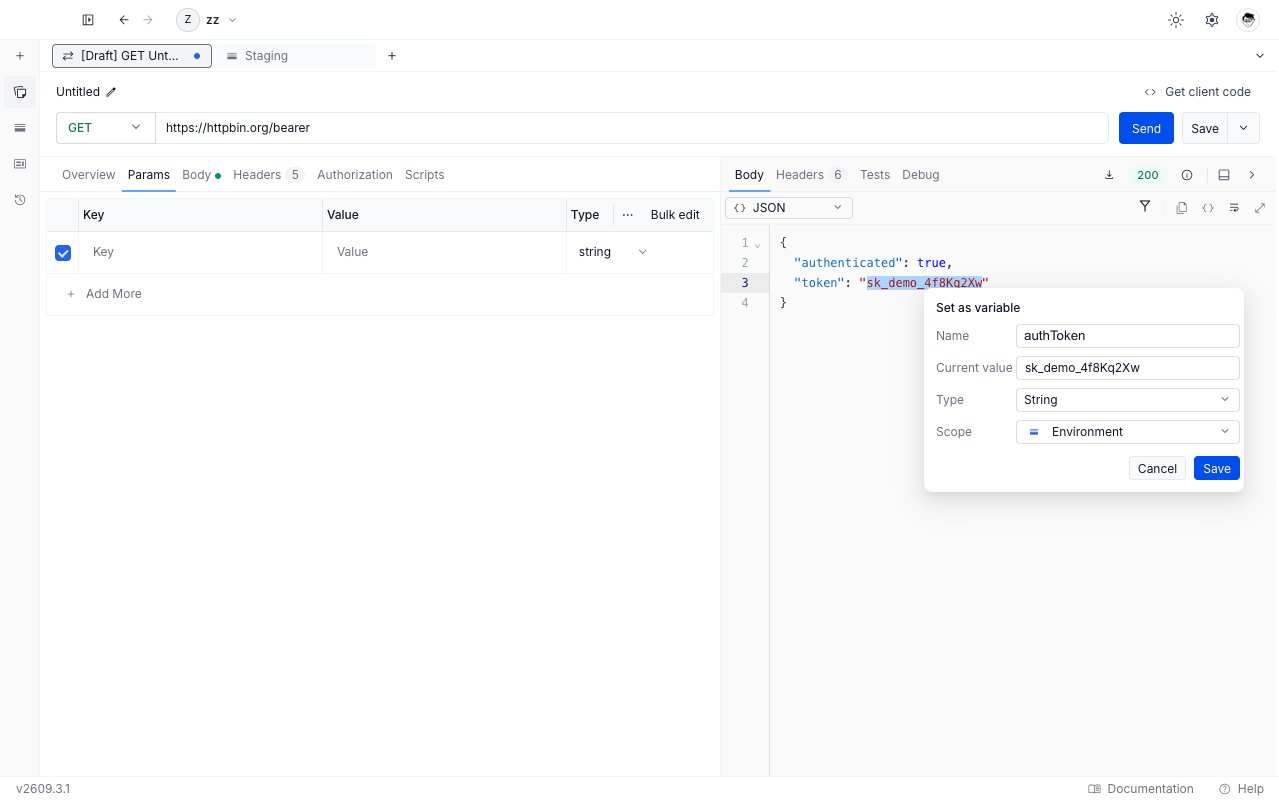
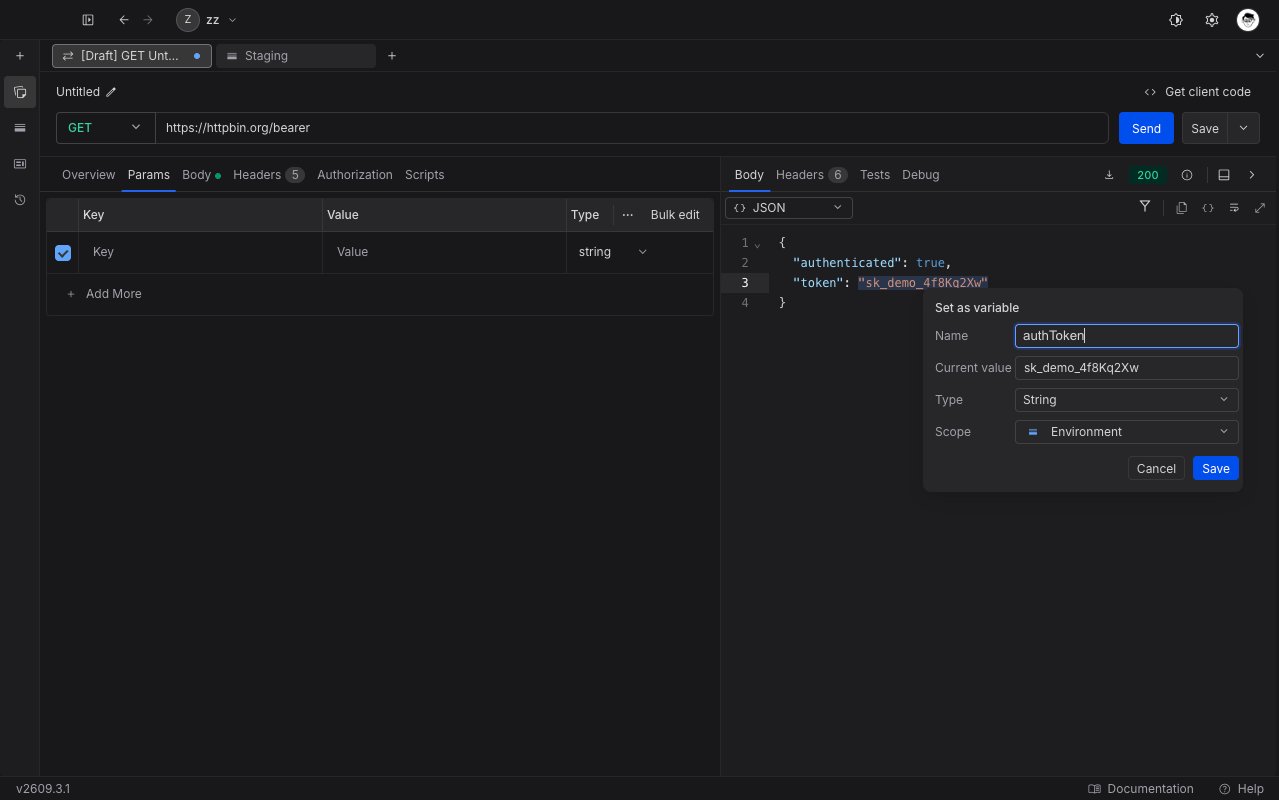 Click **Save**. A confirmation names the variable and the scope it went to. **Save** stays disabled until the variable has a name. **Save** is also disabled while the selection is too large, or while no scope is available.
**Copy** in the same menu copies exactly what you selected, quote characters included.
## Where the captured value is saved
Every Requestly variable holds two values: an **Initial value (synced)**, which your project shares with your team, and a **Current value (local)**, which stays on the device that set it. [Environment variables](/api-client/environments-and-variables/environment-variables) explains both in full.
**Set as variable** writes your capture to the **Current value** only. The picker has no **Initial value** row for exactly this reason. The captured text is never sent to your team and never written to the shared value, because a bearer token is the main reason to capture a response value in the first place.
Click **Save**. A confirmation names the variable and the scope it went to. **Save** stays disabled until the variable has a name. **Save** is also disabled while the selection is too large, or while no scope is available.
**Copy** in the same menu copies exactly what you selected, quote characters included.
## Where the captured value is saved
Every Requestly variable holds two values: an **Initial value (synced)**, which your project shares with your team, and a **Current value (local)**, which stays on the device that set it. [Environment variables](/api-client/environments-and-variables/environment-variables) explains both in full.
**Set as variable** writes your capture to the **Current value** only. The picker has no **Initial value** row for exactly this reason. The captured text is never sent to your team and never written to the shared value, because a bearer token is the main reason to capture a response value in the first place.
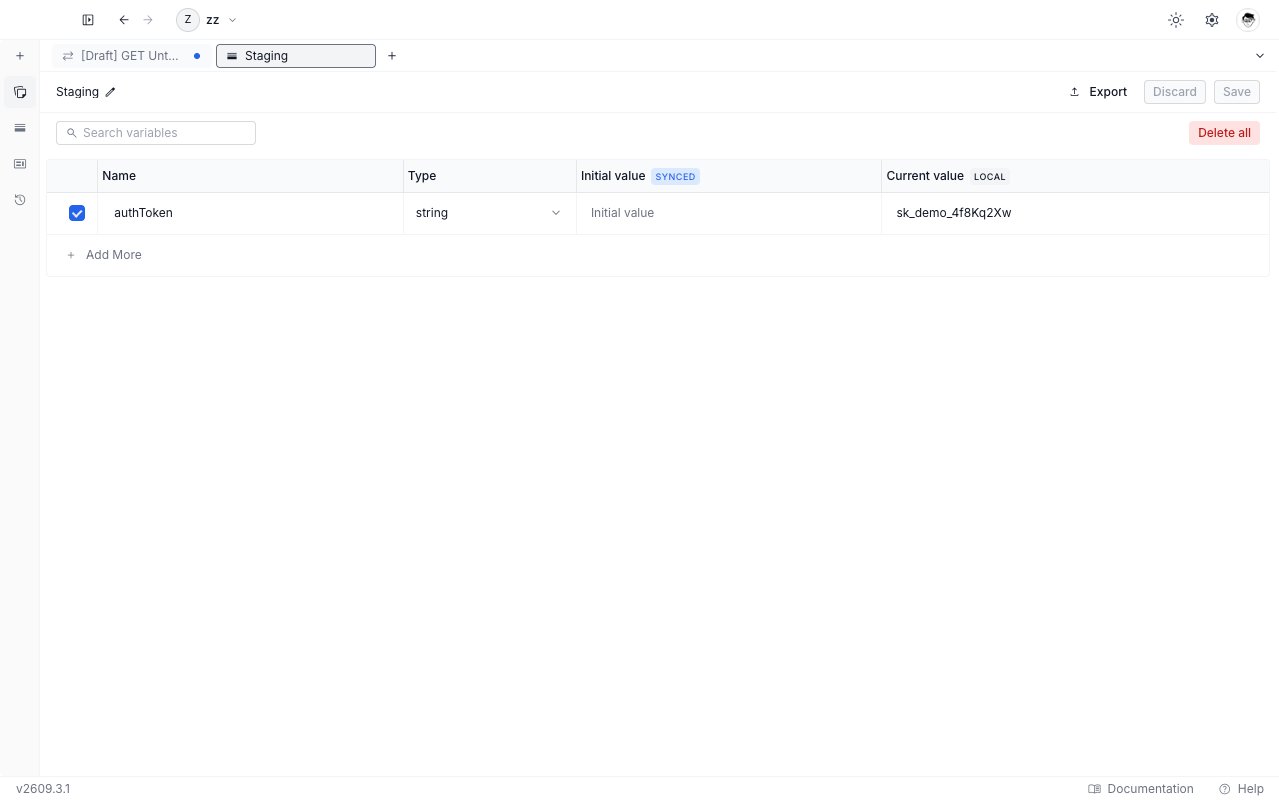
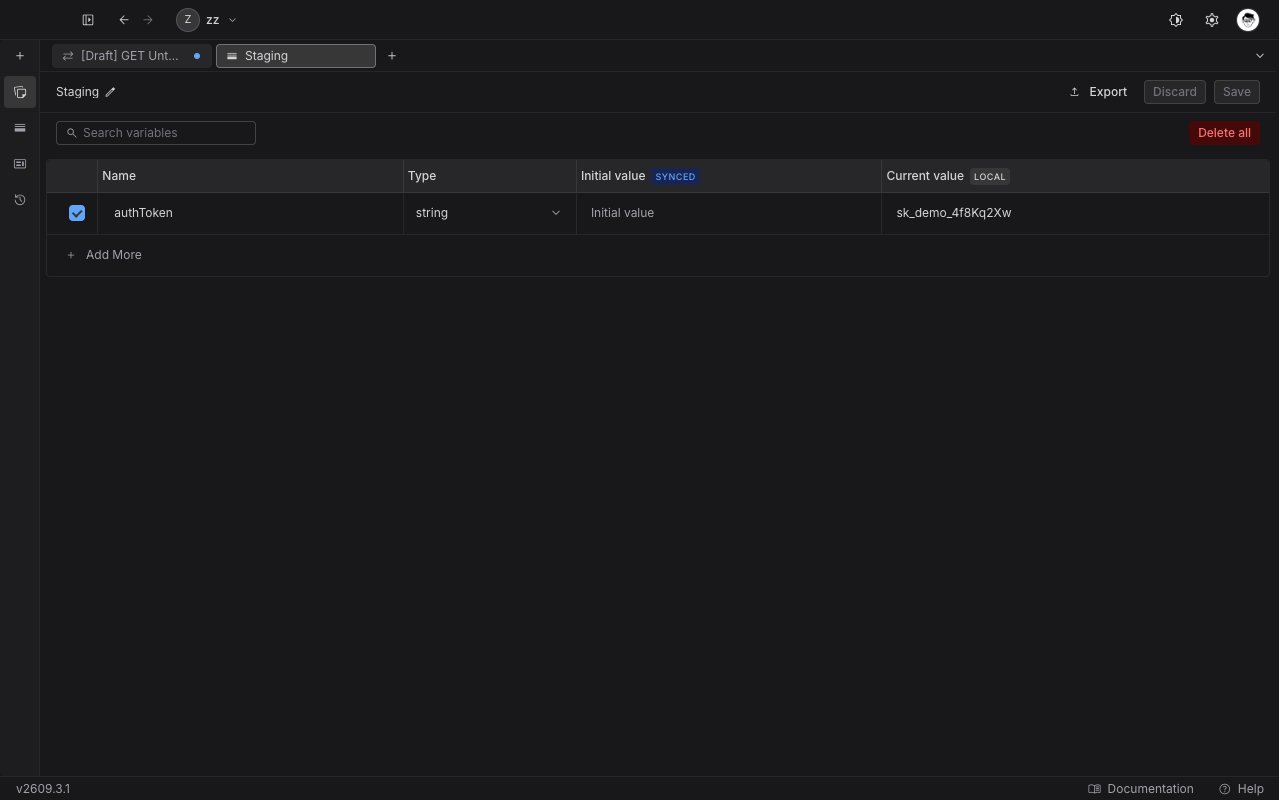 Two things follow from that:
* A teammate who opens the same project sees the variable name, but not your captured value.
* On your other devices the variable exists with an empty value until you capture it there too.
To share a captured value on purpose, open the variables table and type it into the **Initial value** column yourself.
## Choose a scope
| Scope | Where the value is stored |
| --------------- | ------------------------------------------------------------ |
| **Environment** | The environment currently selected in the API client sidebar |
| **Collection** | The collection that directly contains this request |
| **Global** | The project's global variables |
The picker offers only the scopes it can write to. **Environment** is missing when no environment is selected. **Collection** is missing for a request that does not sit inside a collection. **Global** is missing until the project has a global environment. When no scope at all is available, the picker shows a message and **Save** stays disabled.
Runtime variables are not offered here. To set one from a response, use a post-response script - see [Runtime variables](/api-client/environments-and-variables/runtime-variables).
## Quoted JSON strings are saved without their quotes
When your selection is exactly one JSON string, Requestly fills the picker with the string itself: the wrapping quotes are removed and escape sequences are resolved. A token therefore never gets saved with quote characters wrapped around it.
| You select | The picker fills in |
| ------------------------ | ---------------------- |
| `"eyJhbGciOiJIUzI1NiJ9"` | `eyJhbGciOiJIUzI1NiJ9` |
| `"say \"hi\""` | `say "hi"` |
| `"caf\u00e9"` | `café` |
| `{"a":1}` | `{"a":1}` |
| `12345` | `12345` |
Anything that is not exactly one JSON string is filled in verbatim, as the last two rows show. The value field stays editable either way, so you always see what **Save** will store.
## Overwrite an existing variable
Choosing a name that already exists in the selected scope is an overwrite, not an error. The picker warns you that saving replaces the variable's current value, and **Save** stays enabled. An overwrite:
* replaces the **Current value** with your capture
* leaves the **Initial value** exactly as it was, so your team's shared value is never wiped
* keeps the variable a **Secret** when it already was one, so a masked variable is never unmasked by a capture
## The capture happens once
**Set as variable** stores the text that was on screen when you right-clicked. It is a one-time capture, not a live link to the response, so sending the request again leaves the variable exactly as it is.
For a value that has to refresh on every run, such as a token that expires, use a post-response script instead. See [rq.environment](/api-client/rq-api-reference/rq-environment) and [Scripts](/api-client/scripts).
## Limits
* A name made only of spaces does not count as a name, and **Save** stays disabled.
* A selection over 100,000 characters is refused rather than shortened. Select a smaller part of the body, or use **Copy**.
* The menu appears only over a real selection. Right-click with nothing selected, or with only whitespace selected, and the default context menu appears instead.
* The capture takes the characters shown in the current view. If you switch the body to **Hex** or **Base64** and select there, you capture those characters rather than the decoded text.
* A save can fail when you lack permission to save variables to this project. The picker stays open with a message, so you can try again.
Two things follow from that:
* A teammate who opens the same project sees the variable name, but not your captured value.
* On your other devices the variable exists with an empty value until you capture it there too.
To share a captured value on purpose, open the variables table and type it into the **Initial value** column yourself.
## Choose a scope
| Scope | Where the value is stored |
| --------------- | ------------------------------------------------------------ |
| **Environment** | The environment currently selected in the API client sidebar |
| **Collection** | The collection that directly contains this request |
| **Global** | The project's global variables |
The picker offers only the scopes it can write to. **Environment** is missing when no environment is selected. **Collection** is missing for a request that does not sit inside a collection. **Global** is missing until the project has a global environment. When no scope at all is available, the picker shows a message and **Save** stays disabled.
Runtime variables are not offered here. To set one from a response, use a post-response script - see [Runtime variables](/api-client/environments-and-variables/runtime-variables).
## Quoted JSON strings are saved without their quotes
When your selection is exactly one JSON string, Requestly fills the picker with the string itself: the wrapping quotes are removed and escape sequences are resolved. A token therefore never gets saved with quote characters wrapped around it.
| You select | The picker fills in |
| ------------------------ | ---------------------- |
| `"eyJhbGciOiJIUzI1NiJ9"` | `eyJhbGciOiJIUzI1NiJ9` |
| `"say \"hi\""` | `say "hi"` |
| `"caf\u00e9"` | `café` |
| `{"a":1}` | `{"a":1}` |
| `12345` | `12345` |
Anything that is not exactly one JSON string is filled in verbatim, as the last two rows show. The value field stays editable either way, so you always see what **Save** will store.
## Overwrite an existing variable
Choosing a name that already exists in the selected scope is an overwrite, not an error. The picker warns you that saving replaces the variable's current value, and **Save** stays enabled. An overwrite:
* replaces the **Current value** with your capture
* leaves the **Initial value** exactly as it was, so your team's shared value is never wiped
* keeps the variable a **Secret** when it already was one, so a masked variable is never unmasked by a capture
## The capture happens once
**Set as variable** stores the text that was on screen when you right-clicked. It is a one-time capture, not a live link to the response, so sending the request again leaves the variable exactly as it is.
For a value that has to refresh on every run, such as a token that expires, use a post-response script instead. See [rq.environment](/api-client/rq-api-reference/rq-environment) and [Scripts](/api-client/scripts).
## Limits
* A name made only of spaces does not count as a name, and **Save** stays disabled.
* A selection over 100,000 characters is refused rather than shortened. Select a smaller part of the body, or use **Copy**.
* The menu appears only over a real selection. Right-click with nothing selected, or with only whitespace selected, and the default context menu appears instead.
* The capture takes the characters shown in the current view. If you switch the body to **Hex** or **Base64** and select there, you capture those characters rather than the decoded text.
* A save can fail when you lack permission to save variables to this project. The picker stays open with a message, so you can try again.