> ## Documentation Index
> Fetch the complete documentation index at: https://docs.requestly.com/llms.txt
> Use this file to discover all available pages before exploring further.
# Connect a project to Git
> Initialize a Git repository inside an existing local project, or clone a repository into a new local project, from the Requestly desktop app.
There are two ways to put a local project under version control. Initialize a repository inside a project you already have, or clone an existing repository into a new project. Both start in the desktop app, and neither needs a terminal.
Git requires the **desktop app**. [Download Requestly](https://requestly.com/downloads).
## Prerequisites
* A [local project](/collaboration/local-workspace). The **Git** tab does not appear while a team project is active.
* The `git` command installed on your machine.
## Initialize an existing local project
Use this path when the project already holds the collections you want to track.
Open the local project, then click **Git** in the API Client sidebar.
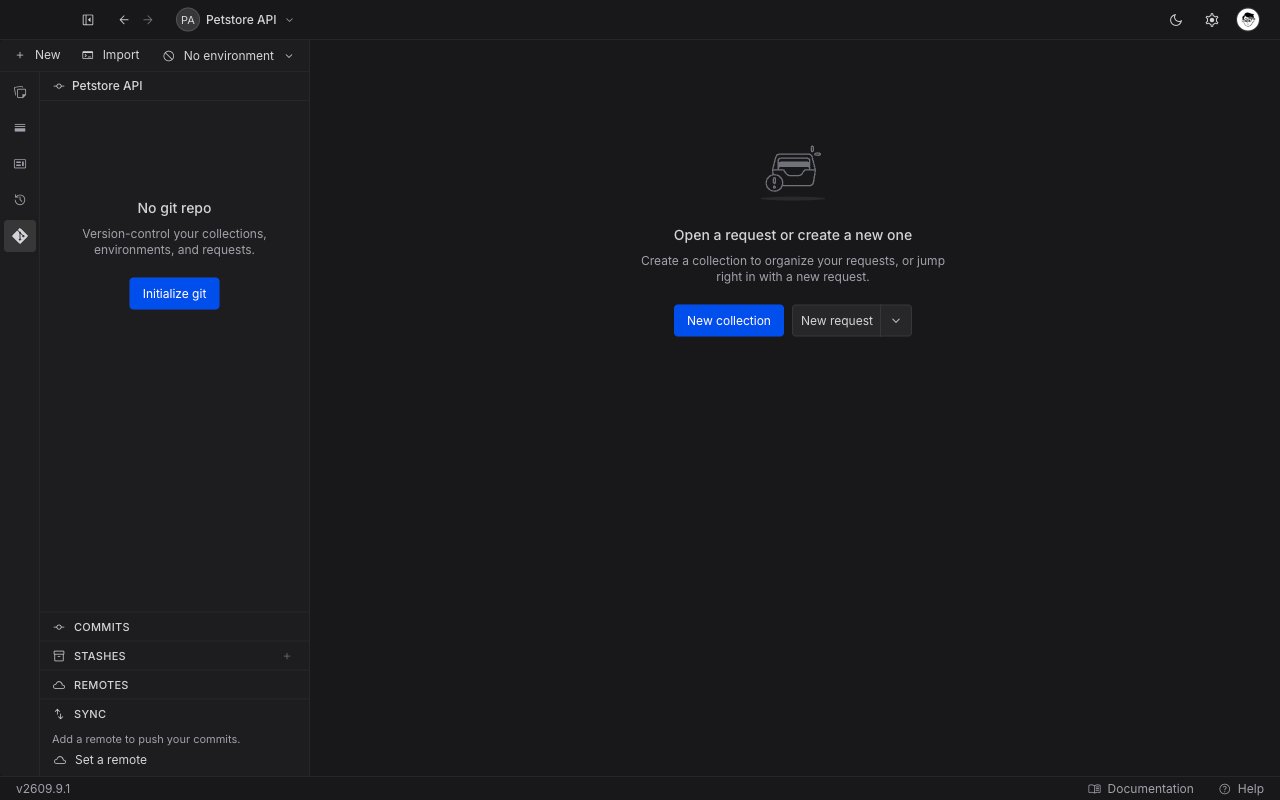
The panel shows the **No git repo** empty state, described as "Version-control your collections, environments, and requests." Click **Initialize git**.
Requestly creates the repository in the project folder and names the first branch `main`.
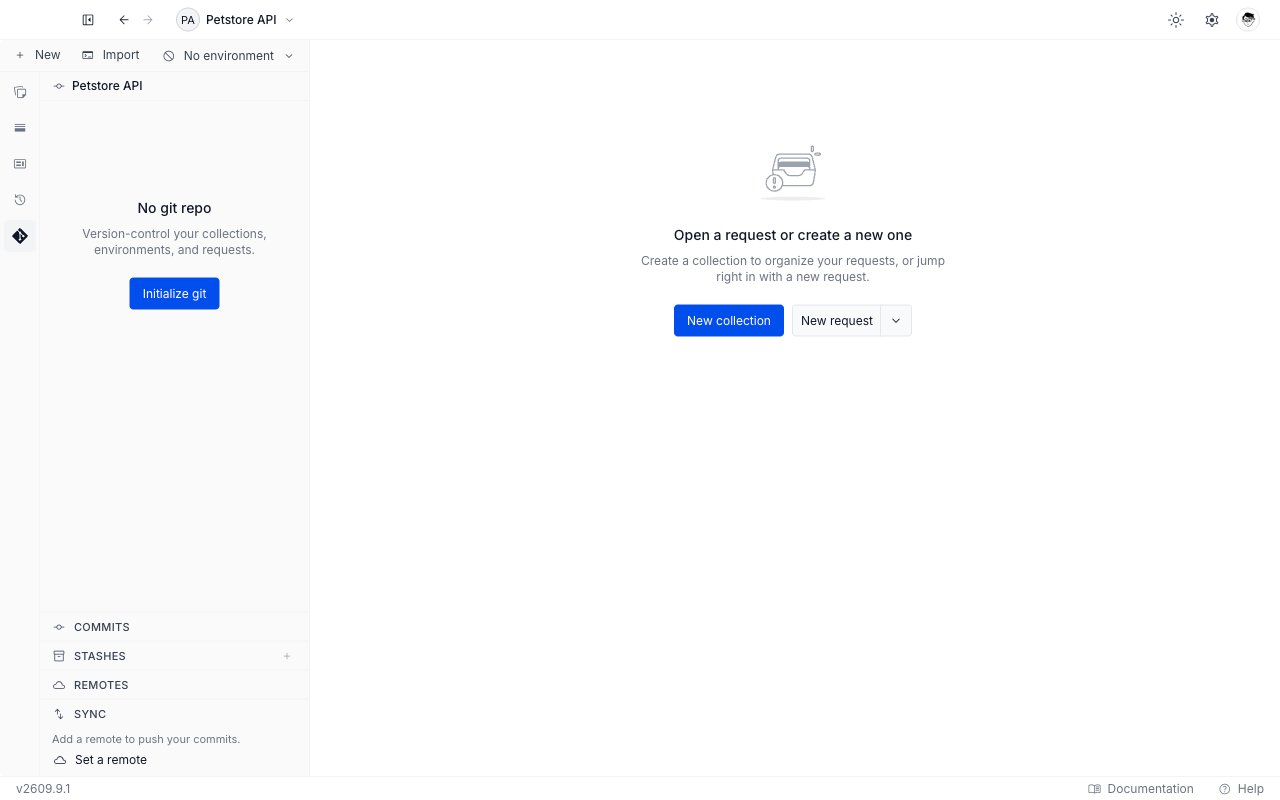
 The panel switches to the change list, with every project file waiting under **Changes**. Stage what you want to track and write a commit. See [Stage and commit changes](/api-client/git/commit-changes).
A new repository has no remote yet, so the **Sync** section reads "Add a remote to push your commits." Click **Set a remote** to open the [Remotes tab](/api-client/git/remotes) and add one.
The **Sync** section and its **Set a remote** button are in the panel from the start, before any repository exists. Click the button before you initialize and the Remotes tab reads "Repository not initialized", so run the steps in order.
Requestly leaves an existing Git identity alone, and fills a missing one from a connected GitHub account. With no GitHub account connected Requestly sets nothing, so Git falls back to whatever identity your machine already has; if your machine has none, set one with `git config --global user.name` and `git config --global user.email`.
## Clone a repository
Use this path when the collections already live in a repository, for example one a teammate pushed.
Click the project name at the top left of the app.
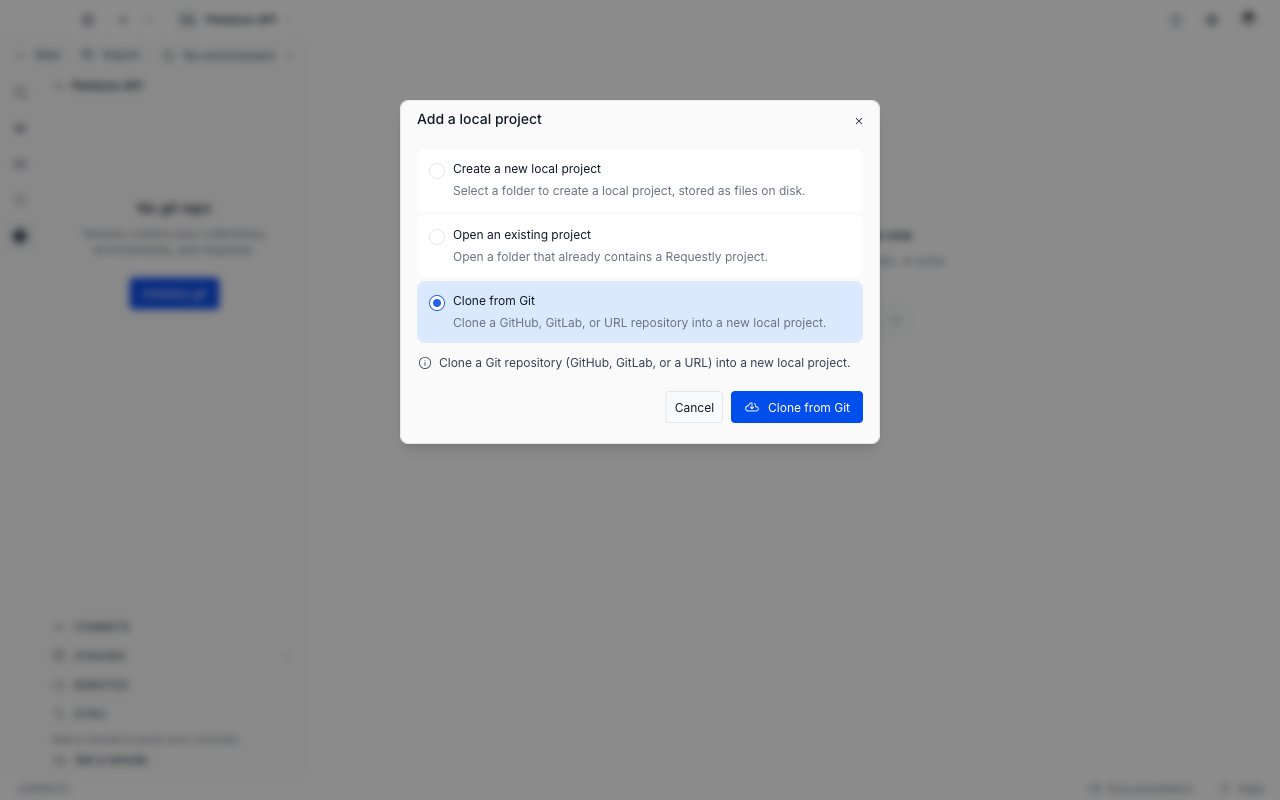
In the **Local projects** section, click **Add project**. If you have no local projects yet, the section shows a **Create a local project** button instead. Either one opens the **Add a local project** dialog with three options.
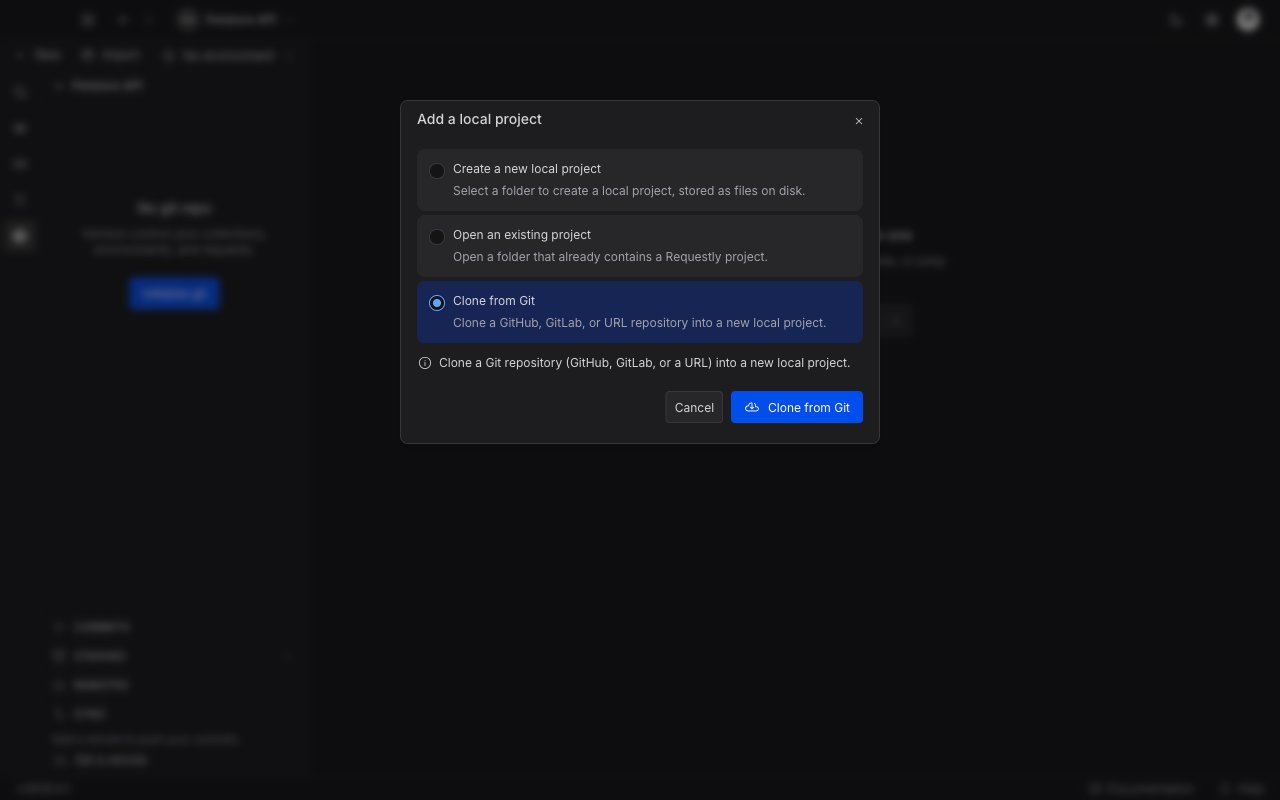
Select **Clone from Git**, described as "Clone a GitHub, GitLab, or URL repository into a new local project." Then click the **Clone from Git** button.
The panel switches to the change list, with every project file waiting under **Changes**. Stage what you want to track and write a commit. See [Stage and commit changes](/api-client/git/commit-changes).
A new repository has no remote yet, so the **Sync** section reads "Add a remote to push your commits." Click **Set a remote** to open the [Remotes tab](/api-client/git/remotes) and add one.
The **Sync** section and its **Set a remote** button are in the panel from the start, before any repository exists. Click the button before you initialize and the Remotes tab reads "Repository not initialized", so run the steps in order.
Requestly leaves an existing Git identity alone, and fills a missing one from a connected GitHub account. With no GitHub account connected Requestly sets nothing, so Git falls back to whatever identity your machine already has; if your machine has none, set one with `git config --global user.name` and `git config --global user.email`.
## Clone a repository
Use this path when the collections already live in a repository, for example one a teammate pushed.
Click the project name at the top left of the app.
In the **Local projects** section, click **Add project**. If you have no local projects yet, the section shows a **Create a local project** button instead. Either one opens the **Add a local project** dialog with three options.
Select **Clone from Git**, described as "Clone a GitHub, GitLab, or URL repository into a new local project." Then click the **Clone from Git** button.
 On the **Paste URL** tab, pick **HTTPS** or **SSH** and paste the repository URL. The toggle is guidance only, and the field accepts either kind.
* **HTTPS**: Requestly injects the saved credential for that host. If none is saved, it asks you to [connect the account](/api-client/git/providers-and-authentication).
* **SSH**: Git uses your own system SSH keys, so Requestly needs no credential.
A URL that is neither raises "Invalid Git remote URL. Use an HTTPS or SSH URL." under the field.
On the **Paste URL** tab, pick **HTTPS** or **SSH** and paste the repository URL. The toggle is guidance only, and the field accepts either kind.
* **HTTPS**: Requestly injects the saved credential for that host. If none is saved, it asks you to [connect the account](/api-client/git/providers-and-authentication).
* **SSH**: Git uses your own system SSH keys, so Requestly needs no credential.
A URL that is neither raises "Invalid Git remote URL. Use an HTTPS or SSH URL." under the field.
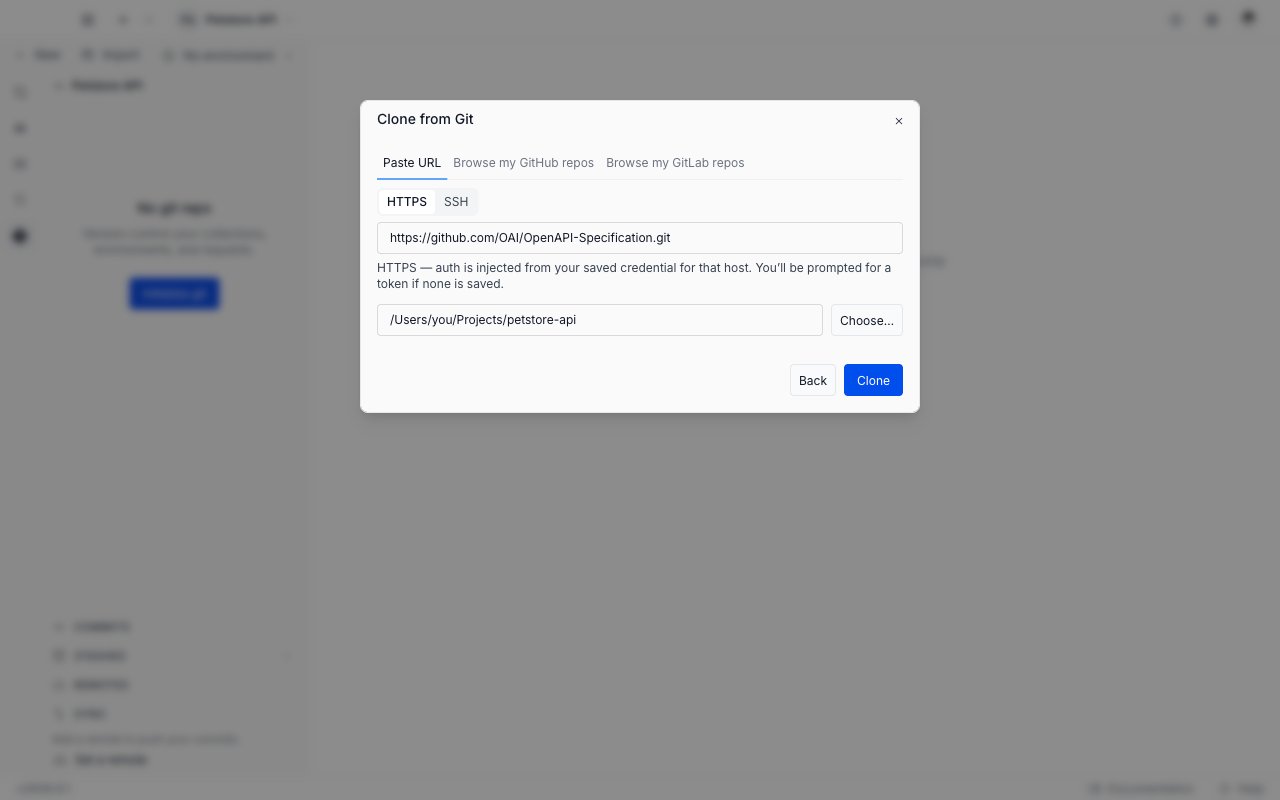
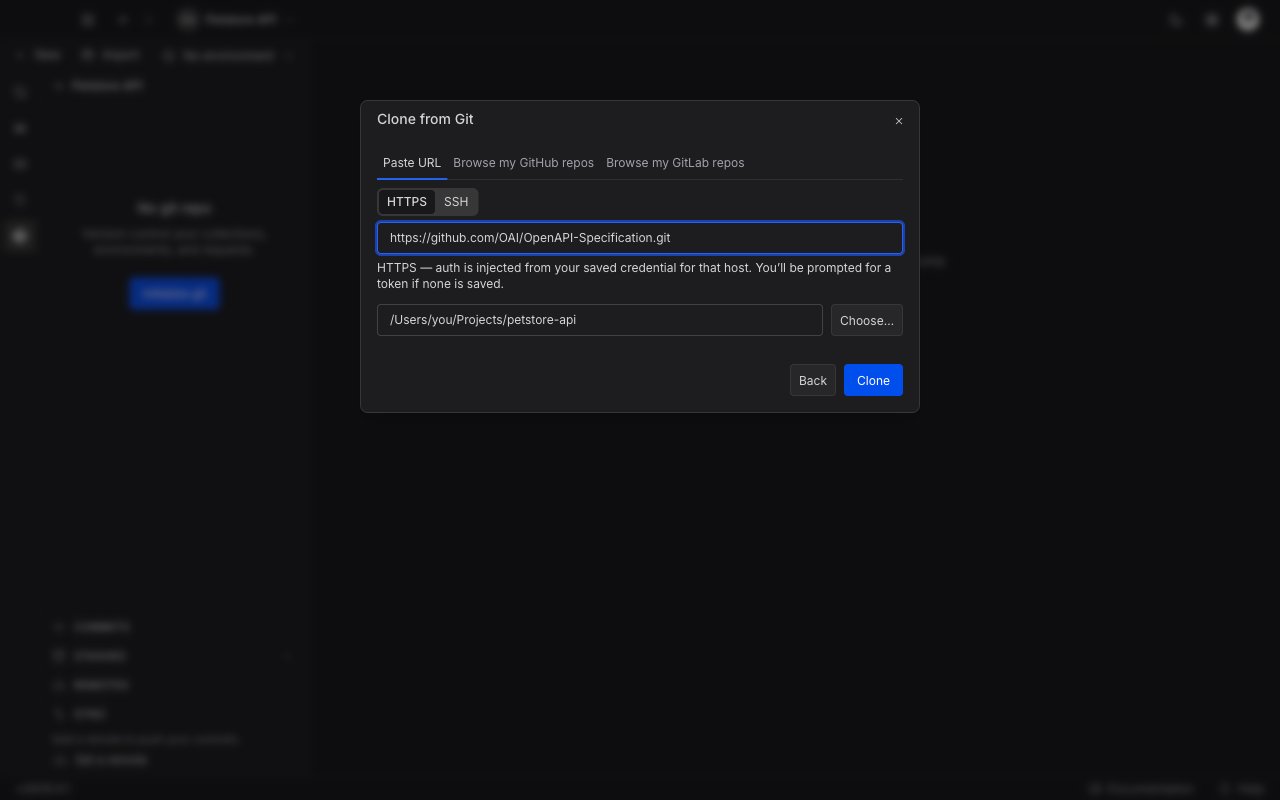 The second field is empty, with **Destination folder** as its placeholder text rather than a label above it. Click **Choose…** beside it and pick a folder in the system dialog. The placeholder gives way to the path you picked. Requestly never fills this in for you.
Click **Clone**. The dialog shows **Cloning…** while Git runs. Do not close the dialog during a clone.
You can also browse the repositories of a GitHub or GitLab account instead of pasting a URL. Each provider adds its own tab to the same dialog, **Browse my GitHub repos** and **Browse my GitLab repos**. Picking a repository fills the URL field for you, and you still choose the destination folder. A tab whose account is not connected yet offers to connect it there and then. See [Providers and authentication](/api-client/git/providers-and-authentication).
### What happens after a clone
Requestly looks for a Requestly project inside the repository it just cloned.
| What Requestly finds | What happens |
| ------------------------------------------------ | ------------------------------------------------------------------------ |
| A `__requestly.json` file at the repository root | Requestly registers that folder as a project and opens it. |
| A `__requestly.json` file in a subfolder | Requestly registers the shallowest matching subfolder and opens it. |
| No `__requestly.json` anywhere | Requestly keeps the cloned files and offers to set up a project in them. |
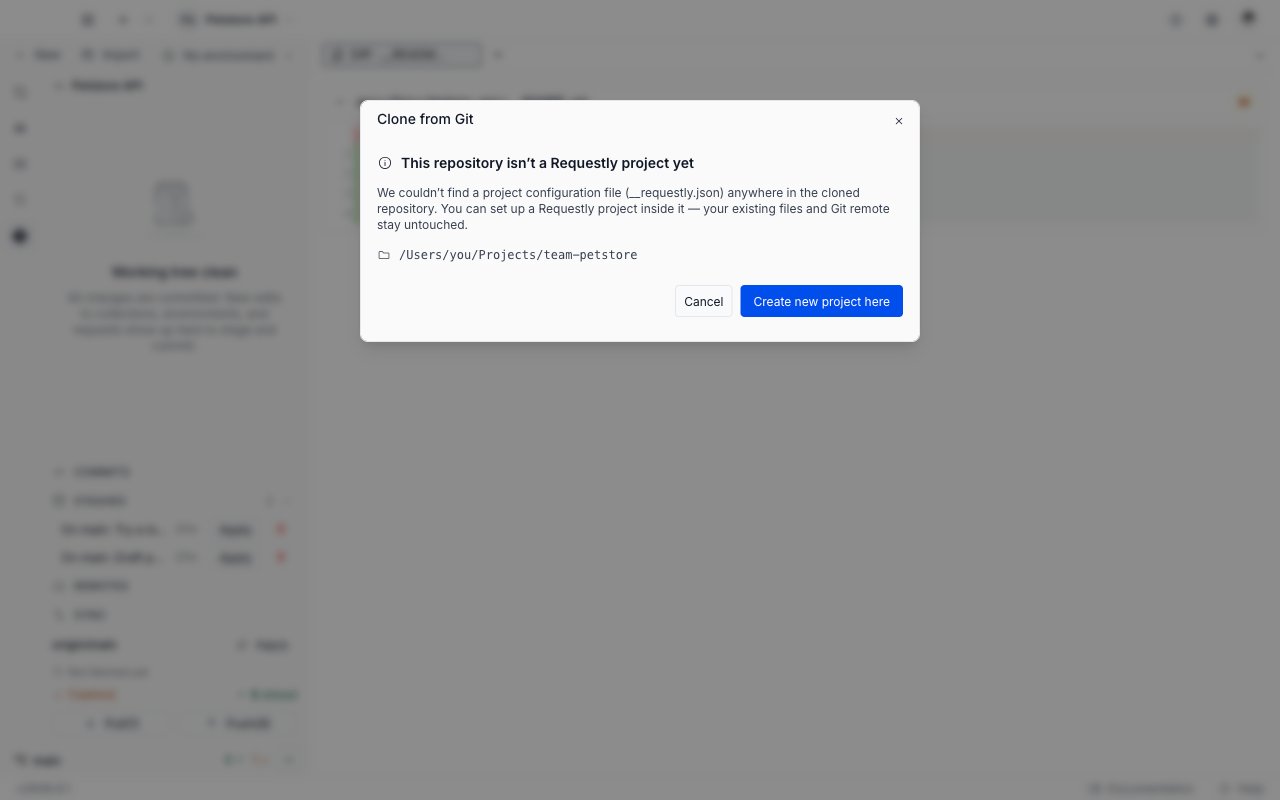
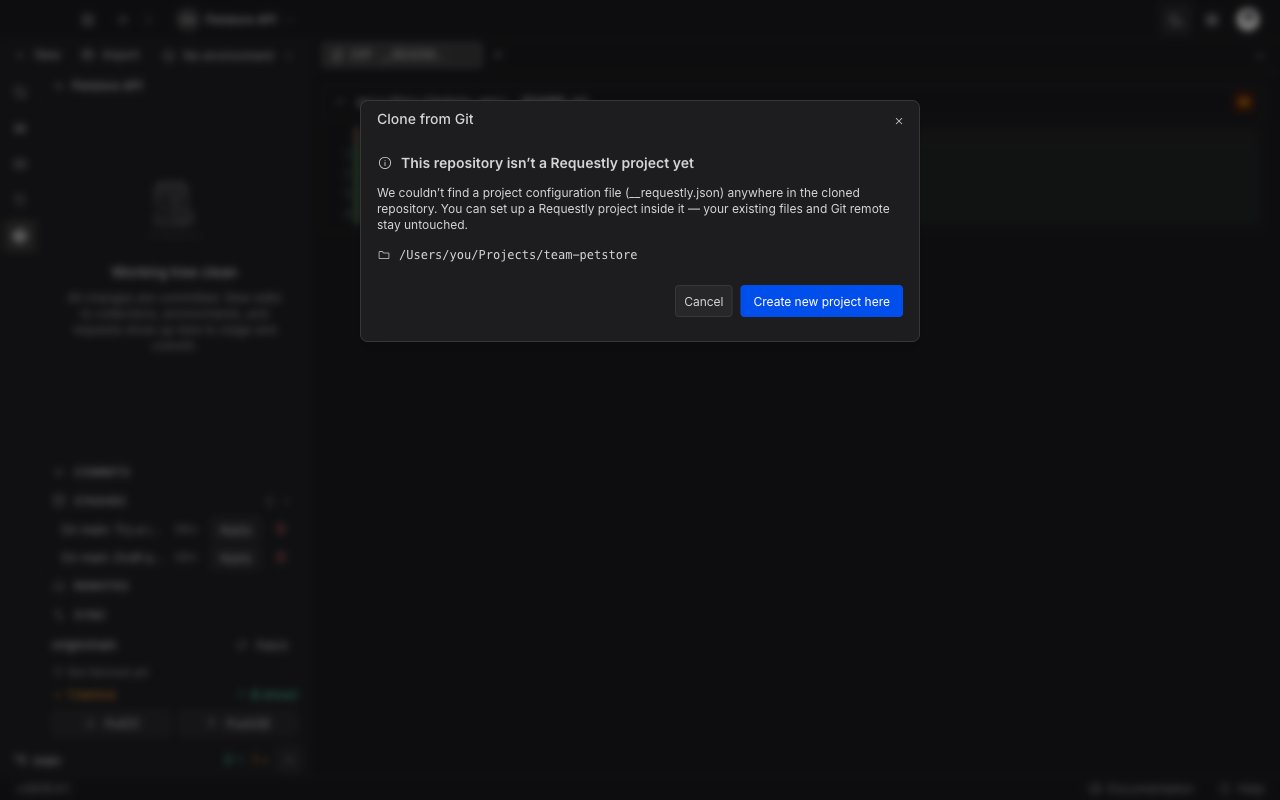
In the last case the dialog keeps its **Clone from Git** title and swaps its body for a panel headed "This repository isn’t a Requestly project yet". Click **Create new project here** and name the project. Requestly scaffolds it inside the cloned folder, and Git stays bound to the repository you cloned, so the remote, push, and pull keep working. Click **Cancel** to leave the files on disk and register nothing.
The second field is empty, with **Destination folder** as its placeholder text rather than a label above it. Click **Choose…** beside it and pick a folder in the system dialog. The placeholder gives way to the path you picked. Requestly never fills this in for you.
Click **Clone**. The dialog shows **Cloning…** while Git runs. Do not close the dialog during a clone.
You can also browse the repositories of a GitHub or GitLab account instead of pasting a URL. Each provider adds its own tab to the same dialog, **Browse my GitHub repos** and **Browse my GitLab repos**. Picking a repository fills the URL field for you, and you still choose the destination folder. A tab whose account is not connected yet offers to connect it there and then. See [Providers and authentication](/api-client/git/providers-and-authentication).
### What happens after a clone
Requestly looks for a Requestly project inside the repository it just cloned.
| What Requestly finds | What happens |
| ------------------------------------------------ | ------------------------------------------------------------------------ |
| A `__requestly.json` file at the repository root | Requestly registers that folder as a project and opens it. |
| A `__requestly.json` file in a subfolder | Requestly registers the shallowest matching subfolder and opens it. |
| No `__requestly.json` anywhere | Requestly keeps the cloned files and offers to set up a project in them. |
In the last case the dialog keeps its **Clone from Git** title and swaps its body for a panel headed "This repository isn’t a Requestly project yet". Click **Create new project here** and name the project. Requestly scaffolds it inside the cloned folder, and Git stays bound to the repository you cloned, so the remote, push, and pull keep working. Click **Cancel** to leave the files on disk and register nothing.
 ## Next steps
Read the change list, stage or discard files, and write a commit.
Fetch from the remote, read the ahead and behind counts, and sync your work.
## Next steps
Read the change list, stage or discard files, and write a commit.
Fetch from the remote, read the ahead and behind counts, and sync your work.