> ## Documentation Index
> Fetch the complete documentation index at: https://docs.requestly.com/llms.txt
> Use this file to discover all available pages before exploring further.
# Stash changes
> Set uncommitted work aside in the Stashes section of the Requestly Git panel, apply a stash back, open its diff, drop it, and resolve a stash that applies with conflicts.
A stash parks the changes in your working tree so you can come back to them later. Requestly keeps your stashes in the **Git** panel, one section below **Commits**, and applies or drops them without a terminal. Git applies to [local projects](/api-client/git/overview#requirements) only, so the **Git** tab is hidden while a team project is active.
Git requires the **desktop app**. [Download Requestly](https://requestly.com/downloads).
## Open the Stashes section
**Stashes** is the second of the three sections below the file area of the **Git** panel, between **Commits** and **Remotes**. Click its header to expand the list, and click again to collapse.
The header carries two things at the right: the number of stashes you hold, and a plus button that opens the **Create stash** window. The count appears only when you hold at least one stash, and it is current whether the section is open or closed.
The three sections are hidden while a merge is in progress. Finish or abort the merge first. See [Resolve merge conflicts](/api-client/git/resolve-conflicts).
## Create a stash
The plus button sits at the right of the **Stashes** header. It is disabled while the working tree is clean, because there is nothing to stash, and while another Git operation is running.
The **Create stash** window opens. Type into the **Stash message (optional)** field to name the stash, so it is easy to recognise later. Leave it empty and Git writes its own description.
**Include untracked files** is selected by default, so a brand new file that Git has never seen goes into the stash with the rest. Clear it to stash only the files Git already tracks.
Click **Create**. The window closes, the working tree returns to its last commit, and the new stash appears at the top of the list.
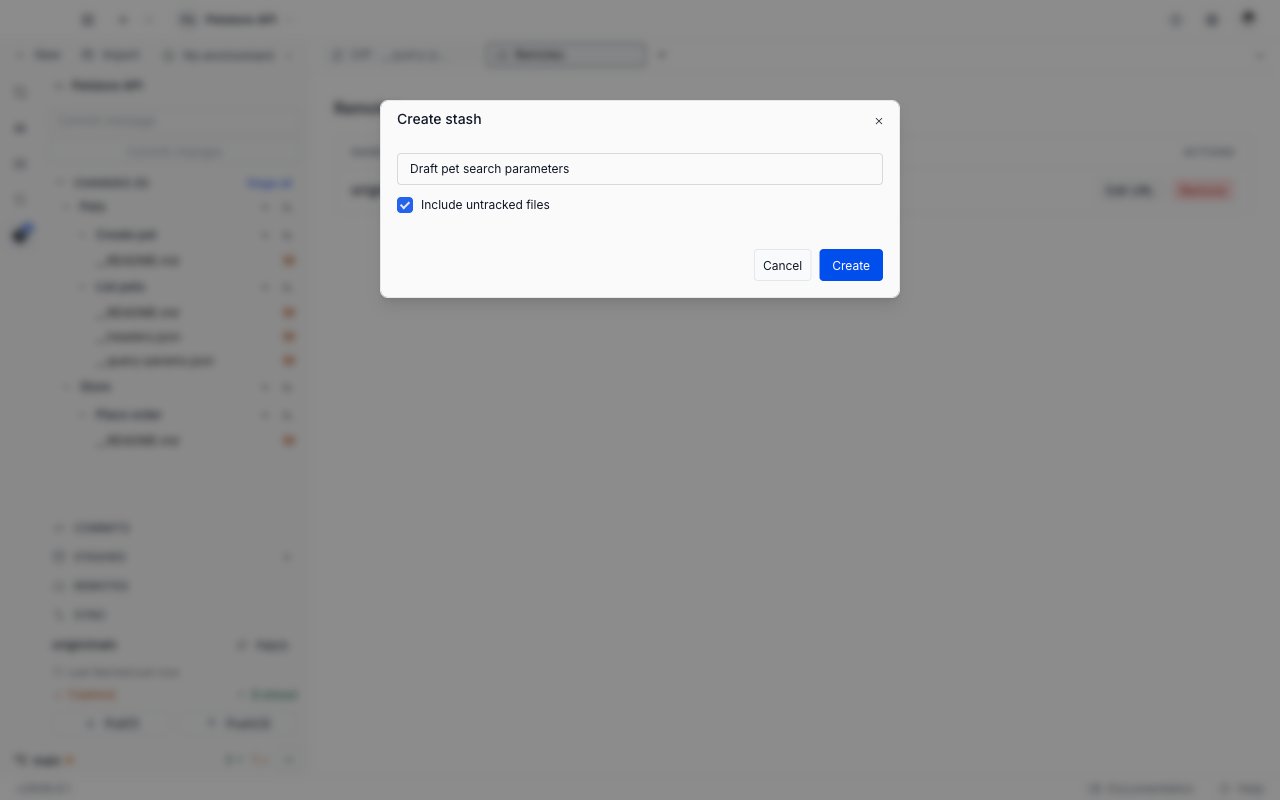
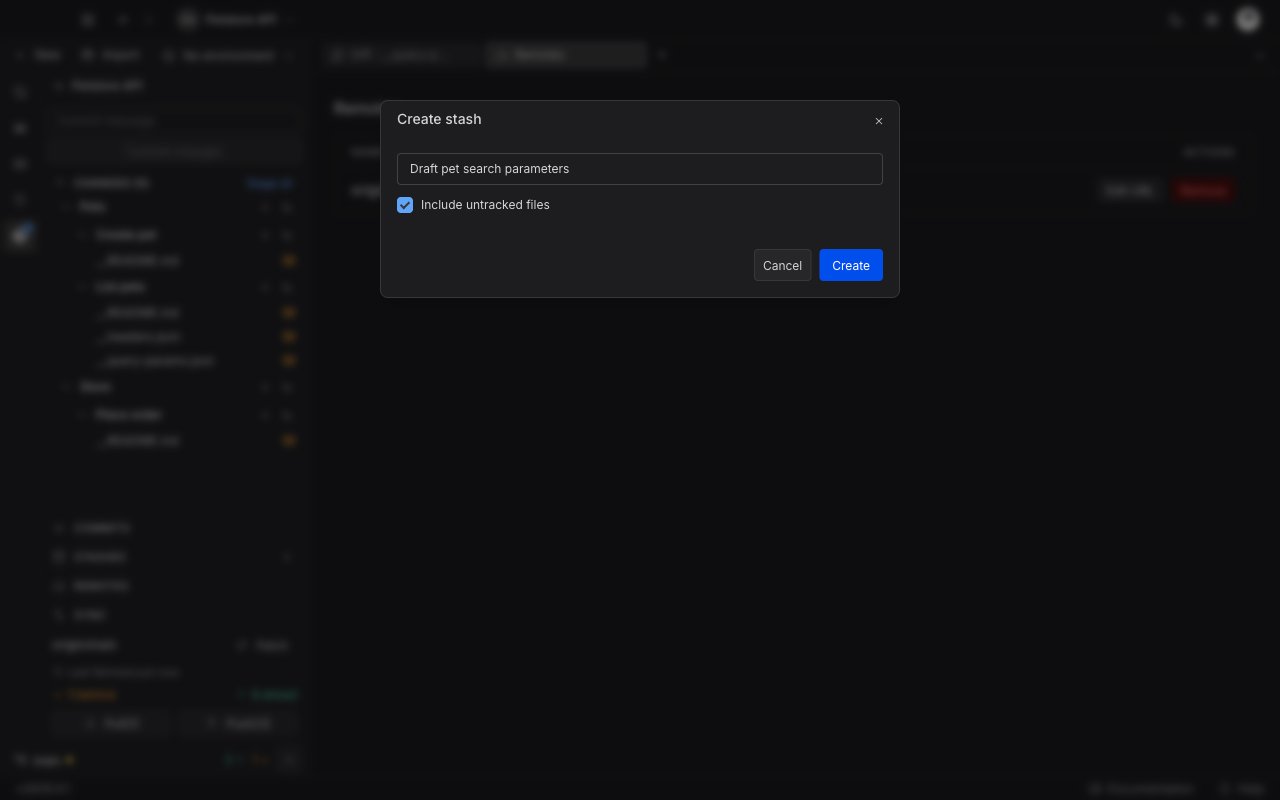 Clear **Include untracked files** and a new, never-tracked file stays in your working tree rather than going into the stash. Keep the box selected when you want the tree completely clean.
Requestly also creates a stash for you when you switch branches with uncommitted changes and choose **Stash & switch**. See [Switch and create branches](/api-client/git/branches#when-the-working-tree-is-not-clean).
## Read the stash list
Each row is one stash, newest at the top.
| Part of a row | What it shows |
| ----------------------------------- | ------------------------------------------------------------------------------------------------------------------------------------------------ |
| The message | The description Git recorded. Git prefixes yours with the branch the stash came from, so a stash you named `wip` on `main` reads `On main: wip`. |
| The age at the right of the message | How long ago you created the stash, in a compact form such as `now`, `3h`, or `2d`. |
| An **Apply** button | Restores the stash into your working tree. See [Apply a stash](#apply-a-stash). |
| A trash icon | Deletes the stash. See [Drop a stash](#drop-a-stash). |
An empty section reads "No stashes yet".
Clear **Include untracked files** and a new, never-tracked file stays in your working tree rather than going into the stash. Keep the box selected when you want the tree completely clean.
Requestly also creates a stash for you when you switch branches with uncommitted changes and choose **Stash & switch**. See [Switch and create branches](/api-client/git/branches#when-the-working-tree-is-not-clean).
## Read the stash list
Each row is one stash, newest at the top.
| Part of a row | What it shows |
| ----------------------------------- | ------------------------------------------------------------------------------------------------------------------------------------------------ |
| The message | The description Git recorded. Git prefixes yours with the branch the stash came from, so a stash you named `wip` on `main` reads `On main: wip`. |
| The age at the right of the message | How long ago you created the stash, in a compact form such as `now`, `3h`, or `2d`. |
| An **Apply** button | Restores the stash into your working tree. See [Apply a stash](#apply-a-stash). |
| A trash icon | Deletes the stash. See [Drop a stash](#drop-a-stash). |
An empty section reads "No stashes yet".
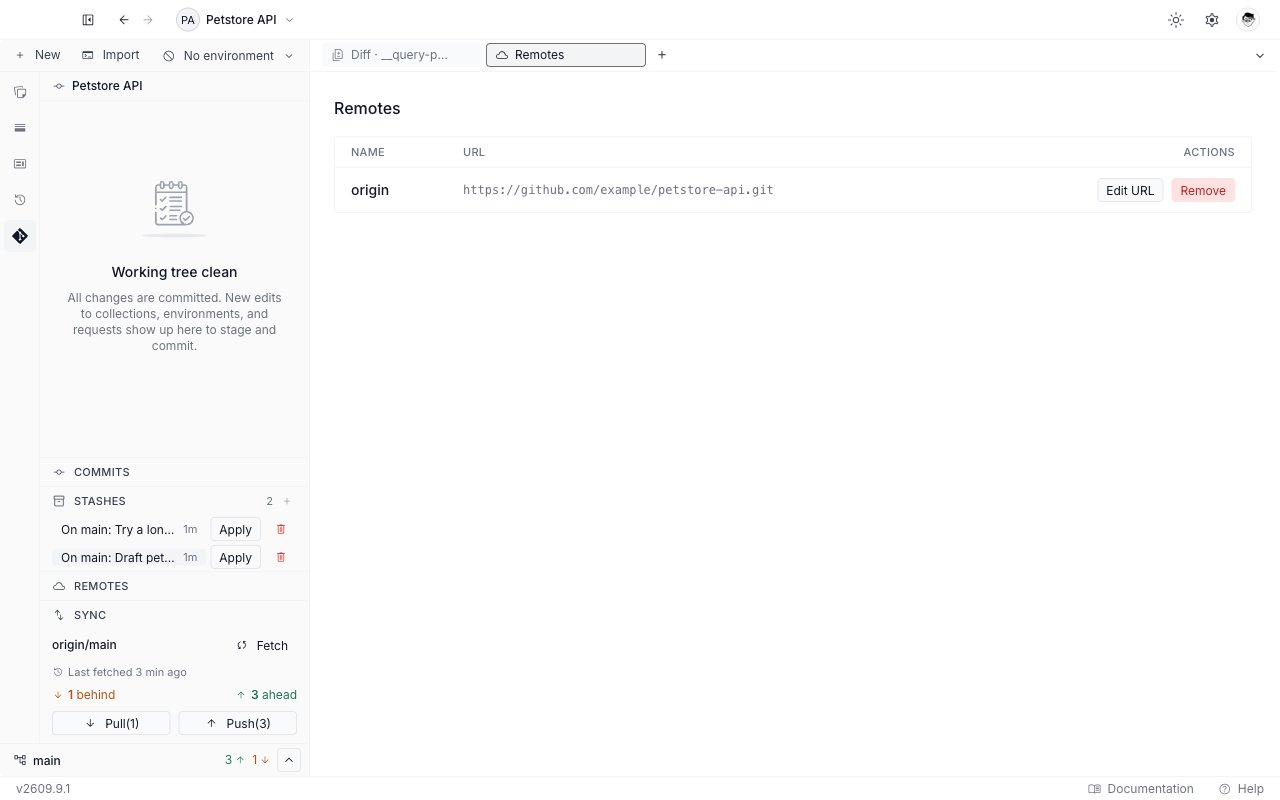
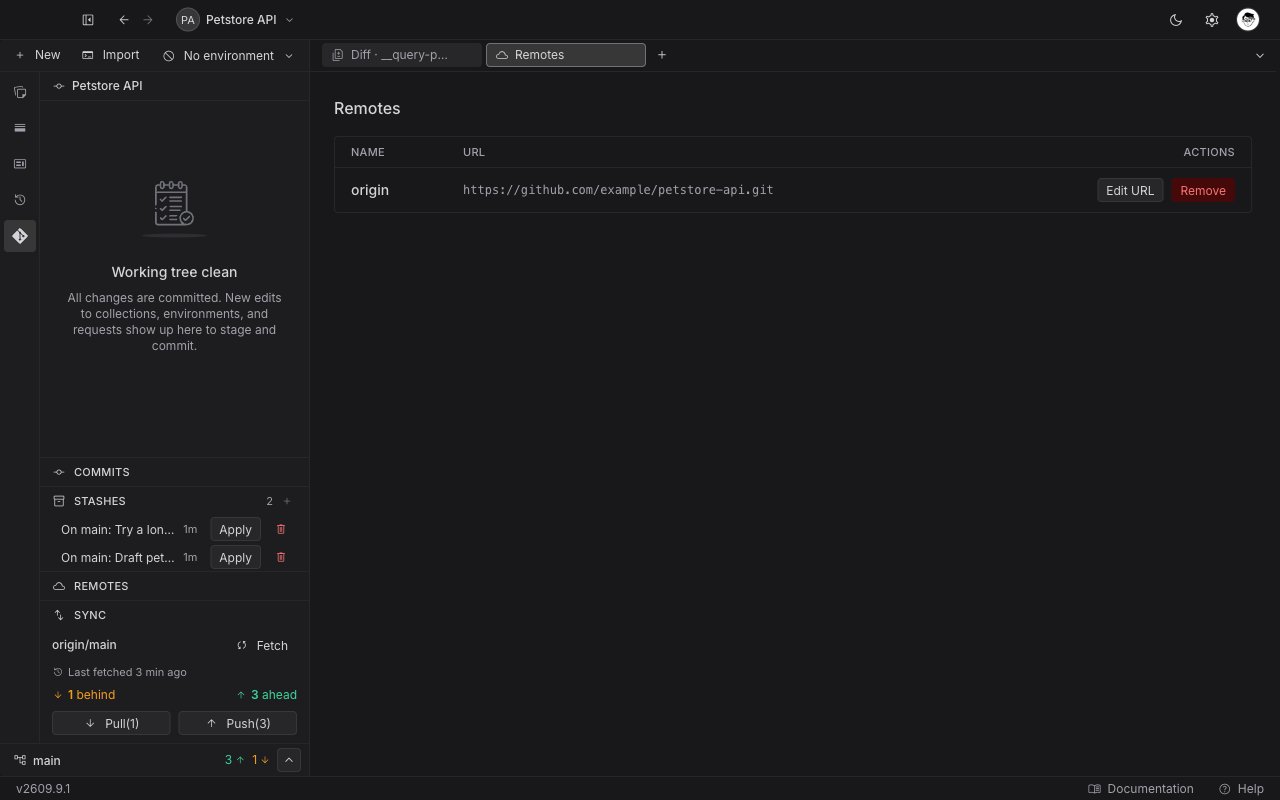 Click the message to open the stash's files as a read-only diff tab, named `Diff · stash@{0}` after the stash it holds. The tab behaves exactly like any other Git diff in Requestly, so read [Browse history and diffs](/api-client/git/history-and-diffs#read-a-diff) for what the comparison shows.
## Apply a stash
Applying puts the stashed changes back into your working tree, on the branch you are on now.
Requestly restores the stash's files. They appear in the **Changes** section of the panel, ready to stage and commit.
The restored files are ordinary working-tree changes. Stage and commit them as usual. See [Stage and commit changes](/api-client/git/commit-changes).
Applying does not remove the stash. The row stays in the list until you drop it yourself.
Because apply keeps the stash, you can apply the same one onto more than one branch, then drop it once when you are finished with it.
## Drop a stash
Dropping deletes the stash and the work it holds.
Find the stash in the list and click the trash icon at the right of its row.
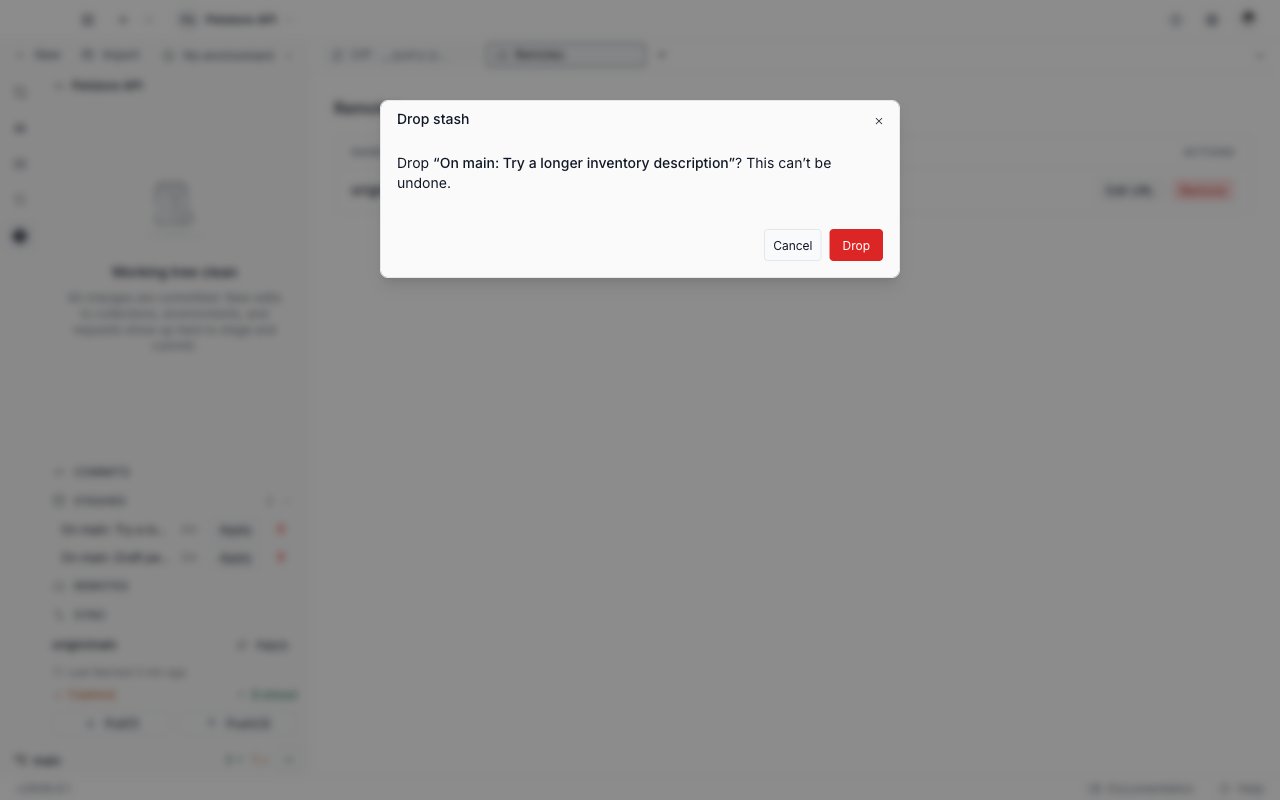
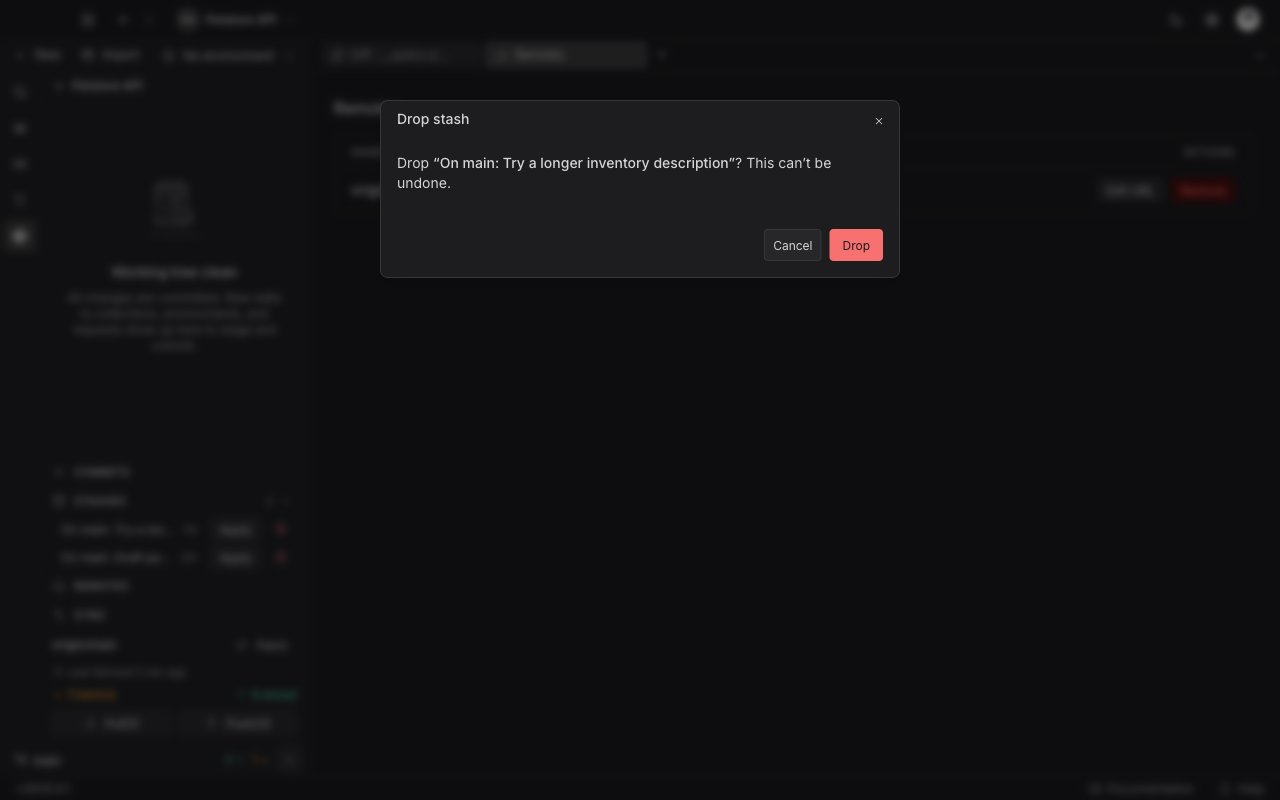
The **Drop stash** window asks "Drop ``? This can't be undone." Click **Drop** to delete it, or **Cancel** to keep it.
Click the message to open the stash's files as a read-only diff tab, named `Diff · stash@{0}` after the stash it holds. The tab behaves exactly like any other Git diff in Requestly, so read [Browse history and diffs](/api-client/git/history-and-diffs#read-a-diff) for what the comparison shows.
## Apply a stash
Applying puts the stashed changes back into your working tree, on the branch you are on now.
Requestly restores the stash's files. They appear in the **Changes** section of the panel, ready to stage and commit.
The restored files are ordinary working-tree changes. Stage and commit them as usual. See [Stage and commit changes](/api-client/git/commit-changes).
Applying does not remove the stash. The row stays in the list until you drop it yourself.
Because apply keeps the stash, you can apply the same one onto more than one branch, then drop it once when you are finished with it.
## Drop a stash
Dropping deletes the stash and the work it holds.
Find the stash in the list and click the trash icon at the right of its row.
The **Drop stash** window asks "Drop ``? This can't be undone." Click **Drop** to delete it, or **Cancel** to keep it.
 A dropped stash is gone. Apply it first if you are not certain you are finished with the changes it holds.
## When an apply hits conflicts
A stash you apply onto a branch that has moved on can collide with the files already in your working tree. Requestly raises no toast for this, and the **Stashes** section itself does not change.
The conflicted file turns up in the ordinary **Changes** section of the panel instead, carrying a **conflict** badge beside its `U` status letter. The row behaves like every other row there: the plus icon stages the file, the undo arrow discards it, and clicking the name opens its diff.
Git writes both versions into the file on disk, marked with its usual conflict markers, so settle the file yourself before you stage it.
Look in **Changes** for the row carrying the **conflict** badge. Every other changed file sits alongside it as usual.
Edit the file so it holds the text you want to keep, and remove the conflict markers Git left in it.
Stage the file with its plus icon, then write a commit from the panel as usual. See [Stage and commit changes](/api-client/git/commit-changes).
The stash is still in the list, because applying never removes one. Drop it when you are done with it.
This is not the [merge conflict surface](/api-client/git/resolve-conflicts). A stash that applies with conflicts leaves no merge in progress for Git to continue, so the panel stays on its normal change list.
## Next steps
Read the change list, stage or discard files, and write a commit.
Open the branch picker to switch, create, or delete a branch, and stash on the way.
Read the commit graph, and open a read-only diff for a commit, a stash, or a changed file.
Work through a merge that stopped on conflicting files, or abort it.
A dropped stash is gone. Apply it first if you are not certain you are finished with the changes it holds.
## When an apply hits conflicts
A stash you apply onto a branch that has moved on can collide with the files already in your working tree. Requestly raises no toast for this, and the **Stashes** section itself does not change.
The conflicted file turns up in the ordinary **Changes** section of the panel instead, carrying a **conflict** badge beside its `U` status letter. The row behaves like every other row there: the plus icon stages the file, the undo arrow discards it, and clicking the name opens its diff.
Git writes both versions into the file on disk, marked with its usual conflict markers, so settle the file yourself before you stage it.
Look in **Changes** for the row carrying the **conflict** badge. Every other changed file sits alongside it as usual.
Edit the file so it holds the text you want to keep, and remove the conflict markers Git left in it.
Stage the file with its plus icon, then write a commit from the panel as usual. See [Stage and commit changes](/api-client/git/commit-changes).
The stash is still in the list, because applying never removes one. Drop it when you are done with it.
This is not the [merge conflict surface](/api-client/git/resolve-conflicts). A stash that applies with conflicts leaves no merge in progress for Git to continue, so the panel stays on its normal change list.
## Next steps
Read the change list, stage or discard files, and write a commit.
Open the branch picker to switch, create, or delete a branch, and stash on the way.
Read the commit graph, and open a read-only diff for a commit, a stash, or a changed file.
Work through a merge that stopped on conflicting files, or abort it.