> ## Documentation Index
> Fetch the complete documentation index at: https://docs.requestly.com/llms.txt
> Use this file to discover all available pages before exploring further.
# Import / Export Collections
You can easily **export API collections to a** `.json` **file** and **import them back into Requestly** whenever needed. This makes it simple to back up your work, move between devices, or collaborate with others.
**Need Help First?**\
If you’re new to collections or environments, check out our docs on [creating a collection](/api-client/api-collections#create-api-collection) and managing environments before using import/export.
## Exporting Collections
Exporting a collection generates a `.json` file that contains all the requests, scripts, and metadata inside that collection.
### How to Export a Collection
[Download Requestly](https://requestly.com/downloads) and open app.
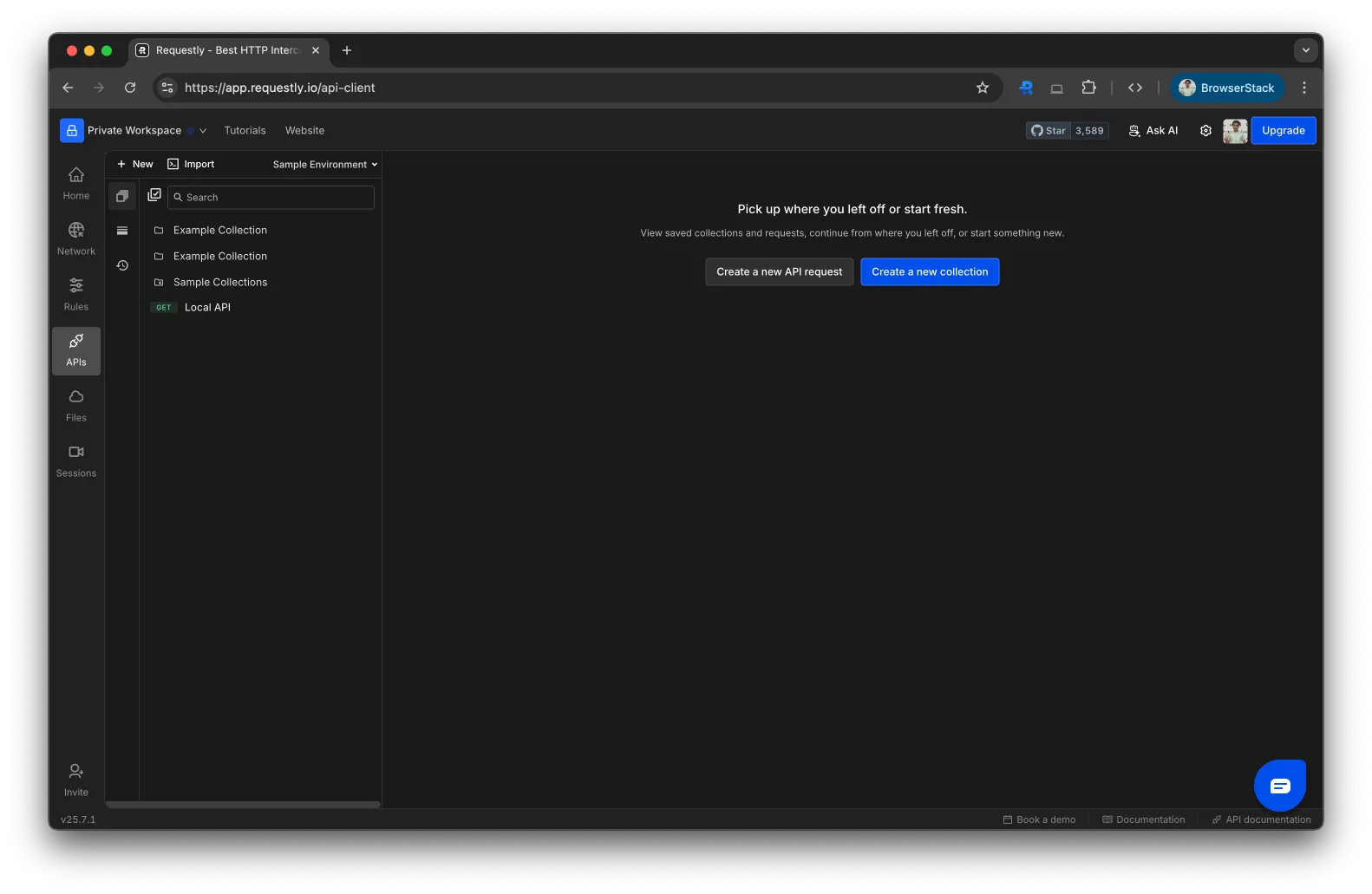 In the left sidebar, hover over the collection you want to export.
Click the **three-dot menu (⋯)** next to the collection name and choose **Export**.
In the left sidebar, hover over the collection you want to export.
Click the **three-dot menu (⋯)** next to the collection name and choose **Export**.
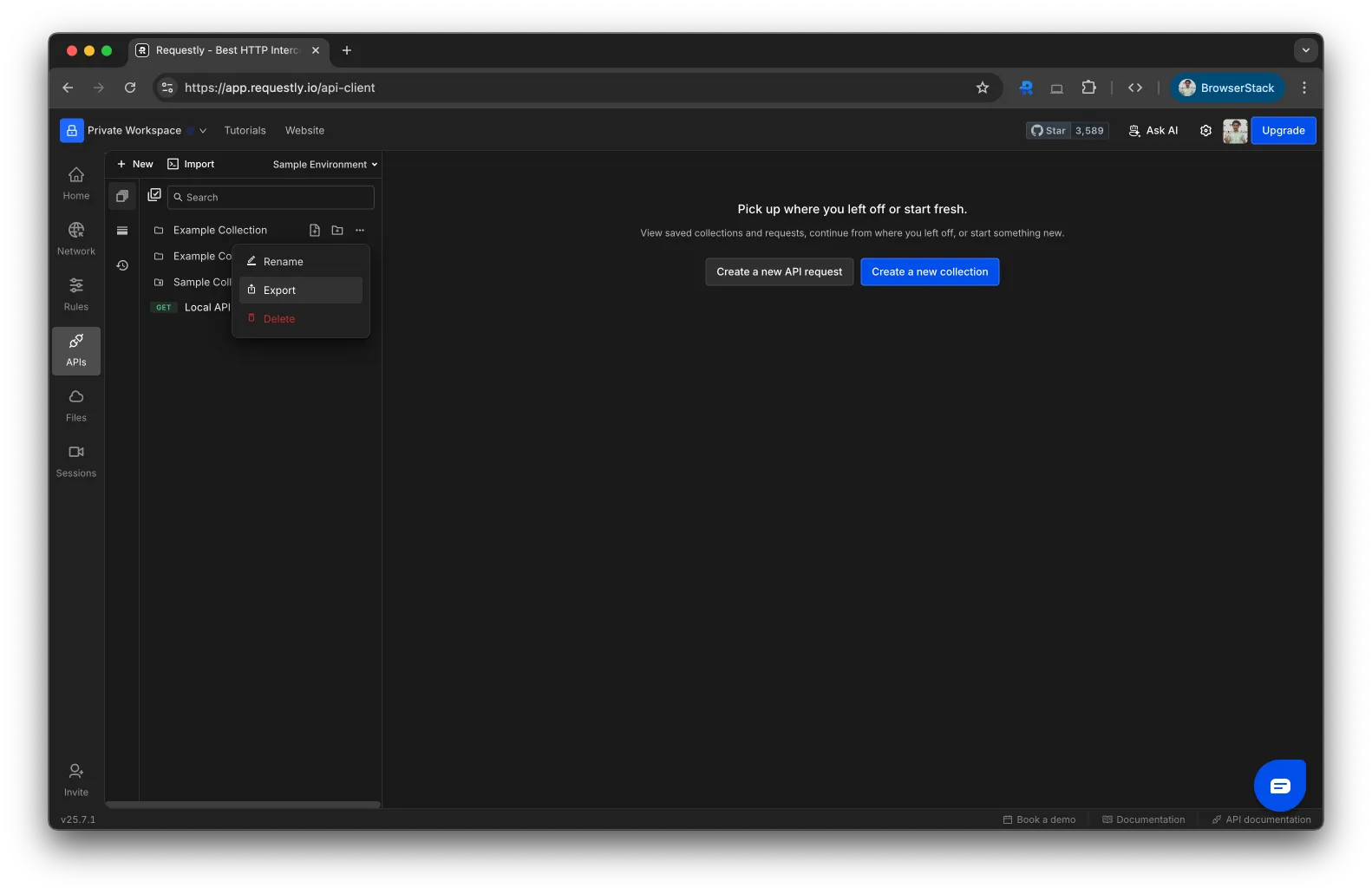 A modal will appear showing the collection name.
Click **Export** to download the `.json` file to your device
A modal will appear showing the collection name.
Click **Export** to download the `.json` file to your device
 ## Importing Collections
You can re-import previously exported Requestly collections on any device or workspace to continue working from where you left off.
### How to Import a Collection
[Download Requestly](https://requestly.com/downloads) and open app.
## Importing Collections
You can re-import previously exported Requestly collections on any device or workspace to continue working from where you left off.
### How to Import a Collection
[Download Requestly](https://requestly.com/downloads) and open app.
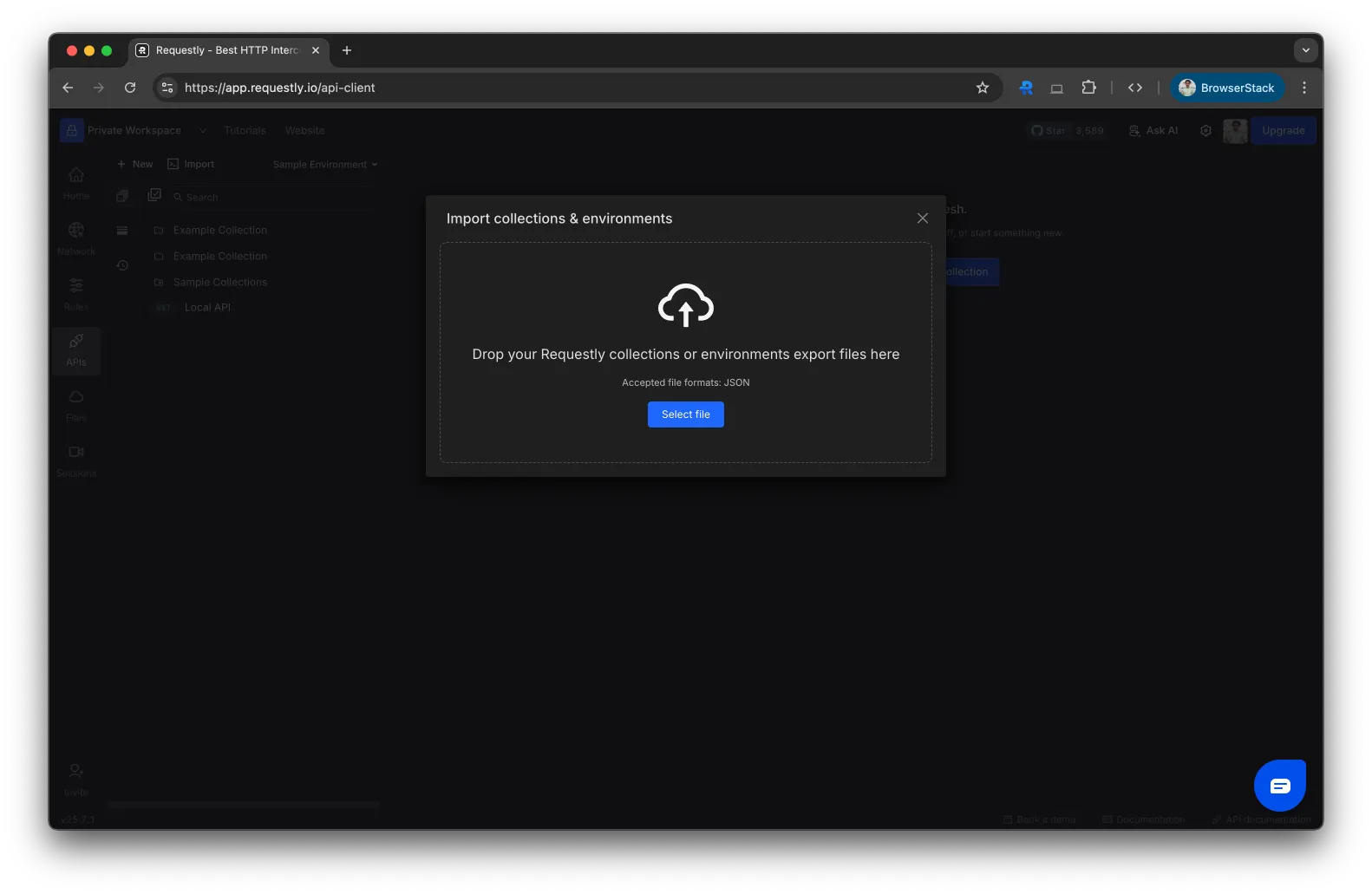
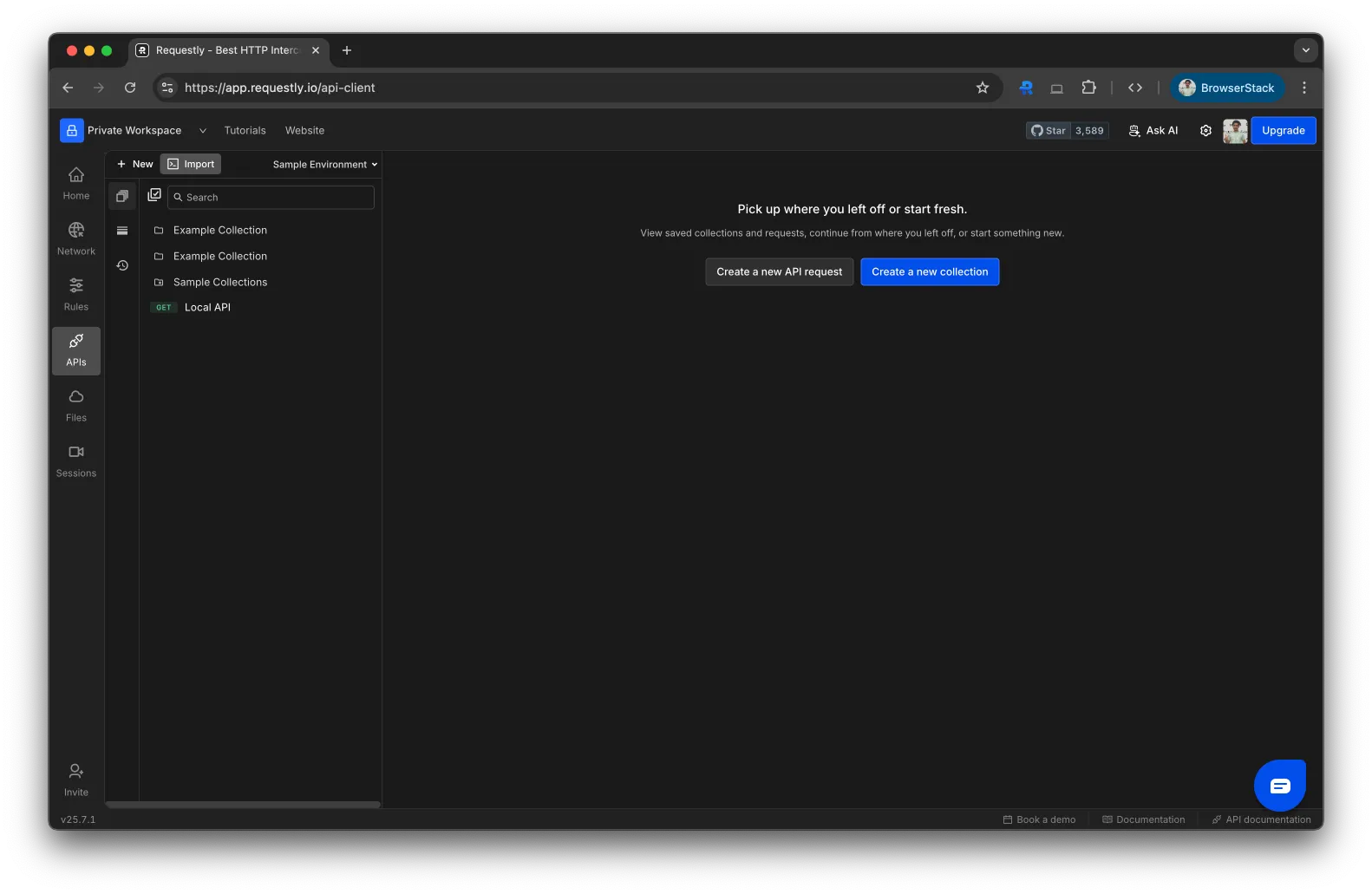
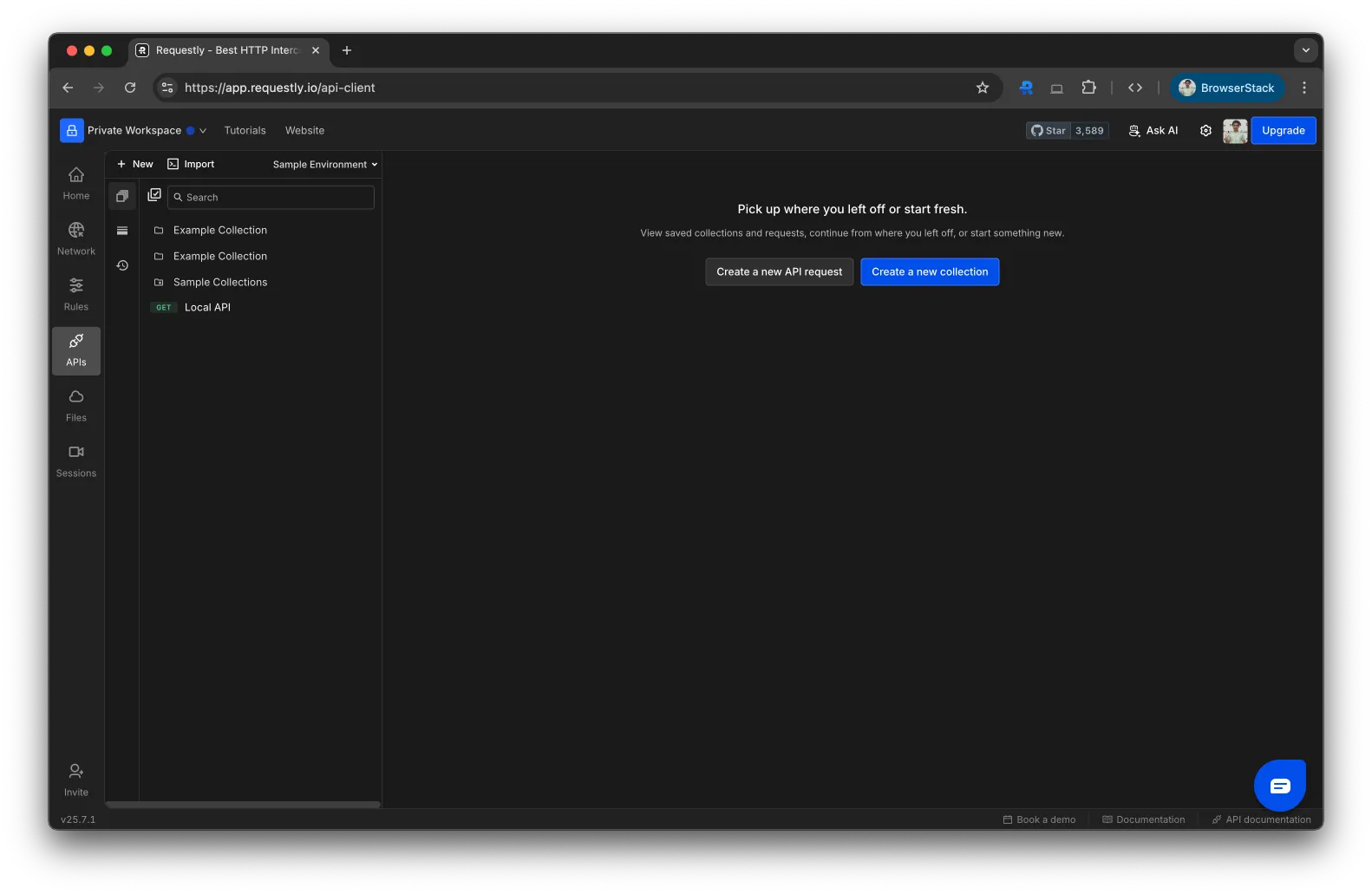 In the top-left corner of the API Client, click the **Import** button. This will open a dropdown with multiple import options.
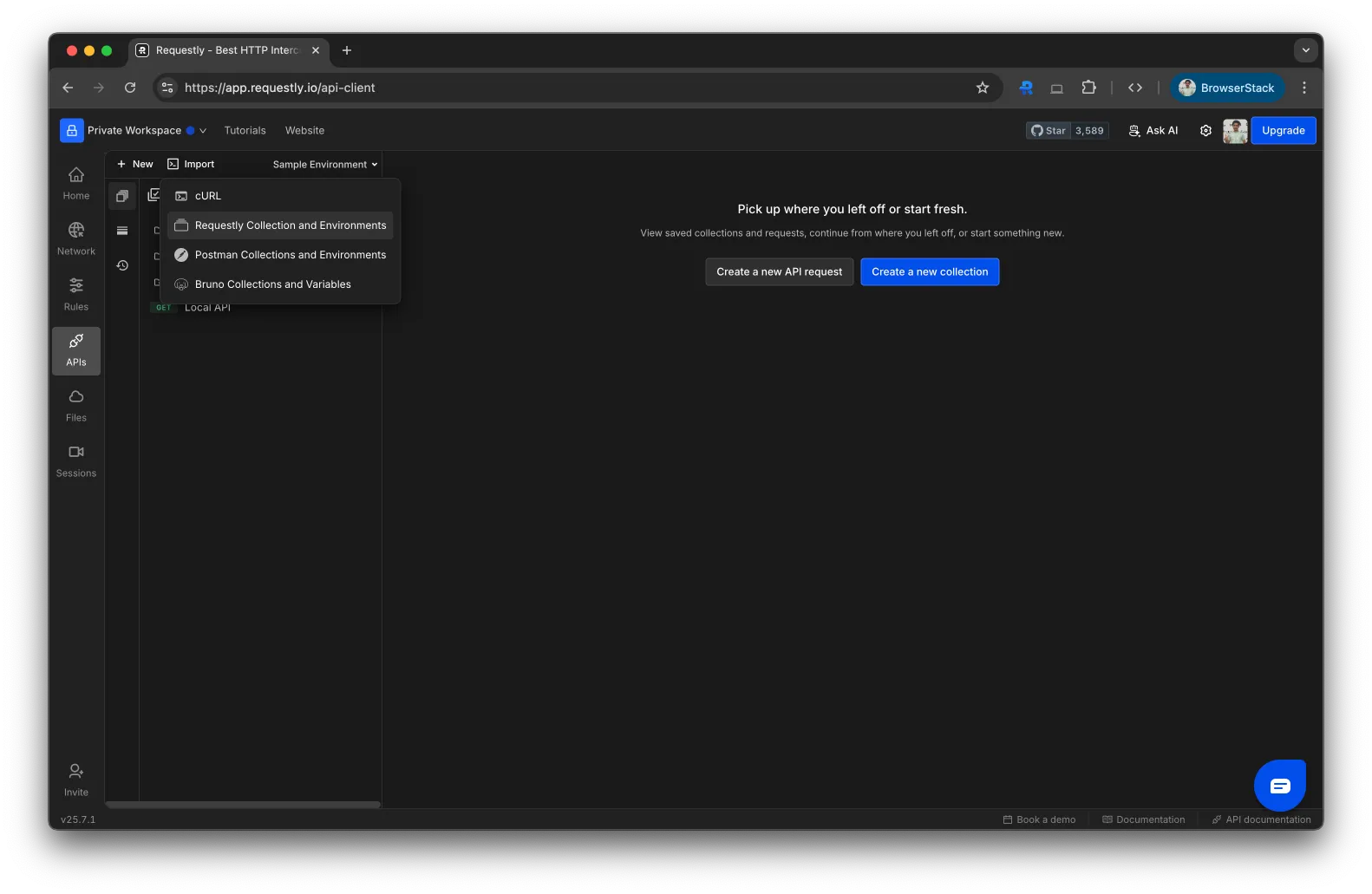
 From the dropdown, choose **Requestly’s Collection & Environment** to open the import modal.
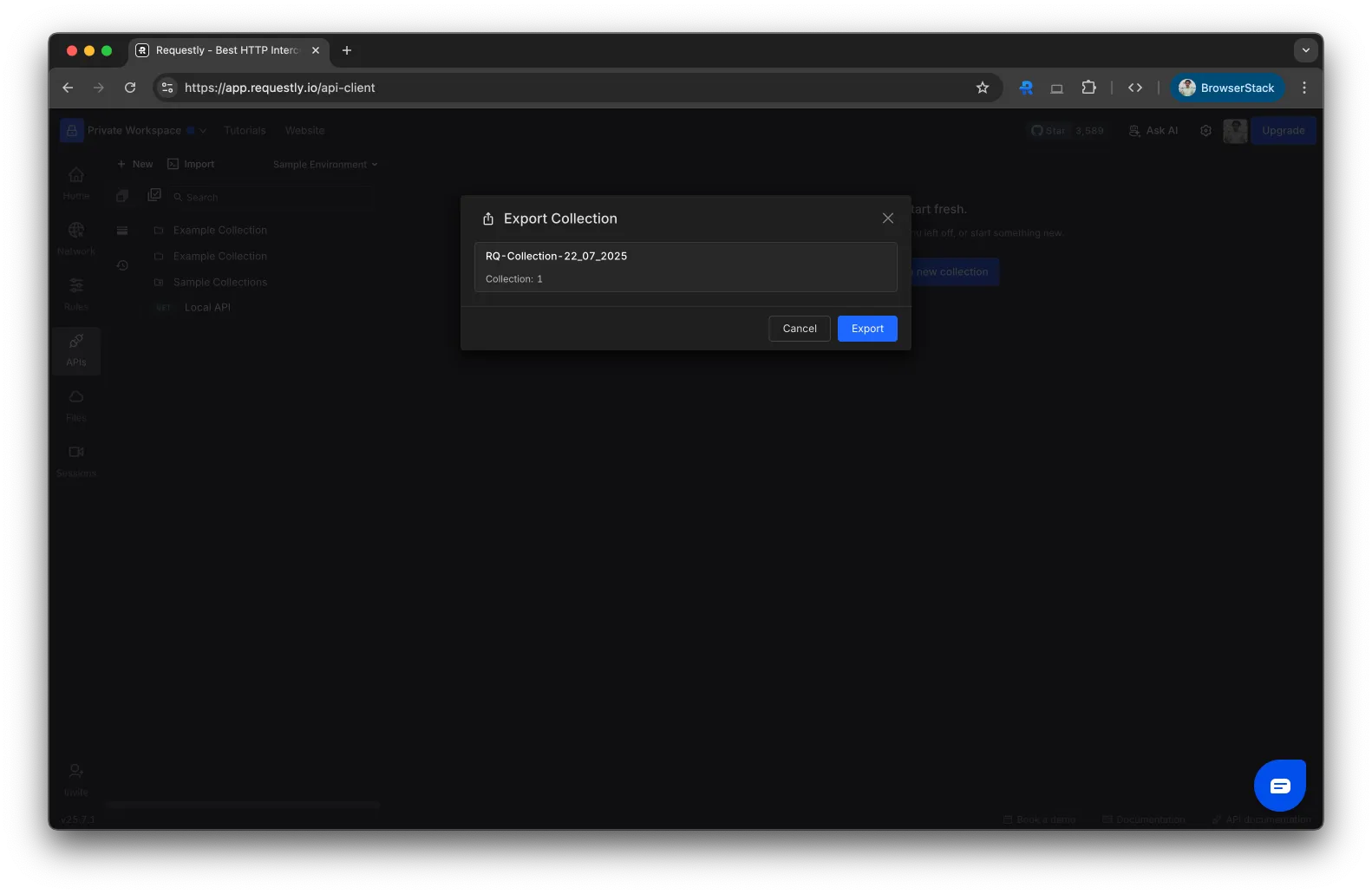
 In the import modal, click to browse or drag and drop the `.json` file you want to import. Once selected, the collection will be added to your workspace.