> ## Documentation Index
> Fetch the complete documentation index at: https://docs.requestly.com/llms.txt
> Use this file to discover all available pages before exploring further.
# Import from postman
> Learn how to migrate your Postman collections and environment variables to Requestly.
***
Postman is a popular API development tool widely used for testing and managing APIs. Requestly can import collections and environment files exported from Postman.
### **Export all the workspace data from Postman**
**Step 1**: Click your profile icon in the top-right corner of Postman and select **Settings**.
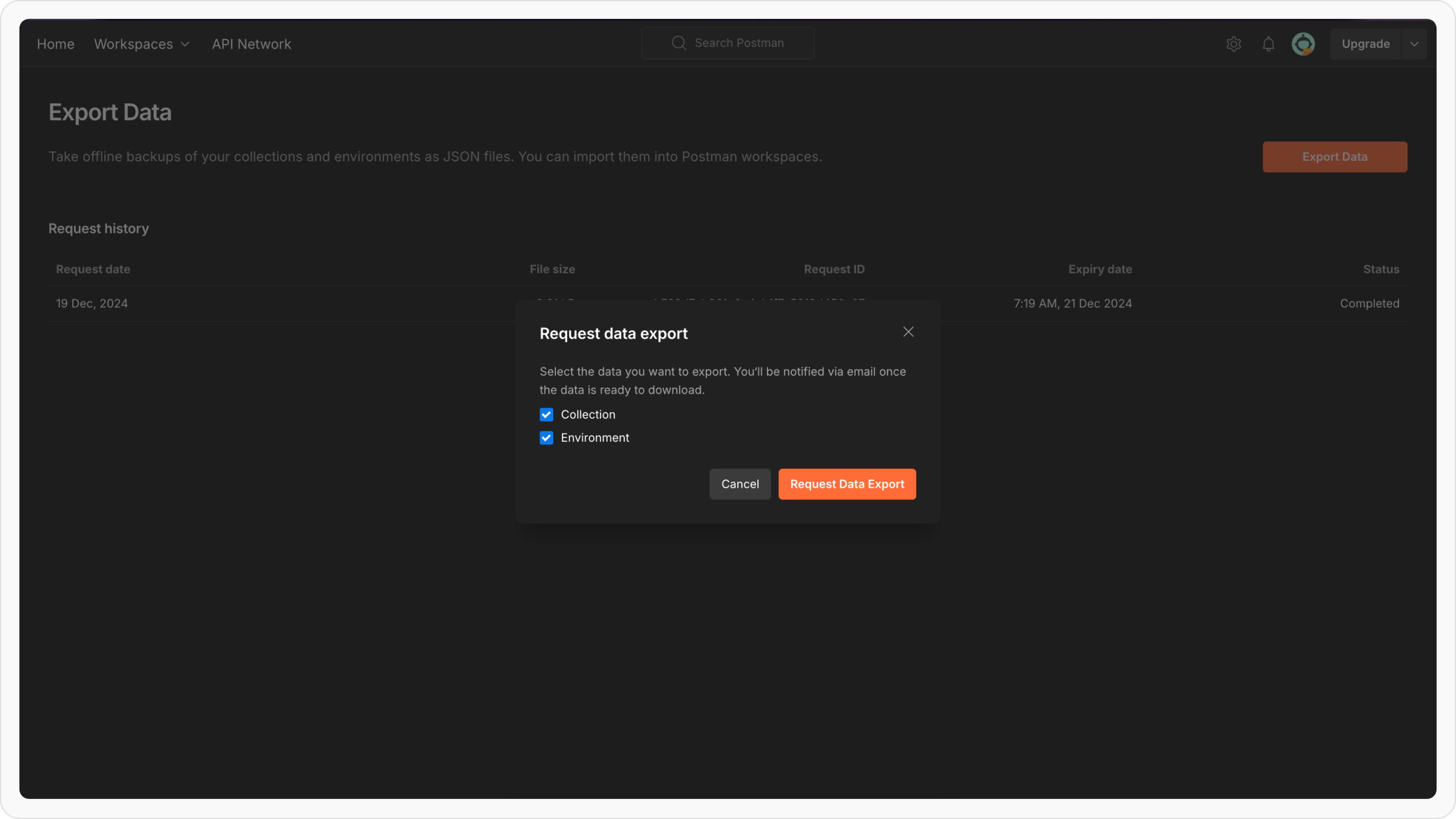
**Step 2**: Navigate to the **Account** tab and click **Export Data**. It will redirect you to Export data page. Click on **Export data** button.
**Step 3**: Select the data to export (collections, environments, or both) and click **Request Data Export**.
**Step 4**: Check your registered email for exported data, download the ZIP file and extract its contents.
You can also export individual collections and environments from Postman, as explained at the end of this documentation.
Global variables are not automatically exported using this method.\
To use them in Requestly, you need to manually export global variables from Postman and import it into Requestly.
### **Importing into Requestly**
**Step 1**: Open **Requestly Desktop App**.
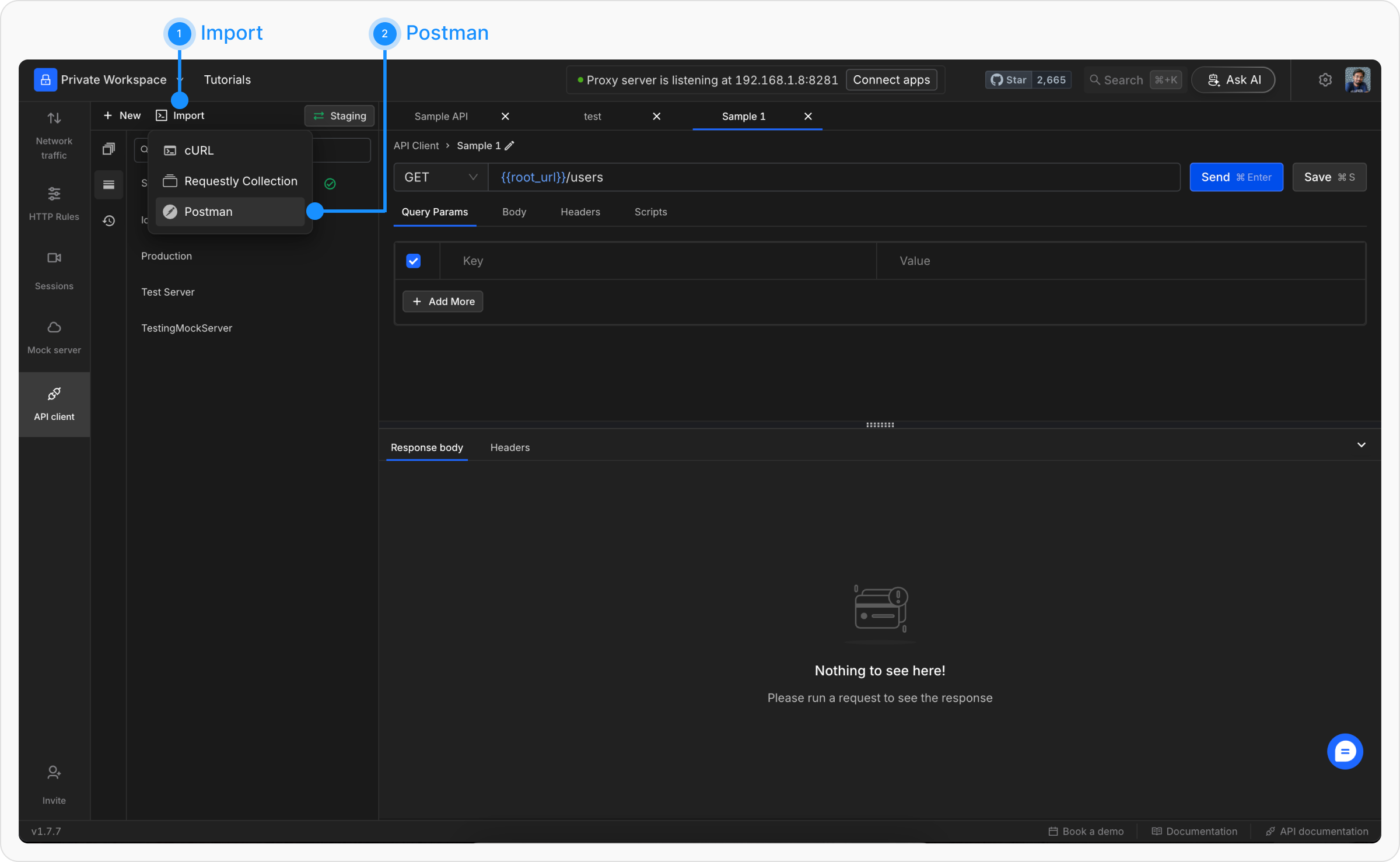
**Step 2**: Click the **Import** button located in the sidebar header and choose **Postman** from the import options.
**Step 3**: In the upload modal, select and upload the exported Postman **collection** and **environment** files(Multiple files can be imported at once).
**Step 4**: Once the files are processed, click **Import** to finalize the migration.
### **Exporting individual Collections from Postman**
**Step 1**: Open Postman and navigate to the **Collections** tab in the left sidebar to view your collections.
**Step 2**: Click the ellipsis (`...`) next to the collection you wish to export and select **Export** from the dropdown menu.
**Step 3**: In the export dialog, select either **Collection v2** or **Collection v2.1**(Requestly supports both) as the export format. Click **Export** and save the file.
**Step 4**: Import using the same steps as explained in **Import into Requestly** section above.
### **Exporting individual Environments from Postman**
**Step 1**: Open Postman and go to the **Environments** tab in the left sidebar to view your environments.
**Step 2**: Click the ellipsis (`...`) next to the environment you wish to export and select **Export**.
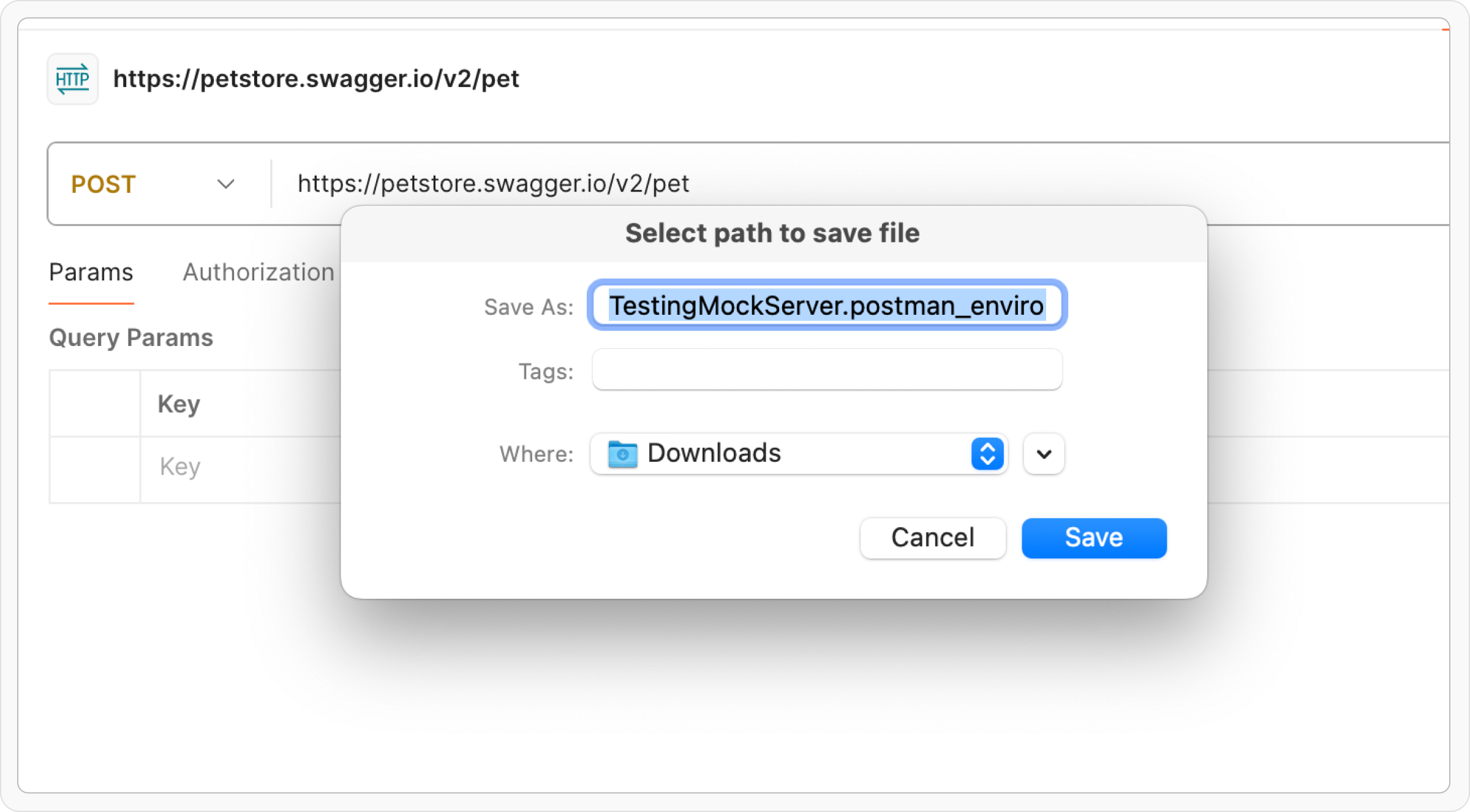
**Step 3**: Choose a location to save the exported environment file and click **Save**.
**Step 4**: Import using the same steps as explained in **Import into Requestly** section above.
### **Known Limitations**
Postman's export format does not include everything in your Postman workspace. Be aware of these gaps before migrating:
* **gRPC collections are not exported.** Postman does not include gRPC requests in its collection export files. There is no workaround - gRPC requests must be recreated manually in Requestly.
* **WebSocket requests are not exported.** Similar to gRPC, Postman does not include WebSocket requests in exported collections.
* **Global variables require a separate export.** Postman's bulk data export does not include global variables. You need to export them manually from the Postman **Environments** sidebar (click the **Globals** entry, then **Export**) and import the resulting file into Requestly alongside your collections.
* **Secret variable values are exported in plaintext.** Postman does not encrypt secret variables in exported files. Review your exported files before sharing them.
* **Binary body and file references are not preserved.** Requests with binary file bodies or form-data file attachments lose the file reference on export. You will need to re-attach files manually after importing into Requestly.
* **Some Postman script APIs have no equivalent.** Postman-specific APIs like `pm.vault`, `pm.visualizer`, and `pm.cookies.jar` do not have Requestly equivalents. Scripts using these APIs will need manual updates. The importer translates `pm.*` calls to `rq.*` automatically, but certain methods (like request header mutation) are read-only in Requestly.
* **Collection-level scripts may need review.** Collection-level pre-request and test scripts are imported, but differences between the Postman and Requestly scripting runtimes may require adjustments.
* **External script references are skipped.** Scripts that reference external URLs (instead of inline code) cannot be imported. Inline the script code before exporting from Postman.
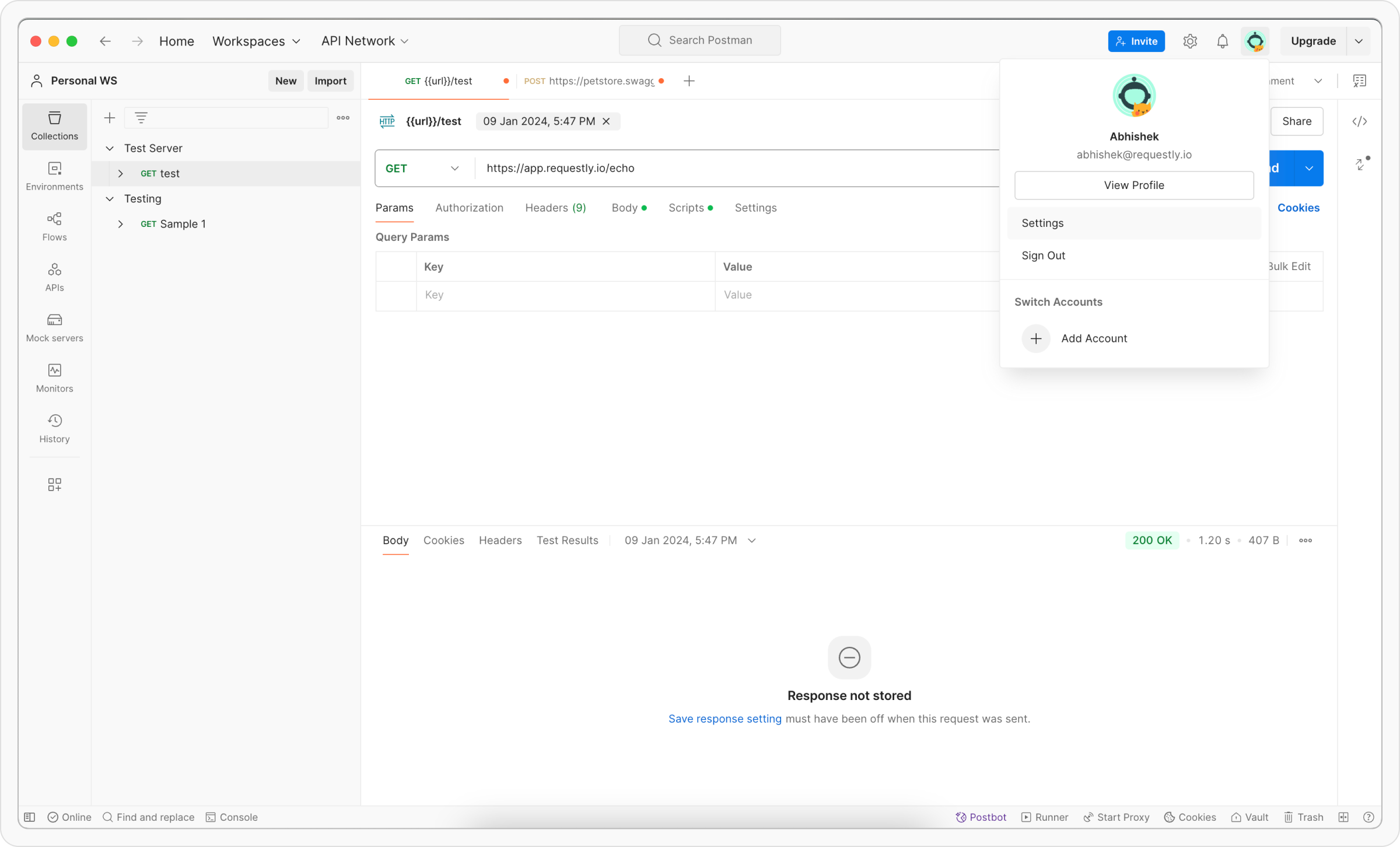 **Step 2**: Navigate to the **Account** tab and click **Export Data**. It will redirect you to Export data page. Click on **Export data** button.
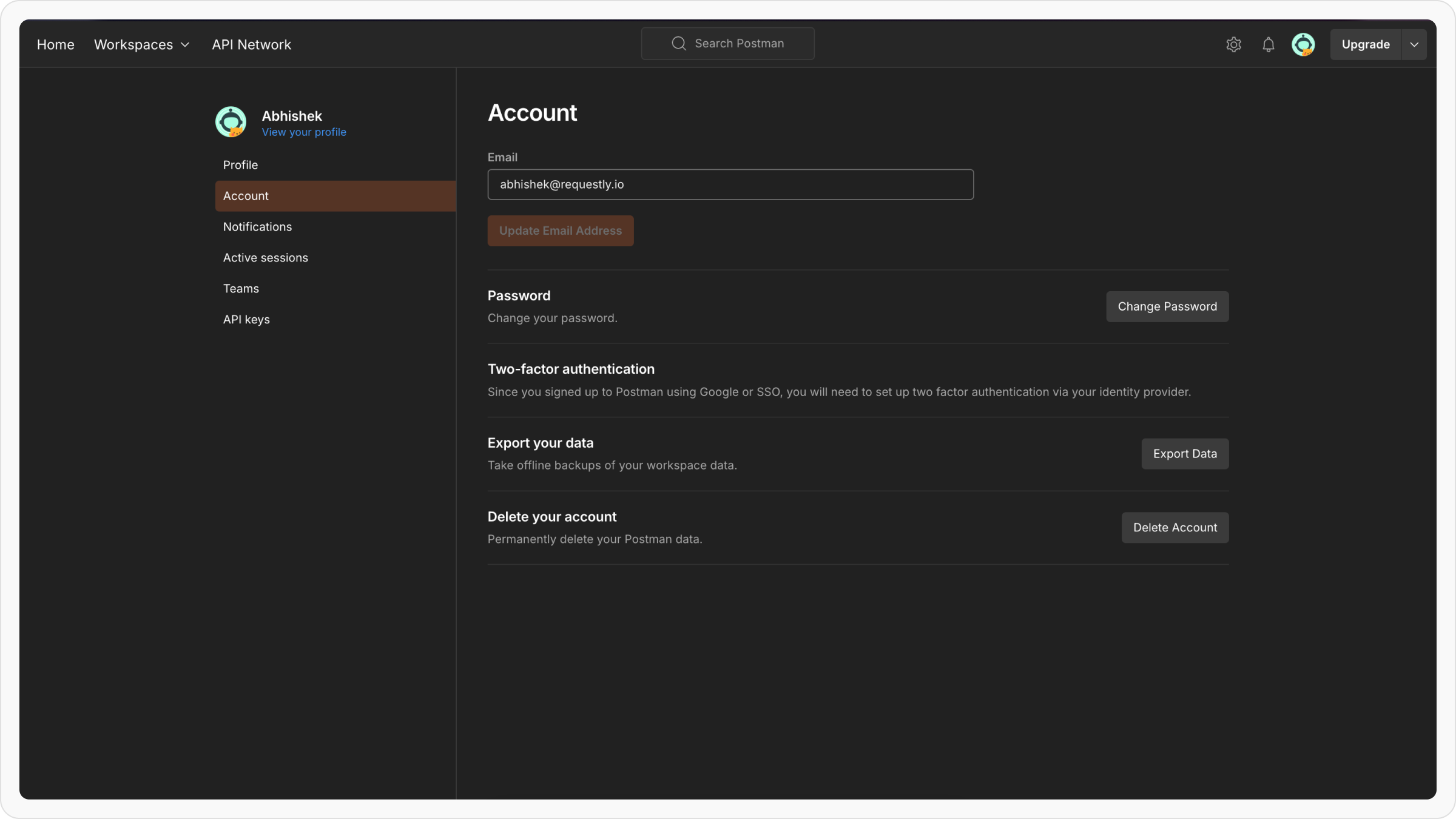 **Step 3**: Select the data to export (collections, environments, or both) and click **Request Data Export**.
 **Step 4**: Check your registered email for exported data, download the ZIP file and extract its contents.
You can also export individual collections and environments from Postman, as explained at the end of this documentation.
Global variables are not automatically exported using this method.\
To use them in Requestly, you need to manually export global variables from Postman and import it into Requestly.
### **Importing into Requestly**
**Step 1**: Open **Requestly Desktop App**.
**Step 2**: Click the **Import** button located in the sidebar header and choose **Postman** from the import options.
**Step 4**: Check your registered email for exported data, download the ZIP file and extract its contents.
You can also export individual collections and environments from Postman, as explained at the end of this documentation.
Global variables are not automatically exported using this method.\
To use them in Requestly, you need to manually export global variables from Postman and import it into Requestly.
### **Importing into Requestly**
**Step 1**: Open **Requestly Desktop App**.
**Step 2**: Click the **Import** button located in the sidebar header and choose **Postman** from the import options.
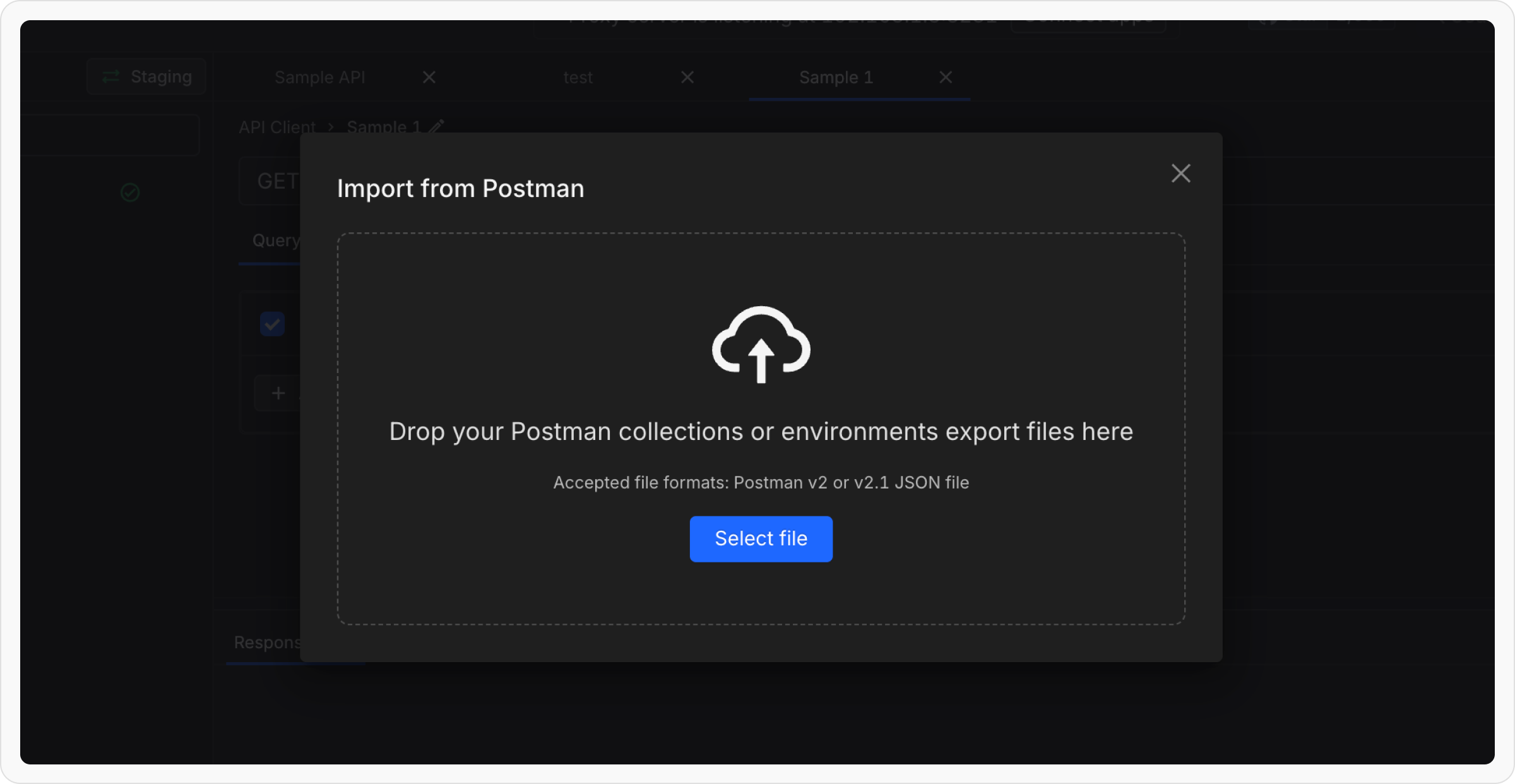
 **Step 3**: In the upload modal, select and upload the exported Postman **collection** and **environment** files(Multiple files can be imported at once).
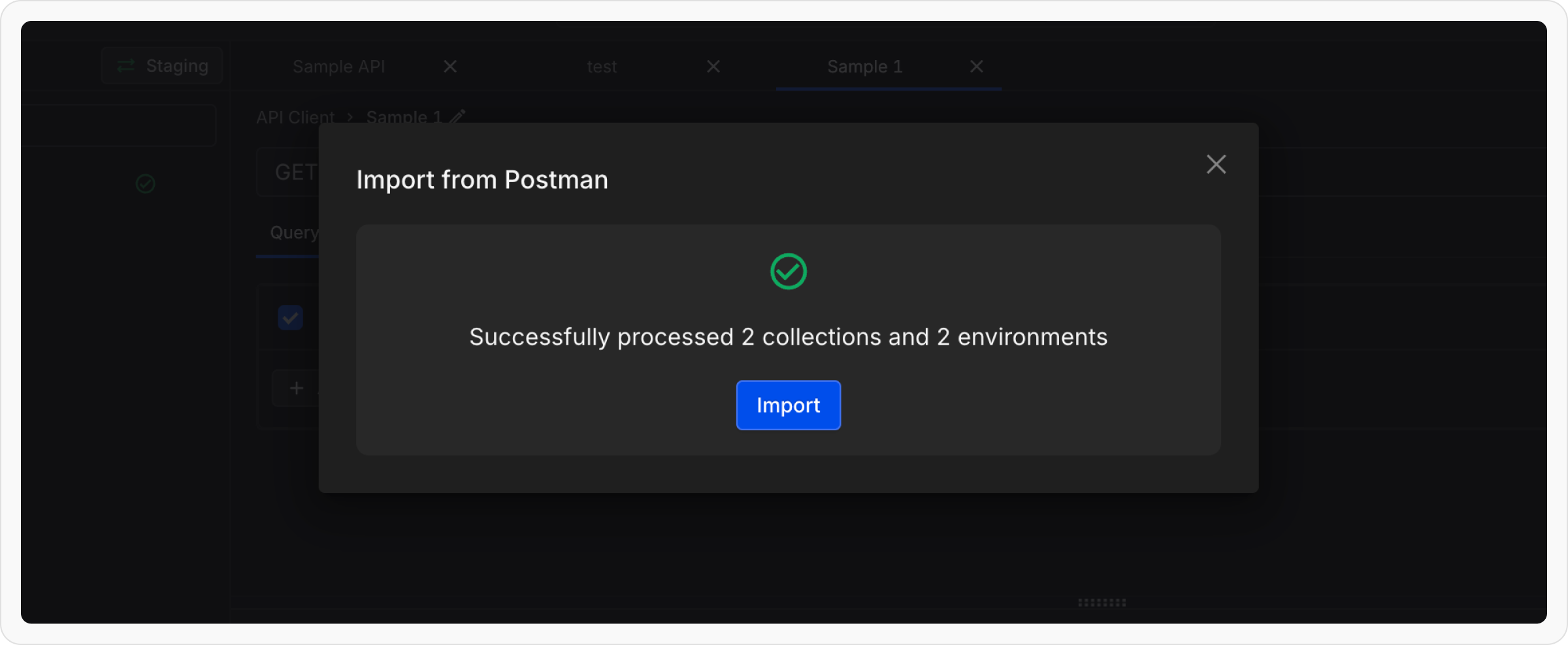
 **Step 4**: Once the files are processed, click **Import** to finalize the migration.
 ### **Exporting individual Collections from Postman**
**Step 1**: Open Postman and navigate to the **Collections** tab in the left sidebar to view your collections.
### **Exporting individual Collections from Postman**
**Step 1**: Open Postman and navigate to the **Collections** tab in the left sidebar to view your collections.
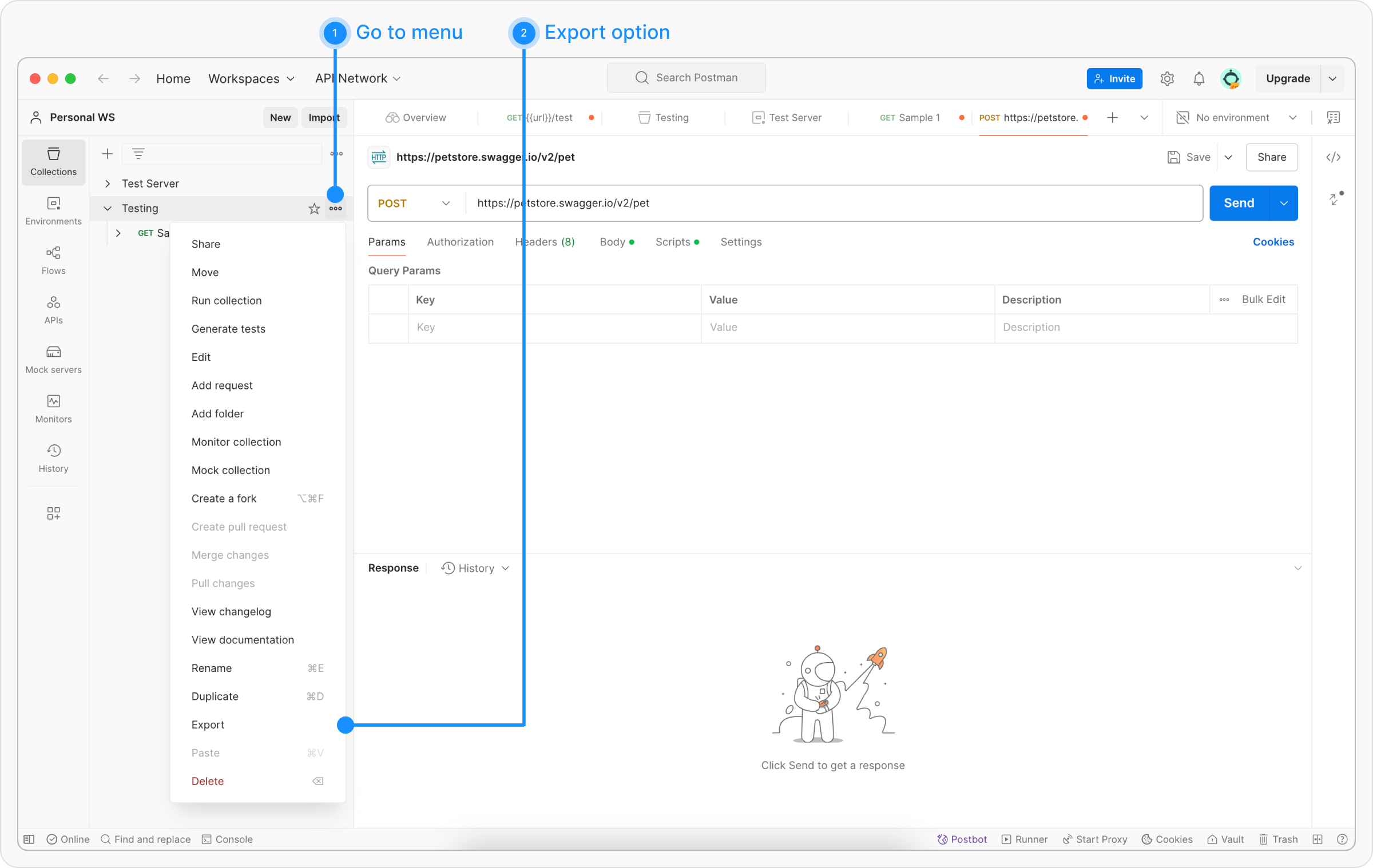 **Step 2**: Click the ellipsis (`...`) next to the collection you wish to export and select **Export** from the dropdown menu.
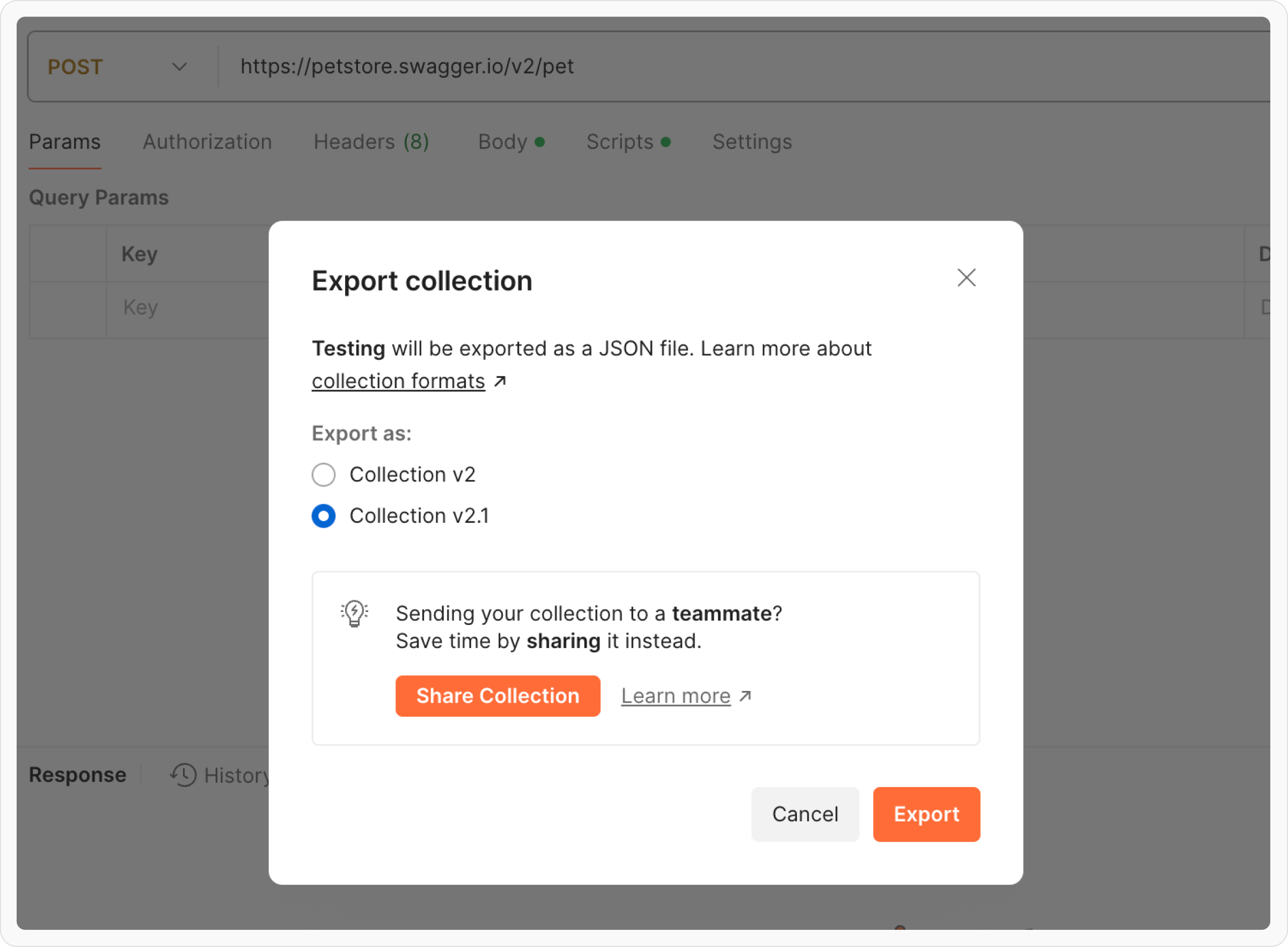
**Step 3**: In the export dialog, select either **Collection v2** or **Collection v2.1**(Requestly supports both) as the export format. Click **Export** and save the file.
**Step 2**: Click the ellipsis (`...`) next to the collection you wish to export and select **Export** from the dropdown menu.
**Step 3**: In the export dialog, select either **Collection v2** or **Collection v2.1**(Requestly supports both) as the export format. Click **Export** and save the file.
 **Step 4**: Import using the same steps as explained in **Import into Requestly** section above.
### **Exporting individual Environments from Postman**
**Step 1**: Open Postman and go to the **Environments** tab in the left sidebar to view your environments.
**Step 4**: Import using the same steps as explained in **Import into Requestly** section above.
### **Exporting individual Environments from Postman**
**Step 1**: Open Postman and go to the **Environments** tab in the left sidebar to view your environments.
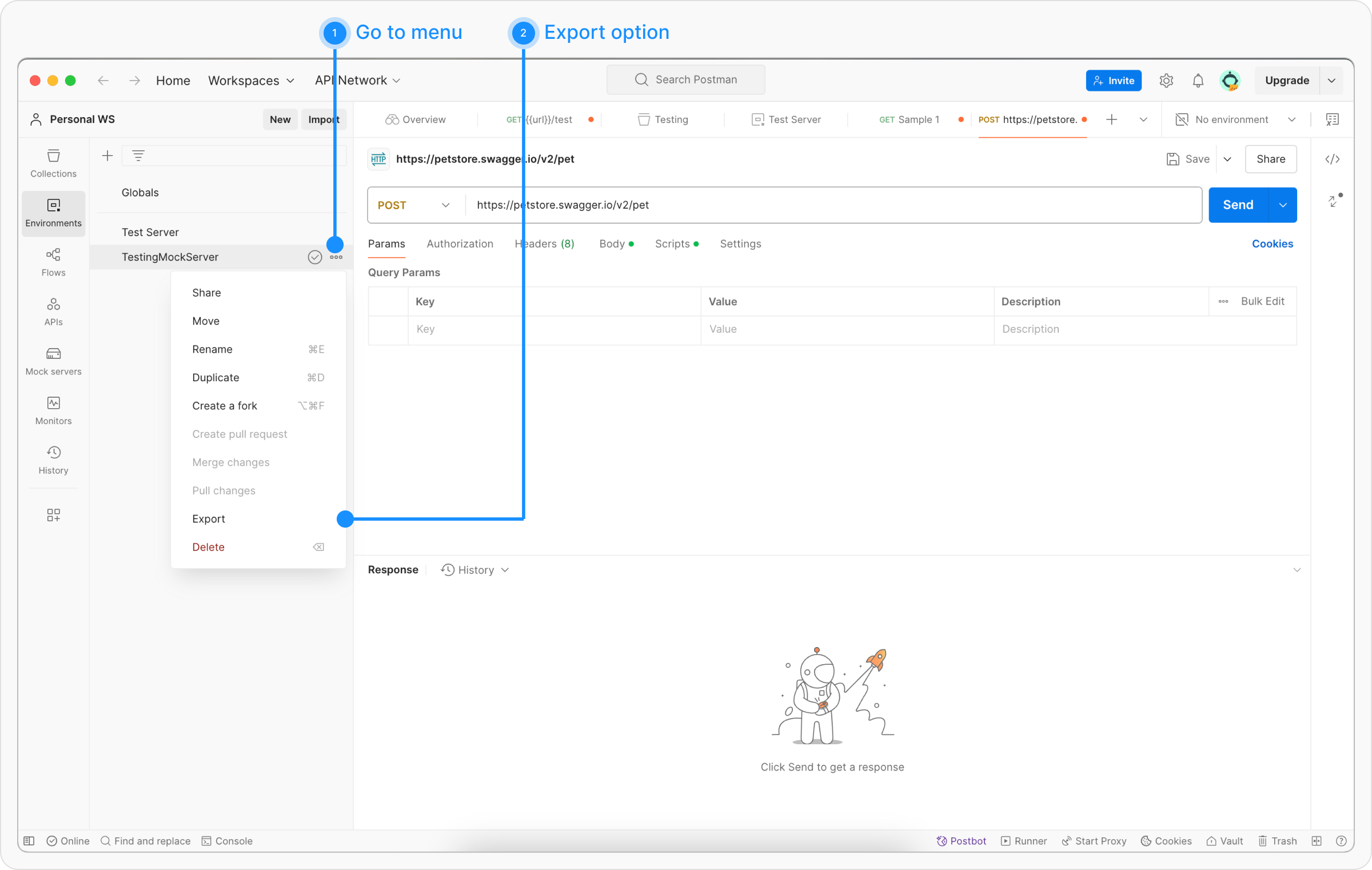 **Step 2**: Click the ellipsis (`...`) next to the environment you wish to export and select **Export**.
**Step 3**: Choose a location to save the exported environment file and click **Save**.
**Step 2**: Click the ellipsis (`...`) next to the environment you wish to export and select **Export**.
**Step 3**: Choose a location to save the exported environment file and click **Save**.
 **Step 4**: Import using the same steps as explained in **Import into Requestly** section above.
### **Known Limitations**
Postman's export format does not include everything in your Postman workspace. Be aware of these gaps before migrating:
* **gRPC collections are not exported.** Postman does not include gRPC requests in its collection export files. There is no workaround - gRPC requests must be recreated manually in Requestly.
* **WebSocket requests are not exported.** Similar to gRPC, Postman does not include WebSocket requests in exported collections.
* **Global variables require a separate export.** Postman's bulk data export does not include global variables. You need to export them manually from the Postman **Environments** sidebar (click the **Globals** entry, then **Export**) and import the resulting file into Requestly alongside your collections.
* **Secret variable values are exported in plaintext.** Postman does not encrypt secret variables in exported files. Review your exported files before sharing them.
* **Binary body and file references are not preserved.** Requests with binary file bodies or form-data file attachments lose the file reference on export. You will need to re-attach files manually after importing into Requestly.
* **Some Postman script APIs have no equivalent.** Postman-specific APIs like `pm.vault`, `pm.visualizer`, and `pm.cookies.jar` do not have Requestly equivalents. Scripts using these APIs will need manual updates. The importer translates `pm.*` calls to `rq.*` automatically, but certain methods (like request header mutation) are read-only in Requestly.
* **Collection-level scripts may need review.** Collection-level pre-request and test scripts are imported, but differences between the Postman and Requestly scripting runtimes may require adjustments.
* **External script references are skipped.** Scripts that reference external URLs (instead of inline code) cannot be imported. Inline the script code before exporting from Postman.
**Step 4**: Import using the same steps as explained in **Import into Requestly** section above.
### **Known Limitations**
Postman's export format does not include everything in your Postman workspace. Be aware of these gaps before migrating:
* **gRPC collections are not exported.** Postman does not include gRPC requests in its collection export files. There is no workaround - gRPC requests must be recreated manually in Requestly.
* **WebSocket requests are not exported.** Similar to gRPC, Postman does not include WebSocket requests in exported collections.
* **Global variables require a separate export.** Postman's bulk data export does not include global variables. You need to export them manually from the Postman **Environments** sidebar (click the **Globals** entry, then **Export**) and import the resulting file into Requestly alongside your collections.
* **Secret variable values are exported in plaintext.** Postman does not encrypt secret variables in exported files. Review your exported files before sharing them.
* **Binary body and file references are not preserved.** Requests with binary file bodies or form-data file attachments lose the file reference on export. You will need to re-attach files manually after importing into Requestly.
* **Some Postman script APIs have no equivalent.** Postman-specific APIs like `pm.vault`, `pm.visualizer`, and `pm.cookies.jar` do not have Requestly equivalents. Scripts using these APIs will need manual updates. The importer translates `pm.*` calls to `rq.*` automatically, but certain methods (like request header mutation) are read-only in Requestly.
* **Collection-level scripts may need review.** Collection-level pre-request and test scripts are imported, but differences between the Postman and Requestly scripting runtimes may require adjustments.
* **External script references are skipped.** Scripts that reference external URLs (instead of inline code) cannot be imported. Inline the script code before exporting from Postman.