> ## Documentation Index
> Fetch the complete documentation index at: https://docs.requestly.com/llms.txt
> Use this file to discover all available pages before exploring further.
# Run on CI/CD
> Generate a ready-to-commit GitHub Actions, GitLab CI, Jenkins, or Azure Pipelines file that runs your collections with the Requestly CLI.
**Run on CI/CD** turns the collections you already run in the app into a pipeline file you can commit. You pick the collections, the CI provider, the runner's operating system, and which reports you want, and Requestly writes the whole file: downloading the CLI, running each collection in order, and wiring the results into your provider's own test reporting.
Nothing runs inside Requestly. The output is a text file you copy into your repository, and every command in it is a [Requestly CLI](/api-client/cli) invocation you could have typed yourself.
**Availability:** Run on CI/CD is rolling out gradually, so if the **Run in CLI** sub-tab is missing from a collection's Runner tab, contact support to confirm it is enabled for your account. CLI runs are not available for browser-based projects: open the project in the desktop app, or use a cloud project.
## Open the generator
In the Collections sidebar, select the collection you want to run in CI, then open its **Runner** tab.
The Runner tab has three sub-tabs: **Manual**, **Scheduled**, and **Run in CLI**. **Manual** is the on-demand [Collection Runner](/api-client/collection-runner) and **Scheduled** holds this collection's [Scheduled Runs](/api-client/scheduled-runs). Select **Run in CLI**.
This sub-tab shows the single command that runs this one collection from your terminal. A cloud project also shows the two environment variables the command needs; a local project needs none.
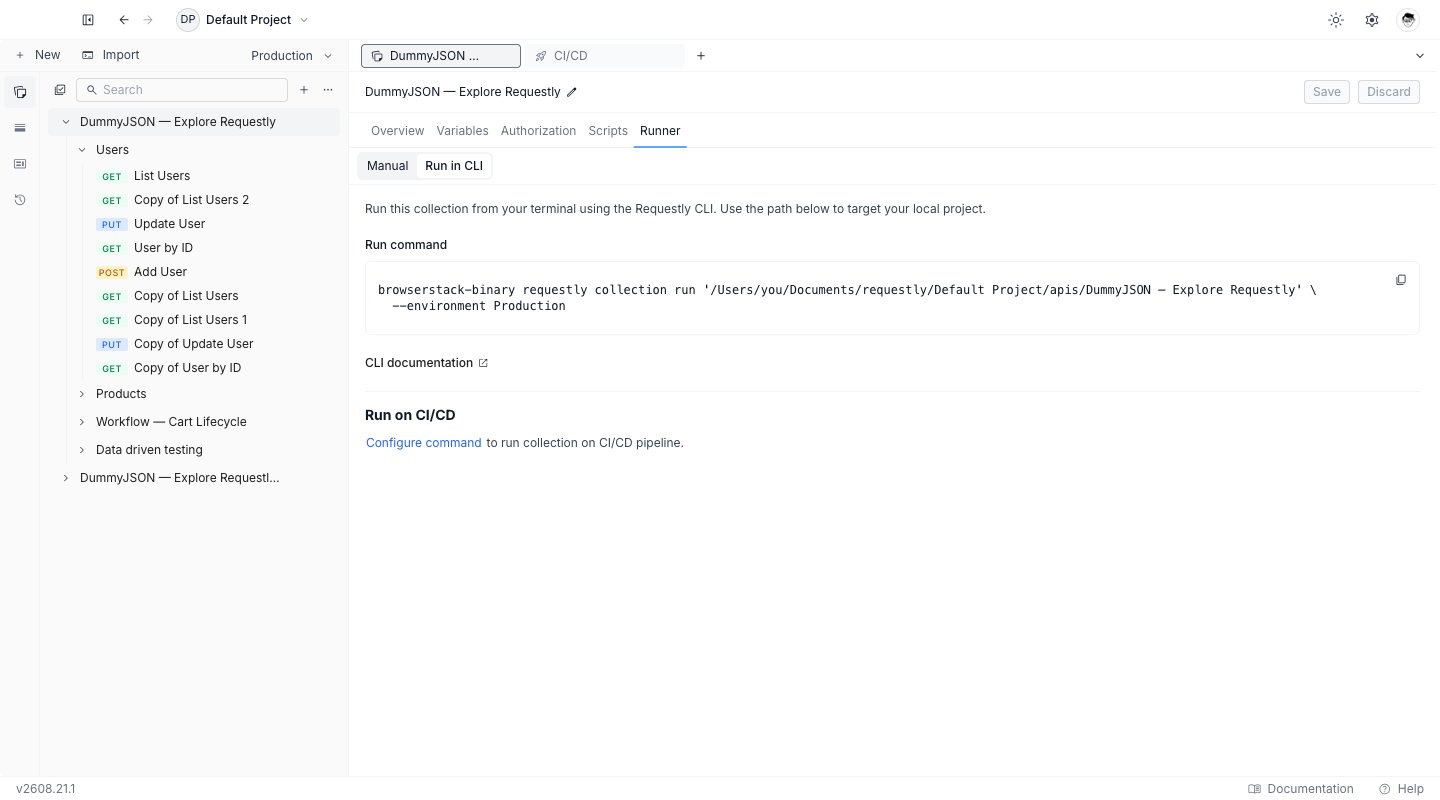
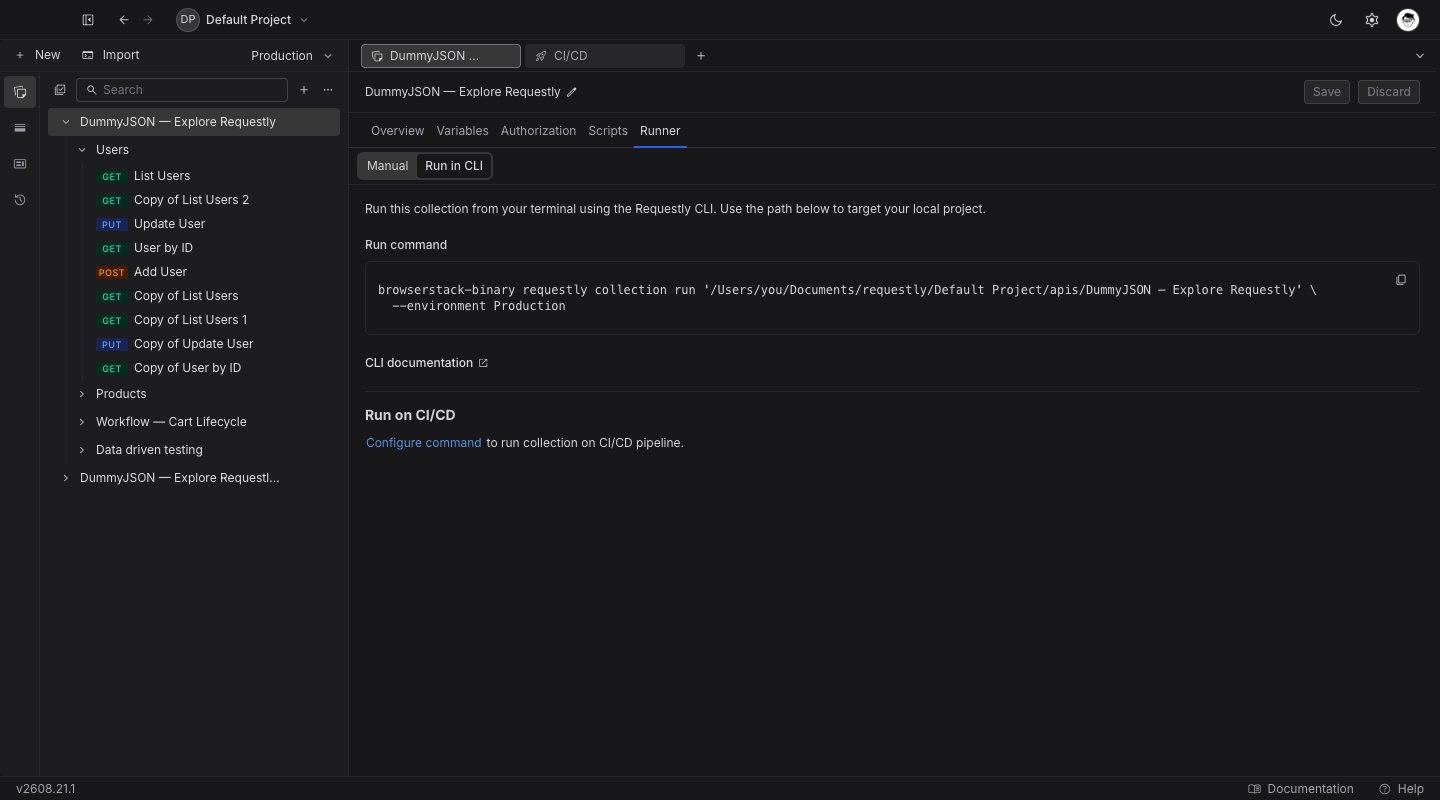 At the bottom of the sub-tab, under **Run on CI/CD**, select **Configure command**. The generator opens as its own tab with this collection already filled in as the first row.
There is one generator tab per project. Opening it from another collection's Runner adds that collection to the list rather than opening a second tab.
## Configure the file
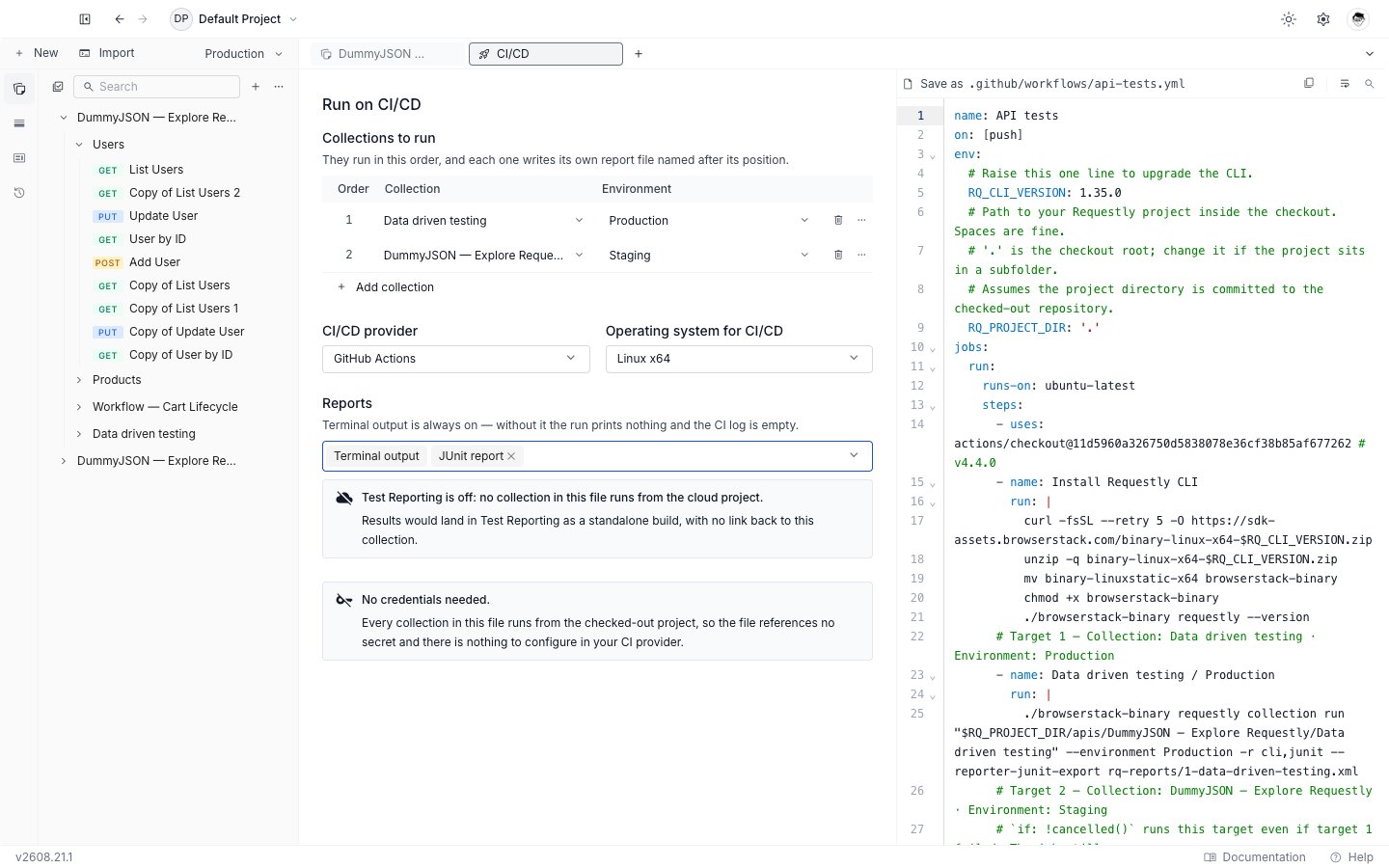
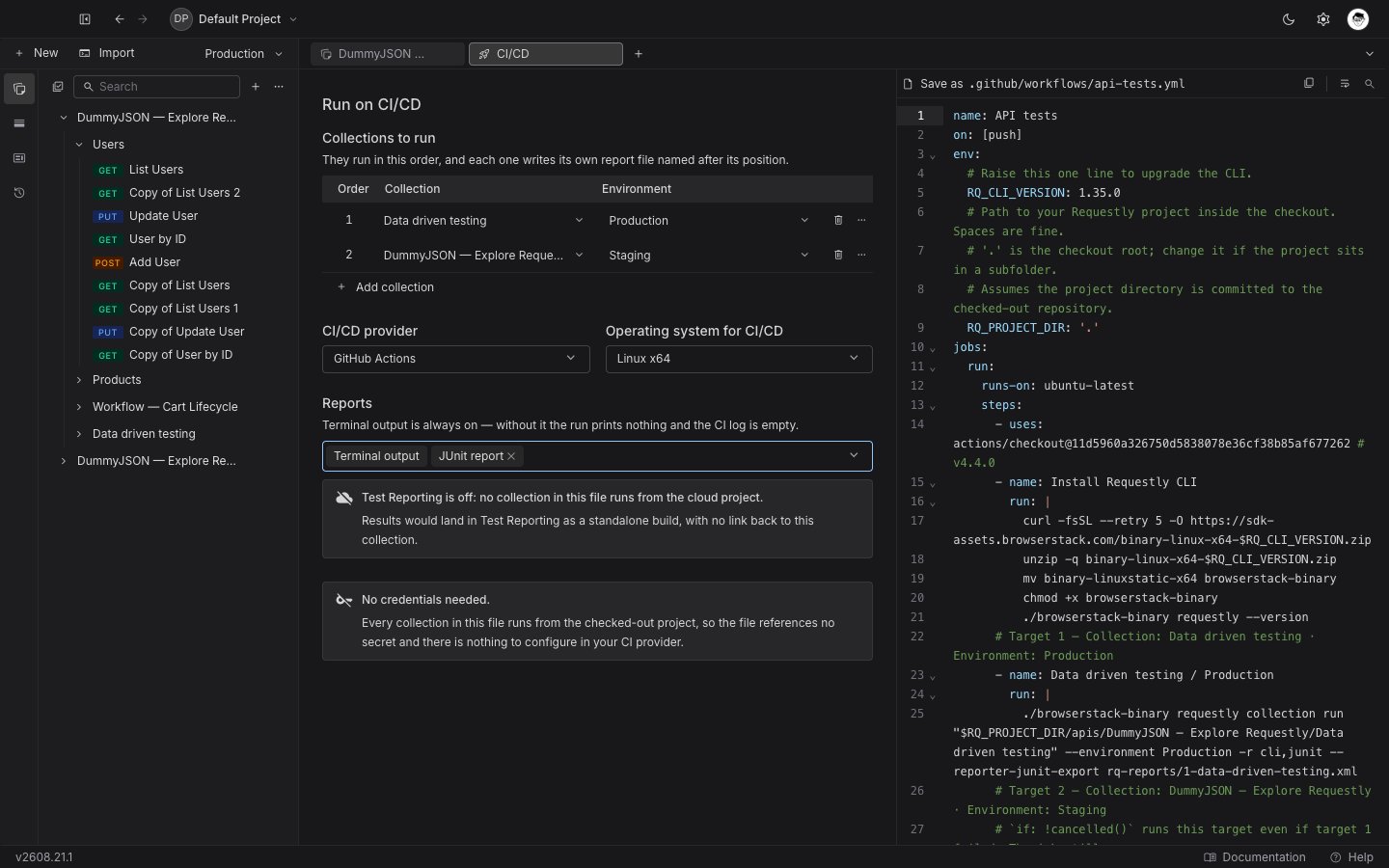
The generator is a form on the left and a live preview on the right. There is no **Generate** button: every edit rewrites the file on the right immediately.
At the bottom of the sub-tab, under **Run on CI/CD**, select **Configure command**. The generator opens as its own tab with this collection already filled in as the first row.
There is one generator tab per project. Opening it from another collection's Runner adds that collection to the list rather than opening a second tab.
## Configure the file
The generator is a form on the left and a live preview on the right. There is no **Generate** button: every edit rewrites the file on the right immediately.
 ### Collections to run
The **Collections to run** table is the list of targets the pipeline executes, in order. Each row picks one collection and, optionally, one environment.
* **Add collection** appends a row.
* Drag a row by its grip, or use **Move up** / **Move down** in the row's **More actions** (…) menu, to change the order. The order is the execution order.
* The same collection can appear more than once as long as each row picks a different environment. An exact repeat is refused with "This collection is already in the list with that environment."
* The list can never be emptied. Removing the last row is refused with "A pipeline needs at least one collection to run."
Iterations and inter-request delay are not set here. Each row carries the iteration count and delay already saved in that collection's run configuration in the [Collection Runner](/api-client/collection-runner), so the pipeline and the app agree. Values at their defaults are left out of the command entirely.
If a row names a collection that has since been deleted, the preview is withheld rather than quietly generating a smaller pipeline. The preview shows **No file to generate** with a button that jumps straight to the broken row. In a local project the preview is also withheld when a collection's folder cannot be determined, or when the folder name contains a quote, `$`, a backtick, or a backslash. Reopen the project, or rename the folder, then the preview returns.
### CI/CD provider
Pick the system that will run the file. Each option also names the path the file belongs at in your repository:
| Provider | Save the file as |
| --------------- | --------------------------------- |
| GitHub Actions | `.github/workflows/api-tests.yml` |
| GitLab CI | `.gitlab-ci.yml` |
| Jenkins | `Jenkinsfile` |
| Azure Pipelines | `azure-pipelines.yml` |
The same path is shown above the preview as **Save as**, so you can copy the file and know where it goes without switching back to the form.
### Operating system for CI/CD
This is the machine your pipeline runs on, not your own laptop. It decides which CLI build the install block downloads, which shell verbs it uses, and which runner the file targets. On GitLab the runner tag is a GitLab.com SaaS tag; on self-managed GitLab, swap it for your own runner's tag. The options are **Linux x64** (the default, and the standard runner image on all four providers), **Linux arm64**, **macOS x64**, **macOS arm64**, and **Windows x64**.
### Reports
**Reports** selects which reporters every target runs with:
| Report | What it produces |
| --------------------------------------- | ------------------------------------------------------------------- |
| Terminal output | The run log in your CI console. Always on and cannot be turned off. |
| JSON report | Machine-readable results, kept as a build artifact. |
| JUnit report | The format CI providers read as test results. |
| HTML report | A browsable report, kept as a build artifact. |
| BrowserStack Test Reporting & Analytics | Uploads results to BrowserStack. Writes no file. |
Nothing but Terminal output is selected to begin with. Pick at least JUnit if you want results in your provider's test view; the examples below all have JUnit selected.
### Collections to run
The **Collections to run** table is the list of targets the pipeline executes, in order. Each row picks one collection and, optionally, one environment.
* **Add collection** appends a row.
* Drag a row by its grip, or use **Move up** / **Move down** in the row's **More actions** (…) menu, to change the order. The order is the execution order.
* The same collection can appear more than once as long as each row picks a different environment. An exact repeat is refused with "This collection is already in the list with that environment."
* The list can never be emptied. Removing the last row is refused with "A pipeline needs at least one collection to run."
Iterations and inter-request delay are not set here. Each row carries the iteration count and delay already saved in that collection's run configuration in the [Collection Runner](/api-client/collection-runner), so the pipeline and the app agree. Values at their defaults are left out of the command entirely.
If a row names a collection that has since been deleted, the preview is withheld rather than quietly generating a smaller pipeline. The preview shows **No file to generate** with a button that jumps straight to the broken row. In a local project the preview is also withheld when a collection's folder cannot be determined, or when the folder name contains a quote, `$`, a backtick, or a backslash. Reopen the project, or rename the folder, then the preview returns.
### CI/CD provider
Pick the system that will run the file. Each option also names the path the file belongs at in your repository:
| Provider | Save the file as |
| --------------- | --------------------------------- |
| GitHub Actions | `.github/workflows/api-tests.yml` |
| GitLab CI | `.gitlab-ci.yml` |
| Jenkins | `Jenkinsfile` |
| Azure Pipelines | `azure-pipelines.yml` |
The same path is shown above the preview as **Save as**, so you can copy the file and know where it goes without switching back to the form.
### Operating system for CI/CD
This is the machine your pipeline runs on, not your own laptop. It decides which CLI build the install block downloads, which shell verbs it uses, and which runner the file targets. On GitLab the runner tag is a GitLab.com SaaS tag; on self-managed GitLab, swap it for your own runner's tag. The options are **Linux x64** (the default, and the standard runner image on all four providers), **Linux arm64**, **macOS x64**, **macOS arm64**, and **Windows x64**.
### Reports
**Reports** selects which reporters every target runs with:
| Report | What it produces |
| --------------------------------------- | ------------------------------------------------------------------- |
| Terminal output | The run log in your CI console. Always on and cannot be turned off. |
| JSON report | Machine-readable results, kept as a build artifact. |
| JUnit report | The format CI providers read as test results. |
| HTML report | A browsable report, kept as a build artifact. |
| BrowserStack Test Reporting & Analytics | Uploads results to BrowserStack. Writes no file. |
Nothing but Terminal output is selected to begin with. Pick at least JUnit if you want results in your provider's test view; the examples below all have JUnit selected.
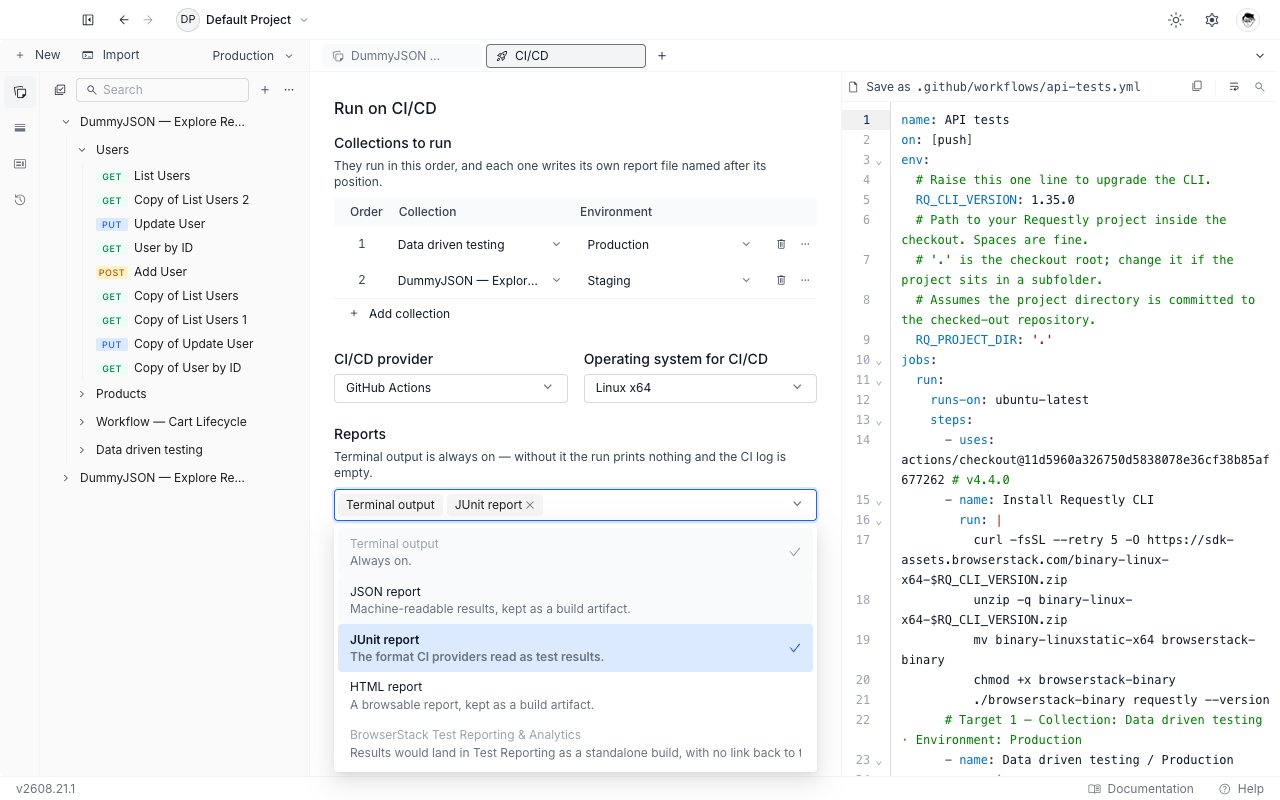
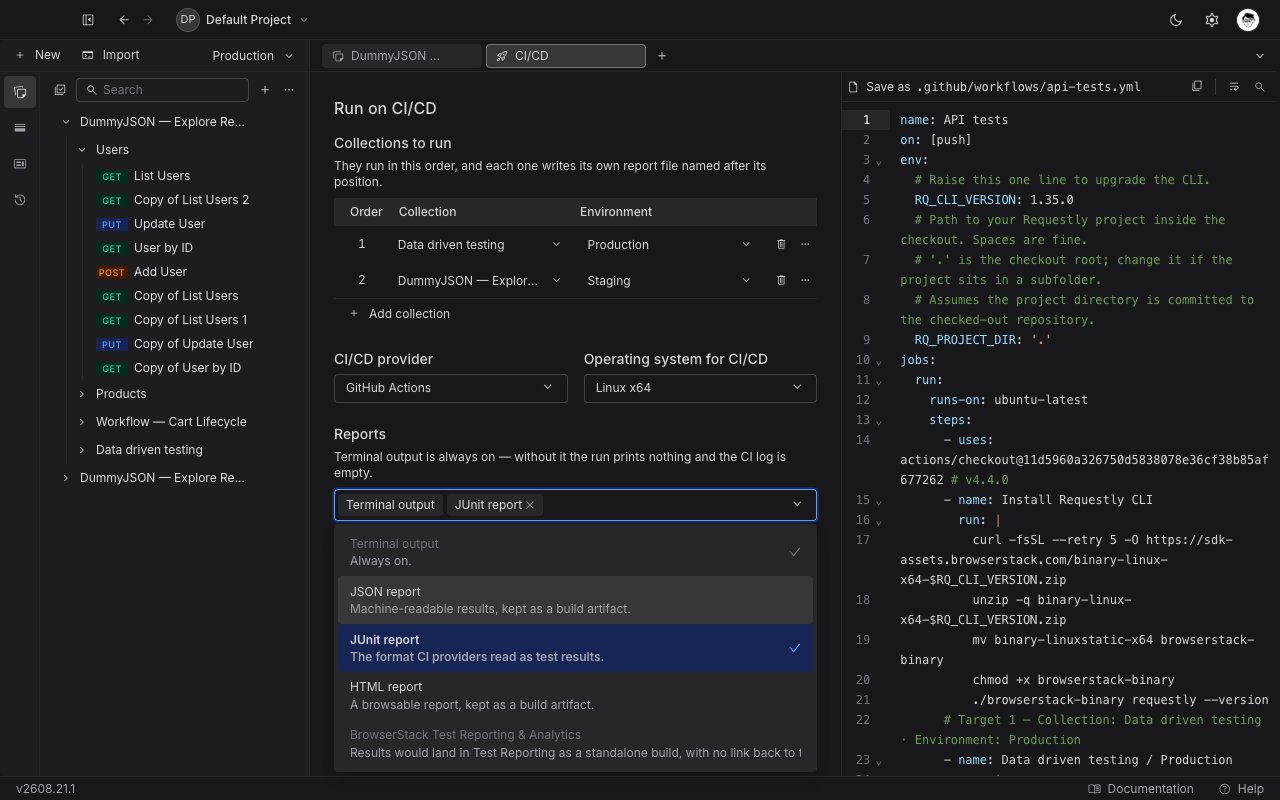 Terminal output is locked on for a reason: naming any reporter on the CLI replaces the default set instead of adding to it, so a run configured for files only would write its reports and print nothing at all, leaving a green build with an empty log.
Test Reporting & Analytics is available in cloud projects only. In a local project the option is locked from the moment the generator opens, and the form explains why: the results would land in Test Reporting as a standalone build with no link back to this collection.
Each file reporter writes one file per target, named after the target's position in the list: `rq-reports/1-checkout.xml`, `rq-reports/2-payments.xml`, and so on. That numbering is what stops two targets overwriting each other's report.
## Credentials
A pipeline that runs cloud collections authenticates with two environment variables, `BROWSERSTACK_USERNAME` and `BROWSERSTACK_ACCESS_KEY`. The generated file references them by name and never contains a credential value, so it is safe to commit. You add the values in your CI provider before the first run:
| Provider | Where to add them |
| --------------- | --------------------------------------------------------------------------------------------------------------------------------- |
| GitHub Actions | Repository **Settings → Secrets and variables → Actions** |
| GitLab CI | Project **Settings → CI/CD → Variables**, masked. Use the exact names above. |
| Jenkins | **Manage Jenkins → Credentials**, as two "Secret text" entries with the IDs `browserstack-username` and `browserstack-access-key` |
| Azure Pipelines | Pipeline **Edit → Variables**, each marked secret |
On Jenkins the credential IDs are lowercase and hyphenated, not the variable names.
The access key is your personal BrowserStack credential, so anyone who can run the pipeline runs as you.
In a local project the generator says **No credentials needed** instead: the collections come off the checked-out repository, so the file references no secret and there is nothing to configure in your provider.
## Copy and commit
Use the copy control in the preview toolbar to put the whole file on the clipboard, then save it at the path shown in the **Save as** label and commit it. The preview is read-only and searchable, so you can review the file before you take it.
## What the generated file looks like
Every file installs the CLI, runs each target in order, and collects whatever report files you selected. GitHub, Jenkins, and Azure install once and collect once at the end; GitLab makes each target its own job, so it installs the CLI and attaches its reports per job.
```yaml GitHub Actions theme={null}
name: API tests
on: [push]
env:
# Raise this one line to upgrade the CLI.
RQ_CLI_VERSION: 1.35.0
jobs:
run:
runs-on: ubuntu-latest
steps:
- uses: actions/checkout@11d5960a326750d5838078e36cf38b85af677262 # v4.4.0
- name: Install Requestly CLI
run: |
curl -fsSL --retry 5 -O https://sdk-assets.browserstack.com/binary-linux-x64-$RQ_CLI_VERSION.zip
unzip -q binary-linux-x64-$RQ_CLI_VERSION.zip
mv binary-linuxstatic-x64 browserstack-binary
chmod +x browserstack-binary
./browserstack-binary requestly --version
# Target 1 — Collection: Checkout · Environment: production
- name: Checkout / production
run: |
./browserstack-binary requestly collection run 34a9-checkout --project pj_8812 --environment env_prod --iteration-count 3 --delay-request 250 -r cli,junit --reporter-junit-export rq-reports/1-checkout.xml
env:
BROWSERSTACK_USERNAME: ${{ secrets.BROWSERSTACK_USERNAME }}
BROWSERSTACK_ACCESS_KEY: ${{ secrets.BROWSERSTACK_ACCESS_KEY }}
# Target 2 — Collection: Payments · Environment: staging
# `if: !cancelled()` runs this target even if target 1 failed. The job still
# fails if any target failed — every target runs, the build gates on the
# aggregate. Cancelling the run still stops the targets that have not started.
- name: Payments / staging
if: '!cancelled()'
run: |
./browserstack-binary requestly collection run 7f21-payments --project pj_8812 --environment env_stg -r cli,junit --reporter-junit-export rq-reports/2-payments.xml
env:
BROWSERSTACK_USERNAME: ${{ secrets.BROWSERSTACK_USERNAME }}
BROWSERSTACK_ACCESS_KEY: ${{ secrets.BROWSERSTACK_ACCESS_KEY }}
# GitHub stores this report as a build artifact but does not render it — an
# uploaded artifact is not a test report. To see results in the run summary,
# either add a JUnit reporting action from the GitHub Marketplace (we
# deliberately do not pick one for you — vetting a third-party action is your
# call), or write your own summary to $GITHUB_STEP_SUMMARY.
- uses: actions/upload-artifact@ea165f8d65b6e75b540449e92b4886f43607fa02 # v4.6.2
if: always()
with:
name: rq-reports
path: rq-reports/*.xml
if-no-files-found: warn
```
```yaml GitLab CI theme={null}
stages:
- api-tests
variables:
# Raise this one line to upgrade the CLI.
RQ_CLI_VERSION: '1.35.0'
# Set these as MASKED CI/CD variables in Settings › CI/CD › Variables.
BROWSERSTACK_USERNAME: $BROWSERSTACK_USERNAME
BROWSERSTACK_ACCESS_KEY: $BROWSERSTACK_ACCESS_KEY
# Each target below is its own job in the one stage, so they all run independently
# and the pipeline fails if any of them fails. GitLab reaches run-all-then-gate with
# no explicit condition — there is nothing here to switch off.
# Target 1 — Collection: Checkout · Environment: production
api-tests-1:
stage: api-tests
image: ubuntu:latest
# Each job runs in its own container, so each one installs the CLI.
before_script:
- curl -fsSL --retry 5 -O https://sdk-assets.browserstack.com/binary-linux-x64-$RQ_CLI_VERSION.zip
- unzip -q binary-linux-x64-$RQ_CLI_VERSION.zip
- mv binary-linuxstatic-x64 browserstack-binary
- chmod +x browserstack-binary
- ./browserstack-binary requestly --version
script:
- ./browserstack-binary requestly collection run 34a9-checkout --project pj_8812 --environment env_prod --iteration-count 3 --delay-request 250 -r cli,junit --reporter-junit-export rq-reports/1-checkout.xml
artifacts:
when: always
reports:
junit: rq-reports/*.xml
# Target 2 — Collection: Payments · Environment: staging
api-tests-2:
stage: api-tests
image: ubuntu:latest
# Each job runs in its own container, so each one installs the CLI.
before_script:
- curl -fsSL --retry 5 -O https://sdk-assets.browserstack.com/binary-linux-x64-$RQ_CLI_VERSION.zip
- unzip -q binary-linux-x64-$RQ_CLI_VERSION.zip
- mv binary-linuxstatic-x64 browserstack-binary
- chmod +x browserstack-binary
- ./browserstack-binary requestly --version
script:
- ./browserstack-binary requestly collection run 7f21-payments --project pj_8812 --environment env_stg -r cli,junit --reporter-junit-export rq-reports/2-payments.xml
artifacts:
when: always
reports:
junit: rq-reports/*.xml
```
```groovy Jenkins theme={null}
pipeline {
agent any
environment {
// Raise this one line to upgrade the CLI.
RQ_CLI_VERSION = '1.35.0'
BROWSERSTACK_USERNAME = credentials('browserstack-username')
BROWSERSTACK_ACCESS_KEY = credentials('browserstack-access-key')
}
stages {
stage('Install Requestly CLI') {
steps {
sh '''
curl -fsSL --retry 5 -O https://sdk-assets.browserstack.com/binary-linux-x64-$RQ_CLI_VERSION.zip
unzip -q binary-linux-x64-$RQ_CLI_VERSION.zip
mv binary-linuxstatic-x64 browserstack-binary
chmod +x browserstack-binary
./browserstack-binary requestly --version
'''
}
}
stage('Checkout / production') {
steps {
// Target 1 — Collection: Checkout · Environment: production
// EVERY target is wrapped, target 1 included. A bare `sh` that exits non-zero
// aborts its stage AND the rest of the pipeline, so without this the first
// failure would hide every target after it. The build still gates on the
// aggregate: `buildResult` reddens it.
// ALL THREE arguments are load-bearing. `stageResult` defaults to SUCCESS, so
// dropping it reports a GREEN stage over a failed collection. `catchInterruptions`
// defaults to TRUE, which swallows an ABORT too — cancelling would not cancel.
catchError(buildResult: 'FAILURE', stageResult: 'FAILURE', catchInterruptions: false) {
sh '''
./browserstack-binary requestly collection run 34a9-checkout --project pj_8812 --environment env_prod --iteration-count 3 --delay-request 250 -r cli,junit --reporter-junit-export rq-reports/1-checkout.xml
'''
}
}
}
stage('Payments / staging') {
steps {
// Target 2 — Collection: Payments · Environment: staging
catchError(buildResult: 'FAILURE', stageResult: 'FAILURE', catchInterruptions: false) {
sh '''
./browserstack-binary requestly collection run 7f21-payments --project pj_8812 --environment env_stg -r cli,junit --reporter-junit-export rq-reports/2-payments.xml
'''
}
}
}
}
post {
always {
junit allowEmptyResults: true, testResults: 'rq-reports/*.xml'
}
}
}
```
```yaml Azure Pipelines theme={null}
trigger: [main]
pool:
vmImage: ubuntu-latest
variables:
# Raise this one line to upgrade the CLI.
RQ_CLI_VERSION: 1.35.0
steps:
- script: |
curl -fsSL --retry 5 -O https://sdk-assets.browserstack.com/binary-linux-x64-$(RQ_CLI_VERSION).zip
unzip -q binary-linux-x64-$(RQ_CLI_VERSION).zip
mv binary-linuxstatic-x64 browserstack-binary
chmod +x browserstack-binary
./browserstack-binary requestly --version
displayName: Install Requestly CLI
# Target 1 — Collection: Checkout · Environment: production
- script: |
./browserstack-binary requestly collection run 34a9-checkout --project pj_8812 --environment env_prod --iteration-count 3 --delay-request 250 -r cli,junit --reporter-junit-export rq-reports/1-checkout.xml
displayName: Checkout / production
env:
BROWSERSTACK_USERNAME: $(BROWSERSTACK_USERNAME)
BROWSERSTACK_ACCESS_KEY: $(BROWSERSTACK_ACCESS_KEY)
# Target 2 — Collection: Payments · Environment: staging
# `condition: succeededOrFailed()` runs this target even if target 1 failed.
# The job still fails, because a failed task fails the job — every target runs,
# the build gates on the aggregate. Cancelling the run still stops the rest.
- script: |
./browserstack-binary requestly collection run 7f21-payments --project pj_8812 --environment env_stg -r cli,junit --reporter-junit-export rq-reports/2-payments.xml
displayName: Payments / staging
condition: succeededOrFailed()
env:
BROWSERSTACK_USERNAME: $(BROWSERSTACK_USERNAME)
BROWSERSTACK_ACCESS_KEY: $(BROWSERSTACK_ACCESS_KEY)
# A request that fails at TRANSPORT (an unreachable host, a DNS failure) reddens
# the build through the run's exit code, but does not show up in the Tests tab
# below: the report carries a suite with no test-case children for it, and Azure
# recomputes a run from its children. For those, the build log is the source of
# truth.
- task: PublishTestResults@2
condition: always()
inputs:
testResultsFormat: JUnit
testResultsFiles: rq-reports/*.xml
testRunTitle: Checkout, Payments
# failTaskOnMissingResultsFile defaults to false — a missing report warns.
```
The CLI version appears on exactly one line, as `RQ_CLI_VERSION`. Raise it there to upgrade every target at once; the [CLI page](/api-client/cli#installation) lists the versions available.
### Every target runs, then the build gates on the aggregate
A failing collection does not stop the ones after it. Each provider reaches that behavior in its own way: GitHub uses `if: '!cancelled()'`, Azure uses `condition: succeededOrFailed()`, Jenkins wraps each stage in `catchError`, and GitLab gets it for free because each target is a separate job.
Every target runs even when an earlier one fails, and the build still fails if any target failed. Cancelling the pipeline still stops the targets that have not started.
### Where the results show up
How the JUnit report is surfaced depends on the provider:
| Provider | JUnit handling |
| --------------- | ------------------------------------------------------------------------------------------- |
| GitLab CI | Published as test results through `artifacts:reports:junit`. |
| Jenkins | Published by a `junit` step in the pipeline's `post` block. |
| Azure Pipelines | Published by `PublishTestResults@2`, with the run titled after the collections in the file. |
| GitHub Actions | Uploaded as a build artifact only. |
JSON and HTML reports are kept as build artifacts on every provider. Test Reporting & Analytics uploads instead of writing a file, so it produces no artifact step at all.
GitHub stores the JUnit report as an artifact but does not render it as a test report. To see results in the run summary, add a JUnit reporting action from the Marketplace or write your own summary to `$GITHUB_STEP_SUMMARY`.
On Azure, a request that fails at the transport layer (an unreachable host, a DNS failure) reddens the build through the run's exit code but does not appear in the **Tests** tab. For those, read the build log.
## Local projects
When your project is a local, Git-backed project, the generated file targets collections by path inside your checkout instead of by cloud ID. Three things change:
* The file declares an `RQ_PROJECT_DIR` variable, defaulting to `.` (the checkout root). Change it if the Requestly project lives in a subfolder.
* Each target's positional argument becomes `"$RQ_PROJECT_DIR/"`, quoted so folder names with spaces still resolve to one path.
* Environments are matched by name rather than by ID, because the CLI reads local environments from their filenames.
```yaml Local target, GitHub Actions theme={null}
env:
# Path to your Requestly project inside the checkout. Spaces are fine.
# '.' is the checkout root; change it if the project sits in a subfolder.
# Assumes the project directory is committed to the checked-out repository.
RQ_PROJECT_DIR: '.'
# ...
- name: Checkout / production
run: |
./browserstack-binary requestly collection run "$RQ_PROJECT_DIR/collections/checkout" --environment production --iteration-count 3 --delay-request 250 -r cli,junit --reporter-junit-export rq-reports/1-checkout.xml
```
The pipeline reads the project straight out of the repository, so it needs no BrowserStack credentials. Commit the project directory alongside the pipeline file.
## What's Next?
Every flag the generated file uses, plus the `.requestlyrc` file for shared defaults.
Set the iterations and delay each target inherits, and check the run before you commit it.
Add the assertions that decide whether your pipeline passes or fails.
Terminal output is locked on for a reason: naming any reporter on the CLI replaces the default set instead of adding to it, so a run configured for files only would write its reports and print nothing at all, leaving a green build with an empty log.
Test Reporting & Analytics is available in cloud projects only. In a local project the option is locked from the moment the generator opens, and the form explains why: the results would land in Test Reporting as a standalone build with no link back to this collection.
Each file reporter writes one file per target, named after the target's position in the list: `rq-reports/1-checkout.xml`, `rq-reports/2-payments.xml`, and so on. That numbering is what stops two targets overwriting each other's report.
## Credentials
A pipeline that runs cloud collections authenticates with two environment variables, `BROWSERSTACK_USERNAME` and `BROWSERSTACK_ACCESS_KEY`. The generated file references them by name and never contains a credential value, so it is safe to commit. You add the values in your CI provider before the first run:
| Provider | Where to add them |
| --------------- | --------------------------------------------------------------------------------------------------------------------------------- |
| GitHub Actions | Repository **Settings → Secrets and variables → Actions** |
| GitLab CI | Project **Settings → CI/CD → Variables**, masked. Use the exact names above. |
| Jenkins | **Manage Jenkins → Credentials**, as two "Secret text" entries with the IDs `browserstack-username` and `browserstack-access-key` |
| Azure Pipelines | Pipeline **Edit → Variables**, each marked secret |
On Jenkins the credential IDs are lowercase and hyphenated, not the variable names.
The access key is your personal BrowserStack credential, so anyone who can run the pipeline runs as you.
In a local project the generator says **No credentials needed** instead: the collections come off the checked-out repository, so the file references no secret and there is nothing to configure in your provider.
## Copy and commit
Use the copy control in the preview toolbar to put the whole file on the clipboard, then save it at the path shown in the **Save as** label and commit it. The preview is read-only and searchable, so you can review the file before you take it.
## What the generated file looks like
Every file installs the CLI, runs each target in order, and collects whatever report files you selected. GitHub, Jenkins, and Azure install once and collect once at the end; GitLab makes each target its own job, so it installs the CLI and attaches its reports per job.
```yaml GitHub Actions theme={null}
name: API tests
on: [push]
env:
# Raise this one line to upgrade the CLI.
RQ_CLI_VERSION: 1.35.0
jobs:
run:
runs-on: ubuntu-latest
steps:
- uses: actions/checkout@11d5960a326750d5838078e36cf38b85af677262 # v4.4.0
- name: Install Requestly CLI
run: |
curl -fsSL --retry 5 -O https://sdk-assets.browserstack.com/binary-linux-x64-$RQ_CLI_VERSION.zip
unzip -q binary-linux-x64-$RQ_CLI_VERSION.zip
mv binary-linuxstatic-x64 browserstack-binary
chmod +x browserstack-binary
./browserstack-binary requestly --version
# Target 1 — Collection: Checkout · Environment: production
- name: Checkout / production
run: |
./browserstack-binary requestly collection run 34a9-checkout --project pj_8812 --environment env_prod --iteration-count 3 --delay-request 250 -r cli,junit --reporter-junit-export rq-reports/1-checkout.xml
env:
BROWSERSTACK_USERNAME: ${{ secrets.BROWSERSTACK_USERNAME }}
BROWSERSTACK_ACCESS_KEY: ${{ secrets.BROWSERSTACK_ACCESS_KEY }}
# Target 2 — Collection: Payments · Environment: staging
# `if: !cancelled()` runs this target even if target 1 failed. The job still
# fails if any target failed — every target runs, the build gates on the
# aggregate. Cancelling the run still stops the targets that have not started.
- name: Payments / staging
if: '!cancelled()'
run: |
./browserstack-binary requestly collection run 7f21-payments --project pj_8812 --environment env_stg -r cli,junit --reporter-junit-export rq-reports/2-payments.xml
env:
BROWSERSTACK_USERNAME: ${{ secrets.BROWSERSTACK_USERNAME }}
BROWSERSTACK_ACCESS_KEY: ${{ secrets.BROWSERSTACK_ACCESS_KEY }}
# GitHub stores this report as a build artifact but does not render it — an
# uploaded artifact is not a test report. To see results in the run summary,
# either add a JUnit reporting action from the GitHub Marketplace (we
# deliberately do not pick one for you — vetting a third-party action is your
# call), or write your own summary to $GITHUB_STEP_SUMMARY.
- uses: actions/upload-artifact@ea165f8d65b6e75b540449e92b4886f43607fa02 # v4.6.2
if: always()
with:
name: rq-reports
path: rq-reports/*.xml
if-no-files-found: warn
```
```yaml GitLab CI theme={null}
stages:
- api-tests
variables:
# Raise this one line to upgrade the CLI.
RQ_CLI_VERSION: '1.35.0'
# Set these as MASKED CI/CD variables in Settings › CI/CD › Variables.
BROWSERSTACK_USERNAME: $BROWSERSTACK_USERNAME
BROWSERSTACK_ACCESS_KEY: $BROWSERSTACK_ACCESS_KEY
# Each target below is its own job in the one stage, so they all run independently
# and the pipeline fails if any of them fails. GitLab reaches run-all-then-gate with
# no explicit condition — there is nothing here to switch off.
# Target 1 — Collection: Checkout · Environment: production
api-tests-1:
stage: api-tests
image: ubuntu:latest
# Each job runs in its own container, so each one installs the CLI.
before_script:
- curl -fsSL --retry 5 -O https://sdk-assets.browserstack.com/binary-linux-x64-$RQ_CLI_VERSION.zip
- unzip -q binary-linux-x64-$RQ_CLI_VERSION.zip
- mv binary-linuxstatic-x64 browserstack-binary
- chmod +x browserstack-binary
- ./browserstack-binary requestly --version
script:
- ./browserstack-binary requestly collection run 34a9-checkout --project pj_8812 --environment env_prod --iteration-count 3 --delay-request 250 -r cli,junit --reporter-junit-export rq-reports/1-checkout.xml
artifacts:
when: always
reports:
junit: rq-reports/*.xml
# Target 2 — Collection: Payments · Environment: staging
api-tests-2:
stage: api-tests
image: ubuntu:latest
# Each job runs in its own container, so each one installs the CLI.
before_script:
- curl -fsSL --retry 5 -O https://sdk-assets.browserstack.com/binary-linux-x64-$RQ_CLI_VERSION.zip
- unzip -q binary-linux-x64-$RQ_CLI_VERSION.zip
- mv binary-linuxstatic-x64 browserstack-binary
- chmod +x browserstack-binary
- ./browserstack-binary requestly --version
script:
- ./browserstack-binary requestly collection run 7f21-payments --project pj_8812 --environment env_stg -r cli,junit --reporter-junit-export rq-reports/2-payments.xml
artifacts:
when: always
reports:
junit: rq-reports/*.xml
```
```groovy Jenkins theme={null}
pipeline {
agent any
environment {
// Raise this one line to upgrade the CLI.
RQ_CLI_VERSION = '1.35.0'
BROWSERSTACK_USERNAME = credentials('browserstack-username')
BROWSERSTACK_ACCESS_KEY = credentials('browserstack-access-key')
}
stages {
stage('Install Requestly CLI') {
steps {
sh '''
curl -fsSL --retry 5 -O https://sdk-assets.browserstack.com/binary-linux-x64-$RQ_CLI_VERSION.zip
unzip -q binary-linux-x64-$RQ_CLI_VERSION.zip
mv binary-linuxstatic-x64 browserstack-binary
chmod +x browserstack-binary
./browserstack-binary requestly --version
'''
}
}
stage('Checkout / production') {
steps {
// Target 1 — Collection: Checkout · Environment: production
// EVERY target is wrapped, target 1 included. A bare `sh` that exits non-zero
// aborts its stage AND the rest of the pipeline, so without this the first
// failure would hide every target after it. The build still gates on the
// aggregate: `buildResult` reddens it.
// ALL THREE arguments are load-bearing. `stageResult` defaults to SUCCESS, so
// dropping it reports a GREEN stage over a failed collection. `catchInterruptions`
// defaults to TRUE, which swallows an ABORT too — cancelling would not cancel.
catchError(buildResult: 'FAILURE', stageResult: 'FAILURE', catchInterruptions: false) {
sh '''
./browserstack-binary requestly collection run 34a9-checkout --project pj_8812 --environment env_prod --iteration-count 3 --delay-request 250 -r cli,junit --reporter-junit-export rq-reports/1-checkout.xml
'''
}
}
}
stage('Payments / staging') {
steps {
// Target 2 — Collection: Payments · Environment: staging
catchError(buildResult: 'FAILURE', stageResult: 'FAILURE', catchInterruptions: false) {
sh '''
./browserstack-binary requestly collection run 7f21-payments --project pj_8812 --environment env_stg -r cli,junit --reporter-junit-export rq-reports/2-payments.xml
'''
}
}
}
}
post {
always {
junit allowEmptyResults: true, testResults: 'rq-reports/*.xml'
}
}
}
```
```yaml Azure Pipelines theme={null}
trigger: [main]
pool:
vmImage: ubuntu-latest
variables:
# Raise this one line to upgrade the CLI.
RQ_CLI_VERSION: 1.35.0
steps:
- script: |
curl -fsSL --retry 5 -O https://sdk-assets.browserstack.com/binary-linux-x64-$(RQ_CLI_VERSION).zip
unzip -q binary-linux-x64-$(RQ_CLI_VERSION).zip
mv binary-linuxstatic-x64 browserstack-binary
chmod +x browserstack-binary
./browserstack-binary requestly --version
displayName: Install Requestly CLI
# Target 1 — Collection: Checkout · Environment: production
- script: |
./browserstack-binary requestly collection run 34a9-checkout --project pj_8812 --environment env_prod --iteration-count 3 --delay-request 250 -r cli,junit --reporter-junit-export rq-reports/1-checkout.xml
displayName: Checkout / production
env:
BROWSERSTACK_USERNAME: $(BROWSERSTACK_USERNAME)
BROWSERSTACK_ACCESS_KEY: $(BROWSERSTACK_ACCESS_KEY)
# Target 2 — Collection: Payments · Environment: staging
# `condition: succeededOrFailed()` runs this target even if target 1 failed.
# The job still fails, because a failed task fails the job — every target runs,
# the build gates on the aggregate. Cancelling the run still stops the rest.
- script: |
./browserstack-binary requestly collection run 7f21-payments --project pj_8812 --environment env_stg -r cli,junit --reporter-junit-export rq-reports/2-payments.xml
displayName: Payments / staging
condition: succeededOrFailed()
env:
BROWSERSTACK_USERNAME: $(BROWSERSTACK_USERNAME)
BROWSERSTACK_ACCESS_KEY: $(BROWSERSTACK_ACCESS_KEY)
# A request that fails at TRANSPORT (an unreachable host, a DNS failure) reddens
# the build through the run's exit code, but does not show up in the Tests tab
# below: the report carries a suite with no test-case children for it, and Azure
# recomputes a run from its children. For those, the build log is the source of
# truth.
- task: PublishTestResults@2
condition: always()
inputs:
testResultsFormat: JUnit
testResultsFiles: rq-reports/*.xml
testRunTitle: Checkout, Payments
# failTaskOnMissingResultsFile defaults to false — a missing report warns.
```
The CLI version appears on exactly one line, as `RQ_CLI_VERSION`. Raise it there to upgrade every target at once; the [CLI page](/api-client/cli#installation) lists the versions available.
### Every target runs, then the build gates on the aggregate
A failing collection does not stop the ones after it. Each provider reaches that behavior in its own way: GitHub uses `if: '!cancelled()'`, Azure uses `condition: succeededOrFailed()`, Jenkins wraps each stage in `catchError`, and GitLab gets it for free because each target is a separate job.
Every target runs even when an earlier one fails, and the build still fails if any target failed. Cancelling the pipeline still stops the targets that have not started.
### Where the results show up
How the JUnit report is surfaced depends on the provider:
| Provider | JUnit handling |
| --------------- | ------------------------------------------------------------------------------------------- |
| GitLab CI | Published as test results through `artifacts:reports:junit`. |
| Jenkins | Published by a `junit` step in the pipeline's `post` block. |
| Azure Pipelines | Published by `PublishTestResults@2`, with the run titled after the collections in the file. |
| GitHub Actions | Uploaded as a build artifact only. |
JSON and HTML reports are kept as build artifacts on every provider. Test Reporting & Analytics uploads instead of writing a file, so it produces no artifact step at all.
GitHub stores the JUnit report as an artifact but does not render it as a test report. To see results in the run summary, add a JUnit reporting action from the Marketplace or write your own summary to `$GITHUB_STEP_SUMMARY`.
On Azure, a request that fails at the transport layer (an unreachable host, a DNS failure) reddens the build through the run's exit code but does not appear in the **Tests** tab. For those, read the build log.
## Local projects
When your project is a local, Git-backed project, the generated file targets collections by path inside your checkout instead of by cloud ID. Three things change:
* The file declares an `RQ_PROJECT_DIR` variable, defaulting to `.` (the checkout root). Change it if the Requestly project lives in a subfolder.
* Each target's positional argument becomes `"$RQ_PROJECT_DIR/"`, quoted so folder names with spaces still resolve to one path.
* Environments are matched by name rather than by ID, because the CLI reads local environments from their filenames.
```yaml Local target, GitHub Actions theme={null}
env:
# Path to your Requestly project inside the checkout. Spaces are fine.
# '.' is the checkout root; change it if the project sits in a subfolder.
# Assumes the project directory is committed to the checked-out repository.
RQ_PROJECT_DIR: '.'
# ...
- name: Checkout / production
run: |
./browserstack-binary requestly collection run "$RQ_PROJECT_DIR/collections/checkout" --environment production --iteration-count 3 --delay-request 250 -r cli,junit --reporter-junit-export rq-reports/1-checkout.xml
```
The pipeline reads the project straight out of the repository, so it needs no BrowserStack credentials. Commit the project directory alongside the pipeline file.
## What's Next?
Every flag the generated file uses, plus the `.requestlyrc` file for shared defaults.
Set the iterations and delay each target inherits, and check the run before you commit it.
Add the assertions that decide whether your pipeline passes or fails.