> ## Documentation Index
> Fetch the complete documentation index at: https://docs.requestly.com/llms.txt
> Use this file to discover all available pages before exploring further.
# Scheduled Runs
> Run a collection automatically on a recurring schedule in the cloud, then review run history and per-request results.
A **Scheduled Run** executes a collection automatically on a recurring schedule in the cloud, so your requests keep running without anyone pressing a button. Where the [Collection Runner](/api-client/collection-runner) runs a collection on demand, a Scheduled Run runs it on a cadence you choose (for example every hour, or once a day) and keeps a history of every run so you can catch regressions over time.
Each Scheduled Run belongs to a single collection. You create and manage Scheduled Runs from that collection's **Runner** tab, review a full run history, and drill into any individual run to see per-request results, assertions, and console output.
## Prerequisites
Scheduled Runs are available on **team projects** only. Local projects and personal cloud projects show an explanatory screen with a link to switch to a team project instead.
Only **HTTP** and **GraphQL** requests run on a schedule. WebSocket, Socket.IO, MQTT, and gRPC requests cannot run on a schedule and are skipped. In the request selection list they appear locked, and a note reminds you which requests will not run.
## Finding Scheduled Runs
Open the collection you want to schedule, then select the **Runner** tab.
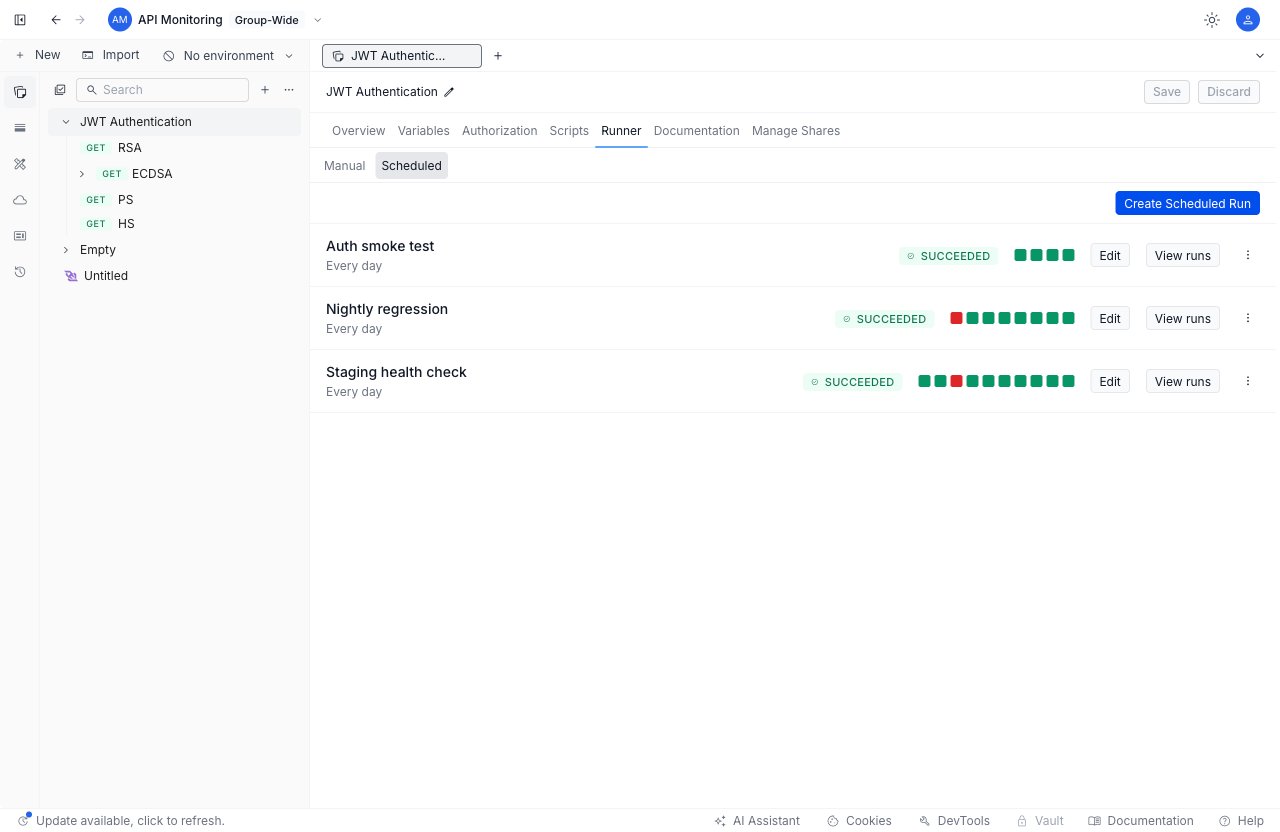
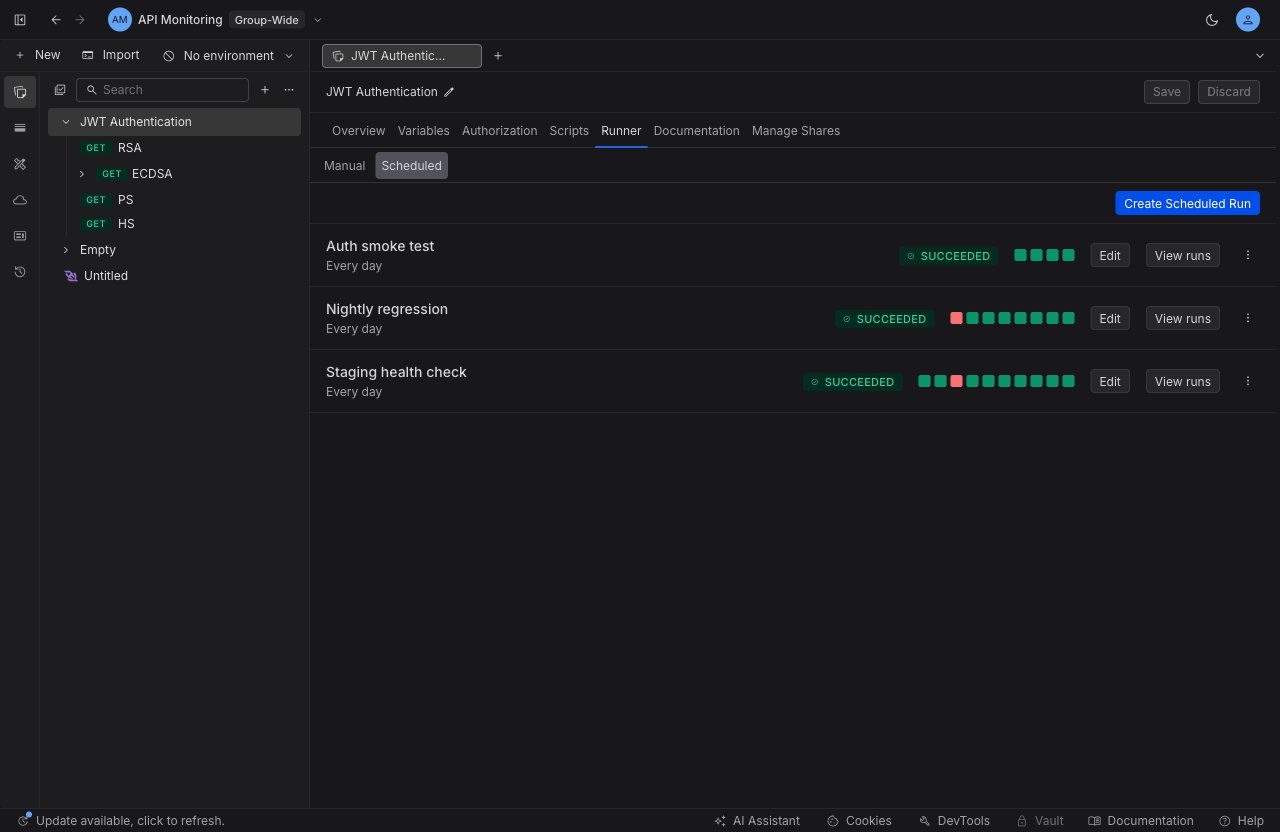
The Runner tab has two sub-tabs: **Manual** and **Scheduled**. **Manual** is the on-demand [Collection Runner](/api-client/collection-runner). Select **Scheduled** to see the Scheduled Runs for this collection.
Each Scheduled Run appears as a row showing its name, schedule, the outcome of its most recent run, and a strip of colored squares summarizing recent runs. If the collection has no Scheduled Runs yet, you see an empty state with a **Create Scheduled Run** button.
 ## Creating a scheduled run
Select **Create Scheduled Run** to open the configuration pane. It has two areas: a request-selection list on the left, and the schedule settings with a live estimate on the right.
## Creating a scheduled run
Select **Create Scheduled Run** to open the configuration pane. It has two areas: a request-selection list on the left, and the schedule settings with a live estimate on the right.
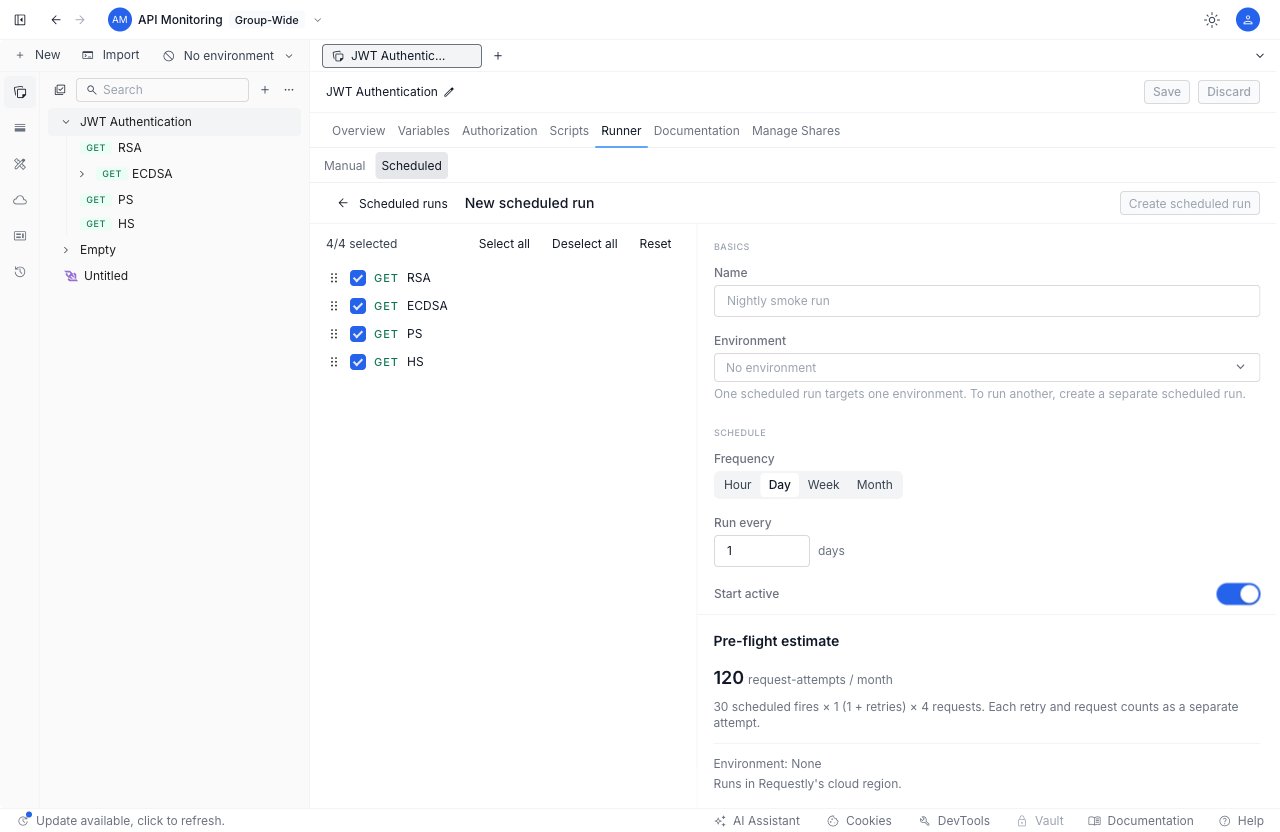
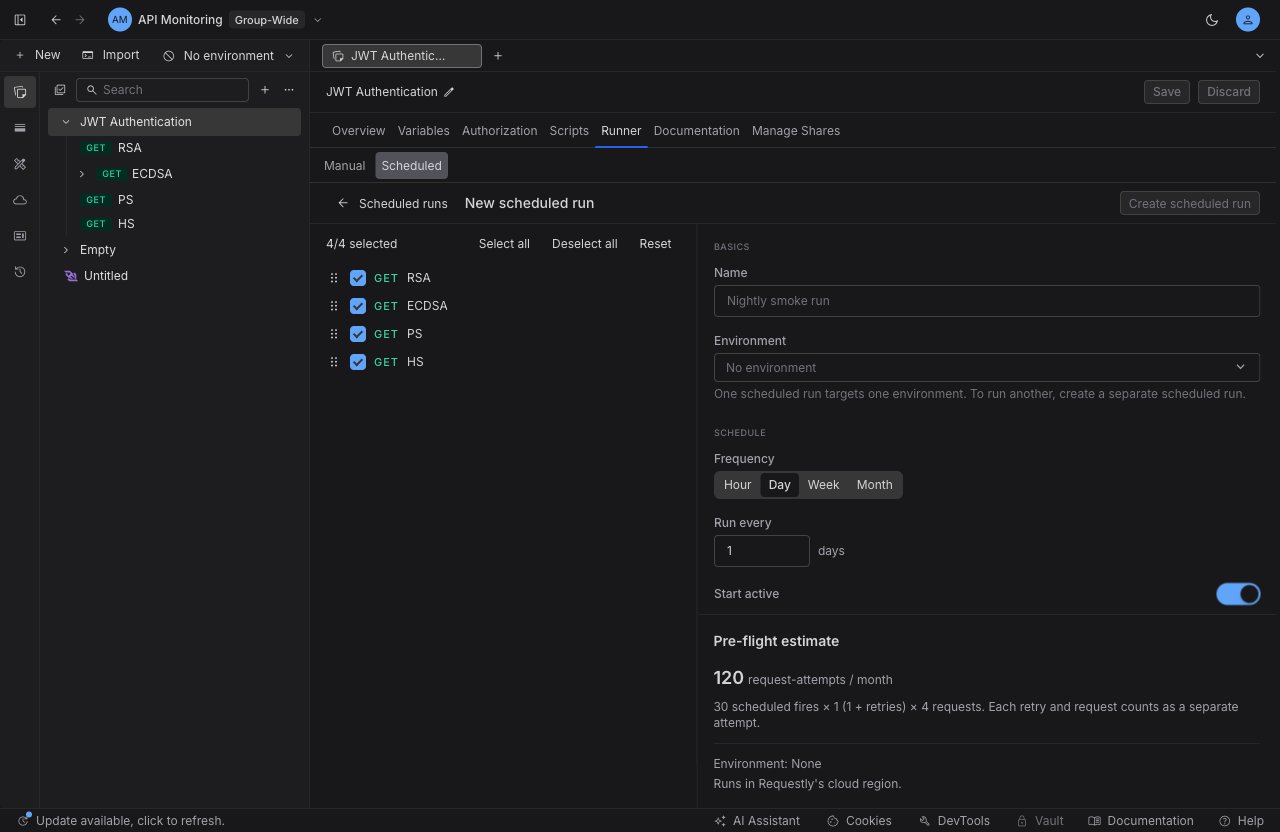 Give the Scheduled Run a name that describes its purpose, such as "Nightly smoke run".
Pick the environment the run should use, or leave it as **No environment**.
One scheduled run targets one environment. To run another environment, create a separate scheduled run.
Choose a frequency (**Hour**, **Day**, **Week**, or **Month**) and how often it should run under **Run every**. For example, a frequency of **Hour** with an interval of `6` runs the collection every six hours. Use the **Start active** toggle to decide whether the run begins firing immediately after you create it, or starts paused.
In the left panel, choose which requests to include and drag to reorder them. Requests that cannot run on a schedule are shown locked and are skipped. By default the whole collection runs in its natural order.
Under **Retry on failure**, set **Retries per request** (0 to 10) and a **Backoff** strategy (None, Fixed, Linear, or Exponential). The backoff option is only enabled once you set at least one retry.
Each retry counts as a separate request-attempt against your quota.
The right panel shows a live estimate of the request-attempts your schedule will use per month, calculated from the number of scheduled fires, your retry setting, and the number of selected requests. It also shows the target environment and confirms the run executes in Requestly's cloud region.
Select **Create scheduled run**. The new run appears in the inventory and begins firing on its schedule (unless you started it paused).
### Redaction
Scheduled Runs always redact a fixed set of sensitive headers from the results they capture, so credentials are never stored in run history. This set is shown read-only in the config pane and cannot be changed.
These request and response headers are always redacted in captured results: `Authorization`, `Cookie`, `Set-Cookie`, `X-Api-Key`, and `Proxy-Authorization`.
## Managing scheduled runs
Each row in the inventory has an **Edit** button, a **View runs** button, and an overflow (`⋮`) menu with lifecycle actions:
* **Run now** triggers an immediate on-demand run without changing the schedule. The run is dispatched to the cloud and appears in the run history shortly after it finishes, not instantly.
* **Pause** stops a run from firing on its schedule; **Resume** starts it again. A paused run shows a **Paused** badge in its row.
* **Delete** removes the Scheduled Run after an explicit confirmation. Deleting stops the schedule and removes the run definition, but past run history is retained.
* **Edit** reopens the configuration pane so you can change the name, environment, schedule, request selection, or retry settings.
## Viewing run history
Select **View runs** on any row to open its run history: a list of every run the schedule has produced, newest first. Each entry shows the outcome, when the run started, what triggered it, and how long it took, along with a short failure summary when a run did not succeed.
Use the **search** box to filter by run ID, run status, failure text, or trigger source, and the outcome filter to narrow the list to one of: **Succeeded**, **Failed**, **Timeout**, **Infra error**, or **Skipped**. Use **Load more** to page through older runs.
Give the Scheduled Run a name that describes its purpose, such as "Nightly smoke run".
Pick the environment the run should use, or leave it as **No environment**.
One scheduled run targets one environment. To run another environment, create a separate scheduled run.
Choose a frequency (**Hour**, **Day**, **Week**, or **Month**) and how often it should run under **Run every**. For example, a frequency of **Hour** with an interval of `6` runs the collection every six hours. Use the **Start active** toggle to decide whether the run begins firing immediately after you create it, or starts paused.
In the left panel, choose which requests to include and drag to reorder them. Requests that cannot run on a schedule are shown locked and are skipped. By default the whole collection runs in its natural order.
Under **Retry on failure**, set **Retries per request** (0 to 10) and a **Backoff** strategy (None, Fixed, Linear, or Exponential). The backoff option is only enabled once you set at least one retry.
Each retry counts as a separate request-attempt against your quota.
The right panel shows a live estimate of the request-attempts your schedule will use per month, calculated from the number of scheduled fires, your retry setting, and the number of selected requests. It also shows the target environment and confirms the run executes in Requestly's cloud region.
Select **Create scheduled run**. The new run appears in the inventory and begins firing on its schedule (unless you started it paused).
### Redaction
Scheduled Runs always redact a fixed set of sensitive headers from the results they capture, so credentials are never stored in run history. This set is shown read-only in the config pane and cannot be changed.
These request and response headers are always redacted in captured results: `Authorization`, `Cookie`, `Set-Cookie`, `X-Api-Key`, and `Proxy-Authorization`.
## Managing scheduled runs
Each row in the inventory has an **Edit** button, a **View runs** button, and an overflow (`⋮`) menu with lifecycle actions:
* **Run now** triggers an immediate on-demand run without changing the schedule. The run is dispatched to the cloud and appears in the run history shortly after it finishes, not instantly.
* **Pause** stops a run from firing on its schedule; **Resume** starts it again. A paused run shows a **Paused** badge in its row.
* **Delete** removes the Scheduled Run after an explicit confirmation. Deleting stops the schedule and removes the run definition, but past run history is retained.
* **Edit** reopens the configuration pane so you can change the name, environment, schedule, request selection, or retry settings.
## Viewing run history
Select **View runs** on any row to open its run history: a list of every run the schedule has produced, newest first. Each entry shows the outcome, when the run started, what triggered it, and how long it took, along with a short failure summary when a run did not succeed.
Use the **search** box to filter by run ID, run status, failure text, or trigger source, and the outcome filter to narrow the list to one of: **Succeeded**, **Failed**, **Timeout**, **Infra error**, or **Skipped**. Use **Load more** to page through older runs.
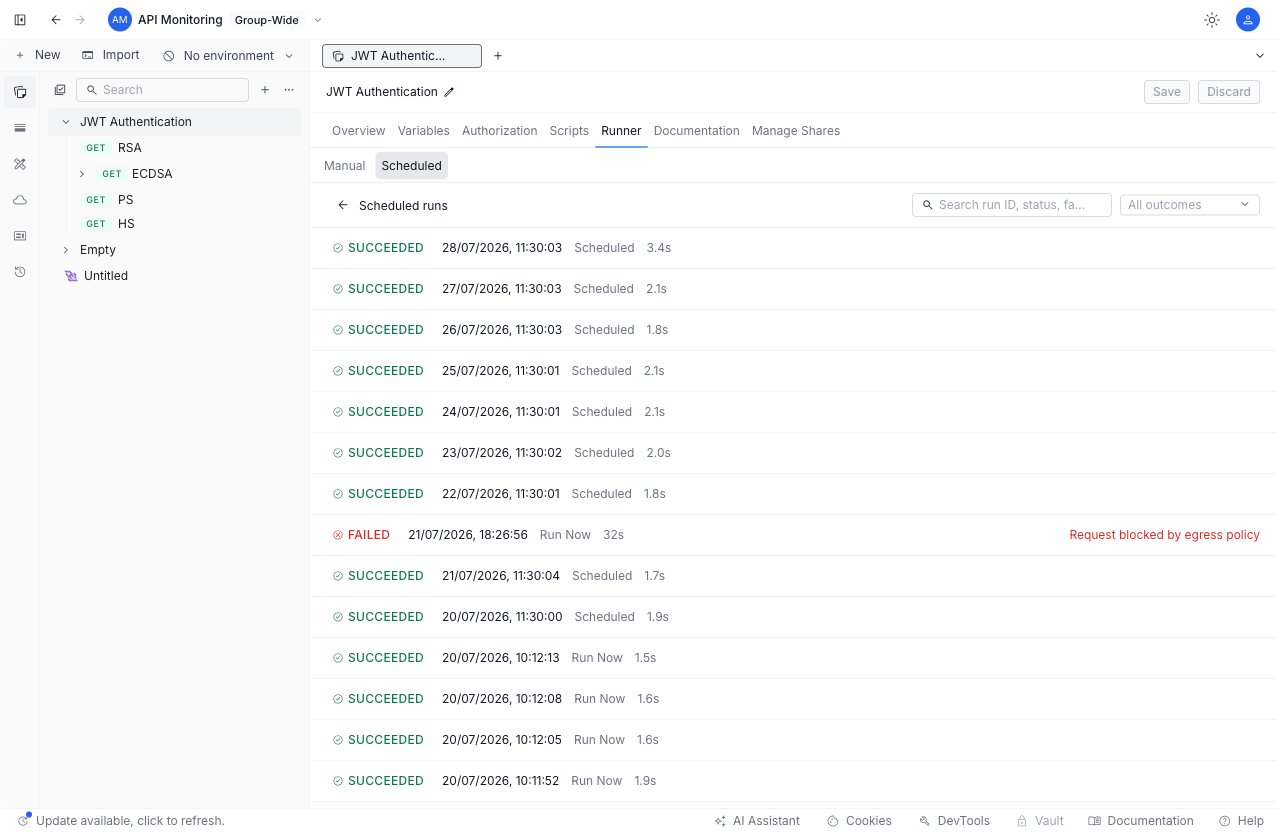
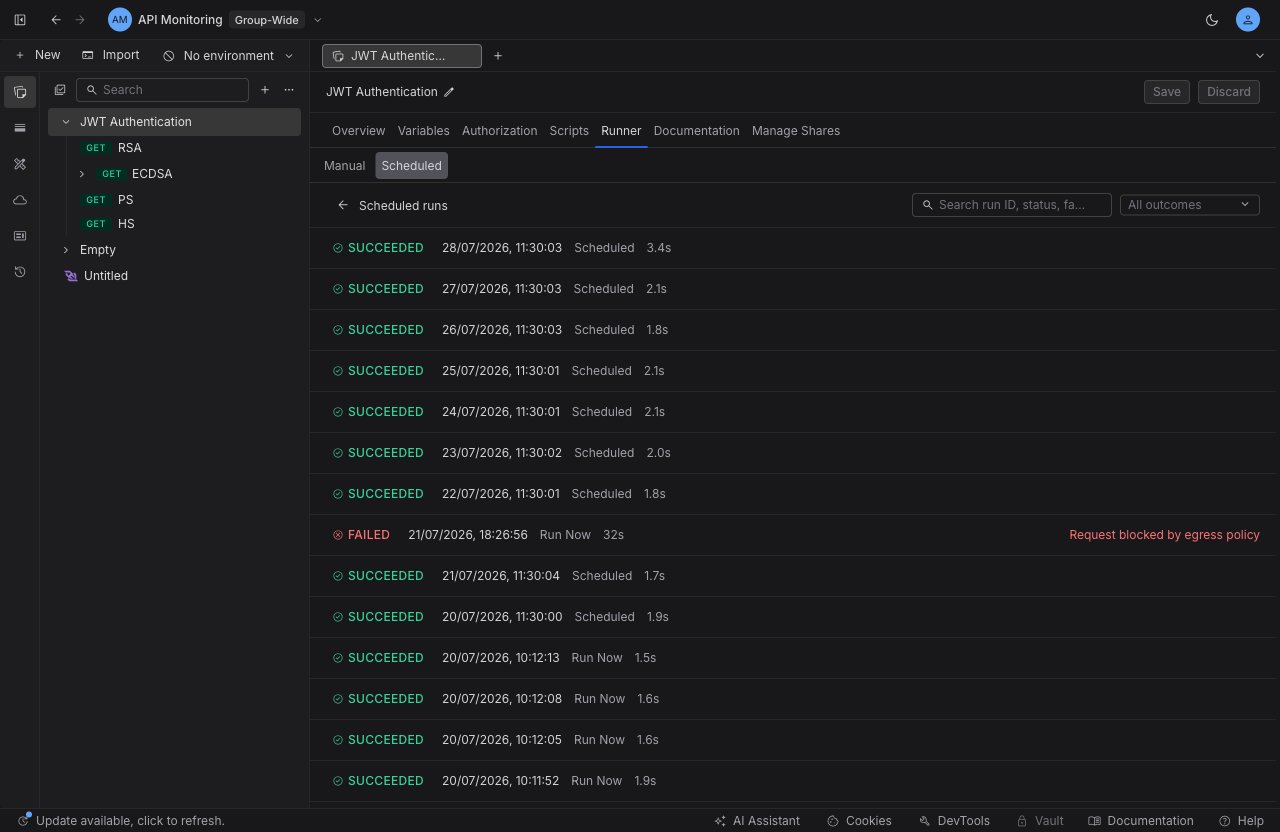 Run history lists finalized runs only and refreshes on its own periodically. A run you just triggered with **Run now** appears once it finishes, so give it a moment and the list will update. A run that is still in progress is shown but cannot be opened until it completes.
## Inspecting a run
Select any finished run to open its drill-down view. The header shows the run's overall outcome, a **Re-run** button that dispatches a fresh on-demand run, and a failure summary when the run failed.
Run history lists finalized runs only and refreshes on its own periodically. A run you just triggered with **Run now** appears once it finishes, so give it a moment and the list will update. A run that is still in progress is shown but cannot be opened until it completes.
## Inspecting a run
Select any finished run to open its drill-down view. The header shows the run's overall outcome, a **Re-run** button that dispatches a fresh on-demand run, and a failure summary when the run failed.
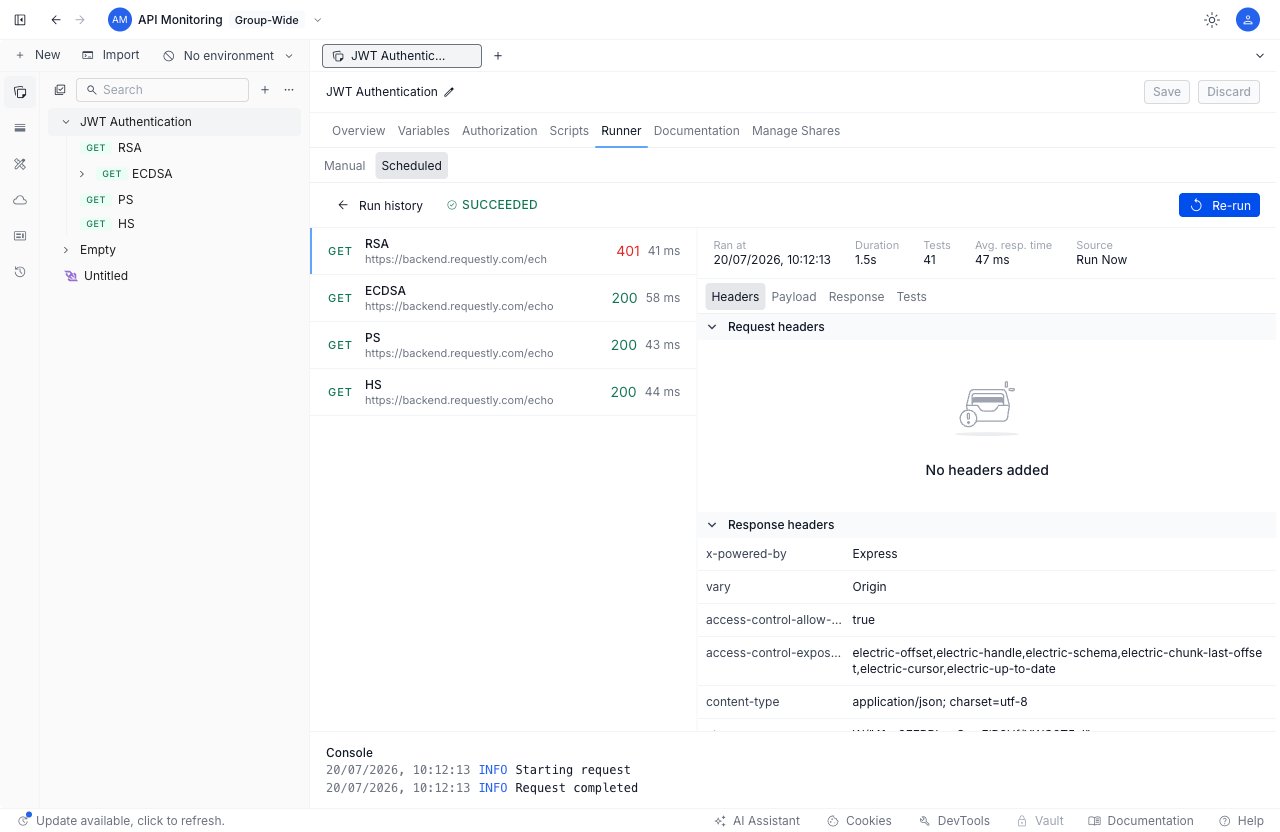
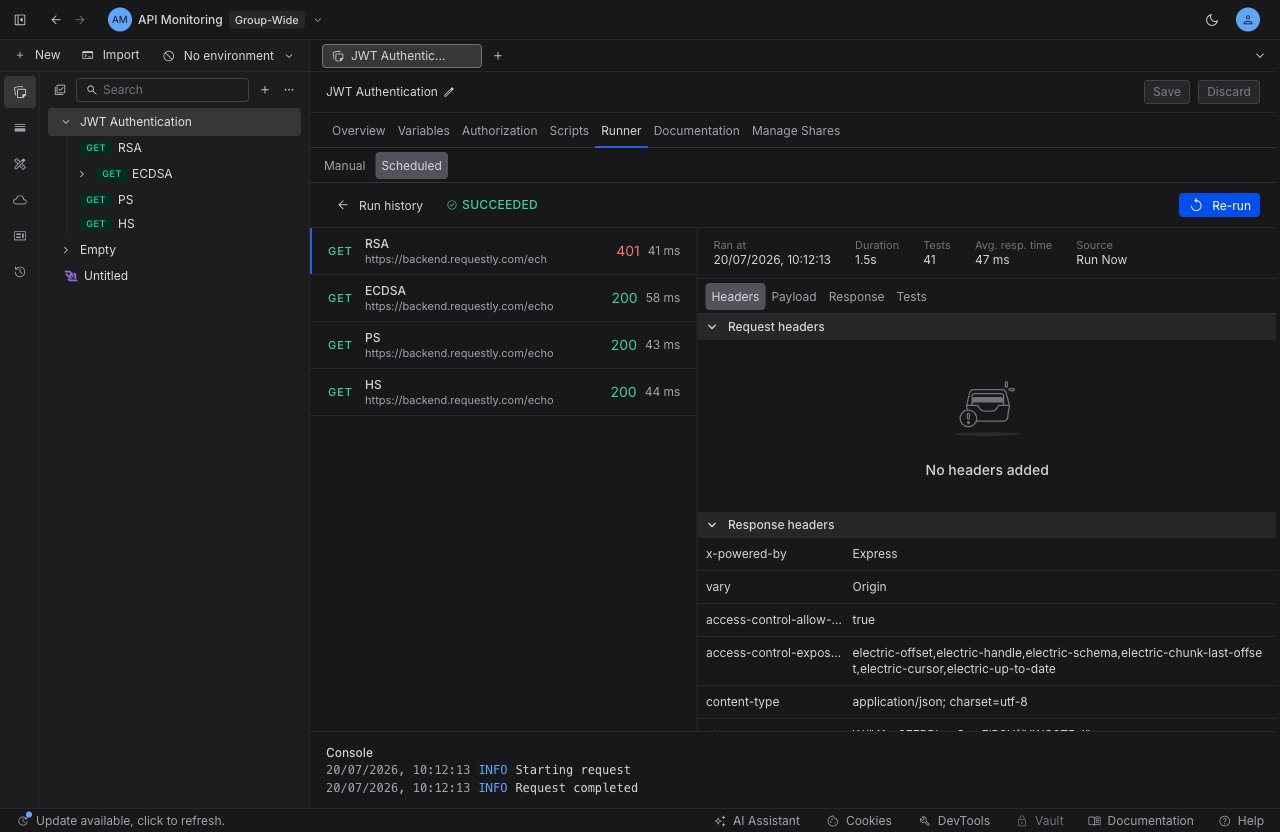 The body is a two-pane layout:
* The **left pane** lists every request attempt in the run, in order. Each row shows the method, name, and URL, the response status and time, and markers for failed requests, failed assertions, and retry attempts (attempts past the first are labeled).
* The **right pane** shows metrics for the run (when it ran, its duration, the number of tests, the average response time, and what triggered it) and, for the request you select, a tabbed detail view:
* **Headers** - the request and response headers.
* **Payload** - the request body.
* **Response** - the response body. A marker appears when a large body was truncated.
* **Tests** - the assertions for that request, with pass, fail, and error counts.
Below the panes, the **Console** section shows the console output captured for the selected request. Headers, bodies, and console output are fetched on demand as you open each request, and reflect the redaction described above.
## Running as a deploy gate
Scheduled Runs are built for recurring, unattended monitoring. To run a collection as a pass or fail gate inside a CI pipeline instead, use the [Requestly CLI](/api-client/cli), which runs the same collection from your terminal and returns a non-zero exit code when an assertion fails.
## What's Next?
Run a collection on demand and inspect the results before you schedule it.
Add assertions so each scheduled run validates status, body, and headers.
Run collections from your terminal or CI pipeline as a deploy gate.
The body is a two-pane layout:
* The **left pane** lists every request attempt in the run, in order. Each row shows the method, name, and URL, the response status and time, and markers for failed requests, failed assertions, and retry attempts (attempts past the first are labeled).
* The **right pane** shows metrics for the run (when it ran, its duration, the number of tests, the average response time, and what triggered it) and, for the request you select, a tabbed detail view:
* **Headers** - the request and response headers.
* **Payload** - the request body.
* **Response** - the response body. A marker appears when a large body was truncated.
* **Tests** - the assertions for that request, with pass, fail, and error counts.
Below the panes, the **Console** section shows the console output captured for the selected request. Headers, bodies, and console output are fetched on demand as you open each request, and reflect the redaction described above.
## Running as a deploy gate
Scheduled Runs are built for recurring, unattended monitoring. To run a collection as a pass or fail gate inside a CI pipeline instead, use the [Requestly CLI](/api-client/cli), which runs the same collection from your terminal and returns a non-zero exit code when an assertion fails.
## What's Next?
Run a collection on demand and inspect the results before you schedule it.
Add assertions so each scheduled run validates status, body, and headers.
Run collections from your terminal or CI pipeline as a deploy gate.