> ## Documentation Index
> Fetch the complete documentation index at: https://docs.requestly.com/llms.txt
> Use this file to discover all available pages before exploring further.
# AWS Signature v4
> Sign requests to AWS services with Signature Version 4, or generate a presigned URL.
AWS Signature Version 4 is the signing scheme every AWS service expects. It derives a signature from your secret key, the region, the service name, and the request itself, so the signature is valid for that one request and nothing else.
Requestly offers the scheme in two modes. **Live Request** signs the request and sends it. **Presigned URL** signs a URL you can hand to someone else, or paste into a browser, without sending anything.
 ## Set up AWS Signature v4
Open any request or collection, then go to the **Authorization** tab.
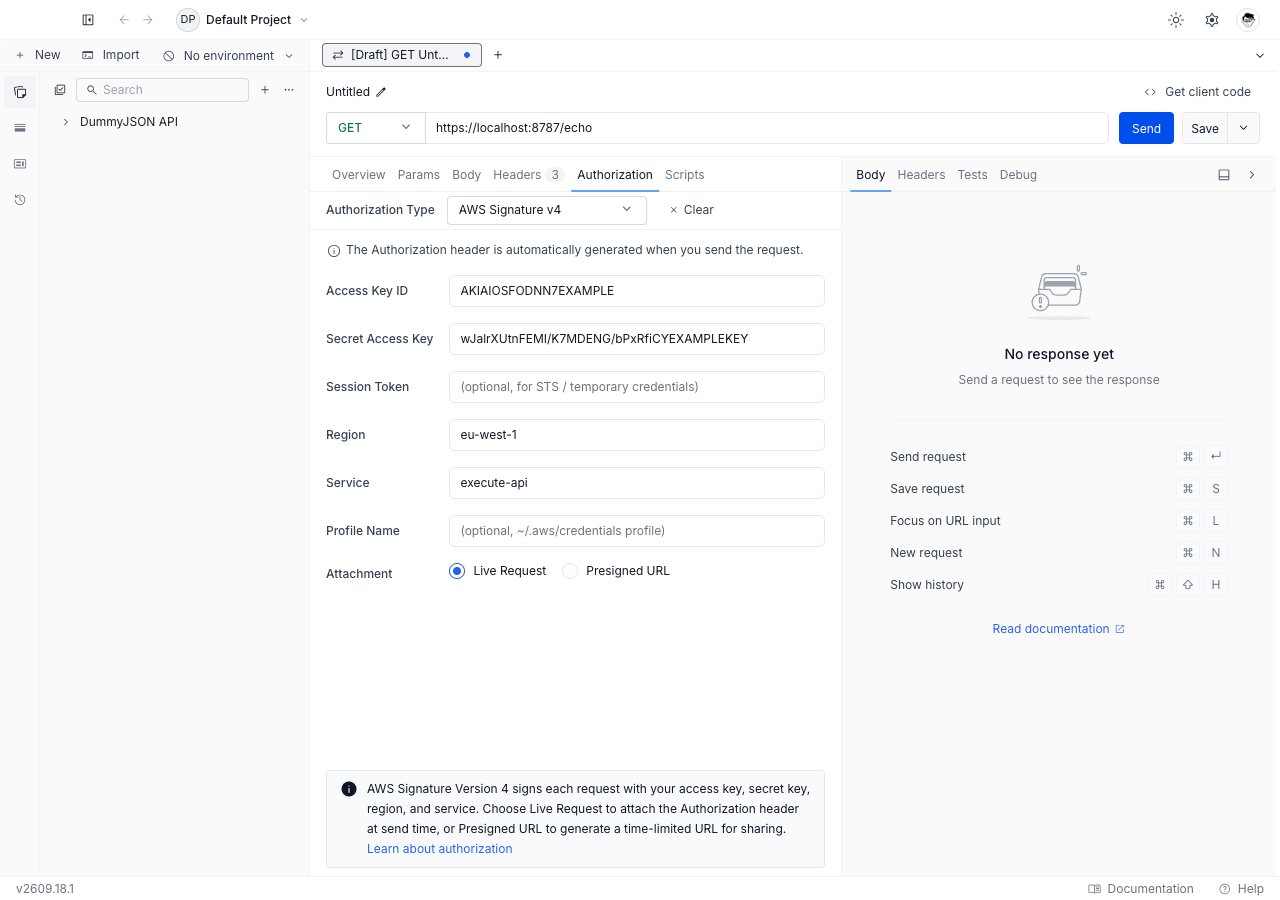
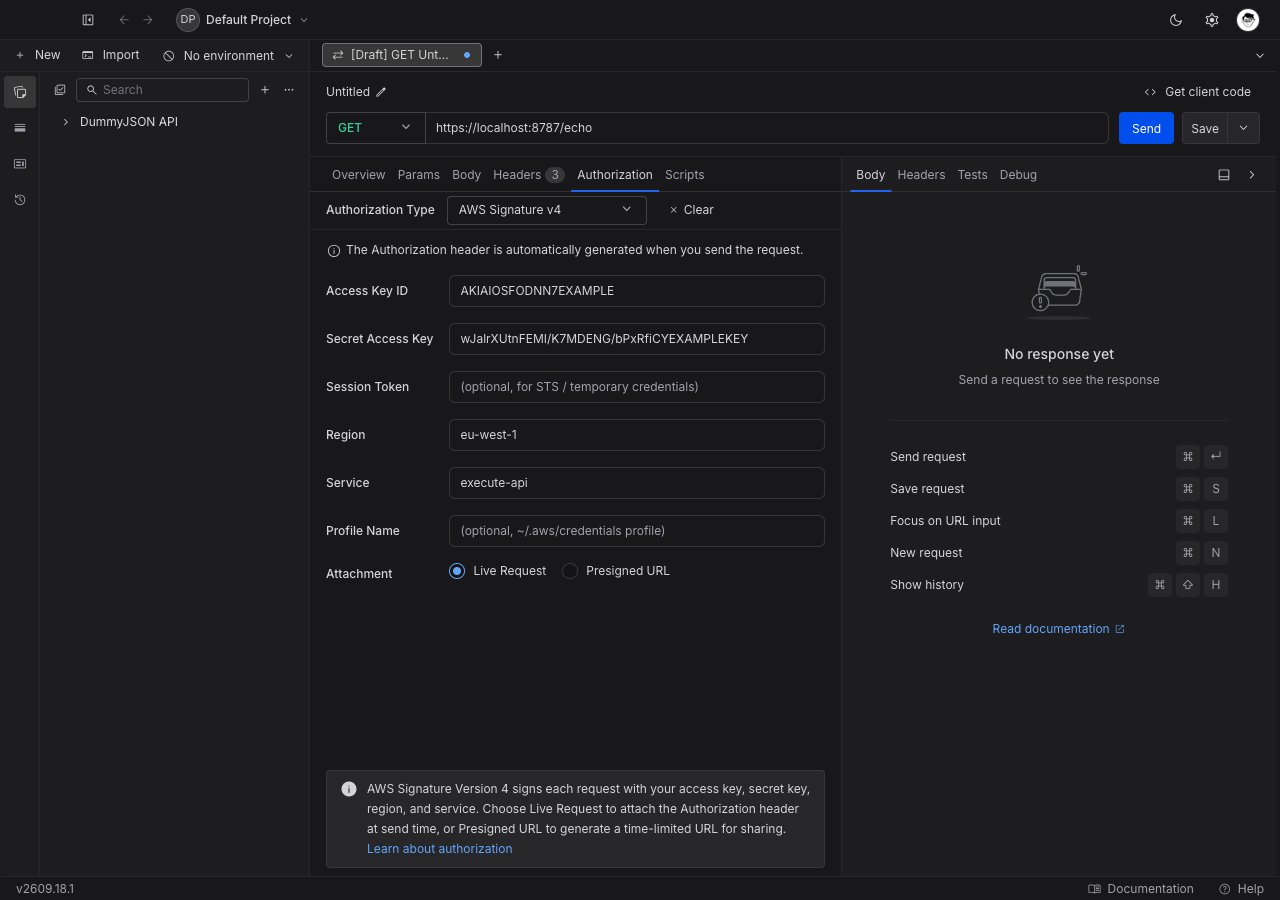
Pick **AWS Signature v4** from the **Authorization Type** dropdown. The AWS fields appear below the dropdown.
Fill in **Access Key ID** and **Secret Access Key**. Add **Session Token** as well if you are using temporary STS credentials. You can also leave all three blank and let Requestly find credentials elsewhere, as described below.
**Region** defaults to `us-east-1`. **Service** is the AWS service short name, such as `s3`, `execute-api`, or `lambda`. Both values go into the signature, so a mismatch produces a signature the service will not accept.
Leave **Attachment** on **Live Request** to sign and send. Switch to **Presigned URL** to generate a shareable link instead.
Click **Send**. In live mode Requestly signs the request and returns the service's response. In presigned mode it returns the signed URL.
## Field reference
| Field | Purpose |
| --------------------- | ---------------------------------------------------------------------------------------------- |
| **Access Key ID** | The public half of your key pair, usually starting `AKIA`. |
| **Secret Access Key** | The private half. Requestly derives the signing key from it; the secret is never sent. |
| **Session Token** | Optional. Required when your credentials come from STS, `assume-role`, or an IAM role session. |
| **Region** | The AWS region the request targets, such as `eu-west-1`. Defaults to `us-east-1`. |
| **Service** | The service short name the signature is scoped to, such as `s3` or `execute-api`. |
| **Profile Name** | Optional. A profile in your `~/.aws/credentials` file. |
| **Attachment** | **Live Request** or **Presigned URL**. |
| **Expiry (seconds)** | Presigned mode only. How long the generated URL stays valid. |
Every credential field accepts Requestly [variables](../../environments-and-variables) and [vault](../../vault/vault) references.
An AWS secret access key in a shared collection is a shared AWS account. Store it as a [vault](../../vault/vault) secret and reference it as `{{vault:aws_secret_key}}`, or leave the field blank and use a credential profile.
## Where credentials come from
Requestly looks in three places, in order, and uses the first one that produces a complete pair:
**Access Key ID** and **Secret Access Key** as typed above. Both must be non-empty; one alone is treated as not set.
`AWS_ACCESS_KEY_ID` and `AWS_SECRET_ACCESS_KEY`, plus `AWS_SESSION_TOKEN` when present. Both the ID and the secret must be set, otherwise Requestly moves on.
The profile you name in **Profile Name**, read from `~/.aws/credentials`. The file is read fresh on every send, so rotating a credential there takes effect on the next request with no restart.
Reading AWS credentials from this machine requires the desktop app. [Download Requestly](https://requestly.com/downloads).
If none of the three produces credentials, the send fails and tells you so rather than sending the request unsigned.
The credential profile is the tidiest option for a collection you share. Nothing sensitive is stored in the request, and each teammate points the same **Profile Name** at their own account.
## Live Request mode
The default. Requestly computes the signature at send time and attaches it as an `Authorization` header, along with the `X-Amz-Date` header and, for temporary credentials, `X-Amz-Security-Token`. The response panel shows the service's real response.
## Presigned URL mode
Select **Presigned URL** and an **Expiry (seconds)** field appears, defaulting to `3600` (one hour). AWS caps a presigned URL at `604800` seconds, which is seven days.
Press **Send** and Requestly does not send anything. It signs the request into a URL and shows it in the response panel, with a **Copy** button and a note stating how long it is valid. Anyone holding that URL can perform that one request until it expires.
Presigned mode applies to HTTP requests. It is not available for GraphQL, WebSocket, or Socket.IO requests, which have no single URL to sign. AWS Signature v4 as a whole is not offered for gRPC requests.
A presigned URL carries its own authorization. Treat it as a credential: anyone who has the link can use it until it expires, with no further sign-in.
## Inherit AWS Signature v4 from a collection
One AWS account usually fronts many endpoints, so collection-level auth fits well. Set AWS Signature v4 once on the collection and leave every request inside it on **Inherit from parent**. Requestly walks up from the request to the nearest ancestor that sets a concrete auth type.
Remember that **Service** is part of the signature. A collection that mixes `s3` and `execute-api` endpoints needs the service set per request, or split into one collection per service.
A request that picks its own auth type stops inheriting, and a collection or folder whose auth type is cleared or left unset stops the walk for everything below it.
## Troubleshooting
Check **Region** and **Service** before you check the keys. Both are inputs to the signature, so a request to a `eu-west-1` bucket signed for `us-east-1` fails with exactly this error even though the credentials are correct.
Your STS session has ended. Refresh the temporary credentials and update **Session Token**, or switch to a credential profile so Requestly reads the current values on every send.
All three sources came up empty. Fill in the form fields, or name a profile that exists in `~/.aws/credentials`.
You are in the web app, which cannot read files on your machine. Open the same project in the [desktop app](https://requestly.com/downloads), or type the keys into the form fields instead.
## What's Next?
The other per-request signing scheme in the dropdown.
Keep AWS secrets out of the collection.
Back to every auth type Requestly supports.
## Set up AWS Signature v4
Open any request or collection, then go to the **Authorization** tab.
Pick **AWS Signature v4** from the **Authorization Type** dropdown. The AWS fields appear below the dropdown.
Fill in **Access Key ID** and **Secret Access Key**. Add **Session Token** as well if you are using temporary STS credentials. You can also leave all three blank and let Requestly find credentials elsewhere, as described below.
**Region** defaults to `us-east-1`. **Service** is the AWS service short name, such as `s3`, `execute-api`, or `lambda`. Both values go into the signature, so a mismatch produces a signature the service will not accept.
Leave **Attachment** on **Live Request** to sign and send. Switch to **Presigned URL** to generate a shareable link instead.
Click **Send**. In live mode Requestly signs the request and returns the service's response. In presigned mode it returns the signed URL.
## Field reference
| Field | Purpose |
| --------------------- | ---------------------------------------------------------------------------------------------- |
| **Access Key ID** | The public half of your key pair, usually starting `AKIA`. |
| **Secret Access Key** | The private half. Requestly derives the signing key from it; the secret is never sent. |
| **Session Token** | Optional. Required when your credentials come from STS, `assume-role`, or an IAM role session. |
| **Region** | The AWS region the request targets, such as `eu-west-1`. Defaults to `us-east-1`. |
| **Service** | The service short name the signature is scoped to, such as `s3` or `execute-api`. |
| **Profile Name** | Optional. A profile in your `~/.aws/credentials` file. |
| **Attachment** | **Live Request** or **Presigned URL**. |
| **Expiry (seconds)** | Presigned mode only. How long the generated URL stays valid. |
Every credential field accepts Requestly [variables](../../environments-and-variables) and [vault](../../vault/vault) references.
An AWS secret access key in a shared collection is a shared AWS account. Store it as a [vault](../../vault/vault) secret and reference it as `{{vault:aws_secret_key}}`, or leave the field blank and use a credential profile.
## Where credentials come from
Requestly looks in three places, in order, and uses the first one that produces a complete pair:
**Access Key ID** and **Secret Access Key** as typed above. Both must be non-empty; one alone is treated as not set.
`AWS_ACCESS_KEY_ID` and `AWS_SECRET_ACCESS_KEY`, plus `AWS_SESSION_TOKEN` when present. Both the ID and the secret must be set, otherwise Requestly moves on.
The profile you name in **Profile Name**, read from `~/.aws/credentials`. The file is read fresh on every send, so rotating a credential there takes effect on the next request with no restart.
Reading AWS credentials from this machine requires the desktop app. [Download Requestly](https://requestly.com/downloads).
If none of the three produces credentials, the send fails and tells you so rather than sending the request unsigned.
The credential profile is the tidiest option for a collection you share. Nothing sensitive is stored in the request, and each teammate points the same **Profile Name** at their own account.
## Live Request mode
The default. Requestly computes the signature at send time and attaches it as an `Authorization` header, along with the `X-Amz-Date` header and, for temporary credentials, `X-Amz-Security-Token`. The response panel shows the service's real response.
## Presigned URL mode
Select **Presigned URL** and an **Expiry (seconds)** field appears, defaulting to `3600` (one hour). AWS caps a presigned URL at `604800` seconds, which is seven days.
Press **Send** and Requestly does not send anything. It signs the request into a URL and shows it in the response panel, with a **Copy** button and a note stating how long it is valid. Anyone holding that URL can perform that one request until it expires.
Presigned mode applies to HTTP requests. It is not available for GraphQL, WebSocket, or Socket.IO requests, which have no single URL to sign. AWS Signature v4 as a whole is not offered for gRPC requests.
A presigned URL carries its own authorization. Treat it as a credential: anyone who has the link can use it until it expires, with no further sign-in.
## Inherit AWS Signature v4 from a collection
One AWS account usually fronts many endpoints, so collection-level auth fits well. Set AWS Signature v4 once on the collection and leave every request inside it on **Inherit from parent**. Requestly walks up from the request to the nearest ancestor that sets a concrete auth type.
Remember that **Service** is part of the signature. A collection that mixes `s3` and `execute-api` endpoints needs the service set per request, or split into one collection per service.
A request that picks its own auth type stops inheriting, and a collection or folder whose auth type is cleared or left unset stops the walk for everything below it.
## Troubleshooting
Check **Region** and **Service** before you check the keys. Both are inputs to the signature, so a request to a `eu-west-1` bucket signed for `us-east-1` fails with exactly this error even though the credentials are correct.
Your STS session has ended. Refresh the temporary credentials and update **Session Token**, or switch to a credential profile so Requestly reads the current values on every send.
All three sources came up empty. Fill in the form fields, or name a profile that exists in `~/.aws/credentials`.
You are in the web app, which cannot read files on your machine. Open the same project in the [desktop app](https://requestly.com/downloads), or type the keys into the form fields instead.
## What's Next?
The other per-request signing scheme in the dropdown.
Keep AWS secrets out of the collection.
Back to every auth type Requestly supports.