> ## Documentation Index
> Fetch the complete documentation index at: https://docs.requestly.com/llms.txt
> Use this file to discover all available pages before exploring further.
# GraphQL Request
> Requestly supports GraphQL requests, allowing you to send queries, mutations, and define variables
GraphQL requests work over HTTP just like REST, but instead of defining multiple endpoints, you typically interact with a **single endpoint** (e.g., `/graphql`) and specify the exact data you want. This gives you flexibility, reduces over-fetching, and makes debugging APIs much simpler.
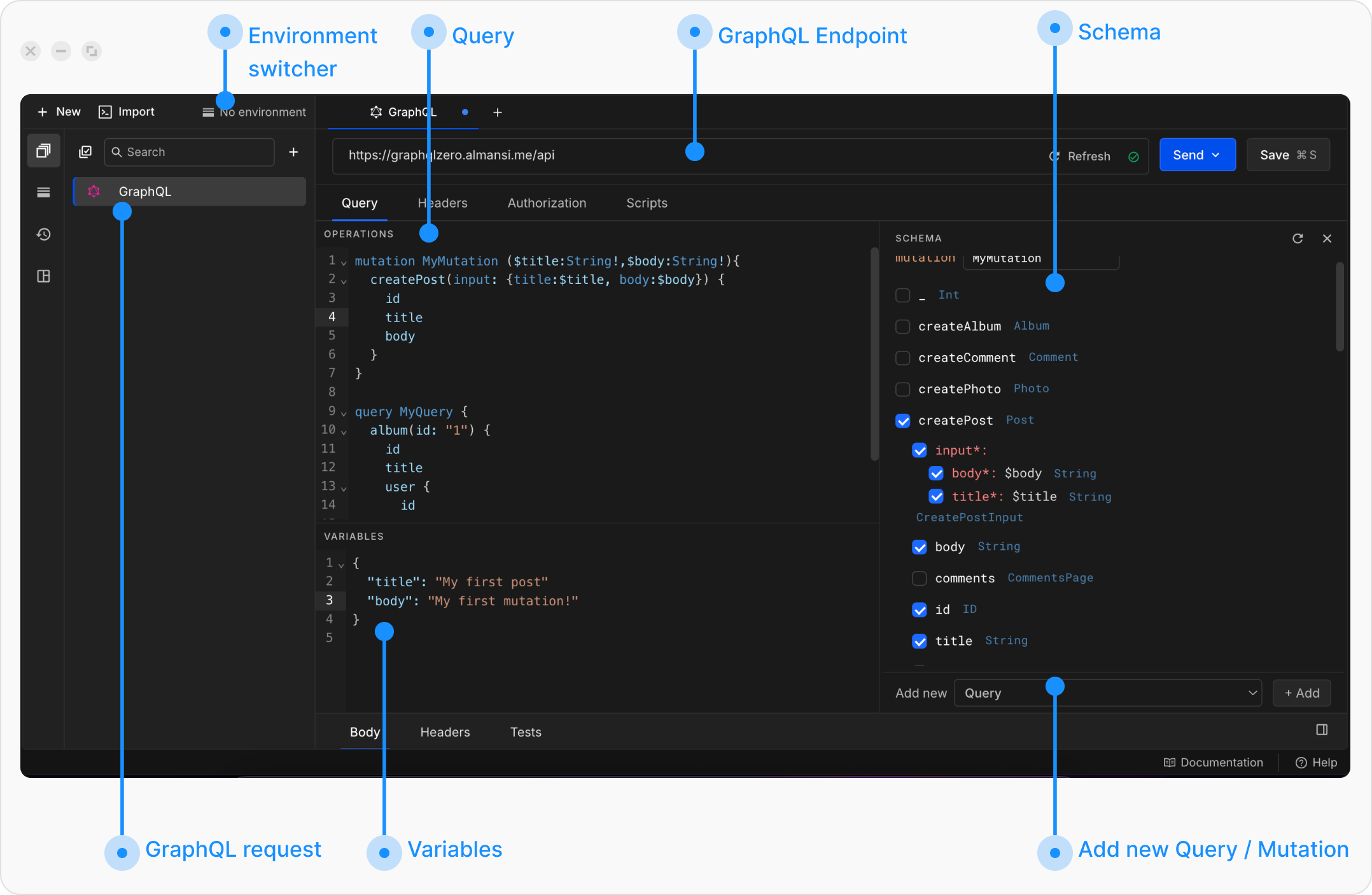 ## Create your first GraphQL request
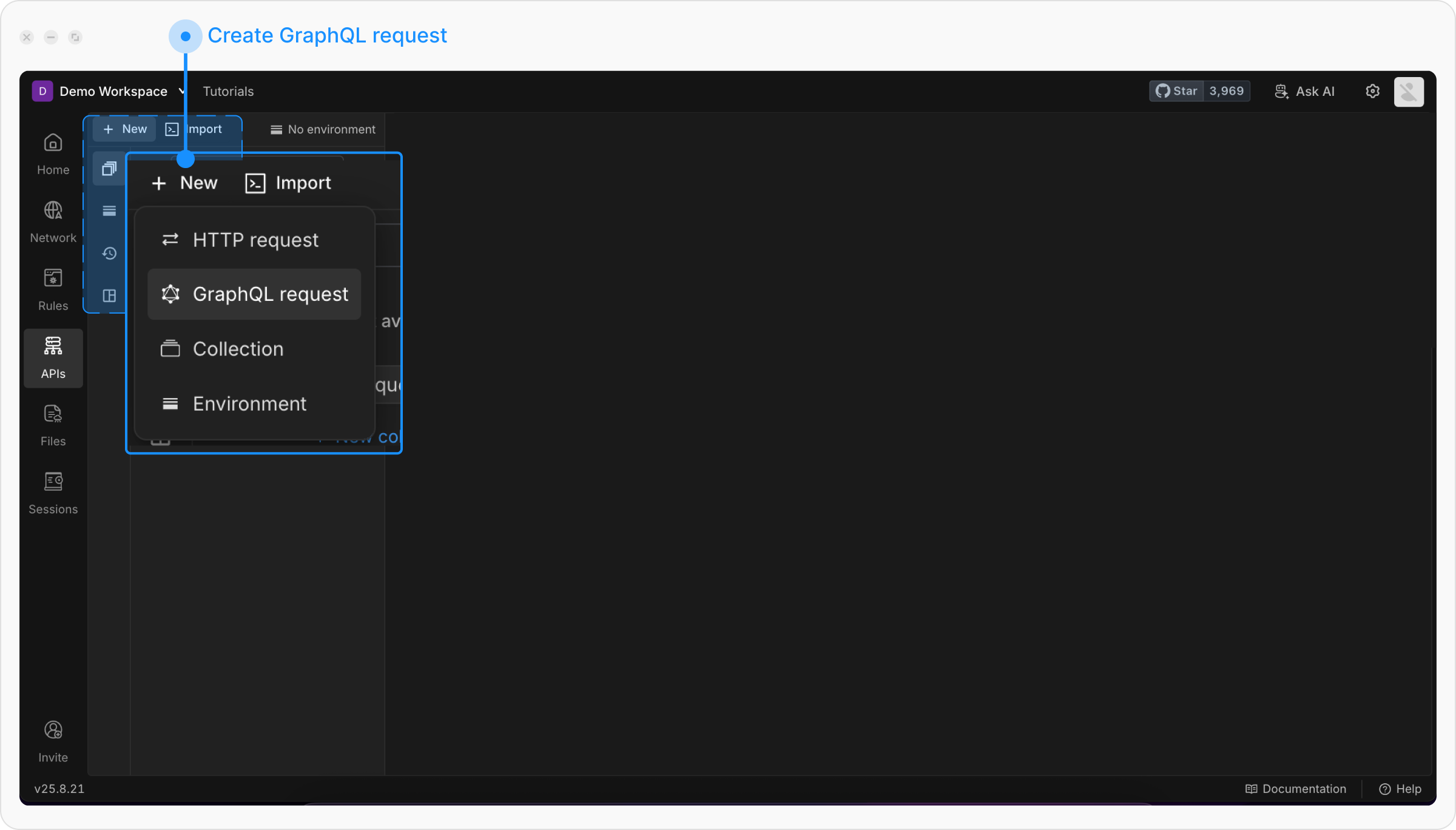
Open **Requestly Desktop App**, then click the `+ New` button to create a new request and select **GraphQL request** from the menu.
## Create your first GraphQL request
Open **Requestly Desktop App**, then click the `+ New` button to create a new request and select **GraphQL request** from the menu.
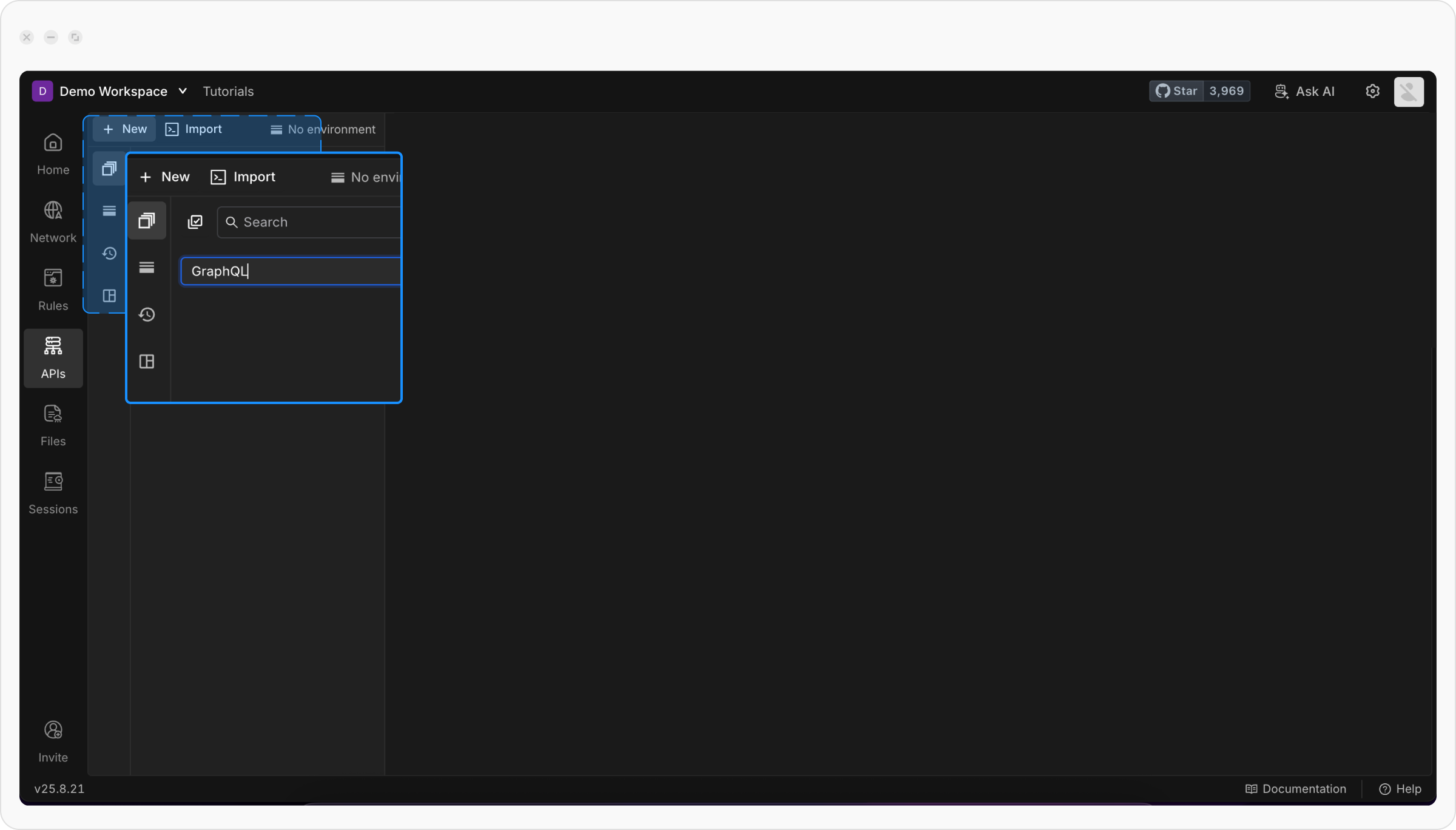
 Give a descriptive title for your request to make it easy to identify later
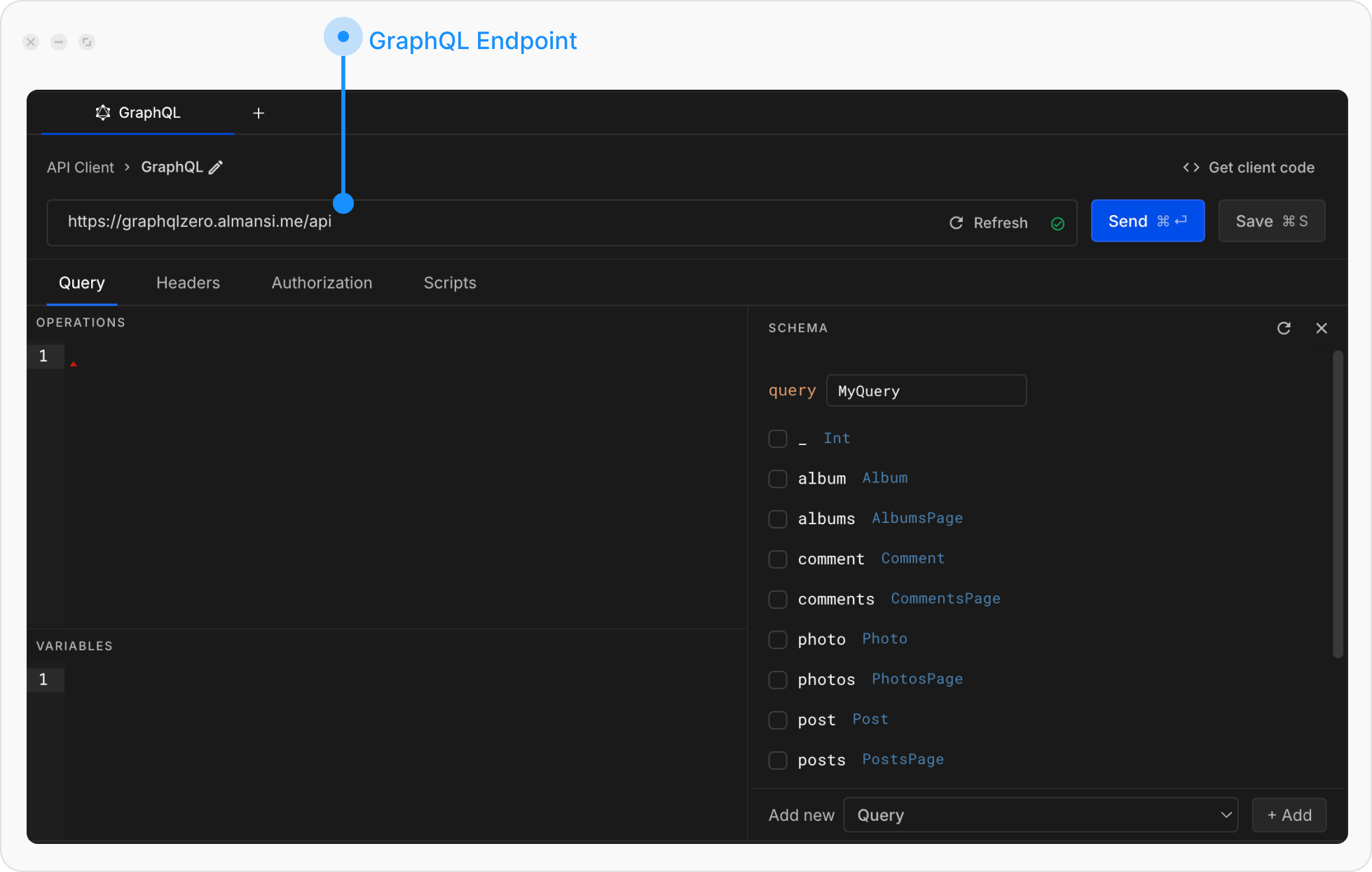
 Add your GraphQL endpoint.
It will automatically perform **schema introspection** so you can explore available queries, mutations, and types.
Add your GraphQL endpoint.
It will automatically perform **schema introspection** so you can explore available queries, mutations, and types.
 Under the **Query** tab, you’ll see three panels:
* **Query/Mutation editor**: where you write or generate queries.
* **Variables editor**: where you define variables in JSON format.
* **Schema**: where you explore your API’s schema (Queries, Mutations, Subscriptions).
Under the **Query** tab, you’ll see three panels:
* **Query/Mutation editor**: where you write or generate queries.
* **Variables editor**: where you define variables in JSON format.
* **Schema**: where you explore your API’s schema (Queries, Mutations, Subscriptions).
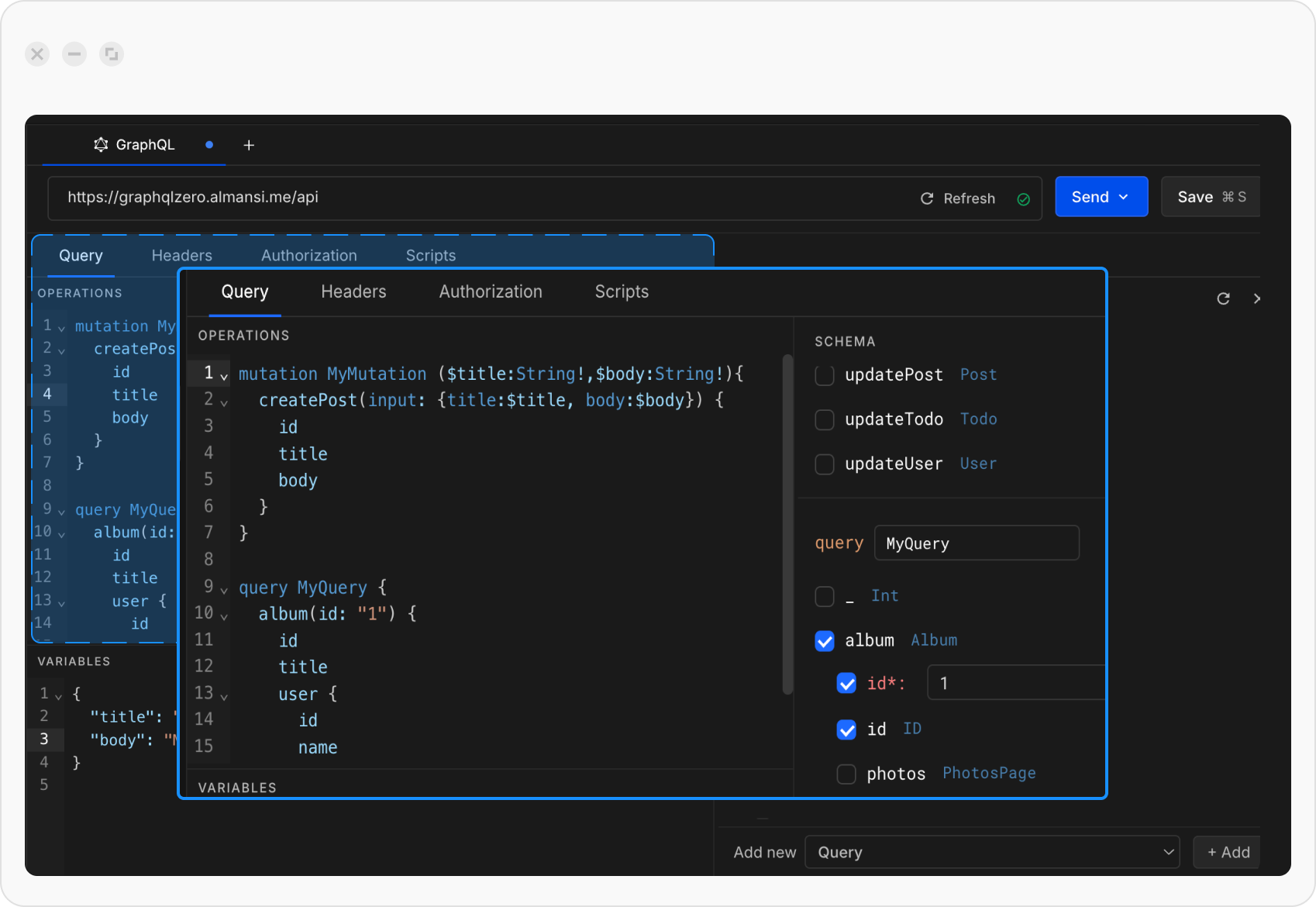
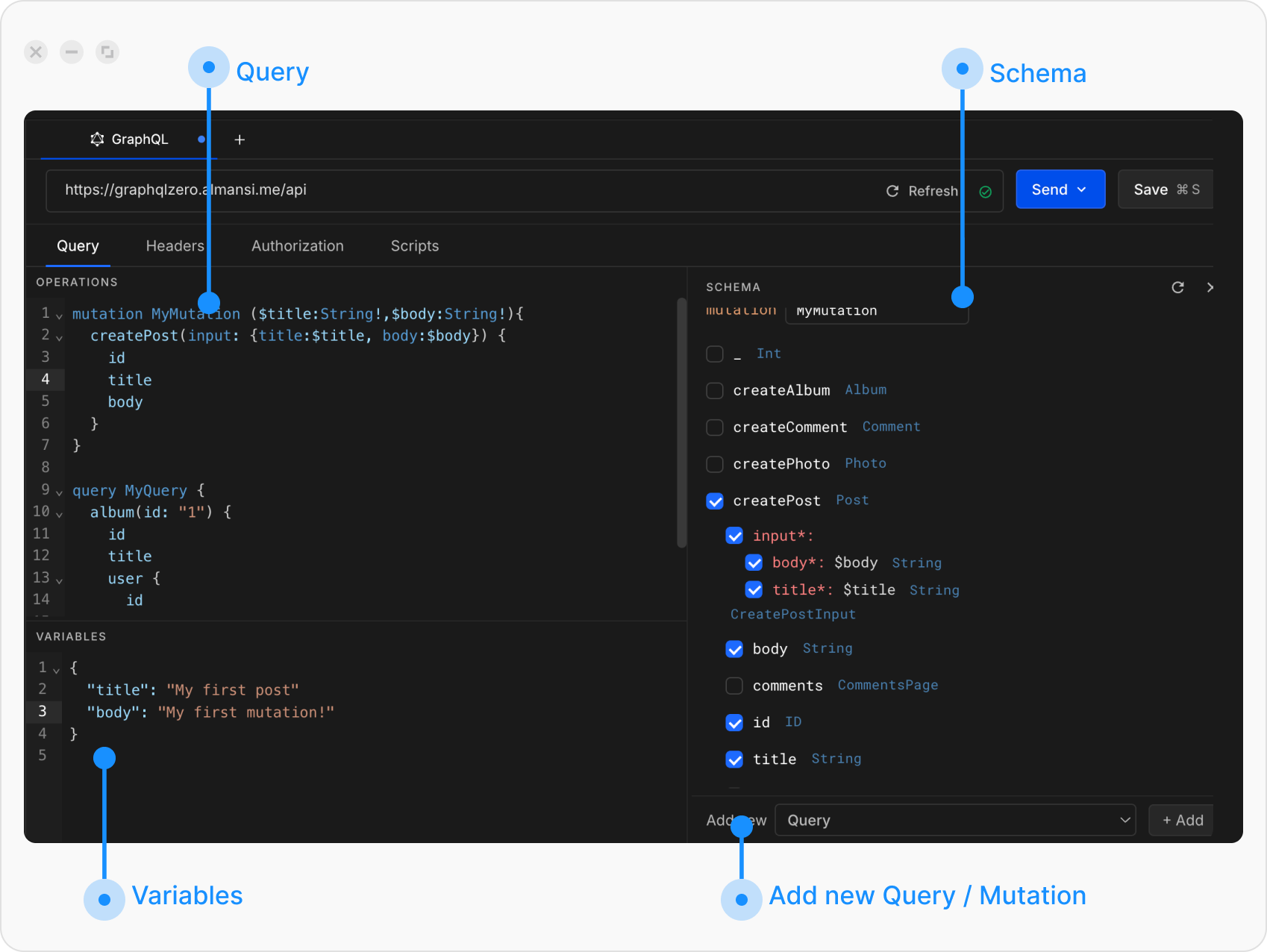 In the schema explorer, select a field and expand its arguments. A query will automatically appear in the **Query editor**.\
Alternatively, you can write your query manually
In the schema explorer, select a field and expand its arguments. A query will automatically appear in the **Query editor**.\
Alternatively, you can write your query manually
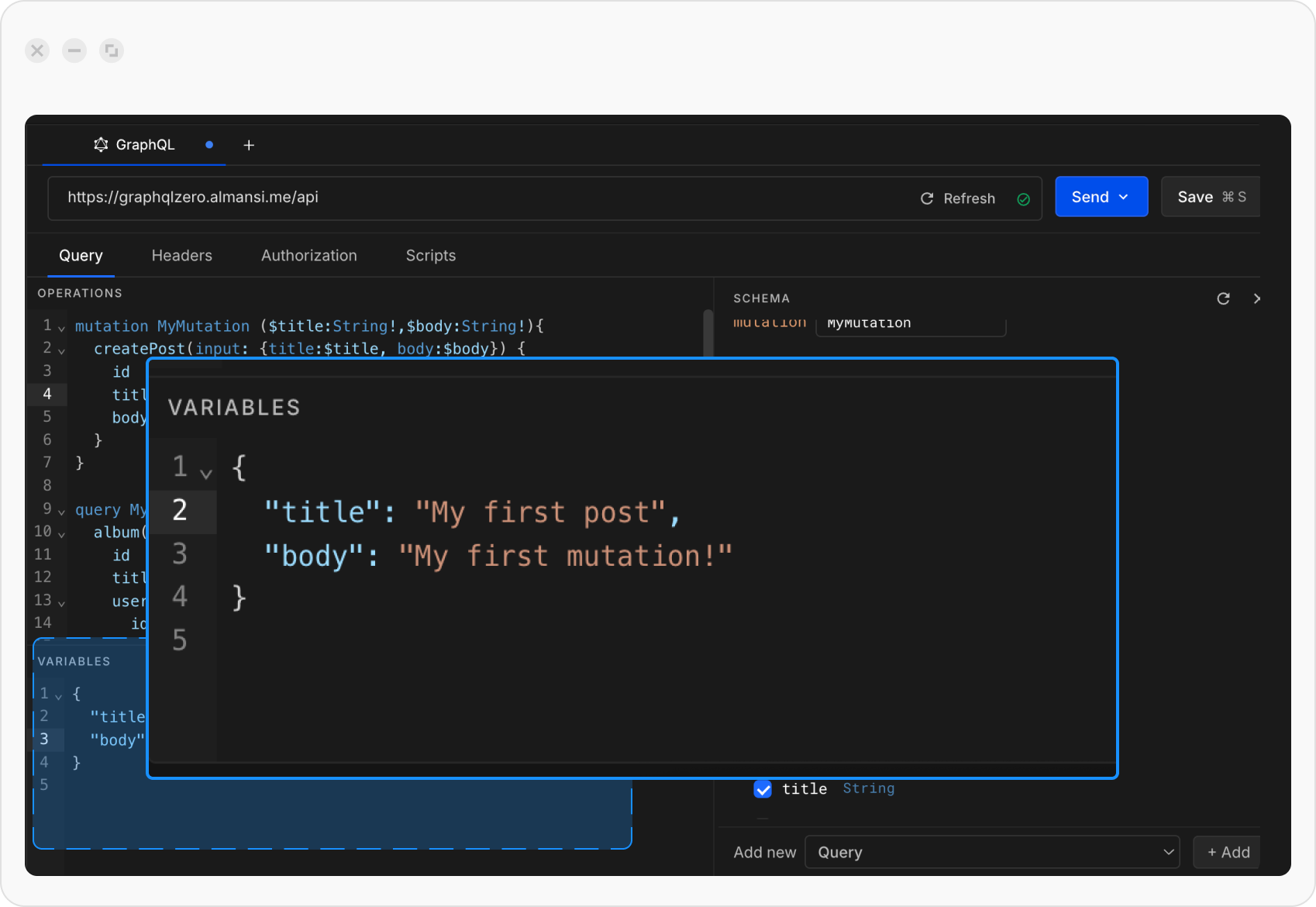
 In the **Variables editor**, provide values in JSON format.
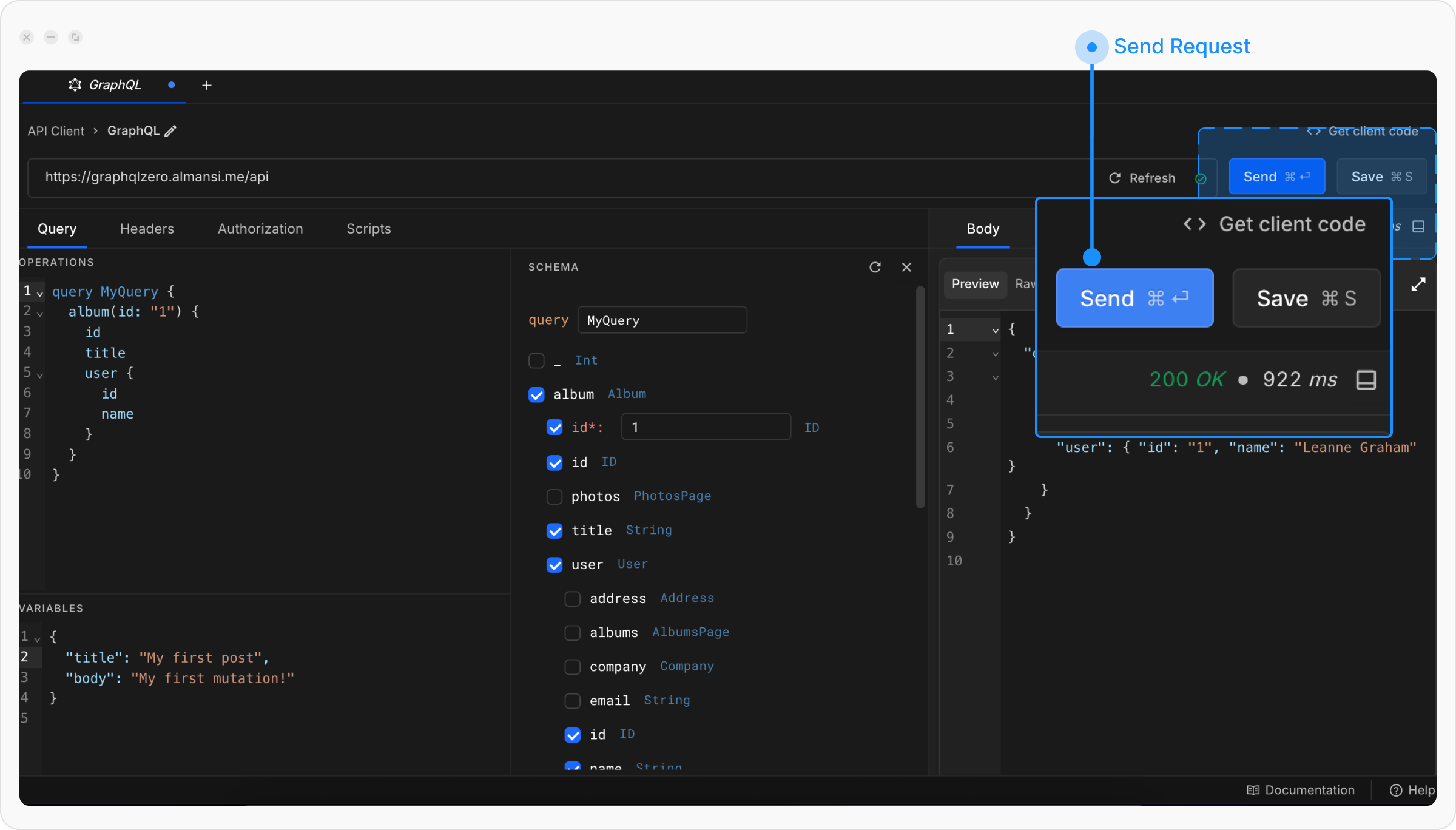
 Click **Send** to execute your query and view the response.
 ### Create a GraphQL request with multiple queries
Open **Requestly Desktop App**, then click the `+ New` button to create a new request and select **GraphQL request** from the menu.
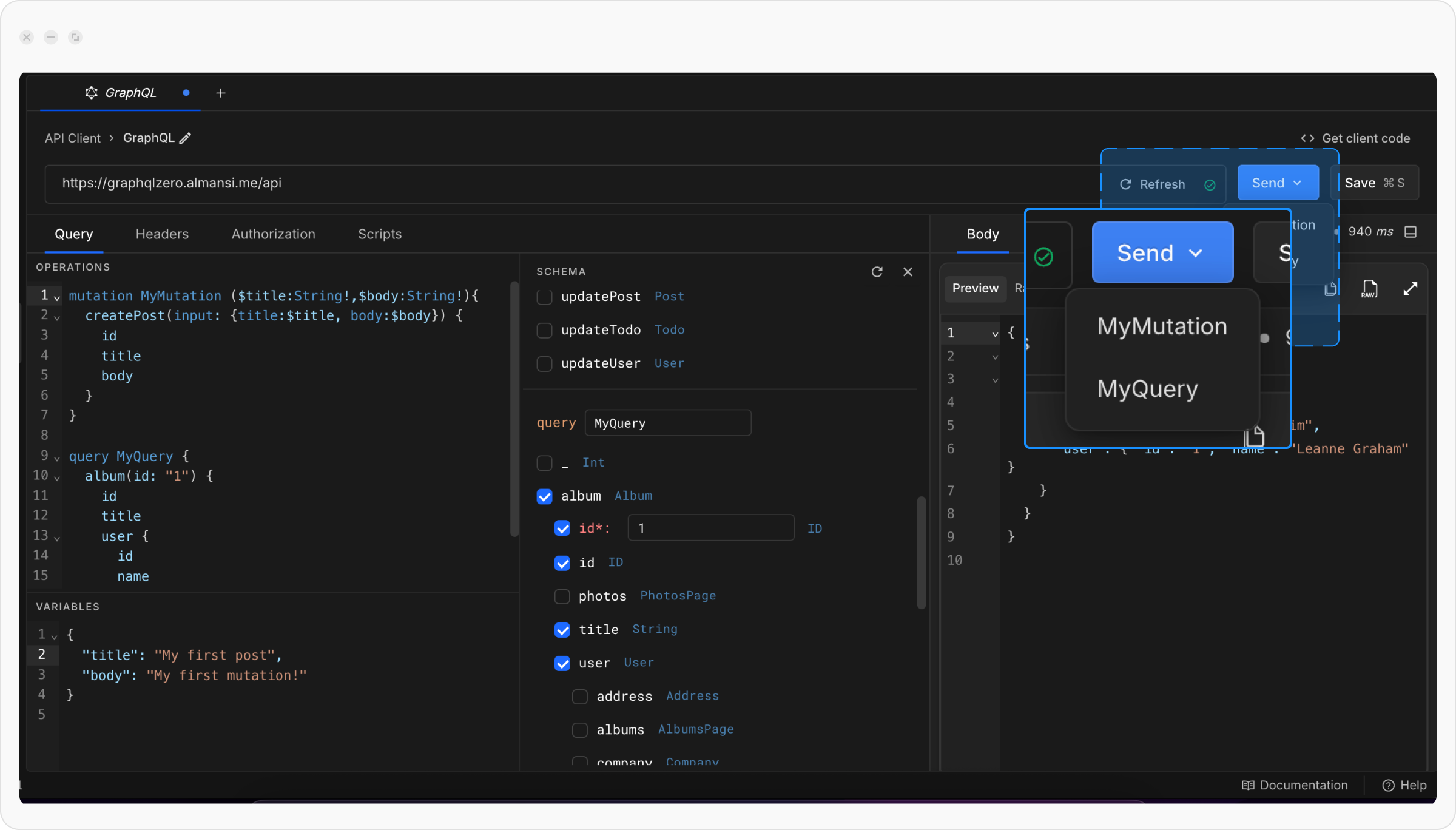
From the schema explorer, select more than one field. Both queries will appear in the **Query editor**. Alternatively, you can manually add a new query / mutation.
Only one query runs at a time. First, click the **Send** button, then select the query you want to run from the dropdown.
To execute another query, click the Send button again and select the other query from the dropdown.
### Create a GraphQL request with multiple queries
Open **Requestly Desktop App**, then click the `+ New` button to create a new request and select **GraphQL request** from the menu.
From the schema explorer, select more than one field. Both queries will appear in the **Query editor**. Alternatively, you can manually add a new query / mutation.
Only one query runs at a time. First, click the **Send** button, then select the query you want to run from the dropdown.
To execute another query, click the Send button again and select the other query from the dropdown.
 ## What's Next?
Secure your GraphQL requests with API keys, tokens, or OAuth flows
Make your GraphQL queries dynamic with environment variables
Group related GraphQL requests together
## What's Next?
Secure your GraphQL requests with API keys, tokens, or OAuth flows
Make your GraphQL queries dynamic with environment variables
Group related GraphQL requests together