> ## Documentation Index
> Fetch the complete documentation index at: https://docs.requestly.com/llms.txt
> Use this file to discover all available pages before exploring further.
# Socket.IO Request
> Connect to a Socket.IO server from Requestly, emit named events with typed arguments, subscribe to inbound events, and read everything on a live timeline.
Socket.IO is a messaging layer on top of WebSocket. Rather than sending raw frames, you emit a **named event** carrying zero or more arguments, and the server emits named events back. It adds its own handshake, its own protocol versions, acknowledgements, automatic reconnection, and a polling fallback when a WebSocket upgrade is not possible.
A Socket.IO request in Requestly stores the connection (URL, handshake path, protocol version, transport order, headers, query params, authorization, and the `auth` payload), the events you want to emit, and the events you want to listen for. Save it in a collection and the whole session is reproducible.
 **Availability:** Socket.IO connections open from the **Requestly Desktop App**. In the web app you can create, edit, and save a Socket.IO request, but **Connect** is disabled with the note "This protocol requires the desktop app."
## Create a Socket.IO request
Click the `+ New` button in the API Client sidebar and choose **Socket.IO request**.
To create it inside a collection instead, hover the collection in the sidebar, click its `+` icon, and choose **Socket.IO Request**. The request then inherits the collection's variables and authorization.
Click the name in the breadcrumb at the top of the editor, type a descriptive name, and press **Enter**.
A new request is pre-filled with `wss://socketio-echo.requestly.com`, Requestly's public Socket.IO demo server, so you have a working target before you have your own. It echoes any event you emit back to you with `:echo` appended to the event name, and resolves acknowledgements with an `ok` flag and a timestamp.
The URL must start with `ws://` or `wss://`. Anything else is rejected inline with "Socket.IO URL must start with ws\:// or wss\://", and a URL with the right scheme but no usable host is rejected with "Enter a valid Socket.IO URL."
Open the **Events** tab and either add a listener per event name, or turn **Catch-all** on to capture everything the server emits. Requestly shows an inbound event on the timeline only if one of those is true, so a brand-new request with no listeners and Catch-all off shows nothing coming back.
Click **Connect**, wait for the status badge to read **Connected**, then open the **Message** tab, give the event a name, add its arguments, and click **Send**.
Press `Ctrl`/`Cmd` + `Enter` to connect when you are disconnected, and to emit the current event once you are connected.
## The URL bar
* **Connect** opens the connection. It is shown while you are idle, disconnected, or sitting on a failed attempt.
* **Cancel** replaces Connect while the handshake is in flight, so you are not stuck waiting on an unreachable host.
* **Disconnect** replaces Connect once the connection is open.
* **Save** stores your edits. On a saved request the arrow next to it offers **Save as new**, which writes a copy instead of overwriting.
While a connection is active, the URL, the **Events** tab, and the **Settings** tab are read-only. The **Message**, **Headers**, **Params**, and **Authorization** tabs stay editable.
### When a connection fails
A failed attempt names the cause instead of resetting to a blank state. The status badge holds the reason until you connect again, and the timeline records a matching error row. Reasons include **Connection refused**, **DNS failure**, **Offline**, **TLS handshake failed**, **Handshake timeout**, **Handshake rejected**, **Auth rejected**, **Auth token expired**, **Socket.IO version mismatch**, **Engine.IO ping timeout**, **Reconnect attempts exhausted**, **Server closed connection**, **Connection lost**, and **Protocol error**.
A version mismatch is the most common first-time failure. Check the **Version** setting against what your server runs.
## Editor tabs
### Overview
A free-text Markdown description of the request. Useful for recording which namespace the endpoint serves, or which event the server expects first.
### Message
The outbound side. The left pane lists saved events that persist with the request; the right pane composes the one you selected.
Each saved event carries:
* **An event name.** Set it from the row's `...` menu using **Rename**, which updates both the row label and the emitted event name. Send is blocked until the name is non-empty, with the message "Event name is required".
* **Arguments.** Click **Add argument** for each one. Socket.IO events can carry zero or more, and every argument has its own format: **Text**, **JSON**, or **Binary** (with a **Base64** or **Hex** encoding dropdown). JSON arguments get a beautify button.
* **Ack.** Turn the **Ack** switch on to ask the server to acknowledge the event, and set a timeout in milliseconds next to it. The default timeout is 5000.
* **Auto-send on connect.** The toggle on each saved row emits that event immediately after the connection opens. Use it for a join or authenticate event that has to go first.
The `...` menu also adds a description or deletes the event. **Send** sits at the bottom right and is enabled only while you are connected.
### Events
The inbound side, and the tab that decides what reaches your timeline.
**Availability:** Socket.IO connections open from the **Requestly Desktop App**. In the web app you can create, edit, and save a Socket.IO request, but **Connect** is disabled with the note "This protocol requires the desktop app."
## Create a Socket.IO request
Click the `+ New` button in the API Client sidebar and choose **Socket.IO request**.
To create it inside a collection instead, hover the collection in the sidebar, click its `+` icon, and choose **Socket.IO Request**. The request then inherits the collection's variables and authorization.
Click the name in the breadcrumb at the top of the editor, type a descriptive name, and press **Enter**.
A new request is pre-filled with `wss://socketio-echo.requestly.com`, Requestly's public Socket.IO demo server, so you have a working target before you have your own. It echoes any event you emit back to you with `:echo` appended to the event name, and resolves acknowledgements with an `ok` flag and a timestamp.
The URL must start with `ws://` or `wss://`. Anything else is rejected inline with "Socket.IO URL must start with ws\:// or wss\://", and a URL with the right scheme but no usable host is rejected with "Enter a valid Socket.IO URL."
Open the **Events** tab and either add a listener per event name, or turn **Catch-all** on to capture everything the server emits. Requestly shows an inbound event on the timeline only if one of those is true, so a brand-new request with no listeners and Catch-all off shows nothing coming back.
Click **Connect**, wait for the status badge to read **Connected**, then open the **Message** tab, give the event a name, add its arguments, and click **Send**.
Press `Ctrl`/`Cmd` + `Enter` to connect when you are disconnected, and to emit the current event once you are connected.
## The URL bar
* **Connect** opens the connection. It is shown while you are idle, disconnected, or sitting on a failed attempt.
* **Cancel** replaces Connect while the handshake is in flight, so you are not stuck waiting on an unreachable host.
* **Disconnect** replaces Connect once the connection is open.
* **Save** stores your edits. On a saved request the arrow next to it offers **Save as new**, which writes a copy instead of overwriting.
While a connection is active, the URL, the **Events** tab, and the **Settings** tab are read-only. The **Message**, **Headers**, **Params**, and **Authorization** tabs stay editable.
### When a connection fails
A failed attempt names the cause instead of resetting to a blank state. The status badge holds the reason until you connect again, and the timeline records a matching error row. Reasons include **Connection refused**, **DNS failure**, **Offline**, **TLS handshake failed**, **Handshake timeout**, **Handshake rejected**, **Auth rejected**, **Auth token expired**, **Socket.IO version mismatch**, **Engine.IO ping timeout**, **Reconnect attempts exhausted**, **Server closed connection**, **Connection lost**, and **Protocol error**.
A version mismatch is the most common first-time failure. Check the **Version** setting against what your server runs.
## Editor tabs
### Overview
A free-text Markdown description of the request. Useful for recording which namespace the endpoint serves, or which event the server expects first.
### Message
The outbound side. The left pane lists saved events that persist with the request; the right pane composes the one you selected.
Each saved event carries:
* **An event name.** Set it from the row's `...` menu using **Rename**, which updates both the row label and the emitted event name. Send is blocked until the name is non-empty, with the message "Event name is required".
* **Arguments.** Click **Add argument** for each one. Socket.IO events can carry zero or more, and every argument has its own format: **Text**, **JSON**, or **Binary** (with a **Base64** or **Hex** encoding dropdown). JSON arguments get a beautify button.
* **Ack.** Turn the **Ack** switch on to ask the server to acknowledge the event, and set a timeout in milliseconds next to it. The default timeout is 5000.
* **Auto-send on connect.** The toggle on each saved row emits that event immediately after the connection opens. Use it for a join or authenticate event that has to go first.
The `...` menu also adds a description or deletes the event. **Send** sits at the bottom right and is enabled only while you are connected.
### Events
The inbound side, and the tab that decides what reaches your timeline.
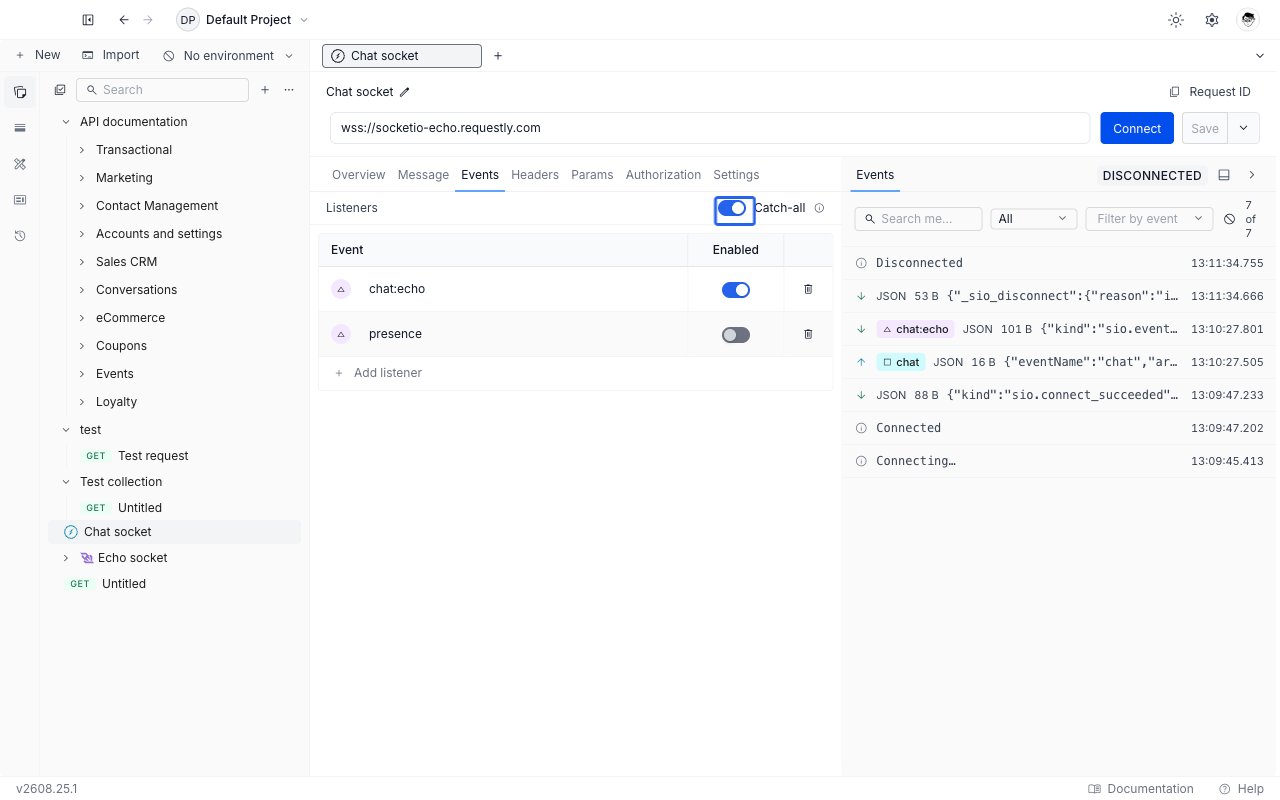
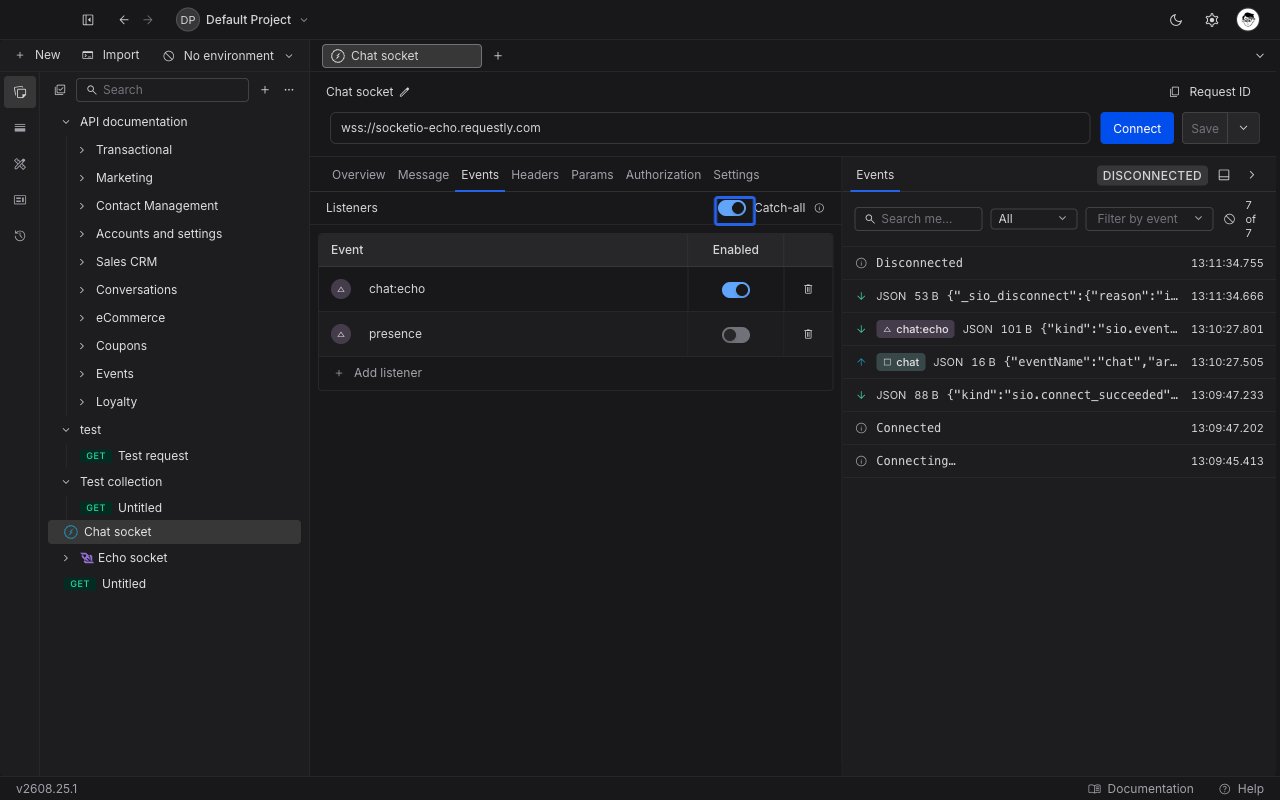 **Listeners** is a table of event names you want to capture. Click **Add listener** in the table footer to add a row (it starts as `message`), then type the event name you want. Each row has an **Enabled** switch, so you can mute a noisy event without losing it, and a delete button. Every row also carries a colored chip derived from the event name, and the same chip appears next to that event on the timeline, so you can pick one event out of a fast-moving list at a glance.
**Catch-all**, the switch in the tab header, changes the policy: when it is on, every inbound event is captured whether or not it has a listener. Events captured only because Catch-all is on are labelled `(catch-all)` on their timeline chip, so you can still tell a named-listener hit from a catch-all sweep.
With Catch-all off, an inbound event whose name has no enabled listener is dropped rather than shown. If a server you know is emitting looks silent, that is the first thing to check.
Both listeners and the Catch-all switch are locked while a connection is active. Disconnect to change your subscriptions.
### Headers
Headers sent on the Socket.IO handshake, the HTTP request that opens the connection. Add key and value pairs, use the checkbox to disable a row without deleting it, and use bulk edit to paste several at once. Values accept `{{variable}}` references, which resolve when you connect.
### Params
Query params attached to the handshake URL. This tab and the URL bar are two views of the same data: typing `?room=lobby` into the URL bar adds a `room` row here, and editing a row rewrites the URL bar's query string. Disabled rows stay in the list but are left out of the URL.
### Authorization
Two sections. The top is the same authorization editor the HTTP and GraphQL editors use, with the full set of types available including inheriting from the parent collection, applied to the handshake.
Below it is **Auth Payload**, a key and value table sent as Socket.IO's own `auth` object on the connection packet. This is the channel most Socket.IO servers read a token from, and it is available on Socket.IO v3 and later. If your request is on v3 or later but has no authorization set and an empty payload, Requestly shows an inline note here so you do not miss it.
### Settings
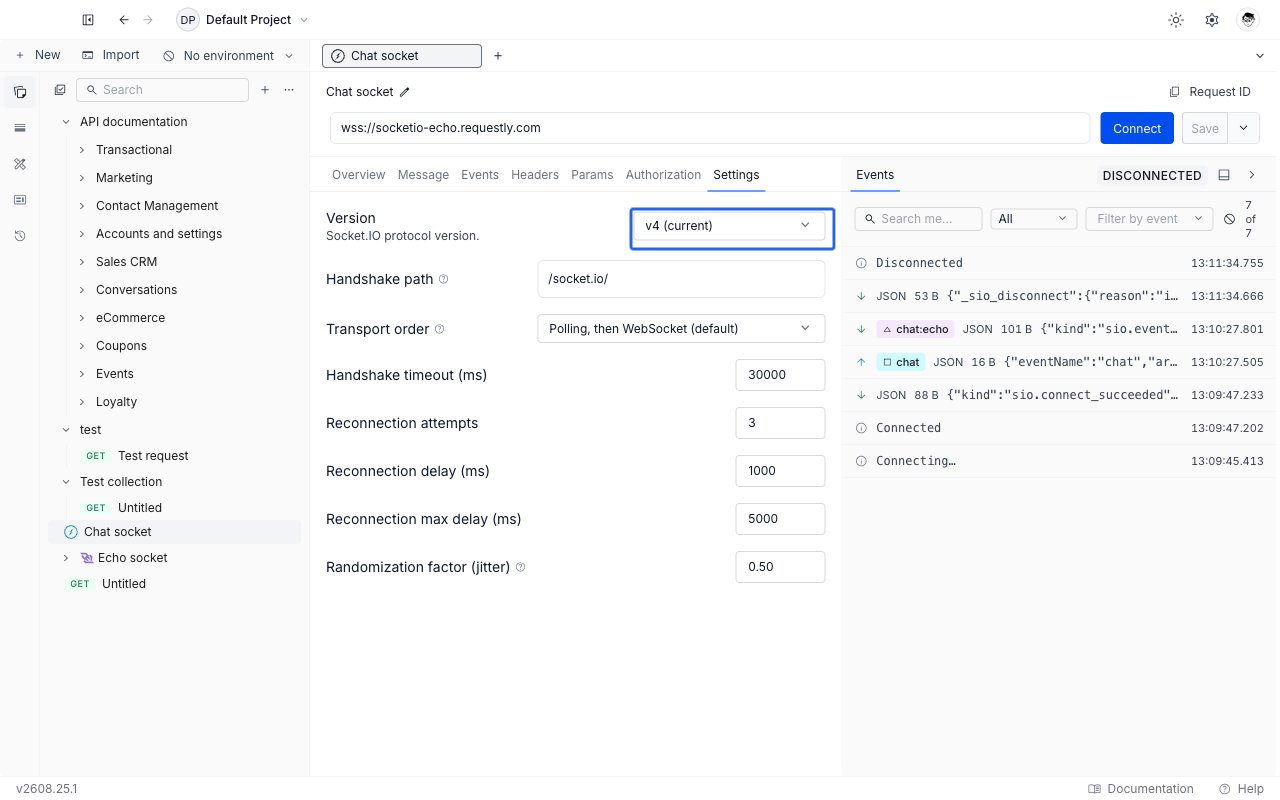
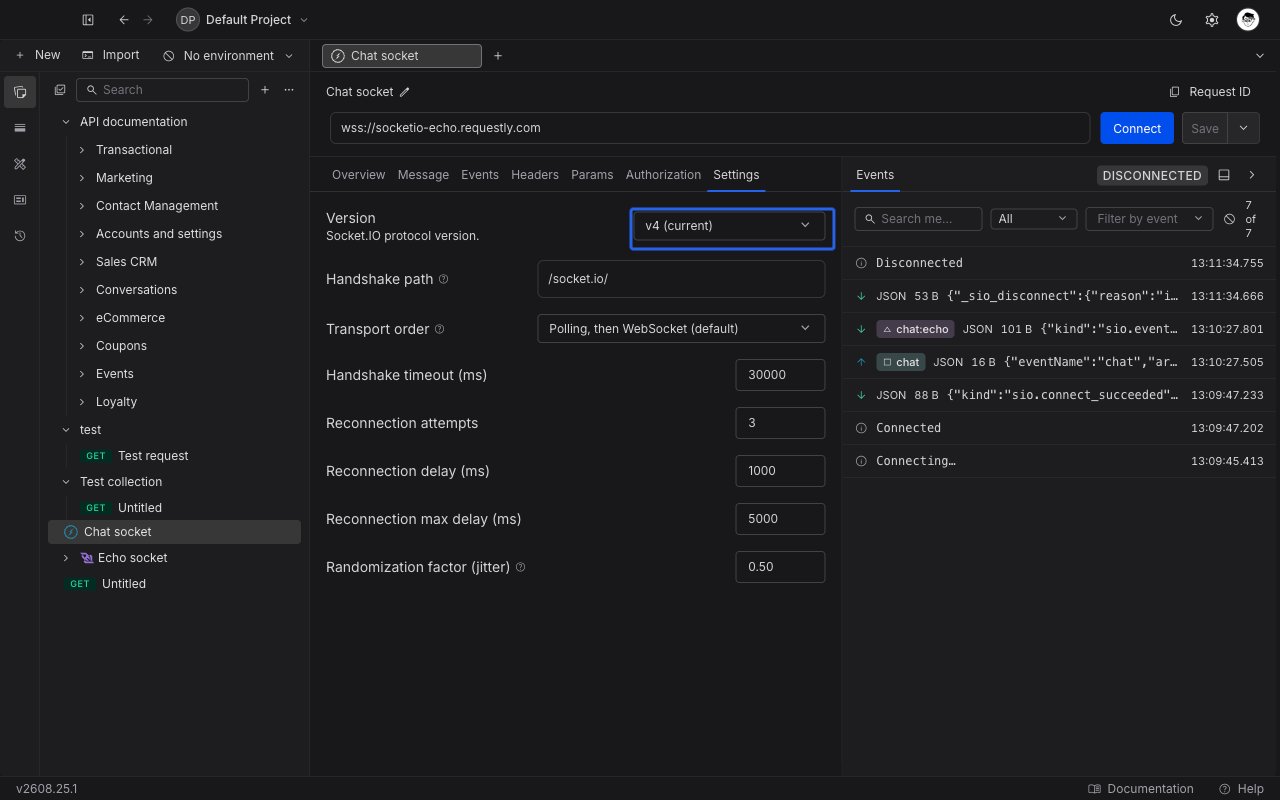
| Setting | Default | What it does |
| ----------------------------- | ------------------------- | ---------------------------------------------------------------------------------------------------------------------------------------------------------------------------------------- |
| Version | `v4 (current)` | Socket.IO protocol version. The other options are `v3` and `v2 (legacy)`. Locked while connected: disconnect to change it. |
| Handshake path | `/socket.io/` | The Engine.IO endpoint path your server serves. Change it if your server mounts Socket.IO elsewhere. |
| Transport order | `Polling, then WebSocket` | Which transport to try first. The alternatives are `WebSocket, then polling` and `WebSocket only`. Polling first is the most compatible; WebSocket only skips the HTTP upgrade entirely. |
| Handshake timeout (ms) | 30000 | How long to wait for the handshake before giving up. |
| Reconnection attempts | 3 | How many times to retry after the connection drops. `0` disables reconnection. |
| Reconnection delay (ms) | 1000 | Base wait before a retry. |
| Reconnection max delay (ms) | 5000 | Ceiling on the wait as retries back off. |
| Randomization factor (jitter) | 0.5 | Random multiplier between 0 and 1 applied to the retry delay, so many clients reconnecting at once do not arrive together. |
**Listeners** is a table of event names you want to capture. Click **Add listener** in the table footer to add a row (it starts as `message`), then type the event name you want. Each row has an **Enabled** switch, so you can mute a noisy event without losing it, and a delete button. Every row also carries a colored chip derived from the event name, and the same chip appears next to that event on the timeline, so you can pick one event out of a fast-moving list at a glance.
**Catch-all**, the switch in the tab header, changes the policy: when it is on, every inbound event is captured whether or not it has a listener. Events captured only because Catch-all is on are labelled `(catch-all)` on their timeline chip, so you can still tell a named-listener hit from a catch-all sweep.
With Catch-all off, an inbound event whose name has no enabled listener is dropped rather than shown. If a server you know is emitting looks silent, that is the first thing to check.
Both listeners and the Catch-all switch are locked while a connection is active. Disconnect to change your subscriptions.
### Headers
Headers sent on the Socket.IO handshake, the HTTP request that opens the connection. Add key and value pairs, use the checkbox to disable a row without deleting it, and use bulk edit to paste several at once. Values accept `{{variable}}` references, which resolve when you connect.
### Params
Query params attached to the handshake URL. This tab and the URL bar are two views of the same data: typing `?room=lobby` into the URL bar adds a `room` row here, and editing a row rewrites the URL bar's query string. Disabled rows stay in the list but are left out of the URL.
### Authorization
Two sections. The top is the same authorization editor the HTTP and GraphQL editors use, with the full set of types available including inheriting from the parent collection, applied to the handshake.
Below it is **Auth Payload**, a key and value table sent as Socket.IO's own `auth` object on the connection packet. This is the channel most Socket.IO servers read a token from, and it is available on Socket.IO v3 and later. If your request is on v3 or later but has no authorization set and an empty payload, Requestly shows an inline note here so you do not miss it.
### Settings
| Setting | Default | What it does |
| ----------------------------- | ------------------------- | ---------------------------------------------------------------------------------------------------------------------------------------------------------------------------------------- |
| Version | `v4 (current)` | Socket.IO protocol version. The other options are `v3` and `v2 (legacy)`. Locked while connected: disconnect to change it. |
| Handshake path | `/socket.io/` | The Engine.IO endpoint path your server serves. Change it if your server mounts Socket.IO elsewhere. |
| Transport order | `Polling, then WebSocket` | Which transport to try first. The alternatives are `WebSocket, then polling` and `WebSocket only`. Polling first is the most compatible; WebSocket only skips the HTTP upgrade entirely. |
| Handshake timeout (ms) | 30000 | How long to wait for the handshake before giving up. |
| Reconnection attempts | 3 | How many times to retry after the connection drops. `0` disables reconnection. |
| Reconnection delay (ms) | 1000 | Base wait before a retry. |
| Reconnection max delay (ms) | 5000 | Ceiling on the wait as retries back off. |
| Randomization factor (jitter) | 0.5 | Random multiplier between 0 and 1 applied to the retry delay, so many clients reconnecting at once do not arrive together. |
 Below those settings is a **Device-local** section with a **Handshake headers** table. Headers added there are sent on the handshake from this machine only and are never synced to your team, which makes it the right place for a personal credential. Values accept both `{{variable}}` and `{{vault:KEY}}` references, so you can point at a [Vault](/api-client/vault/vault) secret instead of pasting the secret itself.
## The Timeline panel
The Timeline panel on the right records the session: every event you emit, every inbound event that passes your subscriptions, and every connection event, newest first.
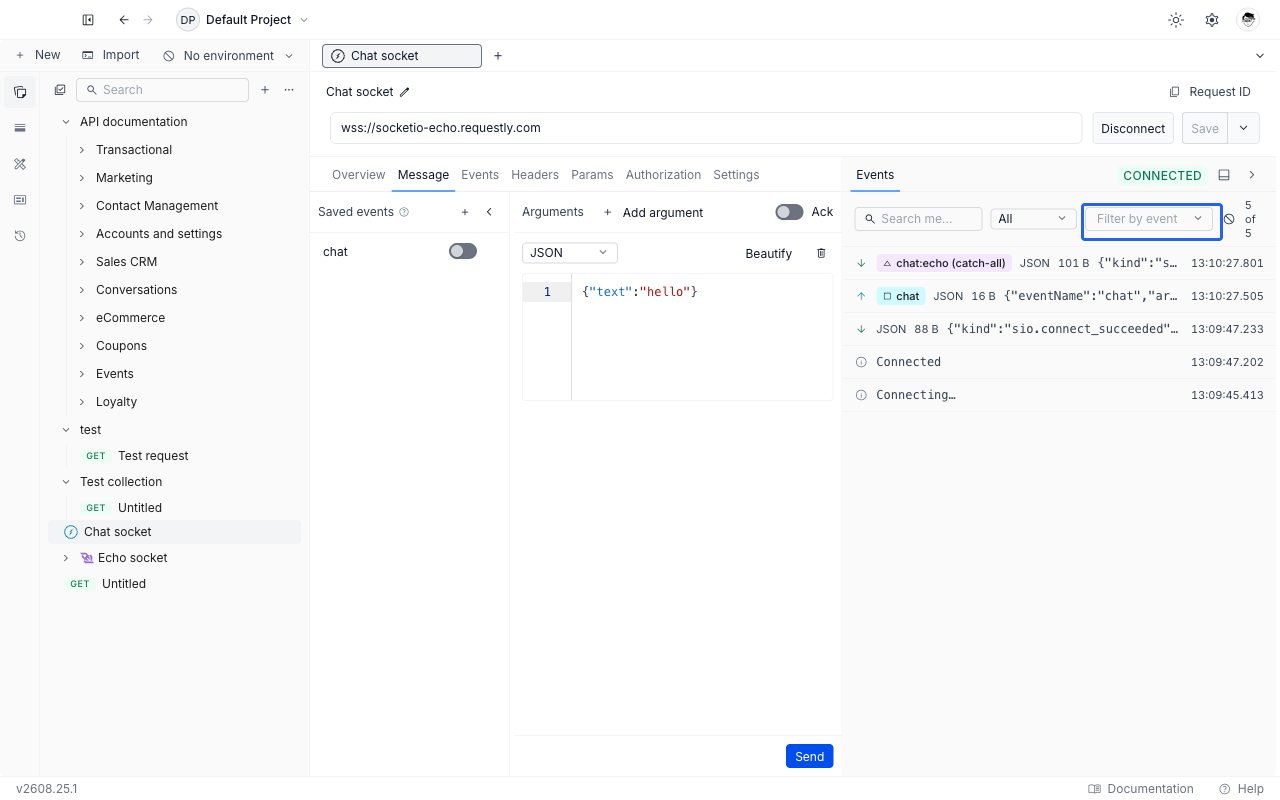
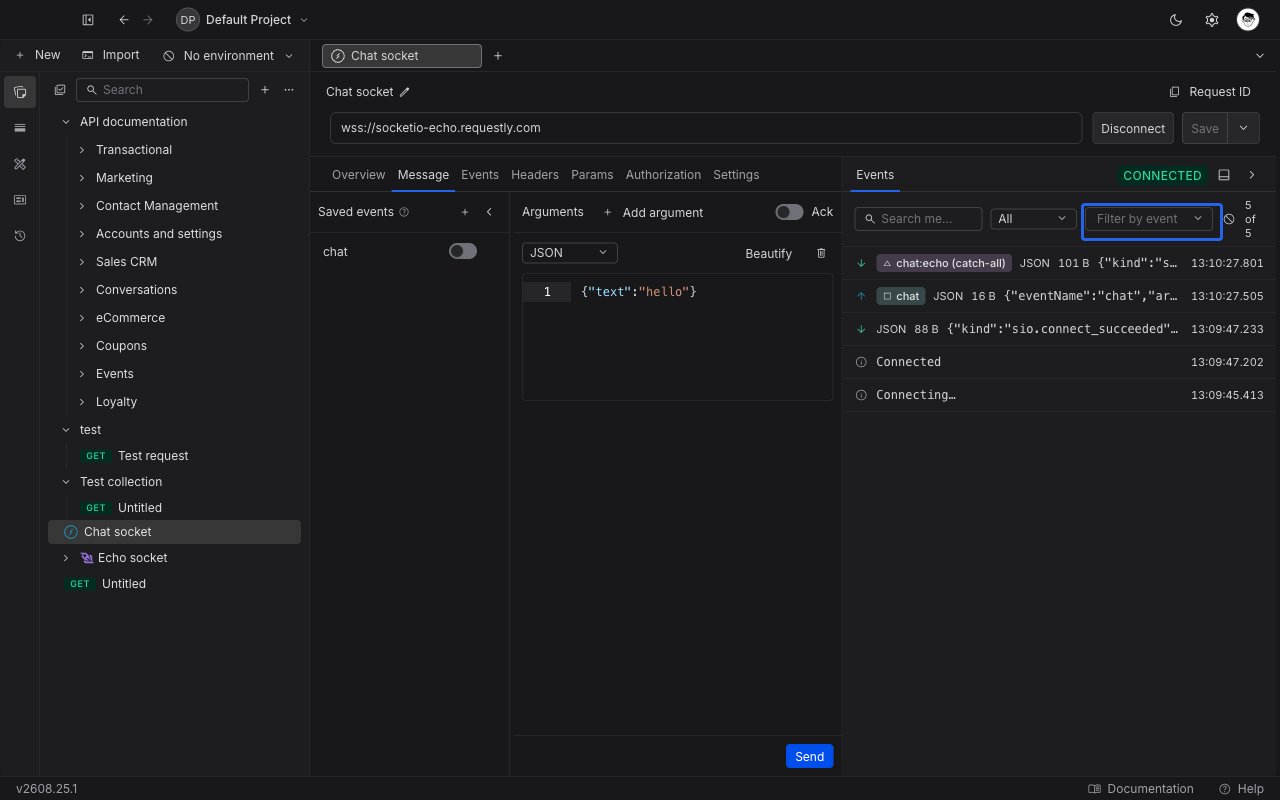
Each row shows a direction arrow (up for emitted, down for received), the event's colored name chip, a payload preview, its size, and a local timestamp down to the millisecond. Click a row to expand it into a read-only editor holding the full `{ eventName, args }` payload, with a language picker so you can read it as JSON.
Alongside events, the timeline records:
* **Handshake** rows carrying the handshake response status and headers.
* **Lifecycle** rows for connecting, connected, reconnecting, and disconnected. After a reconnect it also records whether Socket.IO's connection-state recovery worked: either "Connection state recovered", or "Recovery failed" with a note that the server may not have `connectionStateRecovery` enabled and that a fresh socket ID was assigned.
* **Error** rows carrying the failure reason.
Three controls narrow the list:
* **Search messages** matches on payload content.
* The **All / Sent / Received** dropdown filters by direction.
* The **Filter by event** multi-select lists every event name seen in this session. Pick one or several to show only those. It reads "No events yet" until the first event arrives.
A counter on the right shows how many rows match out of the total, and the clear button empties the timeline without touching your filters. The timeline keeps the most recent 5000 rows; past that the oldest are dropped and a row is inserted saying how many were discarded.
Use the controls in the panel's header bar to dock the panel at the bottom of the editor instead of the right side, or to collapse it.
## Save and reuse examples
An **example** is a saved snapshot of a request's configuration. For Socket.IO it captures the URL, handshake headers, query params, authorization and `auth` payload, connection settings, saved events, and listeners. It carries no response, because a Socket.IO session has no single response to capture.
Right-click the Socket.IO request in the sidebar and choose **Add Example**. The example opens in a new tab and appears nested under the request in the sidebar.
The example tab shows the same tabs as the request editor. Change the URL, headers, params, authorization, settings, or saved events, then click **Save**.
The example tab's primary button reads **Try It** rather than Connect. Clicking it opens a **new draft request** pre-filled with the example's configuration, parented to the example's own collection so collection variables still resolve. Connect from that draft.
An example tab never holds a live connection itself. The example stays a stable reference, and the session runs in the draft Try It spawns.
See [Create Request & Response Examples](/api-client/examples) for renaming, duplicating, and deleting examples.
## Import and export
Socket.IO requests are carried in full by Requestly's own collection format. Exporting a collection as a Requestly `.json` file includes every Socket.IO request with its URL, headers, params, authorization, `auth` payload, settings, saved events, and listeners, and importing that file restores them exactly. Examples ride along with their parent request.
Other formats cannot represent them:
* **Postman.** Exporting as a Postman v2.1 collection leaves Socket.IO requests out, because the format has no shape for them. The export dialog reports how many were excluded before you download.
* **OpenAPI.** Socket.IO requests are skipped, since OpenAPI describes HTTP operations.
See [Import & Export](/api-client/import-export) for the full matrix.
## Socket.IO requests in the Collection Runner
The [Collection Runner](/api-client/collection-runner) runs a collection's requests in sequence. You can select a Socket.IO request in the run order and it appears with an **SIO** badge, but it does not connect: the runner executes one request at a time and waits for it to finish, which a long-lived connection never does.
Each Socket.IO request in a run is recorded as **skipped**, with the reason shown on the result row reading "not supported in runner". Skipped requests are counted in the run summary and listed under the **Skipped** tab, so a run stays green and you can see exactly what was left out. Connect to Socket.IO endpoints from the request editor instead.
Scheduled Runs behave the same way. See [Scheduled Runs](/api-client/scheduled-runs).
## What's next?
Work with raw WebSocket frames when you do not need Socket.IO's event layer
Make URLs, headers, and event payloads dynamic across environments
Group related Socket.IO requests with the rest of your API
Below those settings is a **Device-local** section with a **Handshake headers** table. Headers added there are sent on the handshake from this machine only and are never synced to your team, which makes it the right place for a personal credential. Values accept both `{{variable}}` and `{{vault:KEY}}` references, so you can point at a [Vault](/api-client/vault/vault) secret instead of pasting the secret itself.
## The Timeline panel
The Timeline panel on the right records the session: every event you emit, every inbound event that passes your subscriptions, and every connection event, newest first.
Each row shows a direction arrow (up for emitted, down for received), the event's colored name chip, a payload preview, its size, and a local timestamp down to the millisecond. Click a row to expand it into a read-only editor holding the full `{ eventName, args }` payload, with a language picker so you can read it as JSON.
Alongside events, the timeline records:
* **Handshake** rows carrying the handshake response status and headers.
* **Lifecycle** rows for connecting, connected, reconnecting, and disconnected. After a reconnect it also records whether Socket.IO's connection-state recovery worked: either "Connection state recovered", or "Recovery failed" with a note that the server may not have `connectionStateRecovery` enabled and that a fresh socket ID was assigned.
* **Error** rows carrying the failure reason.
Three controls narrow the list:
* **Search messages** matches on payload content.
* The **All / Sent / Received** dropdown filters by direction.
* The **Filter by event** multi-select lists every event name seen in this session. Pick one or several to show only those. It reads "No events yet" until the first event arrives.
A counter on the right shows how many rows match out of the total, and the clear button empties the timeline without touching your filters. The timeline keeps the most recent 5000 rows; past that the oldest are dropped and a row is inserted saying how many were discarded.
Use the controls in the panel's header bar to dock the panel at the bottom of the editor instead of the right side, or to collapse it.
## Save and reuse examples
An **example** is a saved snapshot of a request's configuration. For Socket.IO it captures the URL, handshake headers, query params, authorization and `auth` payload, connection settings, saved events, and listeners. It carries no response, because a Socket.IO session has no single response to capture.
Right-click the Socket.IO request in the sidebar and choose **Add Example**. The example opens in a new tab and appears nested under the request in the sidebar.
The example tab shows the same tabs as the request editor. Change the URL, headers, params, authorization, settings, or saved events, then click **Save**.
The example tab's primary button reads **Try It** rather than Connect. Clicking it opens a **new draft request** pre-filled with the example's configuration, parented to the example's own collection so collection variables still resolve. Connect from that draft.
An example tab never holds a live connection itself. The example stays a stable reference, and the session runs in the draft Try It spawns.
See [Create Request & Response Examples](/api-client/examples) for renaming, duplicating, and deleting examples.
## Import and export
Socket.IO requests are carried in full by Requestly's own collection format. Exporting a collection as a Requestly `.json` file includes every Socket.IO request with its URL, headers, params, authorization, `auth` payload, settings, saved events, and listeners, and importing that file restores them exactly. Examples ride along with their parent request.
Other formats cannot represent them:
* **Postman.** Exporting as a Postman v2.1 collection leaves Socket.IO requests out, because the format has no shape for them. The export dialog reports how many were excluded before you download.
* **OpenAPI.** Socket.IO requests are skipped, since OpenAPI describes HTTP operations.
See [Import & Export](/api-client/import-export) for the full matrix.
## Socket.IO requests in the Collection Runner
The [Collection Runner](/api-client/collection-runner) runs a collection's requests in sequence. You can select a Socket.IO request in the run order and it appears with an **SIO** badge, but it does not connect: the runner executes one request at a time and waits for it to finish, which a long-lived connection never does.
Each Socket.IO request in a run is recorded as **skipped**, with the reason shown on the result row reading "not supported in runner". Skipped requests are counted in the run summary and listed under the **Skipped** tab, so a run stays green and you can see exactly what was left out. Connect to Socket.IO endpoints from the request editor instead.
Scheduled Runs behave the same way. See [Scheduled Runs](/api-client/scheduled-runs).
## What's next?
Work with raw WebSocket frames when you do not need Socket.IO's event layer
Make URLs, headers, and event payloads dynamic across environments
Group related Socket.IO requests with the rest of your API