> ## Documentation Index
> Fetch the complete documentation index at: https://docs.requestly.com/llms.txt
> Use this file to discover all available pages before exploring further.
# Azure Key Vault
> Connect an Azure service principal to pull secrets from one or more Azure key vaults into the Requestly vault and reference them in API requests with the {{vault:key}} syntax.
Connect an Azure service principal to pull secrets from your Azure key vaults into the [Vault](/api-client/vault). Azure secrets share the same `{{vault:key}}` namespace as local secrets, so your requests don't need to know where a secret comes from.
Each secret row carries its own vault name, so a single connection can read from several key vaults in the same Azure tenant.
**Availability:** External secret providers, including Azure Key Vault, require the desktop app, a signed-in Cloud project, and an eligible plan, and are rolling out gradually. If you don't see the option to add a provider, update to the latest version or contact support. Local vault remains fully functional without signing in.
***
## What you need from Azure
Requestly signs in to Azure with the service principal client credentials flow, so you need an app registration and a client secret before you configure anything in the app.
In the Azure portal, open the key vault holding your secrets and note its **name** (the first label of its URI, for example `my-vault` in `https://my-vault.vault.azure.net/`). You enter this name per secret in Requestly, not once per connection.
Requestly connects to the global Azure cloud only. Sovereign clouds such as Azure Government and Azure China are not supported.
In **Microsoft Entra ID** (formerly Azure Active Directory), go to **App registrations** and register a new application. From its overview page, copy:
1. The **Directory (tenant) ID**.
2. The **Application (client) ID**.
Under **Certificates & secrets** for that app registration, create a new client secret and copy its **value** immediately. Azure only shows the value once.
Client secrets expire. When yours expires, secret fetches start failing until you create a new one and update the credentials in Requestly.
On the key vault, assign the app registration the **Key Vault Secrets User** role so it can read secret values.
If the vault still uses the legacy access policy permission model instead of Azure role-based access control, add an access policy granting the app the **Get** secret permission instead.
***
## Setting up an Azure provider
Click **Vault** in the app footer.
Click **Connect provider** below the Local Secrets section, or click **Add provider** in the Secret Provider section header if you already have another provider configured.
Set **Provider type** to **Azure Key Vault**, then fill in the form:
| Field | Required | Description |
| ----------------- | -------- | -------------------------------------------------------------- |
| **Instance name** | Yes | A label for this configuration (e.g., "Production", "Staging") |
| **Tenant ID** | Yes | The Directory (tenant) ID of your Microsoft Entra ID directory |
| **Client ID** | Yes | The Application (client) ID of your app registration |
| **Client secret** | Yes | The client secret value you created for that app registration |
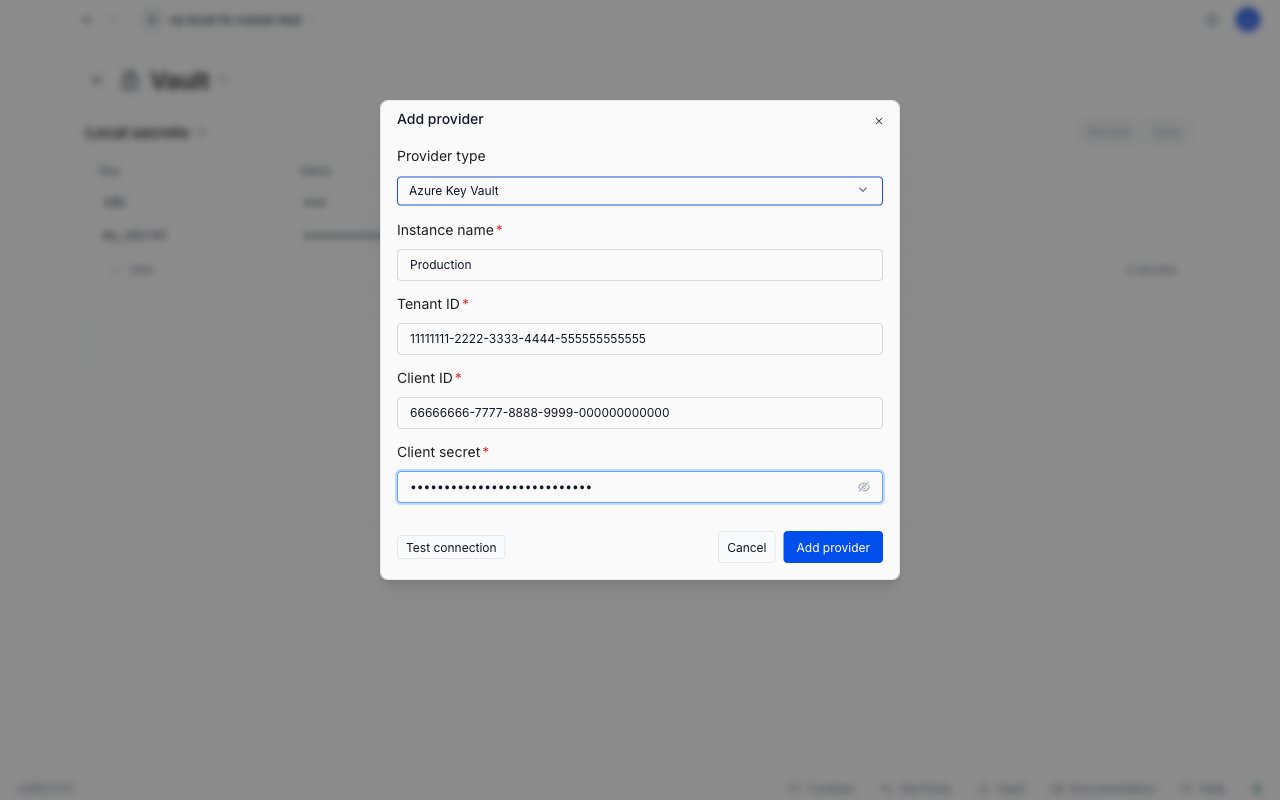
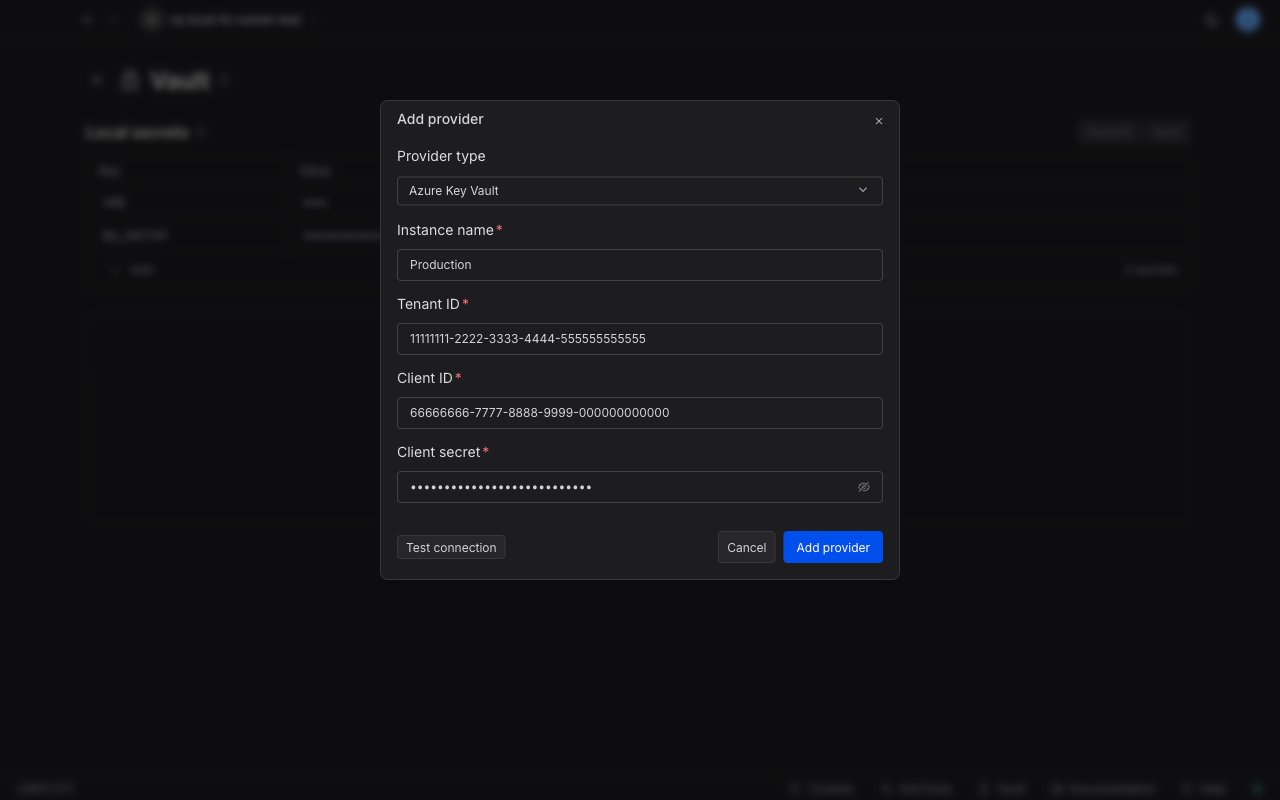 Click **Test connection**. Requestly exchanges your credentials for an Azure access token and reports **Connected successfully** or the error Azure returned. You can still save if the test fails and fix the credentials later.
The test only proves the tenant ID, client ID, and client secret are valid. It cannot check whether the app can read a specific vault, because vault names live on individual secrets.
Click **Add provider**. The Secret Provider section appears on the Vault page with your configuration selected.
***
## Adding and fetching secrets
In the Secret Provider section, click **Add secret** and fill the row:
* **Alias**: the key you'll use in `{{vault:alias}}`
* **Vault name**: the key vault to read from, for example `my-vault`
* **Secret name**: the name of the secret inside that vault
Click **Test connection**. Requestly exchanges your credentials for an Azure access token and reports **Connected successfully** or the error Azure returned. You can still save if the test fails and fix the credentials later.
The test only proves the tenant ID, client ID, and client secret are valid. It cannot check whether the app can read a specific vault, because vault names live on individual secrets.
Click **Add provider**. The Secret Provider section appears on the Vault page with your configuration selected.
***
## Adding and fetching secrets
In the Secret Provider section, click **Add secret** and fill the row:
* **Alias**: the key you'll use in `{{vault:alias}}`
* **Vault name**: the key vault to read from, for example `my-vault`
* **Secret name**: the name of the secret inside that vault
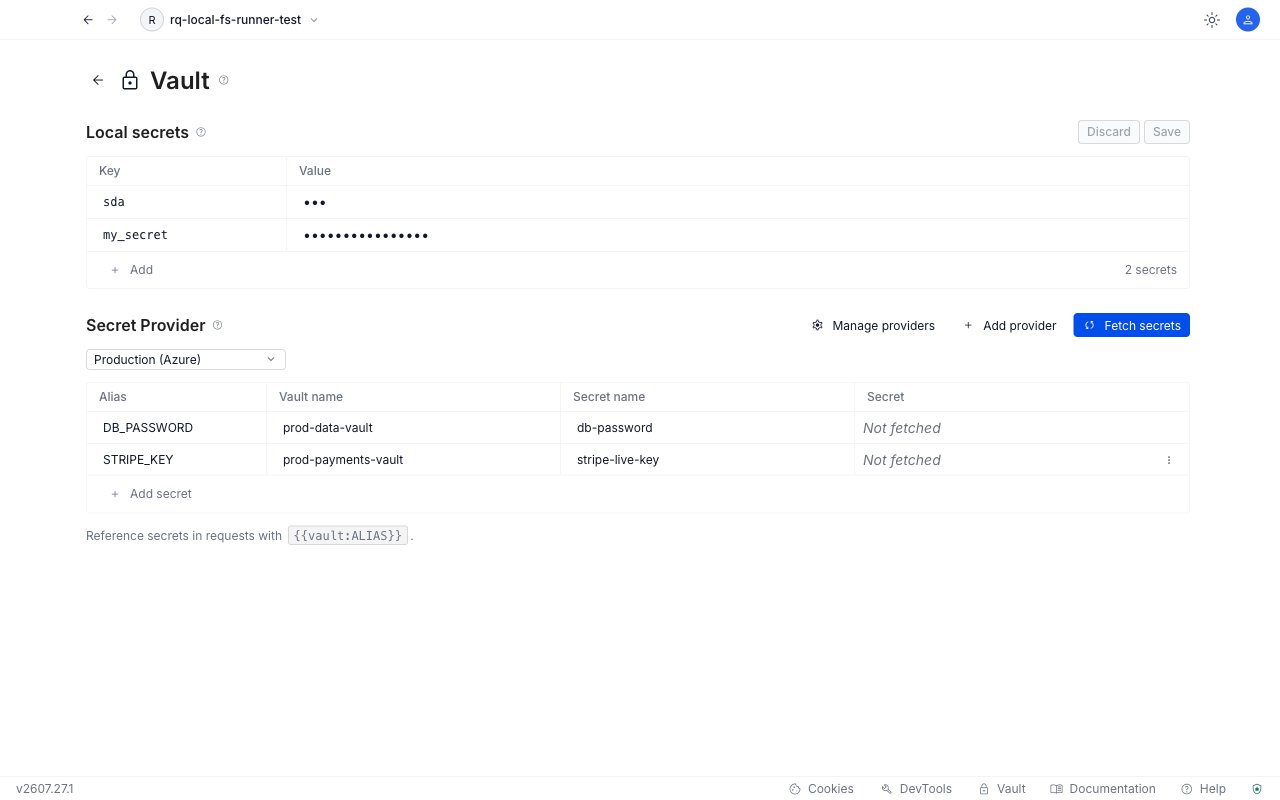
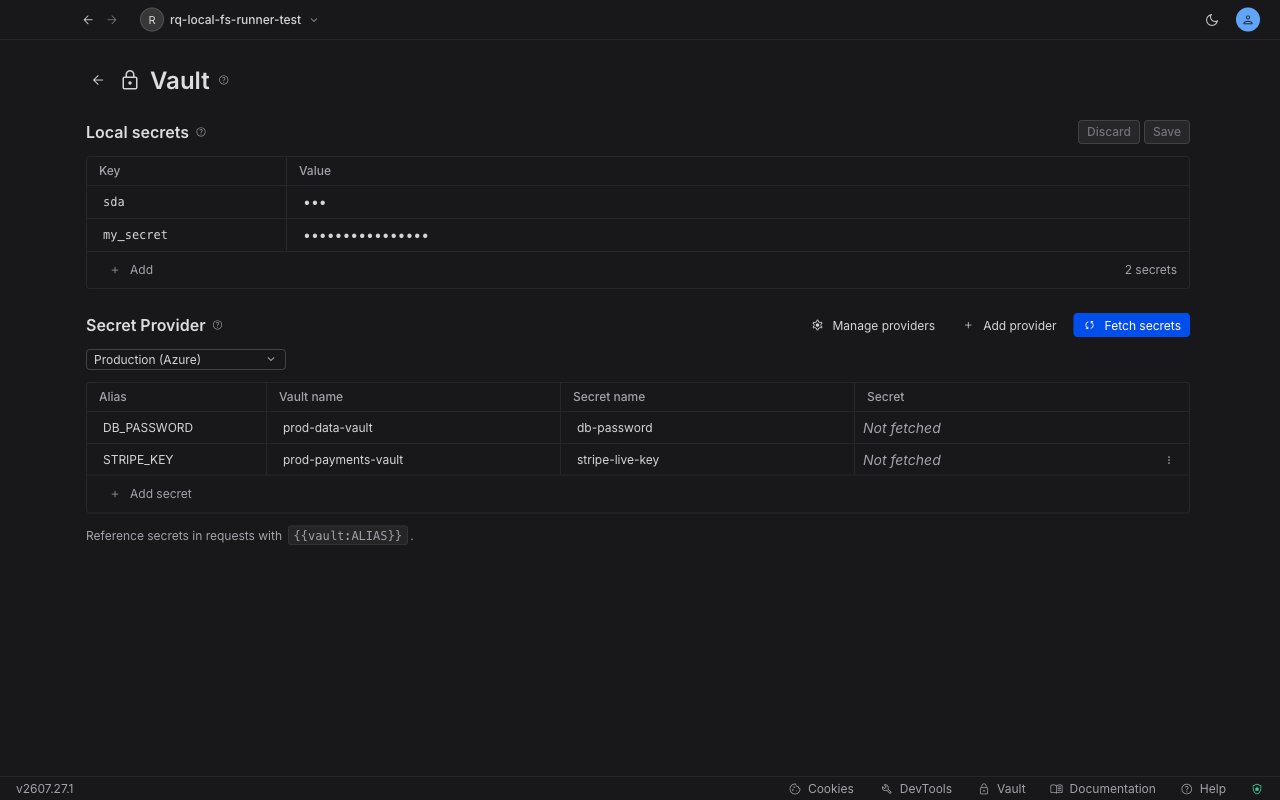 Click **Fetch secrets**. Requestly reads every row that has an alias, a vault name, and a secret name, and stores the values encrypted locally. Rows with a missing field are skipped.
Each row lands in one of three states:
* **Never fetched**: the **Secret** column shows **Not fetched**.
* **Fetched**: the **Secret** column shows a masked value. Hover the value and click the eye icon to reveal it.
* **Failed**: the **Secret** column shows **Error** in red, with the error message on a line beneath the row. Any value the row showed before is cleared.
Reference the secret using `{{vault:alias}}` in any request field. It resolves on send just like a local secret.
***
## Remove a secret mapping
To remove a mapping, open the row menu and select **Delete**. This removes the mapping and its cached value from Requestly. Nothing changes in Azure.
***
## Vault and secret name rules
Requestly checks both names before calling Azure, so most typos fail immediately with a clear message:
* **Vault name**: 3 to 24 characters, letters, numbers, and hyphens only, starting with a letter and ending with a letter or number.
* **Secret name**: 1 to 127 characters, letters, numbers, and hyphens only.
A name that breaks these rules shows an `Invalid vaultName` or `Invalid secretName` error on the row.
***
## Reading from multiple key vaults
Because the vault name lives on each secret row rather than on the connection, one Azure provider configuration can read from any number of key vaults, as long as the same app registration has access to each of them:
| Alias | Vault name | Secret name |
| ------------- | --------------------- | ----------------- |
| `DB_PASSWORD` | `prod-data-vault` | `db-password` |
| `STRIPE_KEY` | `prod-payments-vault` | `stripe-live-key` |
If one vault denies access, only that row fails. The rest still fetch.
***
## Refreshing secrets after rotation
Fetched values are cached locally and survive app restarts. Requestly also re-fetches every secret of the active configuration automatically when the app starts, so a secret rotated in Azure overnight is usually current before you send your first request. While that startup fetch runs, the Secret Provider section shows a "Loading secrets from provider at startup" banner.
If the startup fetch fails, a warning banner names the affected configuration and offers a **Fetch secrets** button to retry. You can click **Fetch secrets** at any time to pull the current values for every row in the section. The **Last fetched** label next to the configuration selector helps you judge staleness.
There is no scheduled refresh and no per-row refresh for Azure secrets. Fetching always refreshes the whole section.
***
## Multiple Azure configurations
You can store several Azure configurations (for example, one per Entra ID tenant) and switch between them:
1. Click the **configuration selector** in the Secret Provider section header. Azure entries are labeled ` (Azure)`.
2. Select a different configuration. The secret table swaps to that configuration's secrets.
3. One Azure configuration is active at a time, and `{{vault:key}}` resolves from that one. Secrets from an active configuration of a different provider, such as AWS Secrets Manager, keep resolving alongside it.
To edit or remove a configuration, click **Manage providers**. Editing the credentials discards the cached Azure access token, so the next fetch signs in again with the new values.
***
## Errors and what they mean
Fetch errors appear beneath the affected row. A failed fetch also clears that secret's cached value from disk and memory, so `{{vault:alias}}` stops resolving until a fetch succeeds. Only the rows that failed are affected: every other row keeps its value.
| Message | Cause | Fix |
| ----------------------------------------------------------------------------------------------------------------------- | --------------------------------------------------------------------------------------- | ---------------------------------------------------------------------------------------------- |
| `Access denied - check that the Service Principal has Key Vault Secrets User role, and that the secret is not disabled` | The app registration cannot read the secret, or the secret is disabled in Azure | Assign the **Key Vault Secrets User** role on that vault, and check that the secret is enabled |
| `Secret not found - check the vault name and secret name` | The vault name or the secret name doesn't match anything in Azure | Correct the **Vault name** and **Secret name** cells |
| `Azure Key Vault returned 401 - token may have been revoked` | The access token was rejected, usually because the client secret was rotated or revoked | Update the **Client secret** in the provider configuration |
| `Connection timed out - check your network connection` | Azure did not respond within 10 seconds | Check your network connection, VPN, or proxy |
| `Cannot reach Azure - check your network connection` | The Azure host could not be resolved, or it refused the connection | Check your DNS settings, network connection, VPN, or proxy |
| `Network error - check your connection` | Any other network failure while contacting Azure | Check your network connection, then fetch again |
| An Azure sign-in error on **Test connection** | The tenant ID, client ID, or client secret is wrong | Re-copy the values from the app registration |
A 401 is retried once with a fresh token before the row is marked as failed, so a token that simply aged out never surfaces as an error.
***
## FAQ
No. An Azure secret is fetched as a single string value and stored under its alias. The JSON auto-expansion available for [AWS Secrets Manager](/api-client/vault/aws-secrets-manager) secrets does not apply to Azure secrets.
You can store multiple Azure configurations, but only one Azure configuration is active at a time. Its secrets are the Azure ones that resolve via `{{vault:key}}`, and an active configuration of a different provider, such as AWS Secrets Manager, keeps resolving alongside it. Switch between Azure configurations using the configuration selector in the Secret Provider section header.
No. Requestly always reads the current version of an Azure secret. There is no version pinning for Azure secrets.
Not directly. The Azure row menu offers **Delete** only. To keep a value locally, reveal it in the Secret column, then add it as a new secret in the Local Secrets section.
Provider credentials are encrypted alongside your vault data using your operating system's keychain. They never sync to Requestly servers and never appear in collection exports.
No. `rq.vault` is read-only from scripts. Only `rq.vault.get()`, `rq.vault.has()`, and `rq.vault.toObject()` are available. Manage Azure secrets from the Vault page or in Azure directly.
***
## Related Documentation
* [Vault Overview](/api-client/vault)
* [AWS Secrets Manager](/api-client/vault/aws-secrets-manager)
* [`rq.vault` Scripting API](/api-client/rq-api-reference/rq-vault)
Click **Fetch secrets**. Requestly reads every row that has an alias, a vault name, and a secret name, and stores the values encrypted locally. Rows with a missing field are skipped.
Each row lands in one of three states:
* **Never fetched**: the **Secret** column shows **Not fetched**.
* **Fetched**: the **Secret** column shows a masked value. Hover the value and click the eye icon to reveal it.
* **Failed**: the **Secret** column shows **Error** in red, with the error message on a line beneath the row. Any value the row showed before is cleared.
Reference the secret using `{{vault:alias}}` in any request field. It resolves on send just like a local secret.
***
## Remove a secret mapping
To remove a mapping, open the row menu and select **Delete**. This removes the mapping and its cached value from Requestly. Nothing changes in Azure.
***
## Vault and secret name rules
Requestly checks both names before calling Azure, so most typos fail immediately with a clear message:
* **Vault name**: 3 to 24 characters, letters, numbers, and hyphens only, starting with a letter and ending with a letter or number.
* **Secret name**: 1 to 127 characters, letters, numbers, and hyphens only.
A name that breaks these rules shows an `Invalid vaultName` or `Invalid secretName` error on the row.
***
## Reading from multiple key vaults
Because the vault name lives on each secret row rather than on the connection, one Azure provider configuration can read from any number of key vaults, as long as the same app registration has access to each of them:
| Alias | Vault name | Secret name |
| ------------- | --------------------- | ----------------- |
| `DB_PASSWORD` | `prod-data-vault` | `db-password` |
| `STRIPE_KEY` | `prod-payments-vault` | `stripe-live-key` |
If one vault denies access, only that row fails. The rest still fetch.
***
## Refreshing secrets after rotation
Fetched values are cached locally and survive app restarts. Requestly also re-fetches every secret of the active configuration automatically when the app starts, so a secret rotated in Azure overnight is usually current before you send your first request. While that startup fetch runs, the Secret Provider section shows a "Loading secrets from provider at startup" banner.
If the startup fetch fails, a warning banner names the affected configuration and offers a **Fetch secrets** button to retry. You can click **Fetch secrets** at any time to pull the current values for every row in the section. The **Last fetched** label next to the configuration selector helps you judge staleness.
There is no scheduled refresh and no per-row refresh for Azure secrets. Fetching always refreshes the whole section.
***
## Multiple Azure configurations
You can store several Azure configurations (for example, one per Entra ID tenant) and switch between them:
1. Click the **configuration selector** in the Secret Provider section header. Azure entries are labeled ` (Azure)`.
2. Select a different configuration. The secret table swaps to that configuration's secrets.
3. One Azure configuration is active at a time, and `{{vault:key}}` resolves from that one. Secrets from an active configuration of a different provider, such as AWS Secrets Manager, keep resolving alongside it.
To edit or remove a configuration, click **Manage providers**. Editing the credentials discards the cached Azure access token, so the next fetch signs in again with the new values.
***
## Errors and what they mean
Fetch errors appear beneath the affected row. A failed fetch also clears that secret's cached value from disk and memory, so `{{vault:alias}}` stops resolving until a fetch succeeds. Only the rows that failed are affected: every other row keeps its value.
| Message | Cause | Fix |
| ----------------------------------------------------------------------------------------------------------------------- | --------------------------------------------------------------------------------------- | ---------------------------------------------------------------------------------------------- |
| `Access denied - check that the Service Principal has Key Vault Secrets User role, and that the secret is not disabled` | The app registration cannot read the secret, or the secret is disabled in Azure | Assign the **Key Vault Secrets User** role on that vault, and check that the secret is enabled |
| `Secret not found - check the vault name and secret name` | The vault name or the secret name doesn't match anything in Azure | Correct the **Vault name** and **Secret name** cells |
| `Azure Key Vault returned 401 - token may have been revoked` | The access token was rejected, usually because the client secret was rotated or revoked | Update the **Client secret** in the provider configuration |
| `Connection timed out - check your network connection` | Azure did not respond within 10 seconds | Check your network connection, VPN, or proxy |
| `Cannot reach Azure - check your network connection` | The Azure host could not be resolved, or it refused the connection | Check your DNS settings, network connection, VPN, or proxy |
| `Network error - check your connection` | Any other network failure while contacting Azure | Check your network connection, then fetch again |
| An Azure sign-in error on **Test connection** | The tenant ID, client ID, or client secret is wrong | Re-copy the values from the app registration |
A 401 is retried once with a fresh token before the row is marked as failed, so a token that simply aged out never surfaces as an error.
***
## FAQ
No. An Azure secret is fetched as a single string value and stored under its alias. The JSON auto-expansion available for [AWS Secrets Manager](/api-client/vault/aws-secrets-manager) secrets does not apply to Azure secrets.
You can store multiple Azure configurations, but only one Azure configuration is active at a time. Its secrets are the Azure ones that resolve via `{{vault:key}}`, and an active configuration of a different provider, such as AWS Secrets Manager, keeps resolving alongside it. Switch between Azure configurations using the configuration selector in the Secret Provider section header.
No. Requestly always reads the current version of an Azure secret. There is no version pinning for Azure secrets.
Not directly. The Azure row menu offers **Delete** only. To keep a value locally, reveal it in the Secret column, then add it as a new secret in the Local Secrets section.
Provider credentials are encrypted alongside your vault data using your operating system's keychain. They never sync to Requestly servers and never appear in collection exports.
No. `rq.vault` is read-only from scripts. Only `rq.vault.get()`, `rq.vault.has()`, and `rq.vault.toObject()` are available. Manage Azure secrets from the Vault page or in Azure directly.
***
## Related Documentation
* [Vault Overview](/api-client/vault)
* [AWS Secrets Manager](/api-client/vault/aws-secrets-manager)
* [`rq.vault` Scripting API](/api-client/rq-api-reference/rq-vault)