> ## Documentation Index
> Fetch the complete documentation index at: https://docs.requestly.com/llms.txt
> Use this file to discover all available pages before exploring further.
# User Roles and Permissions
> Learn how to manage team collaboration securely in Requestly with Role-Based Access Control (RBAC) by defining roles and setting permissions.
***
Requestly enhances collaboration and security by allowing project admins to assign specific roles to users. This role-based access control (RBAC) ensures that only authorized members can access sensitive configurations, such as API keys and authentication tokens, and helps prevent unauthorised modifications.
In this doc, you'll learn how Requestly's RBAC works, the specific roles available, the permissions associated with each role, and how to change user roles within your project
## How RBAC Works in Requestly
Requestly uses role-based access control (RBAC) to ensure that every team member only gets access to what they need. It has three roles, **Admin**, **Editor**, and **Viewer**, each with permissions to protect sensitive data like API keys and tokens and reduce mistakes or unauthorised changes, making teamwork smoother and more efficient.
## User Roles and Their Permissions
Each project has three roles, each with distinct permissions:
#### **Admin**
* Full control over **project settings, member management, and permissions**.
* Can **create, edit, delete, and execute** Rules, APIs, and Sessions.
#### **Editor**
* Can **create, edit, delete, and execute** Rules, APIs, and Sessions.
* **Cannot** manage team settings, members, or project-wide configurations.
#### **Viewer**
Viewers cannot edit Rules or API requests, but they can **execute** them.
* **Read-only access**.
* Can **view and execute** Rules, APIs, and Sessions but **cannot make any changes** or access sensitive project settings.
### Permissions Table
Below is a table that outlines key permissions for each role:
| **Permission** | **Admin** | **Editor** | **Viewer** |
| -------------------- | --------- | -------------------- | ---------- |
| Add a new user | ✅ | ✅ (Add as an editor) | ❌ |
| Remove a user | ✅ | ❌ | ❌ |
| Generate public link | ✅ | ❌ | ❌ |
| **Permission** | **Admin** | **Editor** | **Viewer** |
| ------------------------------------ | --------- | ---------- | ---------- |
| Enable/Disable a rule | ✅ | ✅ | ✅ |
| Pin rules to extension | ✅ | ✅ | ✅ |
| Create, Edit and Delete a rule/group | ✅ | ✅ | ❌ |
| Duplicate rule/group | ✅ | ✅ | ❌ |
| Import rules | ✅ | ✅ | ❌ |
| Share + Export rules | ✅ | ✅ | ❌ |
| **Permission** | **Admin** | **Editor** | **Viewer** |
| ----------------------------------------------------------------- | --------- | ---------- | ---------- |
| Send a request | ✅ | ✅ | ✅ |
| Save, update, or delete a request | ✅ | ✅ | ❌ |
| Create, update, or delete a collection | ✅ | ✅ | ❌ |
| Switch an environment | ✅ | ✅ | ✅ |
| Create, update, or delete a Environment variable | ✅ | ✅ | ❌ |
| Define current/local values in a Environment variable | ✅ | ✅ | ✅ |
| View secrets | ✅ | ✅ | ❌ |
| Export Requests, Collections and Environment | ✅ | ✅ | ❌ |
| Create new draft requests | ✅ | ✅ | ❌ |
| Import collection/environments from Requestly, Bruno, and Postman | ✅ | ✅ | ❌ |
| Import cURL | ✅ | ✅ | ❌ |
| **Permission** | **Admin** | **Editor** | **Viewer** |
| ----------------------------------- | --------- | ---------- | ---------- |
| Create, manage, and delete sessions | ✅ | ✅ | ❌ |
| View active sessions | ✅ | ✅ | ✅ |
| Export session data | ✅ | ✅ | ❌ |
## Changing Roles
At times, you may need to update a team member’s role. Follow these steps to change roles within your project:
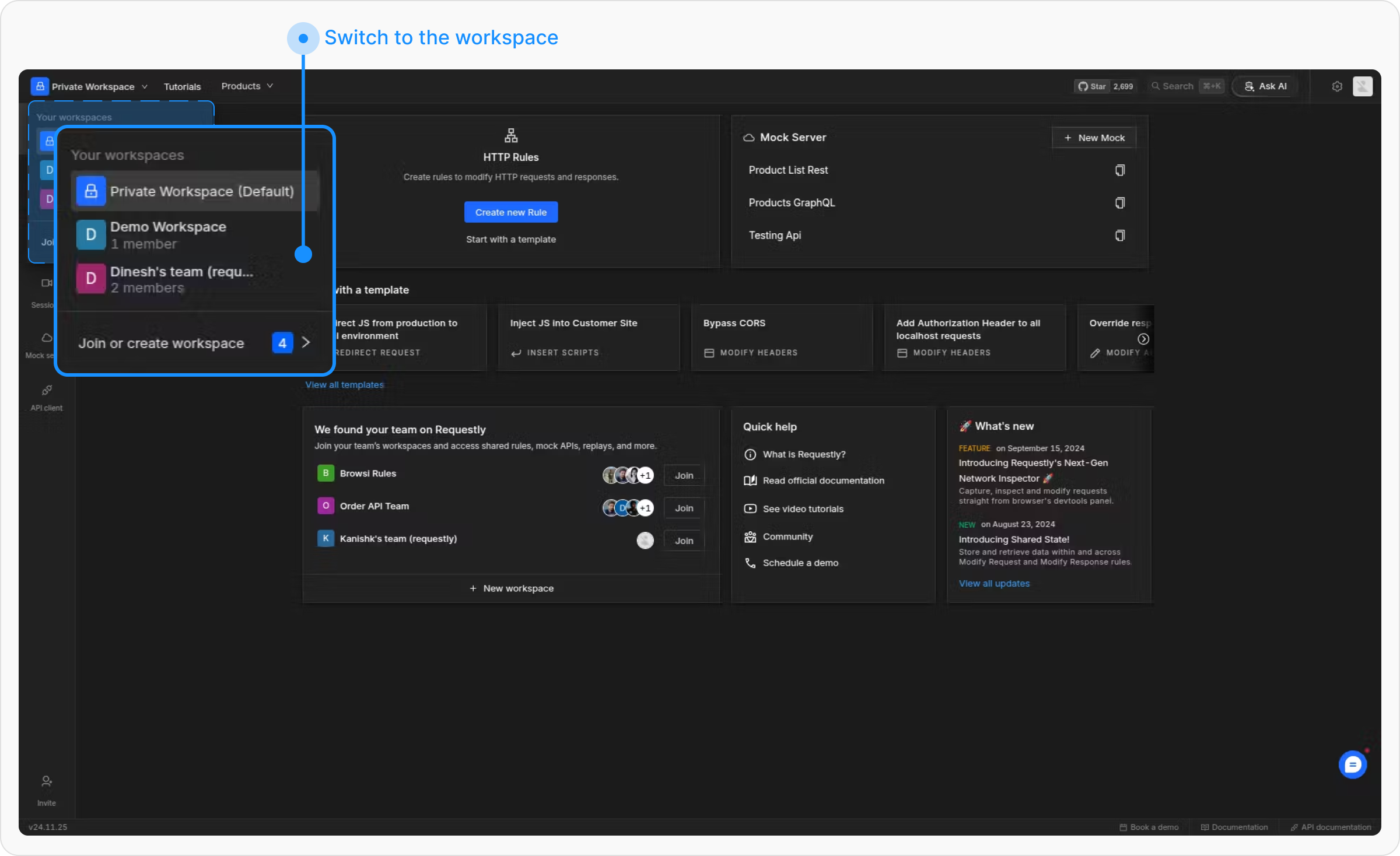
Navigate to the Requestly dashboard and switch to the project where you want to add members.
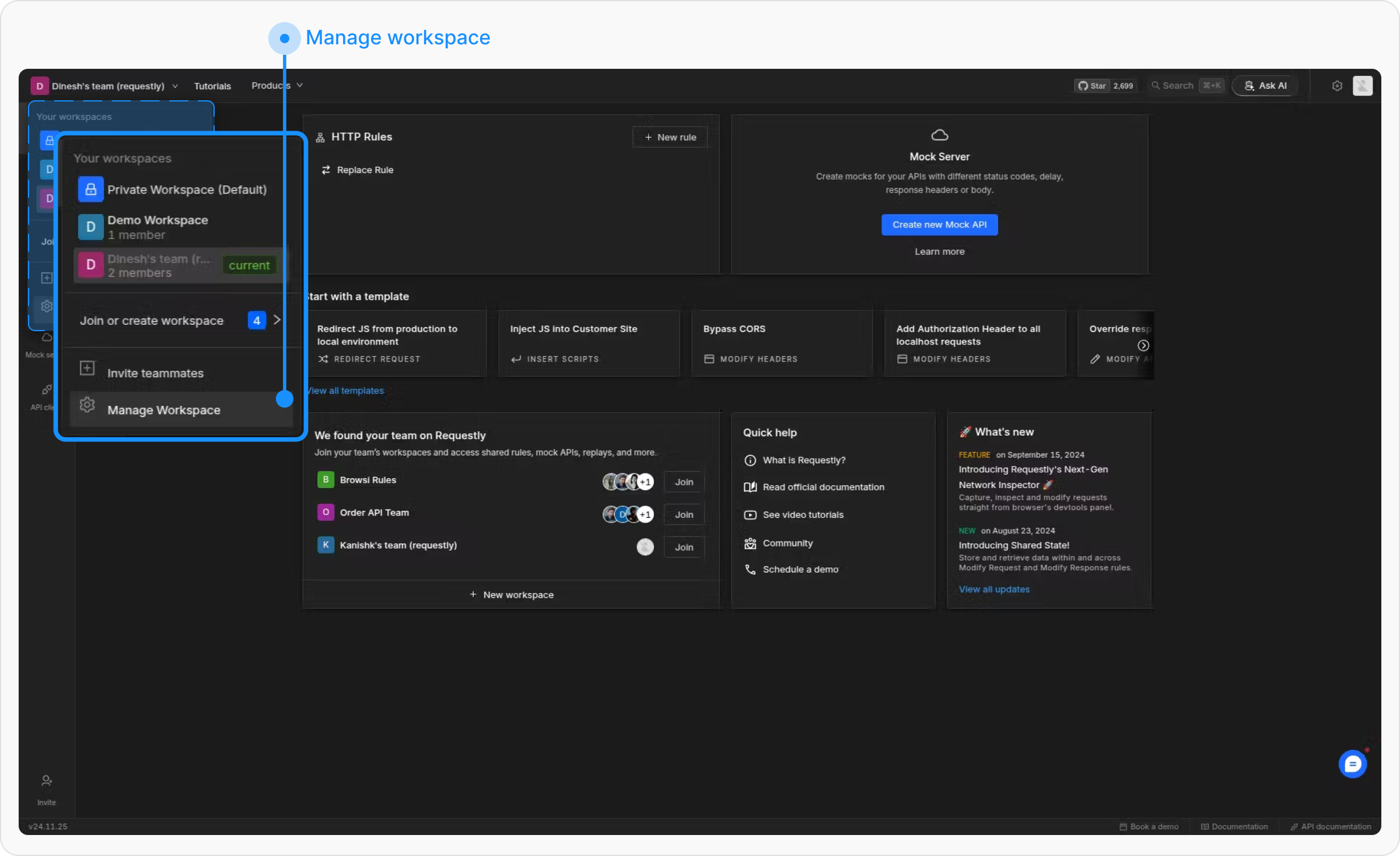
 Open the switch project panel and select **“Manage project”**
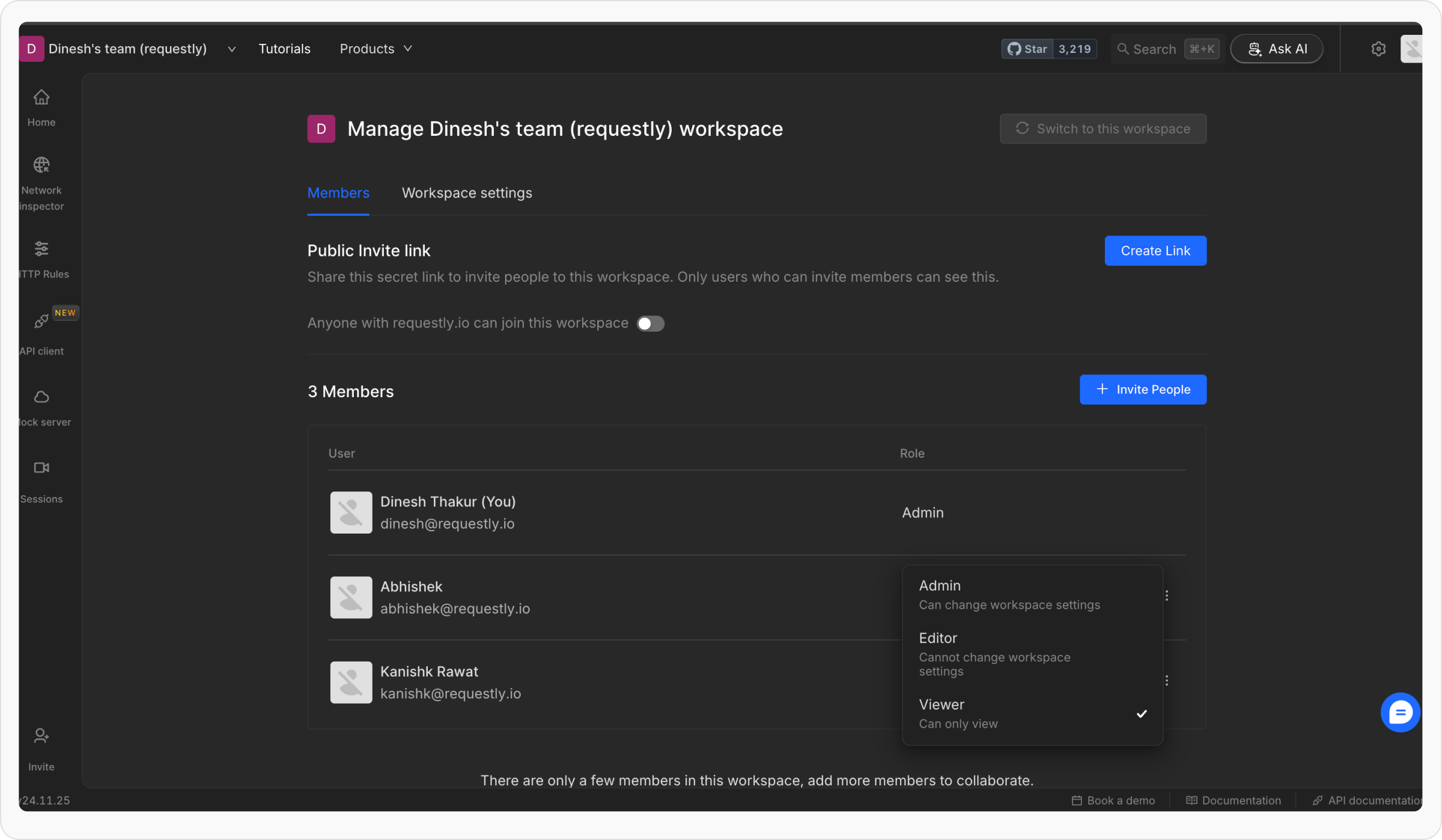
 Find the member whose role you want to change in the members list.
Use the dropdown next to their name to select the new role (e.g. Admin, Editor, or Viewer) and confirm the change.
Find the member whose role you want to change in the members list.
Use the dropdown next to their name to select the new role (e.g. Admin, Editor, or Viewer) and confirm the change.