> ## Documentation Index
> Fetch the complete documentation index at: https://docs.requestly.com/llms.txt
> Use this file to discover all available pages before exploring further.
# Working with multiple projects
Requestly allows you to **work with multiple local projects at once**. This makes it easier to collaborate across services (Auth, Payments, Orders, etc.) without merging everything into a single project.
**Note:** Multi-project view works only with **local projects** at this time.
## How to use multiple projects
Follow these steps to open multiple local projects in one view:
Open Requestly and navigate to the **API tab** from the sidebar.
In the top-right corner, click on your current project name to open the **project selector** dropdown.
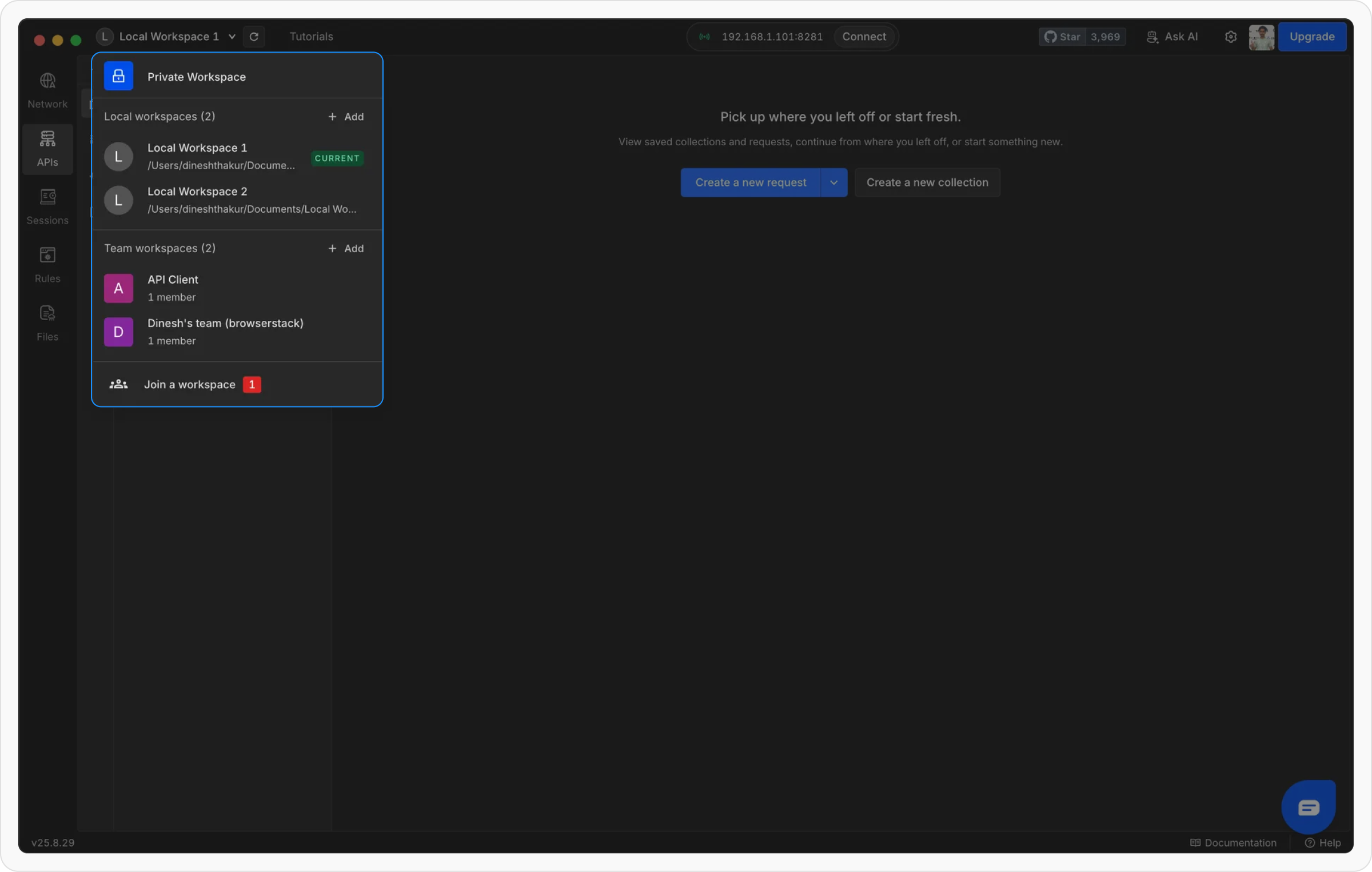 Check the boxes next to the local projects you want to load together.
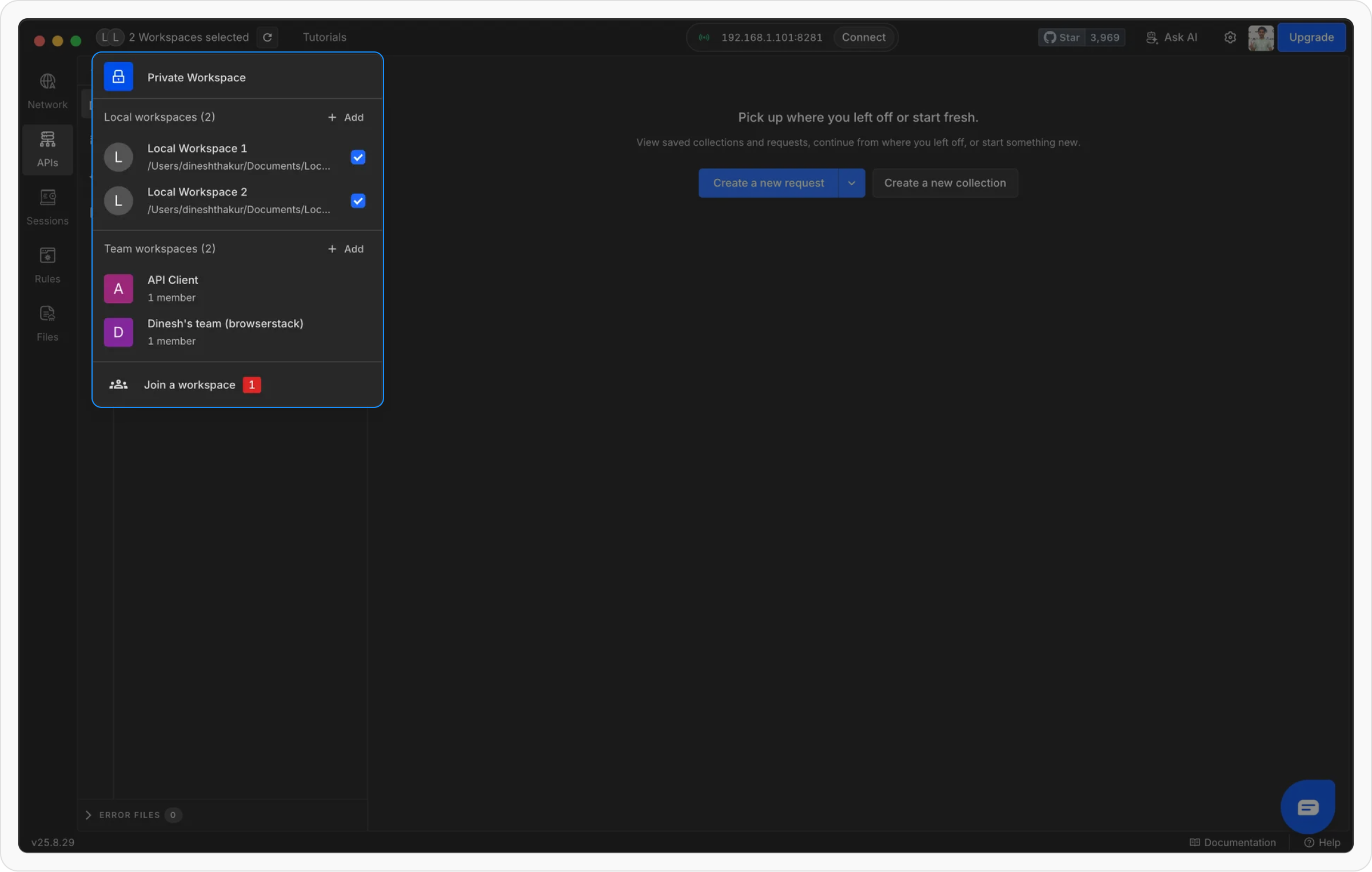 Your chosen projects will appear grouped in the selector.
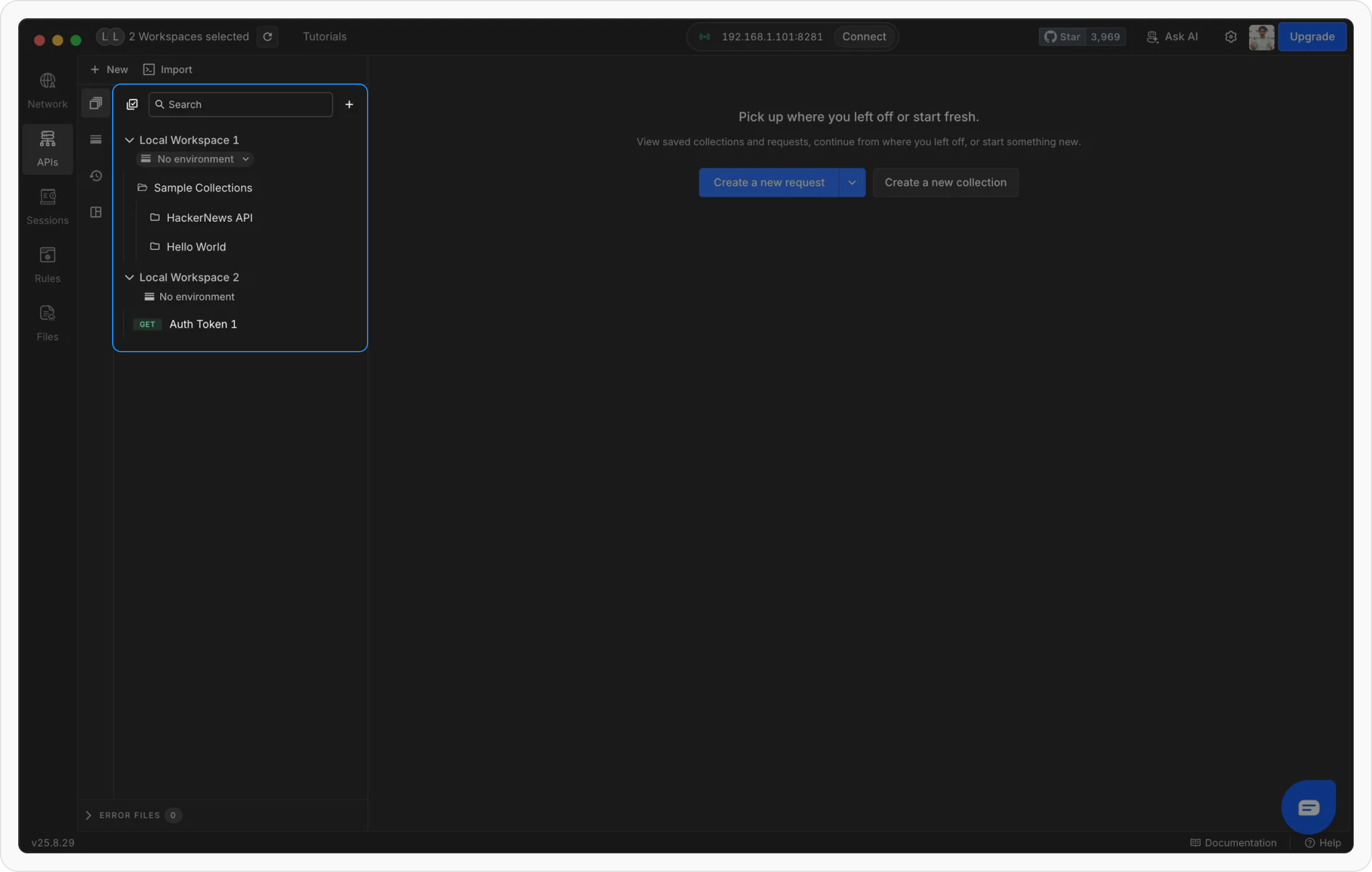 That’s it! You can now test APIs across multiple projects in one seamless view.
## Using environments in multi-project view
When working with multiple projects, each project keeps its own **separate environment**. This ensures that variables from one project do not interfere with another.
### **Switching environments**
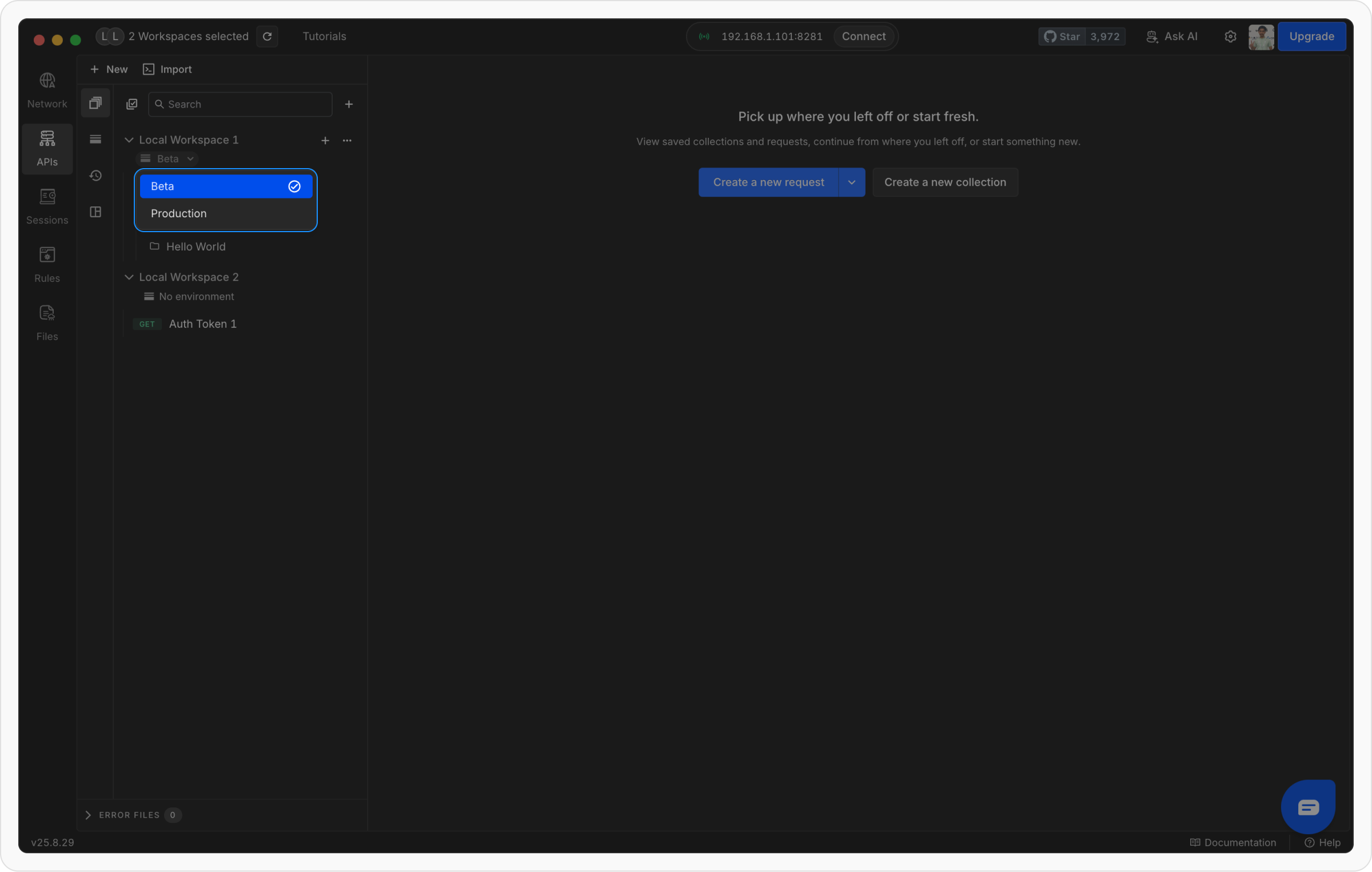
You can switch environments using the **dropdown below the project name** in the sidebar. This lets you quickly toggle between different setups for the same project.
That’s it! You can now test APIs across multiple projects in one seamless view.
## Using environments in multi-project view
When working with multiple projects, each project keeps its own **separate environment**. This ensures that variables from one project do not interfere with another.
### **Switching environments**
You can switch environments using the **dropdown below the project name** in the sidebar. This lets you quickly toggle between different setups for the same project.
 ### **Editing environment variables**
To edit variables for a project:
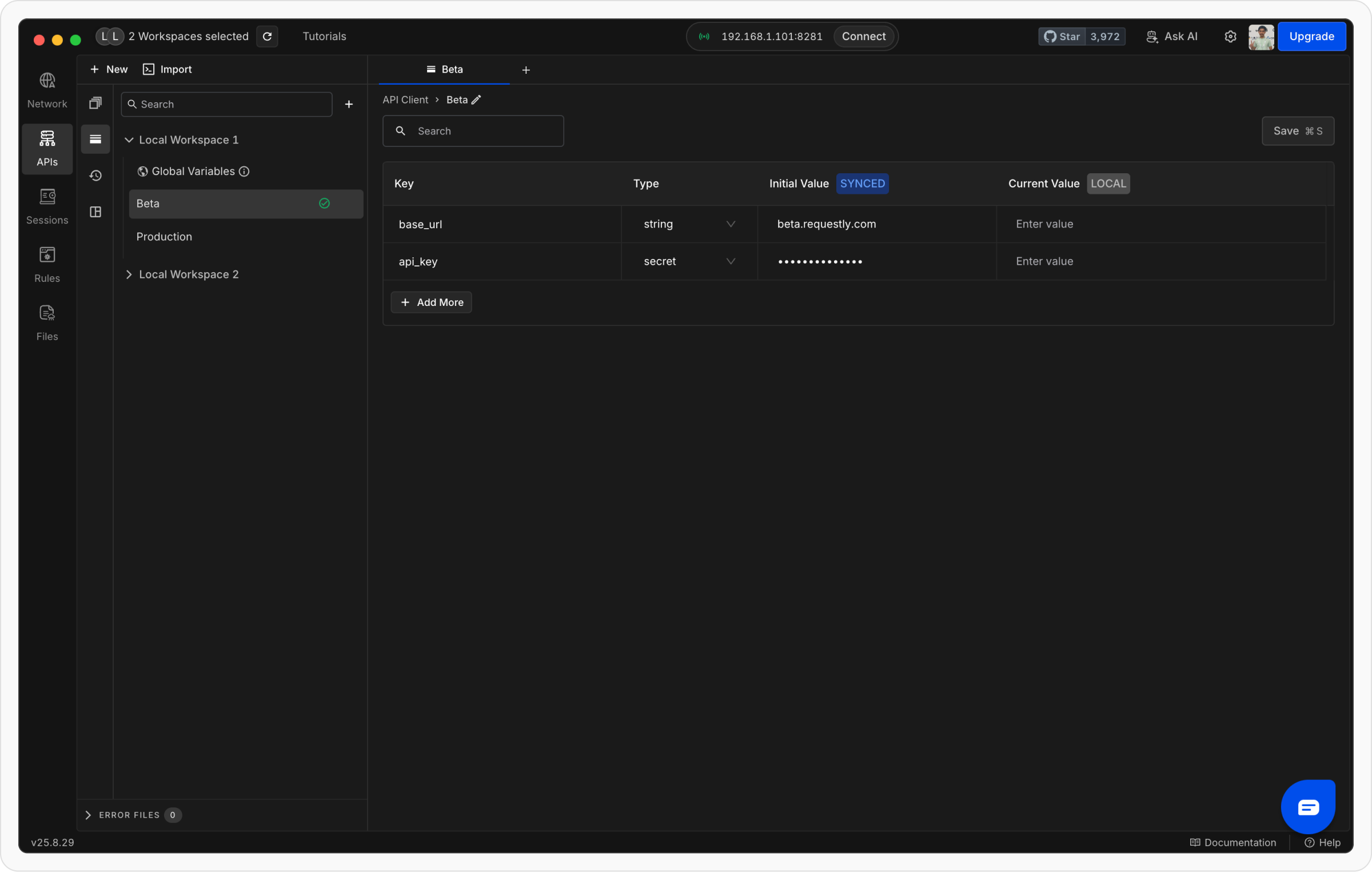
1. Go to the **Environments tab**.
2. Select the project whose environment you want to edit.
3. You’ll see all variables for that project listed, and you can add, update, or remove them as needed.
### **Editing environment variables**
To edit variables for a project:
1. Go to the **Environments tab**.
2. Select the project whose environment you want to edit.
3. You’ll see all variables for that project listed, and you can add, update, or remove them as needed.
 ## Moving requests across projects
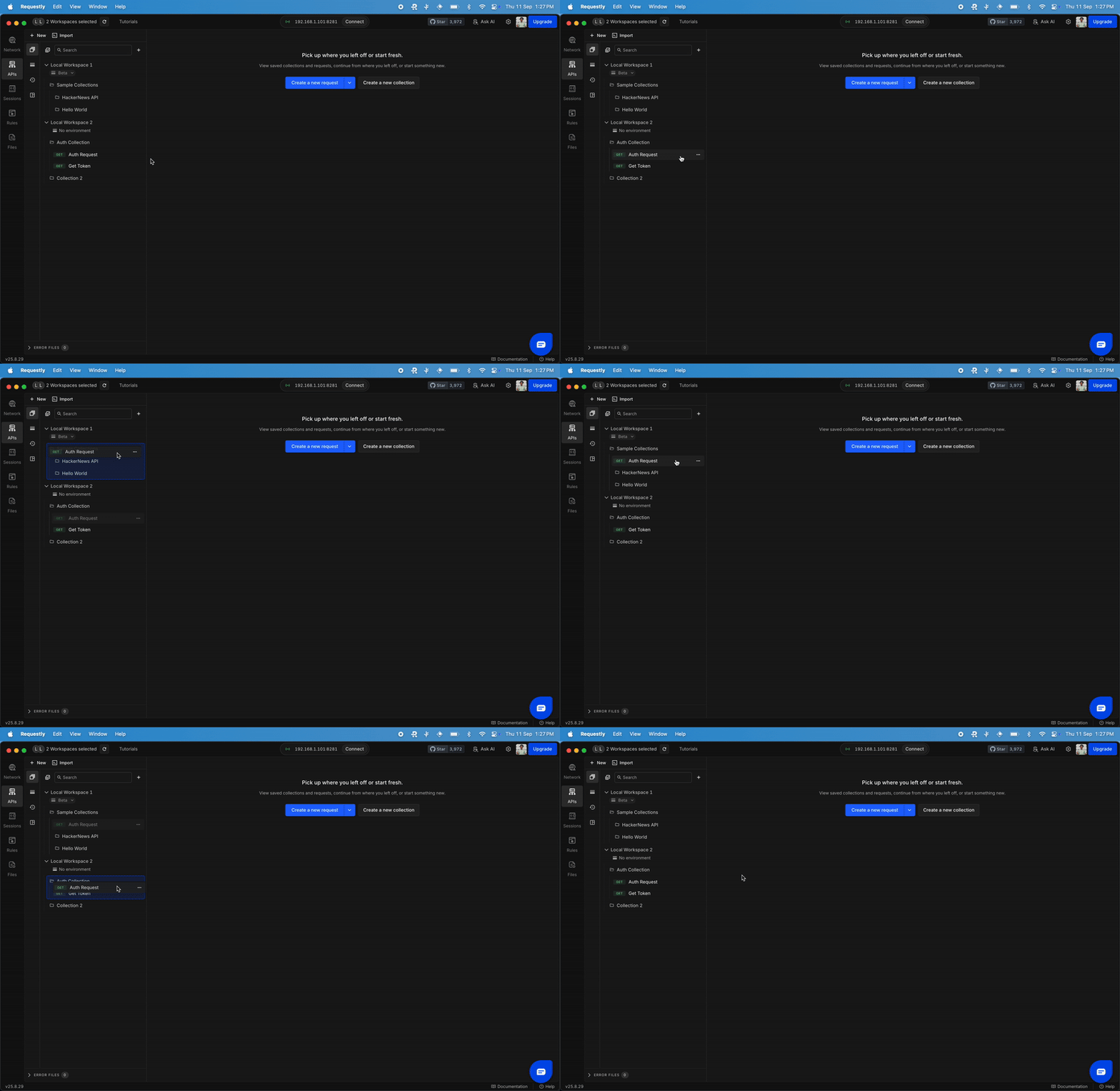
You can easily move or share requests between different projects in multi-project view. There are two ways to do this:
### **Method 1: Drag and drop**
## Moving requests across projects
You can easily move or share requests between different projects in multi-project view. There are two ways to do this:
### **Method 1: Drag and drop**
 ### **Method 2: Move via menu**
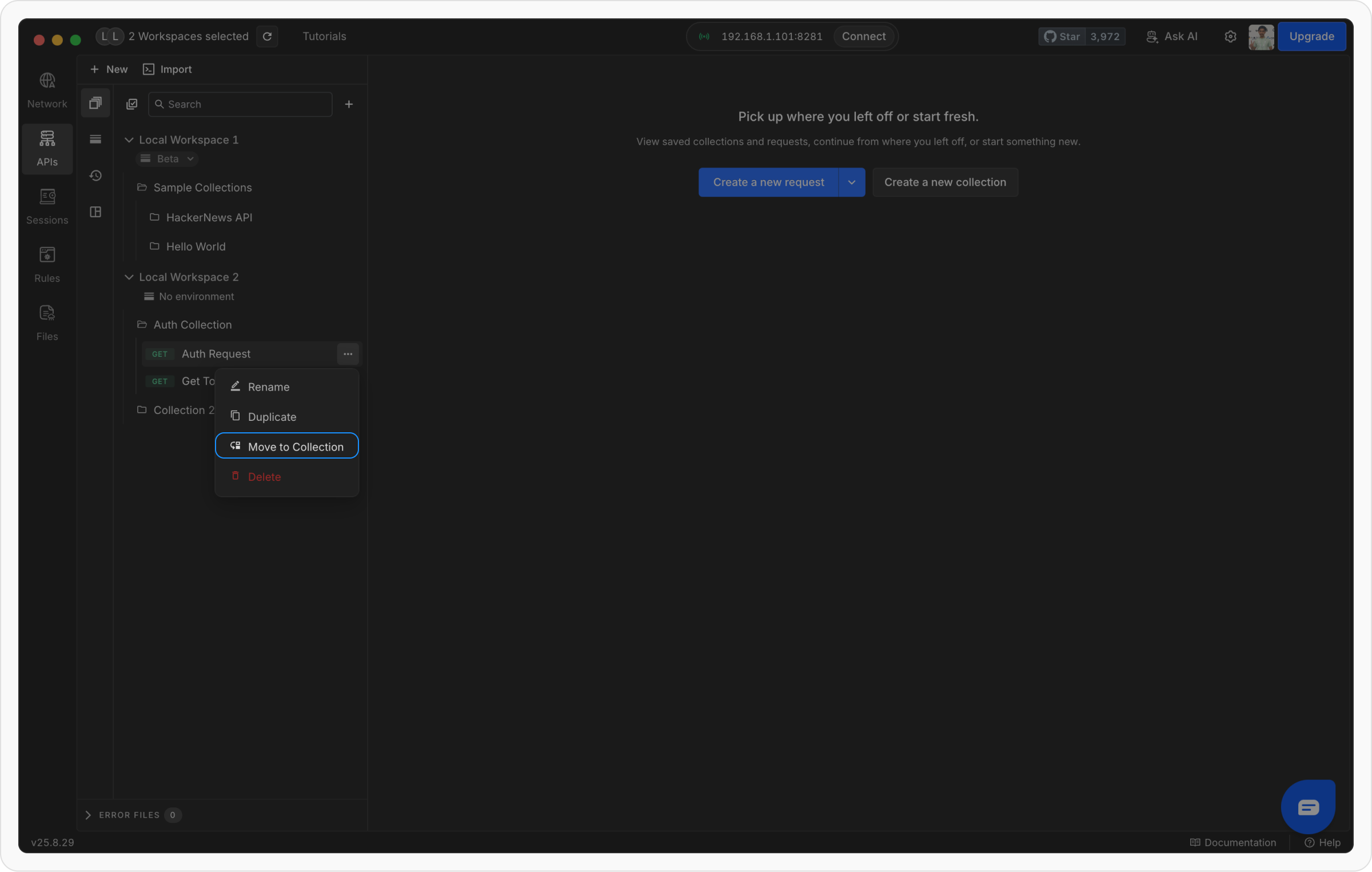
Click on the **three dots** menu next to the request you want to move.
### **Method 2: Move via menu**
Click on the **three dots** menu next to the request you want to move.
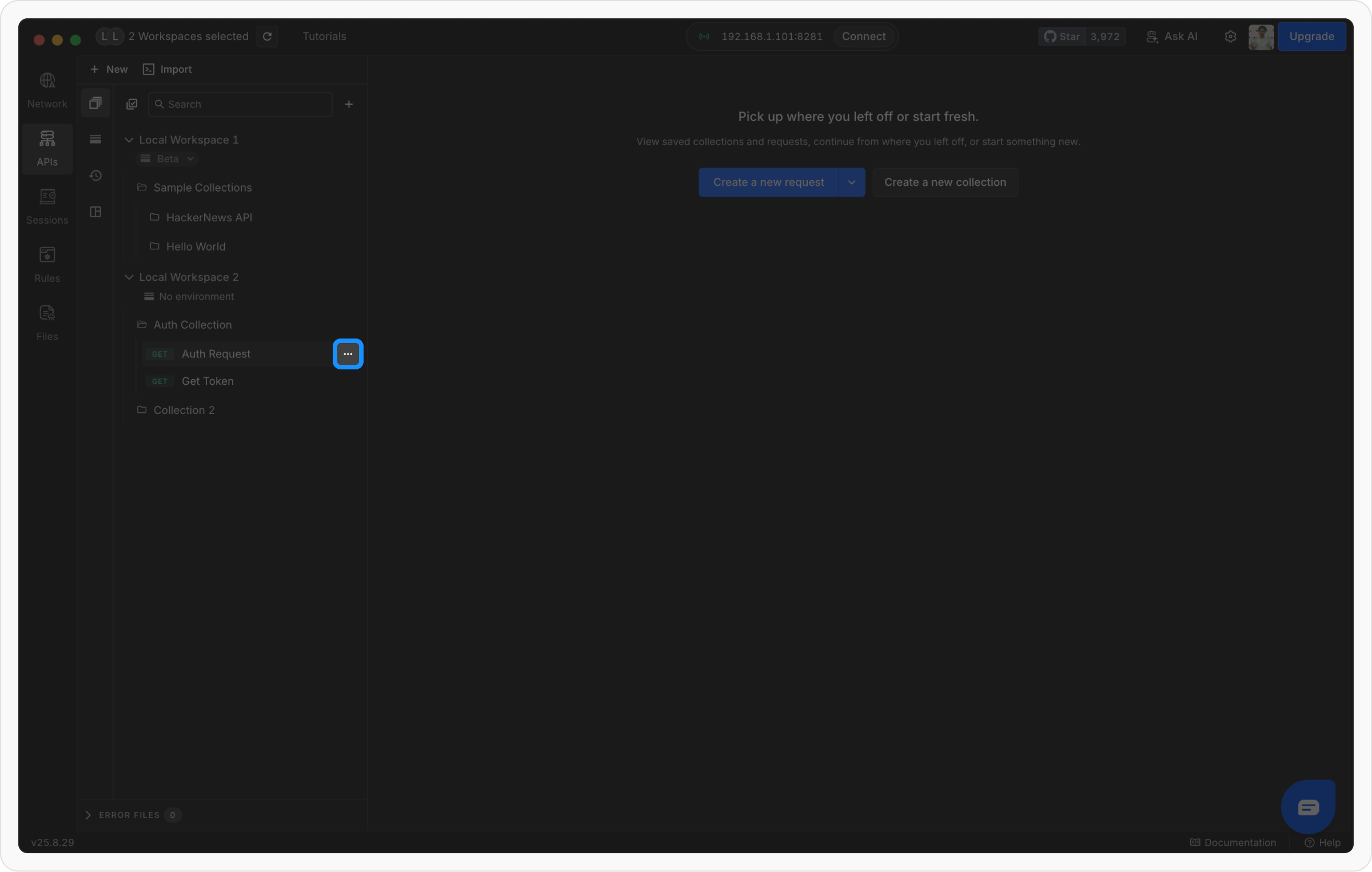 Choose the **Move to Collection** option from the menu.
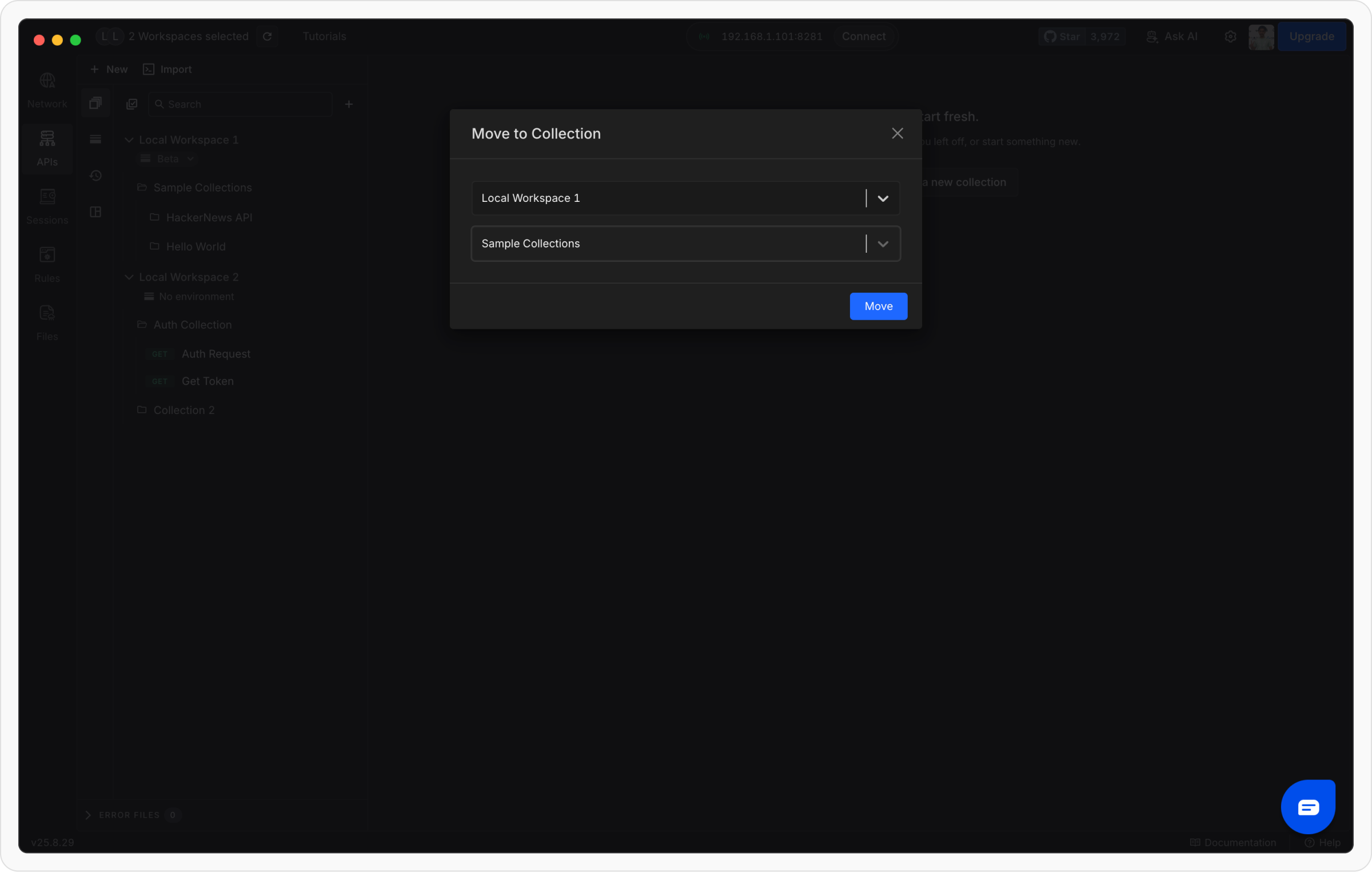
 Select the target project and the collection within it where you want to move the request.
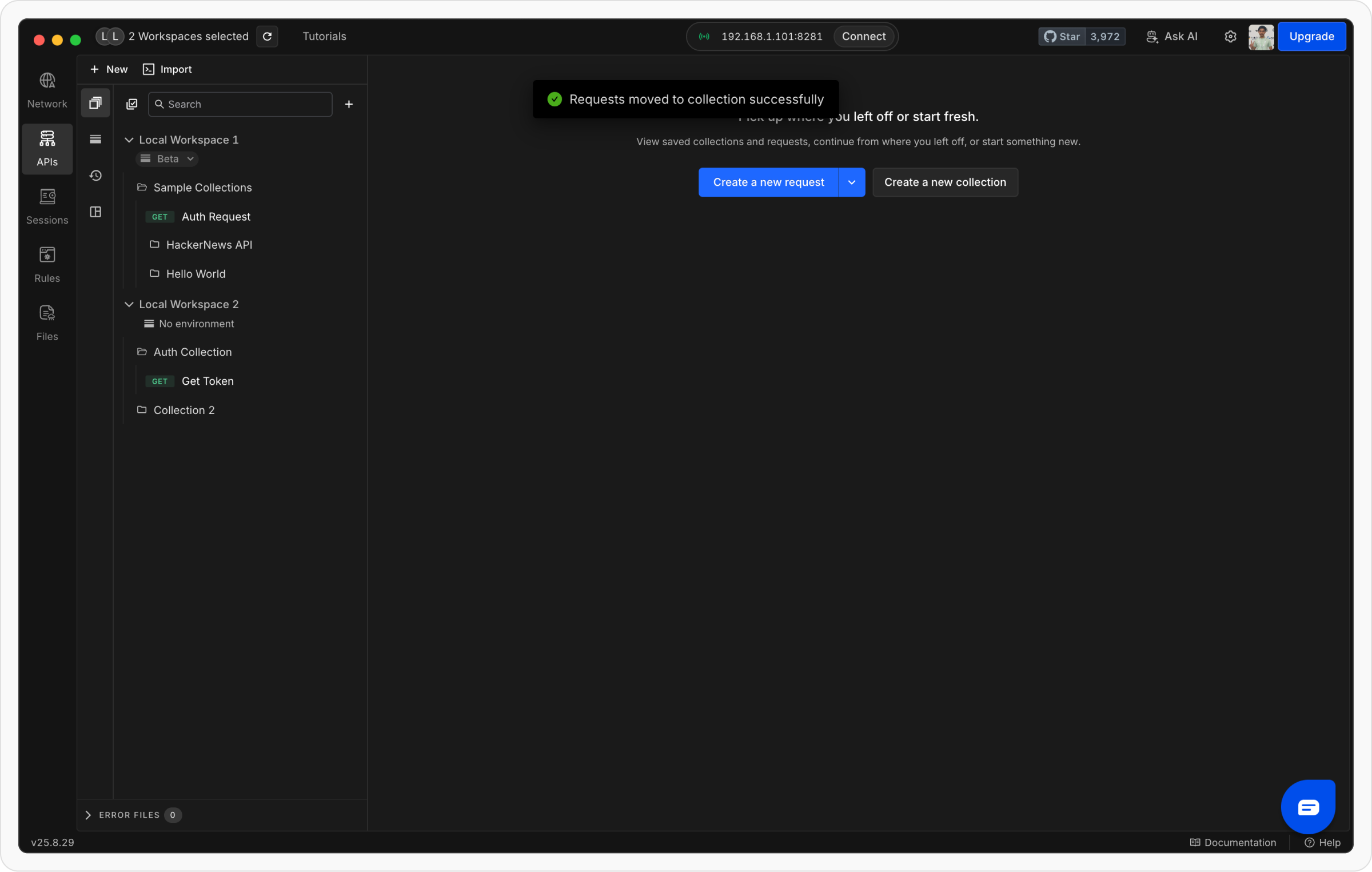
 Click **Move** to complete the action. The request will now appear in the selected project and collection.
 ## Sharing data across projects
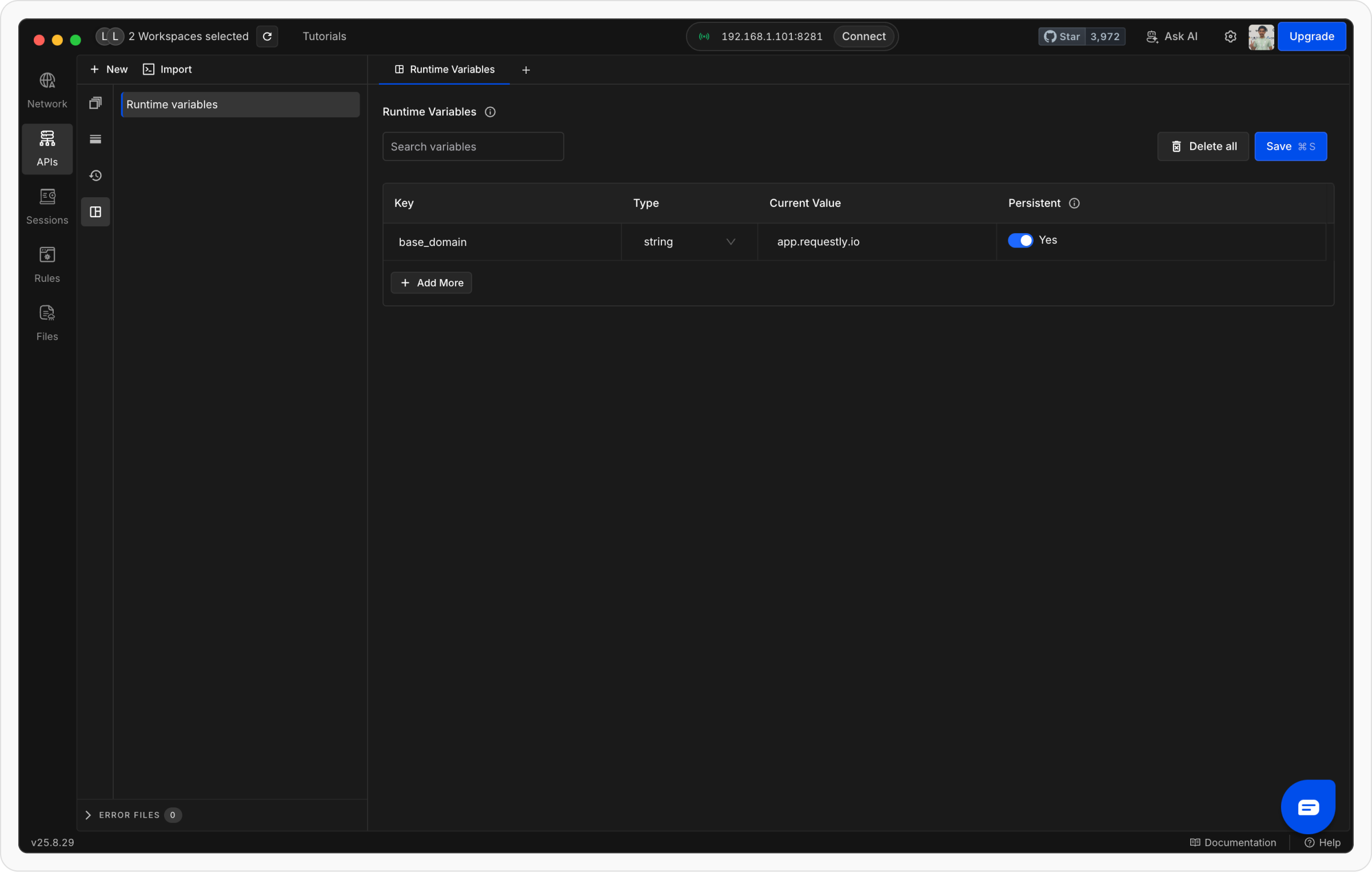
To share values (like tokens) across different projects, you can use [**Runtime Variables**](/api-client/environments-and-variables/runtime-variables). These act as **super-global variables** that are accessible across all projects. They can be created as temporary values for quick testing or persisted for longer use. You can view, edit, or clear them anytime from the **Runtime Variables tab** on the left.
## Sharing data across projects
To share values (like tokens) across different projects, you can use [**Runtime Variables**](/api-client/environments-and-variables/runtime-variables). These act as **super-global variables** that are accessible across all projects. They can be created as temporary values for quick testing or persisted for longer use. You can view, edit, or clear them anytime from the **Runtime Variables tab** on the left.