
Steps
Open Connected Apps
Go to the Requestly Interceptor desktop app and click on the Connect apps button. A popup modal will appear.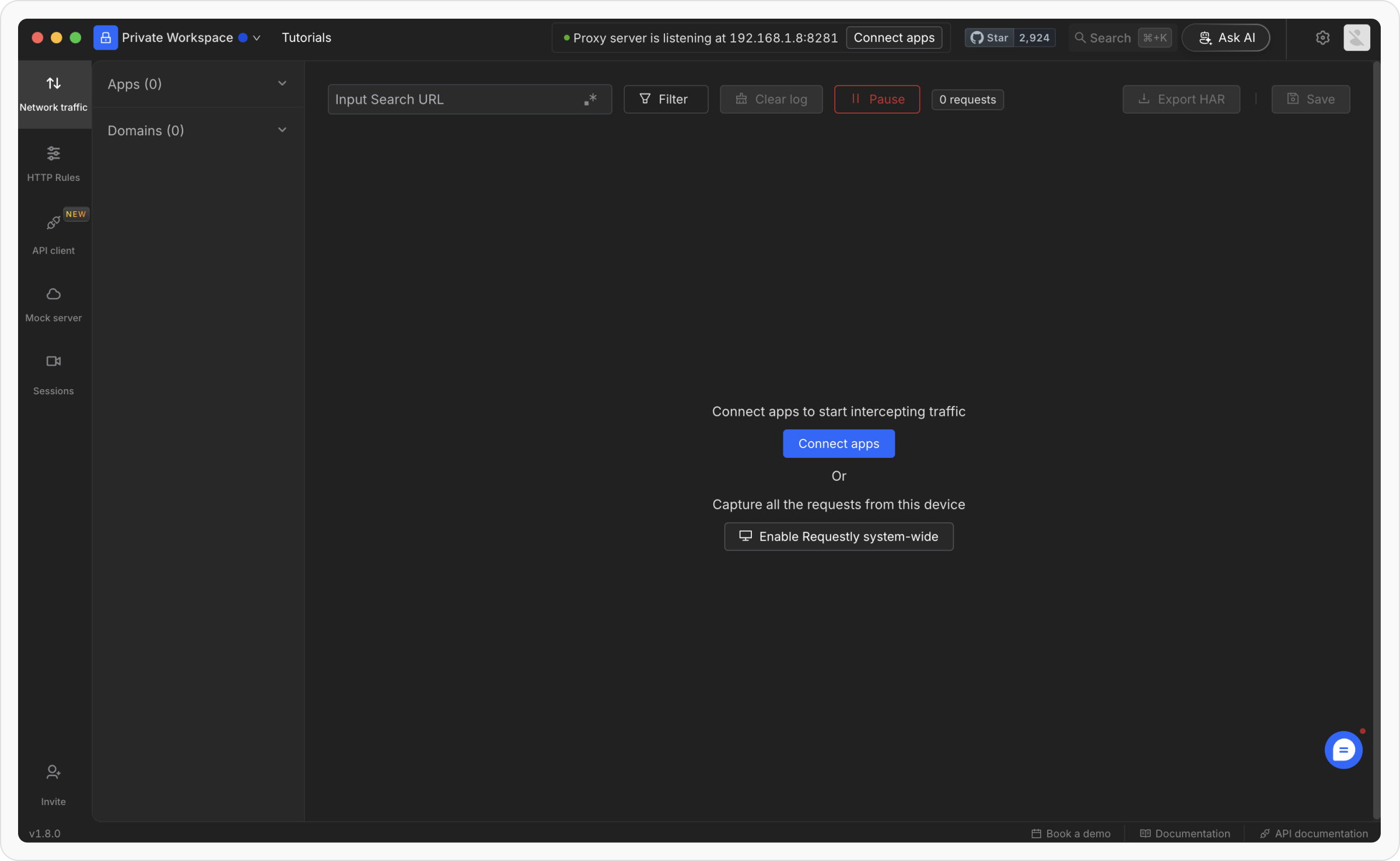
Locate Terminal Processes
In the popup modal, navigate to the Terminal processes section. Click on Setup instruction for Terminal.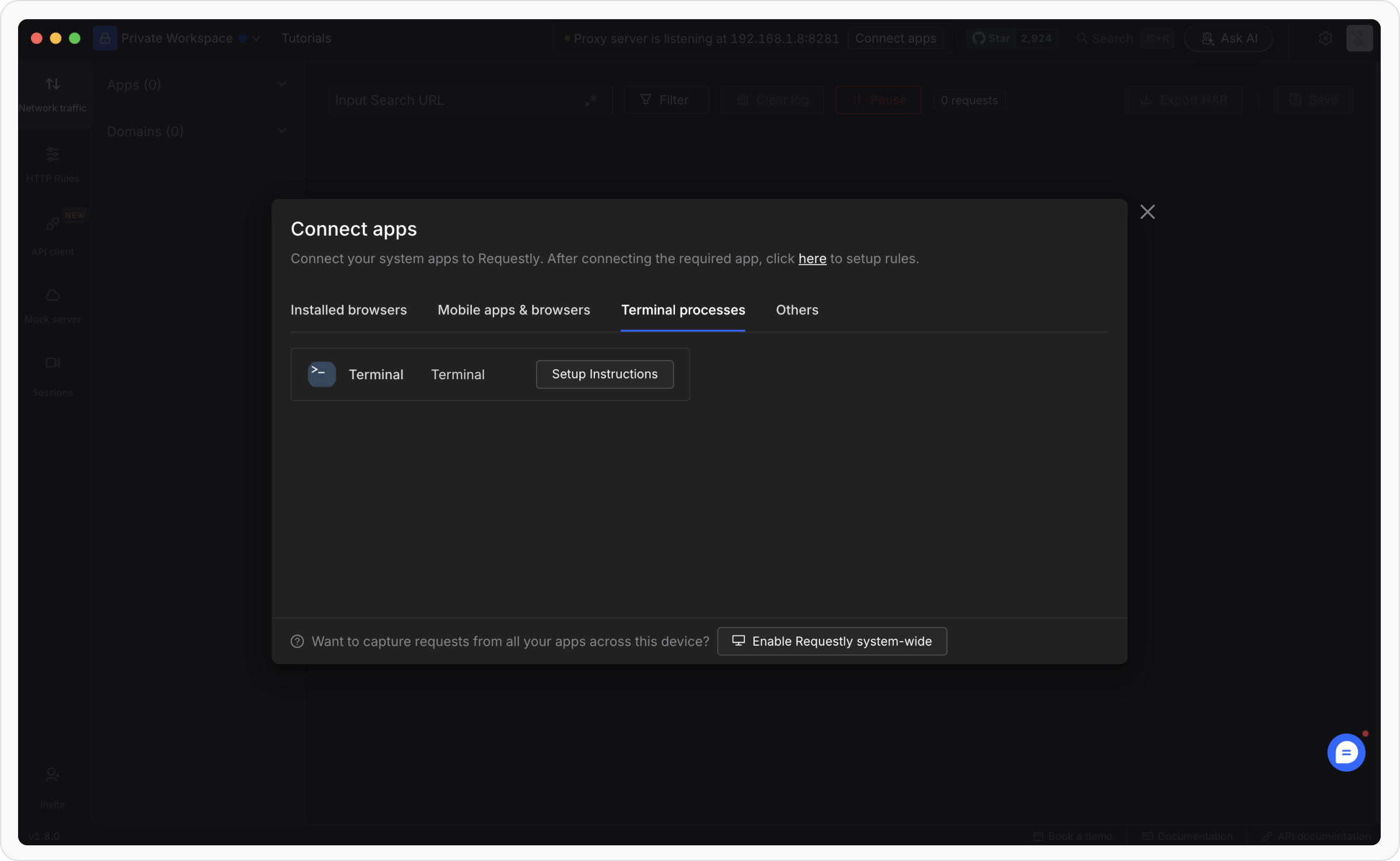
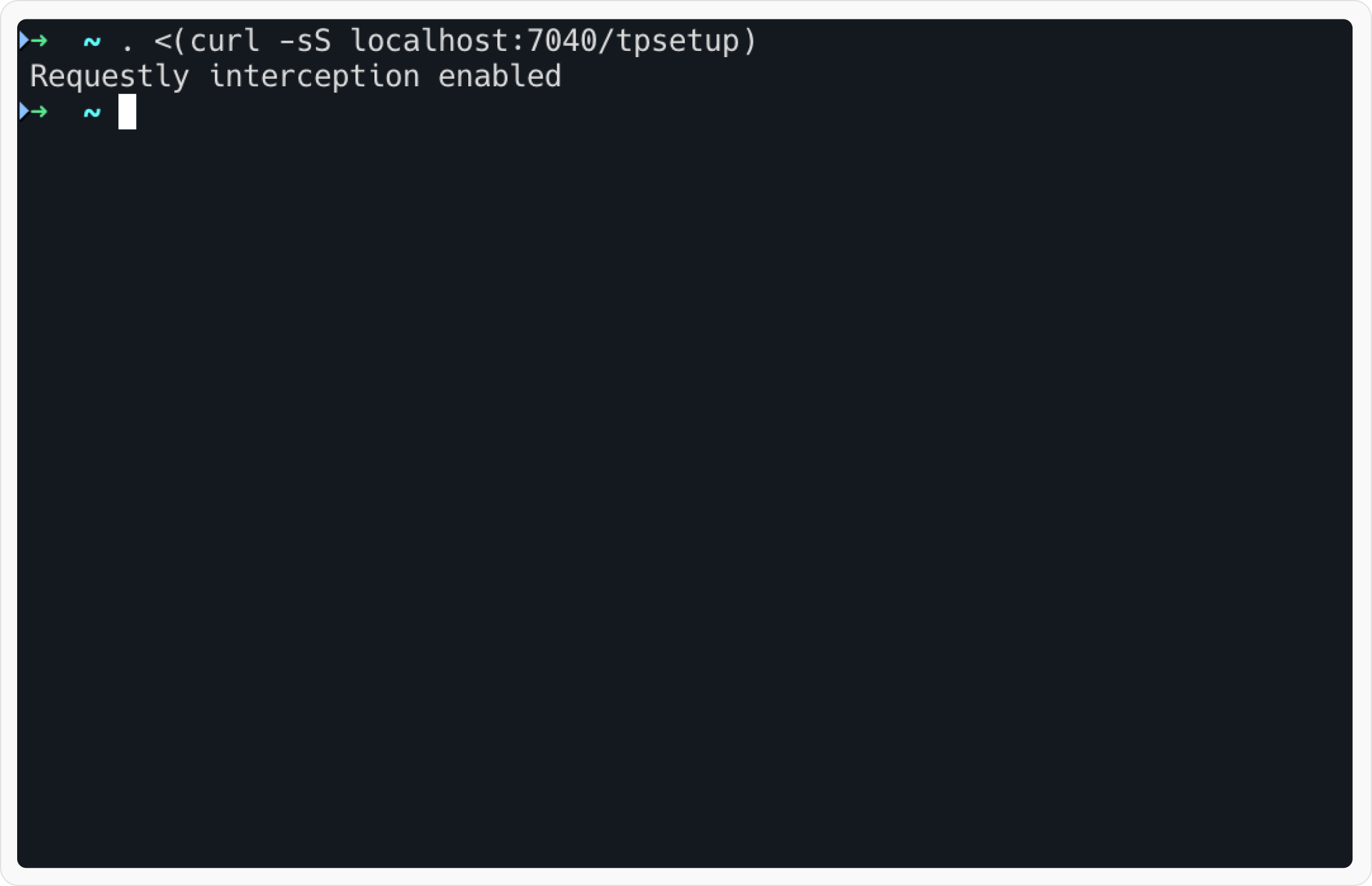
Copy the Setup Command
You will see a command displayed in the setup instructions. Copy the command. It will look something like this: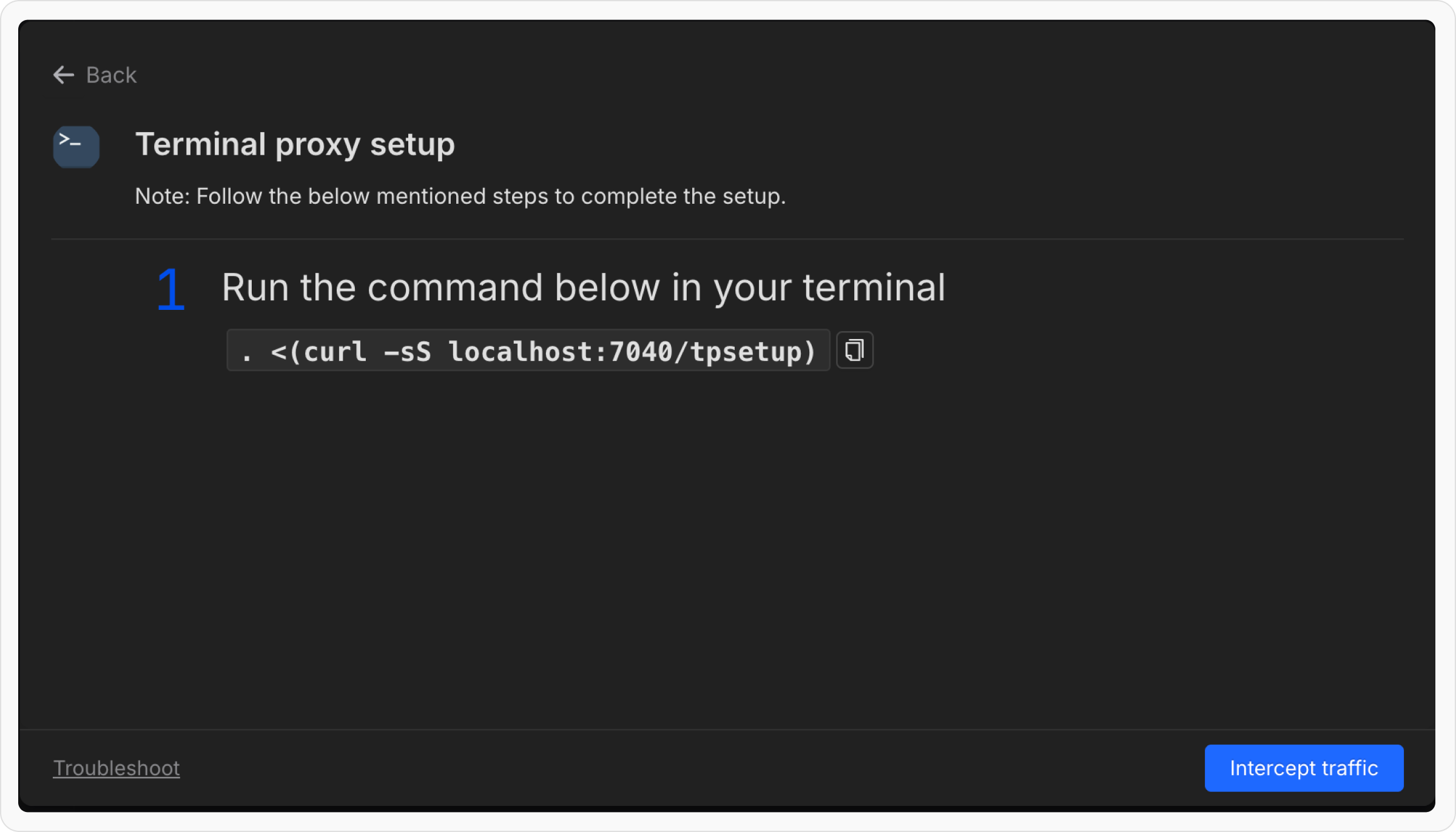
Note: This command might be different depending upon port availability. Checkout in Connected Apps > Terminal
Testing Proxy
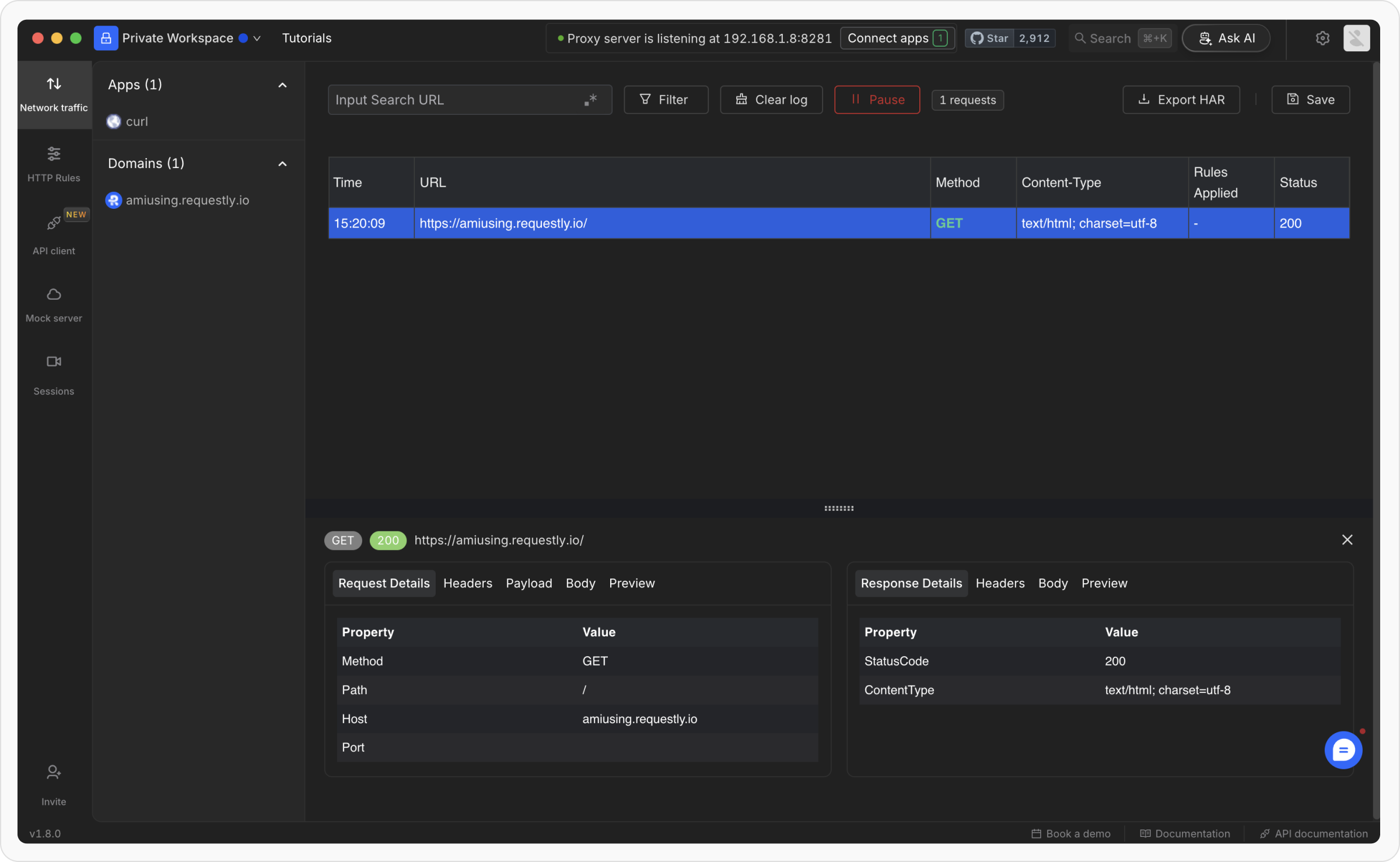
- Go to
Network Traffictab in Requestly Interceptor Desktop App.
- Now Make a curl request to https://amiusing.requestly.io/ using your terminal and look for that request in the Network Traffic tab.
-
You should see the Request in the
Network TrafficTable.