

Step 1: Install
The API Client runs as a desktop app on macOS, Windows, and Linux.- macOS
- Windows
- Linux
Download the latest version for Apple Silicon or Intel.
What about the browser extension? The Requestly browser extension is a separate product, an HTTP interceptor for modifying network traffic. The API Client is a standalone desktop app. You do not need the extension to use the API Client.
Step 2: Sign In
Sign in with your Google or email account to get started. Once signed in, your collections and environments sync across devices and you can collaborate with your team.Step 3: Send Your First Request
1
Create a New Request
Click + New → Request in the left sidebar.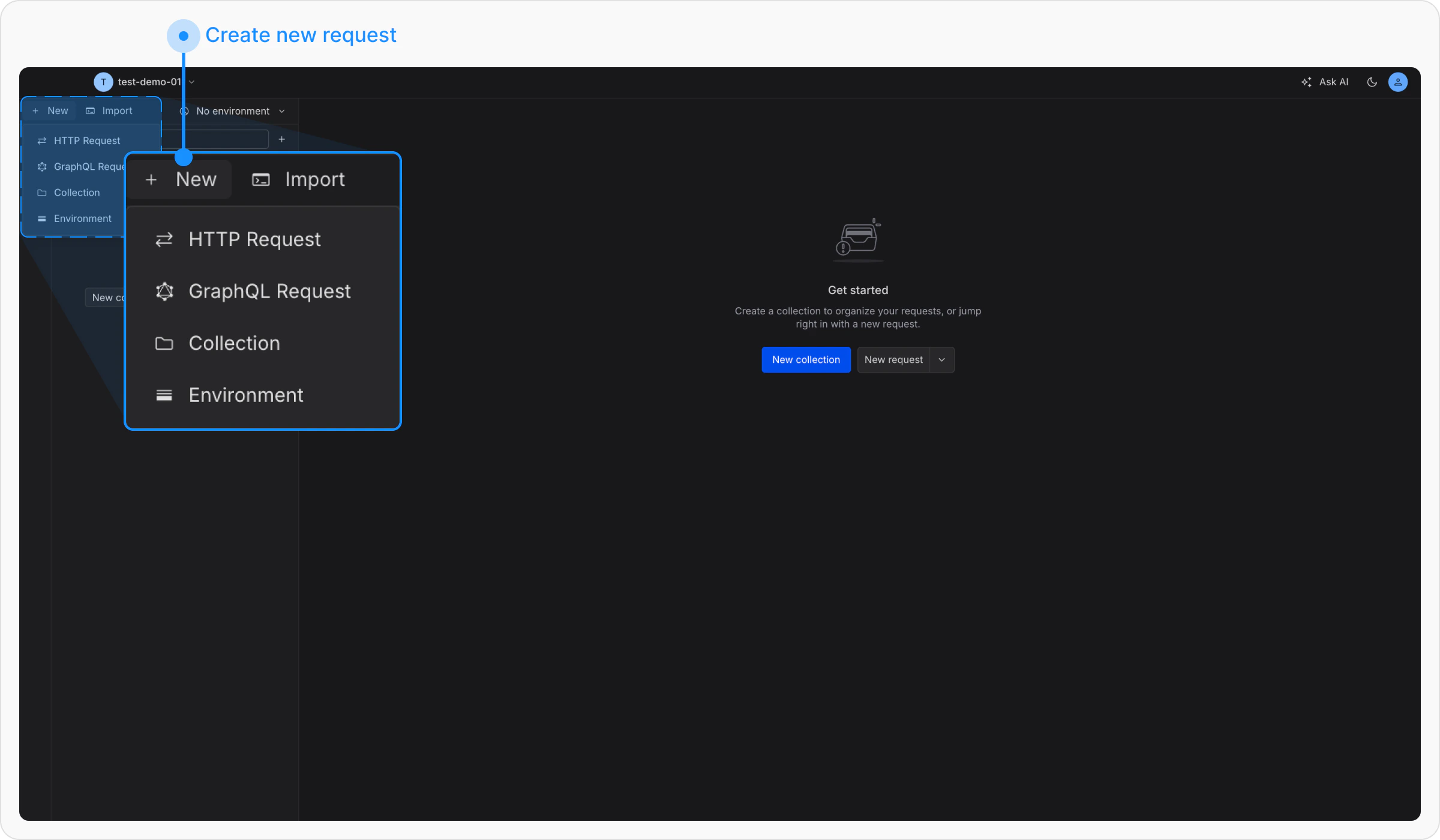
2
Enter the URL
Set the method to GET and enter: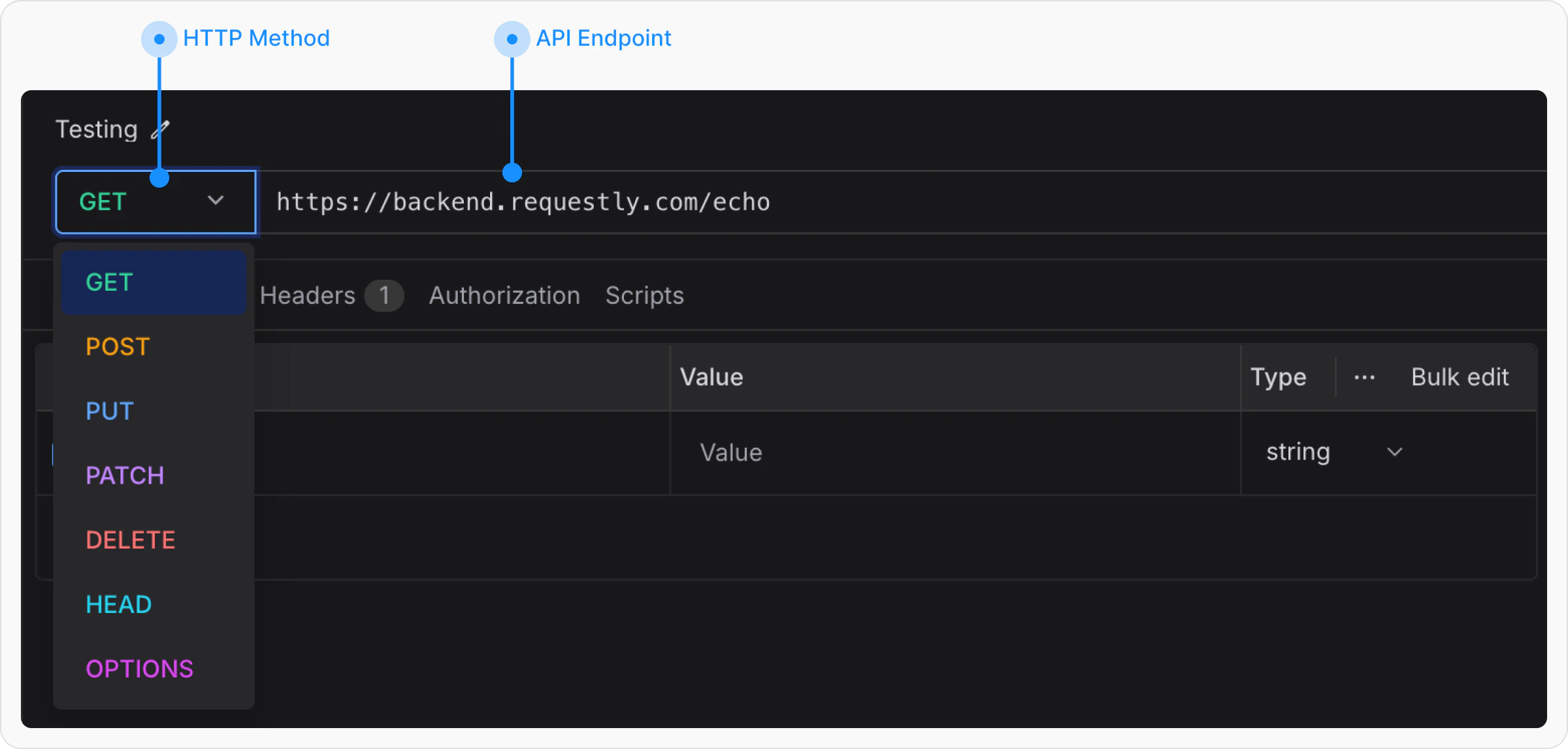
3
Hit Send
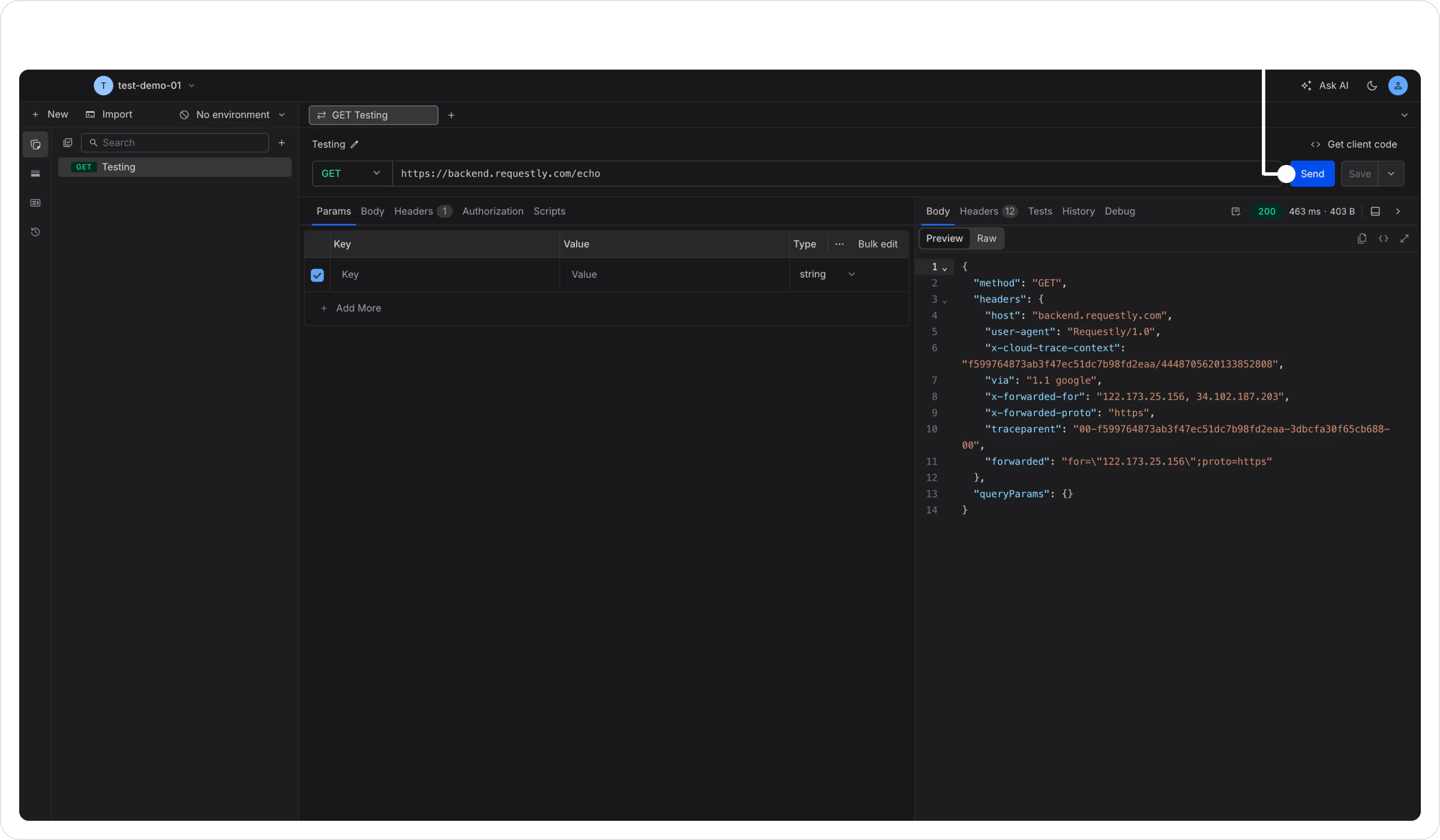
Click Send. You’ll see the echo server’s JSON response in the panel below.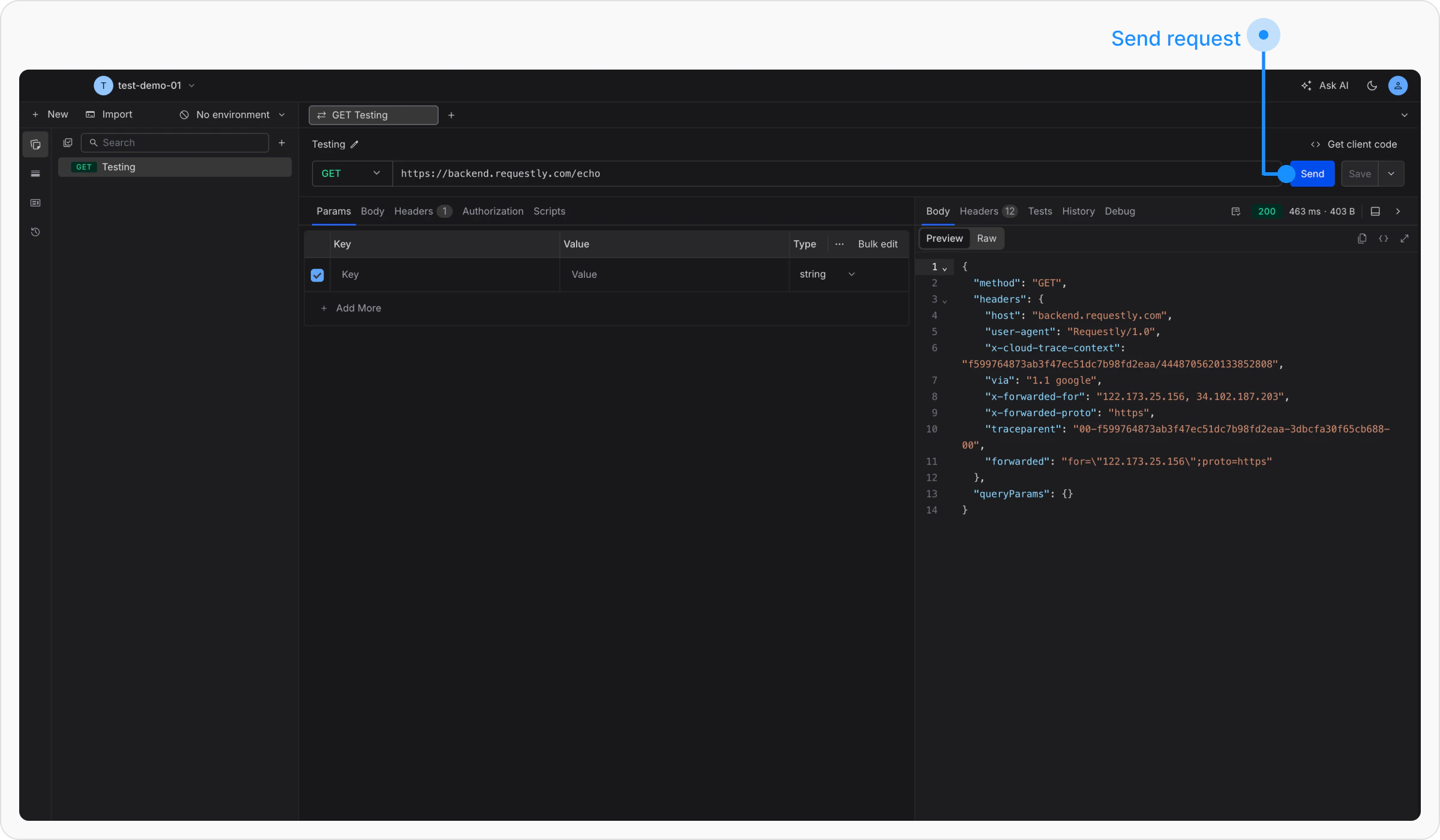
Step 4: Save to a Collection
Collections keep related requests organized together.1
Create a Collection
Click + New → Collection. Name it 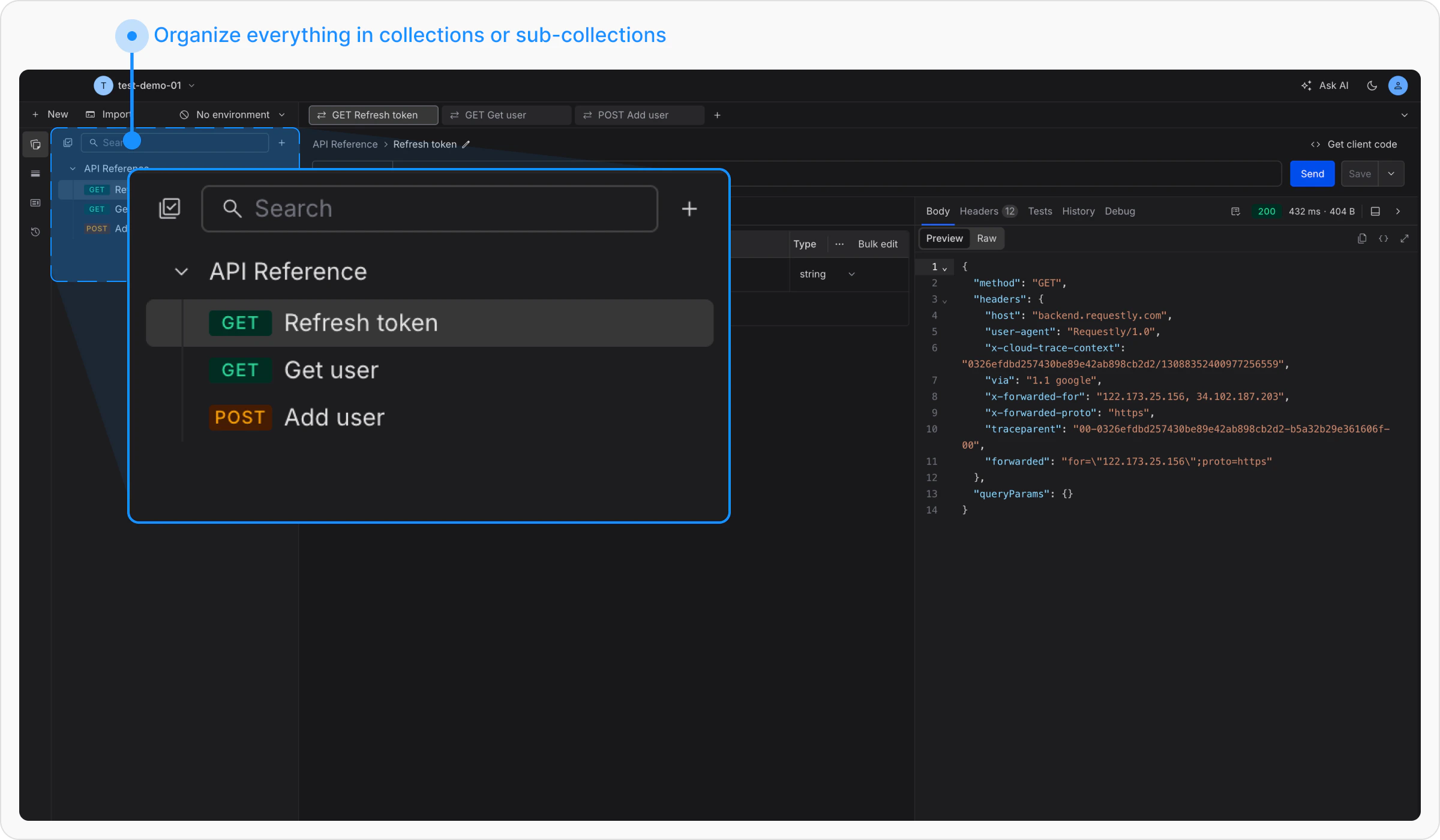
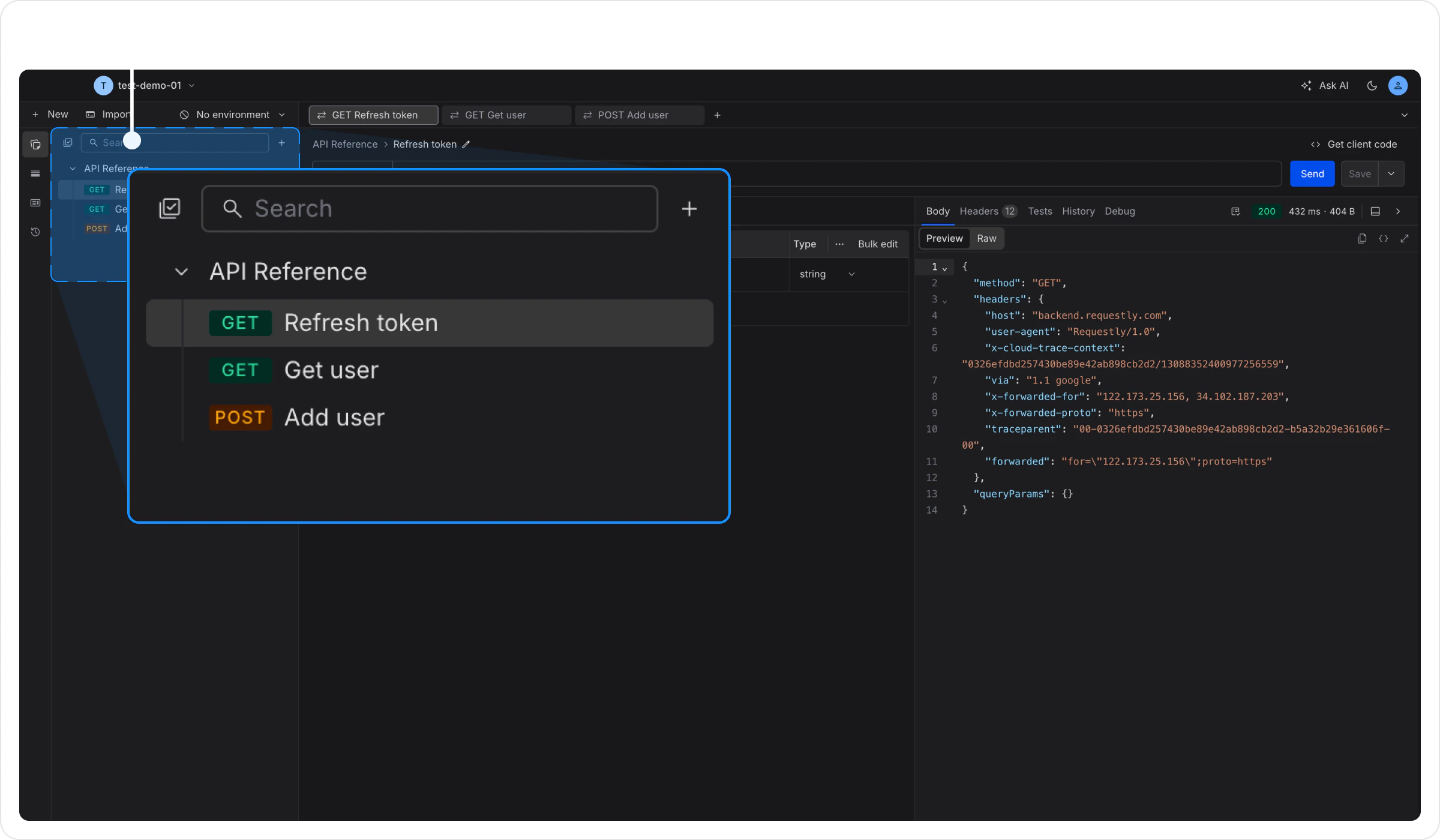
My APIs.2
Move Your Request Into It
Drag the request you just created into the collection, or click the + icon next to the collection name to create new requests directly inside it.
Step 5: Add an Environment Variable
Environment variables let you switch between dev, staging, and production without editing every request.1
Create an Environment
Click + New → Environment. Name it 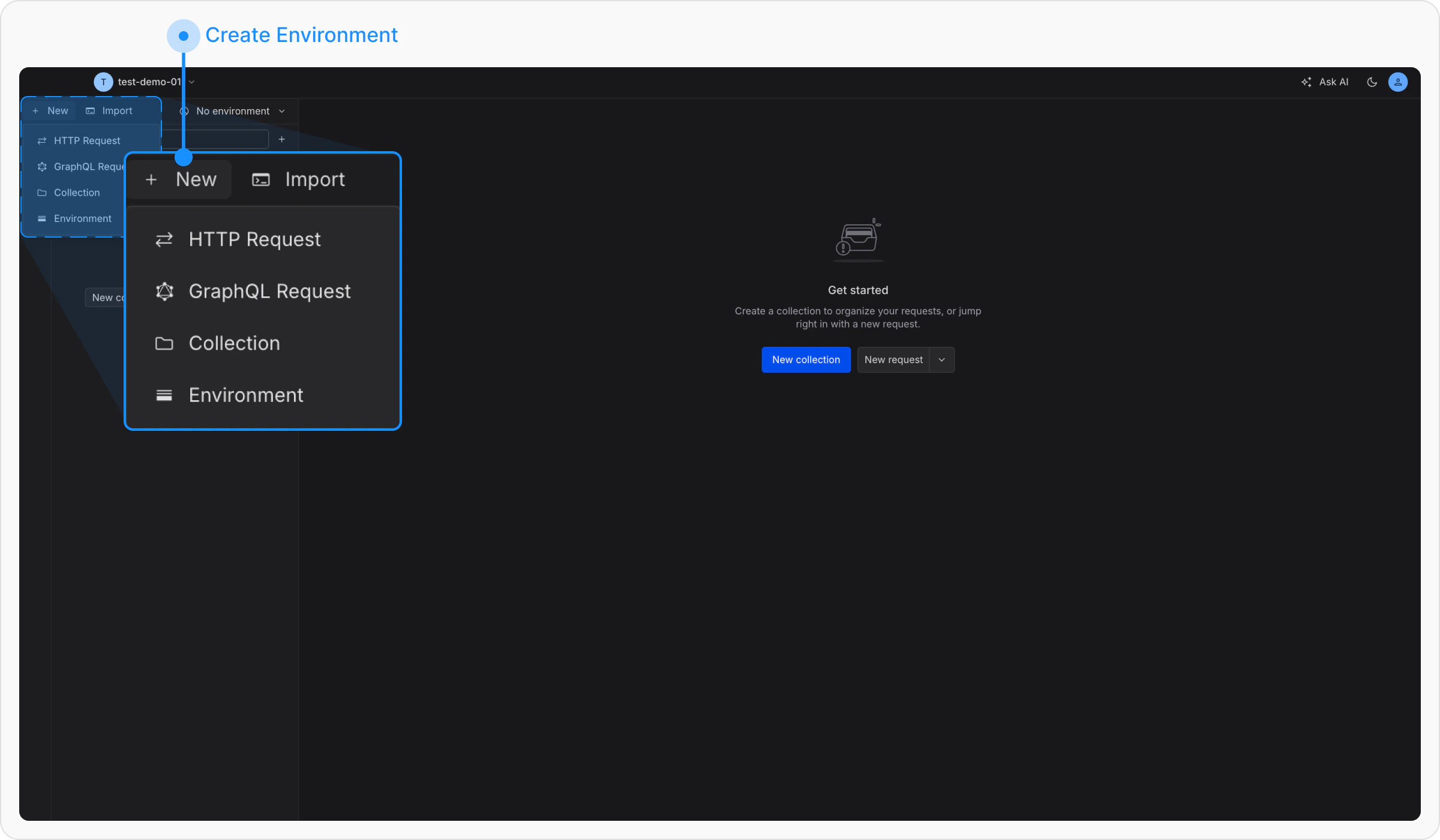
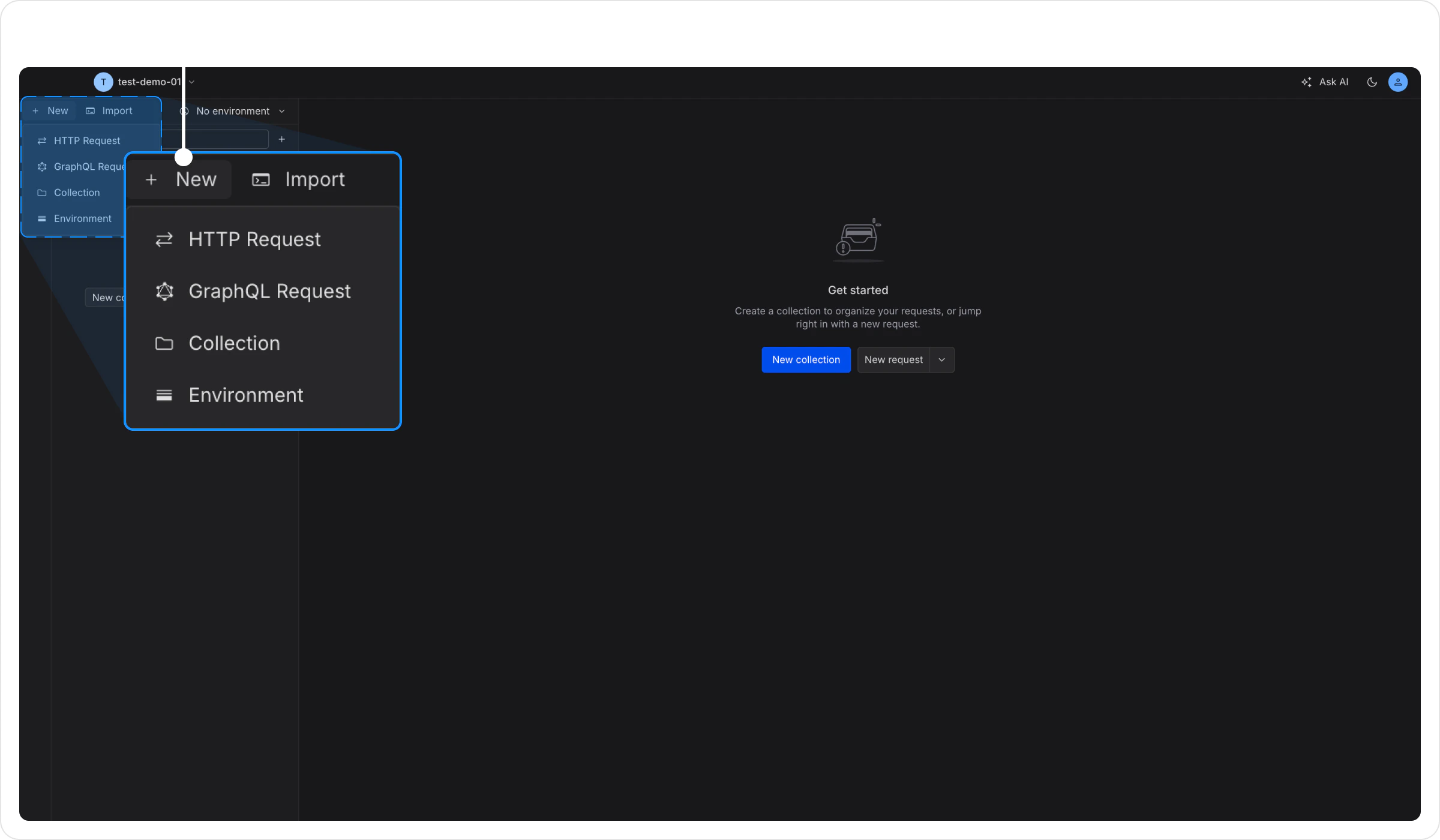
Development.2
Add a Variable
Add a variable: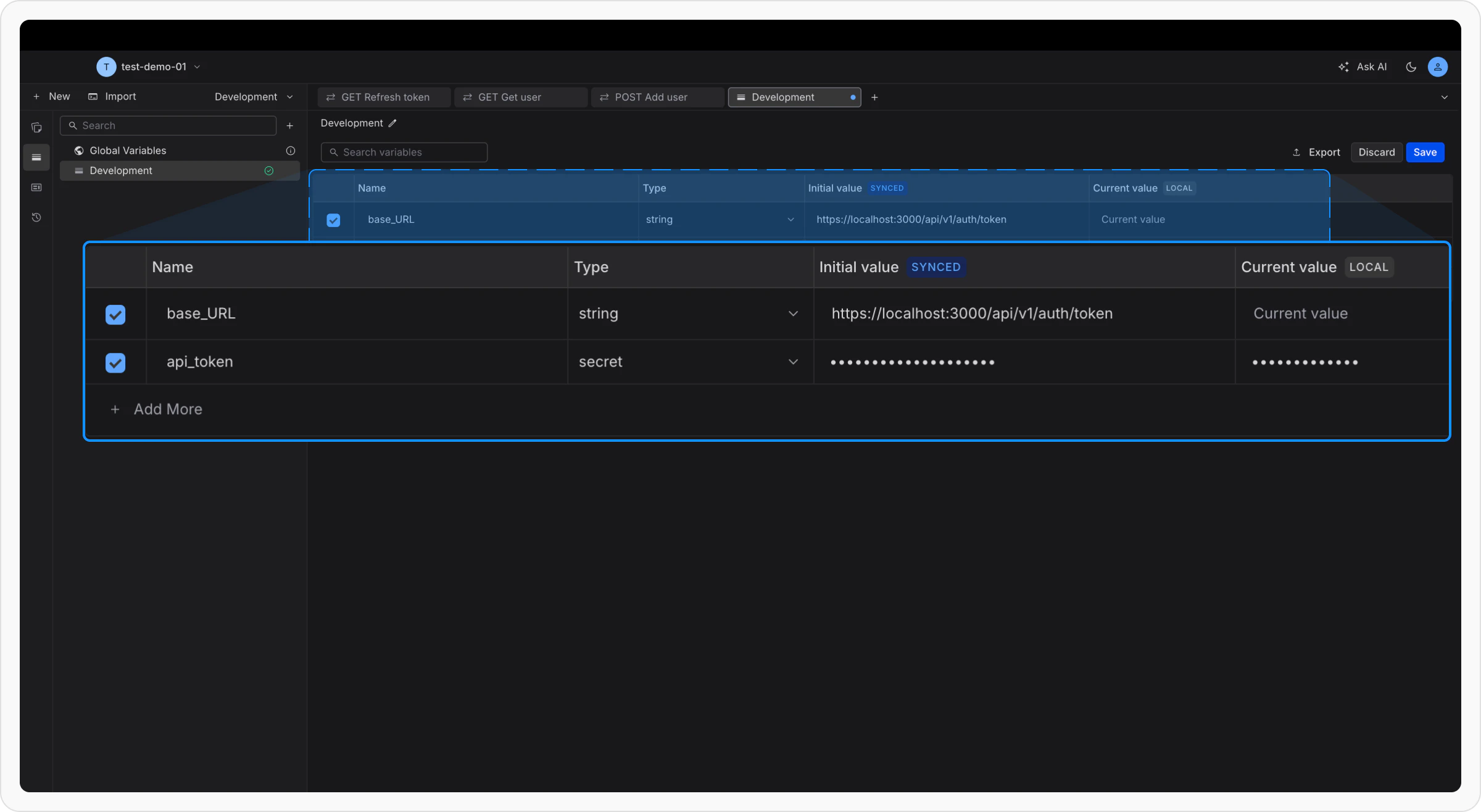
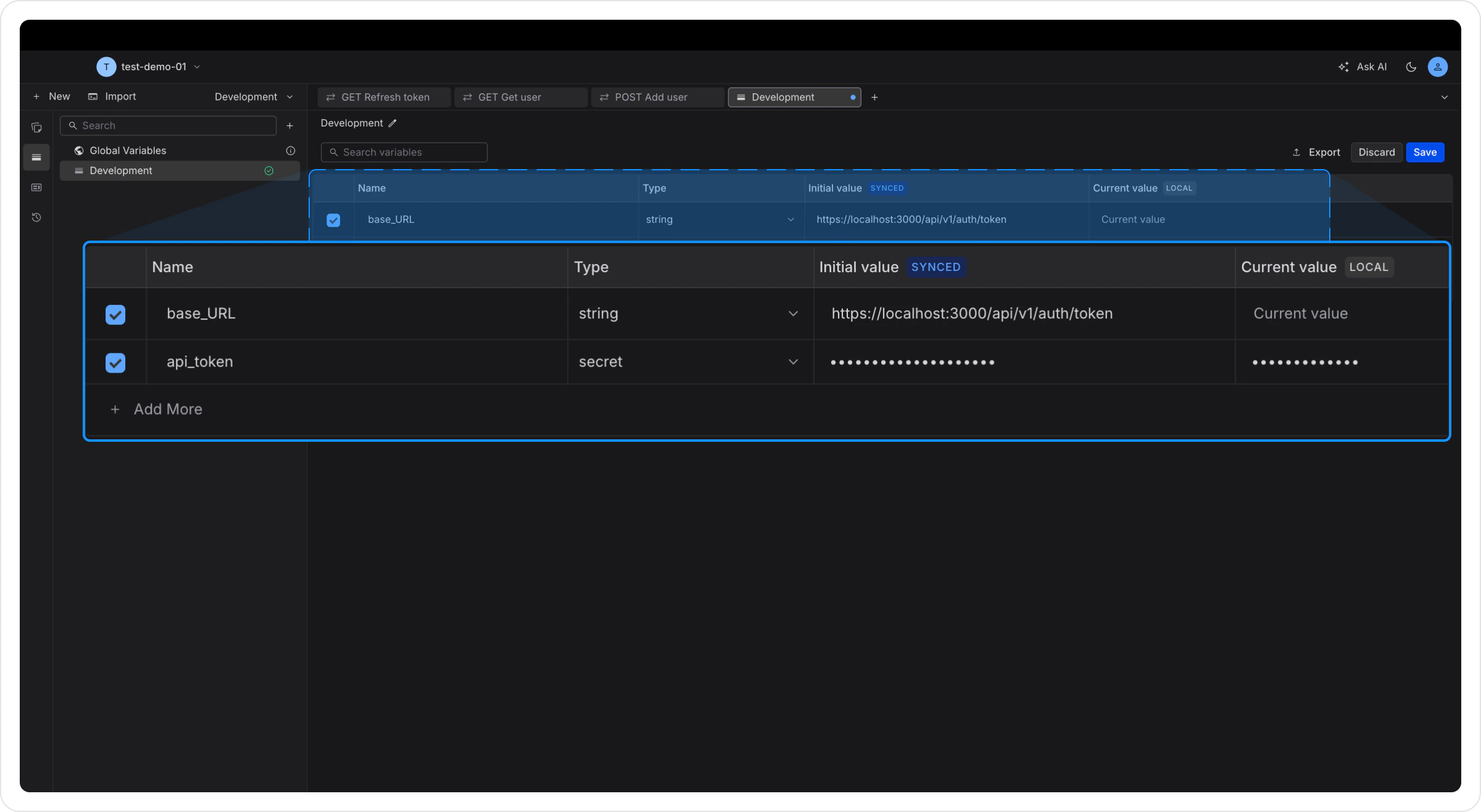
- Key:
base_url - Value:
https://app.requestly.io
3
Use It in a Request
Replace the URL in your request with:Variables use double curly braces: 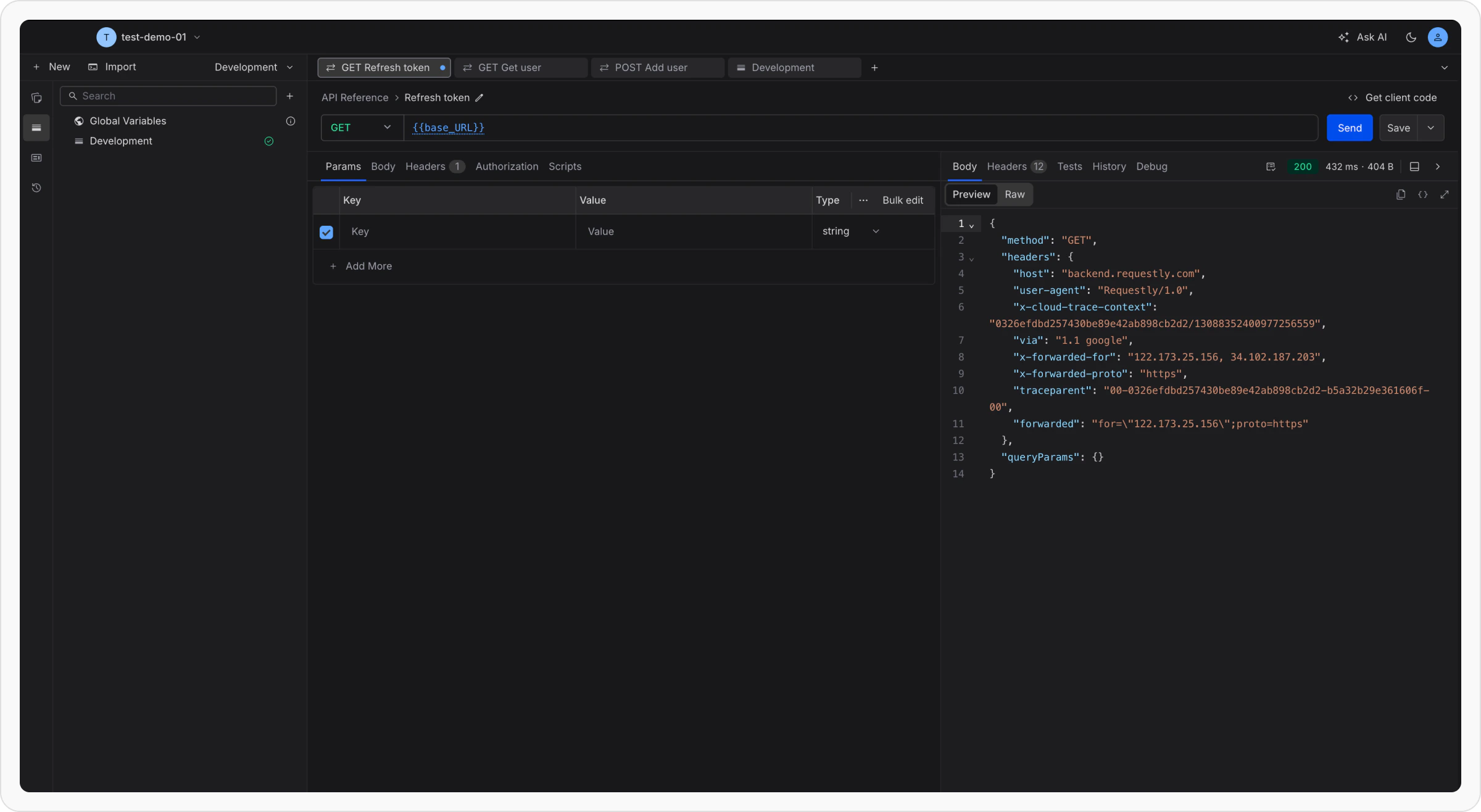
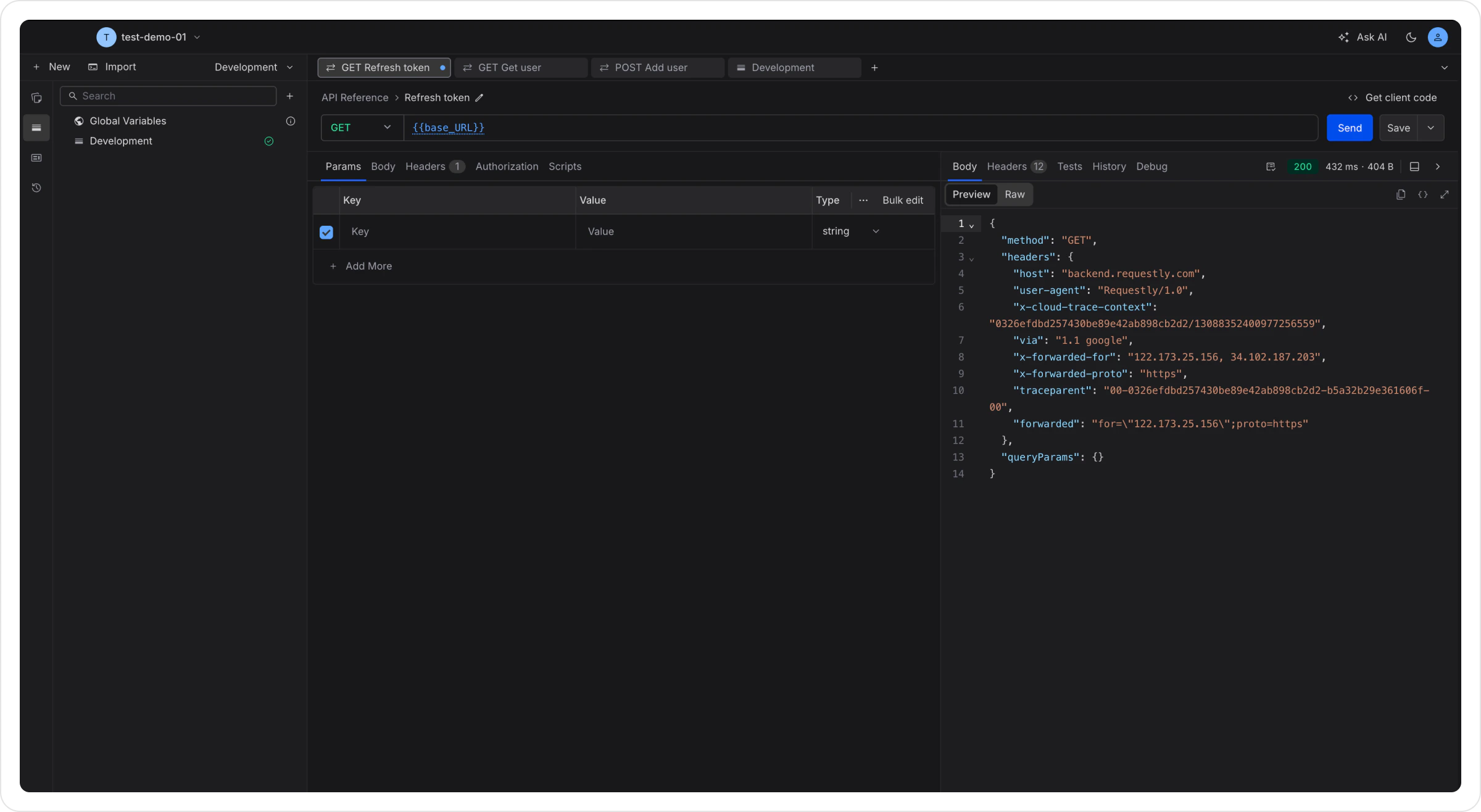
{{variable_name}}Production environment with a different base_url and switch between them using the environment dropdown. Learn more about variables →
What’s Next
Authorization
Add API Key, Bearer Token, Basic Auth, or OAuth to your requests.
Scripts
Run JavaScript before requests or after responses for automation.
Tests
Write assertions to validate API responses automatically.
Collection Runner
Execute an entire collection of requests in sequence.
API Design
Write and edit OpenAPI specifications, with a shared library of reusable components.
Import from Postman
Bring your existing Postman collections into Requestly.
Import from cURL
Paste a cURL command and convert it to a request instantly.