

Documentation Index
Fetch the complete documentation index at: https://docs.requestly.com/llms.txt
Use this file to discover all available pages before exploring further.
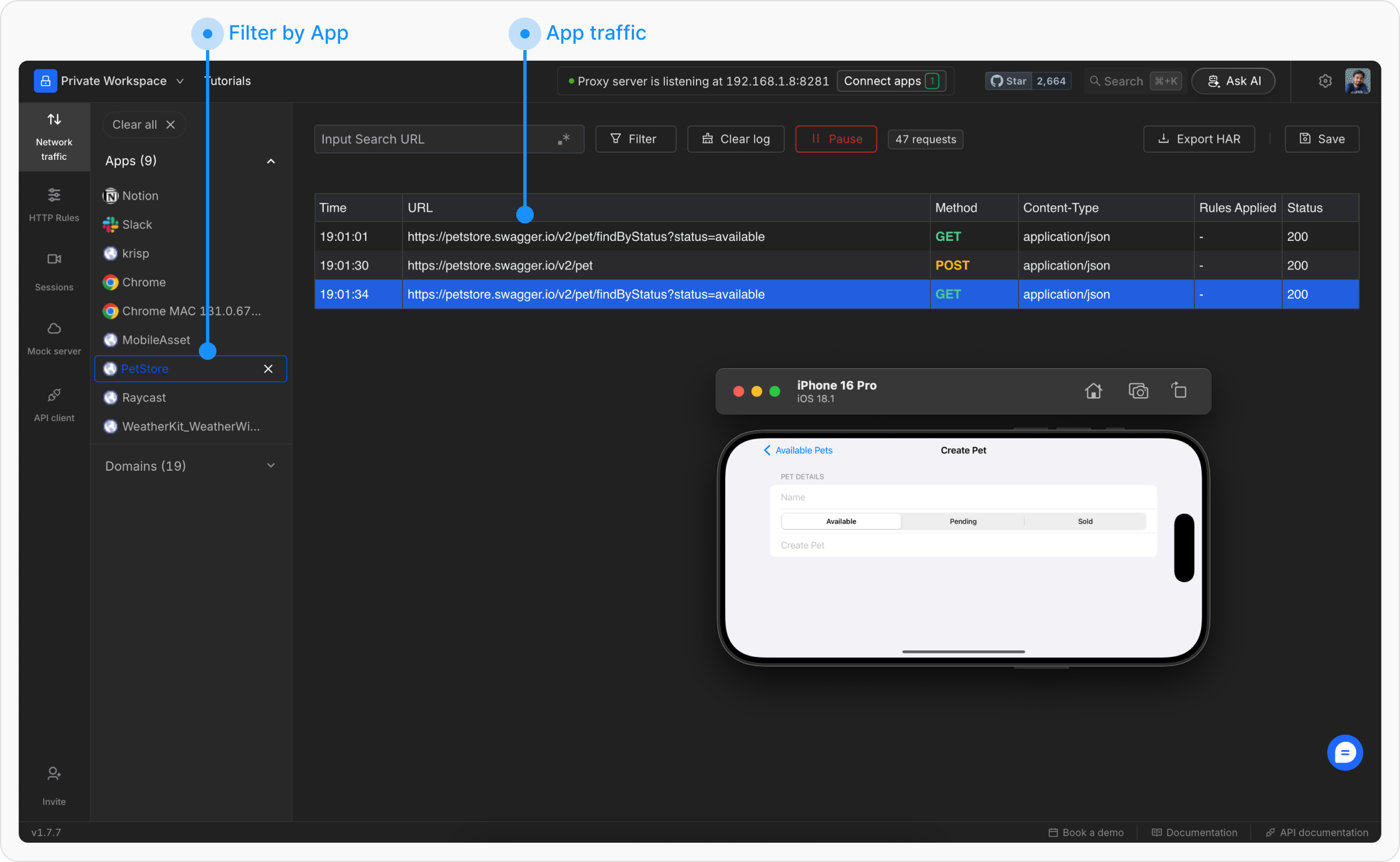
When working with iOS apps, debugging HTTP requests can be challenging. Requestly Interceptor offers an easy-to-use solution for monitoring, modifying, and debugging HTTP requests and responses during development or QA testing. Once you’re familiar with the HTTP Interceptor and network table, you can follow step-by-step instructions to set up Requestly Interceptor for intercepting network traffic on your iOS Simulator, ensuring a fully functional interception setup for your iOS app development needs.
iOS Simulator interception is only supported on the Desktop App.
Setup iOS Simulator for Interception
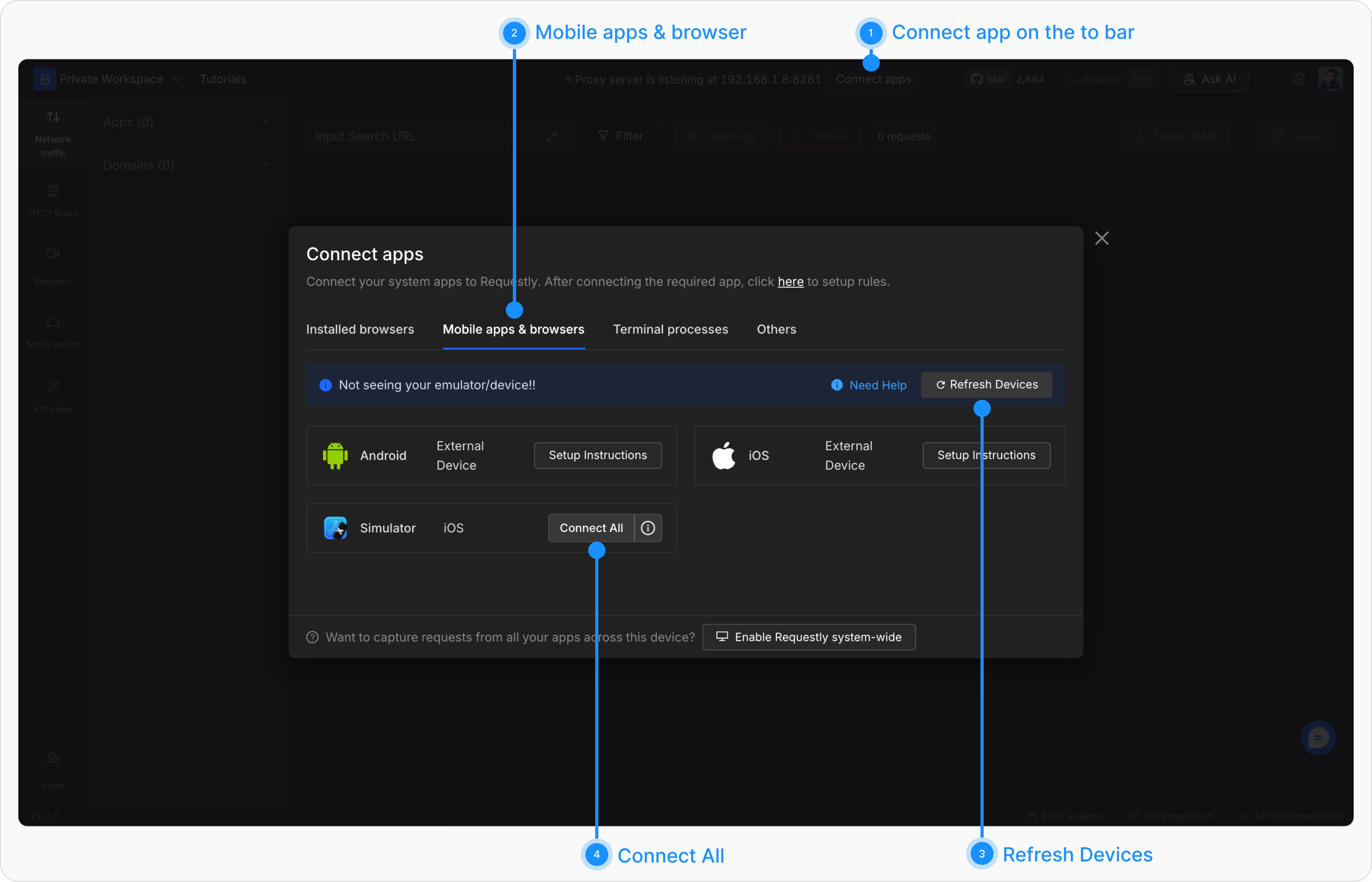
The iOS Simulator is a virtual device that runs on a Mac desktop or laptop, and its proxy setup for HTTP interception is similar to that of a physical device. Since the simulator runs locally on your Mac, Requestly Interceptor offers an added advantage by enabling a seamless, one-click setup for interception.One-click Simulator Setup for Interception
Step 1: Launch the iOS Simulator for your app.Make sure the simulator is running before proceeding.
Troubleshooting
Simulator Not Listed in Requestly Interceptor?
If you do not see your simulator listed after refreshing, follow these steps:Open a terminal and run: