

Documentation Index
Fetch the complete documentation index at: https://docs.requestly.com/llms.txt
Use this file to discover all available pages before exploring further.
Requestly Interceptor provides an easy way to intercept and modify web requests, but there are instances when you might want to pause its functionality temporarily. This document outlines how to pause and resume Requestly Interceptor to test your website’s original behavior without interference from active Requestly Interceptor rules.
Pausing Requestly Interceptor
To temporarily stop Requestly Interceptor from intercepting and modifying web requests, follow these steps:Open Requestly Interceptor Popup
Locate and click the Requestly Interceptor icon in your browser’s toolbar to open the menu.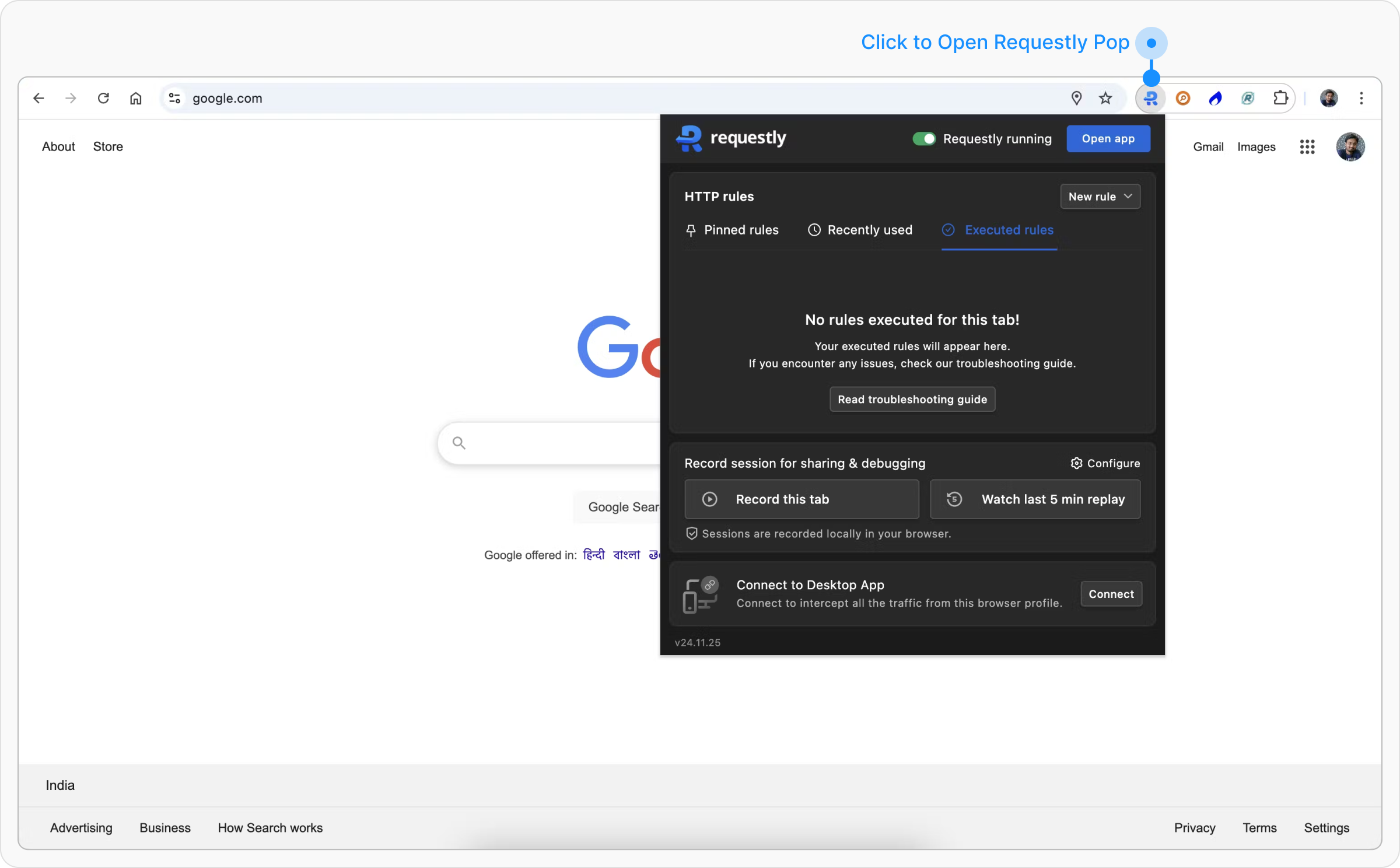
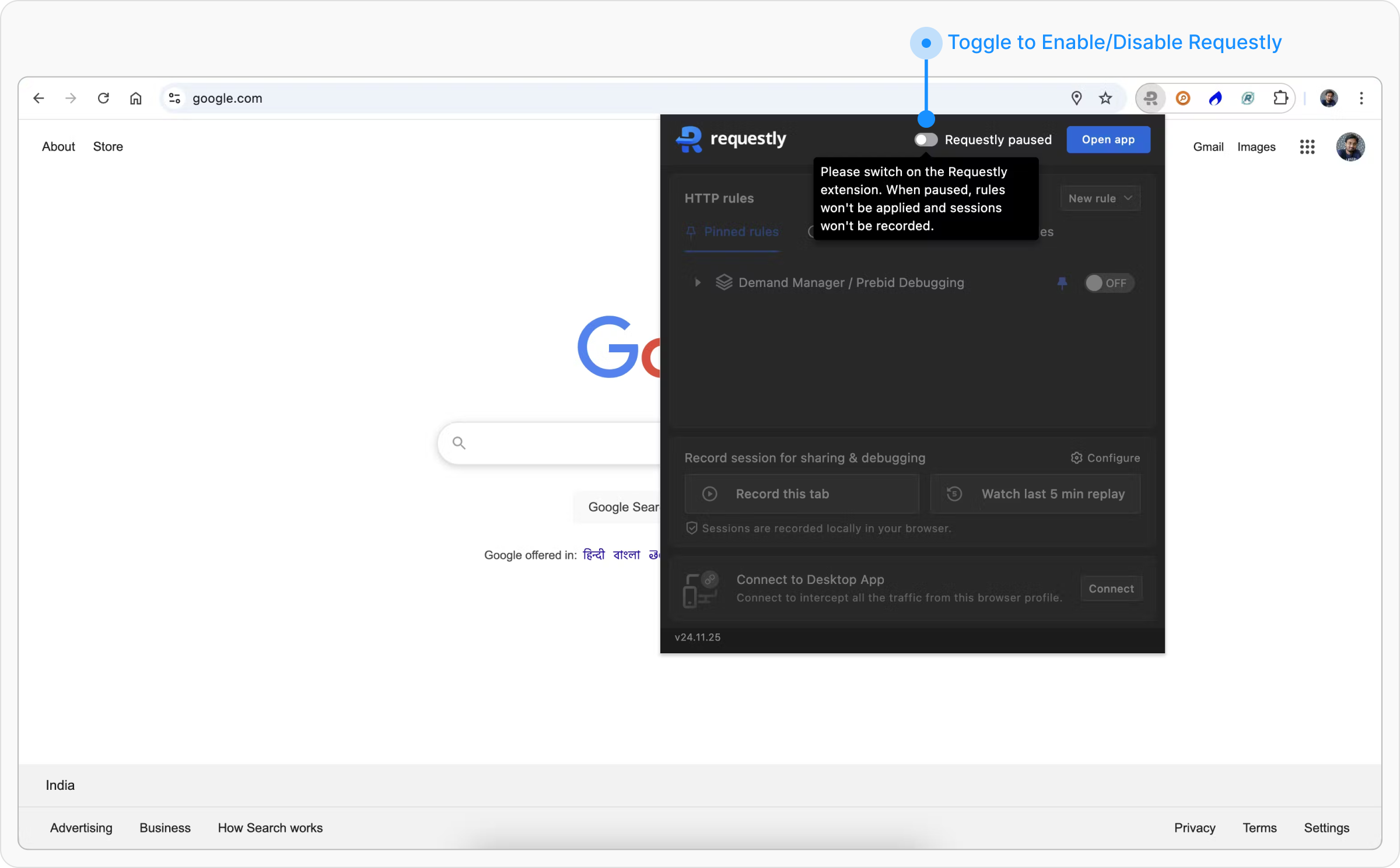
Resuming Requestly Interceptor
To re-enable Requestly Interceptor and allow its rules to intercept and modify requests again, follow these steps:Open Requestly Interceptor Popup
Locate and click the Requestly Interceptor icon in your browser’s toolbar to open the menu.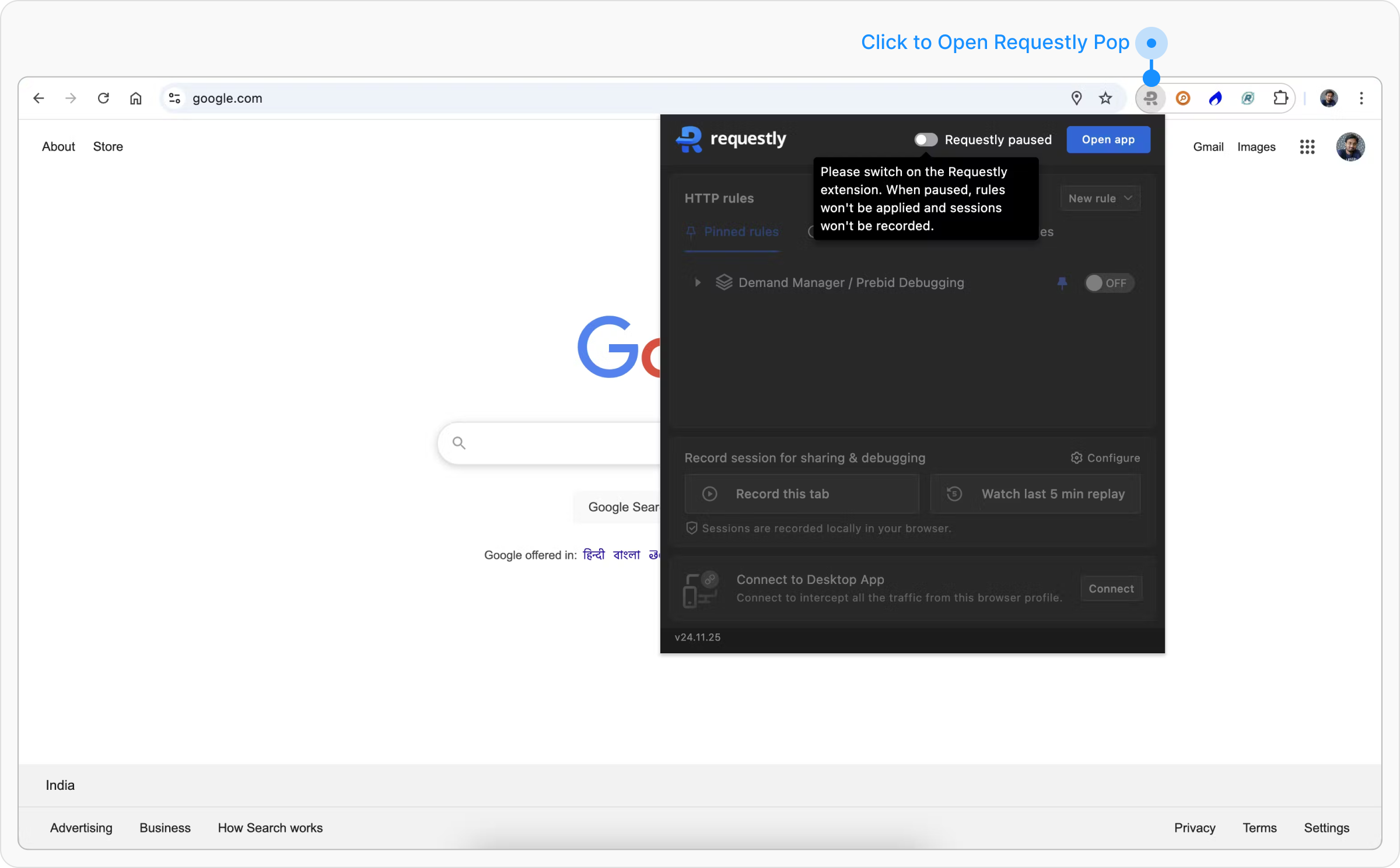
Enable Requestly Interceptor
Click the Requestly Interceptor icon in your browser’s toolbar and find the toggle labeled “Requestly Interceptor paused.” Click the toggle to activate Requestly Interceptor. The label will change to “Requestly Interceptor running,” confirming activation.