
Documentation Index
Fetch the complete documentation index at: https://docs.requestly.com/llms.txt
Use this file to discover all available pages before exploring further.
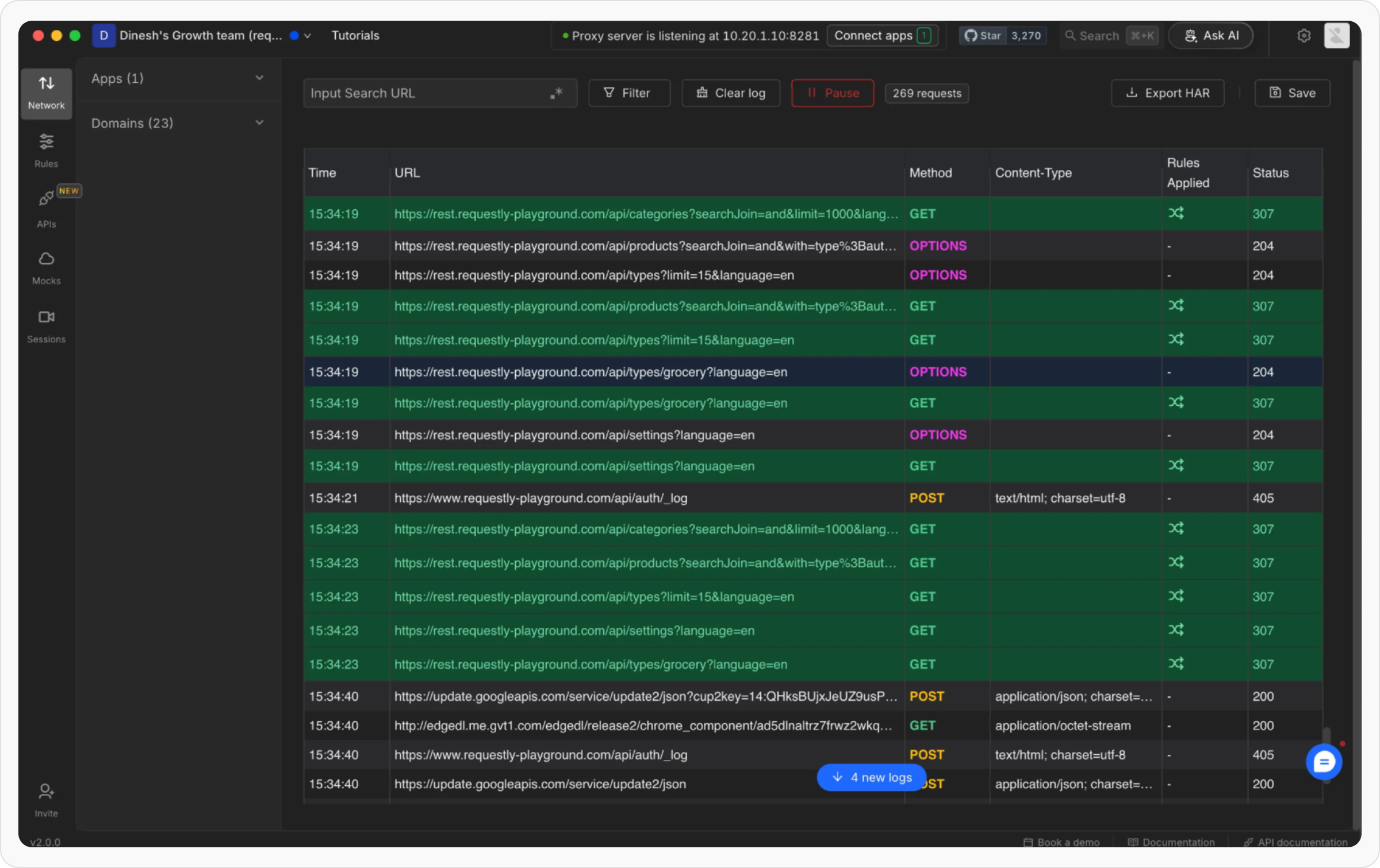
The way Requestly Interceptor shows rule executions varies between the browser extension and desktop app, tailored to their respective environments:
- Browser Extension
- Desktop App
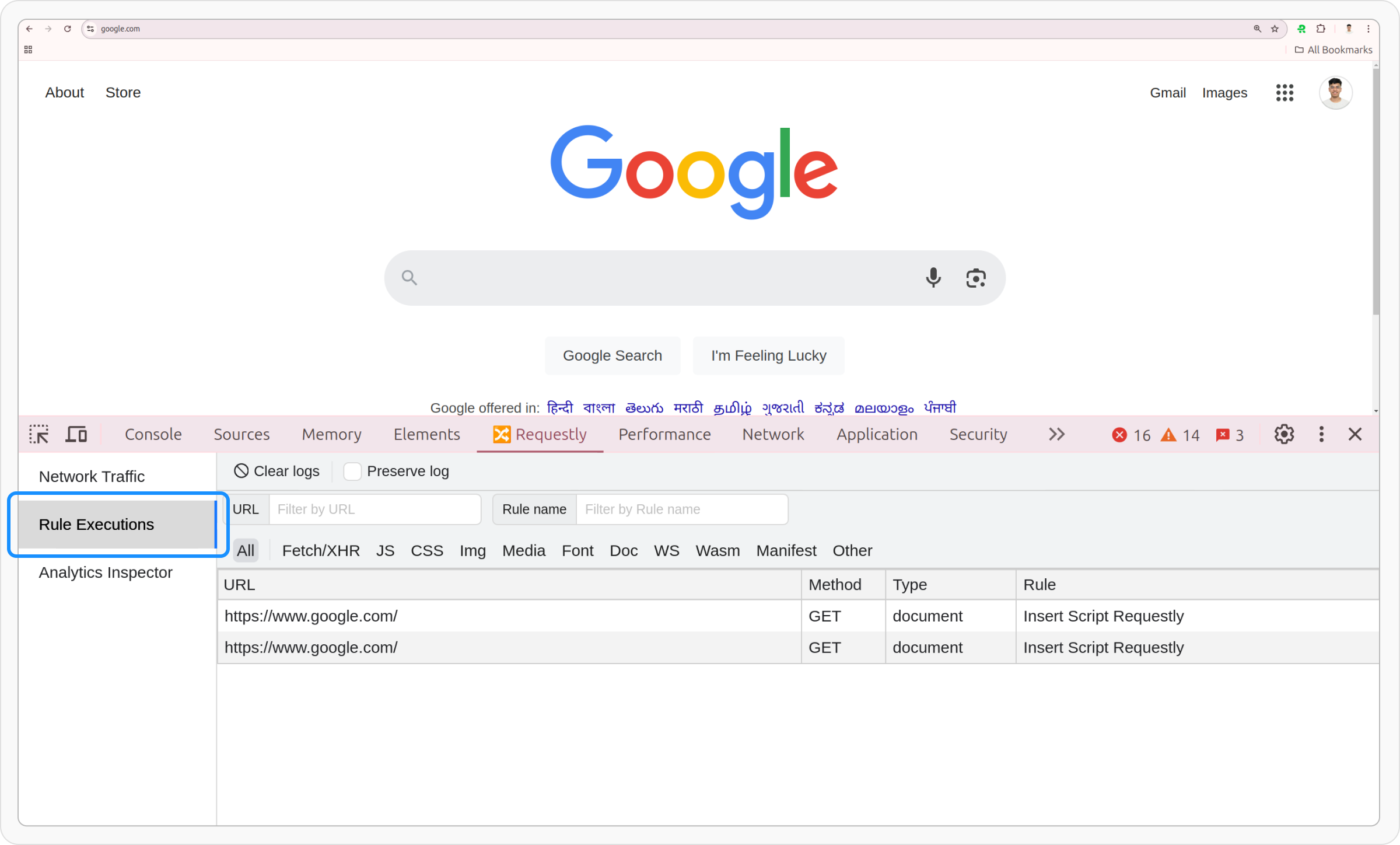
Once you have enabled a Requestly Interceptor rule to modify some part of a network request or the page, the next thing you would like to do is confirm if the rule executed successfully.Here are 4 ways to know if a rule is executed on a page.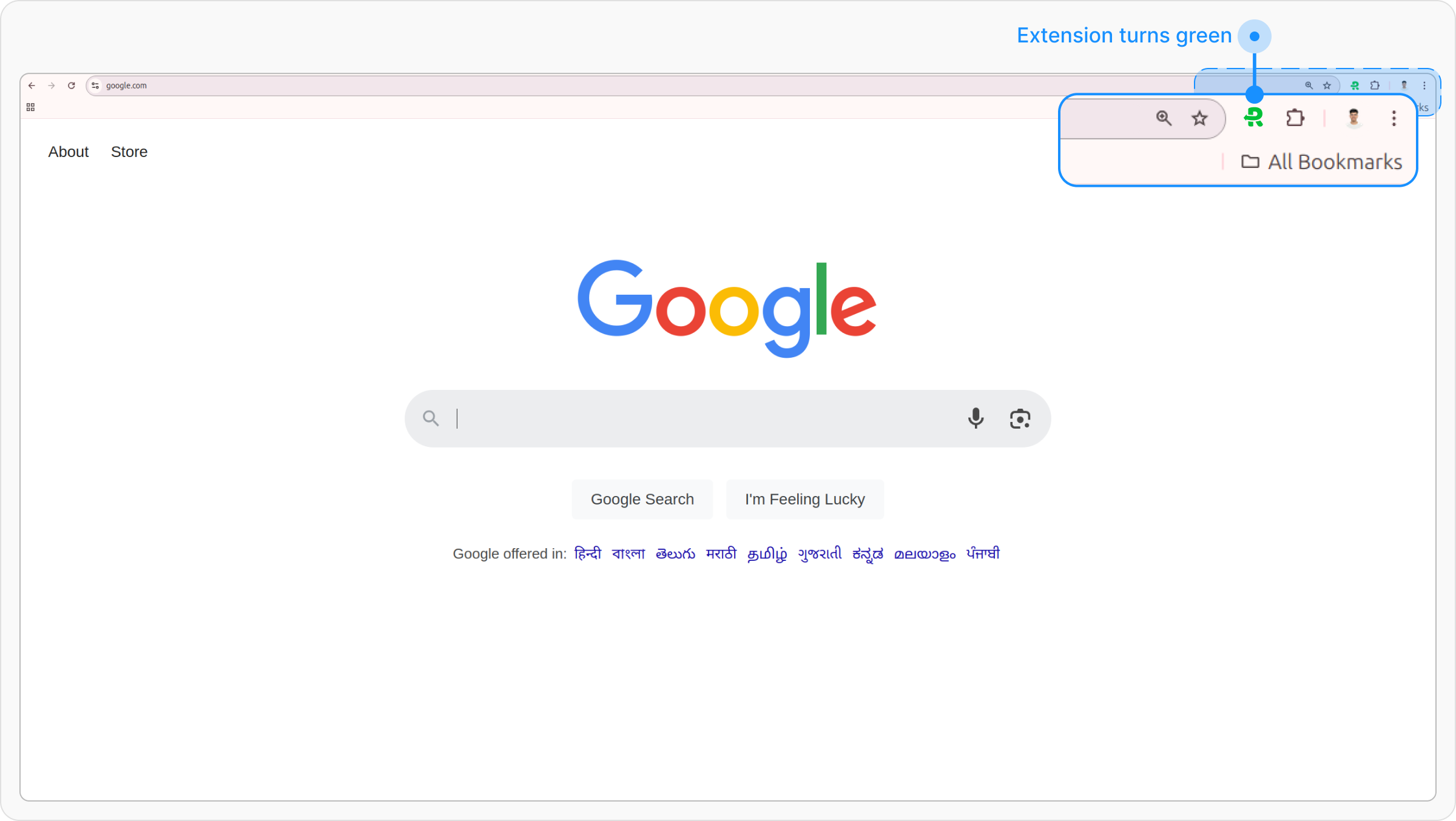
1. Extension icon turns green
If any of the rules executes on the current page, the Requestly Interceptor icon in the extension toolbar (next to the address bar) will turn from a normal icon to a green icon.2. Status Notification Widget
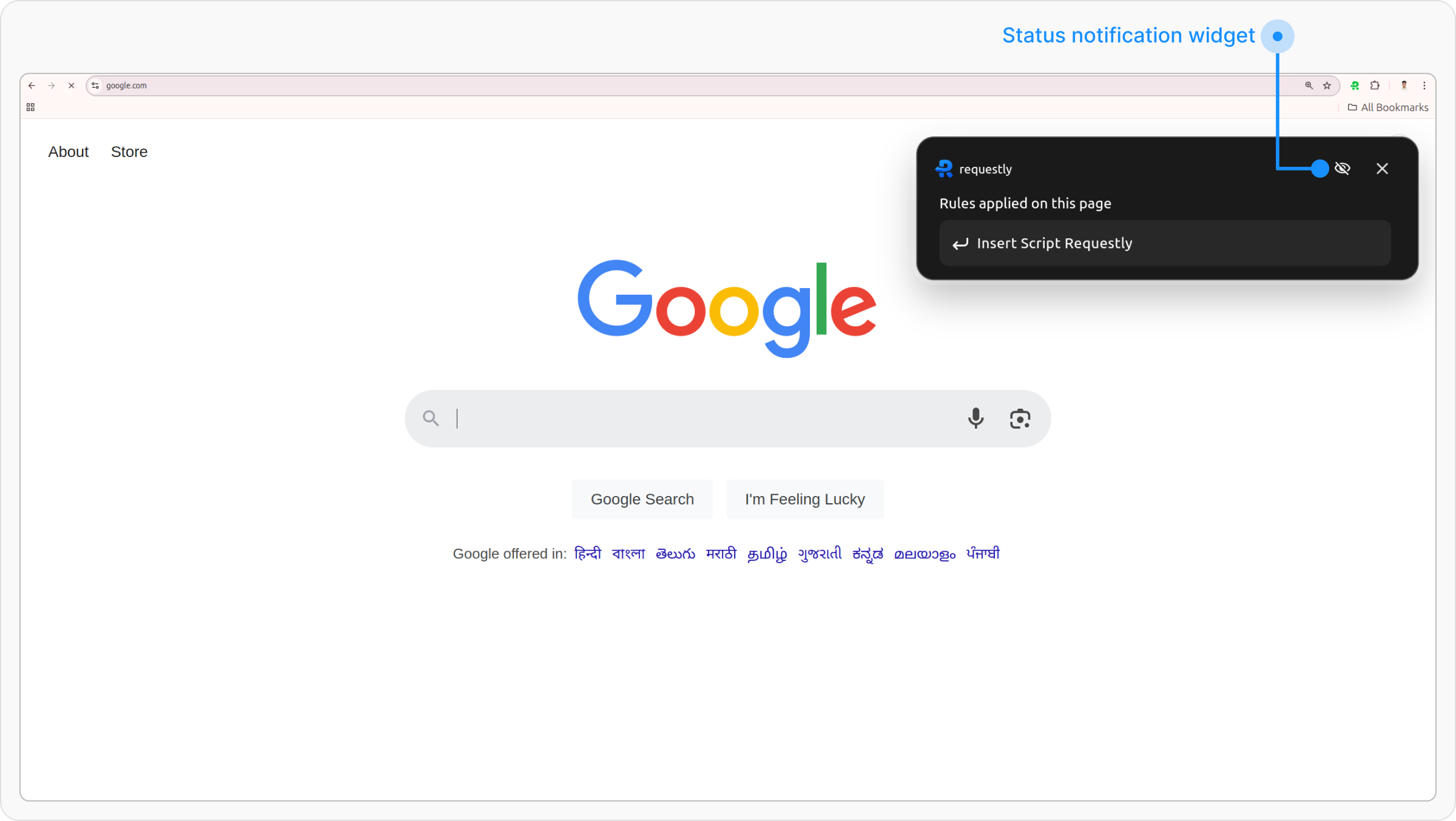
A small widget appears in the Top-right corner of the page for 5 seconds after the page loads or a rule is triggered.Disable the Widget
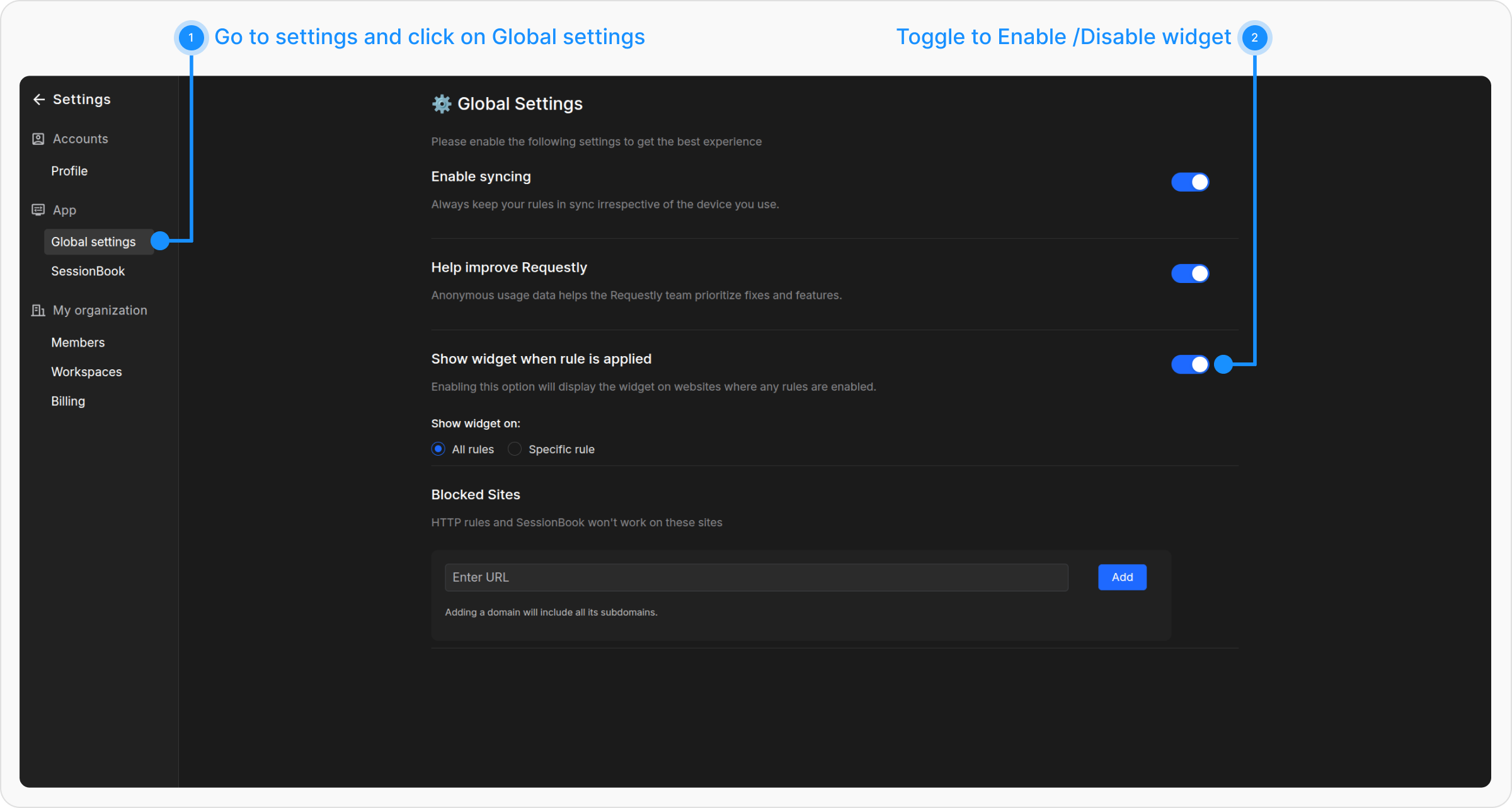
Click the Eye Icon
Click the eye icon on the widget when it appears. This will take you directly to Global Settings.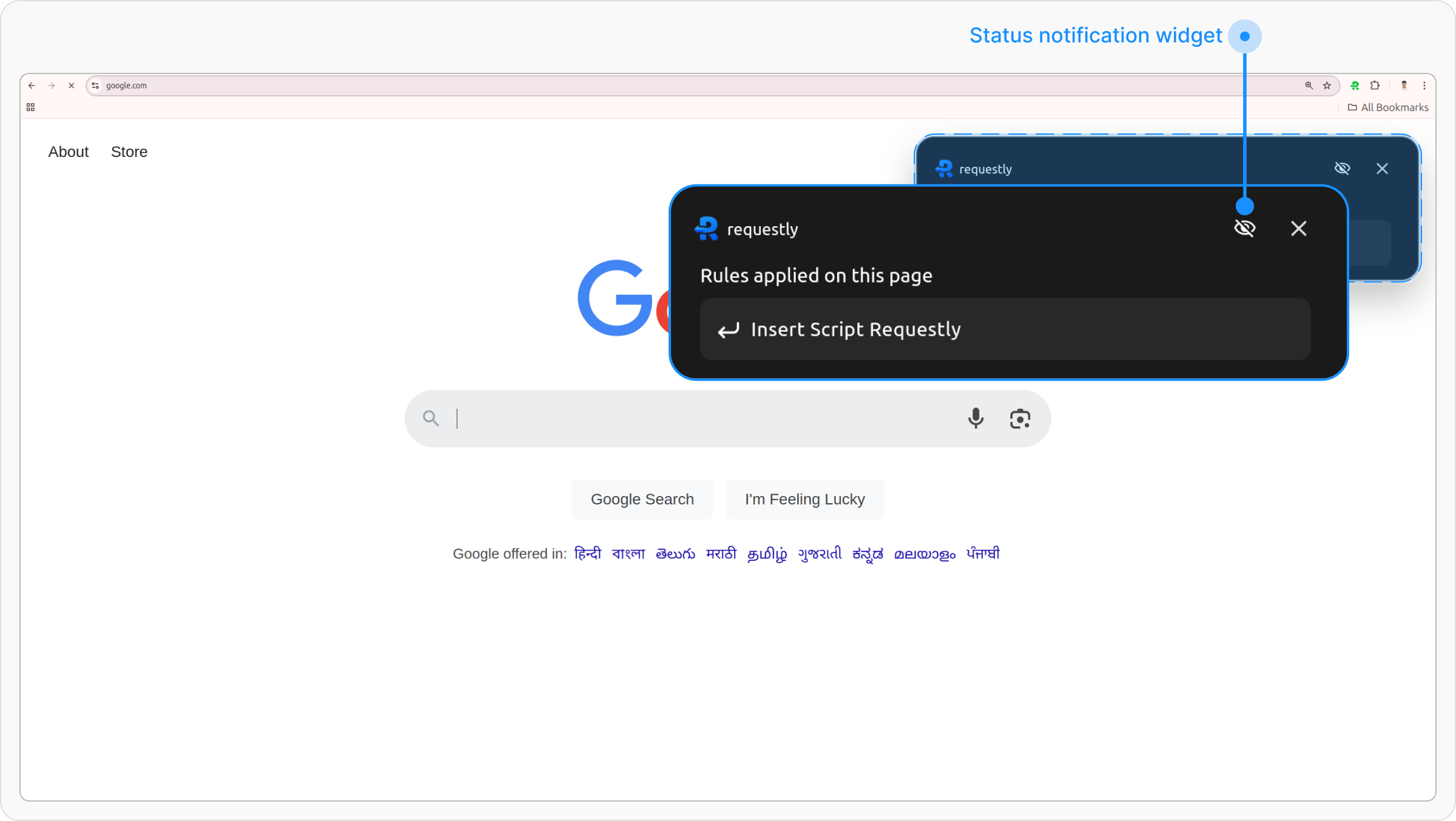
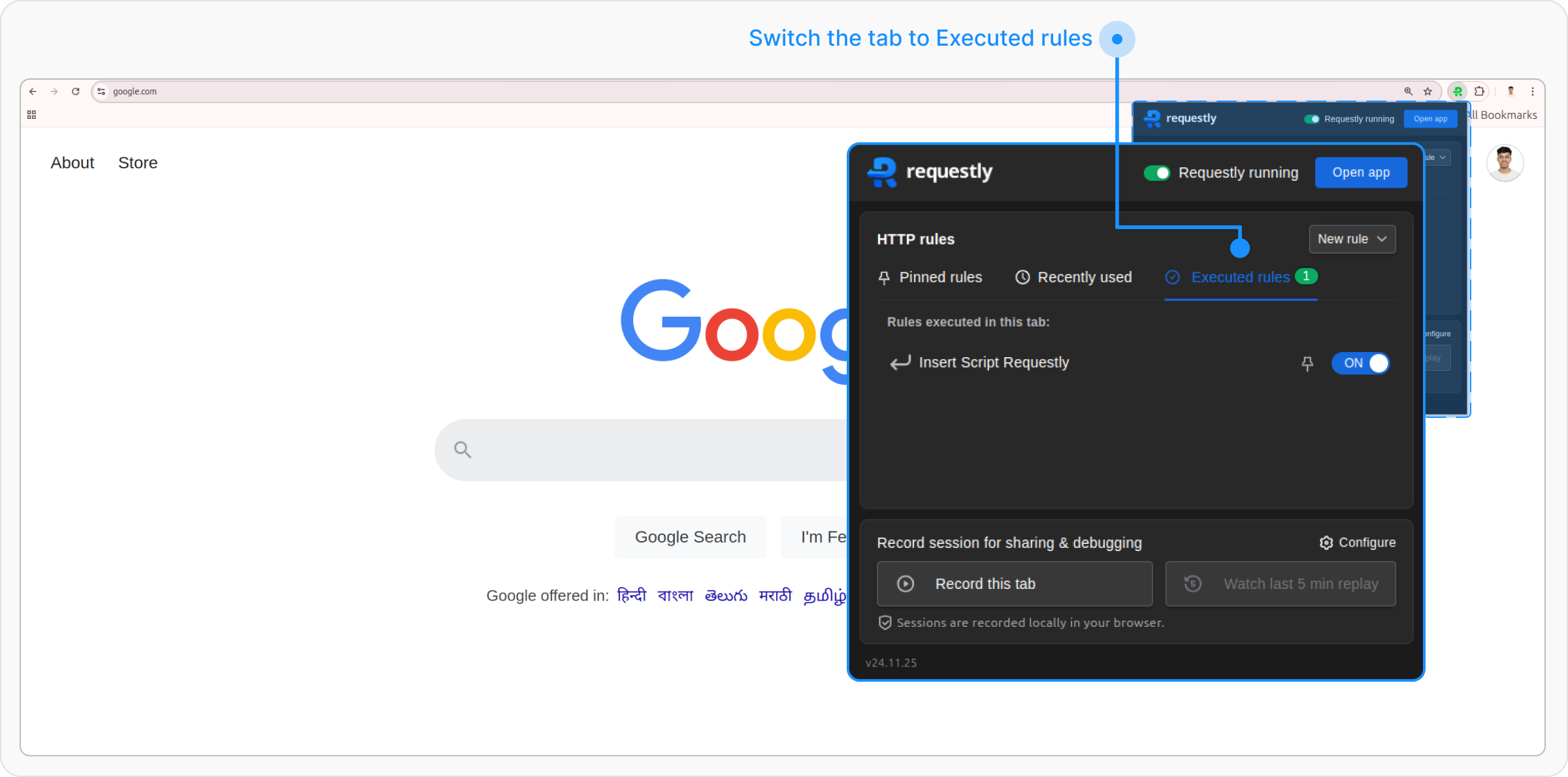
3. Executed Rules Tab in Popup
Open Requestly Interceptor Popup
Click on the Requestly Interceptor Icon in the browser toolbar to open the extension.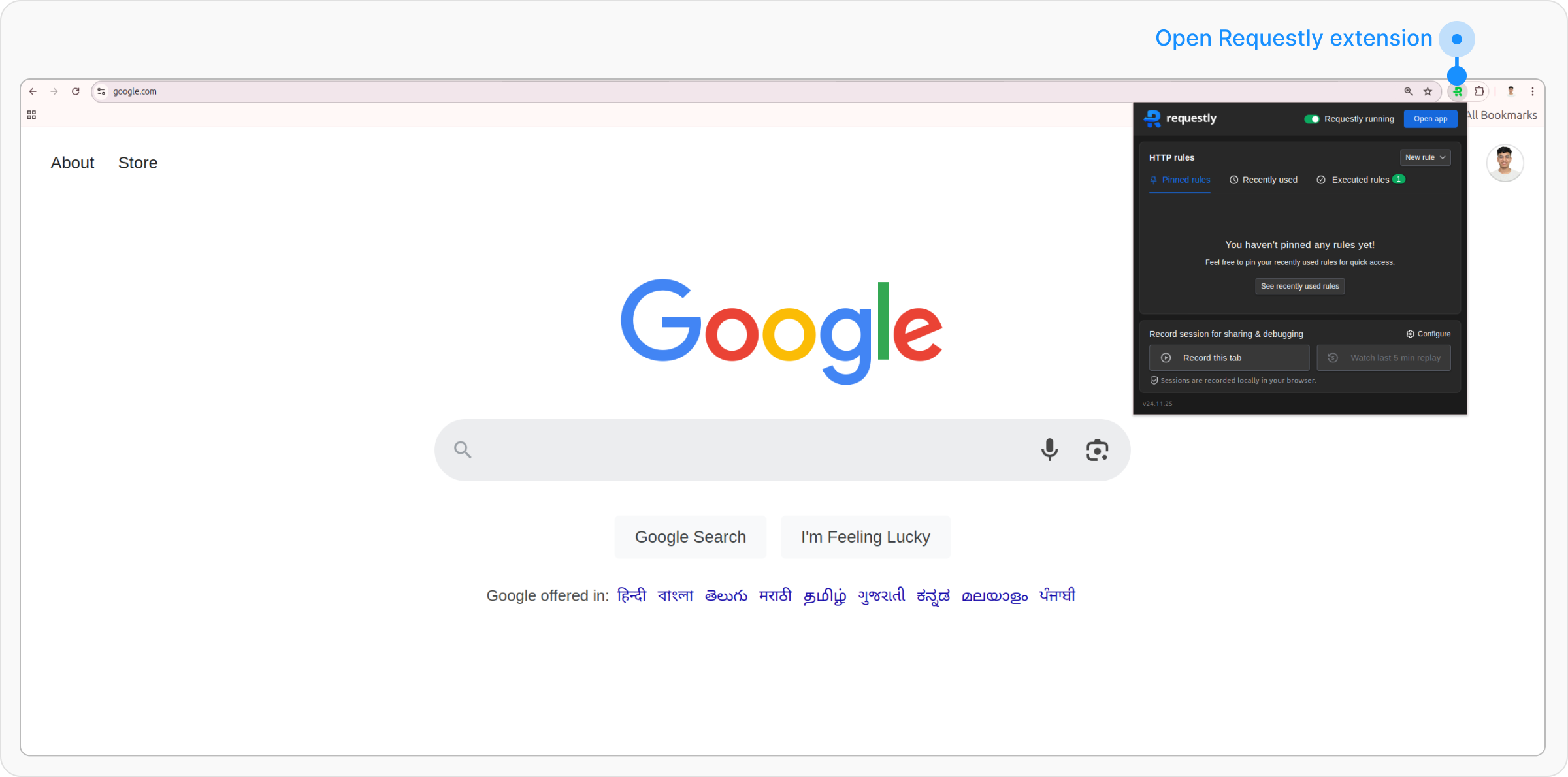
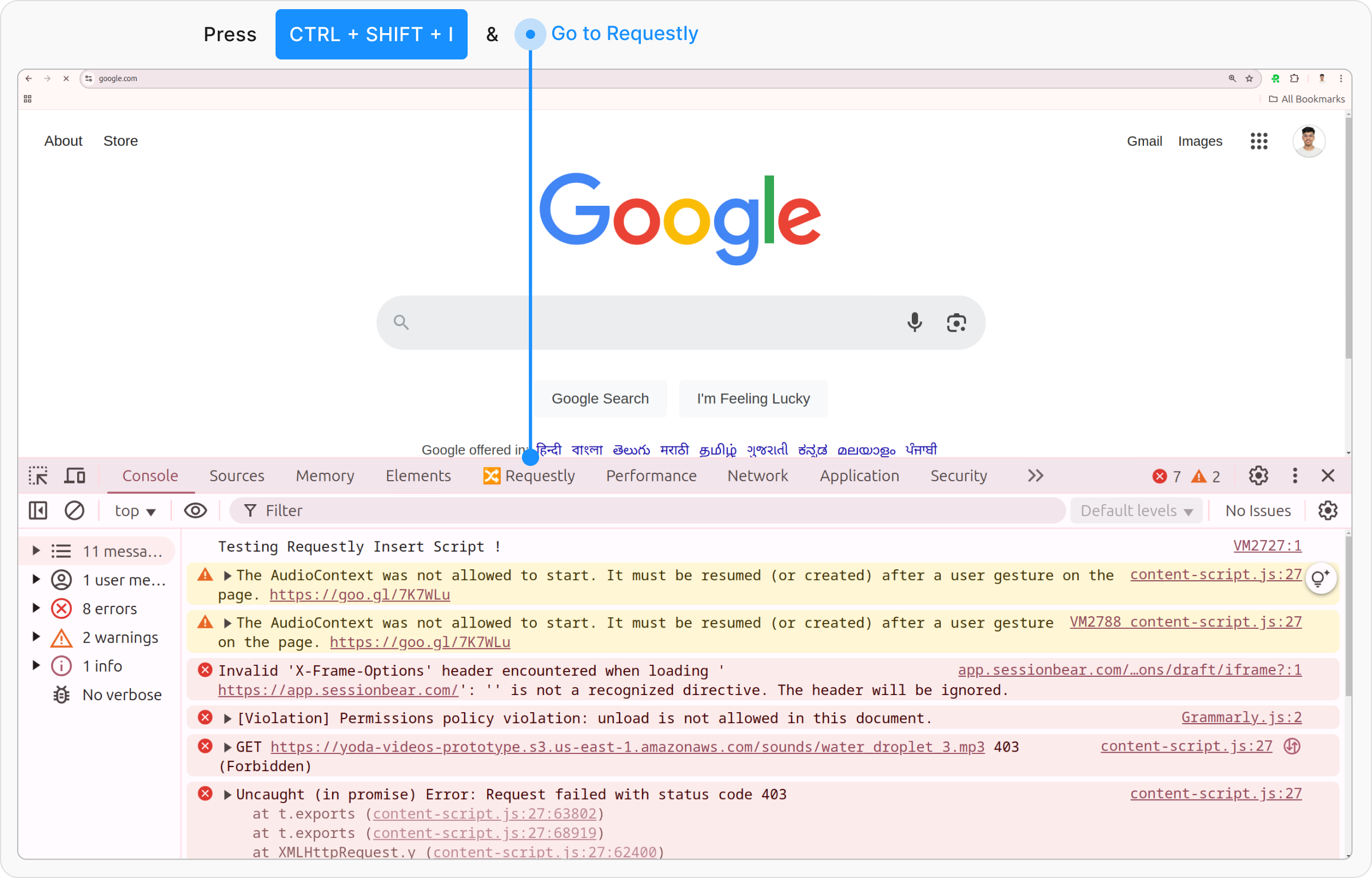
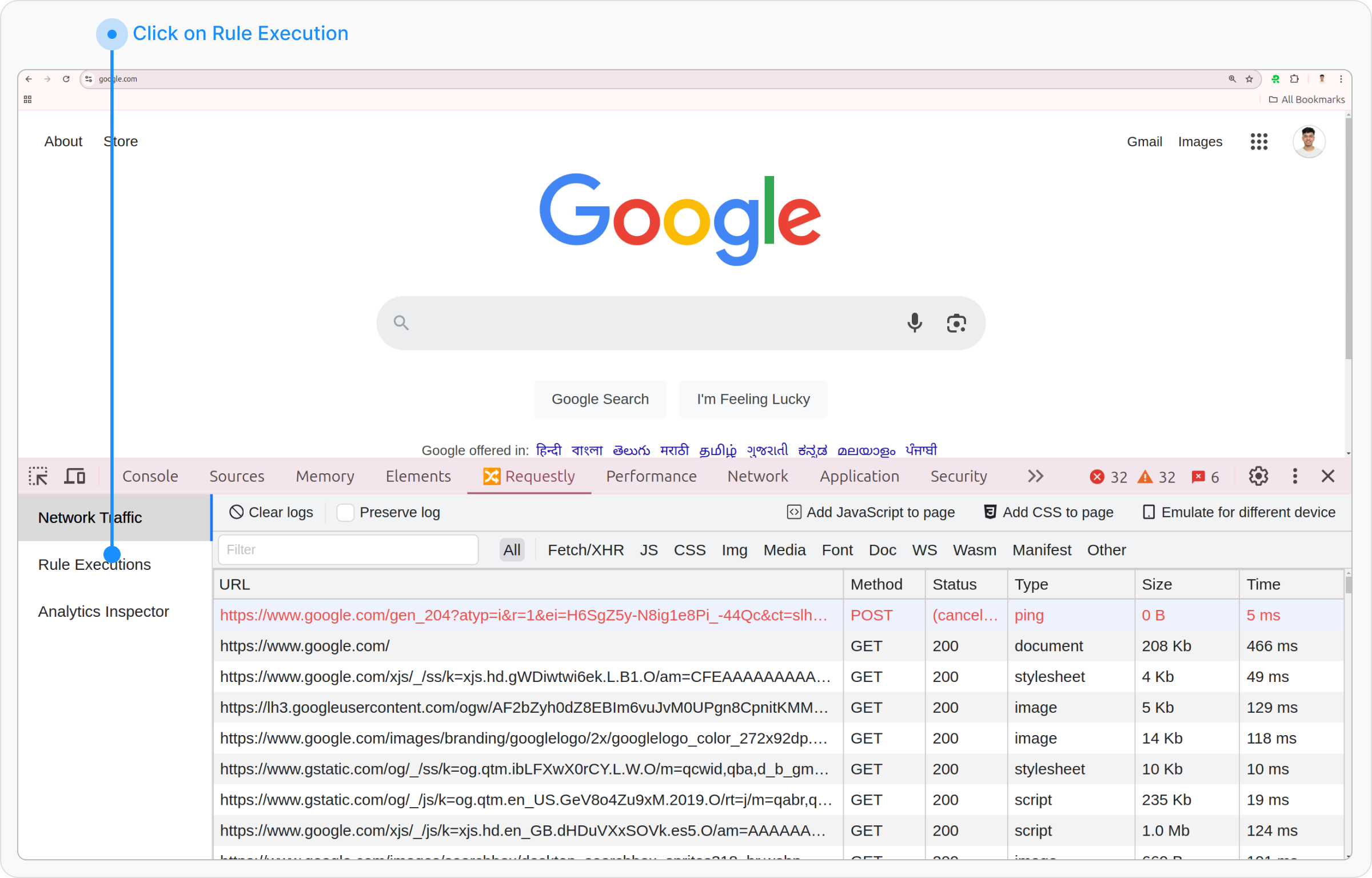
4. Requestly Interceptor DevTools Tab
Open DevTools
Right-click on the page and select Inspect or press Ctrl+Shift+i to open the DevTools.