

On macOS, any requests to localhost do not go through the configured proxy. To get around this we need to rename localhost to something else for it to be captured by Requestly Interceptor. There are two ways you can do thisDocumentation Index
Fetch the complete documentation index at: https://docs.requestly.com/llms.txt
Use this file to discover all available pages before exploring further.
Solution 1: configure rq.proxy to point to localhost in /etc/hosts
-
Open
/etc/hostsas asudouser . For eg. usingsudo nano /etc/hosts. You will be prompted to enter your password -
Add the following entries to this file:
- Save the changes into this file.
-
Replace all your calls to localhost with
rq.proxy. For eg. http://localhost:3000 → http://rq.proxy:3000 -
If you are using Chrome you might need to also stop automatic redirects from http → https for this domain:
-
Go to
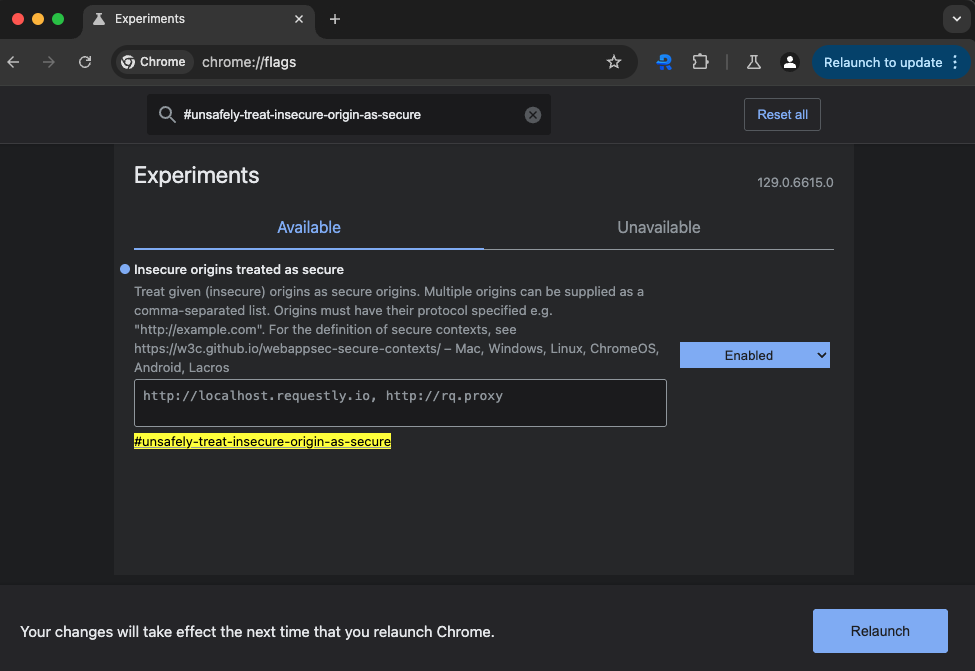
chrome://flags -
search for the
#unsafely-treat-insecure-origin-as-secureflag -
set the value as
http://rq.proxy,http://localhost.requestly.io(the second domain is used in the next solution, incase this one doesn’t work)
-
Go to
Solution 2: Use localhost.requestly.io instead
We have setup this domain to point to 127.0.0.1 (i.e. your localhost). But for this to work you will have to follow the steps to stop automatic redirects from http → https. As mentioned earlier, to do this in chrome:-
Go to
chrome://flags -
search for the
#unsafely-treat-insecure-origin-as-secureflag -
set the value as
http://localhost.requestly.io
localhost.requestly.io . For eg. http://localhost:3000 → http://localhost.requestly.io:3000