Documentation Index
Fetch the complete documentation index at: https://docs.requestly.com/llms.txt
Use this file to discover all available pages before exploring further.
To intercept HTTPS network traffic, you need to install the Requestly Interceptor CA (Certificate Authority) certificate to your Windows certificate manager. There are two methods: automatic and manual.
Automatic (Recommended)
Manual
Open Requestly Interceptor Desktop App
Launch the Requestly Interceptor Desktop App on your Windows system
Enable System-wide Proxy
Click on “Enable Requestly Interceptor System-wide”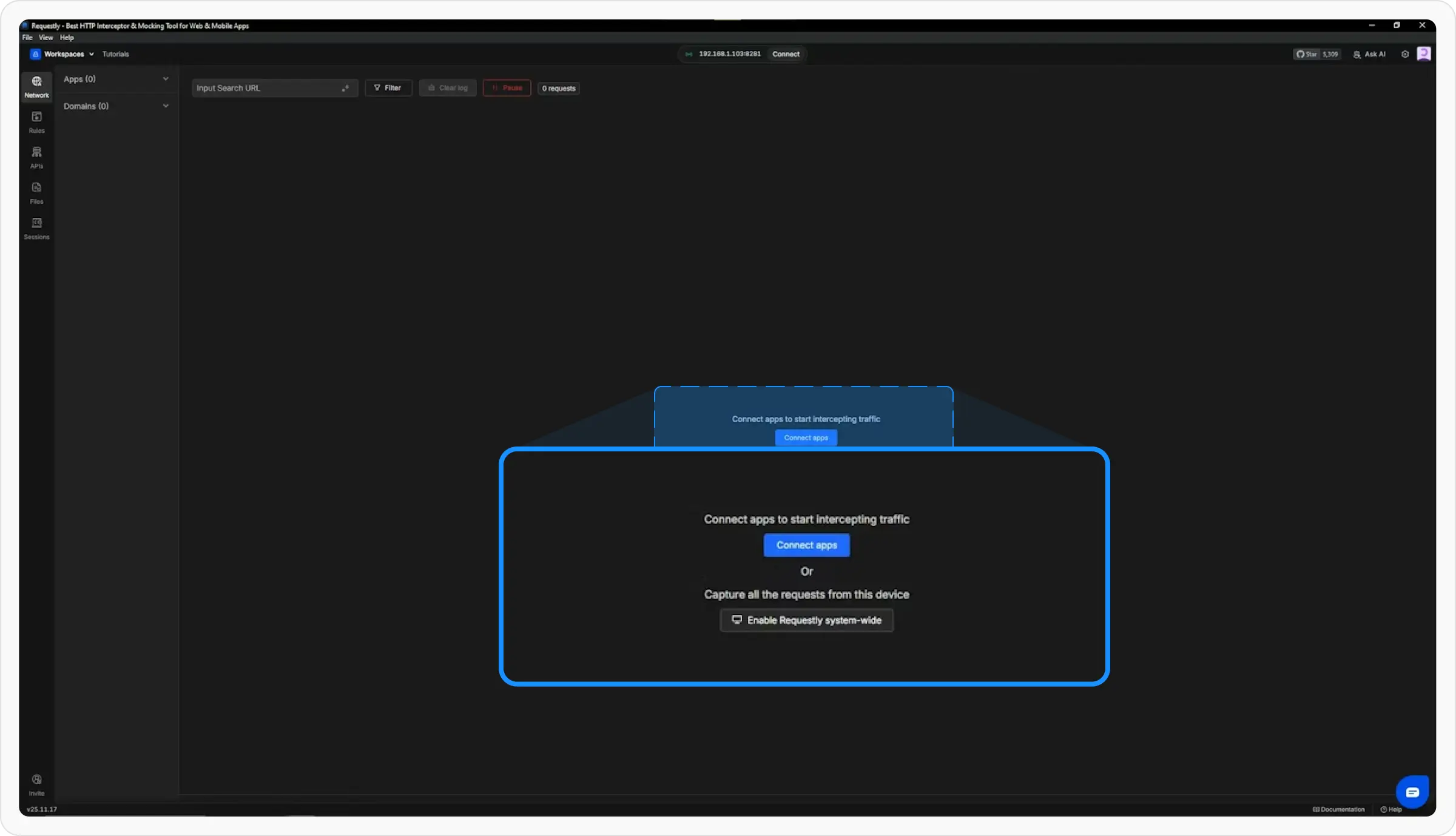
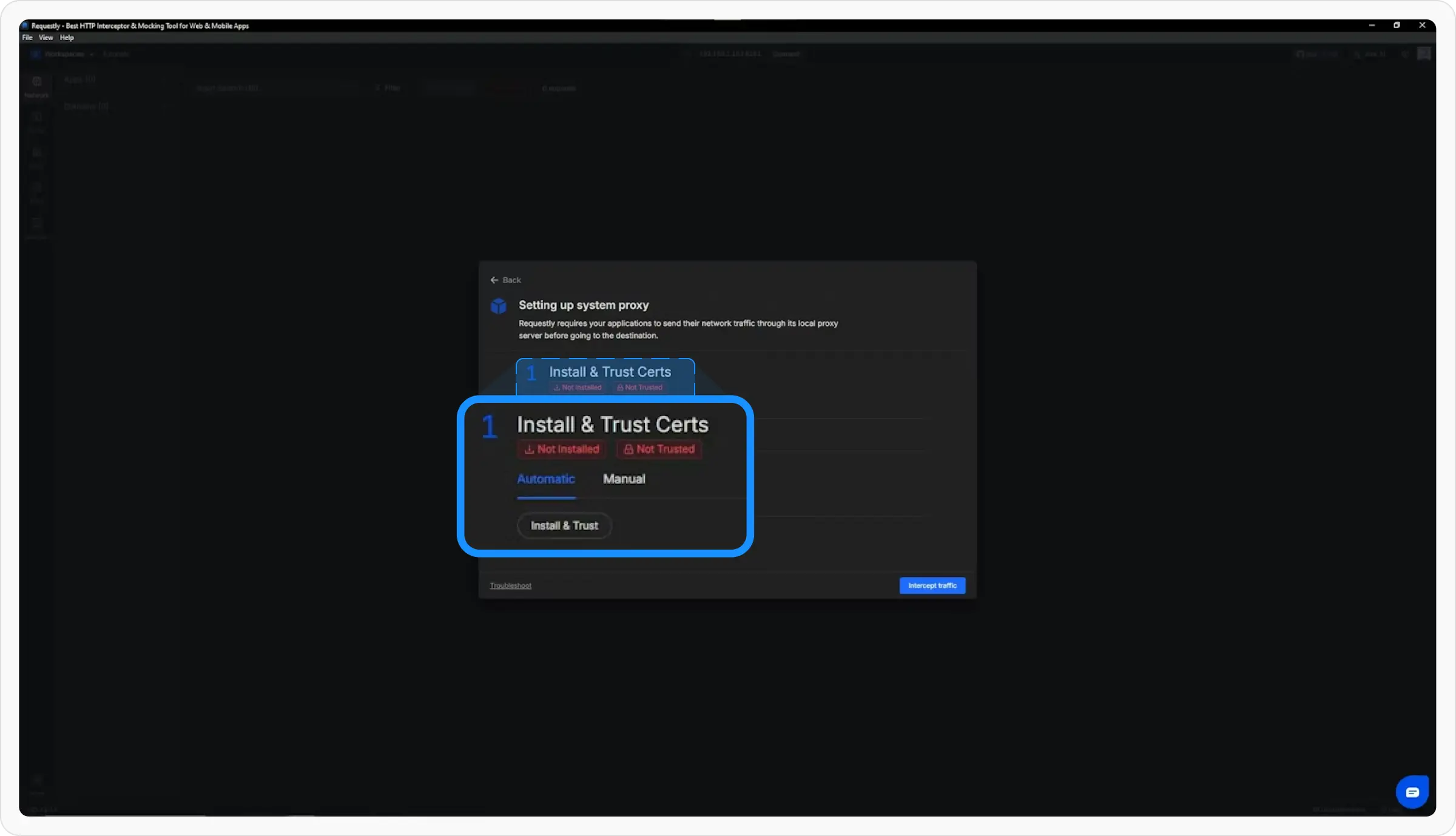
Install & Trust Certificate
- Click on “Install & Trust” button
- A popup will automatically appear to install the certificate
- Follow the prompts to complete the installation
If the automatic method doesn’t work, follow these manual steps:Download the CA certificate
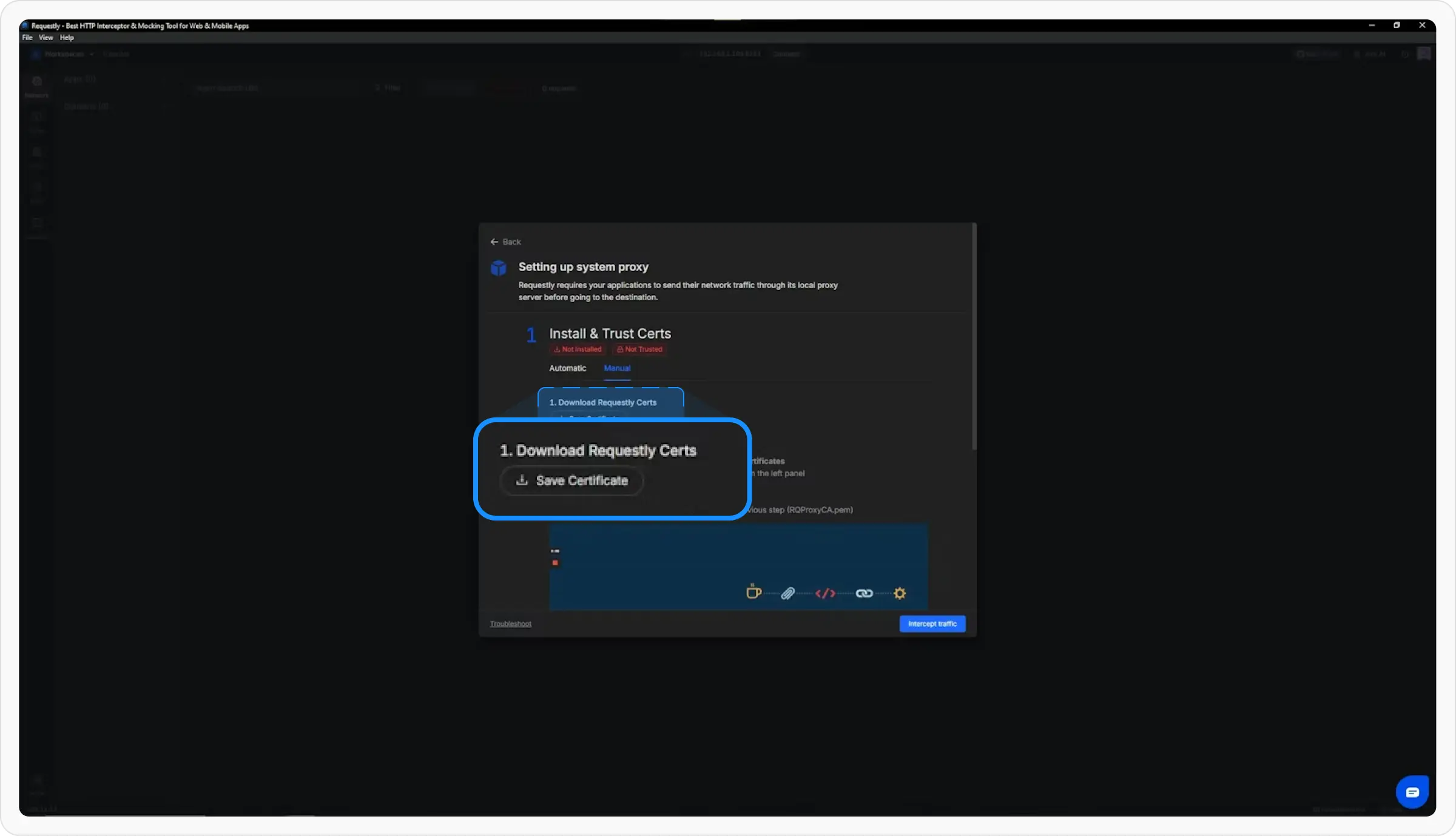
- In Requestly Interceptor Desktop App, go to the System Proxy popup
- Click on Manual tab
- Click on Save Certificate button
- Save the CA certificate to any location on your system (e.g., Desktop or Downloads folder)
Import the CA certificate in Certificate Manager
- Press
WIN + R, type certmgr.msc and press Enter
- Navigate to: Trusted Root Certification Authorities → Certificates
- Right-click on Certificates → All Tasks → Import
- Browse and select the CA certificate file you downloaded in step 1
- Click Finish

Verify the installation
- To verify if HTTPS traffic is being intercepted, connect to the proxy
- Check that secure (HTTPS) traffic is now being logged in Requestly Interceptor

Troubleshooting
If you’re still unable to intercept HTTPS traffic after following these steps, please ensure:
- The CA certificate was imported to the correct location (Trusted Root Certification Authorities)
- The proxy is properly configured and running
- Try restarting your browser/ application after CA certificate installation