
How to use multiple projects
Follow these steps to open multiple local projects in one view:1
Open the API tab
Open Requestly and navigate to the API tab from the sidebar.
2
Open the project selector
In the top-left corner, click on your current project name to open the project selector dropdown.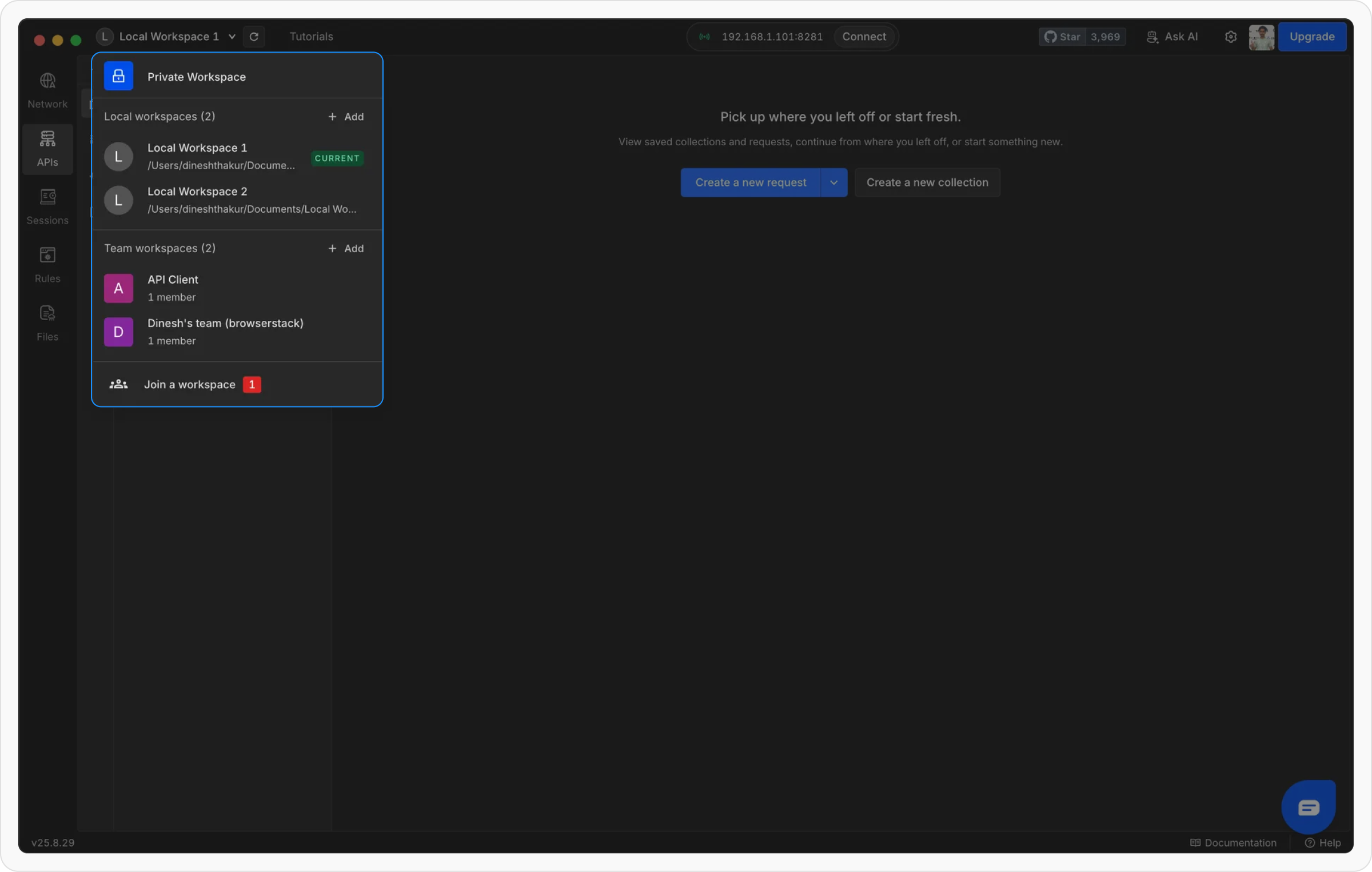
3
Select multiple projects
Check the boxes next to the local projects you want to load together.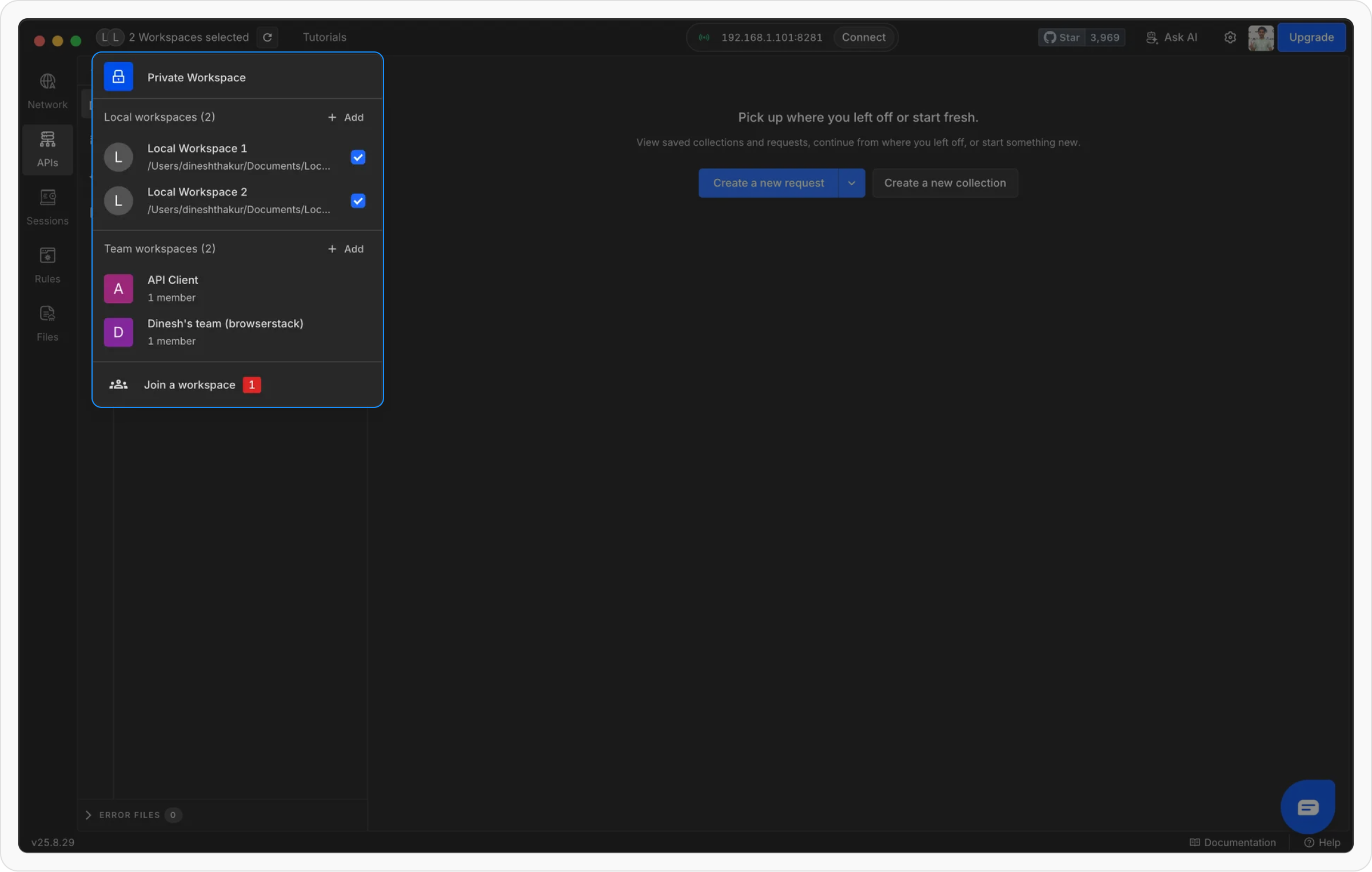
4
View projects in the selector
Your chosen projects will appear grouped in the selector.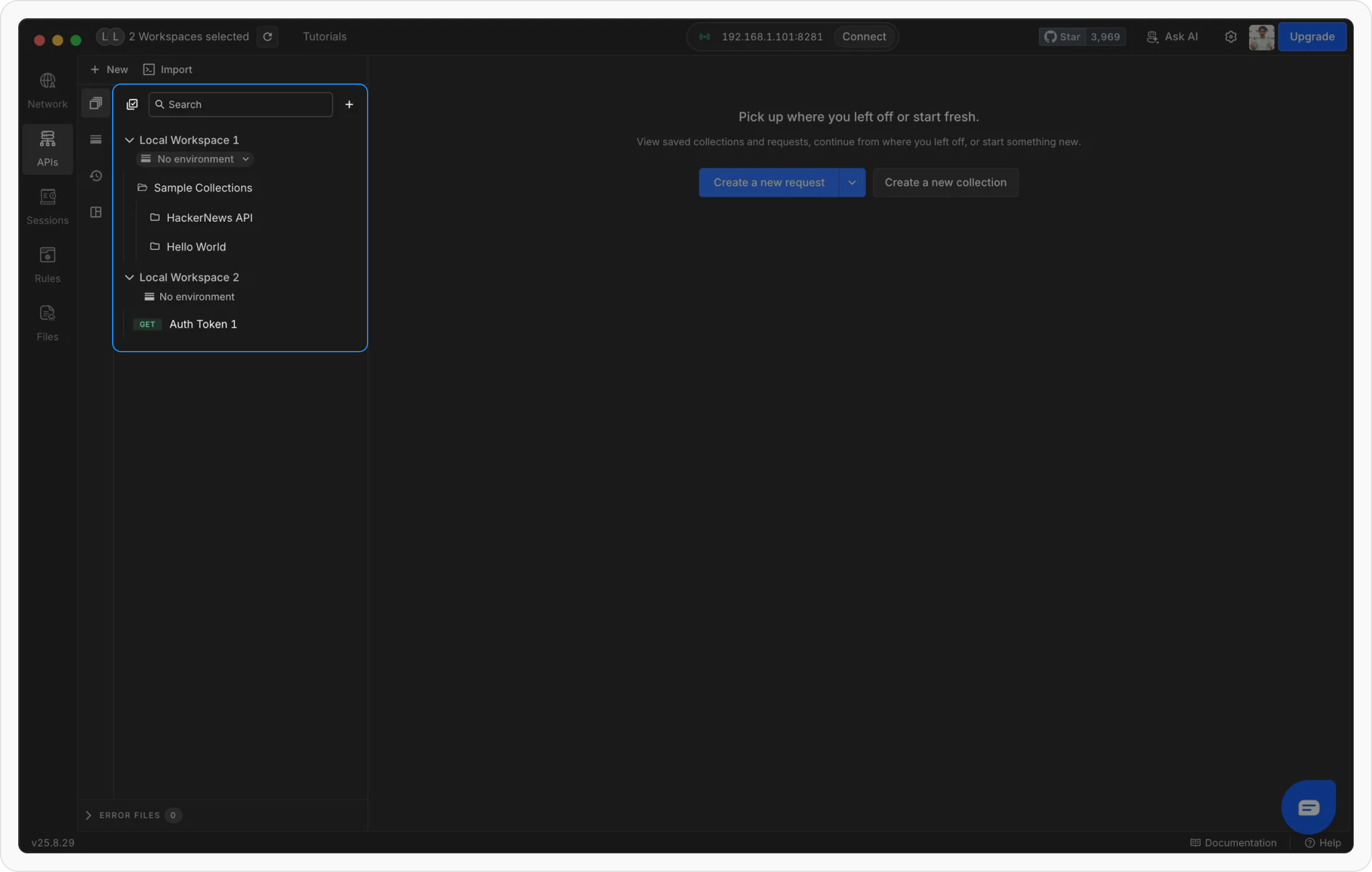
Using environments in multi-project view
When working with multiple projects, each project keeps its own separate environment. This ensures that variables from one project do not interfere with another.Switching environments
You can switch environments using the dropdown below the project name in the sidebar. This lets you quickly toggle between different setups for the same project.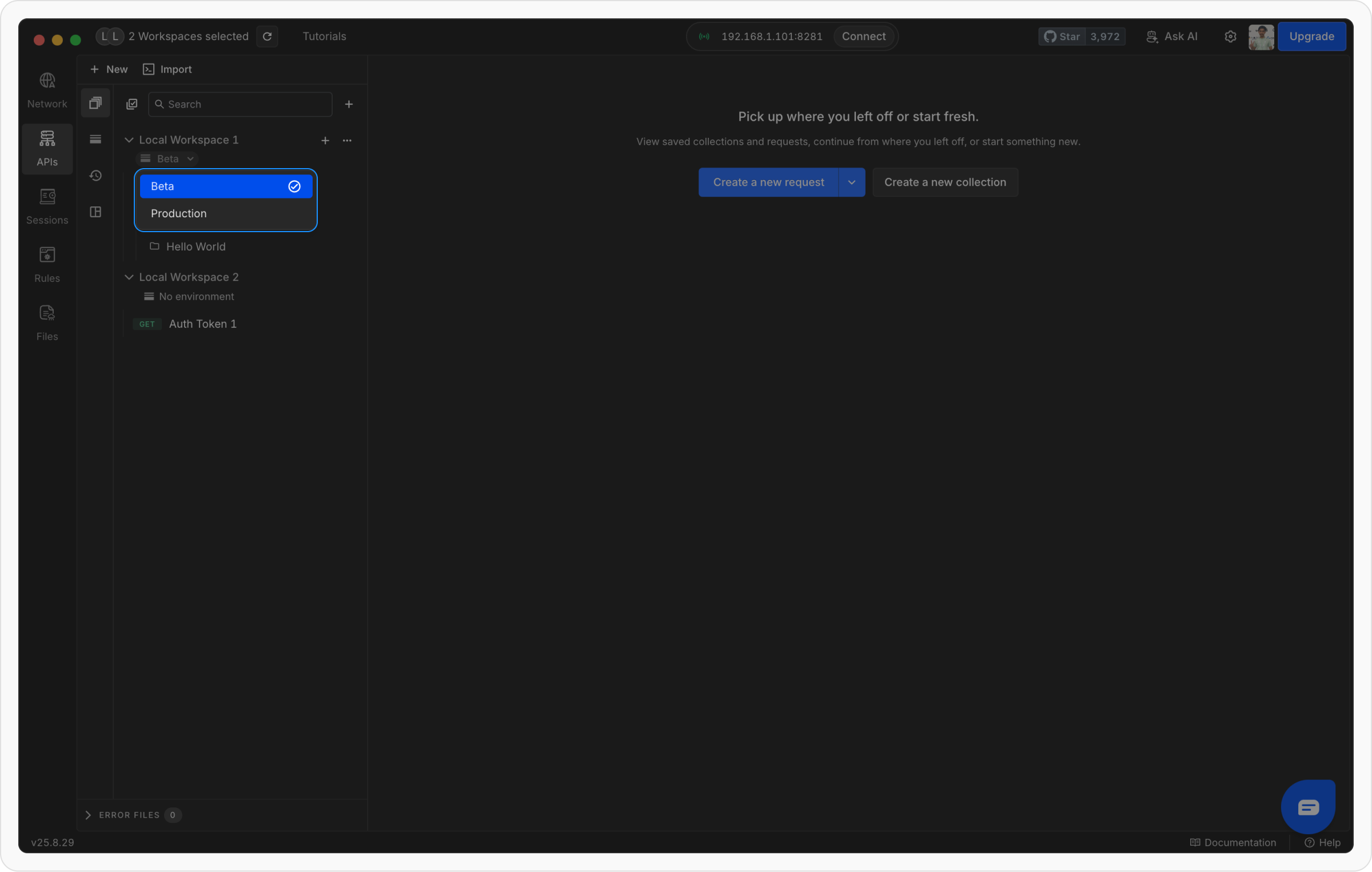
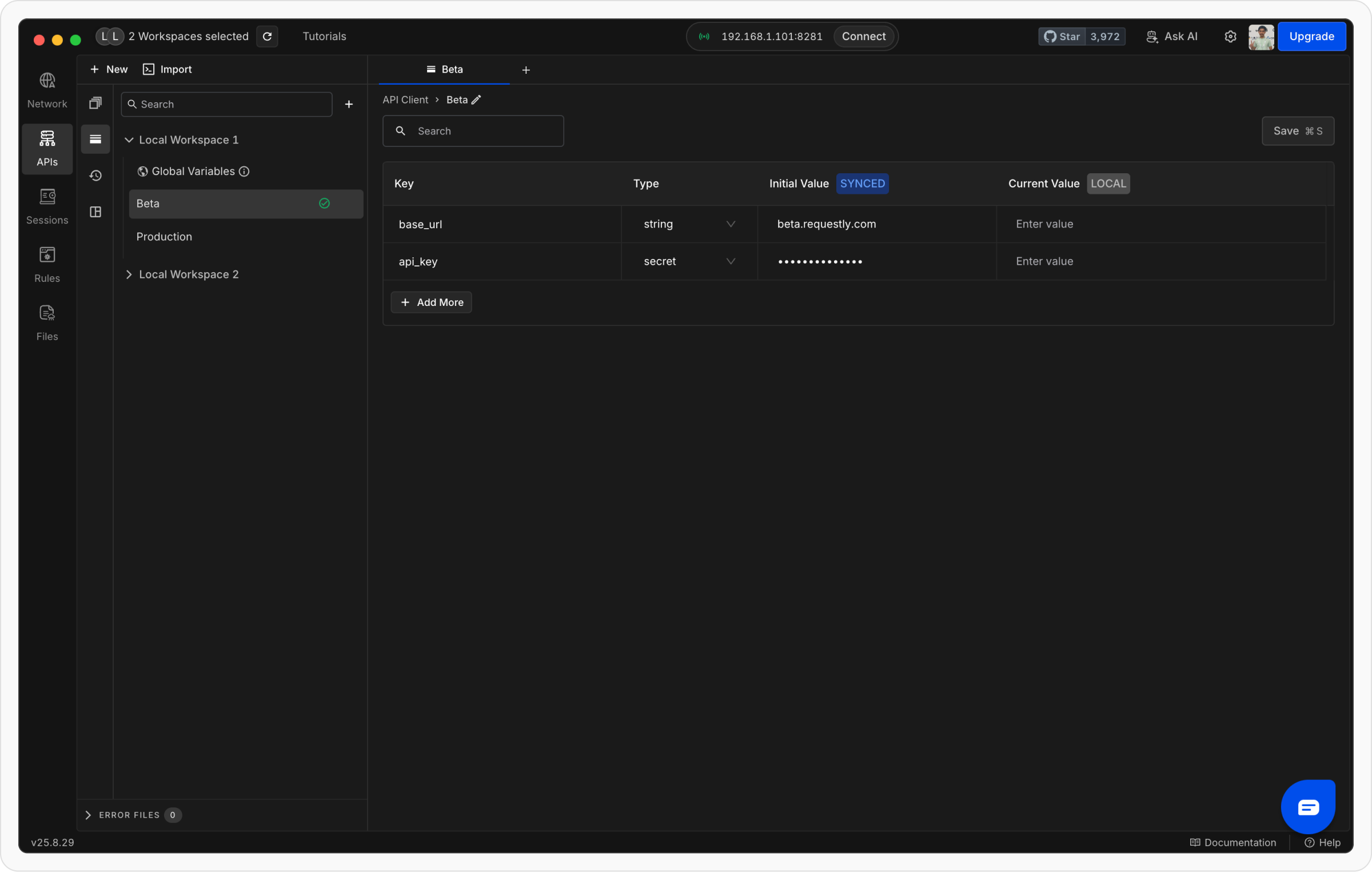
Editing environment variables
To edit variables for a project:- Go to the Environments tab.
- Select the project whose environment you want to edit.
-
You’ll see all variables for that project listed, and you can add, update, or remove them as needed.
Moving requests across projects
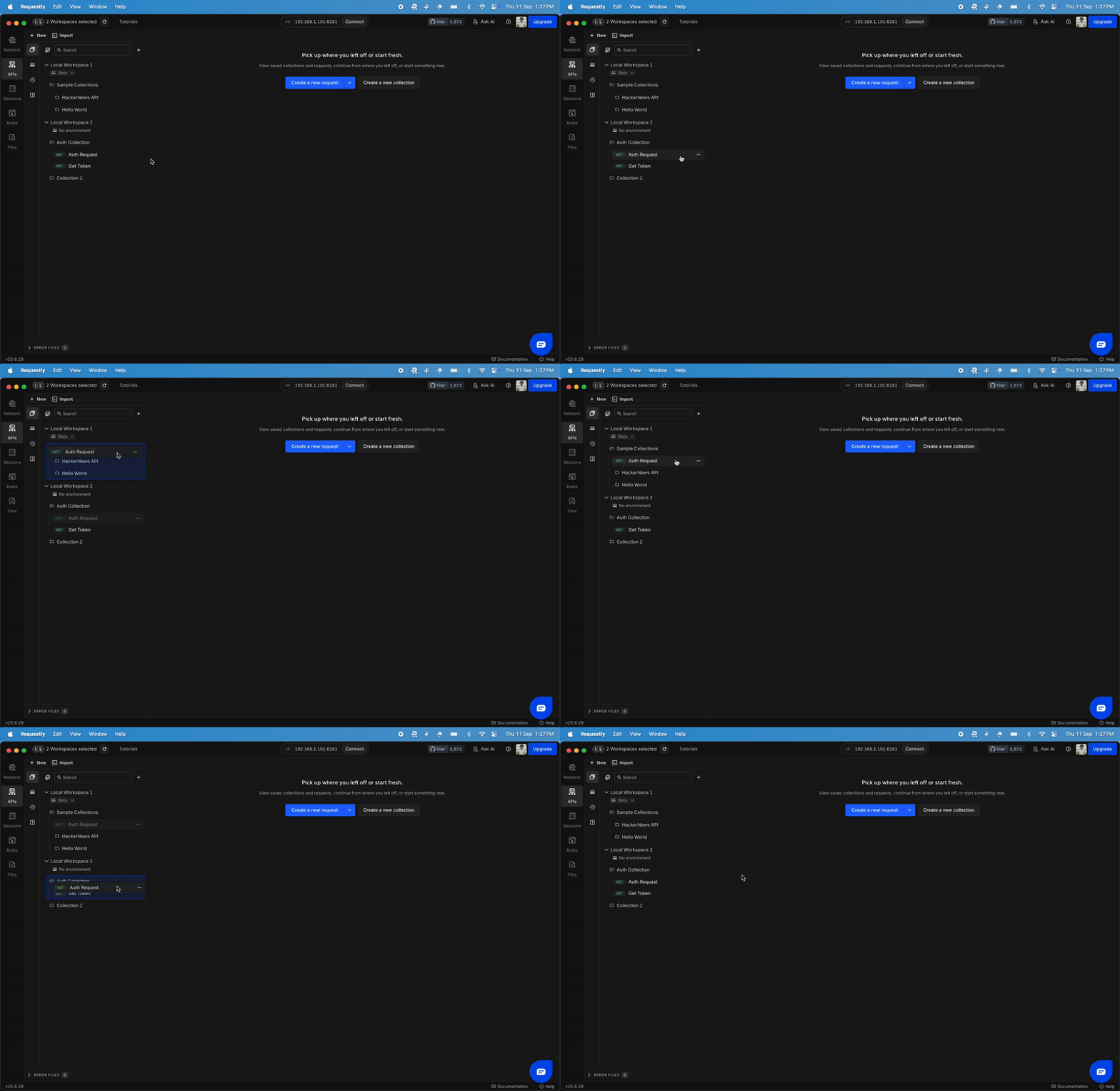
You can easily move or share requests between different projects in multi-project view. There are two ways to do this:Method 1: Drag and drop
Method 2: Move via menu
1
Open the request menu
Click on the three dots menu next to the request you want to move.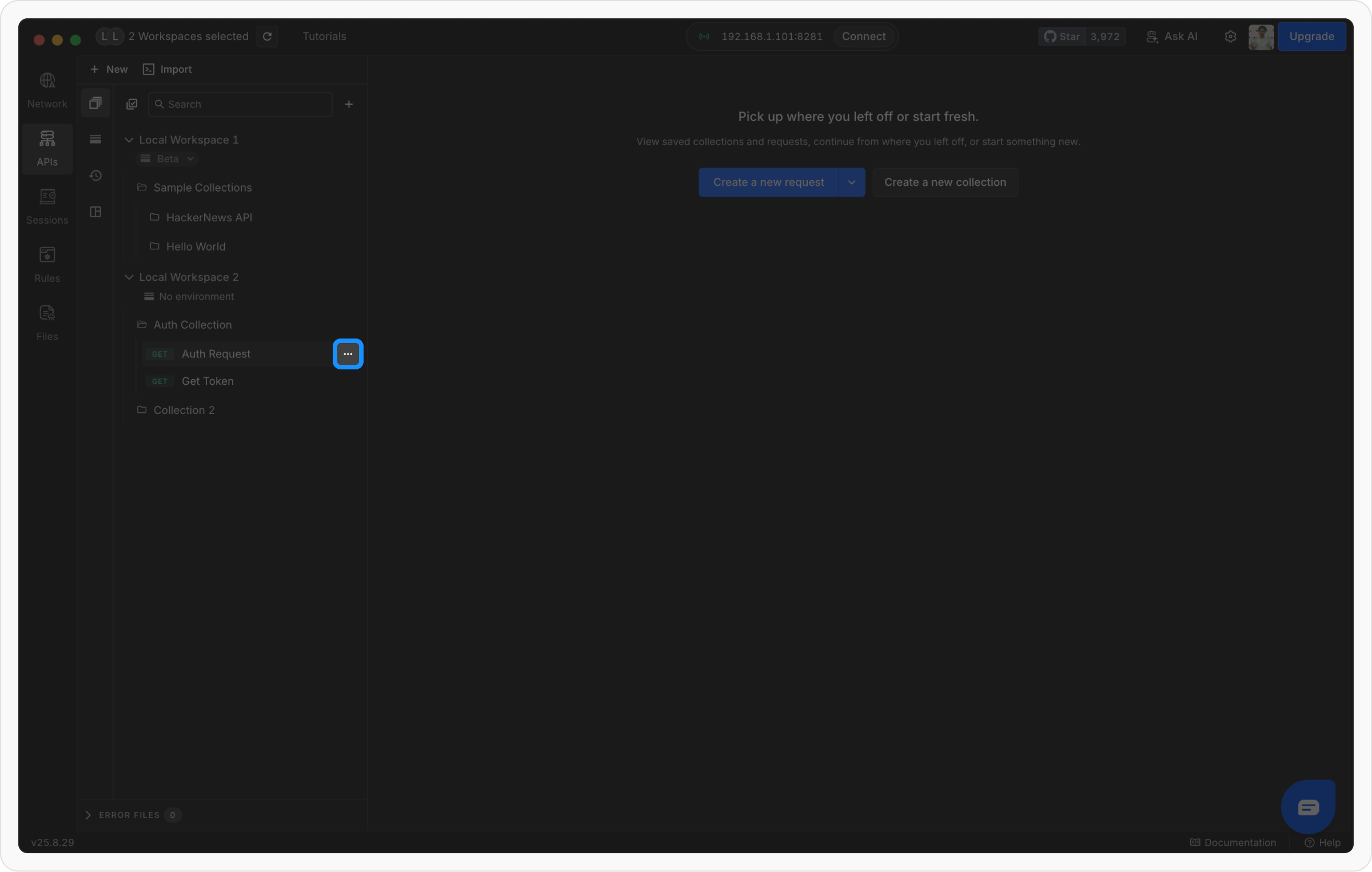
2
Select “Move to Collection”
Choose the Move to Collection option from the menu.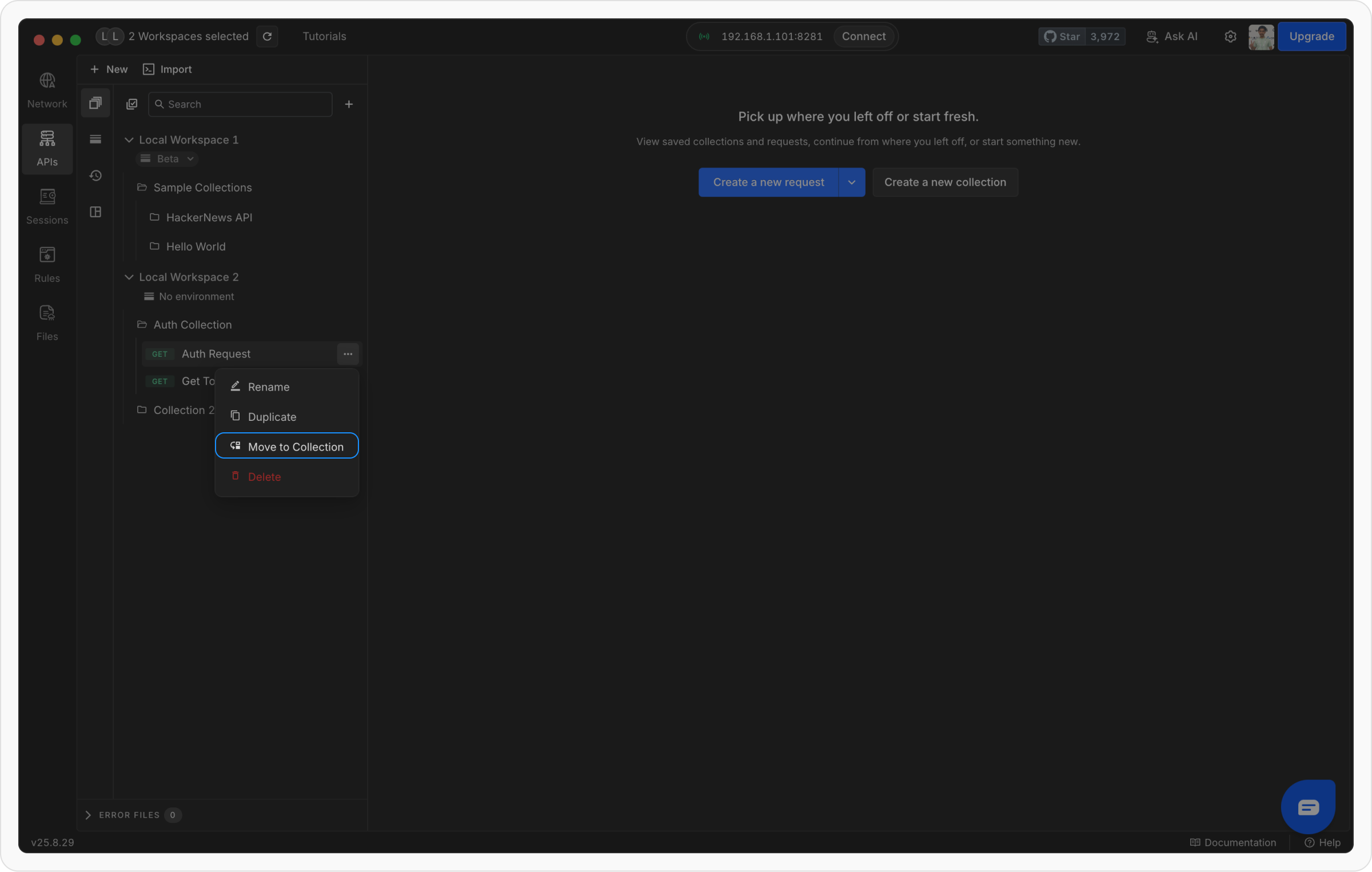
3
Choose project and collection
Select the target project and the collection within it where you want to move the request.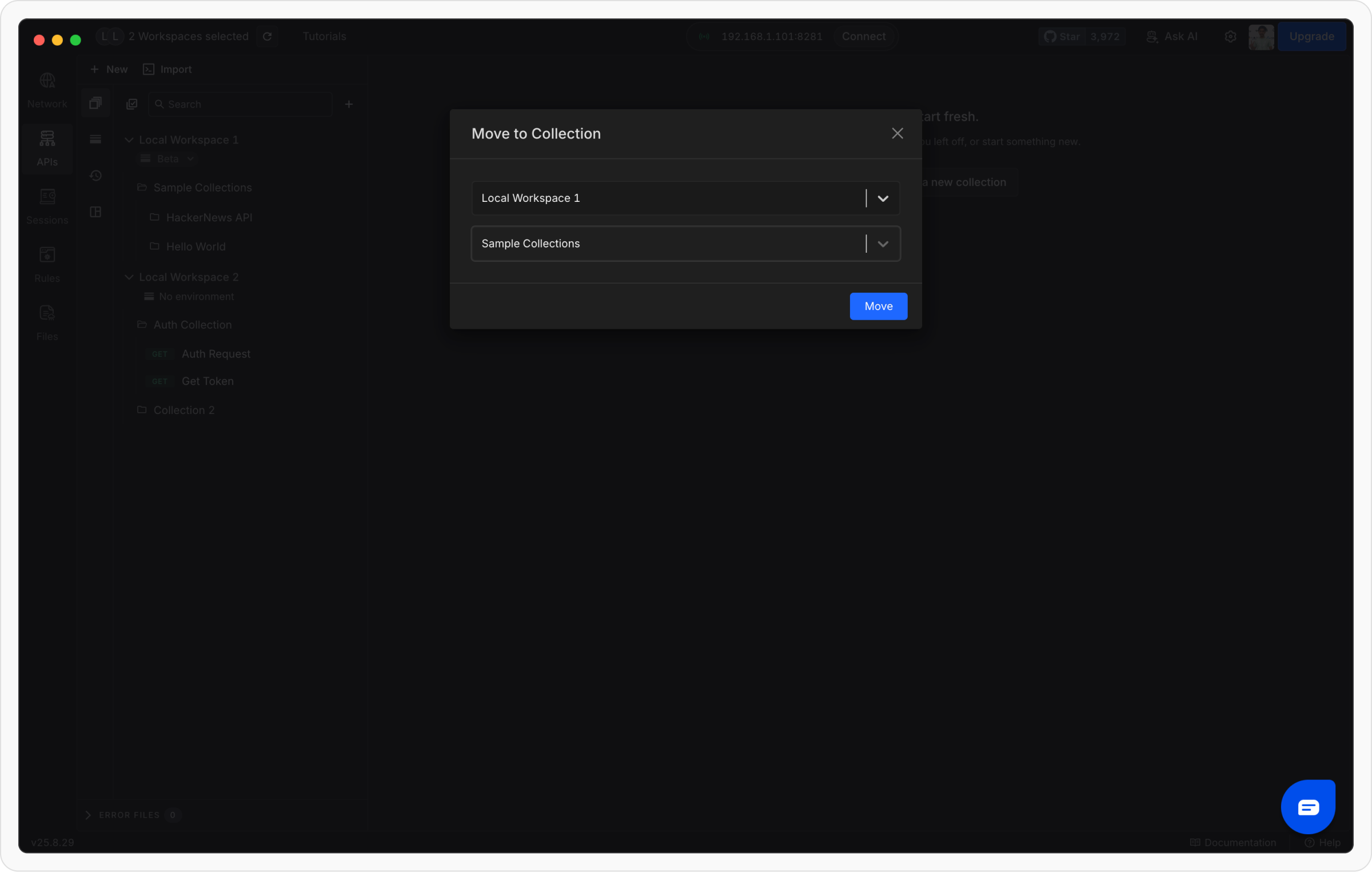
4
Confirm move
Click Move to complete the action. The request will now appear in the selected project and collection.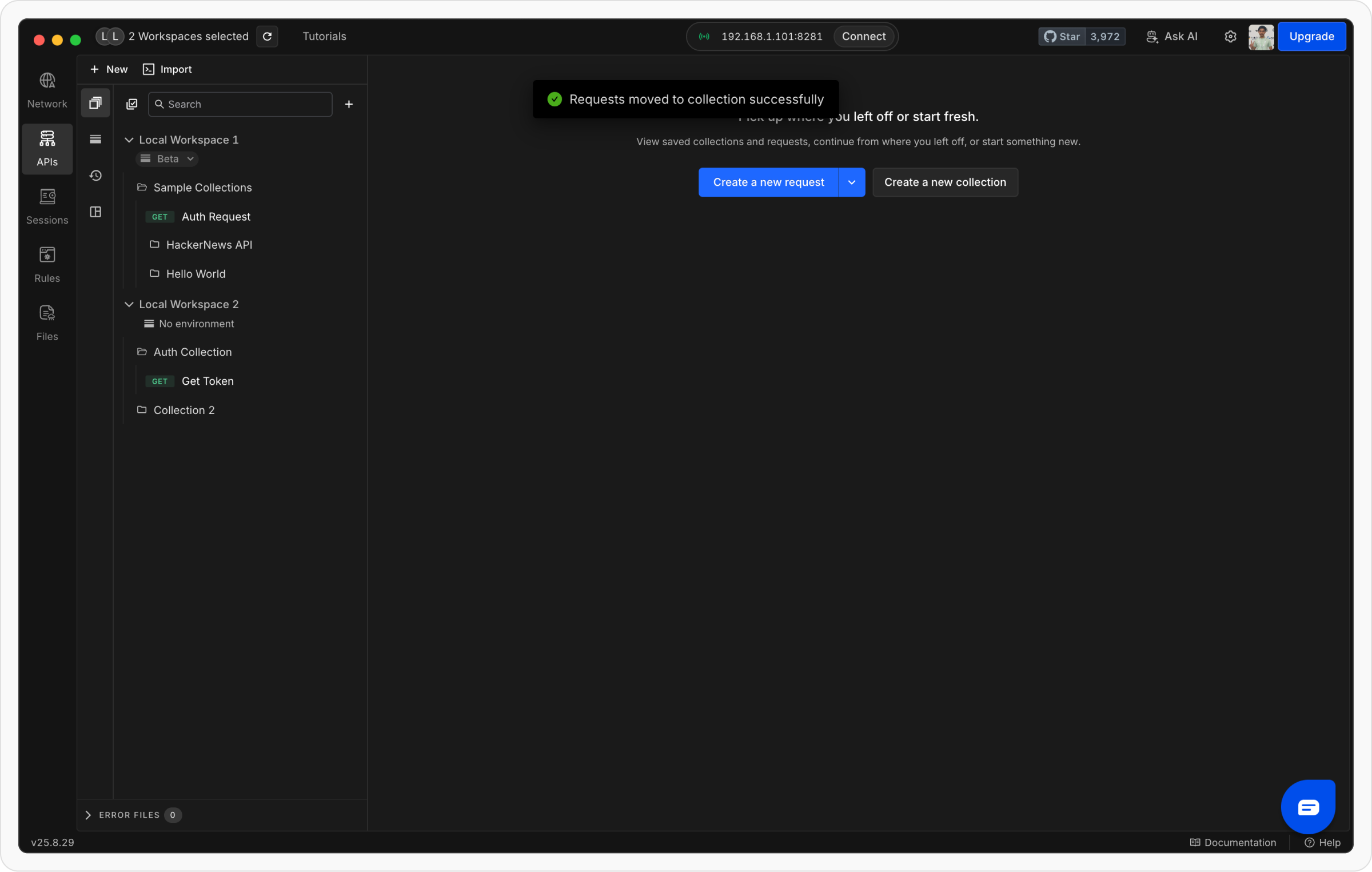
Sharing data across projects
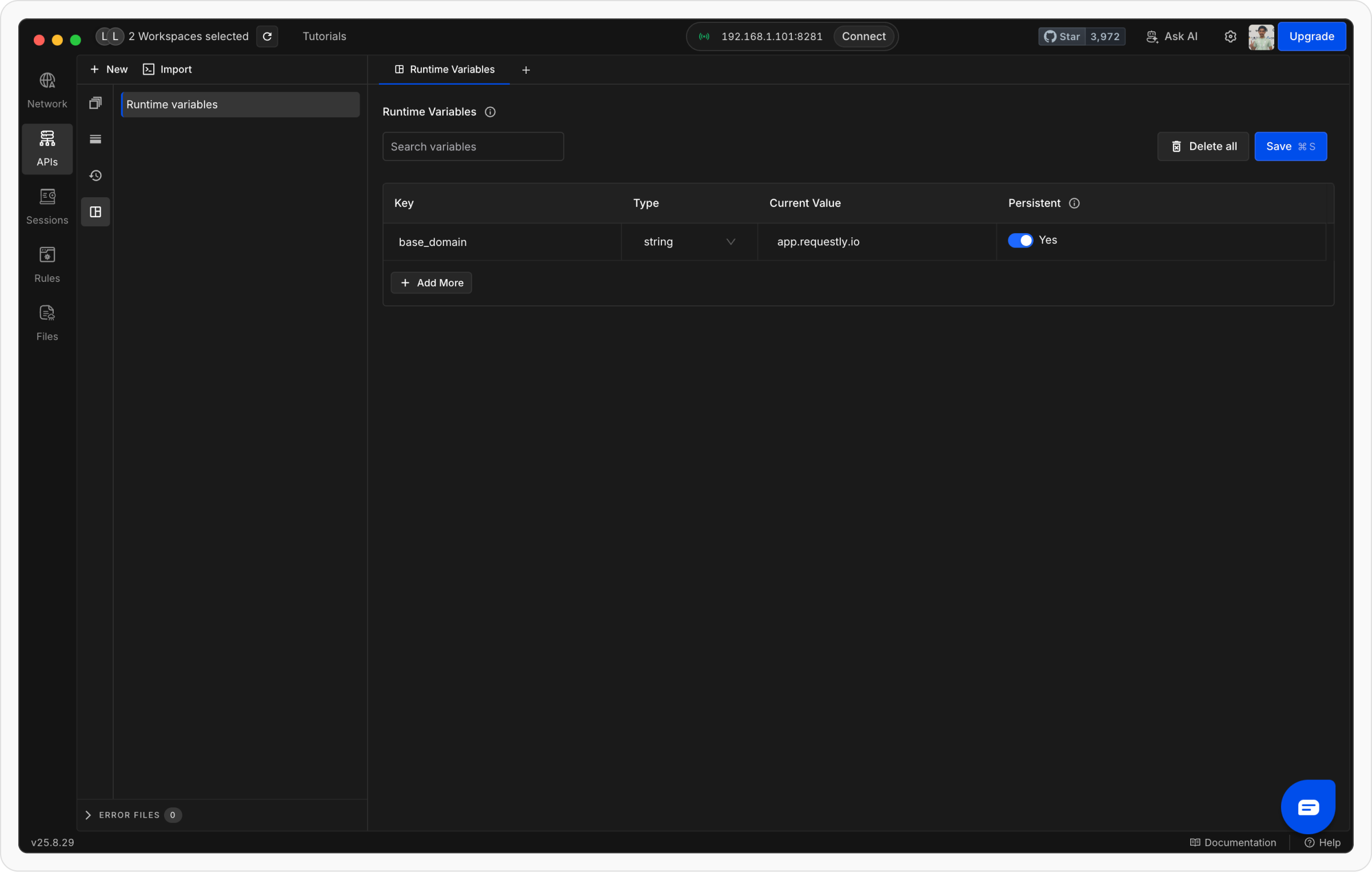
To share values (like tokens) across different projects, you can use Runtime Variables. These act as super-global variables that are accessible across all projects. They can be created as temporary values for quick testing or persisted for longer use. You can view, edit, or clear them anytime from the Runtime Variables tab on the left.