

When To Use Requestly
Use Requestly when you want to:- Send REST or GraphQL requests manually
- Manage collections, folders, and reusable environments
- Add authorization, scripts, and assertions
- Run repeatable request flows and share them with your team
What You Can Do Here
Send Requests
Test REST and GraphQL APIs with full request and response controls.
Organize with Collections
Group related APIs into collections, folders, and reusable workflows.
Environment Variables
Switch between environments and reuse dynamic values safely.
Automate with Scripts
Add scripts, assertions, and automation logic in JavaScript.
Sending requests
Whether you are building your own API or working with a third-party service, Requestly lets you sendGET, POST, PUT, PATCH, and DELETE requests. You can add query parameters, headers, request bodies, and authorization details to test how your API behaves across different scenarios.
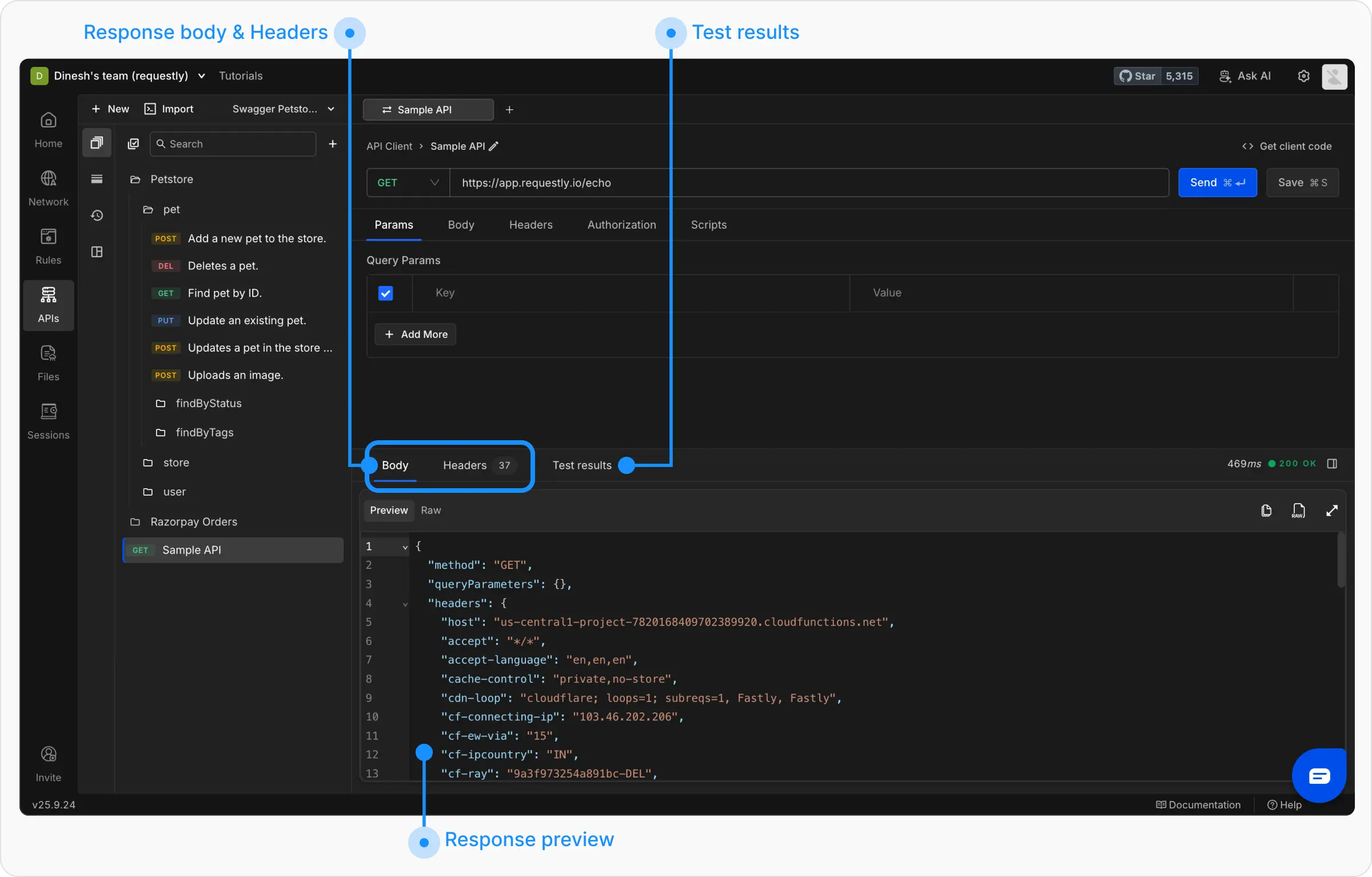
When you send a request, Requestly displays the API server’s response in a clear format so you can inspect, visualize, and troubleshoot it easily.
Quick Start
Welcome to Requestly! This walkthrough will get you sending requests, organizing them into collections, and using variables across environments in just a few minutes.Prerequisites
- The Requestly Desktop App — download if you don’t already have it installed.
- An API endpoint to test, such as
https://app.requestly.io/echo. - Optional: credentials or tokens if your API requires authorization.
Step 1: Send Your First API Request
Let’s start by sending a simple GET request.Open API Client and Create a New Request
Click the API Client link in the left sidebar of the Requestly application, then click the 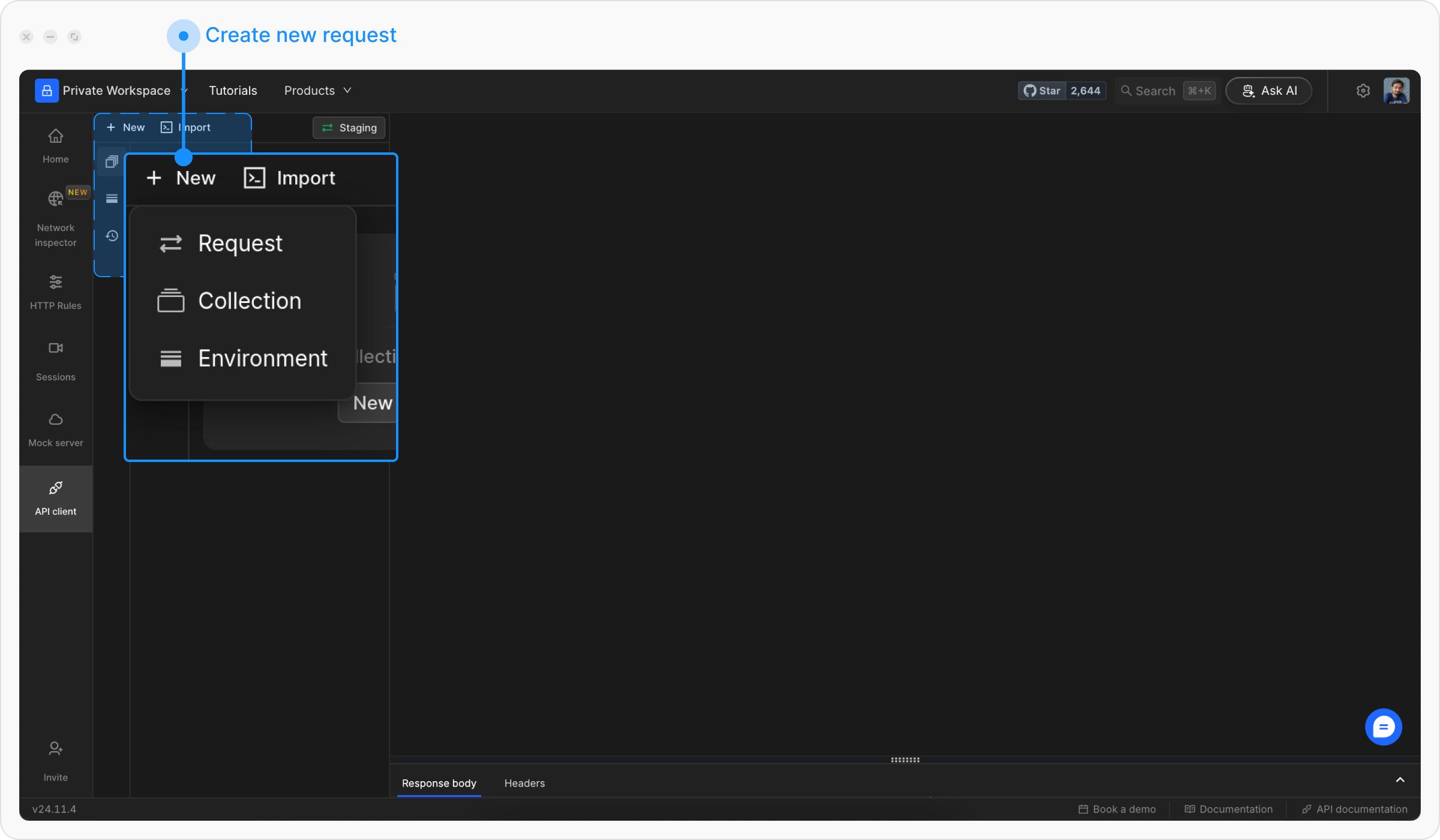
+ New button to create a new request and select Request from the menu.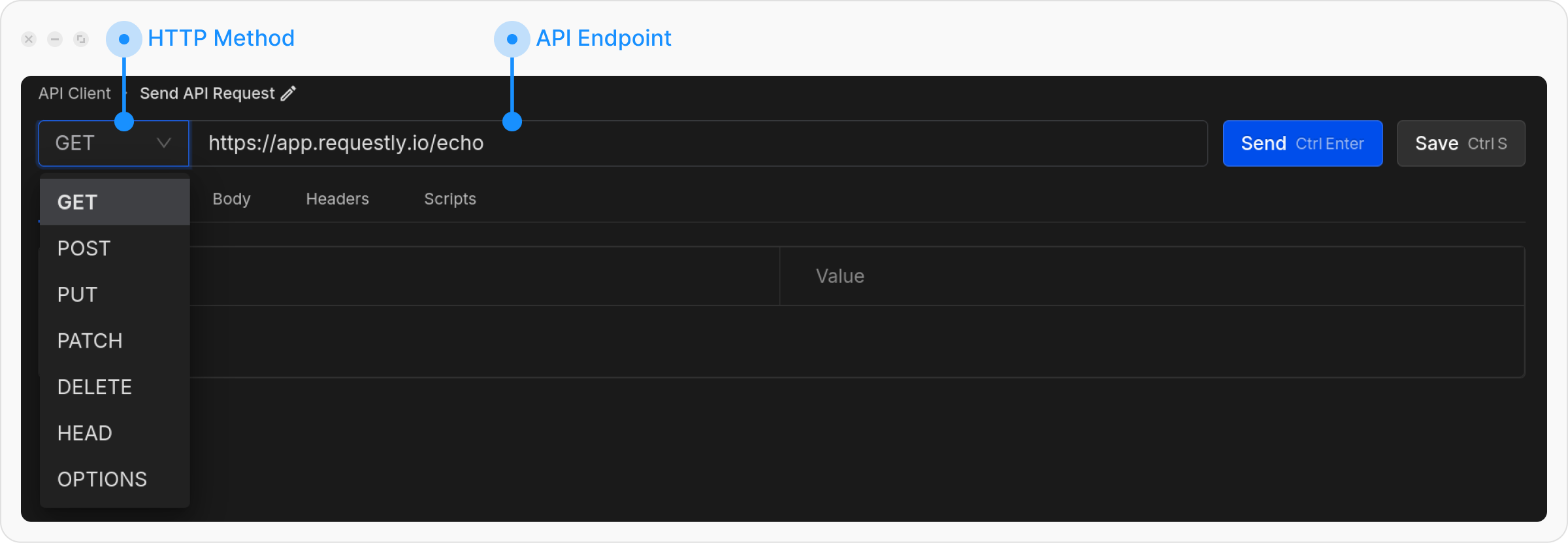
Step 2: Understand the Interface
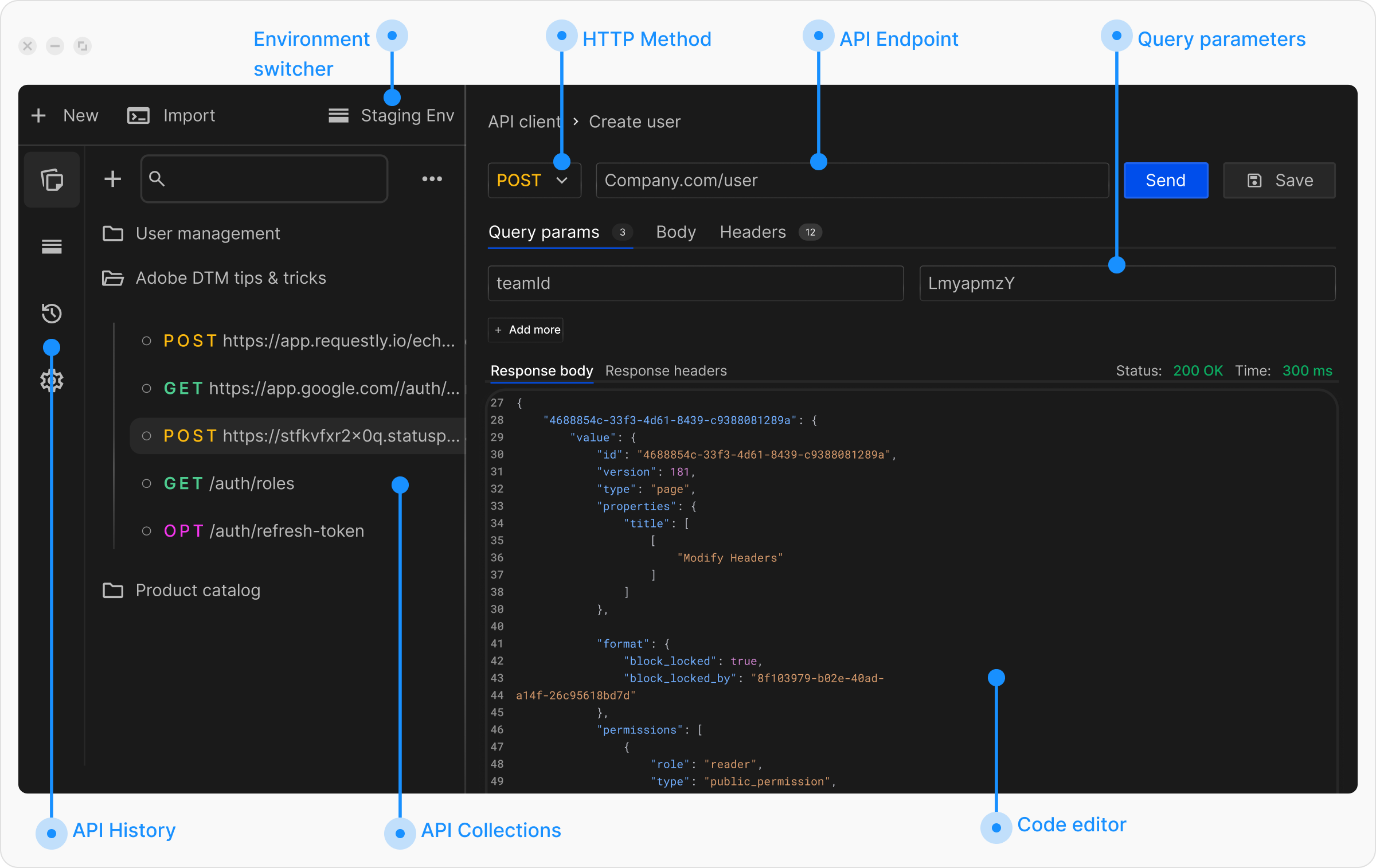
The API Client interface is divided into key sections:- Request Panel
- Response Panel
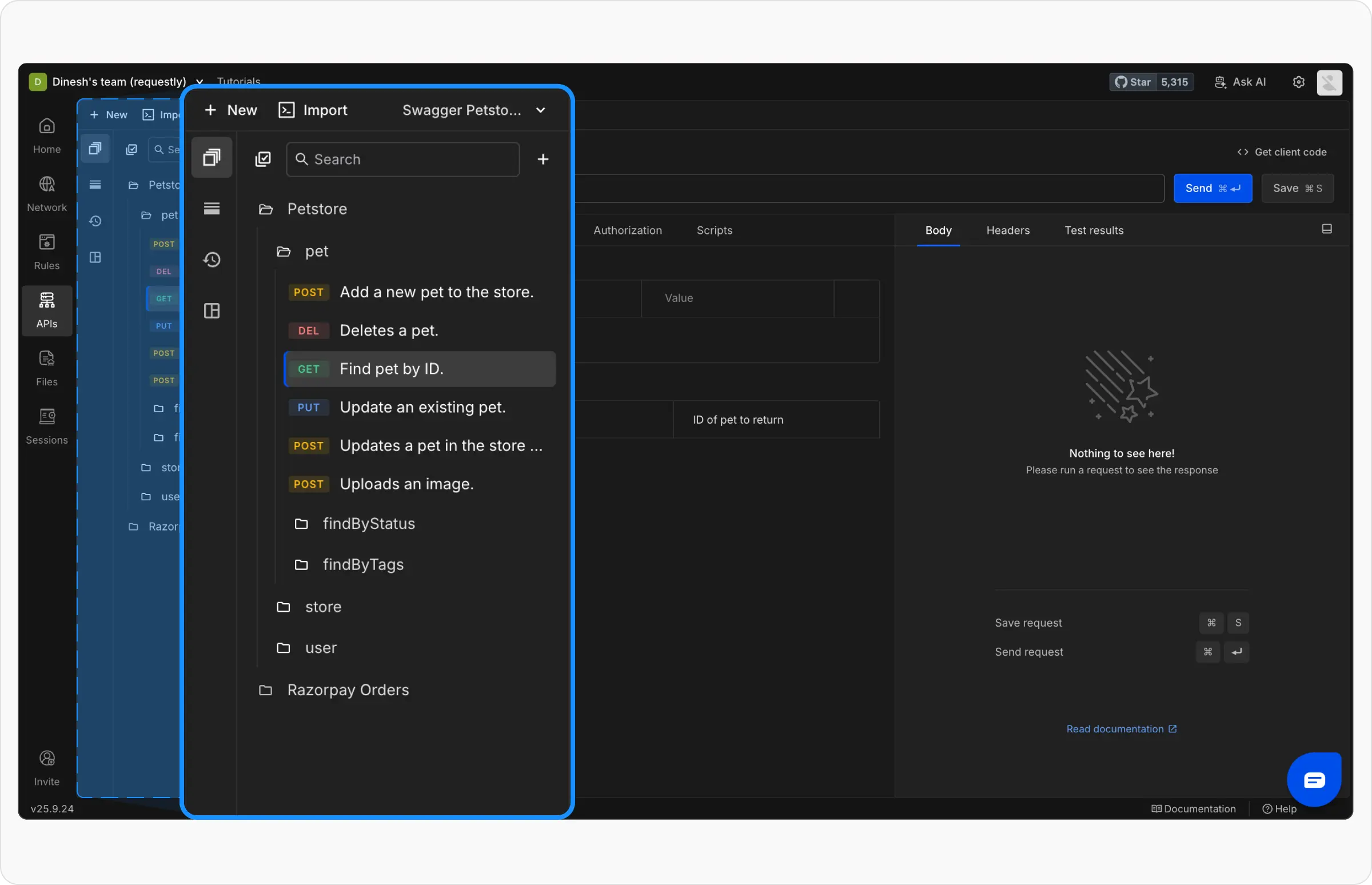
- Collections: View all your API collections and requests
- Environments: Manage environment variables
- History: Access previously sent requests
- Runtime Variables: Manage runtime variables that can be used across workspaces
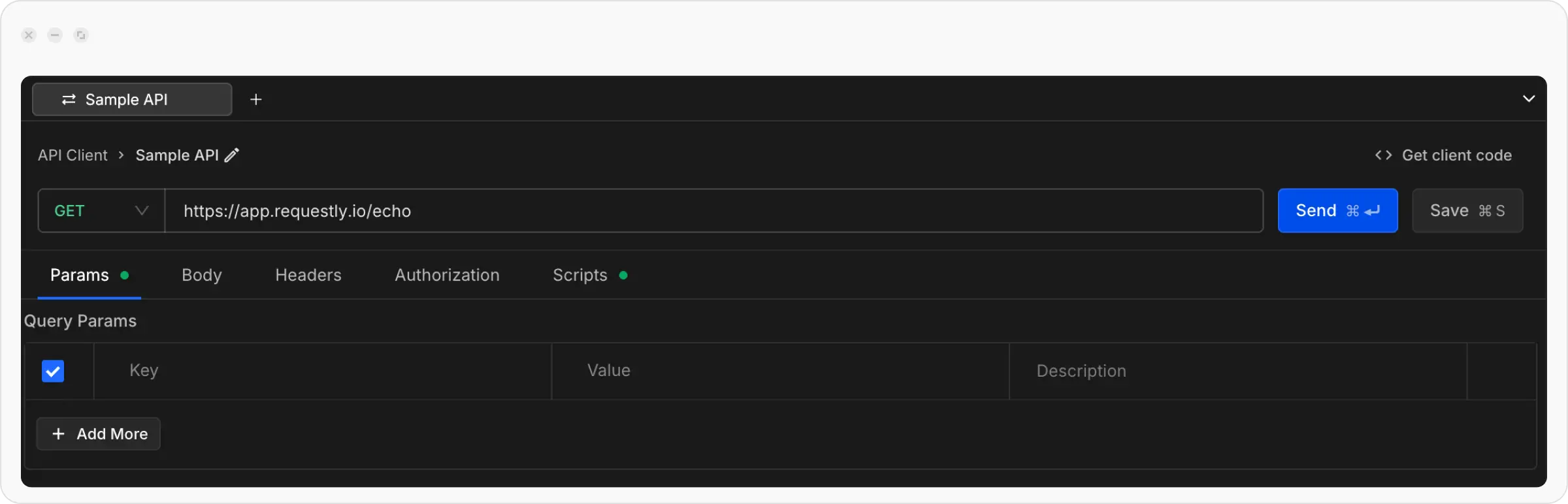
Step 3: Create Your First Collection
Collections help you organize related API requests.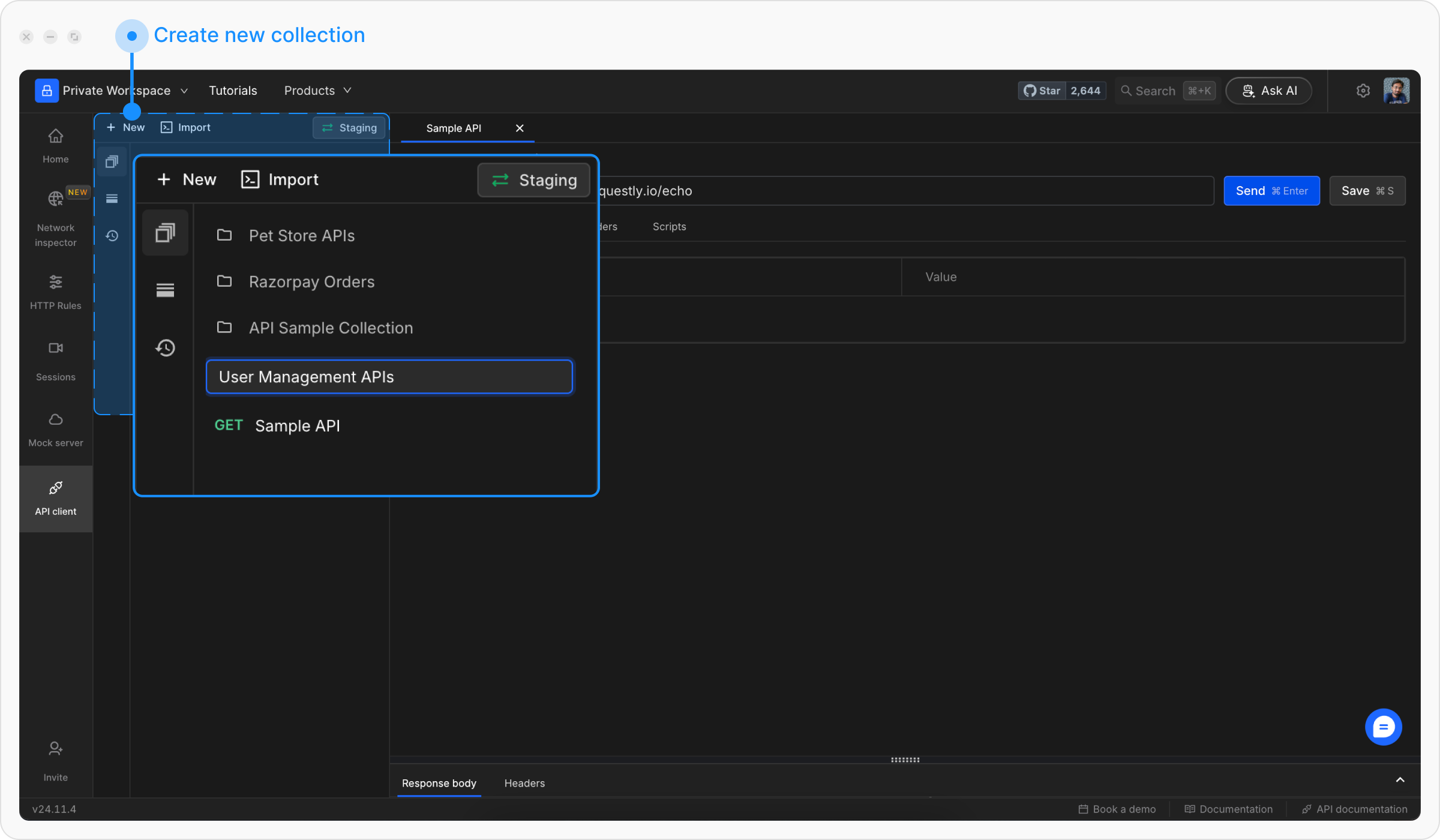
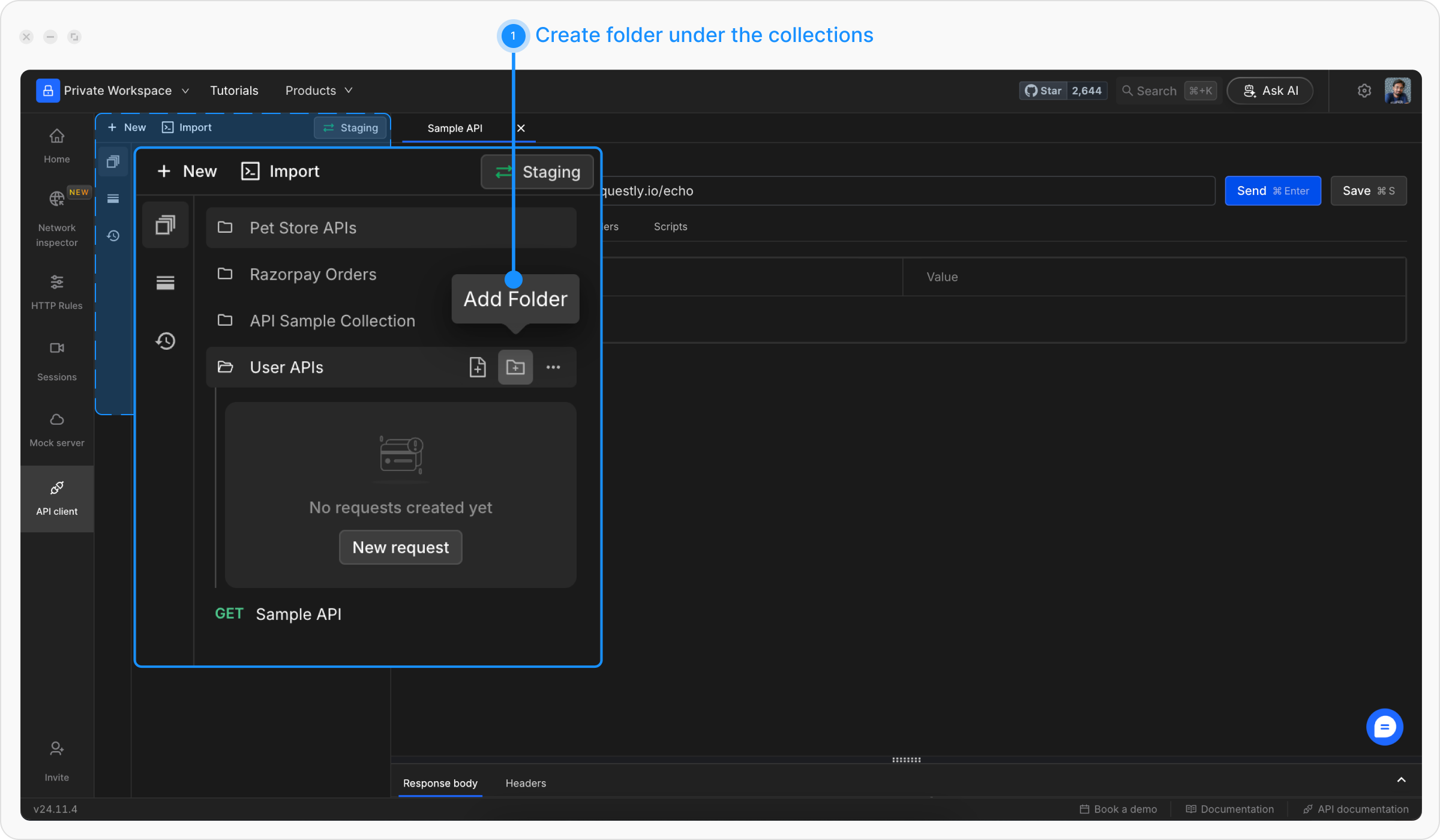
Add Requests to Collection
Drag your previously created request into the collection, or create a new request directly inside the collection by clicking the + icon next to the collection name.
Step 4: Set Up Environment Variables
Variables allow you to switch between different API environments (dev, staging, production) without changing your requests.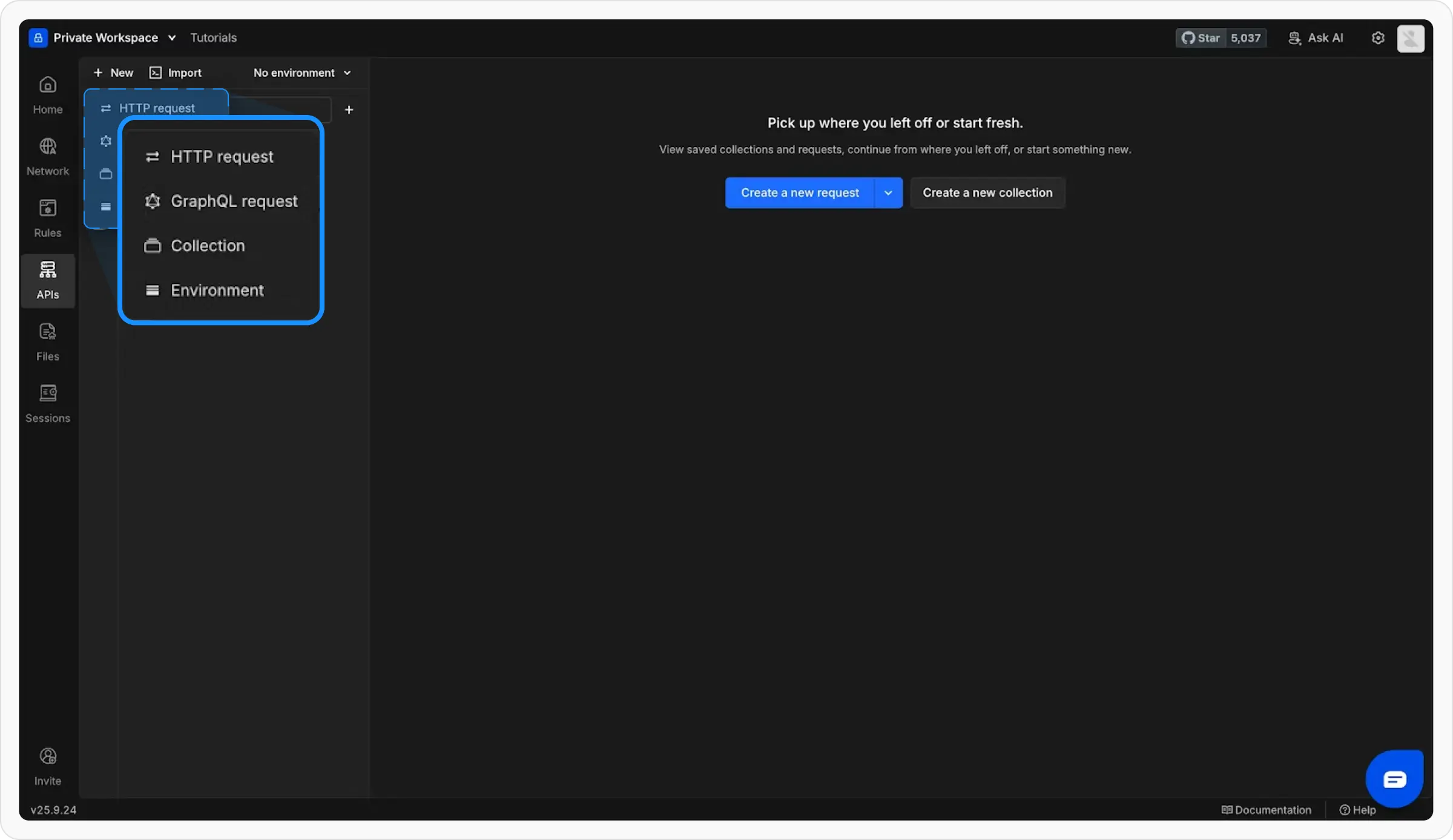
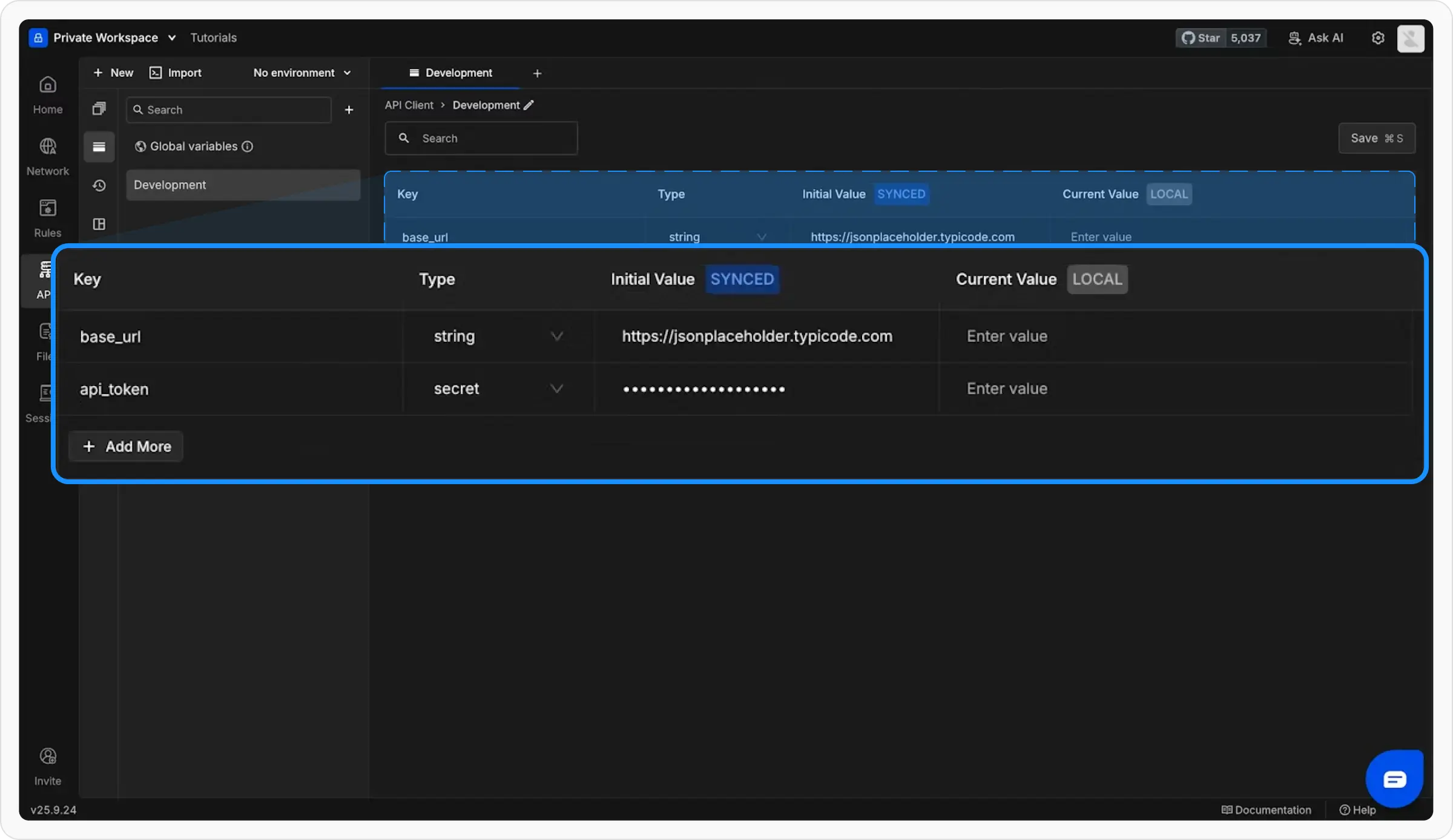
Use Variables in Requests
Update your request URL to use the variable:Variables are referenced using double curly braces: 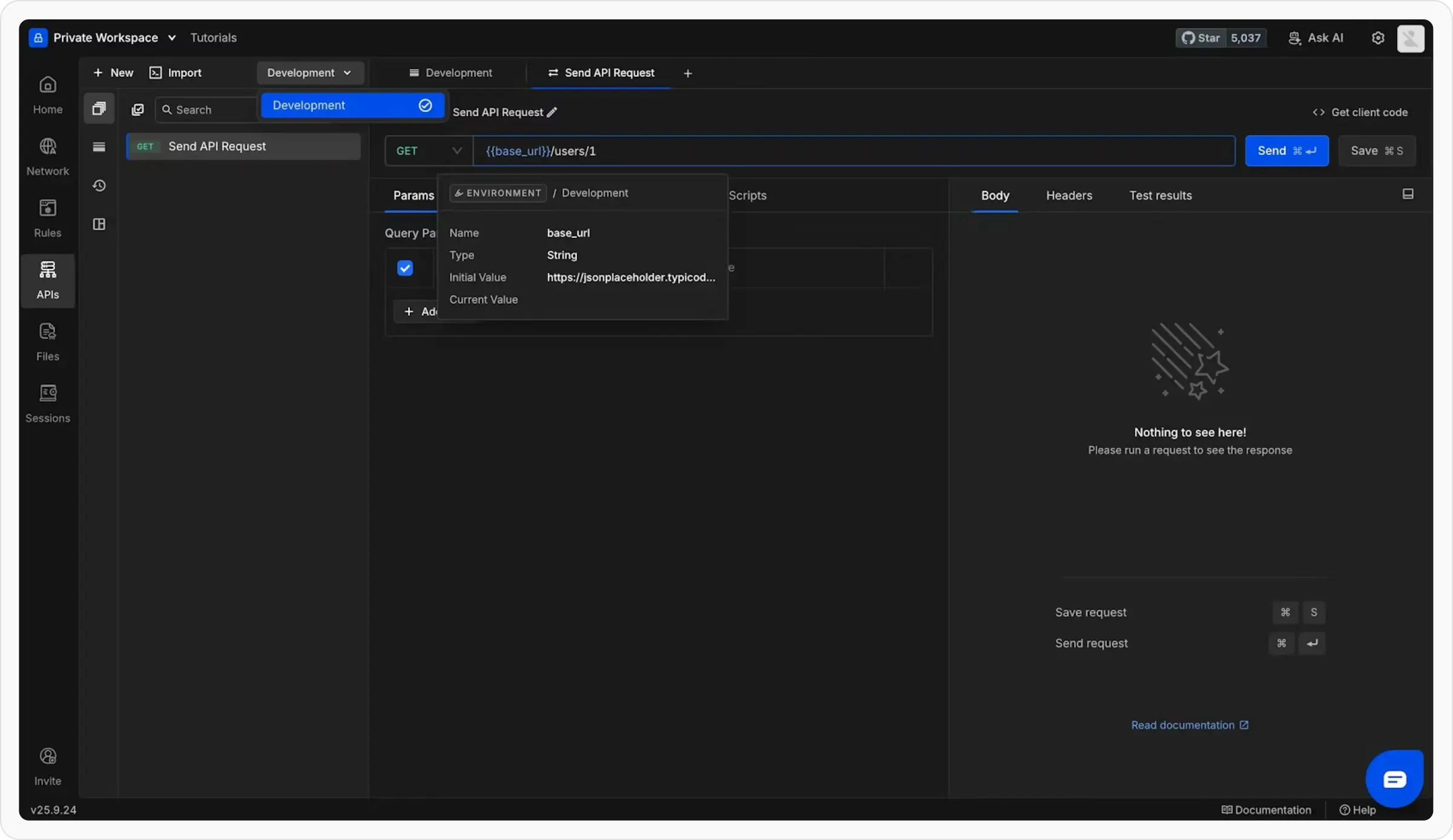
{{variable_name}}Master Variables
Learn about different variable types: Global, Environment, Collection, and Runtime variables
Step 5: Try Advanced Features
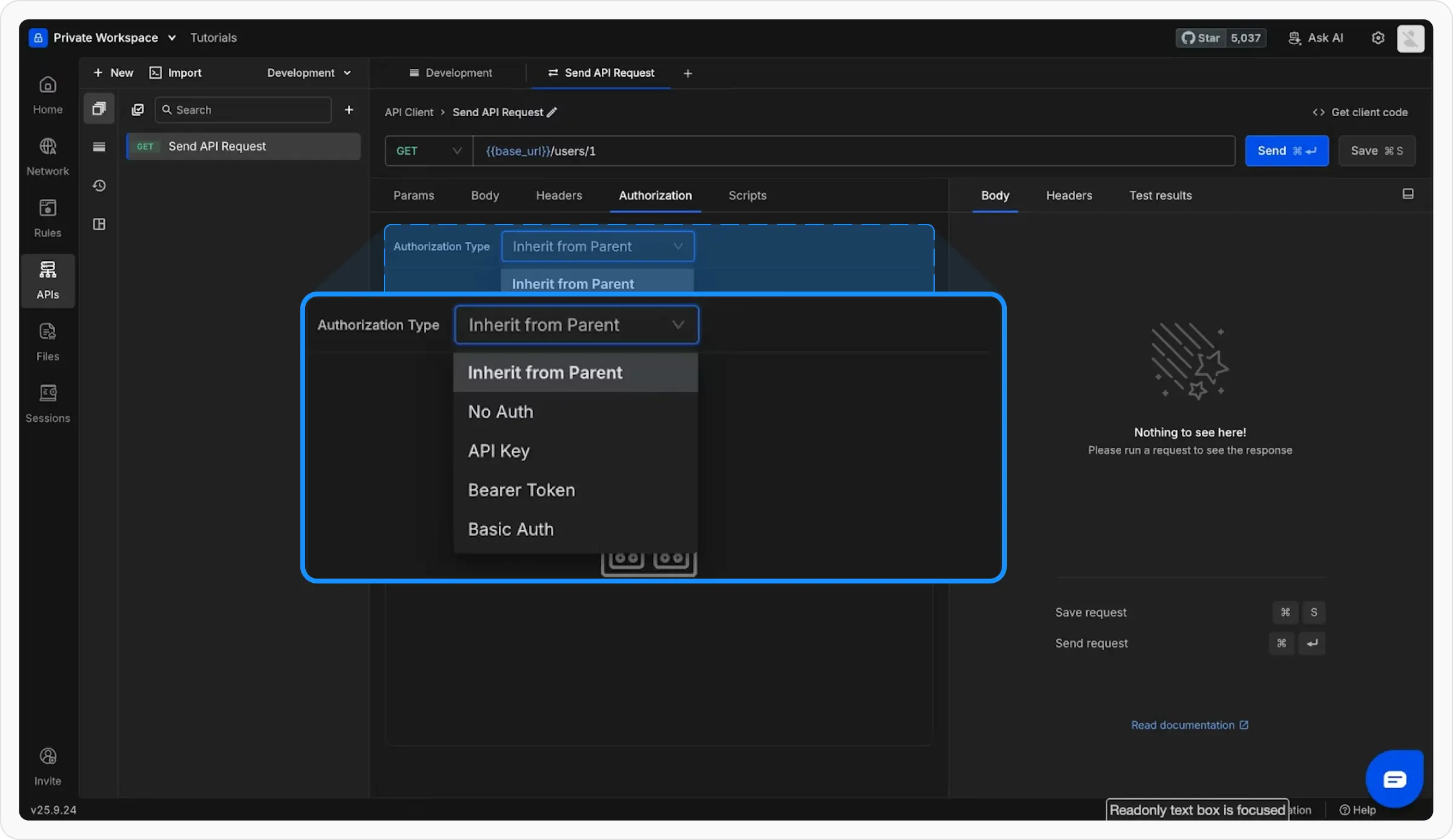
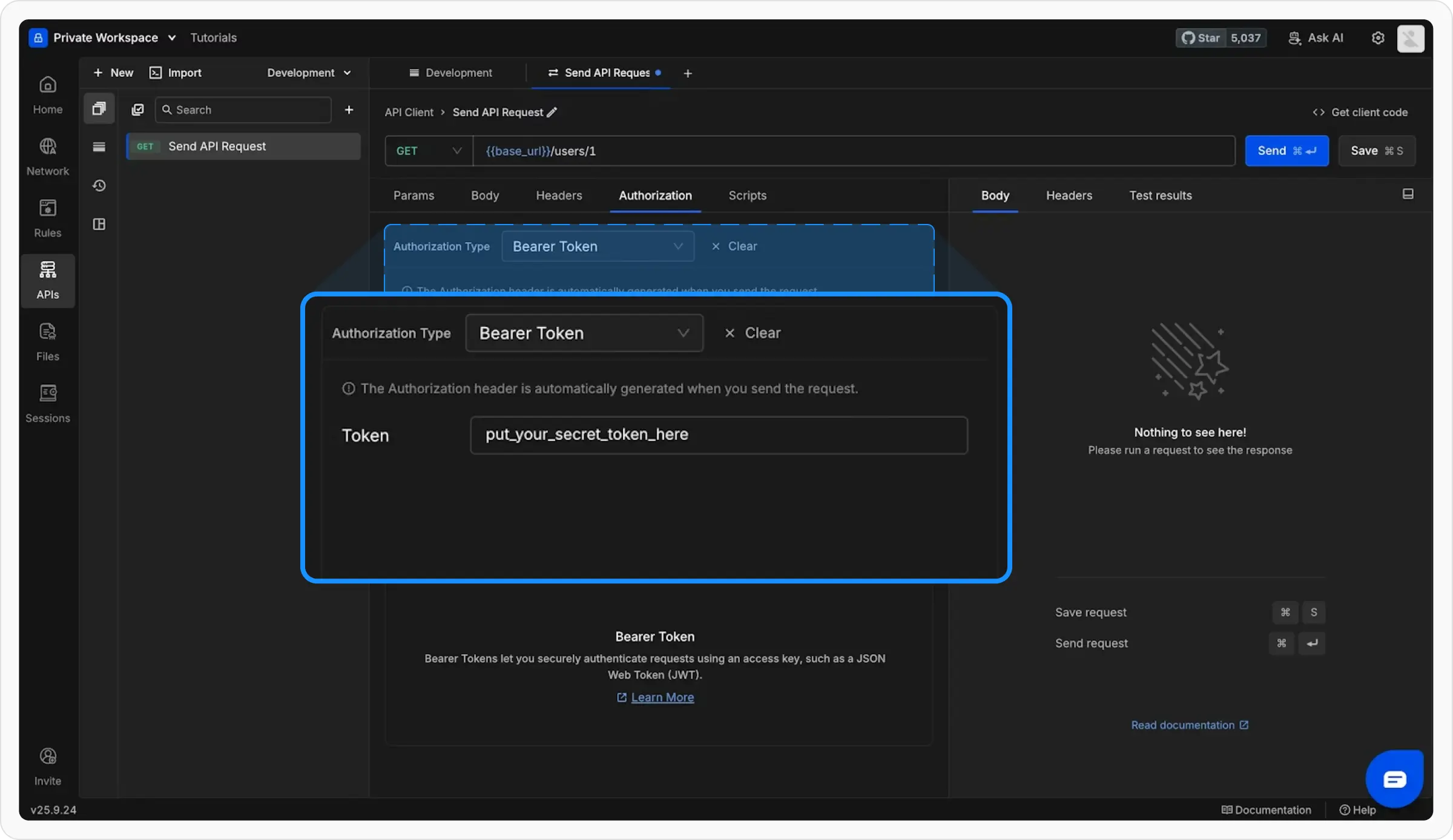
Now that you know the basics, explore these powerful features.Add Authorization
Protect your APIs with built-in auth support:
Full Authorization Guide →
Write Scripts
Automate your workflow with JavaScript:Add Tests
Validate API responses automatically:Import Existing APIs
Already using another API client? Import your work instantly:From cURL
Paste cURL commands
From Postman
Import Postman collections
OpenAPI/Swagger
Import API specifications
Explore Next
Create requests
Learn request configuration, headers, body handling, authorization, and history.
Environments & variables
Switch between dev, staging, and production without rewriting requests.
Assertions & automation
Add scripts, tests, and collection runs for repeatable API validation.
Import & export
Bring work in from cURL, Postman, or OpenAPI and share collections back out.
Collection runner
Execute multi-request workflows against environments and test data.