

When working with Android apps, debugging HTTP Requests can be a challenge. Requestly Interceptor provides an easy-to-use solution for everyone who needs to monitor, modify, or debug HTTP requests and responses during development or QA testing. This section outlines step-by-step instructions, guiding you on how to set up Requestly Interceptor for your Android emulator. By the end of this guide, you will have a fully functional interception setup tailored to your Android development needs.
Step-by-Step Guide
Video Guide
For a visual walkthrough, check out our YouTube video guide:Automatic Setup
Requestly Interceptor offers a one-click setup for Android emulators using Desktop App version 1.7.0+. Here’s how:Open Requestly Interceptor Desktop App
Launch the Requestly Interceptor desktop application on your computer.
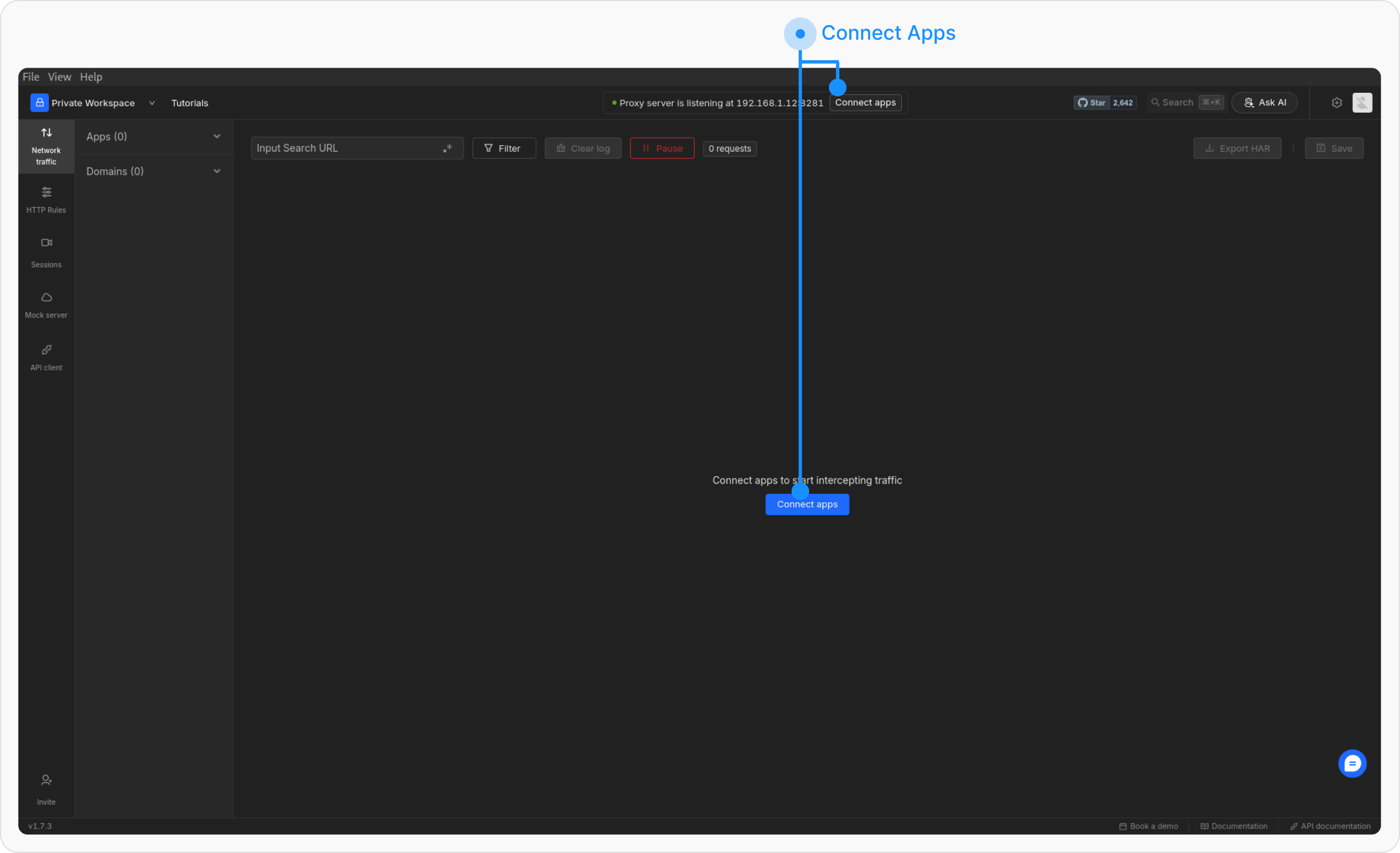
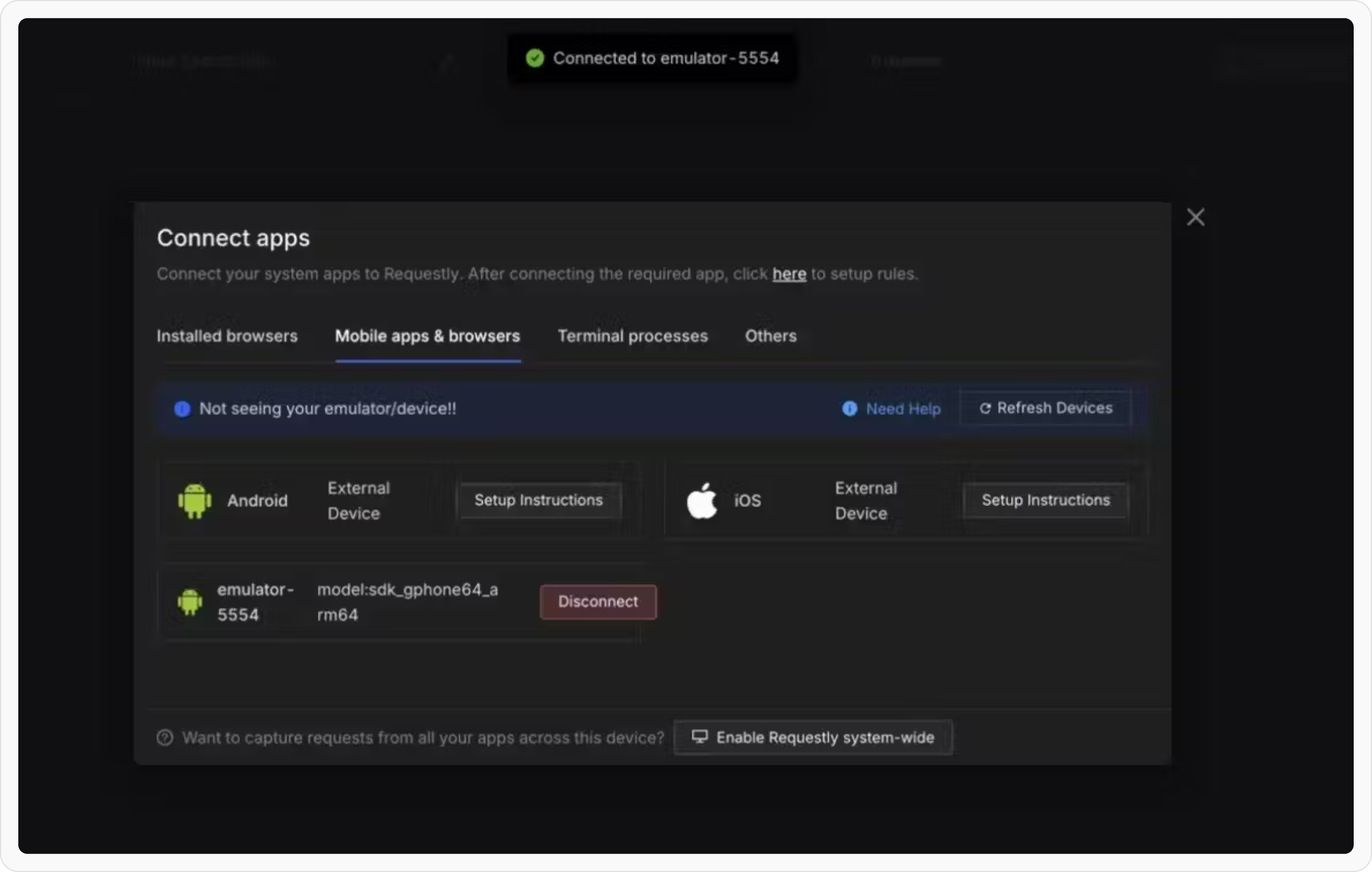
Manual Setup
If the automatic setup does not work for you, you can manually configure the proxy by following these steps: If you have ADB installed, you can skip the proxy setup through the emulator’s UI by running the following command in your Android studio terminal:Select Network:
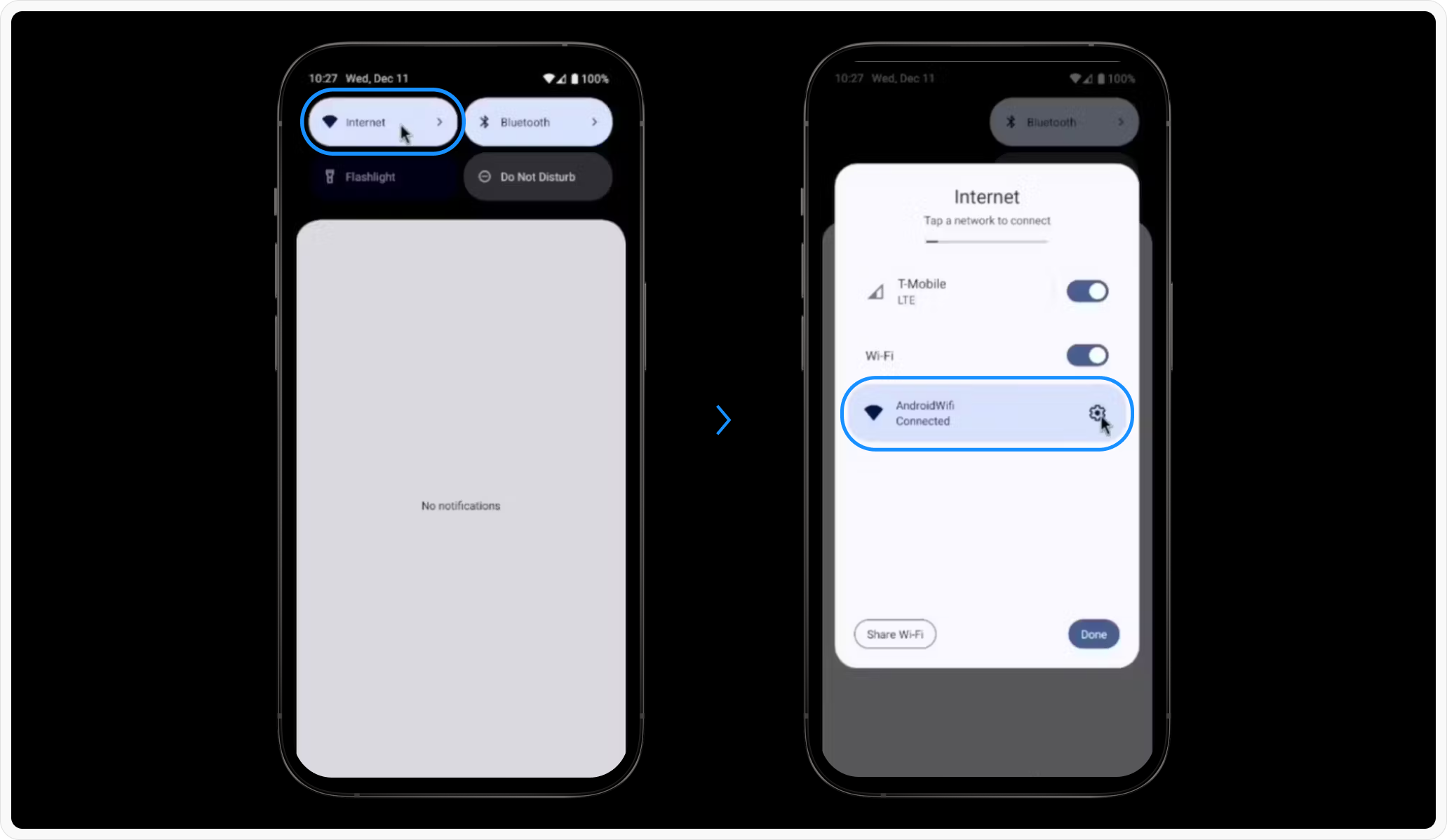
Modify Network Settings:
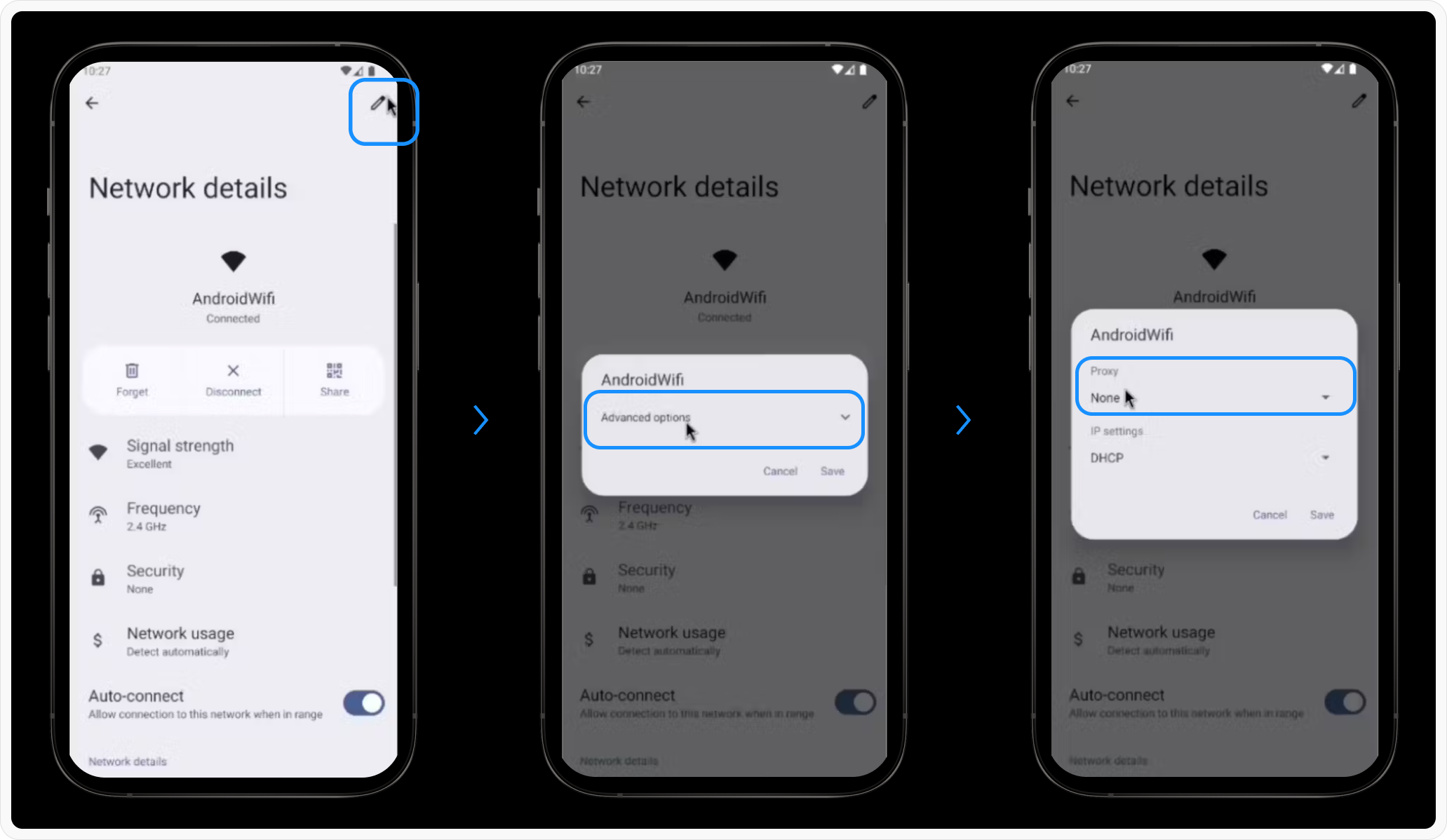
- At the top right of the screen click the edit icon
- Enable “Advanced Options” if needed.
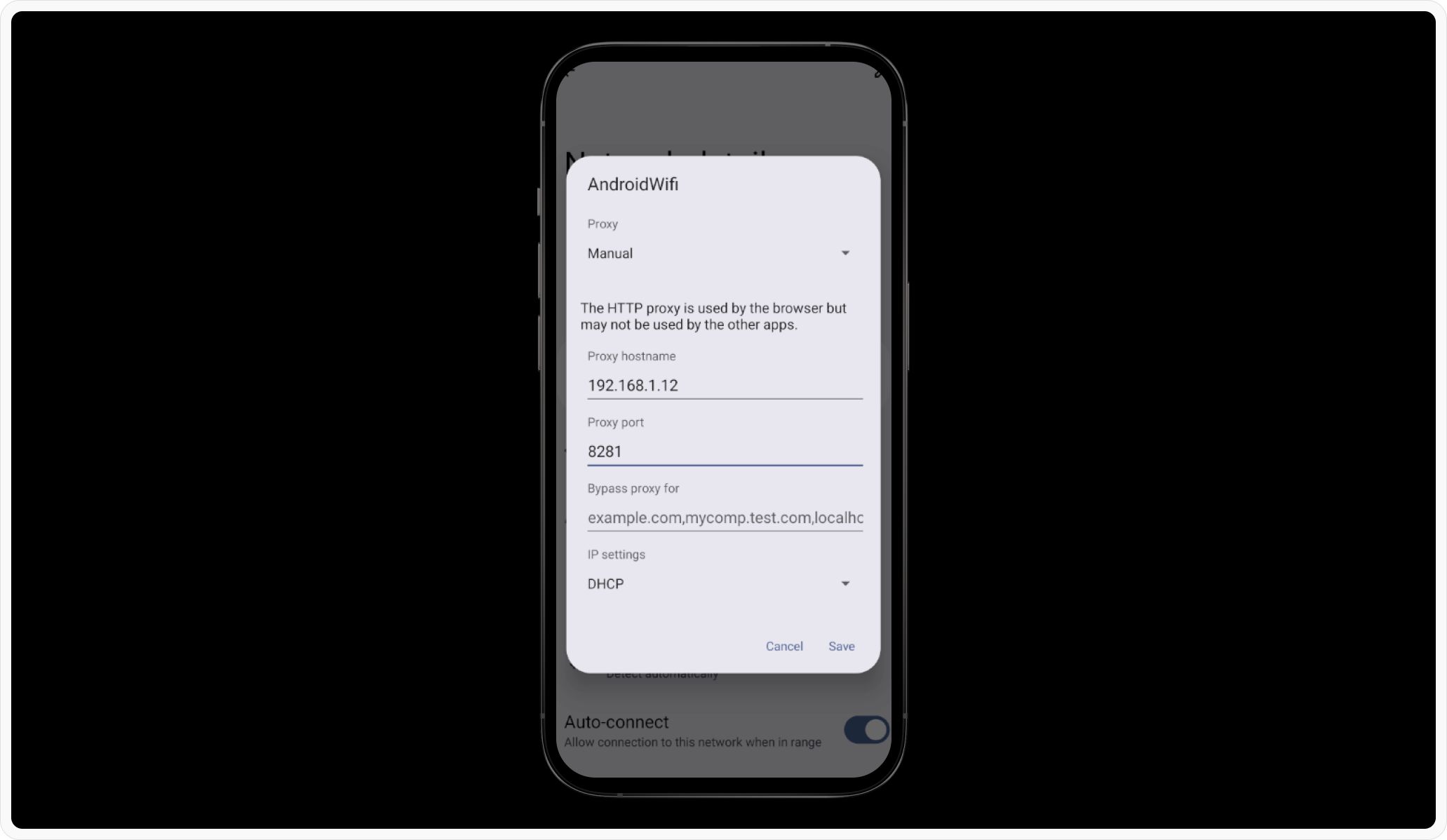
- Set the Proxy to “Manual.”
Enter Proxy Details, and input the following:
-
Proxy Hostname: Use the IP shown in the Requestly Interceptor Desktop App (e.g.,
192.168.1.10). -
Proxy Port: Use the port displayed in the Requestly Interceptor Desktop App (e.g.,
8080).
CA Certificate Installation
To intercept HTTPS traffic, you need to install Requestly Interceptor’s root CA certificate on the emulator. You can do this in two ways: Option 1: From the Desktop:Download the certificate from Requestly Interceptor's Desktop app
- Open the Requestly Interceptor Desktop App.
- Navigate to Connect Apps > Others > Manual Setup > Save Certificate to download the root CA certificate.
Download Certificate
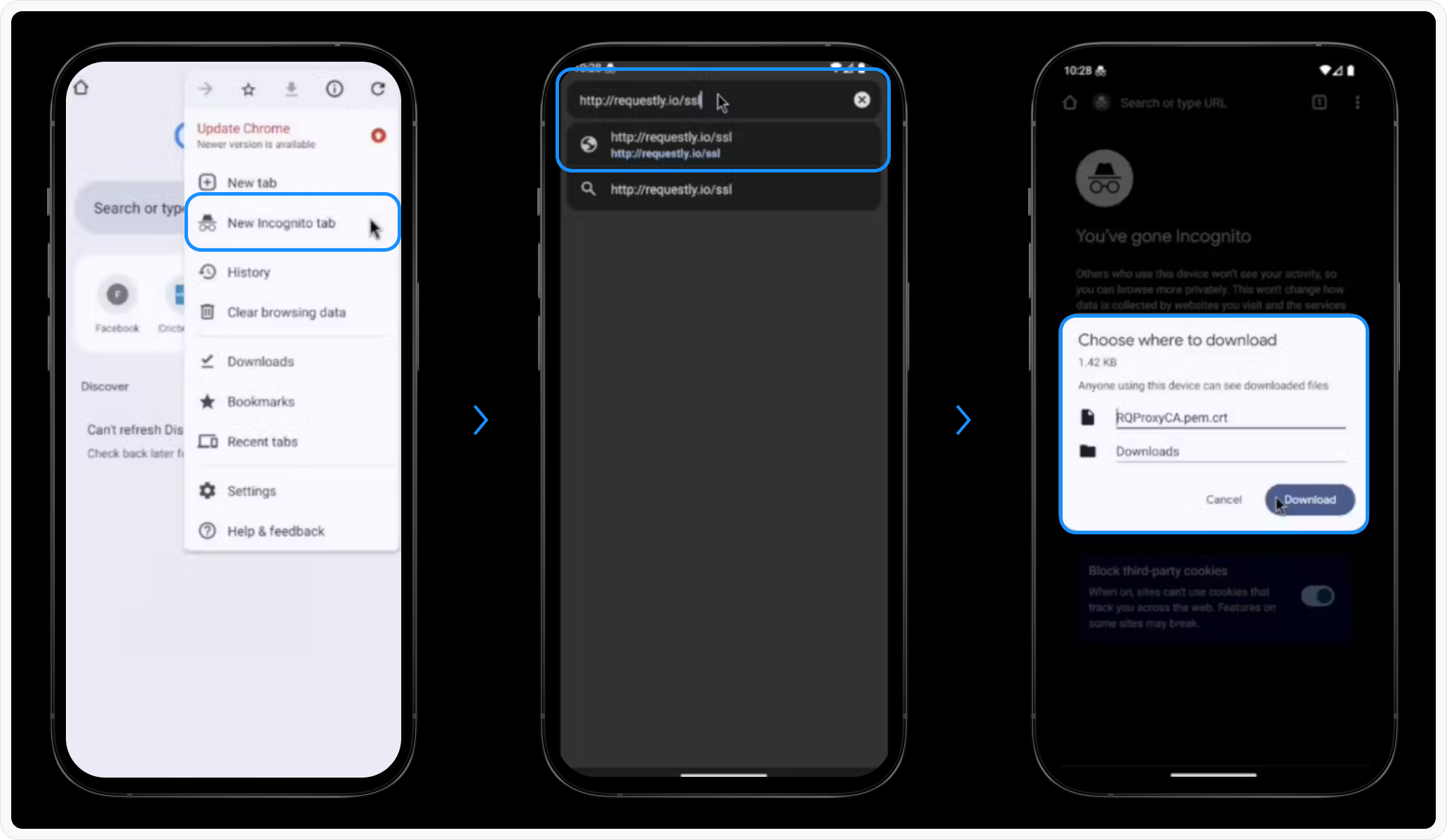
- Open Chrome in an incognito tab
- Go to http://requestly.io/ssl (⚠️ Use HTTP here, not HTTPS)
- This will download RQProxyCA.pem.cert
Install CA Certificate
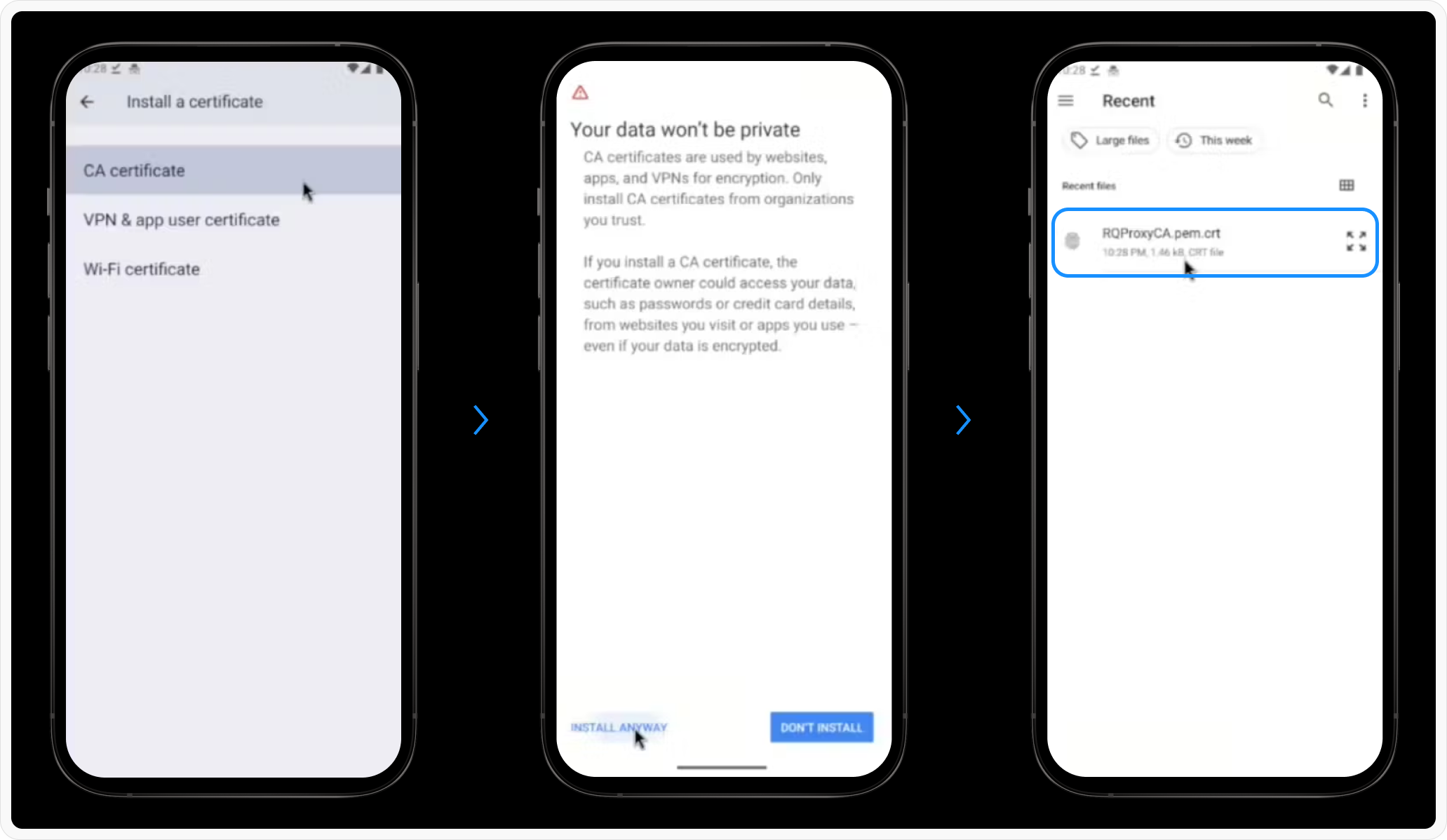
- Go to Settings > Search “CA Certificate” > Install Anyway.
- Select the downloaded certificate and install it.
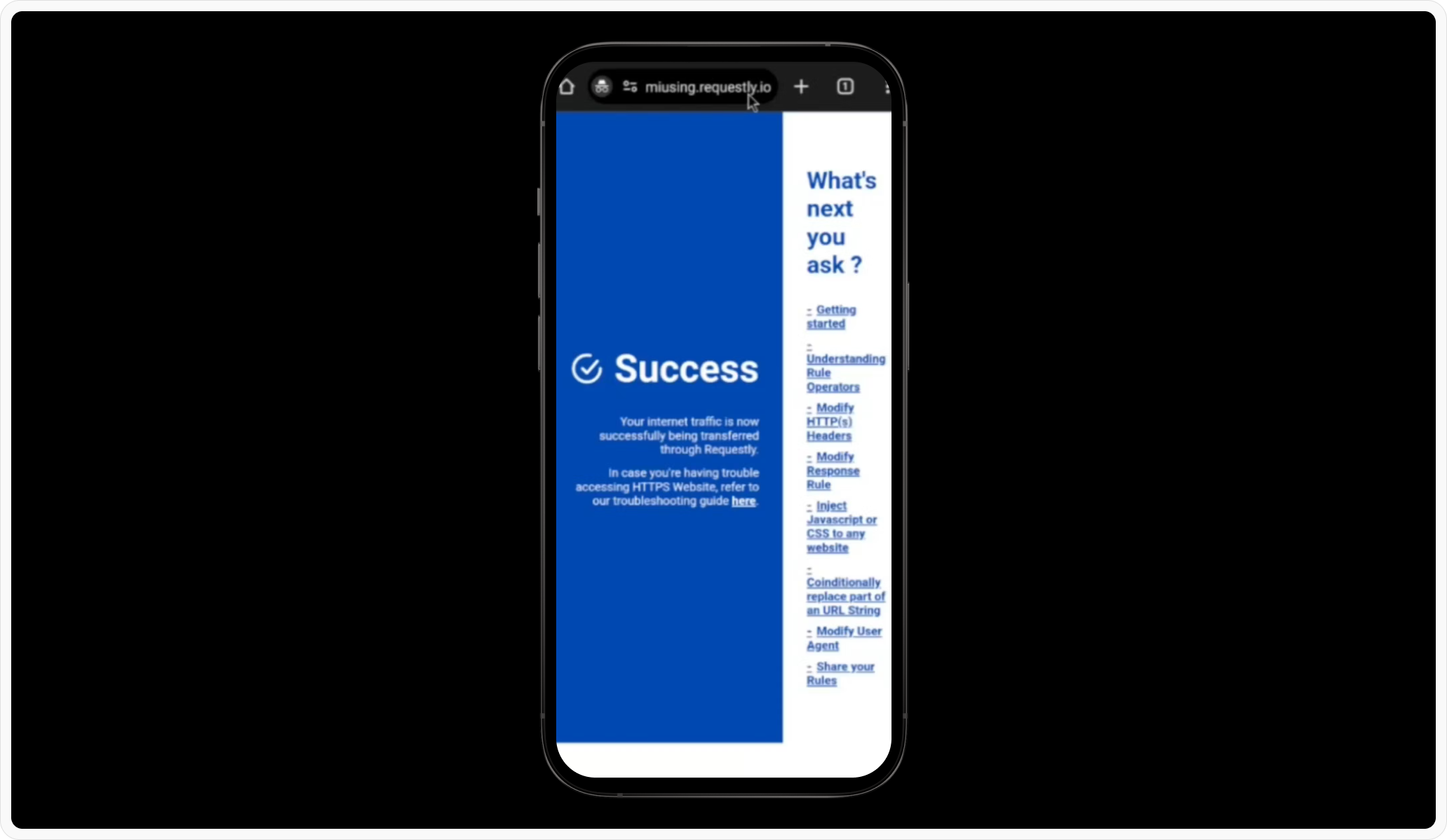
Verify Installation:
SSL Pinning [if-required]
From Android API level 23 (Android 6.0+), many apps enforce SSL pinning for security. To intercept HTTPS traffic, setting up SSL pinning is required.Make sure to remove these in production builds
Deactivate Proxy (After done debugging)
Please make sure to revert the proxy after you are done testing using Requestly InterceptorTroubleshooting
Emulator not detected?
- Check if your emulator is running.
-
Check if
adbis installed. If not, install it from here - Try Restarting your emulator.
How does it work?
Here’s the code that makes this happen in a single click https://github.com/requestly/requestly-desktop-app/blob/fb1f321a3d2431cfcd9d95d1396bcd39820a4ec9/src/renderer/actions/apps/mobile/android.js#L63-L74- Searches for online ADB devices
-
On
Connect- Root the device (To install Requestly Interceptor CA)
- Inject Requestly Interceptor CA (if not already)
- Setup Proxy on Emulator
- Restart the Emulator (Only first time)
-
On
Disconnect- Removes the Proxy