

Cookies availability: Cookie capture in DevTools depends on the cookie jar, a desktop-app feature that is rolling out gradually. If the cookie jar is not enabled for your build, the Cookies panel and the per-request Cookies tab do not appear. See Cookies.
Open DevTools
There are two ways to open DevTools, depending on whether you want to see activity across the whole app or scope it to a single request.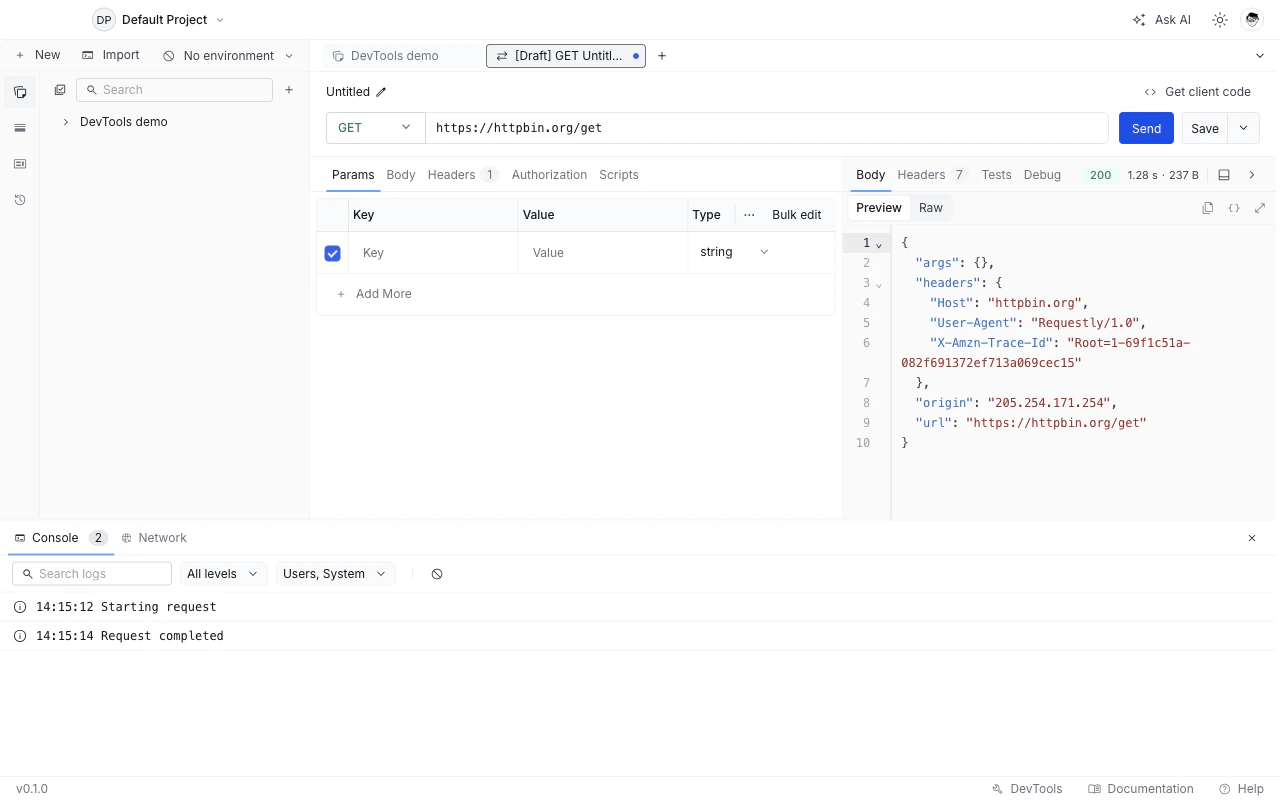
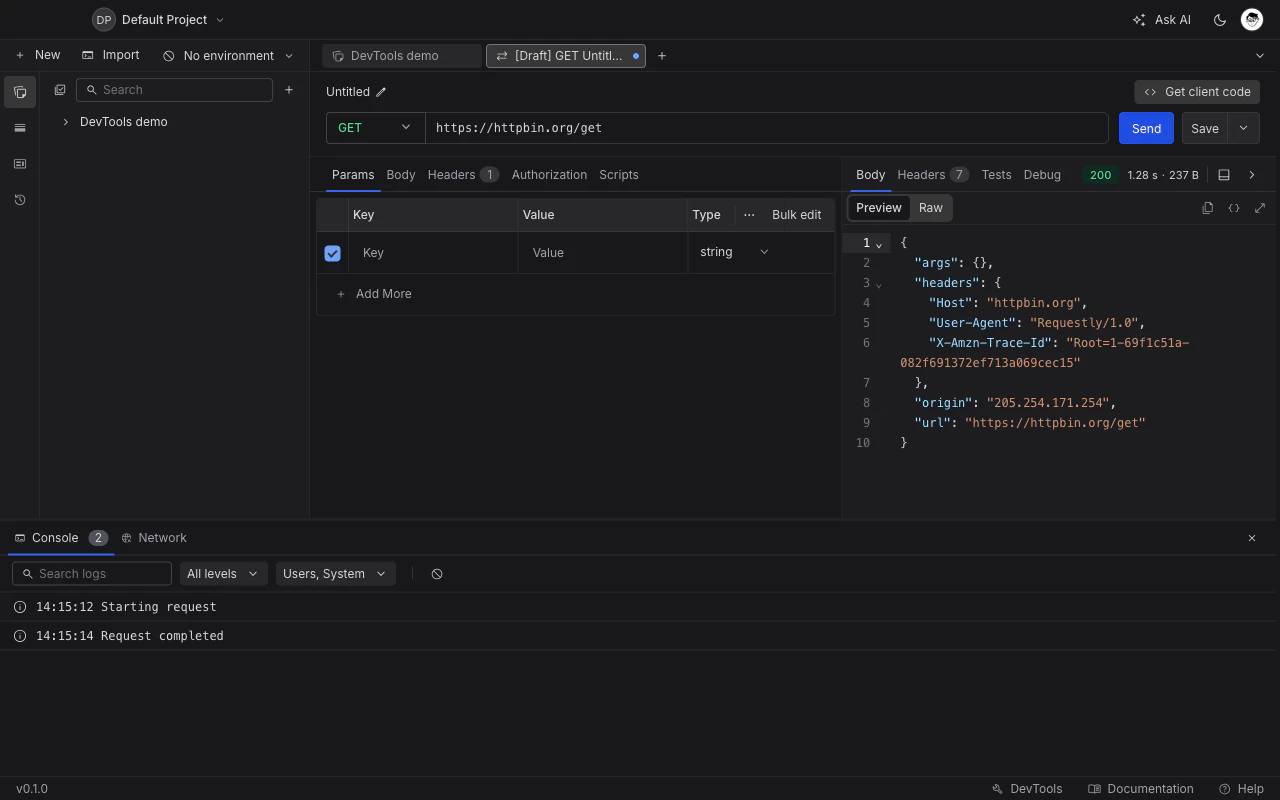
DevTools panel docked to the bottom of the API Client
- Global DevTools
- Per-request Debug tab
Click the DevTools button in the application footer at the bottom of the window. The panel docks to the bottom of the workspace and shows everything that has happened in the current session: every script log, every network request, and every cookie set or sent. Click the X in the top-right of the panel to close it.Use this when you want a session-wide view, for example to compare two recent requests or scan logs from a script that ran across several calls.
Console tab
The Console shows log output produced while a request runs. That includes anything you wrote withconsole.log() or console.error() in a pre or post-request script, plus system events Requestly emits (for example, when a script throws an error).
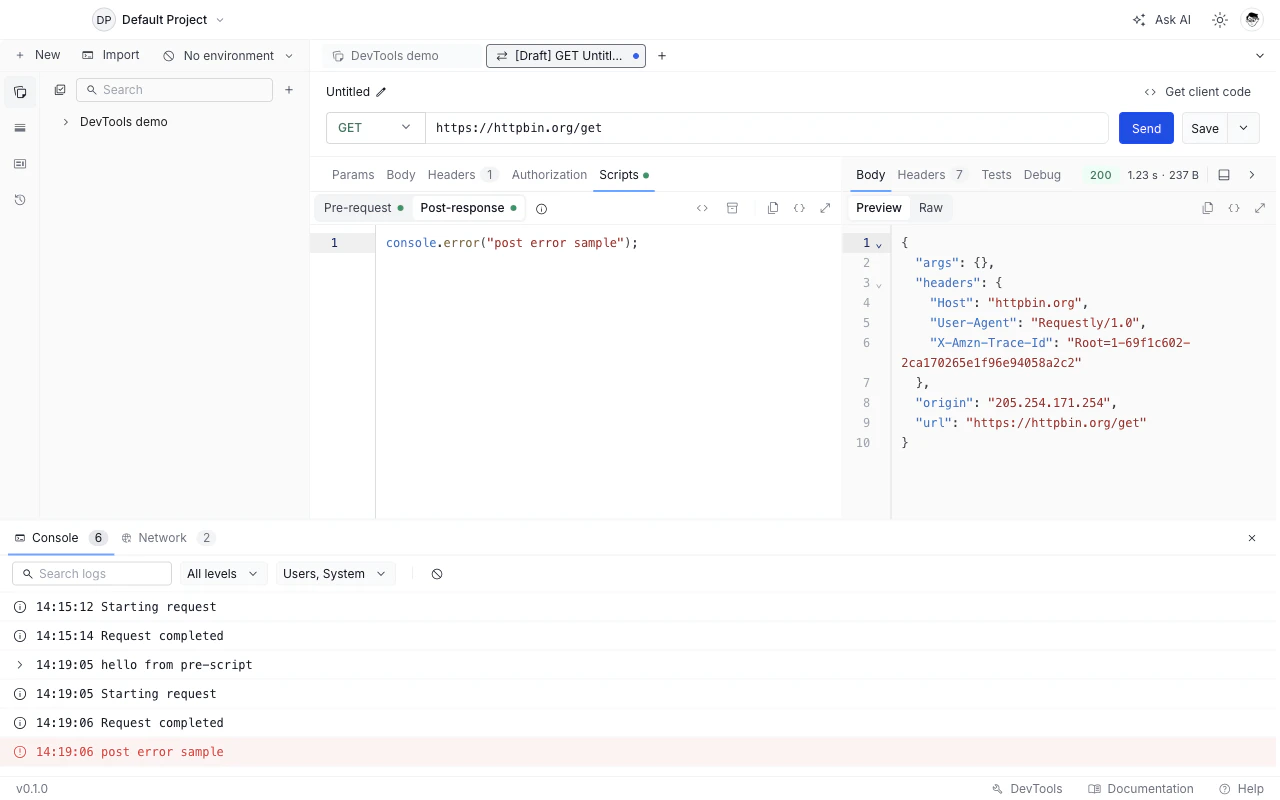
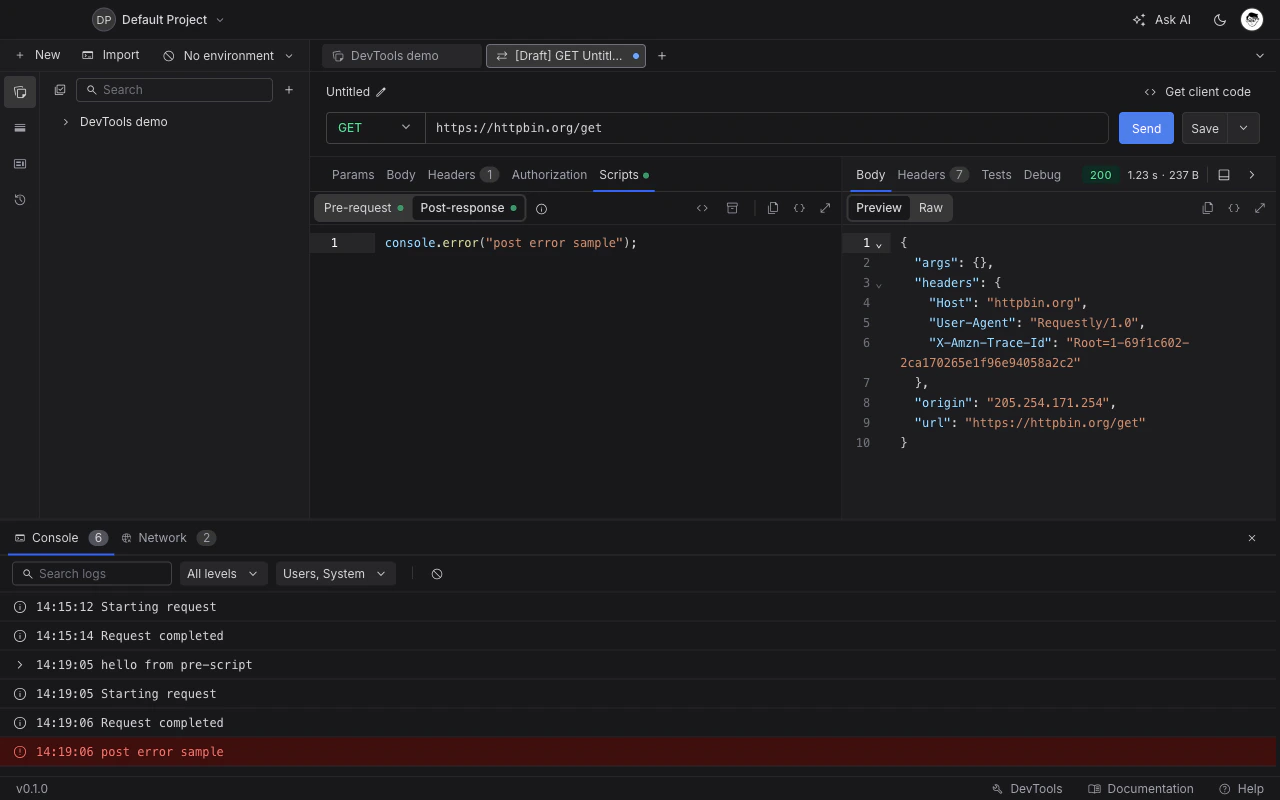
Console tab with log level and source filters
- Search. Filters the visible log lines by substring match. Useful when you want to find a specific value you logged.
- Level filter. Toggle Info, Warnings, and Errors. By default all three are on. Turn off a level to hide those entries.
- Source filter. Toggle between Users (logs your scripts produced), System (errors and lifecycle events from Requestly itself), and Network requests (one-line summaries of each request the runtime made). All three are on by default.
- Clear. Empties the panel. Note that clear wipes both the Console and Network tabs at once, since they share a single store.
Network tab
The Network tab lists every request the runtime sent on your behalf, including requests fired byrq.sendRequest from inside scripts and requests made by the collection runner. Each row shows the method, status code, URL, timestamp, response time, and response size.
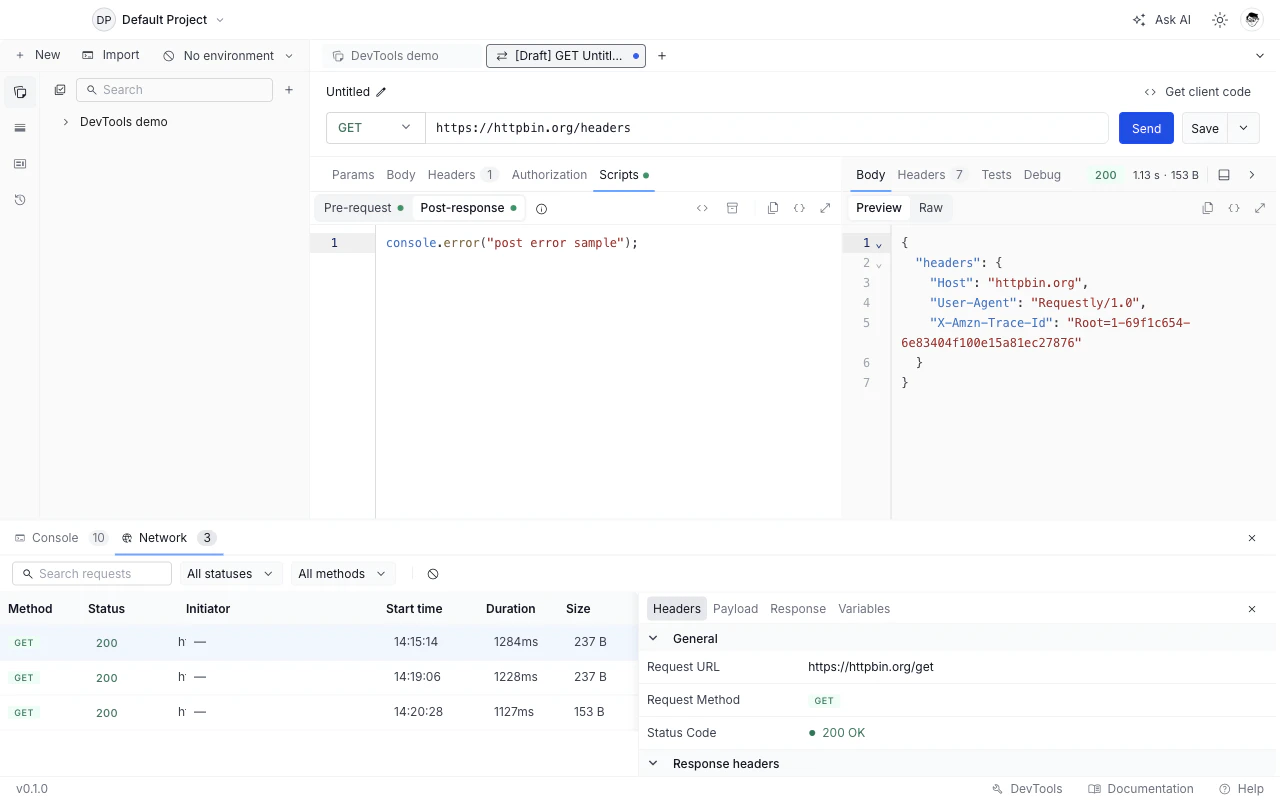
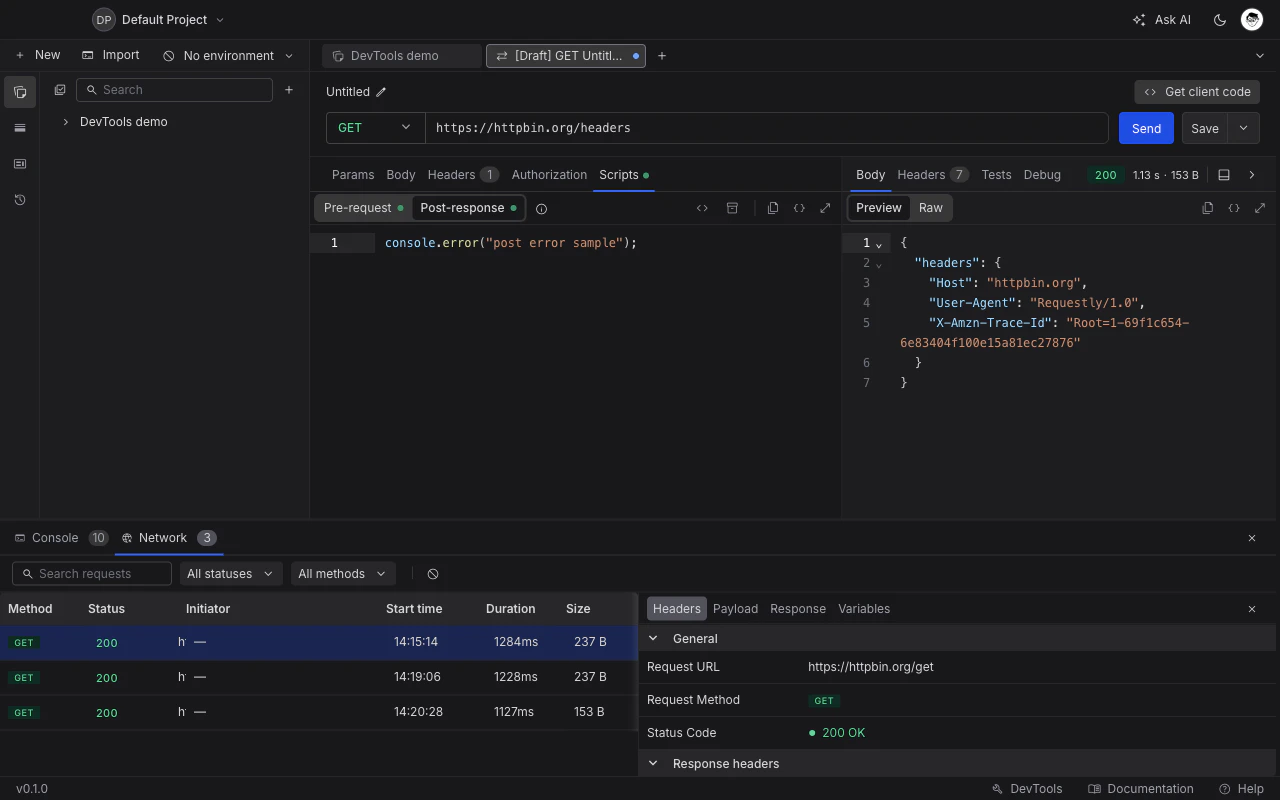
Network tab with the request list and detail view
Filter the request list
The toolbar at the top of the panel offers three filters:- Search. Matches against the URL, so you can locate a specific endpoint without scrolling.
- Status. Multi-select: 2xx Success, 3xx Redirect, 4xx Client Error, 5xx Server Error, and No status (failed). The last option captures requests that never received a response, for example because of a network error or DNS failure.
- Method. Multi-select: GET, POST, PUT, PATCH, DELETE, OPTIONS, HEAD.
Inspect a single request
Click any row in the list to open a side panel with detail tabs:- Headers. Request and response headers, side by side.
- Payload. Query string, path parameters, and request body. Multipart and form-encoded bodies are decoded so you can read each field.
- Response. The response body rendered in the response viewer. JSON and XML are pretty-printed and syntax-highlighted, with collapsible sections. Image responses render as the actual picture, and other binary responses show a Binary response placeholder with the response size instead of unreadable characters.
- Info. TLS handshake details for HTTPS requests: the TLS version and cipher suite, the server certificate (subject, issuer, and expiry), and the client certificate that was sent, if any. This tab only appears for HTTPS requests. See SSL Certificates for how to configure custom CA and client certificates.
- Cookies. The cookies attached to the request and any cookies set by the response. Only appears when at least one cookie is involved. See Cookies for how the cookie jar works end-to-end.
- Variables. Every variable that was referenced anywhere in the request, with the scope it resolved from (environment, collection, runtime, or global) and the value it resolved to.
Retention
DevTools keeps the most recent activity in memory and drops older entries once the panel fills up. The defaults are tuned to hold a long debugging session without slowing the app down:- Up to 25,000 console log lines.
- Up to 10,000 network requests.
- Up to 5,000 system events and 5,000 cookies.
What’s Next?
Pre & Post Scripts
Write JavaScript that runs around your requests and shows up in the Console
Tests
Assert on response data and watch the results in the Test Results tab
Cookies
Manage the cookie jar that DevTools observes on every request