

Before you publish
- A cloud project. Publishing is not available in local projects. In one, the collection’s Documentation tab reads “Publishing is not available in local projects” and offers no publish control.
- A top-level collection. The collection’s Documentation tab appears on root collections only, not on folders inside them.
- A linked specification. If the collection has none, you can generate one from the collection itself.
- At least one released version of that specification. Until one exists, Publish stays disabled. See versions and releases.
- Edit access to the collection. Without it, Publish and Unpublish stay disabled and their tooltips say you need edit access.
Publish a collection’s documentation
1
Open the collection's Documentation tab
Select the collection in the sidebar, then open the Documentation tab in the tab strip beside Overview, Variables, Authorization, Scripts and Runner.A Synced from spec line at the top carries a Go to source link. The link opens the specification the docs come from, and only its tooltip names that specification. Once the docs are live, this line disappears. The same link then sits in the top-right of the status card.
2
Choose who can read the docs
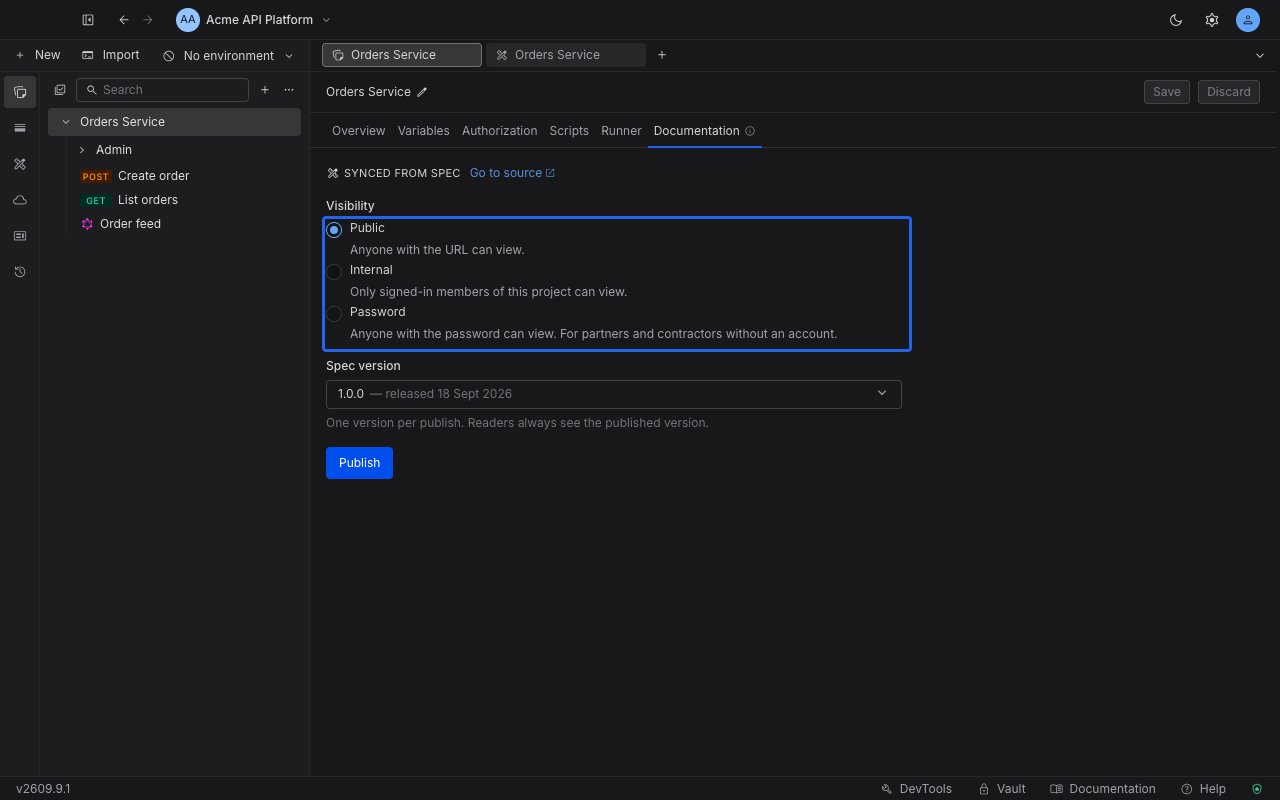
Pick one of the three Visibility options. They are covered in detail under visibility modes.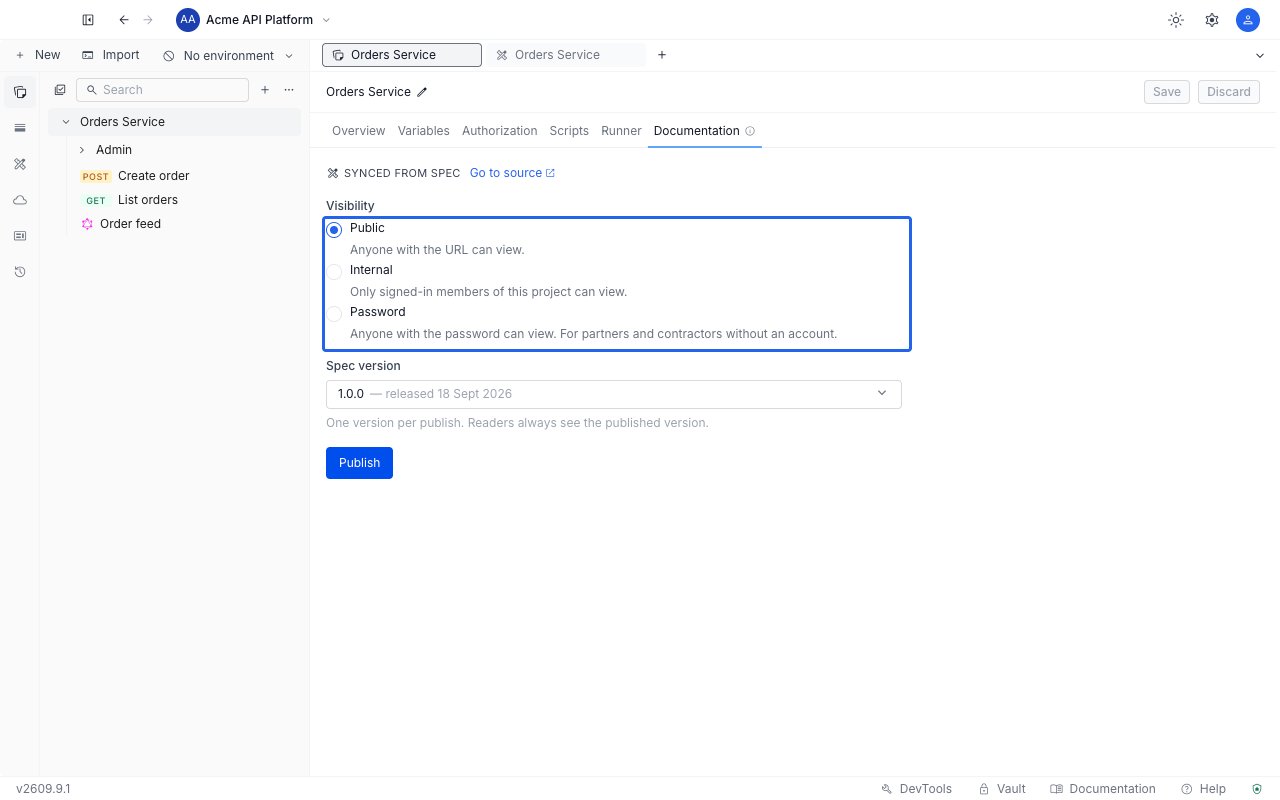
3
Pick the version to serve
Open the Spec version dropdown and choose a released version. Each entry shows its name and release date, and the one currently live is marked (currently live).A version released without scrubbing carries a warning icon, and selecting it shows: “This version was released without scrubbing - its content, including any credentials, will be visible to anyone who can access this documentation.” Release a scrubbed version instead if that matters to you.
4
Publish
Click Publish. The docs go live immediately and a status card appears above the form.
5
Share the URL
The status card shows a Live badge and the documentation URL, which has the form 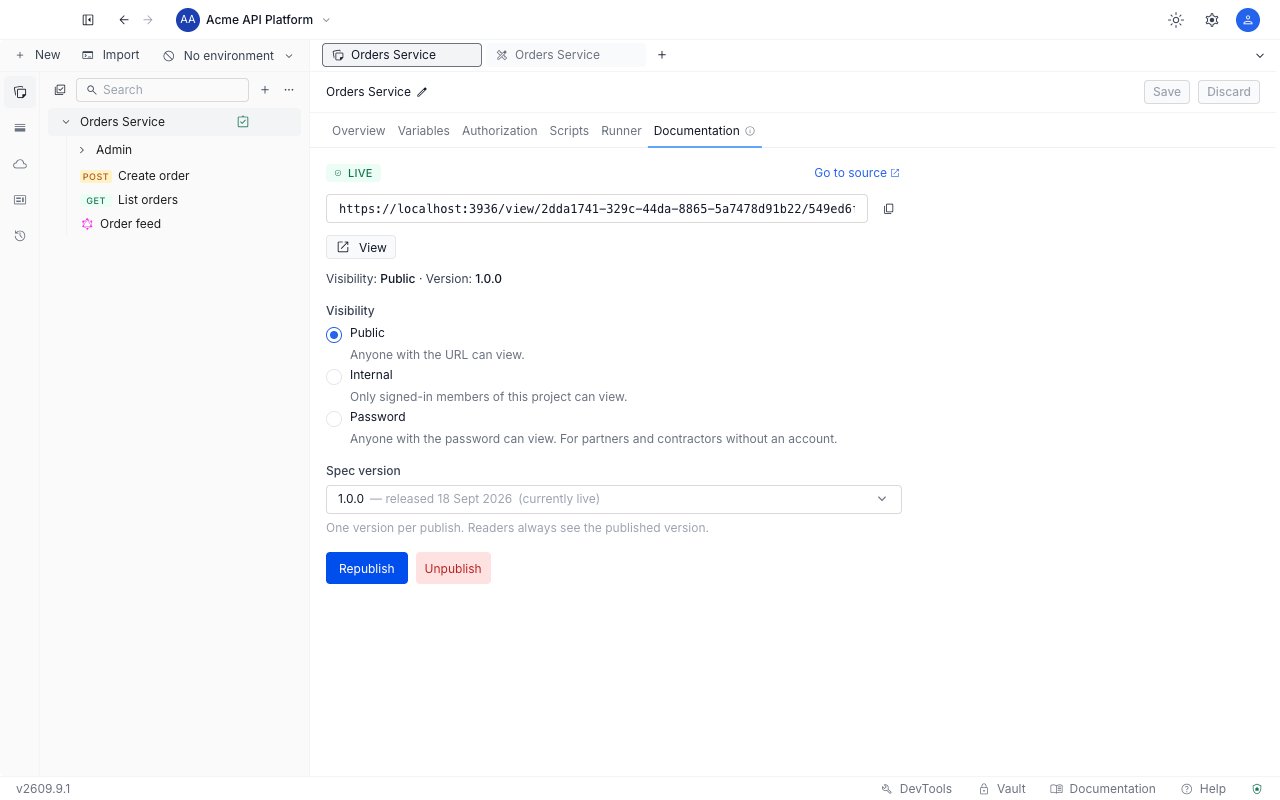
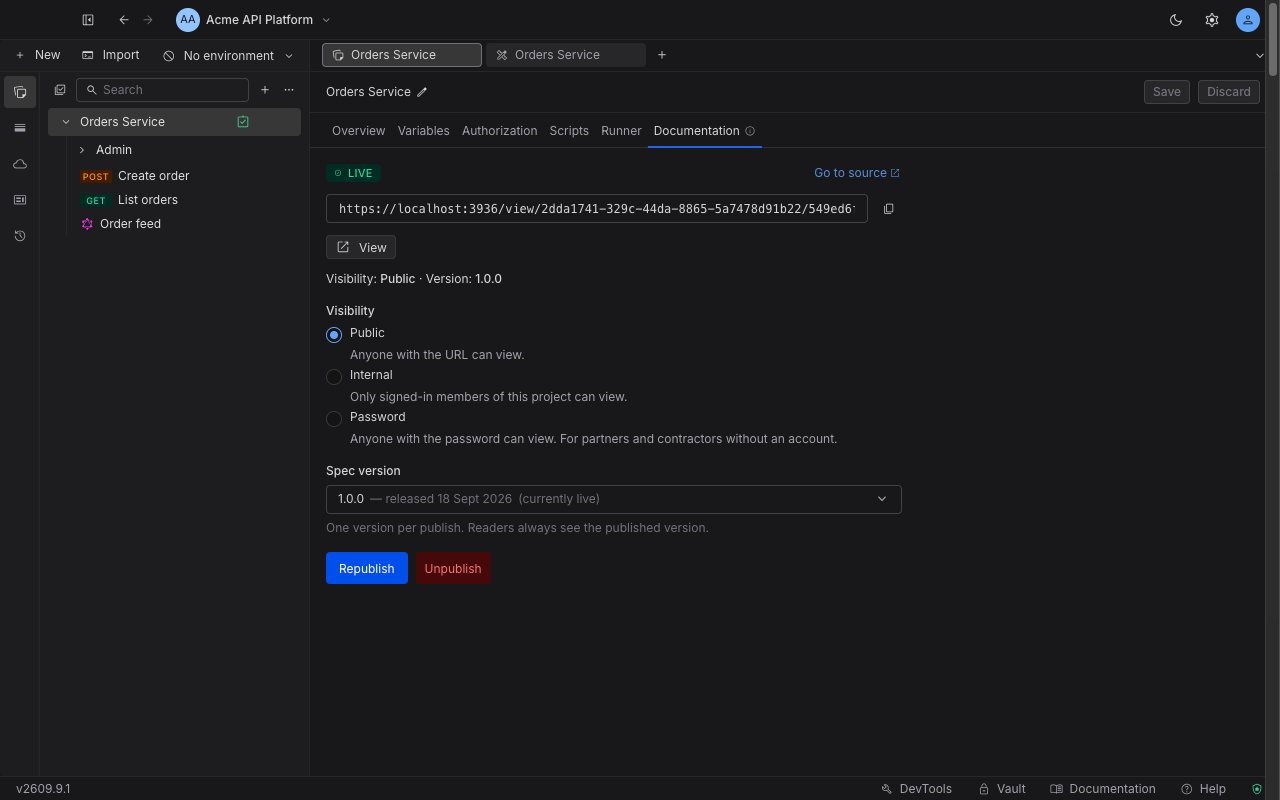
<your Requestly URL>/view/<project-id>/<collection-id>. Use the copy button to put it on your clipboard, or View to open the published page in a new tab.The URL is derived from the project and collection, so it never changes. Republishing a different version reuses the same link, and every bookmark your readers made keeps working.
Visibility modes
Set a password
Choose Password and the form reveals a password field. The password must be 8 to 128 characters. There are no composition rules, so a passphrase is fine. The password is never stored in a form you can read back. When you republish a collection that is already password-protected, leaving the field blank keeps the current password, and typing a new one replaces it.Publish from a collection with no specification
A collection that was never linked to a specification shows an empty state reading “Not linked to an API spec yet”. You have two ways forward from here.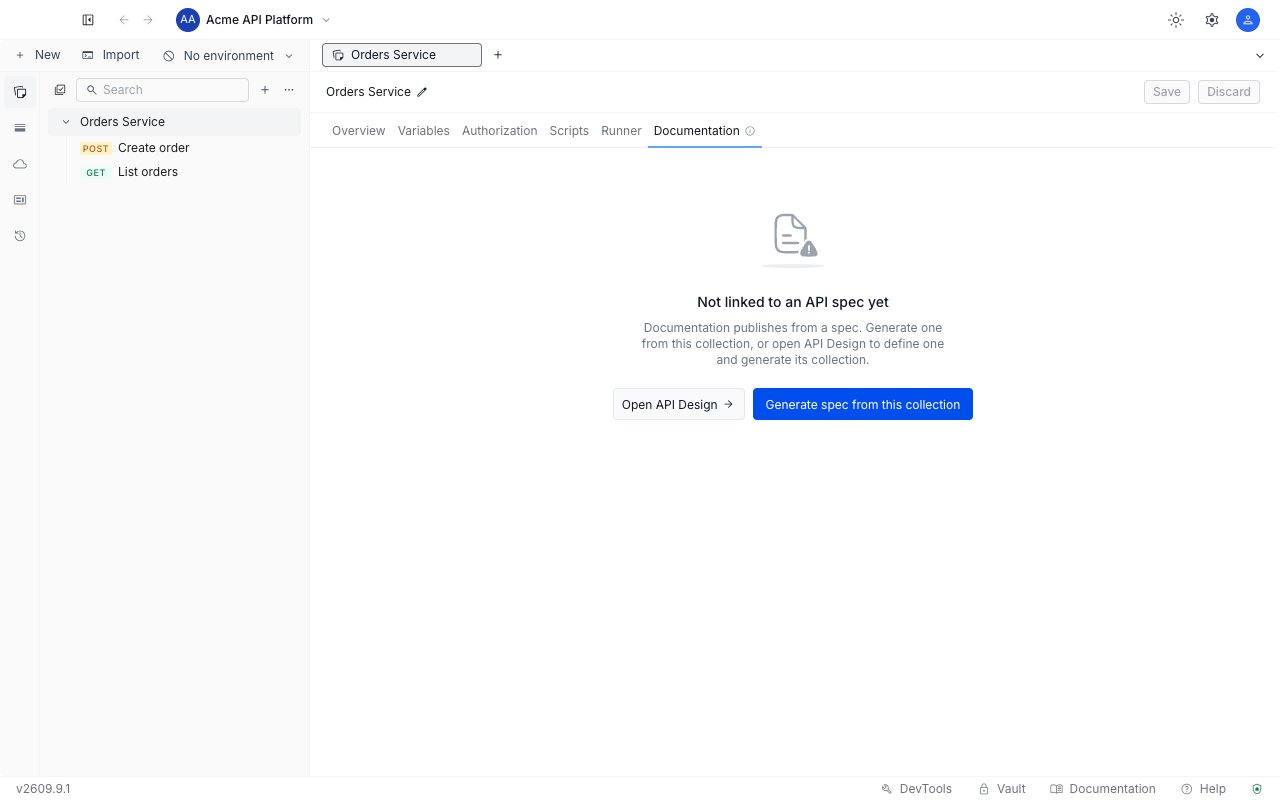
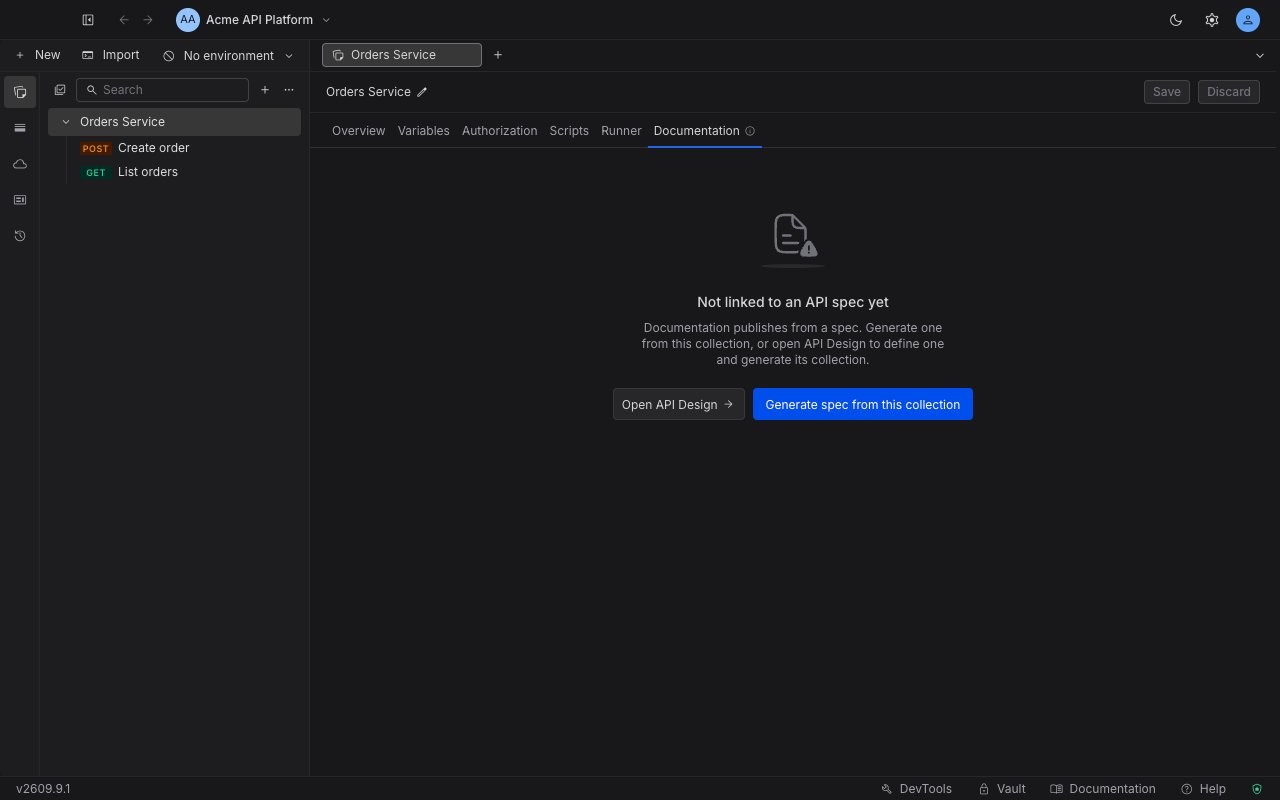
- Open API Design takes you to the specification editor, where you write a document and generate its collection.
- Generate spec from this collection builds an OpenAPI specification out of the requests you already have, in one step.
Generate spec from this collection is disabled when the collection holds no HTTP requests at all. Its tooltip explains why: only HTTP requests can be described by an OpenAPI specification.
Generate a specification from the collection
Click Generate spec from this collection, give the specification a title, and confirm with Generate spec.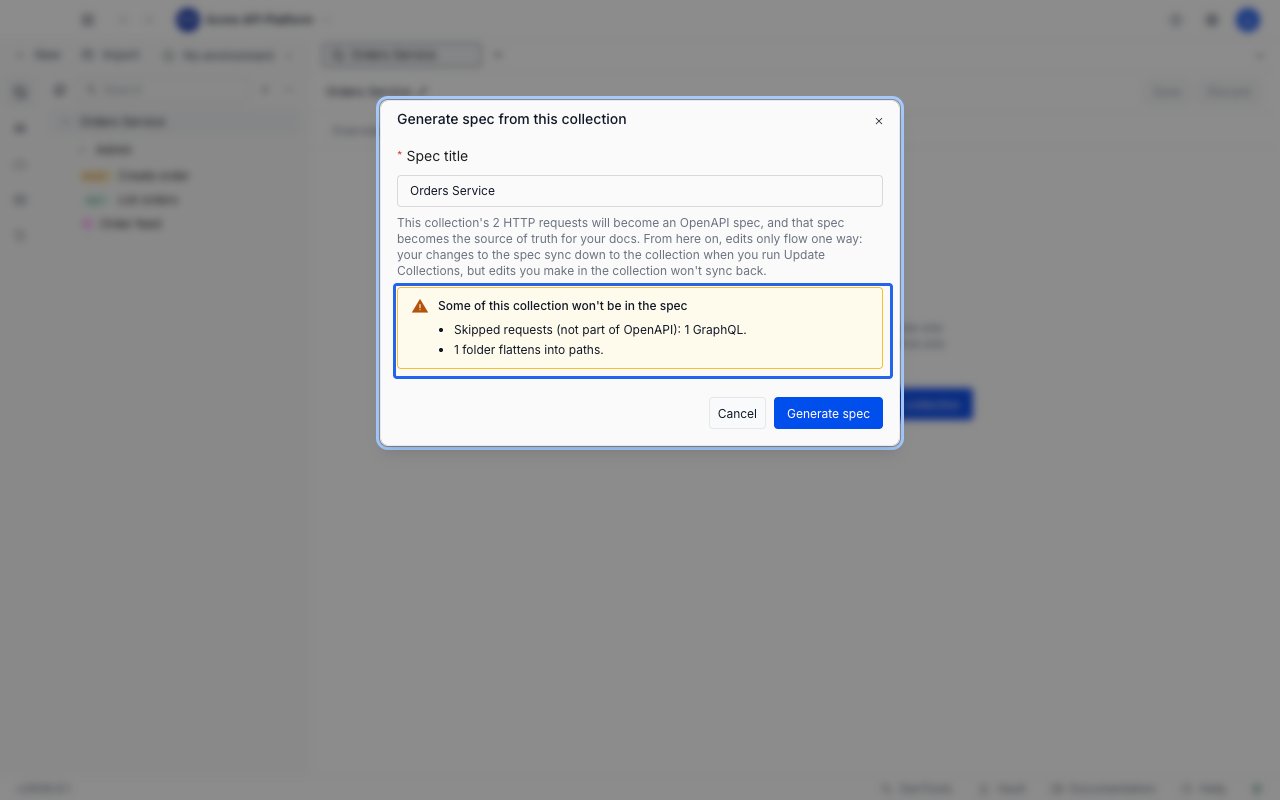
- Non-HTTP requests. GraphQL, gRPC, MQTT, WebSocket and Socket.IO requests are skipped, because OpenAPI cannot describe them. Each kind is counted so you know what you are leaving behind.
- Folders, which flatten into paths.
- Saved examples, which are not carried over.
- Pre-request and test scripts, which are not carried over.
Keep the published docs current
The live version never changes on its own. Releasing a new version of the specification does not move the docs onto it, so a reader is never surprised by a document you were not ready to ship. Requestly tells you when the two have drifted apart:- A newer release exists. The status card reads “Newer spec release available”, names the newest version, and asks you to select it below and republish.
- You changed the form but did not apply it. The card reads “You have unpublished changes to the version or visibility”, which is the reminder to click Republish.
Unpublish
Click Unpublish beside the primary action and confirm in the dialog titled “Unpublish this collection’s docs?”. The dialog states the outcome: “Visitors will see a 404 until you re-publish. Your visibility and version settings are kept.” The 404 is the response the page requests; what a visitor actually reads is the “Documentation unavailable” page described under when a reader cannot open the docs. Confirming with Unpublish takes the page down; Keep published backs out and changes nothing. Because the settings survive, republishing later is a single click - you do not have to pick the version and the visibility again.Deleting the collection, or deleting the released version the docs point at, also takes the published page down. The delete confirmation for a version names every collection that will be unpublished.
What a recipient sees
The published page is a standalone reader. It has no Requestly application chrome, no sidebar of your other collections, and nothing editable. It shows the outline of the API on the left and the rendered document on the right.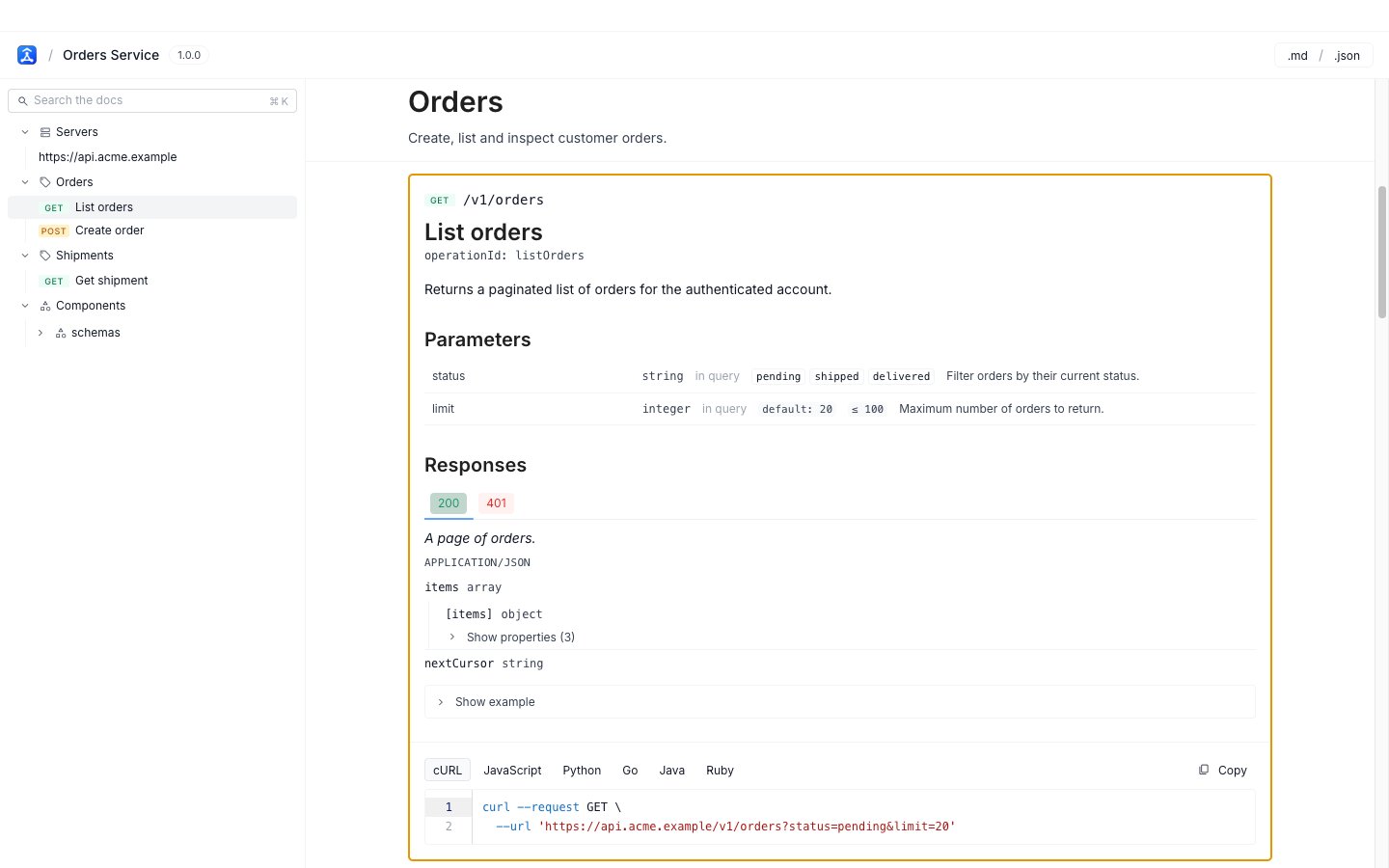
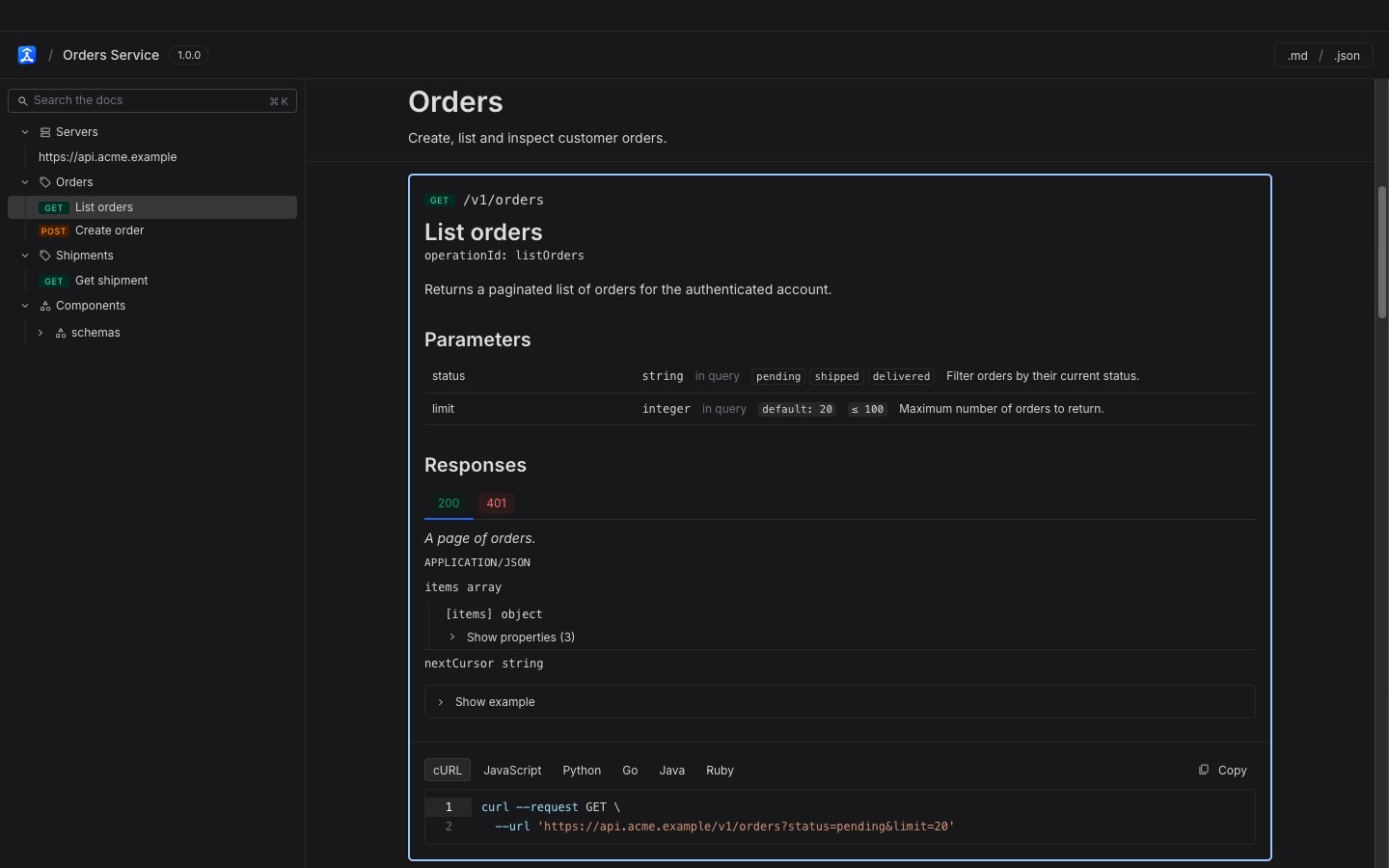
Finding an endpoint
- Endpoints are grouped by tag. The outline lists one group per tag from your specification, with each operation under it carrying its method badge. A specification that declares
x-tagGroupsnests its tag groups under those super-groups. A specification with no tags falls back to a single flat Paths group. A Servers group sits above the tag groups and a Components group below them. - Search the outline with
Cmd/Ctrl+K. The shortcut jumps straight to the outline’s search field, which filters the tree as the reader types. - The outline follows the reading position. Scrolling the document highlights the matching outline row, so a reader deep in a long document always knows where they are.
Link to a single operation
Every operation has its own URL. As a reader moves through the document, the address bar updates with a fragment naming the current section, so copying the URL at any point links to exactly that operation. Opening such a URL scrolls straight there instead of to the top of the page. The fragment is derived from the specification, so it is readable and stable:#components.schemas.User.
Copy a request in six languages
Each operation carries a code sample panel with cURL, JavaScript, Python, Go, Java and Ruby tabs. Pick a language, click Copy, and the snippet is on the clipboard. The samples are there to be copied and run elsewhere; the reader does not send requests. A request body larger than 50 KB is trimmed in the sample, and the panel says so beneath the snippet.Open the specification as .md or .json
The reader’s header has .md and .json buttons. Each one opens the released specification in that format in a new tab, so a reader can feed it to another tool or keep a copy.How the document is rendered
The reader renders the document faithfully rather than summarising it:- Markdown is rendered. Descriptions on the API itself, on tags, on operations, on components and on individual schema properties all render as formatted text, so code spans, bold text and links appear as you wrote them.
oneOfandanyOfare labelled. A schema built from alternatives shows each branch under a clear heading instead of collapsing them together. Where the specification declares a discriminator, the reader shows a variant selector and narrows the schema to the type the reader picks.
When a reader cannot open the docs
A reader who cannot open the docs gets a page that says why, as far as it is safe to say so:- Password docs show a prompt reading “This documentation is password-protected”. A wrong password returns a plain “Incorrect password.” with no hint.
- Internal docs send a signed-out visitor to sign in first. A signed-in visitor who is not a member of the project is told they do not have access and to ask the project owner.
- An unpublished, deleted or mistyped link shows an outside visitor the same “Documentation unavailable” page in every case. The page does not reveal whether the docs ever existed, so the URL cannot be used to probe for collections. A signed-in member of the owning project is the one exception. That page tells the member the docs are unpublished, and offers an Open in Requestly button to go and republish them.
Next steps
- Versions & Releases to cut the release your docs will serve.
- Sync a collection from a specification to keep the collection in step with the document you publish.
- Issues & Governance to clear the errors that block a release.