

404 from your mock, the mock editor alone cannot tell you why. The route looks right, the rule looks right, and yet something on the other end is sending a path, a header, or a method you did not expect.
The Logs tab answers that. Every call your cloud mock receives is recorded with the method and path that arrived, the status that went back, and a plain reason for the outcome: which route and response served it, or exactly why nothing did. You can expand any call to read the headers and bodies on both sides.
Request logs are rolling out gradually. If you do not see a Logs tab on your mocks, it is not enabled for your account yet.
Prerequisites
- You are signed in and a cloud project is active. Only cloud mocks are recorded. A mock served locally by the desktop app shows an empty state instead, headed “Logs are available for cloud mocks”: that mock is served locally, so its calls are not recorded.
- Your role has permission to view the logs. Without it the Logs tab still appears, but opening it shows “You don’t have access to these logs” and asks you to request access from a project admin. The tab is not hidden, so you can tell the difference between “no permission” and “no such feature”.
Open the logs
1
Open the mock
Open the mock from the Mocks section in the sidebar. Above the editor is a tab strip with two tabs: Routes and Logs. The routes and responses editor you already know lives under Routes.
2
Switch to Logs
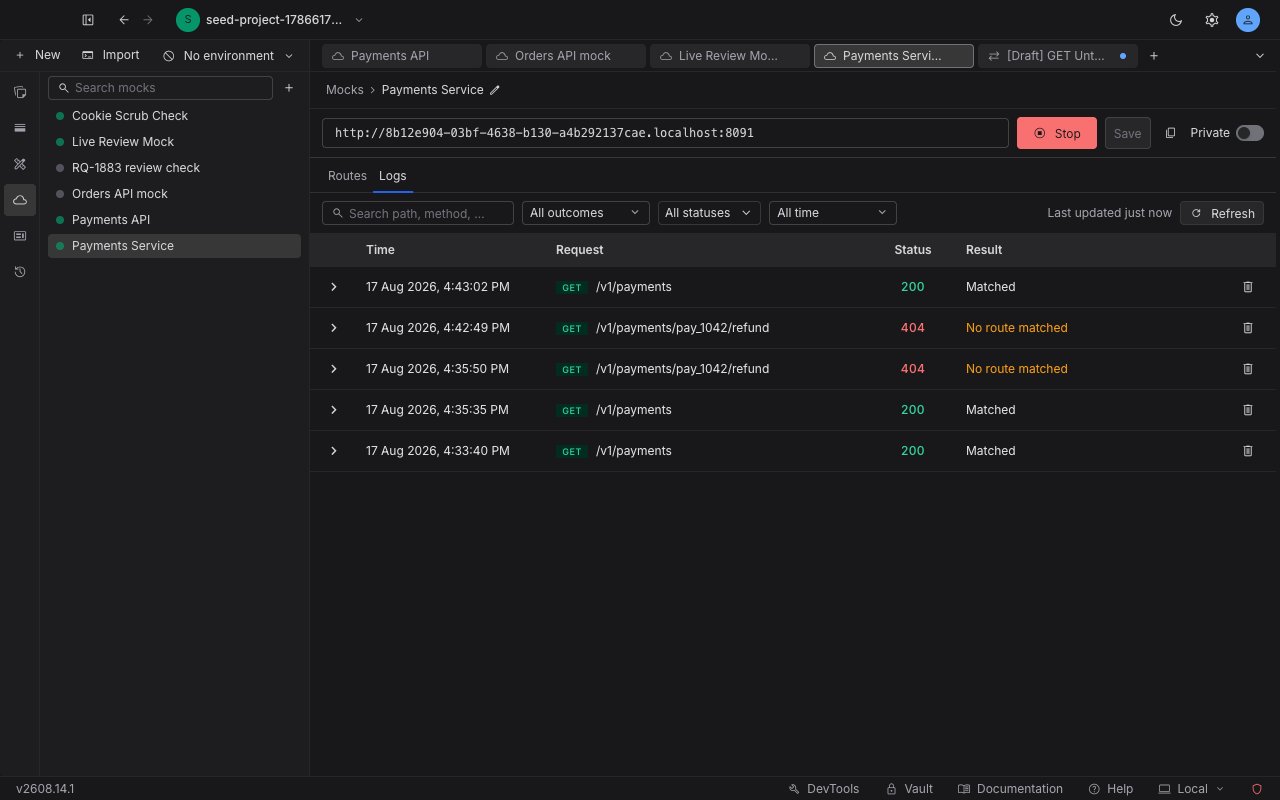
Click Logs. Requestly loads the calls this mock has received, newest first.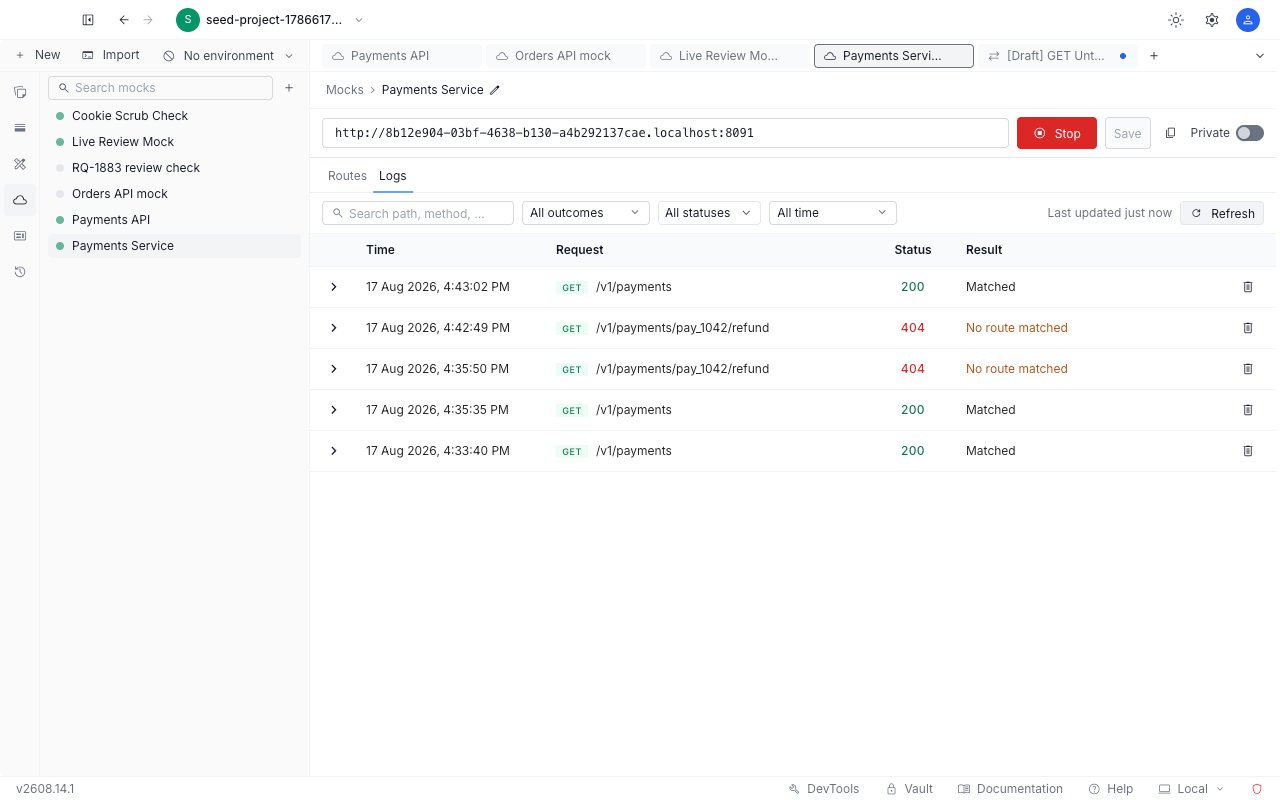
3
Send a call and refresh
If the mock has not been called yet, the table shows “No calls yet” with a Copy mock URL button. Copy the URL, send a request to it, then click Refresh to see the call appear.
Read a row
Each row is one call the mock received.- Time: when the call arrived, as one absolute instant at every age, in the shape
13 Aug 2026, 3:55:43 PM. There is no “2 minutes ago” that you have to convert in your head. - Request: the method and path the caller actually sent, not the route pattern it was tested against.
- Status: the HTTP status the mock returned.
- Result: the headline. Whether the mock matched, or why it did not.
Fix a call that did not match
A “No route matched” row carries the fix inside it. The words Add a route in the row are a link.1
Click Add a route
Requestly switches to the Routes tab with a new route already filled in with that call’s exact method and path, unsaved and editable.
2
Generalise the path if you need to
The seeded path is the literal one that was called, not a guessed pattern. A call on
/v1/payments/1001 seeds /v1/payments/1001, so turning it into /v1/payments/:id is one edit you make before saving. See path parameters for what the pattern can express.3
Give it a response and save
Configure the response you want the route to serve, then click Save in the URL strip, like any other route edit.
4
Verify
Send the same call again, go back to Logs, and click Refresh. The new row should read Matched.
Inspect the full request and response
Click the expand control on a row to pull in everything that was stored for that call. It opens four collapsible sections: Request headers, which is open by default, Request body, Response headers, and Response body. A section with nothing in it reads “None” for headers or “No body” for bodies.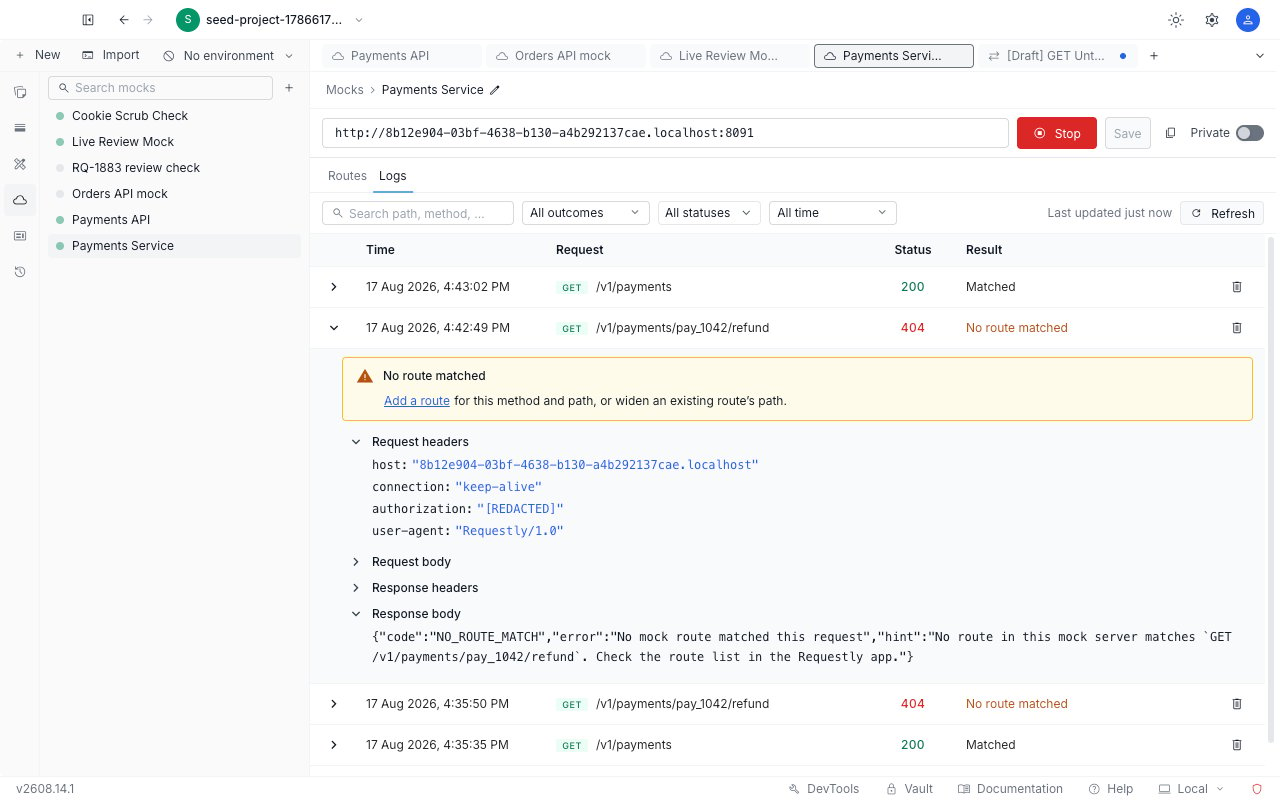
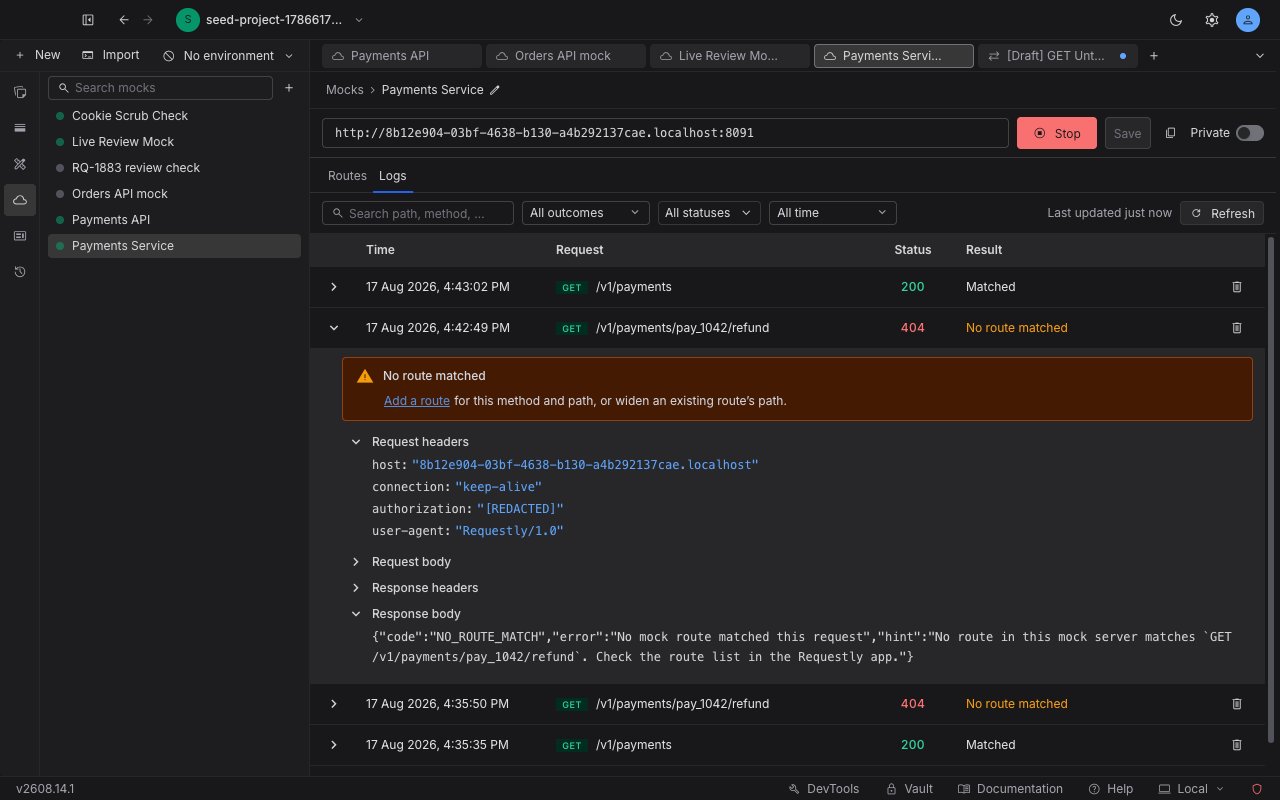
[REDACTED] before anything is stored. That covers Authorization, x-api-key, Cookie, any header whose name contains token, secret, or password, and the remaining auth headers such as proxy-authorization. Hovering a redacted value confirms that it was redacted when the call was captured and was never stored.
Cookie is redacted one pair at a time, so the cookie names survive and only the values are destroyed:
Redaction happens at capture, not at display. There is no setting that reveals the original values later, because they were never written down.
Narrow the list
Four controls sit above the table, and they combine.- Search, with the placeholder “Search path, method, or status”. It matches the requested path and method, the matched route’s method and path, the response label, and the status code.
- Outcome: “All outcomes”, “Matched”, or “Non-match”. Use “Non-match” to see only the calls that went wrong.
- Status: a multi-select that reads “All statuses” until you narrow it, with checkboxes for “1xx Informational”, “2xx Success”, “3xx Redirect”, “4xx Client Error”, and “5xx Server Error”.
- Time range: “All time”, “Last hour”, “Last 24 hours”, “Last 7 days”, or “Last 30 days”. The longest option never exceeds the retention window, so the list cannot ask for calls that have already been deleted.