

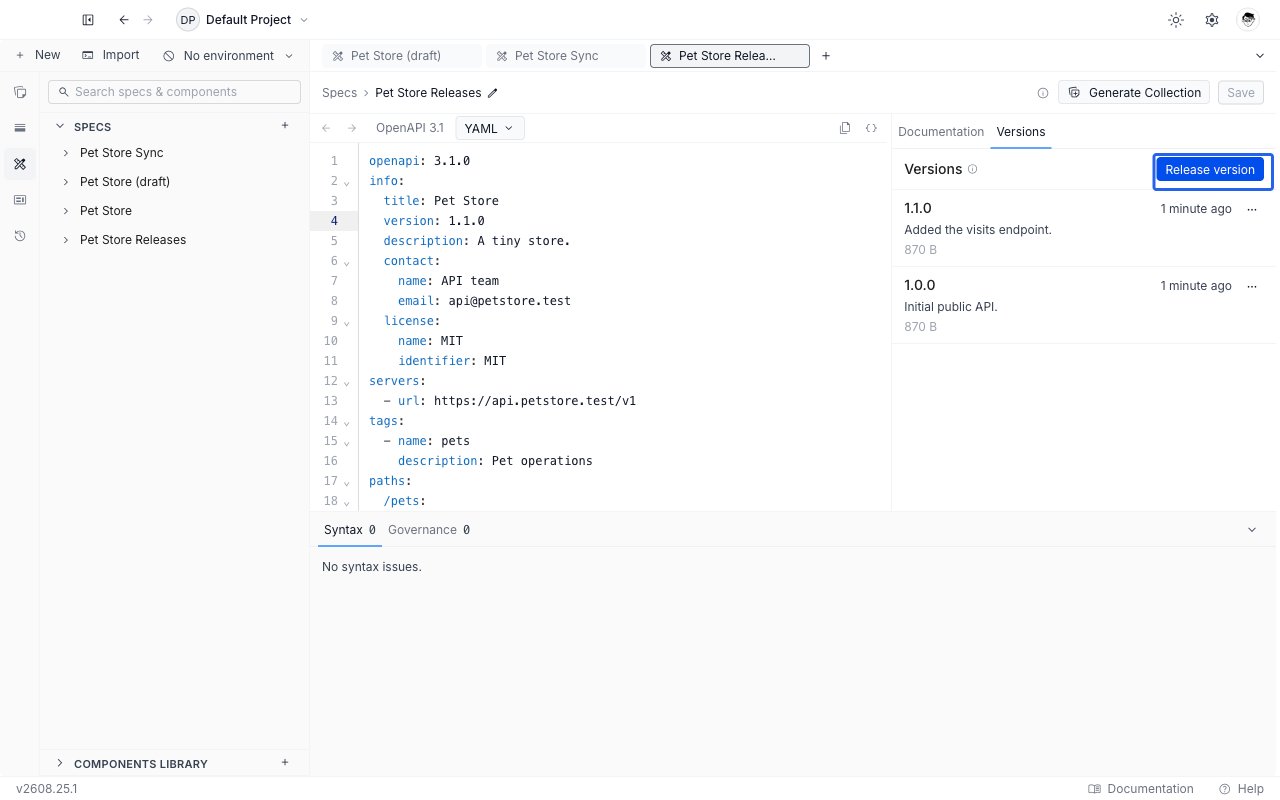
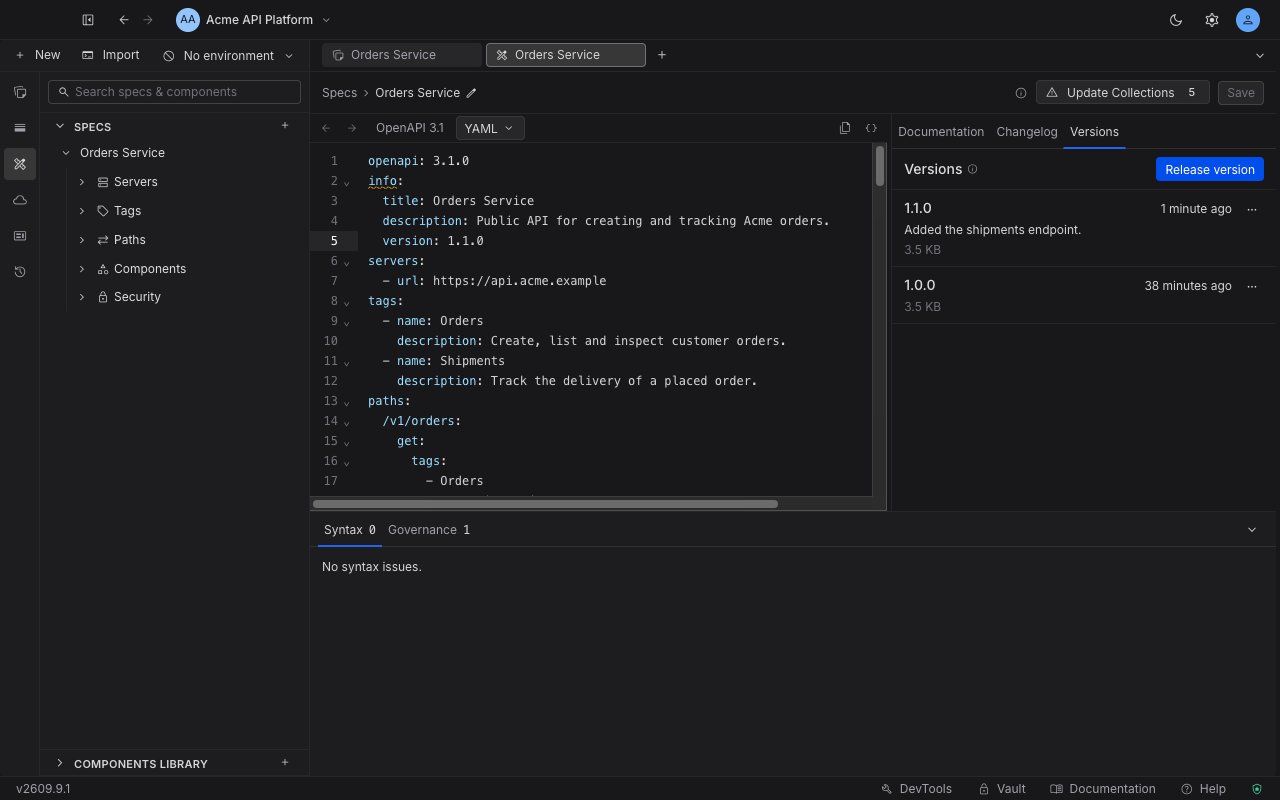
On a cloud project the rail also has a Changelog tab, which is not the same thing. The changelog records every save automatically; a version is a snapshot you release deliberately, and it has a name you control.
The version number comes from your specification
You never type a version number. Requestly reads it from theinfo.version field of the specification itself, so the number in the release list is the number your API document declares.
1.4.0. To release again later, edit info.version, save, and release. Releasing twice from the same info.version is refused with “This info.version is already released. Bump info.version in your spec to release a new version.”
info.version has to be usable as a name: letters, numbers, dots, hyphens and underscores only, between 1 and 64 characters. A value with a space or a + in it, such as 1.0.0+build7, is rejected rather than silently trimmed, and the message tells you which characters are allowed.
Prerequisites
The Release version button is disabled until all three of these hold, and its tooltip names whichever one is missing:- No blocking errors. A single error on either tab of the Issues panel blocks the release. Open the panel to find them, checking both tabs. Warnings, info and hints never block.
- No unsaved edits. A release snapshots saved content, so the tooltip reads “Save your changes before releasing.” Save first.
- An
info.versionvalue. Without one the tooltip reads “Add an info.version to your spec to release.”
Release a version
1
Open the Versions tab
With the specification open, switch the right-hand rail to Versions.
2
Click Release version
Requestly checks the specification, gathers every component the document references, and prepares the snapshot.
3
Confirm the version and add notes
The dialog shows the version read from your specification, marked as coming from 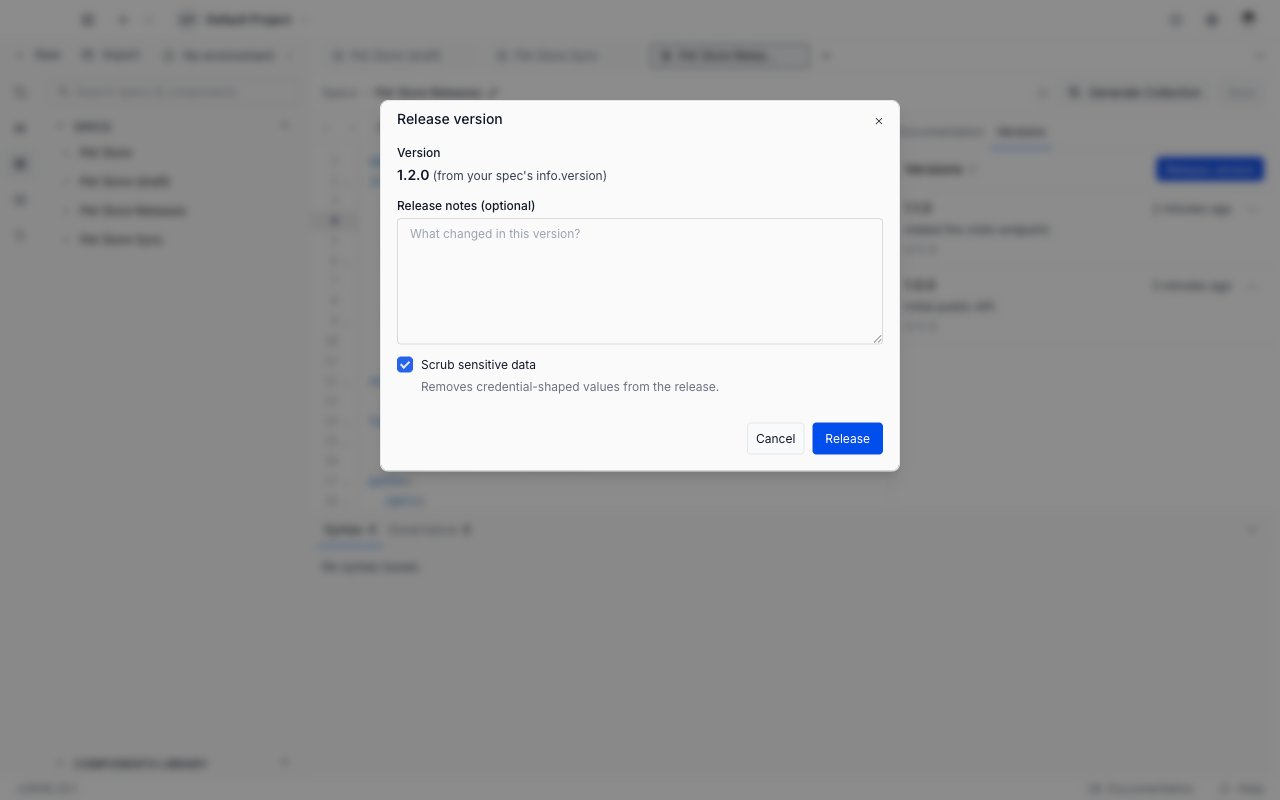
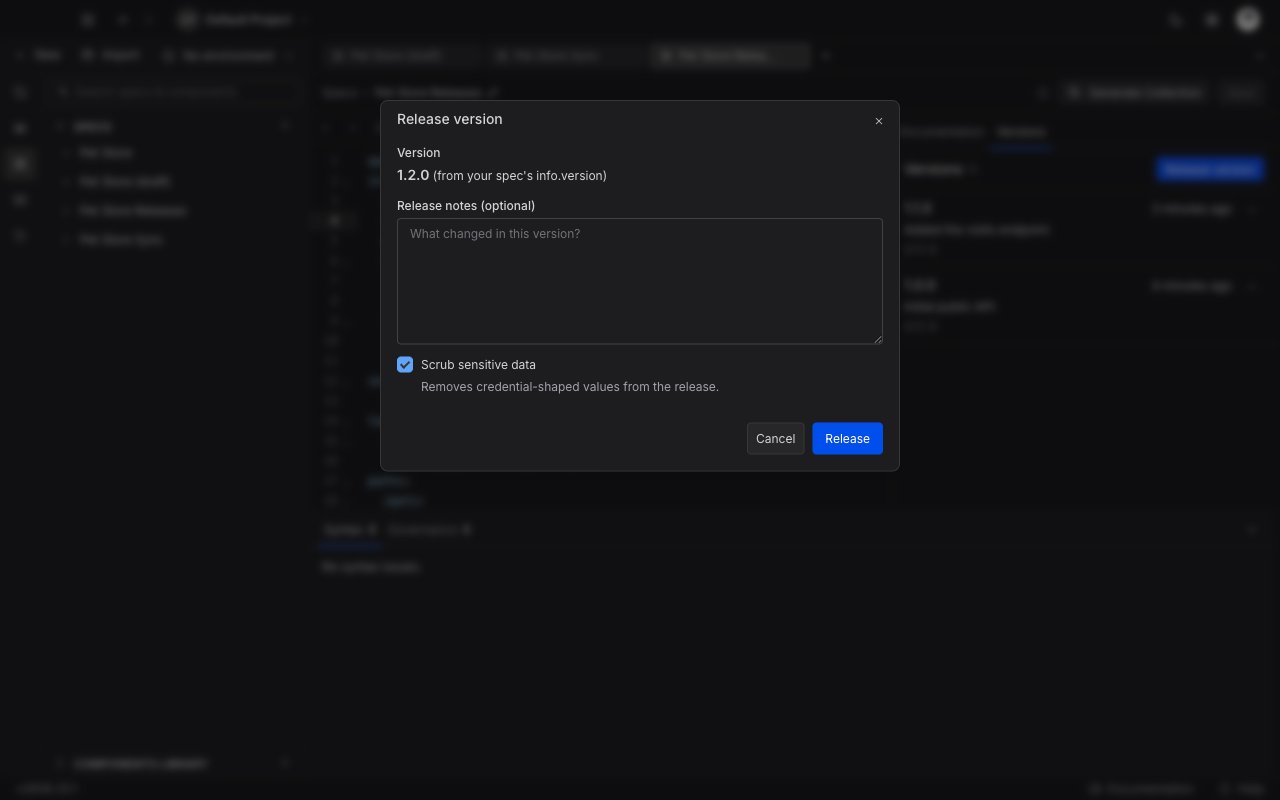
info.version, and it is not editable here. Release notes are optional and free text: “What changed in this version?”Scrub sensitive data is on by default. It replaces credential-shaped values in the snapshot with <redacted> while keeping the shape intact, so a Bearer token becomes Bearer <redacted> and readers can still see that the endpoint expects a bearer token.4
Review anything that survived the scrub
If Requestly still finds token-shaped text after scrubbing, usually inside a description or an example, it shows a Review before releasing screen listing each one with where it was found. Cancel to go and clean the document, or click Release anyway to accept it.
5
Release
Click Release. The new version appears at the top of the list.
Work with a released version
Each row in the list shows the version name, how long ago it was released, its notes and its size.- Click the row to open the version full screen, read only, with the same outline and documentation view as the editor. Every reference is already resolved inside the snapshot, so you are reading exactly what a consumer of that version gets.
- Open the row’s menu for Copy content to clipboard, Download as YAML and Download as JSON. Requestly converts between the two formats for you, so you can download JSON from a YAML specification.
- Delete version removes it permanently. See Deleting a version.
Documentation status
If any collection publishes documentation from this specification, the Versions tab gains a Published as docs section below the release list. It has a collapsible header, so you can fold it away when you do not need it. Each row names the collection, the version its documentation is currently serving, and a status: Current when it is on the newest release, or Newer available when a release has landed since. Manage opens that collection’s own Documentation tab, where publishing is controlled; see publish API documentation. The section is read only: nothing here changes what is published. Right after you release, a short banner appears at the top of the tab if any published documentation is now behind. Review reveals the section above; dismiss it if you do not want to act now.Deleting a version
Deleting a version is permanent and cannot be undone. Anything pinned to that version loses access to it. The confirmation dialog is worth reading rather than clicking through. If any collection’s published documentation points at the version you are deleting, the dialog lists those collections by name and warns that they will be unpublished when you confirm.Next steps
- Issues & Governance to clear the errors that block a release.
- Sync a collection from a specification, the other action the same errors block.
- Publish API documentation to put a released version on a shareable URL.
- Create and edit a specification to change
info.versionand save before releasing again.