

Prerequisites
- You are signed in and a cloud project is active. Mock servers are cloud-only, so in a local project the option is not shown at all.
- Your role has permission to create mocks in the project. Without it the option appears greyed out, and the reason takes the place of its description.
- The spec defines at least one operation. A spec with no paths cannot be mocked, and the option is greyed out before you import rather than failing afterwards.
- The spec is small enough to mock. If it would produce a collection with more requests than mock generation supports, the option is greyed out and the reason names the limit and the count that exceeded it.
Generate the mock
1
Start the OpenAPI import
Click Import in the API Client and choose OpenAPI, then select your
.yaml or .json file. Requestly parses the file and shows the import preview.2
Choose Create a collection + mock server
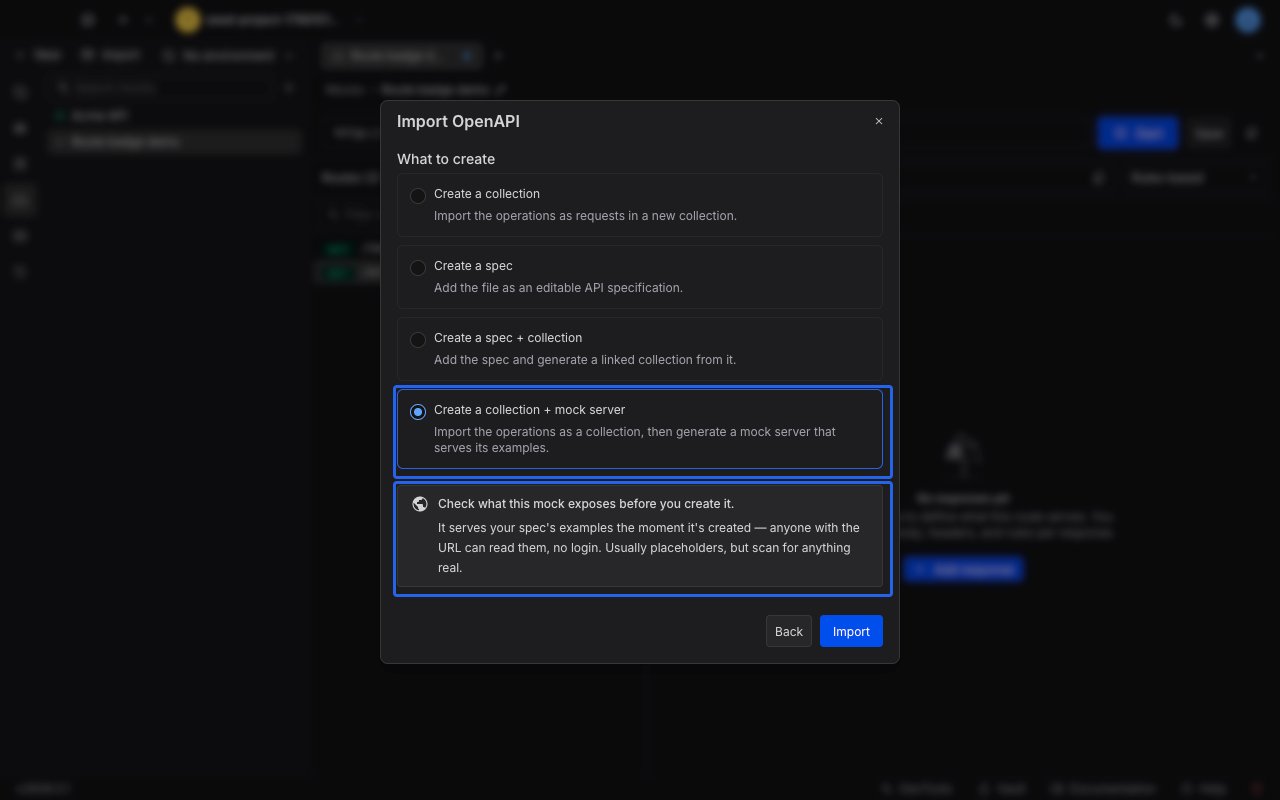
In the What to create list, select Create a collection + mock server. It is the last of the four options.Selecting it reveals a notice about what the mock will expose. The notice is informational: it does not block the import and there is nothing to acknowledge.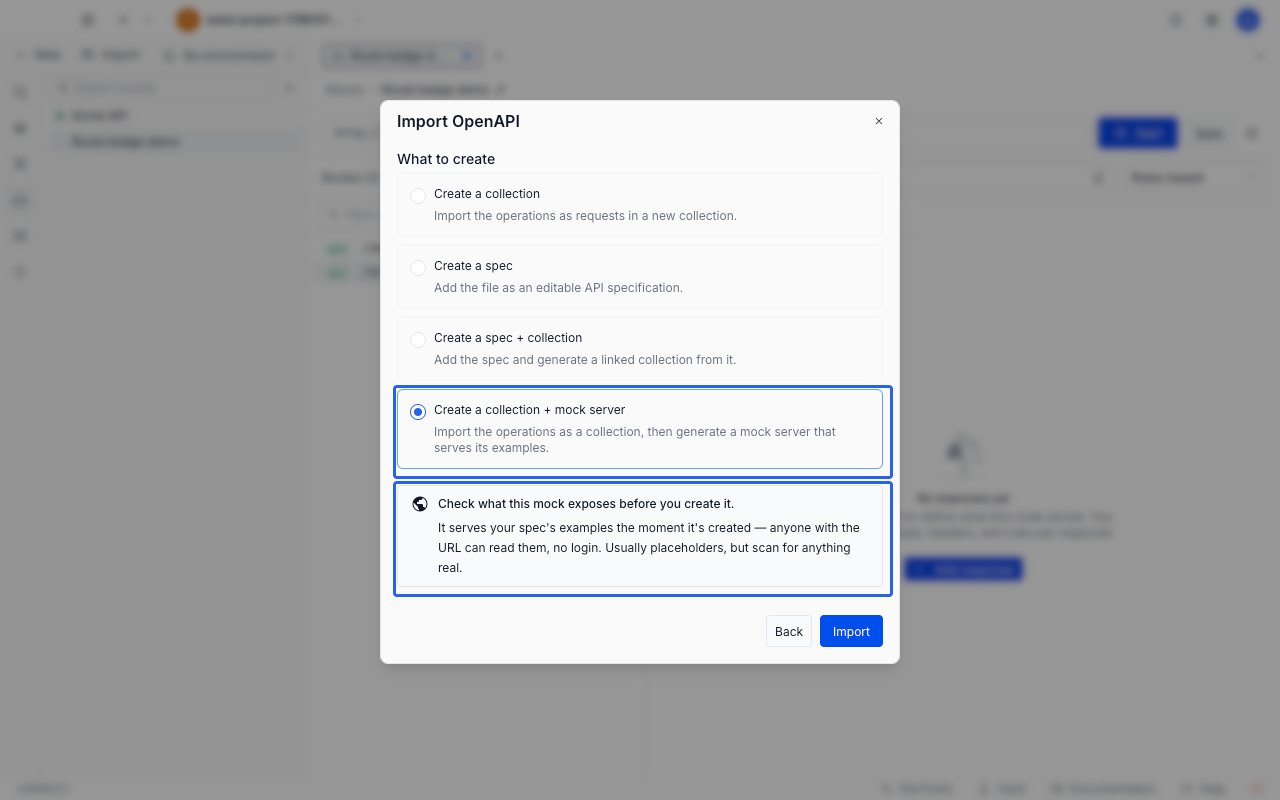
3
Import
Click Import. The collection is imported first, and then the window switches to Creating the mock server while the mock is built.Large specs are generated in the background and can take a few minutes. You can close the window while that runs: it does not cancel anything, and Requestly notifies you when the mock is ready. A mock created while the window was closed is already serving and publicly reachable, so open it from the Mocks section and click Stop if you are not ready for that.
4
Review the summary
When generation finishes, the window reports what was produced: how many routes and responses were created, and what was dropped or could not be mapped. See Read the generation summary for what each row means.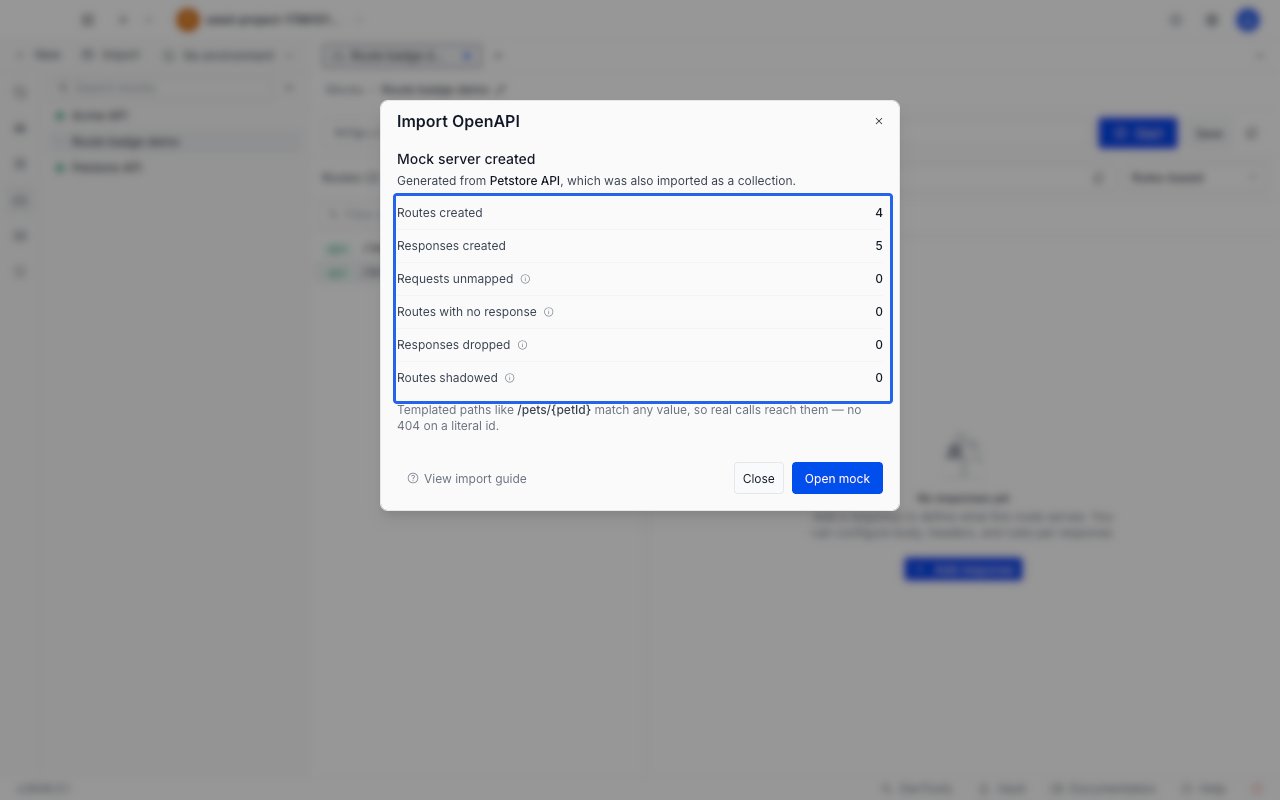
5
Open the mock and call it
Click Open mock. The mock opens in an editor tab and is already serving, so the URL strip offers Stop rather than Start. Copy the base URL, append a route path, and call it:You get back the example response that the spec declared for that operation.
What gets generated
The imported collection is created alongside the mock and stays in your sidebar. The mock takes its name from that collection, which comes from the spec’s
info.title. Names longer than 120 characters are shortened, and a file with no title falls back to OpenAPI Import.
The mock is a snapshot. Re-importing the spec does not update an existing mock, and editing the collection afterwards does not change the mock either. Each import creates a fresh collection and a fresh mock.
Read the generation summary
All six rows always appear, zeros included, so a zero is a statement that nothing was quietly lost. The four rows that report a loss carry an information icon; hover or tab to it for the same explanation inside the app.
Below the counts, the summary states that templated paths match any value, so a call to
/pets/42 reaches the route built from /pets/{petId}.
This summary is shorter than the one you get when you generate from a collection. Requests skipped, Paths wildcarded, and Extra endpoints from examples are not shown, because an OpenAPI file cannot produce any of them: it holds only HTTP operations, its templated paths are already parameters, and its examples always belong to the operation they are declared under.
Importing several spec files at once
You can select more than one OpenAPI file in a single import. Each file becomes its own root collection, and each root collection gets its own mock. The summary reports the first mock in full, and lists the rest under Other specs in this import with their route and response counts. A spec that produced no mock is listed there asno mock, and a warning above the counts names it. Its collection is still imported, so you can generate its mock later from the collection’s menu.
When the mock is not created
The collection is imported and committed before generation starts, so a failure here never costs you the import. The window reports what happened, names the collection that landed, and the button reads Keep collection. There is no retry button. To try again, use the imported collection’s own Create mock server menu item, which re-runs generation against the collection you already have.One message reads Mock creation is still finishing: generation ran longer than Requestly waits for and is probably still running. Check the Mocks section before creating another one.