

Why Use Examples
- Test multiple scenarios
Save different configurations like valid inputs, edge cases, and error states, and switch between them instantly. - Collaborate with your team
Examples are shared within your project so others can view and use the exact configurations. - Retain request and response data
Each example stores both the request and its response, making it easy to revisit past executions.
Save a request & responses as an example
You can create an example from any HTTP or GraphQL request that has been sent at least once. Examples are not limited to those two protocols. Right-click a gRPC, WebSocket, Socket.IO or MQTT request in the sidebar and choose Add Example to snapshot its configuration. The steps below use the Save dropdown, which HTTP, GraphQL, gRPC and MQTT requests have. WebSocket and Socket.IO requests have no such dropdown item, so the sidebar Add Example is the only route for those two.WebSocket, Socket.IO and MQTT hold an open connection rather than returning a single response, so their examples capture the request side only.
1
Open a request
Navigate to an existing API request in your project or send a new request.
2
Save as example
Click the Save dropdown in the request view and select Save as example.
This stores the current configuration including URL, method, headers, parameters, and body.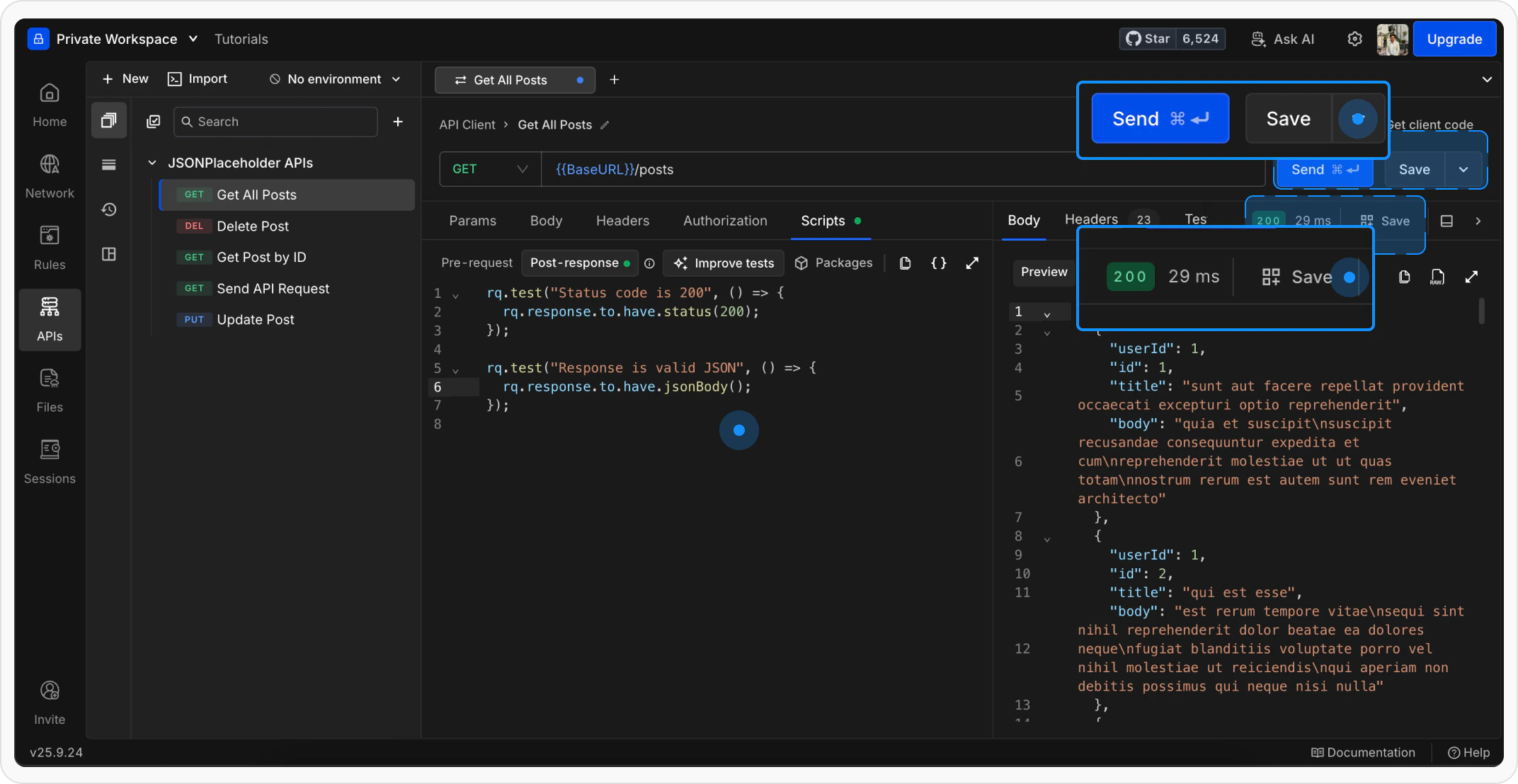
This stores the current configuration including URL, method, headers, parameters, and body.
3
View the example
The example opens in a new tab. The parent request in the sidebar expands to show the newly created example beneath it.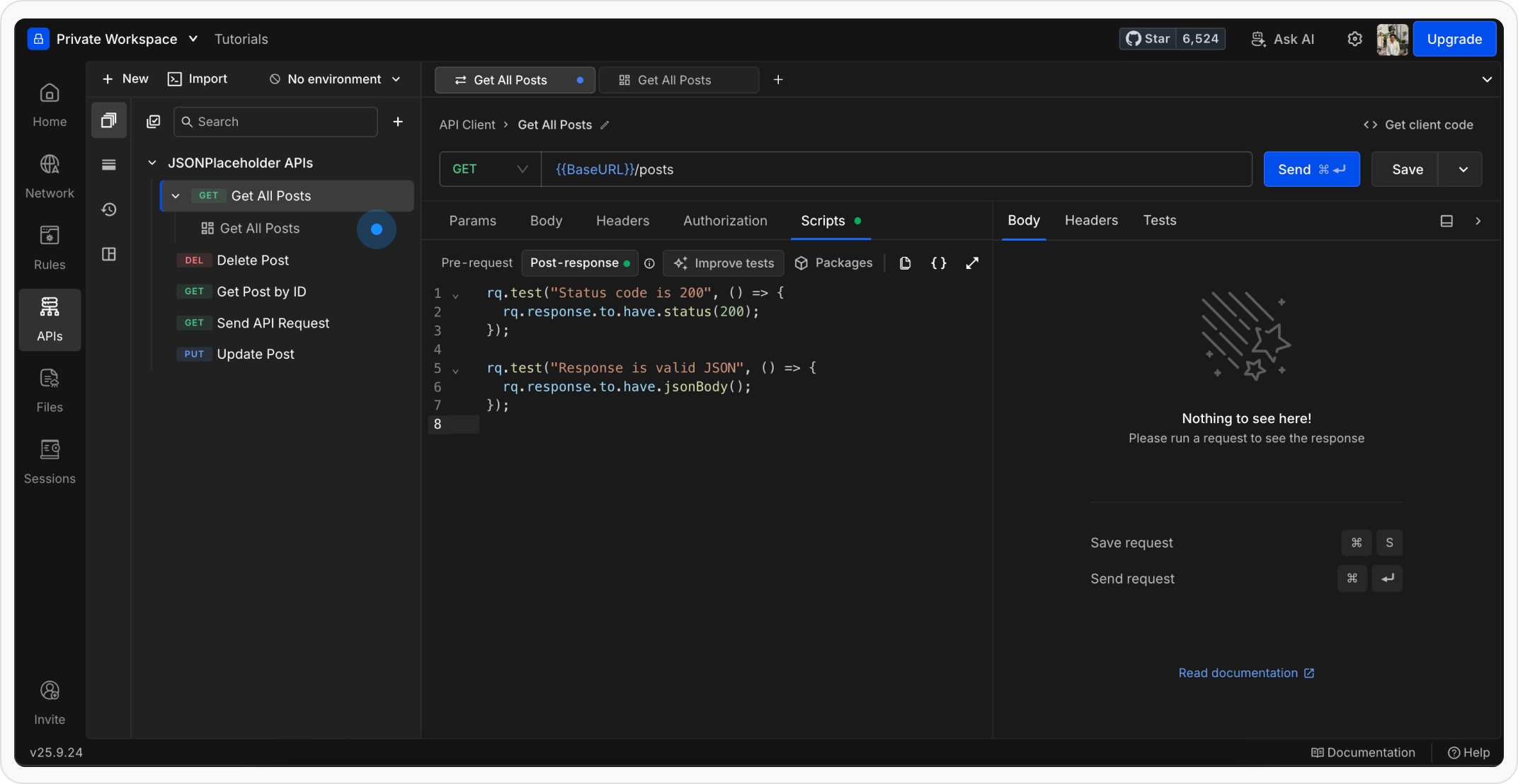
Manage examples in the sidebar
Examples appear as collapsible children under their parent request in the sidebar. Click the expand arrow next to any request to reveal its examples.Open an example
Click on an example in the sidebar to open it in a new tab. The example loads with the saved request configuration and response data..png?fit=max&auto=format&n=ngLDafOW0LQ7Vo0B&q=85&s=4c7978793af1a8864067386d9bceb178)
Rename an example
Right-click the example in the sidebar and select Rename, or double-click the example name. Type the new name and press Enter to save.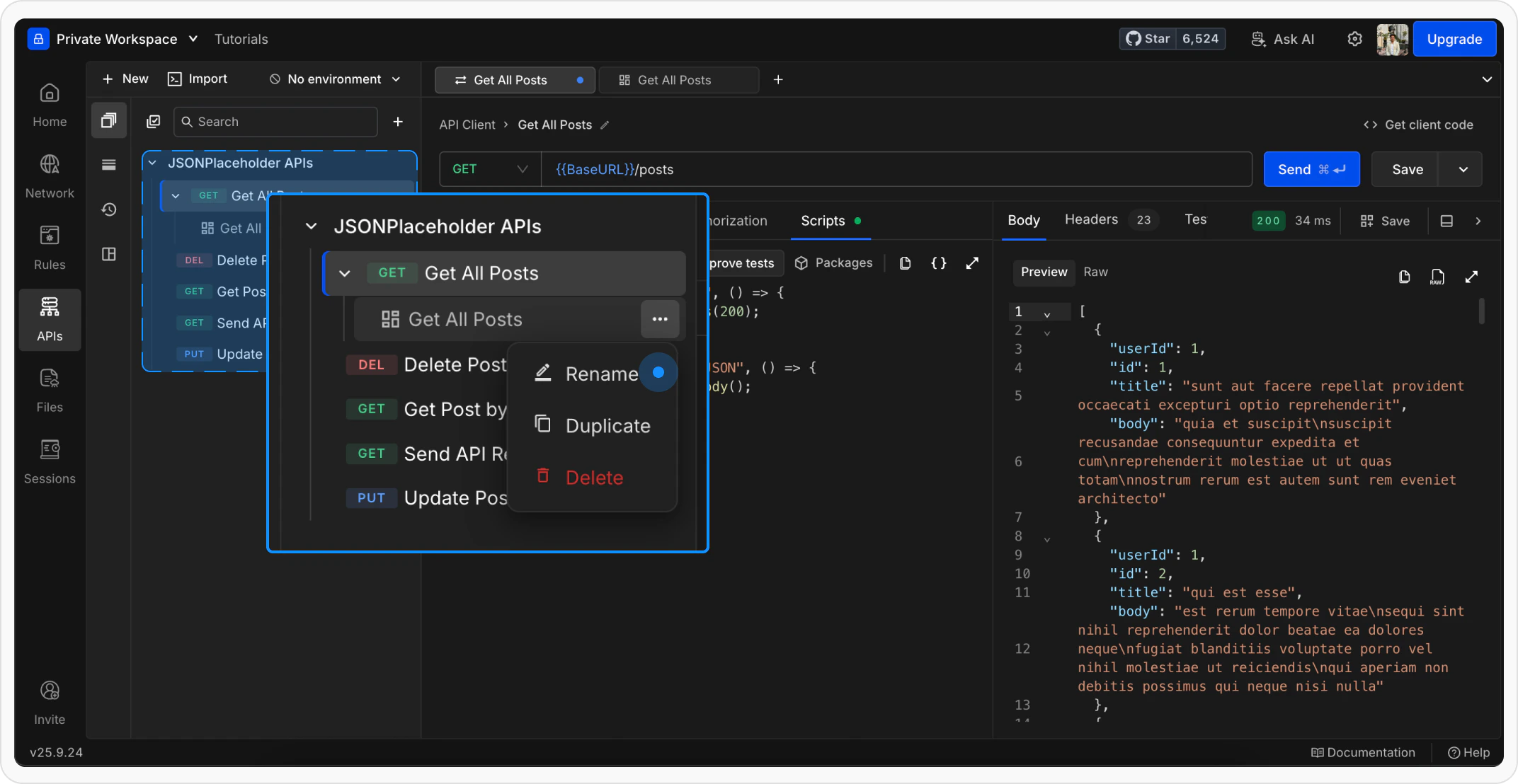
Duplicate an example
Right-click the example in the sidebar and select Duplicate. A copy of the example is created under the same parent request.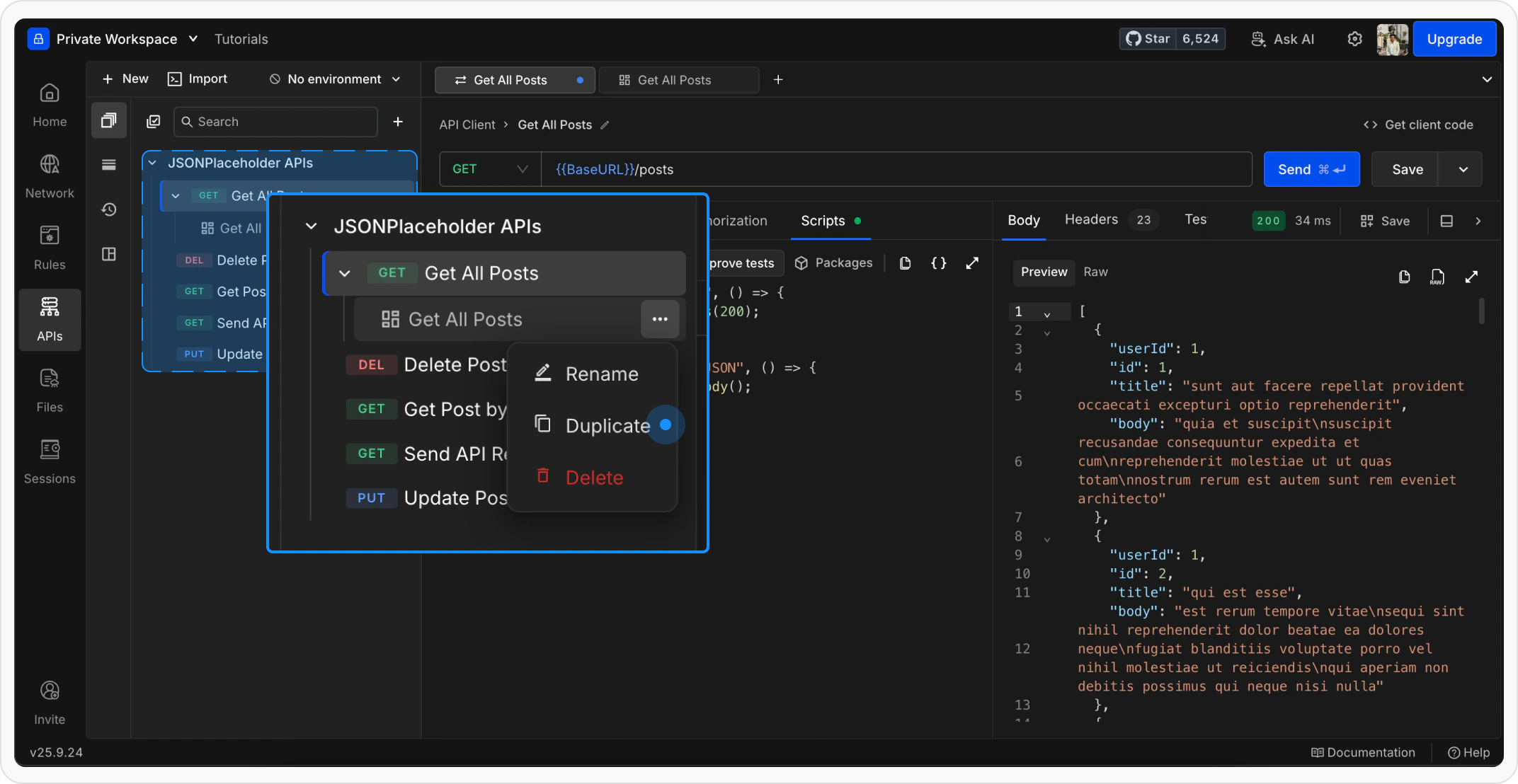
Delete an example
Right-click the example in the sidebar and select Delete. Confirm the action in the prompt that appears.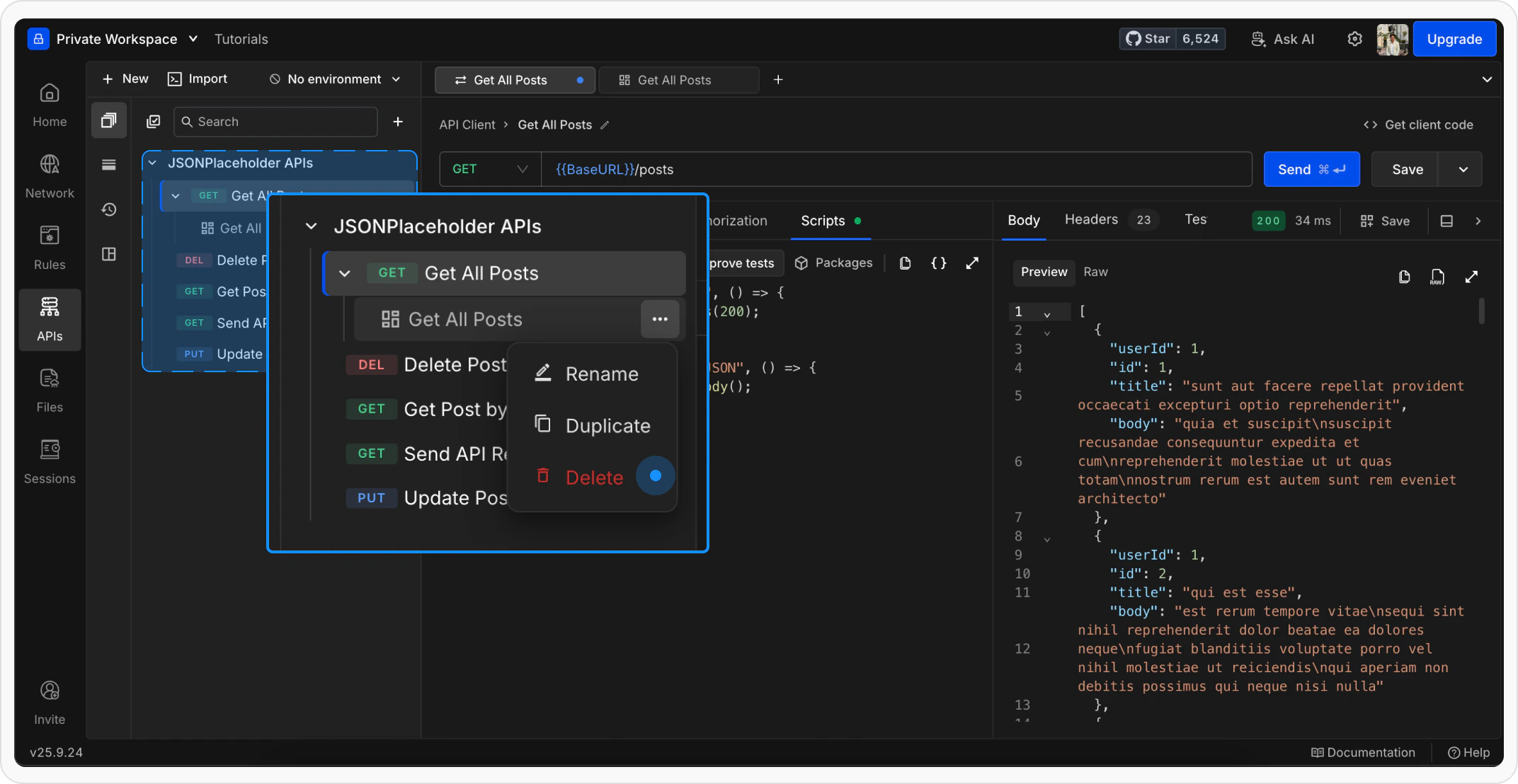
Use an example as a template
When viewing a saved example, click Try it in the URL bar to open a new draft request pre-filled with the example’s configuration (URL, method, headers, parameters, and body). This lets you start a new request based on an existing example without modifying the original. The example’s saved response is not carried into the draft.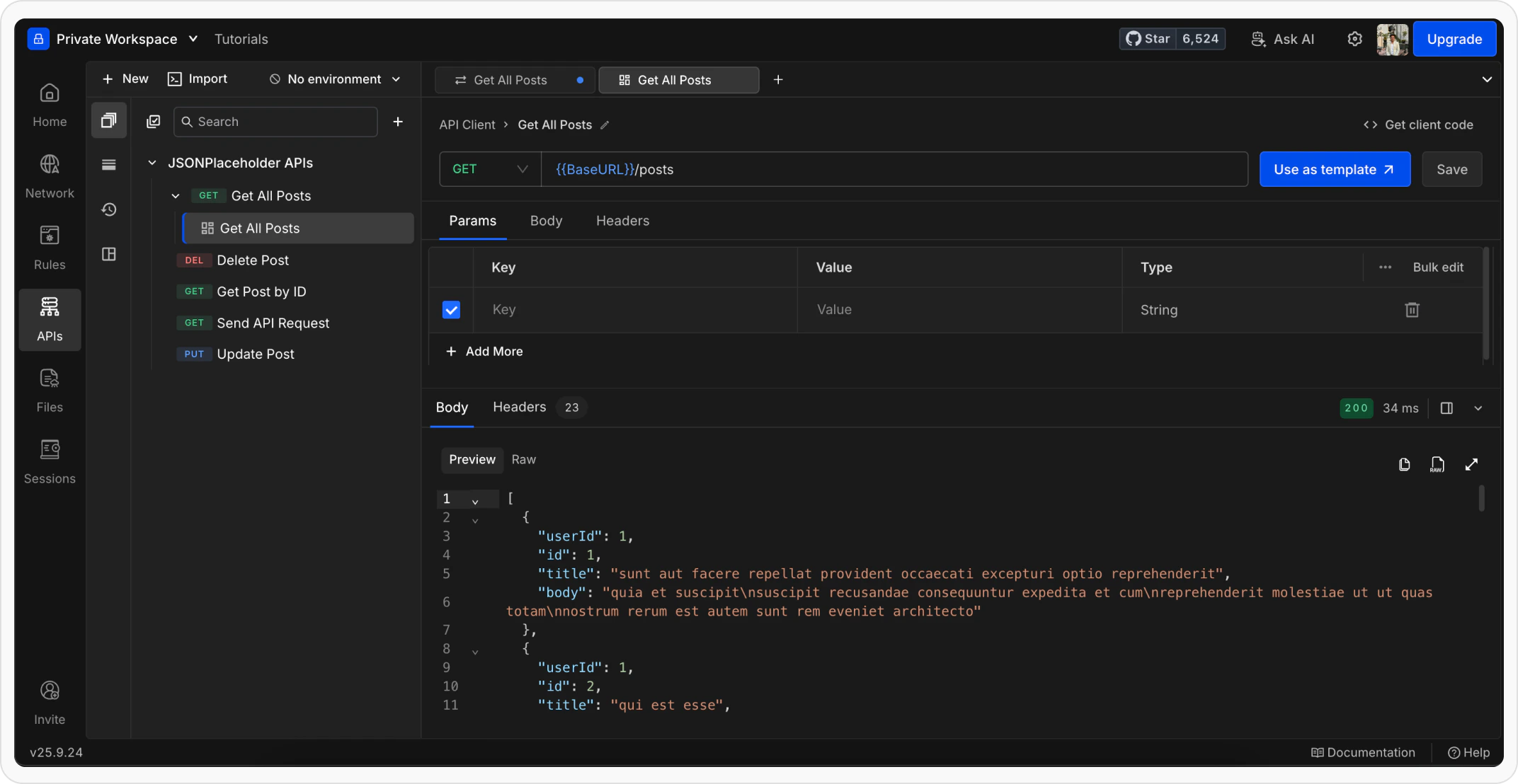
What’s next?
API Collections
Organize your requests into collections and folders
Variables
Use variables to make requests reusable across environments
Scripts & Tests
Add pre-request scripts and tests to automate your workflow