

{{variable_name}}.
Where you can use it
The action lives in the response panel of:- HTTP requests
- GraphQL requests
- Saved examples of either
Capture a value
1
Send the request
Send the request and open the Body tab of the response panel.
2
Select the value you want
Select the text in the response body. The action needs a text view of the body. A picture, a binary placeholder, or an HTML preview blocks the selection. Switch the format selector above the body to Raw first.In a formatted JSON body, a double-click selects the value without its surrounding quote characters. Dragging across the quotes takes them with it, which is also fine: Requestly cleans the selection up for you when it fills the picker. See Quoted JSON strings are saved without their quotes.
3
Right-click the selection
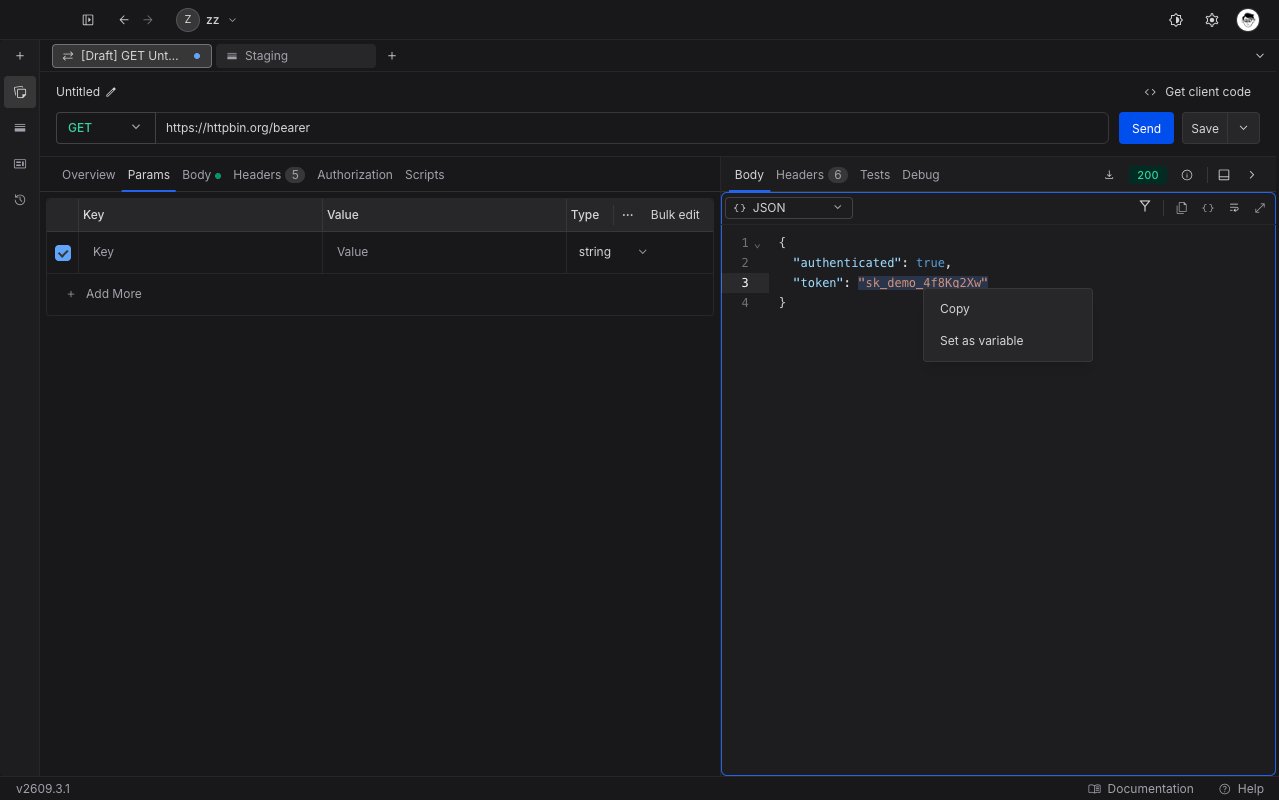
Right-click anywhere inside the selection. A short menu opens with Copy and Set as variable. Choose Set as variable.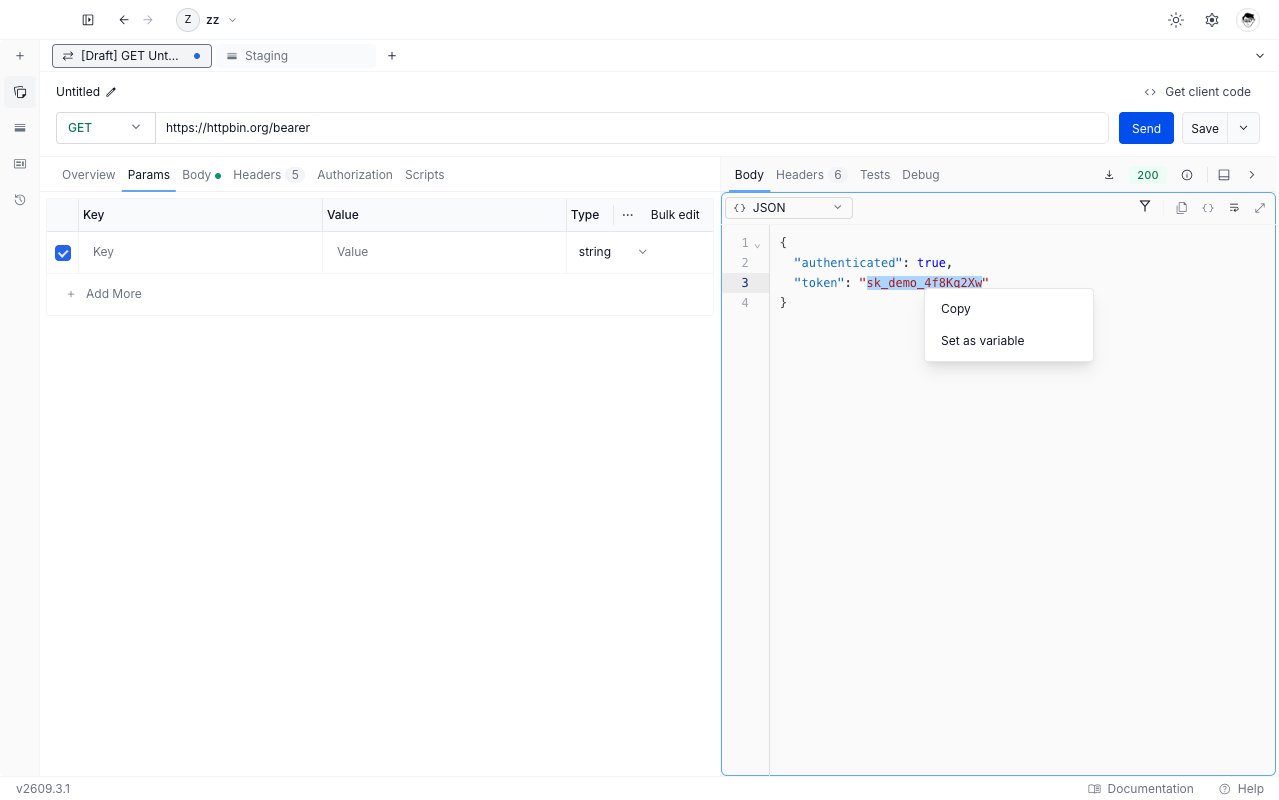
4
Name the variable and pick a scope
The picker opens with your selection already in Current value.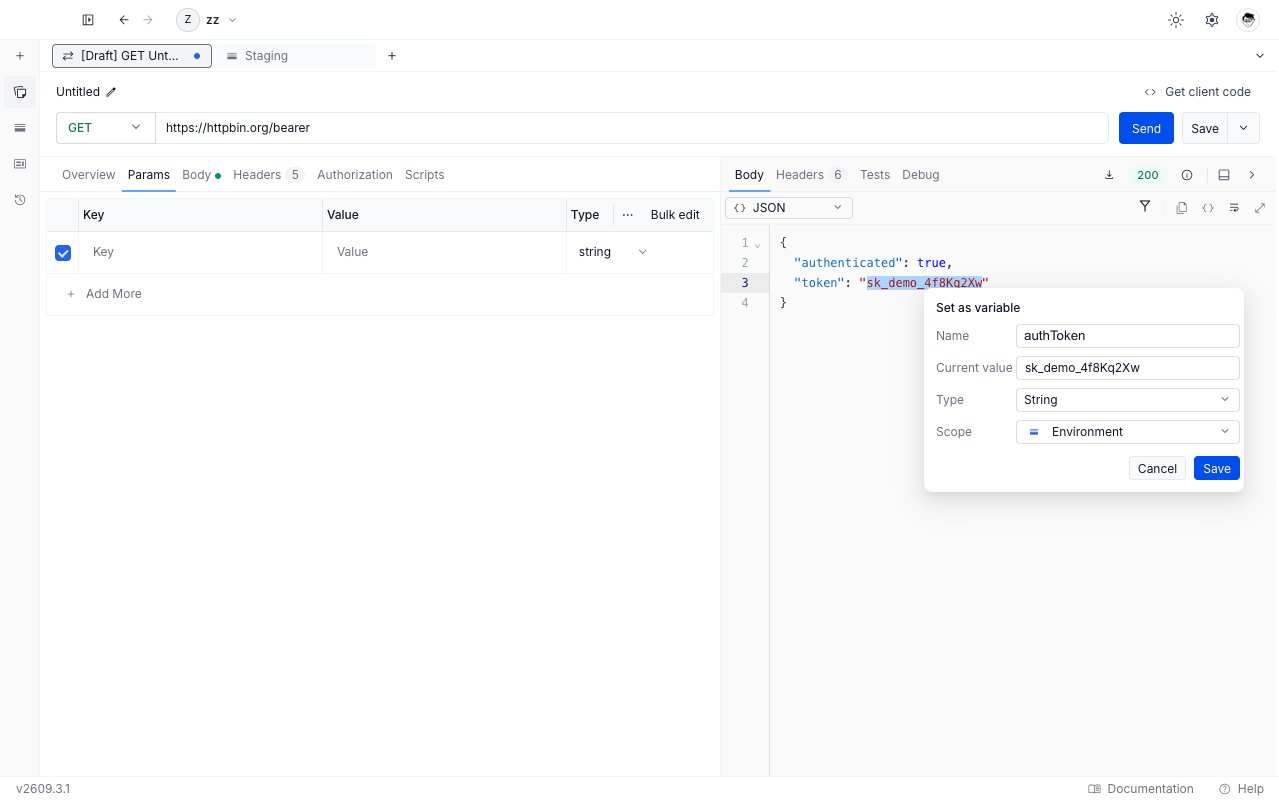
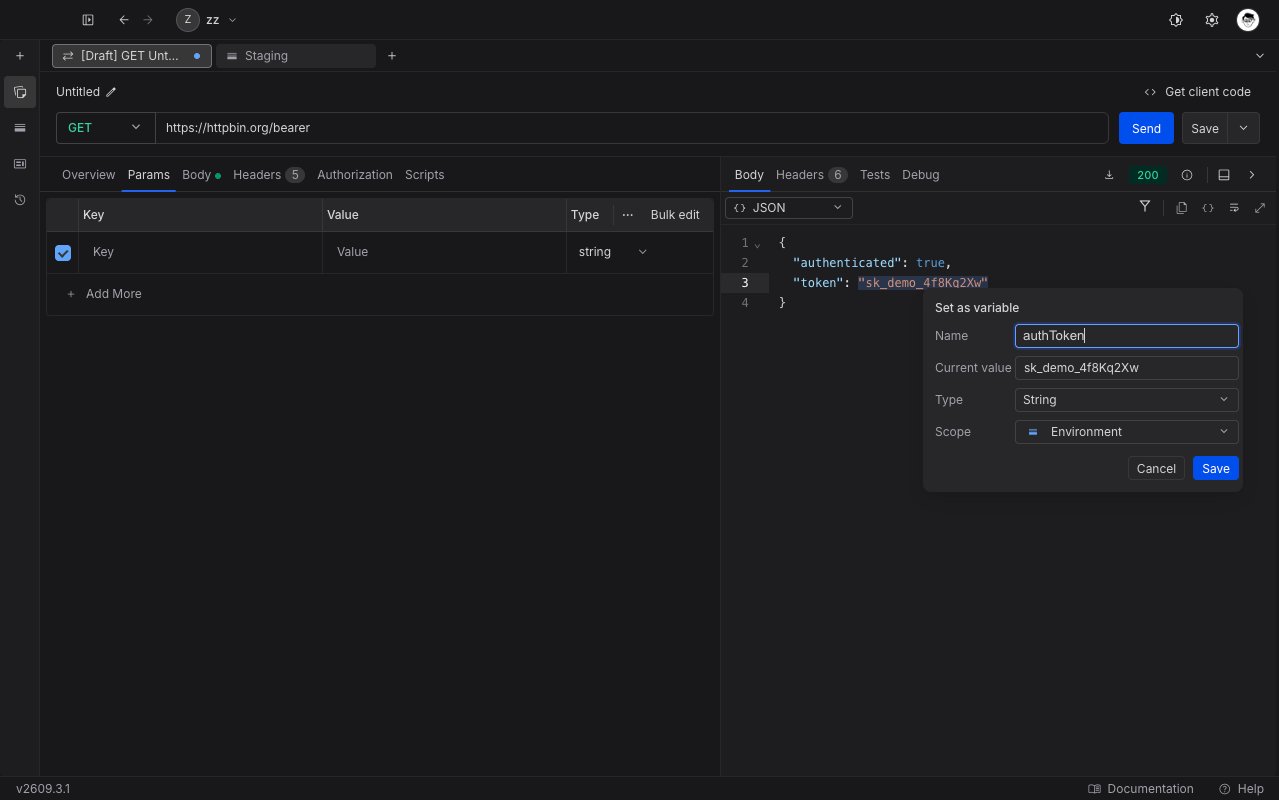
- Name: type a new name, or pick an existing one from the list for that scope to overwrite it. The list matches on any part of a name, not just the start.
- Current value: edit the captured text if you need to. For String and Number the field accepts line breaks, so a whole JSON object survives an edit intact. Secret masks the value in a single-line field, and Boolean replaces it with a true/false list.
- Type: String, Number, Boolean, or Secret.
- Scope: Environment, Collection, or Global.
5
Save
Click Save. A confirmation names the variable and the scope it went to. Save stays disabled until the variable has a name. Save is also disabled while the selection is too large, or while no scope is available.
Where the captured value is saved
Every Requestly variable holds two values: an Initial value (synced), which your project shares with your team, and a Current value (local), which stays on the device that set it. Environment variables explains both in full. Set as variable writes your capture to the Current value only. The picker has no Initial value row for exactly this reason. The captured text is never sent to your team and never written to the shared value, because a bearer token is the main reason to capture a response value in the first place.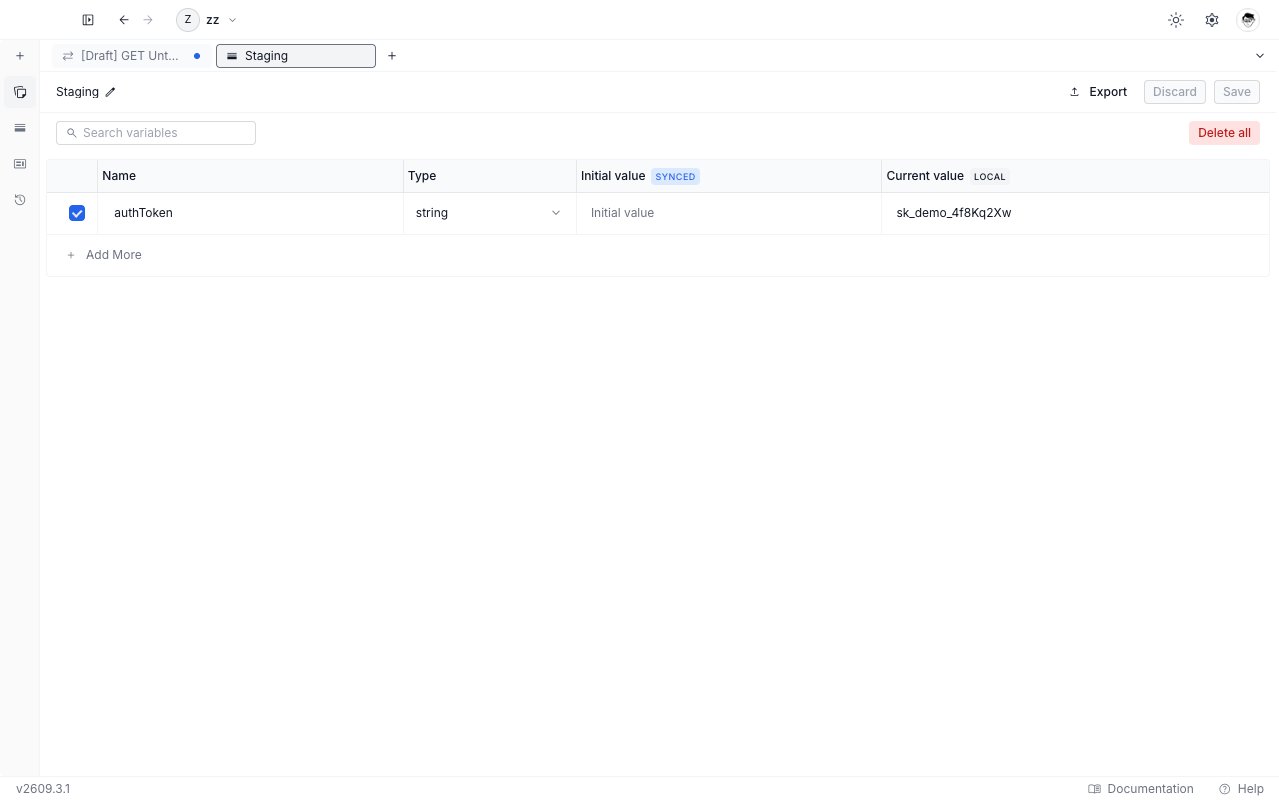
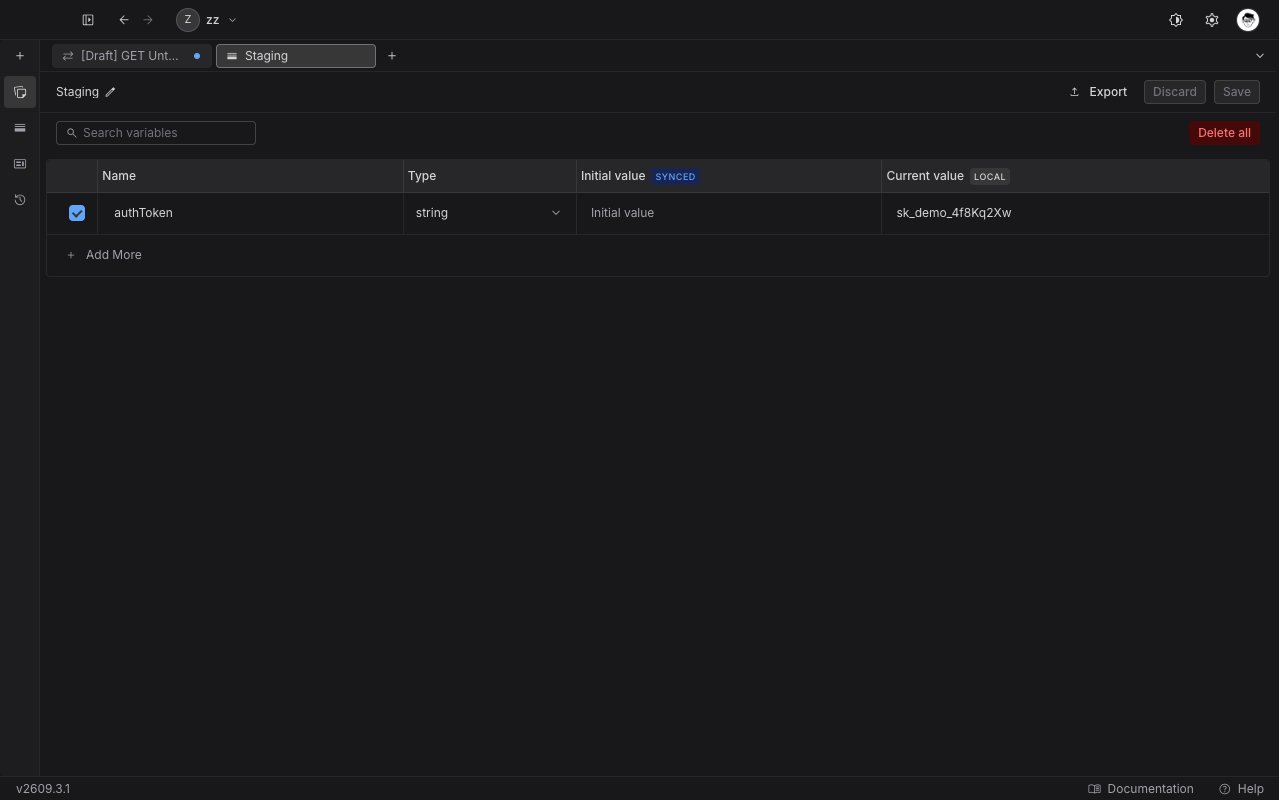
- A teammate who opens the same project sees the variable name, but not your captured value.
- On your other devices the variable exists with an empty value until you capture it there too.
To share a captured value on purpose, open the variables table and type it into the Initial value column yourself.
Choose a scope
The picker offers only the scopes it can write to. Environment is missing when no environment is selected. Collection is missing for a request that does not sit inside a collection. Global is missing until the project has a global environment. When no scope at all is available, the picker shows a message and Save stays disabled.
Runtime variables are not offered here. To set one from a response, use a post-response script - see Runtime variables.
Quoted JSON strings are saved without their quotes
When your selection is exactly one JSON string, Requestly fills the picker with the string itself: the wrapping quotes are removed and escape sequences are resolved. A token therefore never gets saved with quote characters wrapped around it.
Anything that is not exactly one JSON string is filled in verbatim, as the last two rows show. The value field stays editable either way, so you always see what Save will store.
Overwrite an existing variable
Choosing a name that already exists in the selected scope is an overwrite, not an error. The picker warns you that saving replaces the variable’s current value, and Save stays enabled. An overwrite:- replaces the Current value with your capture
- leaves the Initial value exactly as it was, so your team’s shared value is never wiped
- keeps the variable a Secret when it already was one, so a masked variable is never unmasked by a capture
The capture happens once
Set as variable stores the text that was on screen when you right-clicked. It is a one-time capture, not a live link to the response, so sending the request again leaves the variable exactly as it is.For a value that has to refresh on every run, such as a token that expires, use a post-response script instead. See rq.environment and Scripts.
Limits
- A name made only of spaces does not count as a name, and Save stays disabled.
- A selection over 100,000 characters is refused rather than shortened. Select a smaller part of the body, or use Copy.
- The menu appears only over a real selection. Right-click with nothing selected, or with only whitespace selected, and the default context menu appears instead.
- The capture takes the characters shown in the current view. If you switch the body to Hex or Base64 and select there, you capture those characters rather than the decoded text.
- A save can fail when you lack permission to save variables to this project. The picker stays open with a message, so you can try again.