

Access settings are available in team projects stored in the cloud. A local project has no member roles, so it has no access settings.
What you can set
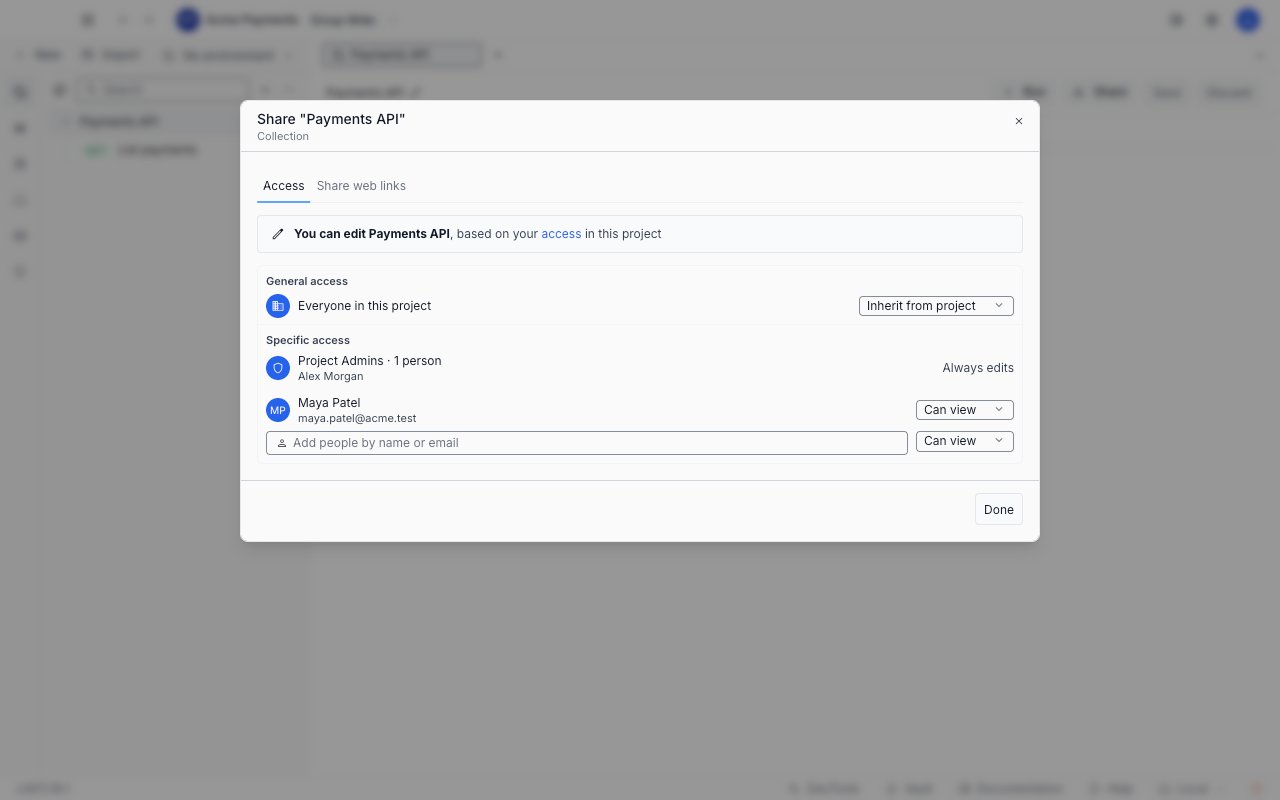
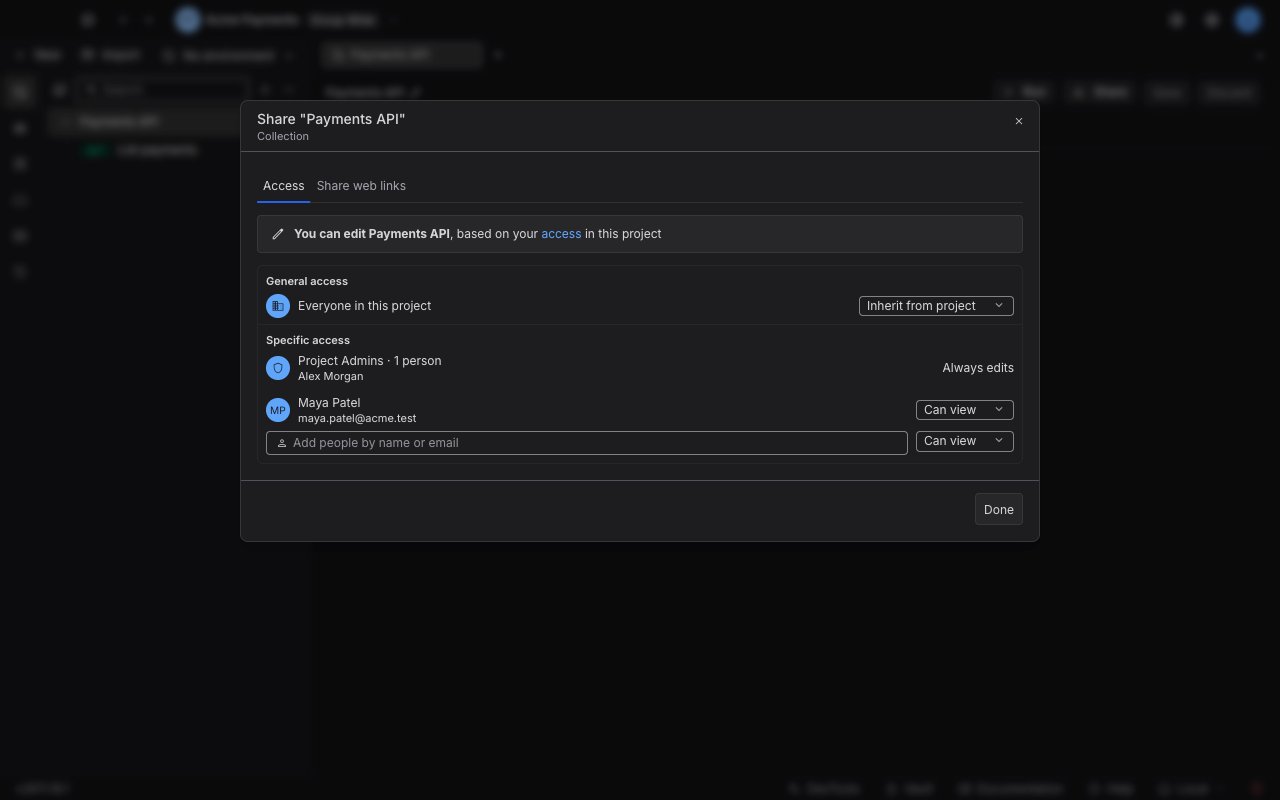
Each top-level collection and each environment, except the Global environment, has its own access settings, made of two parts:- General access: one setting for Everyone in this project. It is Inherit from project by default, which means each person’s project role decides. Set it to Can view or Can edit to override the role for everyone at once.
- Specific access: people you name, each set to Can edit or Can view. A named person’s setting wins over the Everyone setting.
How a person’s access is worked out
The checks below run in order, and the first one that matches decides:- A project Admin can edit.
- A person named on the item gets what they are named with: Can edit or Can view.
- If Everyone in this project is set to Can view or Can edit, that applies.
- Otherwise the item is at Inherit from project, and the person’s project role decides.
What the settings cover
- A collection: everything inside it, including its folders, requests, examples, collection variables, authorization, scripts and runner settings. Access is set on the top-level collection only. A folder or request inside it follows the collection.
- An environment: the environment and its variables. The Global environment has no access settings and follows the project role.
Open Share
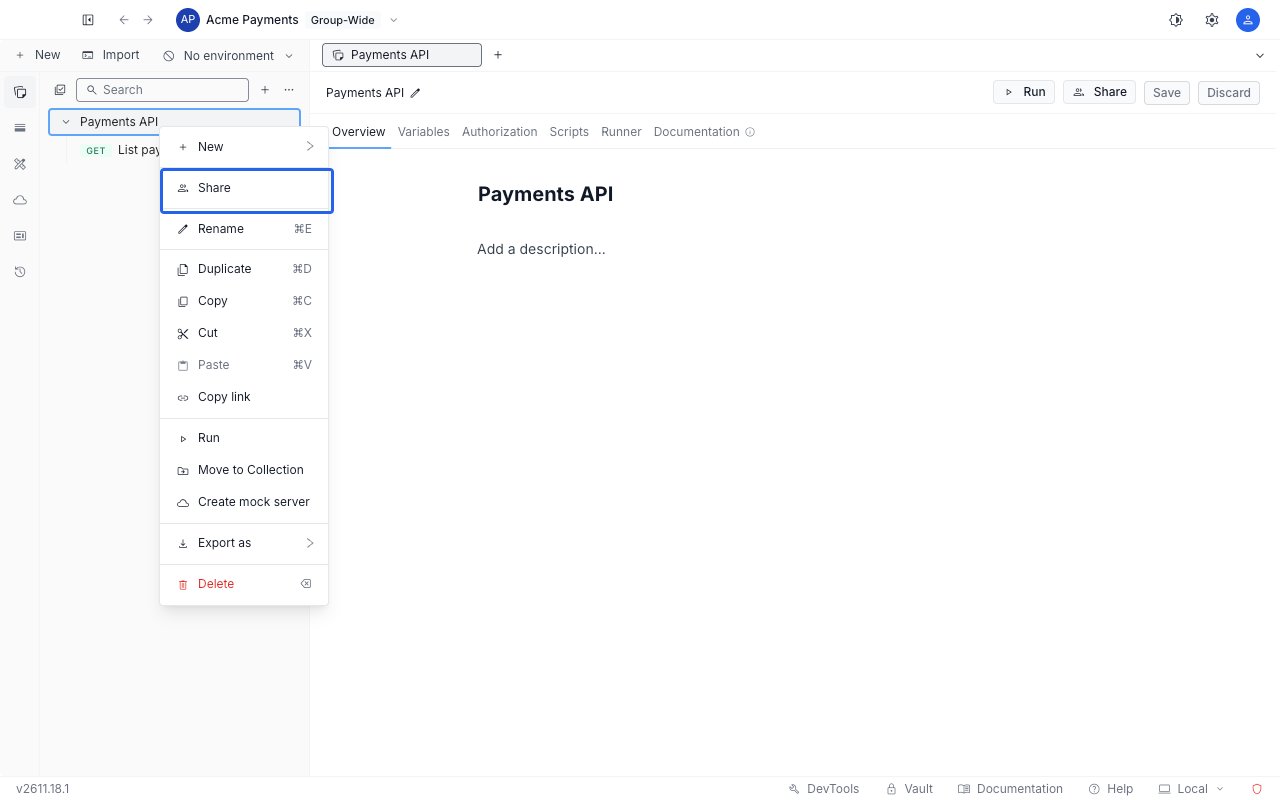
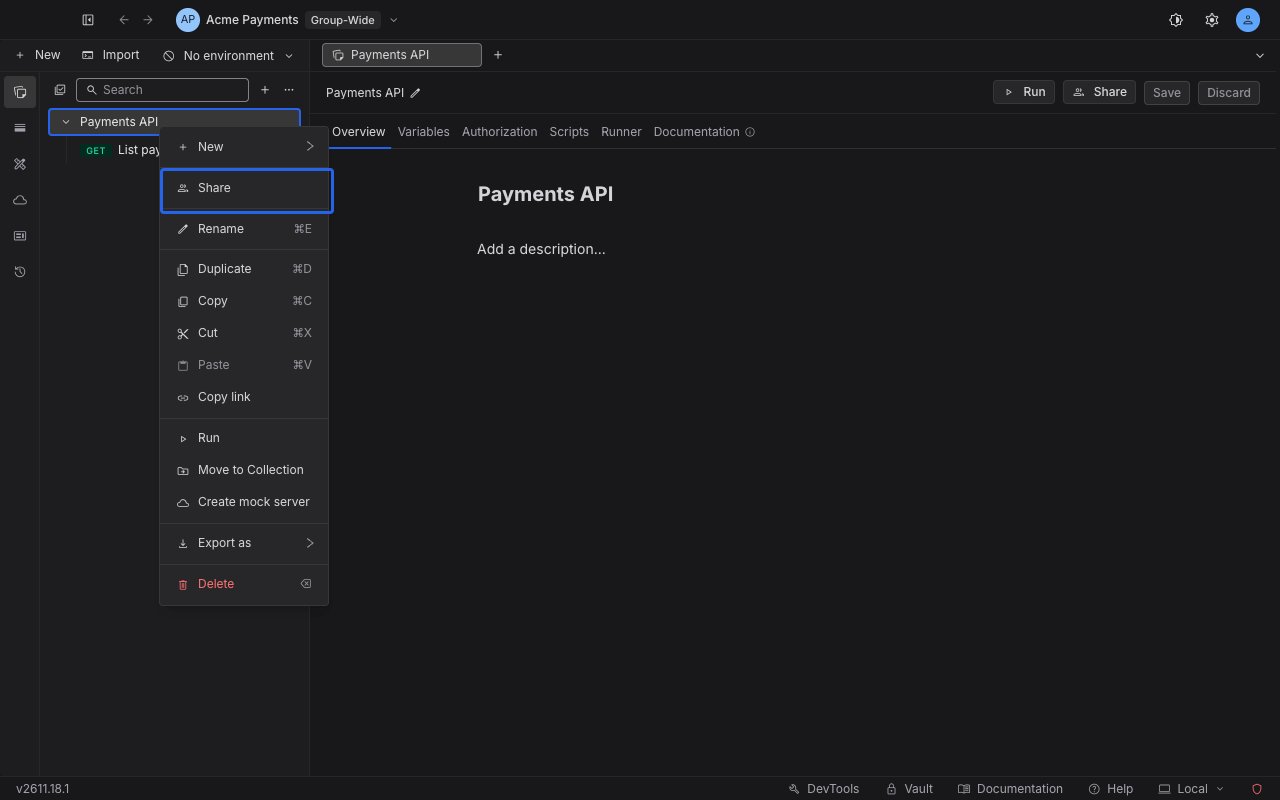
You manage access from the Share dialog. You can open it in two places:- From the sidebar: right-click a collection, folder, request or environment and choose Share. For a request or environment, it is the first item in the menu. For a collection or folder, it comes right after New.
- From an editor: click Share in the header of a collection, folder or environment. In an HTTP request, click the Share icon next to the URL bar.
Share on a folder or request
A folder or request has no access settings of its own. Its Share dialog says “Access to this request is set on the Payments API collection.” (or “this folder”), with an Open access link that opens Share on the collection.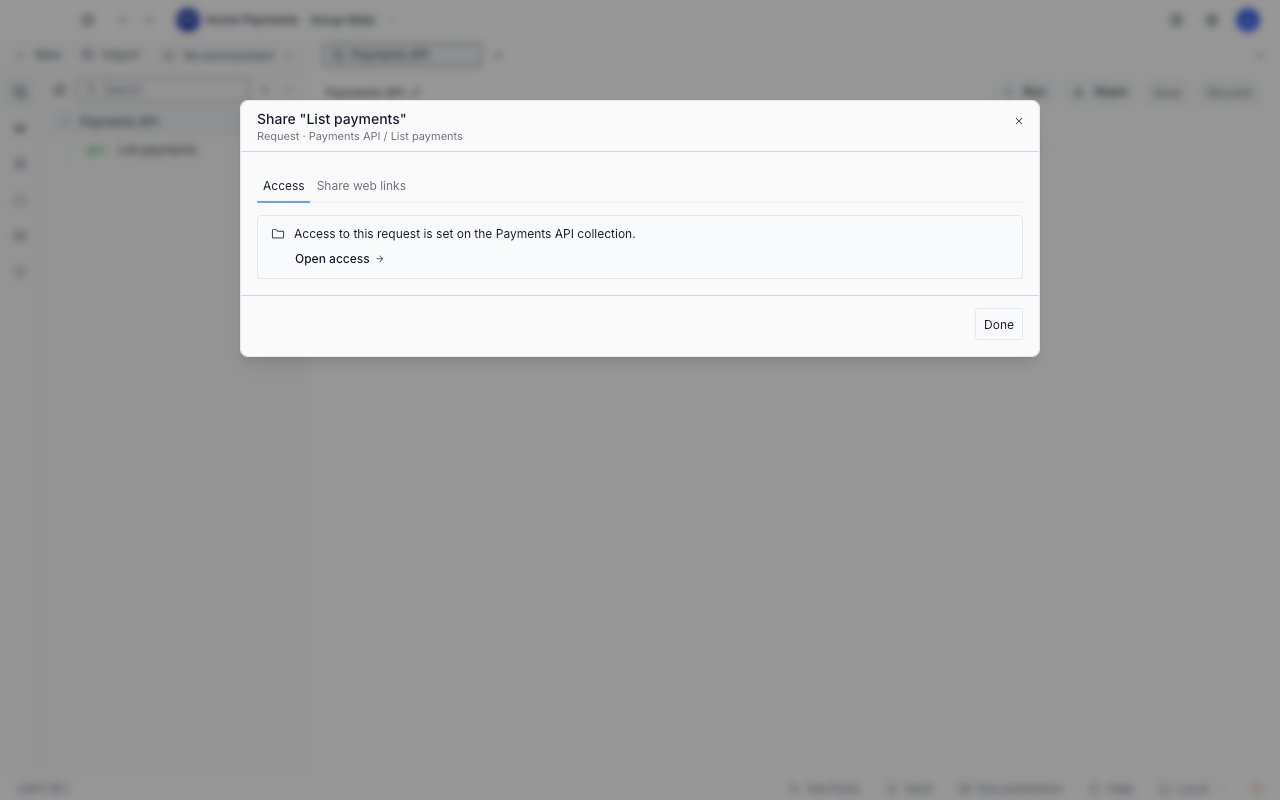
Change who has access
Prerequisites
- A team project stored in the cloud.
- Edit access to the collection or environment. Anyone who can edit an item can change its access, including its Everyone setting. If you can only view the item, Share shows the same list as plain text with the line “Only editors can change access.”
1
Open Share on the collection or environment
Right-click it in the sidebar and choose Share, or click Share in its editor header.
2
Set access for everyone in the project
Under General access, choose Inherit from project, Can view or Can edit for Everyone in this project.Choosing Can edit asks you to confirm, because it lets project Viewers edit the item too: “Project Viewers will be able to edit Payments API too, except anyone specifically set to view.” Click Continue to apply it, or Cancel to keep the current setting.If setting Everyone to Can view would take away your own edit access, you are added under Specific access as Can edit in the same change, so you can still manage the item.
3
Add people
- In Add people by name or email, type part of a project member’s name or email.
- In the dropdown next to the search box, choose whether to add them as Can view (the default) or Can edit.
- Select the person from the results.
- You: “You can’t add yourself.”
- Project Admins, marked Always edits: “Project Admins always edit, so they can’t be added.”
- People already in the list: “Already in the list above. Change their access there.”
- When adding as Can edit, people who can already edit the item are marked Can already edit.
4
Change or remove a person
Use the dropdown on a person’s row to switch them between Can edit and Can view, or choose Remove to take them off the list. A removed person goes back to the Everyone setting, or to their project role if Everyone is at Inherit from project.Hover a person’s name to see who added them and when, for example “Added by Priya Shah, Nov 10, 2026”.
5
Close the dialog
Every change saves as soon as you make it. Click Done when you are finished. A person you add appears under Specific access with the access you chose.