

Git requires the desktop app. Download Requestly.
Open the Commits section
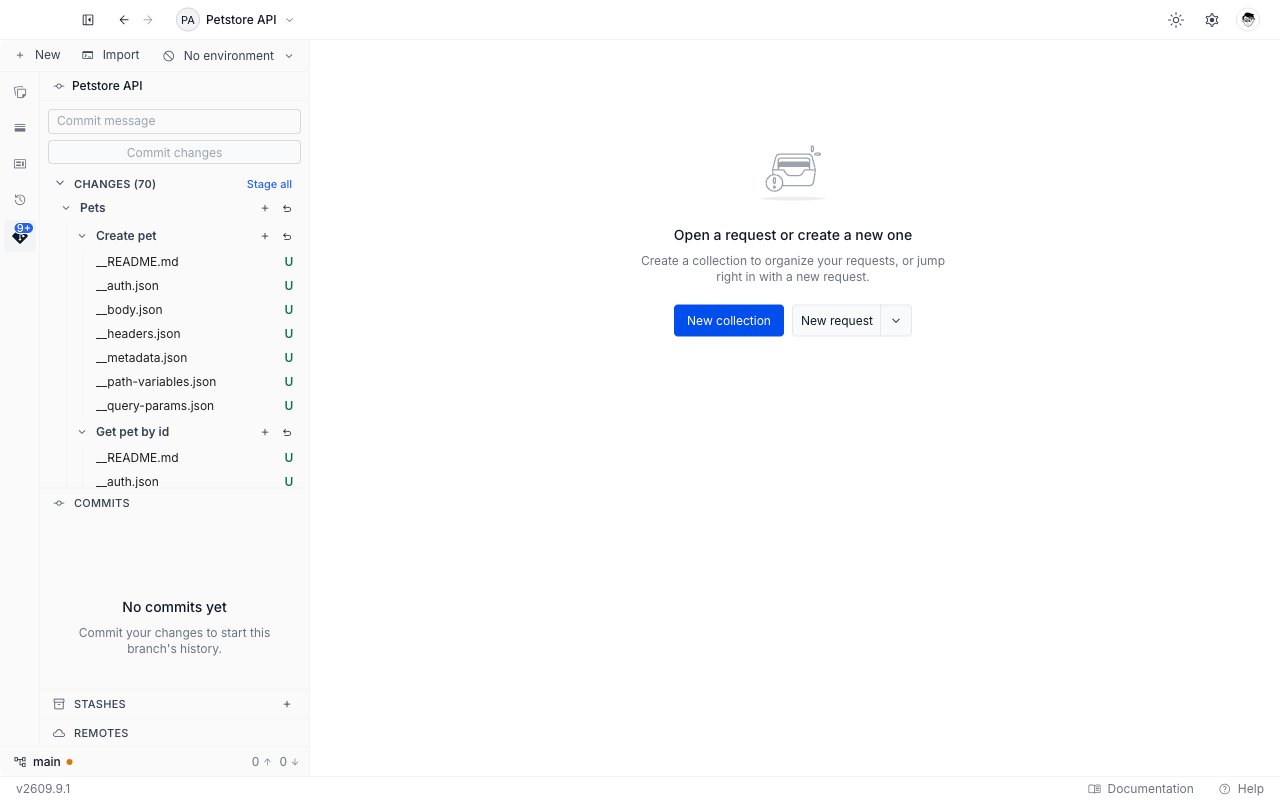
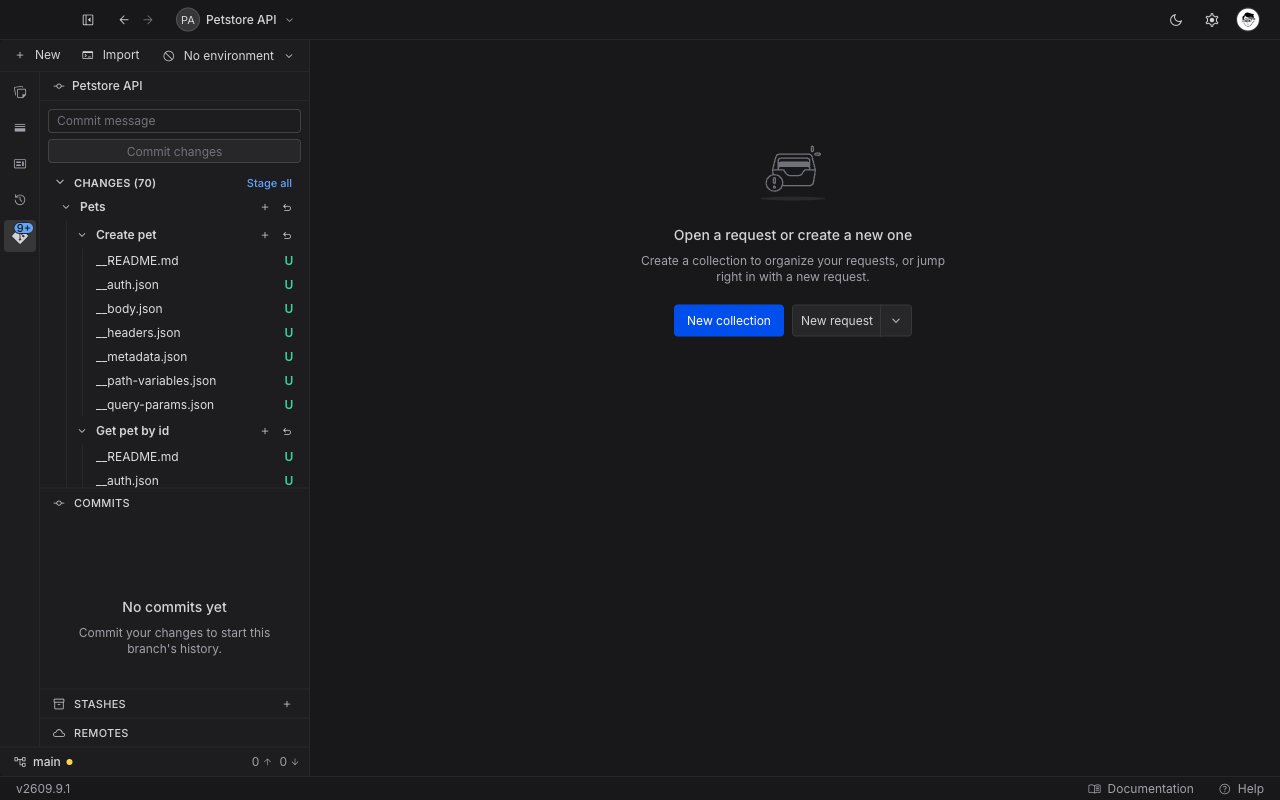
Commits is the first of the three sections below the file area of the Git panel, above Stashes and Remotes. Click its header to expand it, and click again to collapse. The number at the right of the header is how many commits the current branch’s history holds. It renders only once the branch has at least one commit, so a branch with none shows the Commits header on its own. Requestly loads the history when you expand the section, so a collapsed section costs nothing.The three sections are hidden while a merge is in progress, because the panel gives the whole file area to resolving the conflict.
Read the commit graph
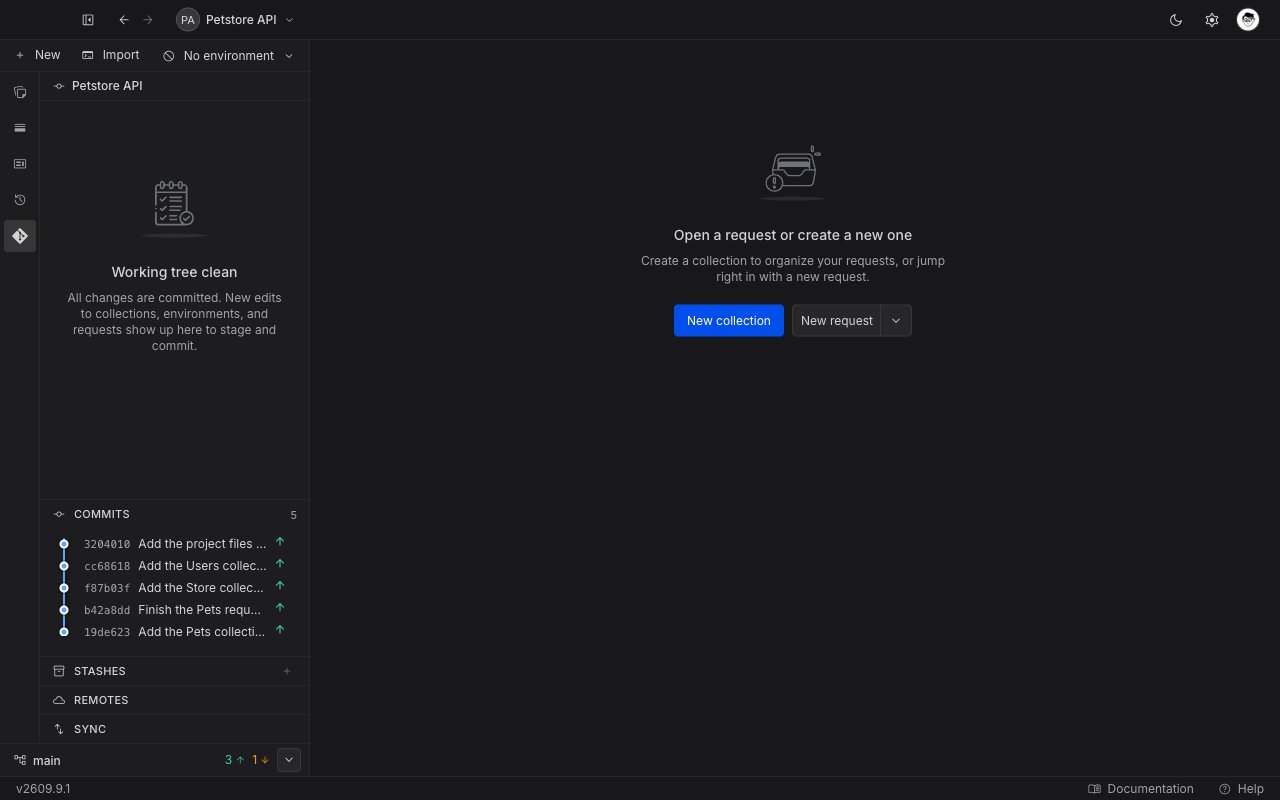
Expanded, the section draws the history as a graph, newest commit at the top. Each row is one commit.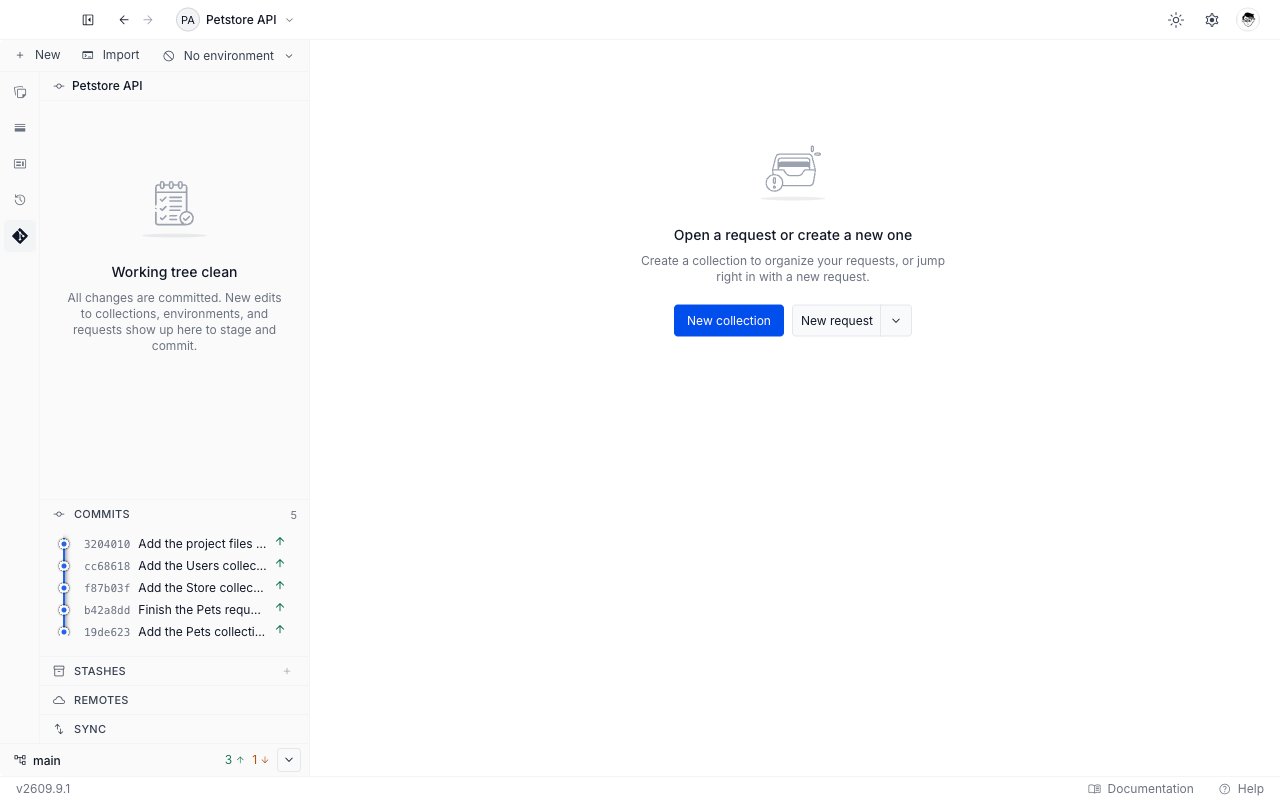
When the section has nothing to show
Open a diff
Three places in the Git panel open a diff, and each one opens a tab beside your requests.
A stash in the Stashes section opens the same kind of tab, for the files that stash captured. See Stash changes.
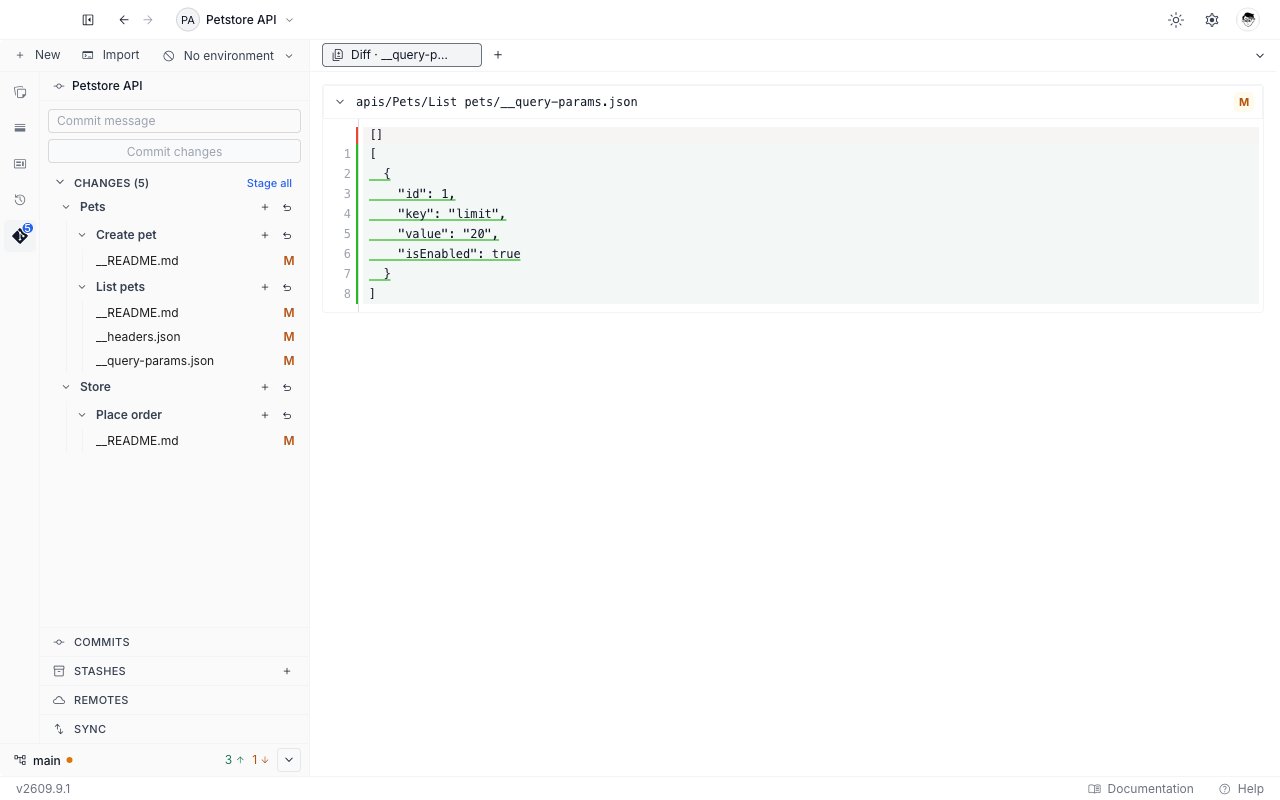
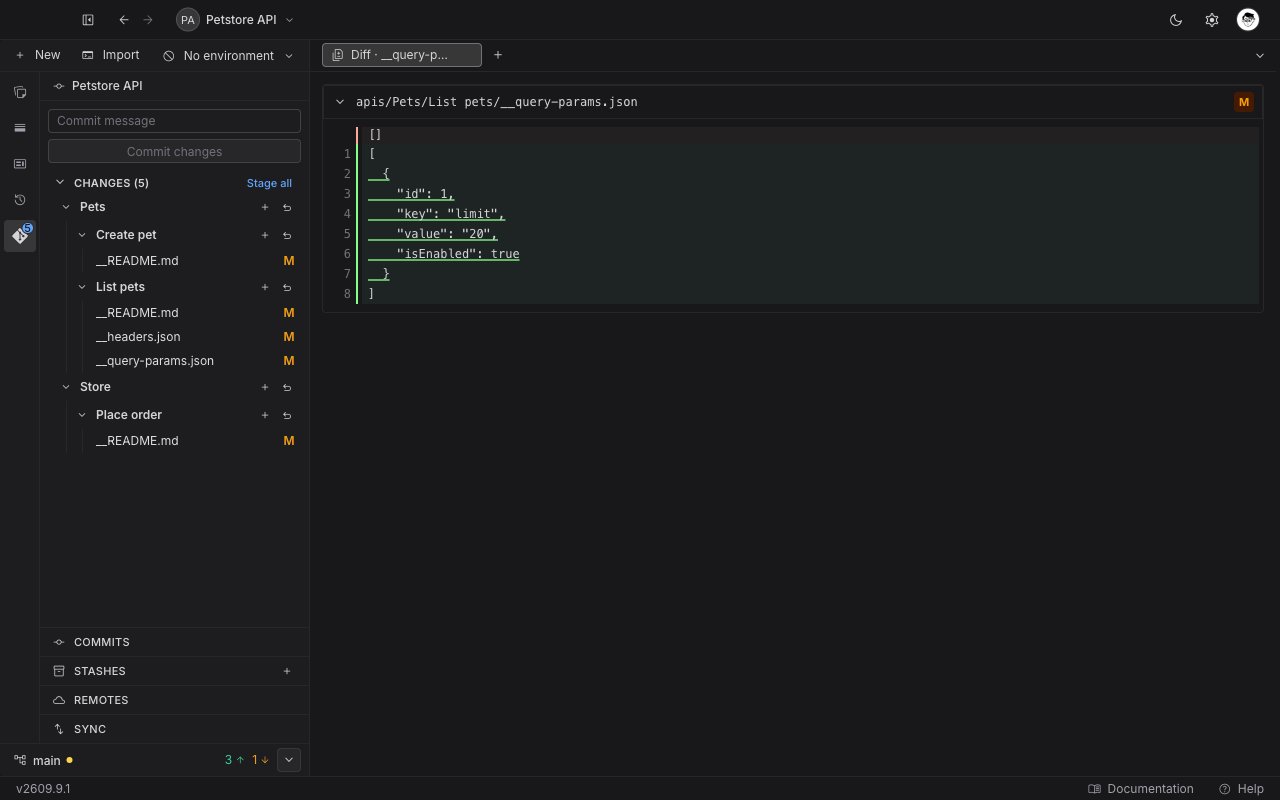
The tab is named after what it holds:
Diff · 1a2b3c4 for a commit, and Diff · <file name> for a single file. Several diffs can stay open at once, and closing the tab is how you dismiss one.
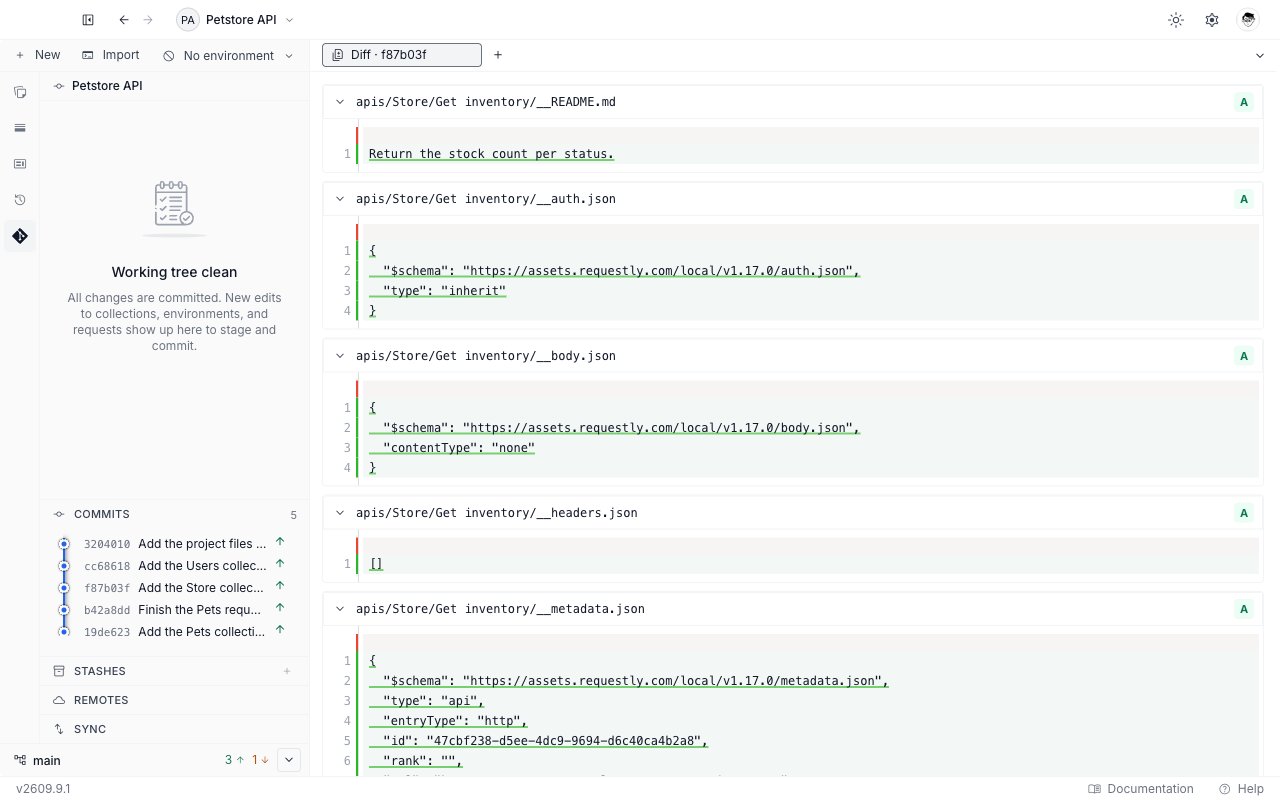
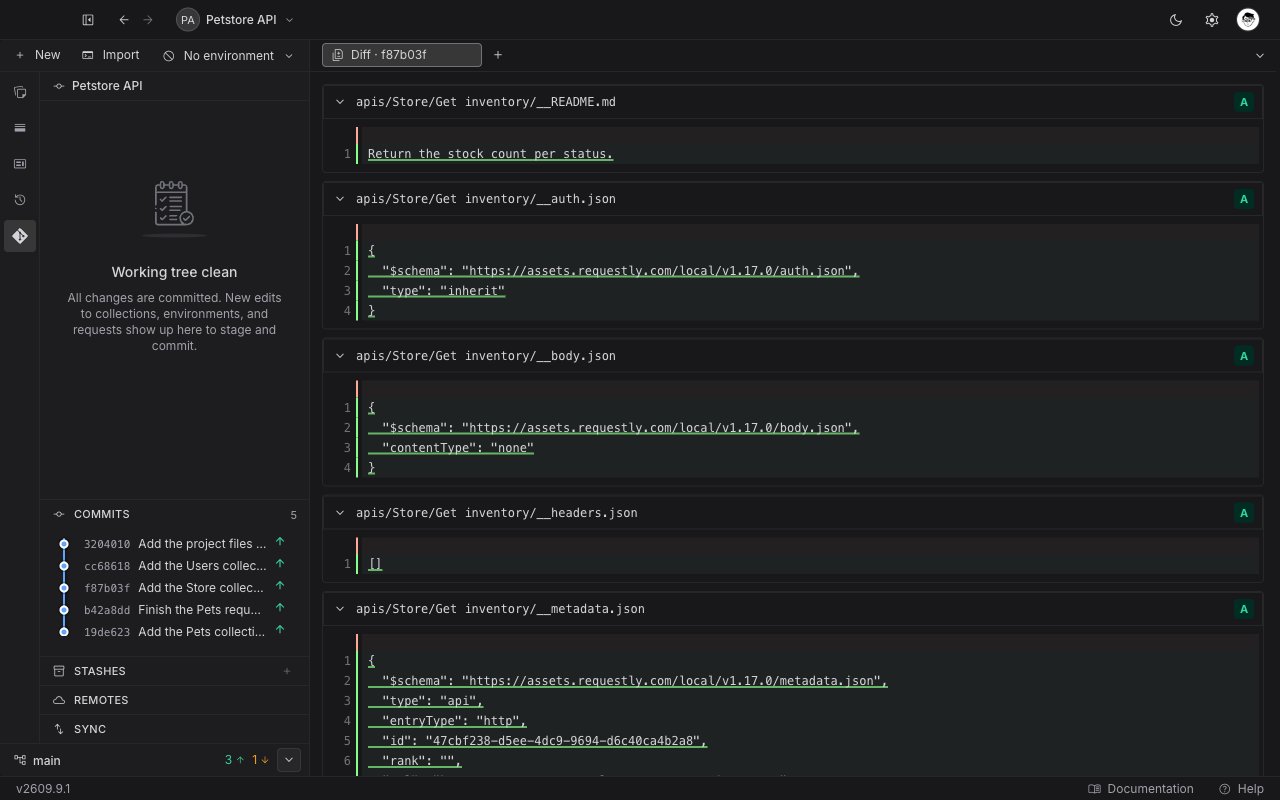
A merge commit’s diff shows what the merge brought in, measured against the branch it was merged into. Plain Git prints nothing at all for a merge commit, so this is the more useful answer.
Read a diff
A diff tab stacks one section per file. Each section starts with a header carrying the file path and a one-letter chip, and holds the line-by-line comparison below it. Click the header to collapse a file you have finished with. The chip uses the same letters as the change list, described under Status letters. Hover it for the full word. One letter differs: a file Git has never tracked shows the letterA here, because a diff has nothing earlier to compare it against, though its tooltip still reads Untracked.
When a diff has nothing to show
A commit that changed no files reads “No file changes in this commit.” A diff that cannot be read shows the reason and a Retry button. The Git overview lists the messages Requestly can show, with what each one means.Next steps
Push and pull
Send the commits carrying an up arrow to the remote, and bring your teammates’ work in.
Switch and create branches
Open the branch picker to switch, create, or delete a branch.