

Git requires the desktop app. Download Requestly.
Open the Sync section
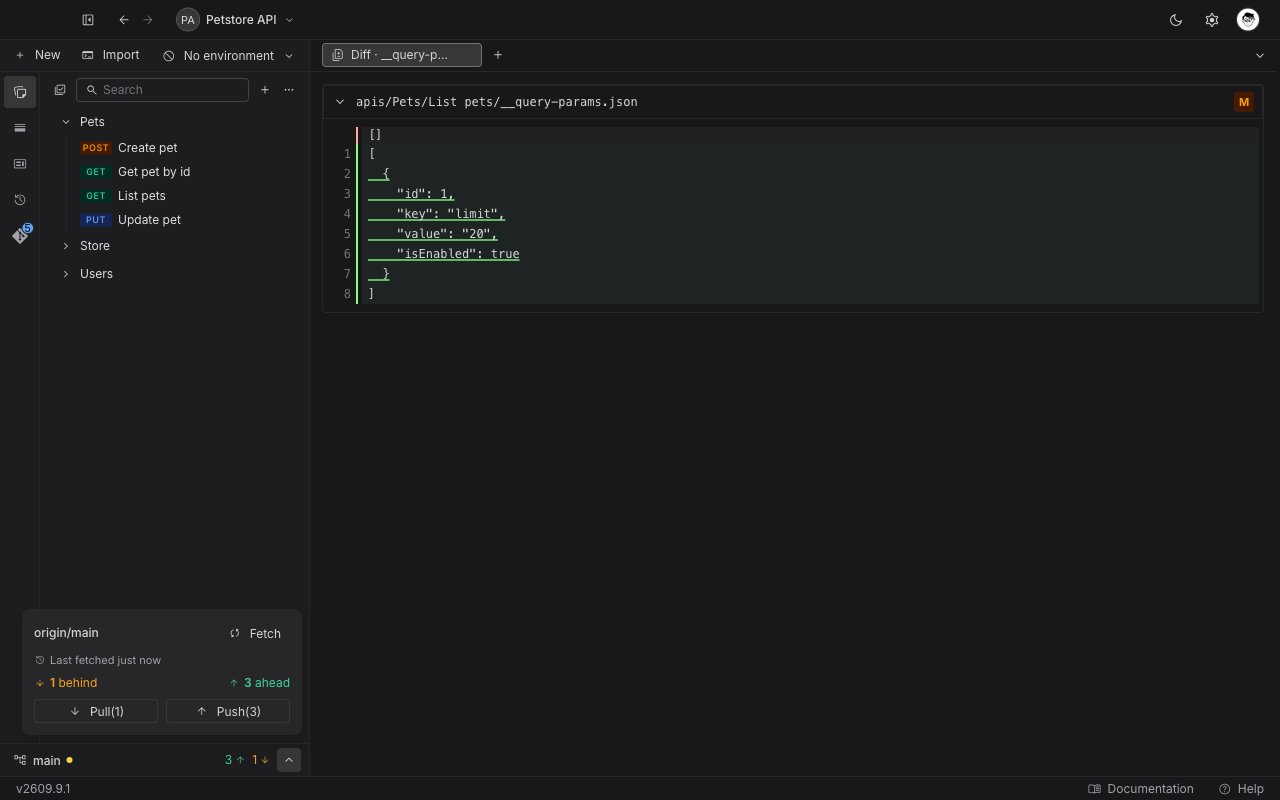
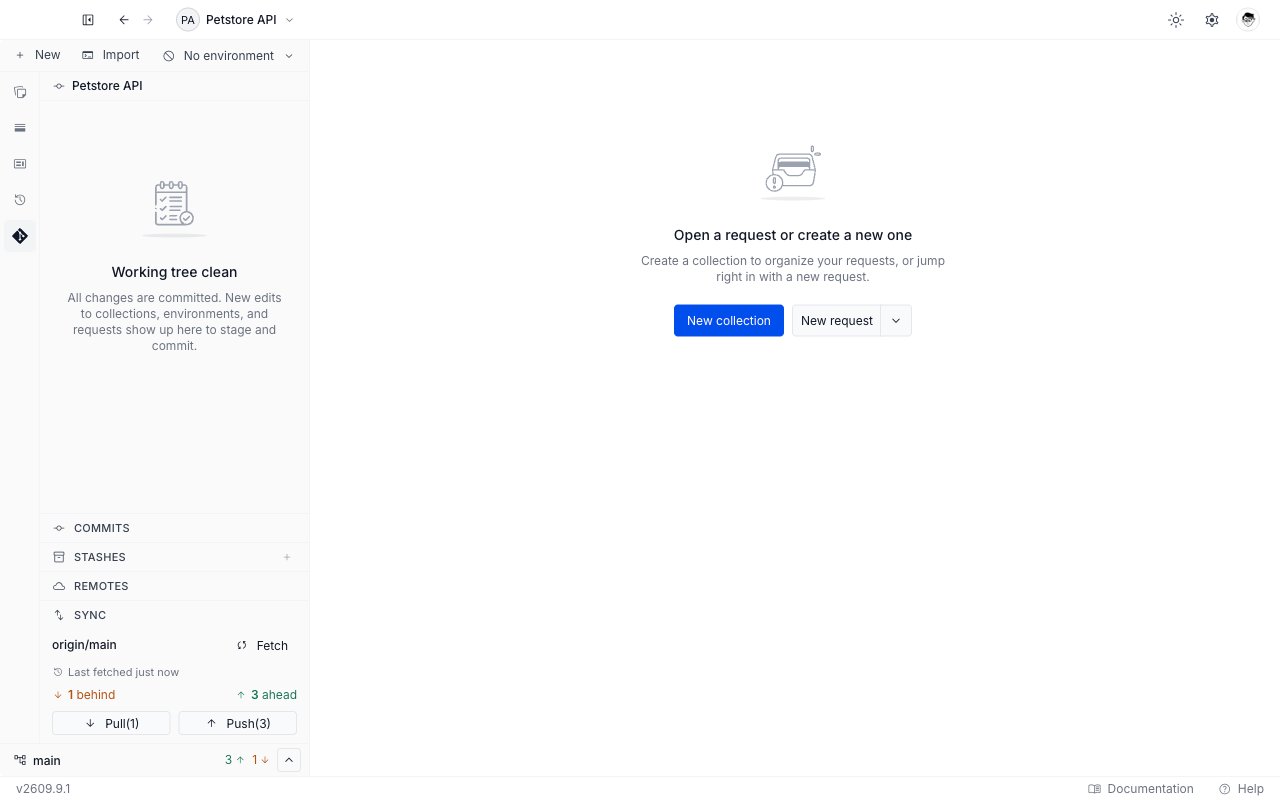
Sync is the last section of the Git panel, below Commits, Stashes, and Remotes. Click its header to expand or collapse it. The same controls are reachable from any sidebar tab. The status bar at the bottom of the sidebar carries a chevron on the right. On the Git tab it expands the inline Sync section. On every other tab it opens the same controls in a small popover, so you never have to switch tabs to push.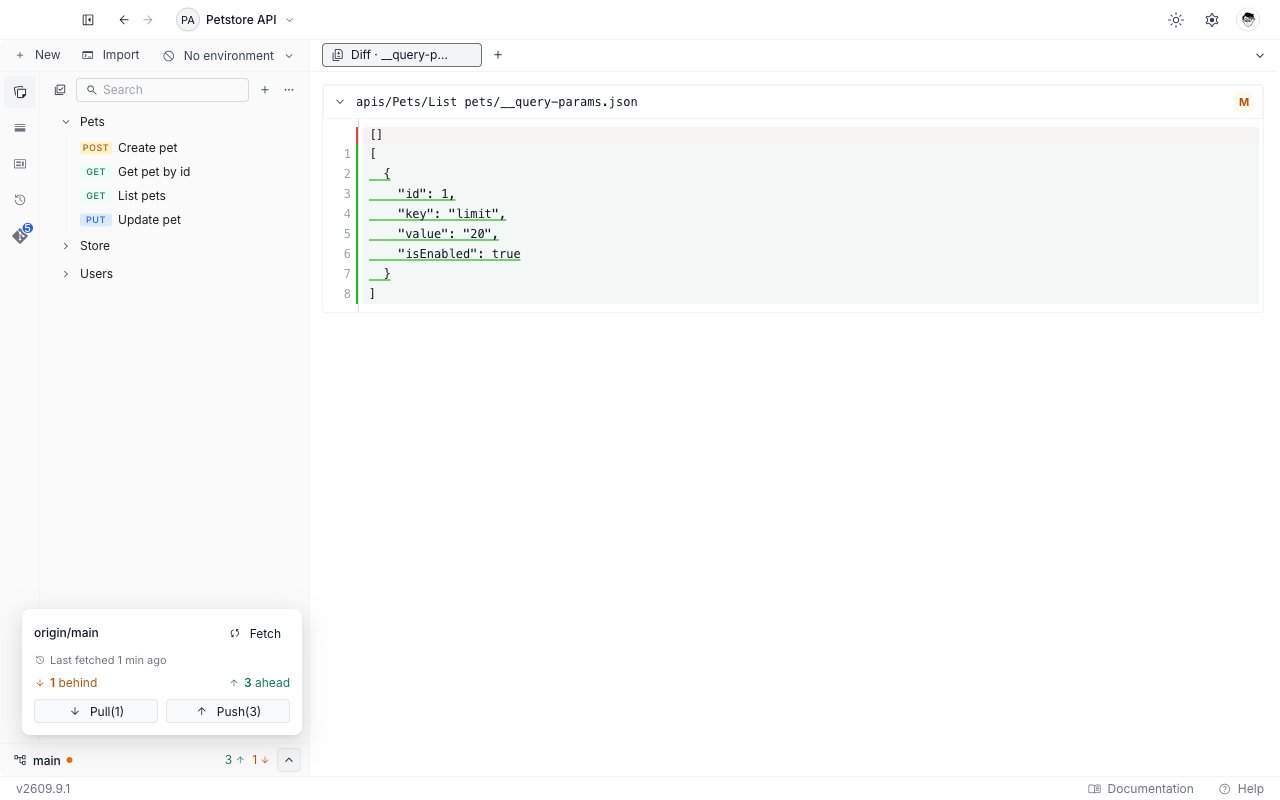
Sync is hidden in two cases: a repository you have just initialized, with no commits and no remote yet, and a repository with a merge in progress. It comes back once you commit, add a remote, or finish the merge.
Add a remote first
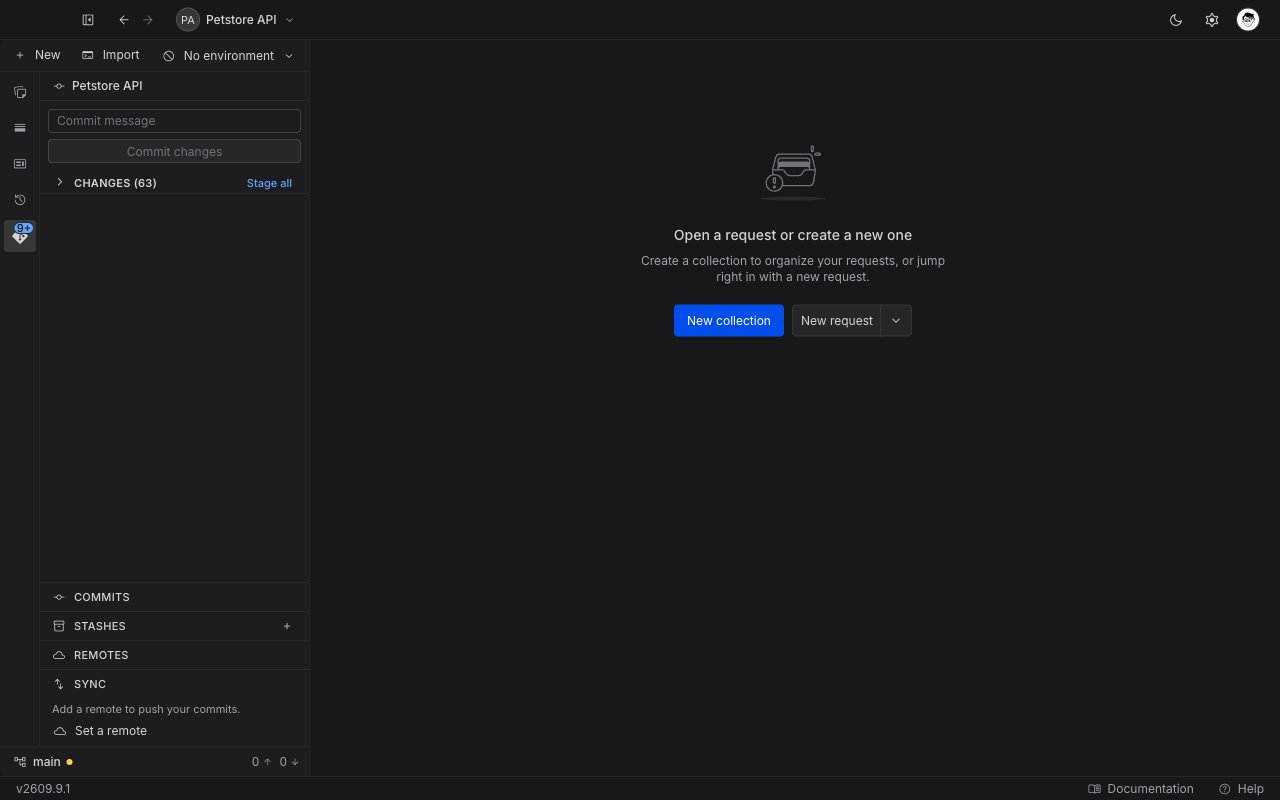
A repository you initialized in Requestly has no remote yet. Sync then reads “Add a remote to push your commits.” and offers one action, Set a remote, which opens the Remotes tab. The same nudge is what the panel shows before you have a repository at all, so it is not a sign that the initialization worked. A repository you cloned already has its remote, so Sync is ready to use.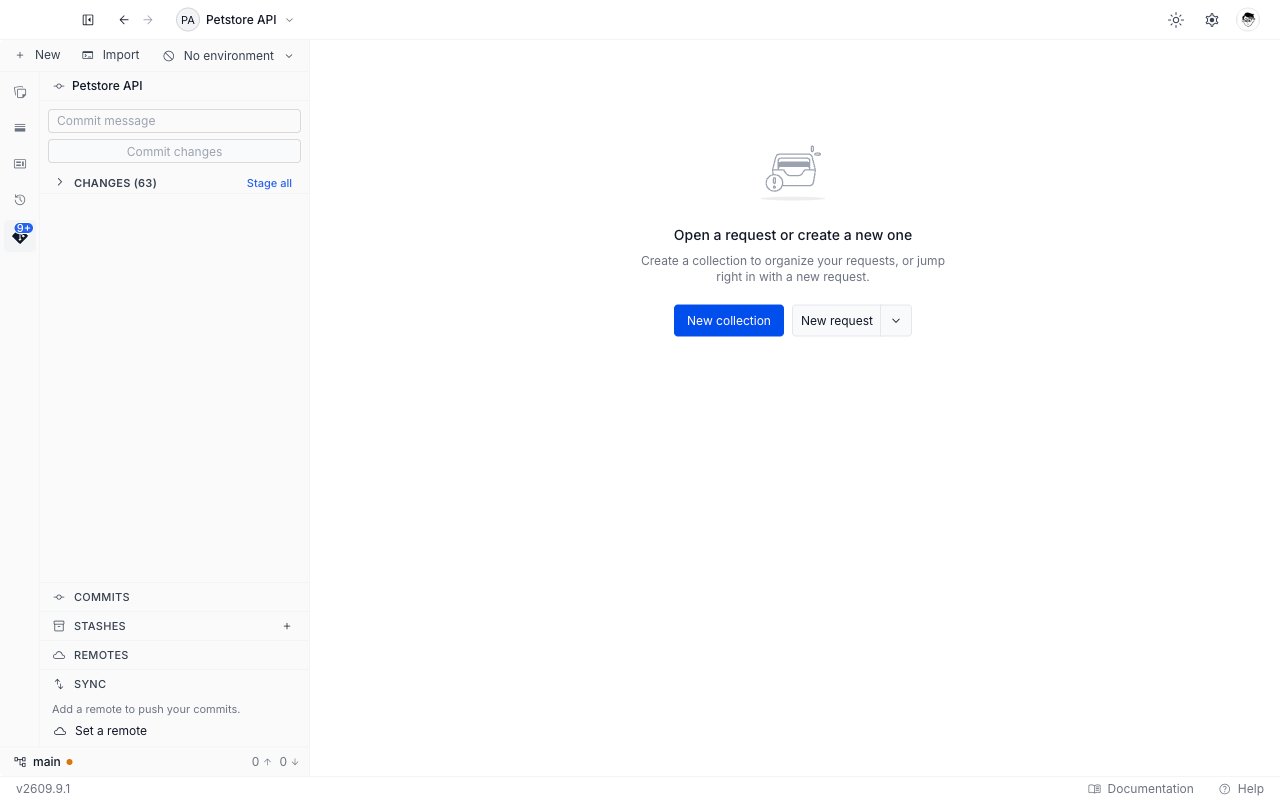
Read the sync state
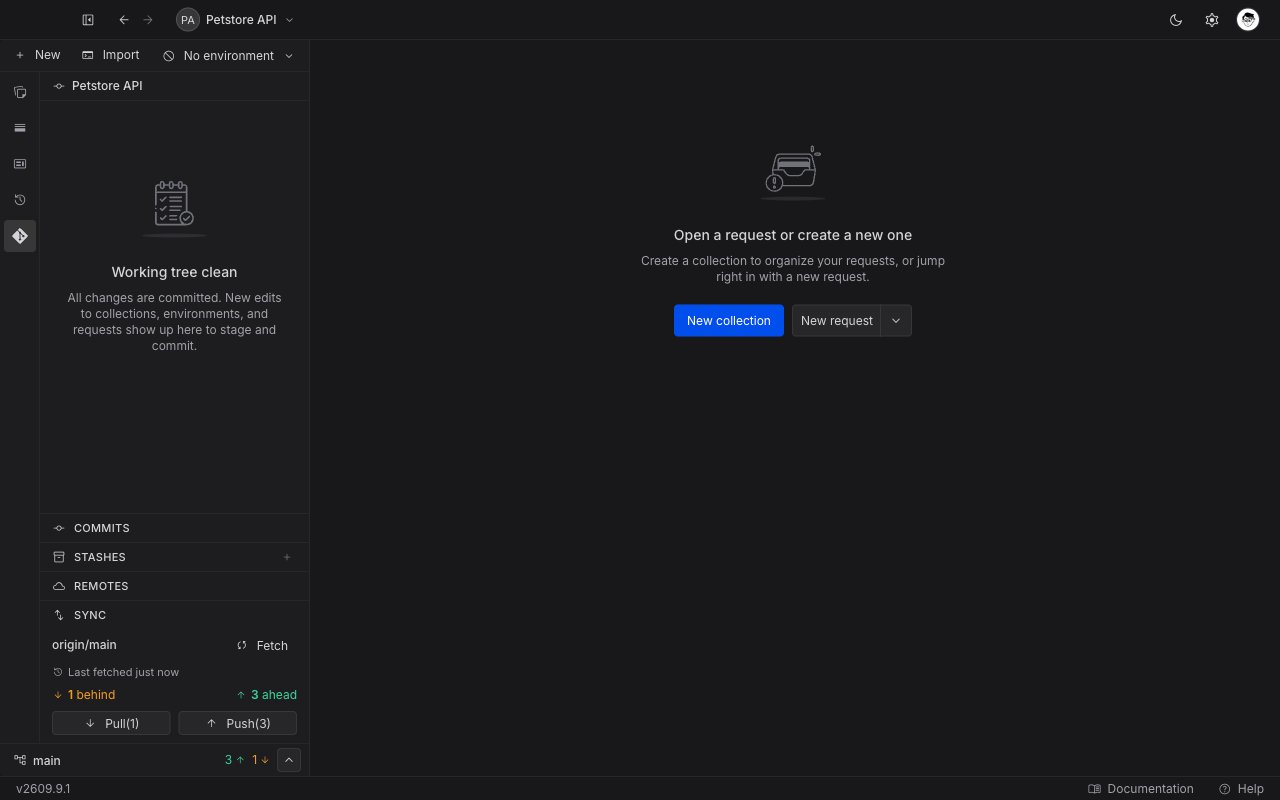
With a remote configured, Sync shows four things.
Click Fetch to ask the remote for its latest state. Fetch changes nothing in your working tree. It only refreshes the two counts, so it is safe to run at any time.
Pull and push
Pull and Push sit side by side under the counts. Both are always visible. The one that does not apply is disabled rather than hidden, so the panel never moves under your cursor. Each button names its count when there is work to do. With two commits to pull and three to push, they read Pull(2) and Push(3).1
Pull first
Pull is enabled when the behind count is above zero. Requestly pulls with a merge, so any overlapping edits arrive as a normal merge conflict you resolve in the app.
2
Push your commits
Push is enabled when you have commits to send, or when the branch has no upstream yet. Click it to send your commits to the remote.
The first push
The first push on a new branch also sets the branch’s upstream. That is why Push is available before the ahead count means anything: until the upstream exists, Git cannot tell you how far ahead you are. After that first push, the ahead and behind counts work on their own.When a sync fails
Failures arrive as a toast in the corner of the app, and most carry an action button. Three situations account for nearly all of them: the remote holds commits you do not have yet, your working tree holds uncommitted changes that a pull would overwrite, and the two histories started separately. Each toast names the situation and offers the action that settles it. The Git overview lists every message Requestly can show, with what each one means. A failure about a missing or rejected credential is different: the toast carries Add token or Update token, and clicking it reconnects the account and retries the operation for you. See Providers and authentication.Next steps
Stage and commit changes
Read the change list, stage or discard files, and write a commit.
Resolve merge conflicts
Work through a pull that stopped on conflicting files, finish the merge, or abort it.