

Git requires the desktop app. Download Requestly.
When a merge stops
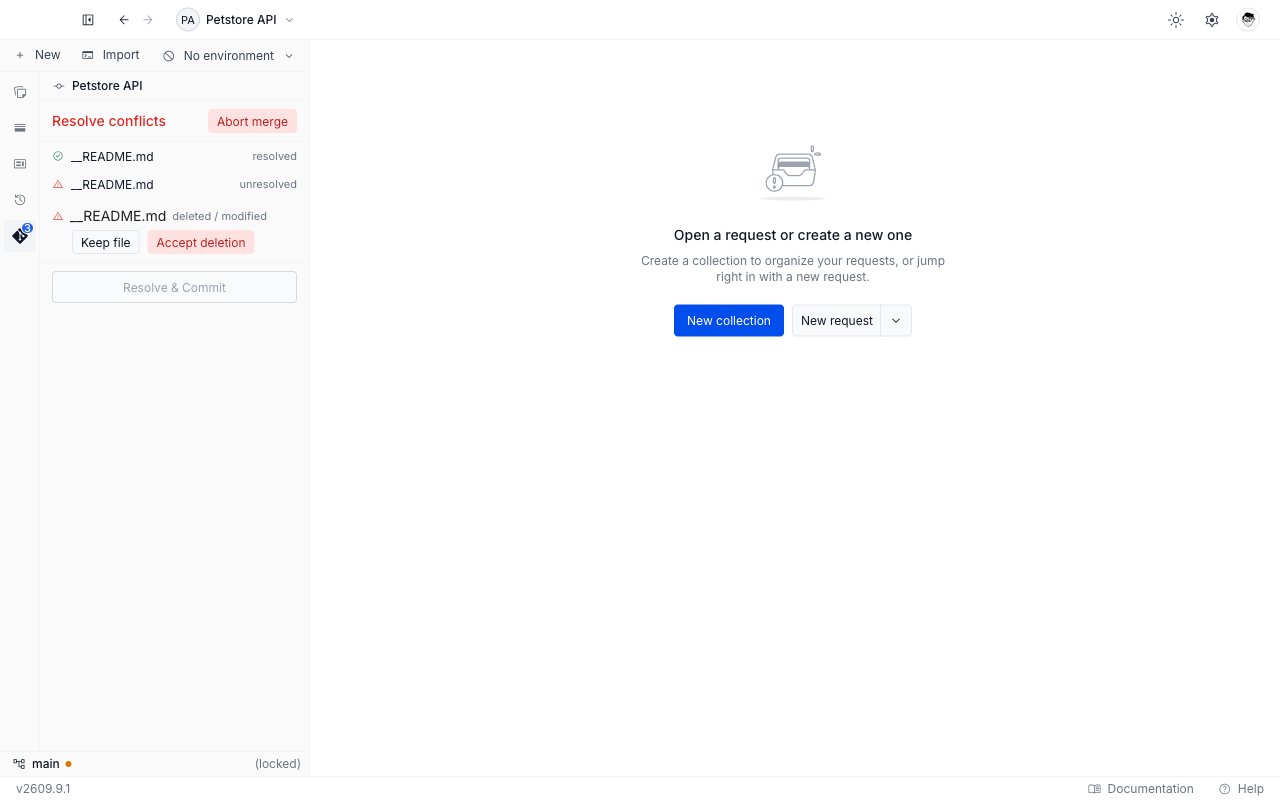
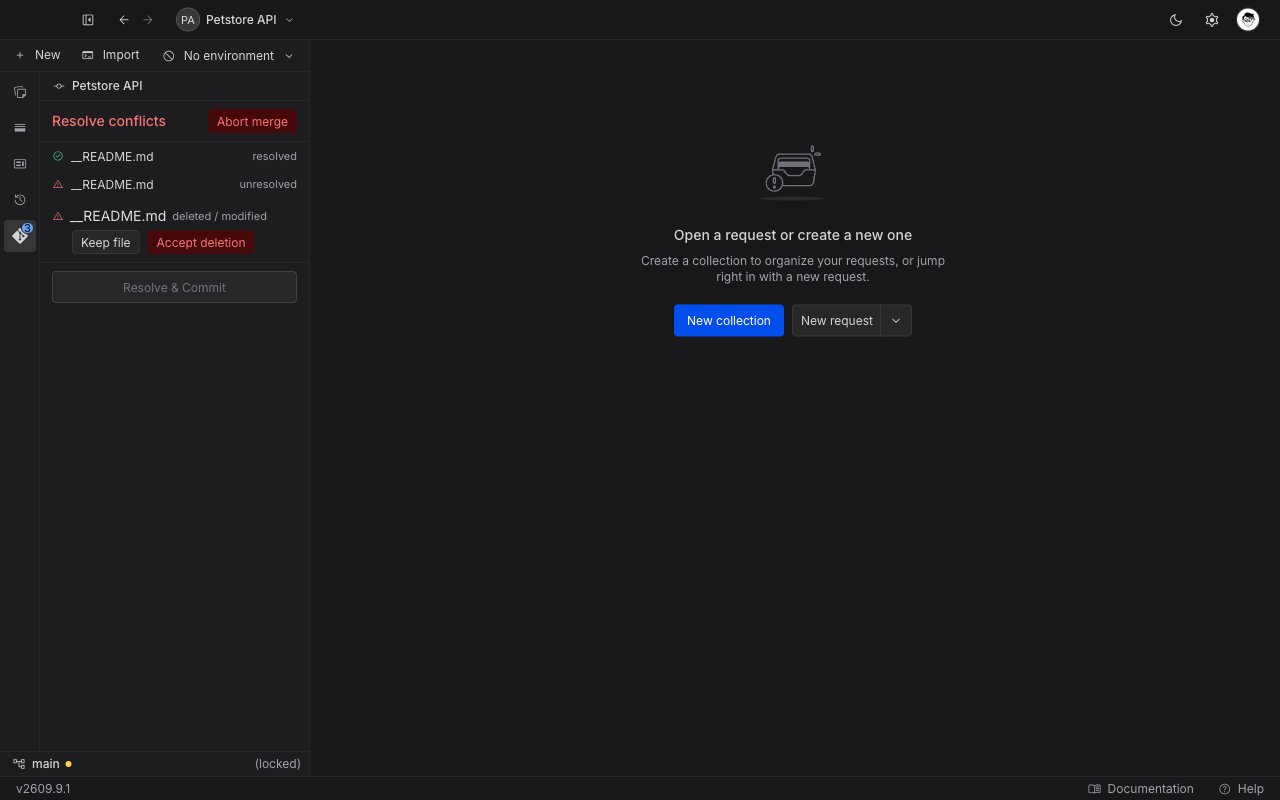
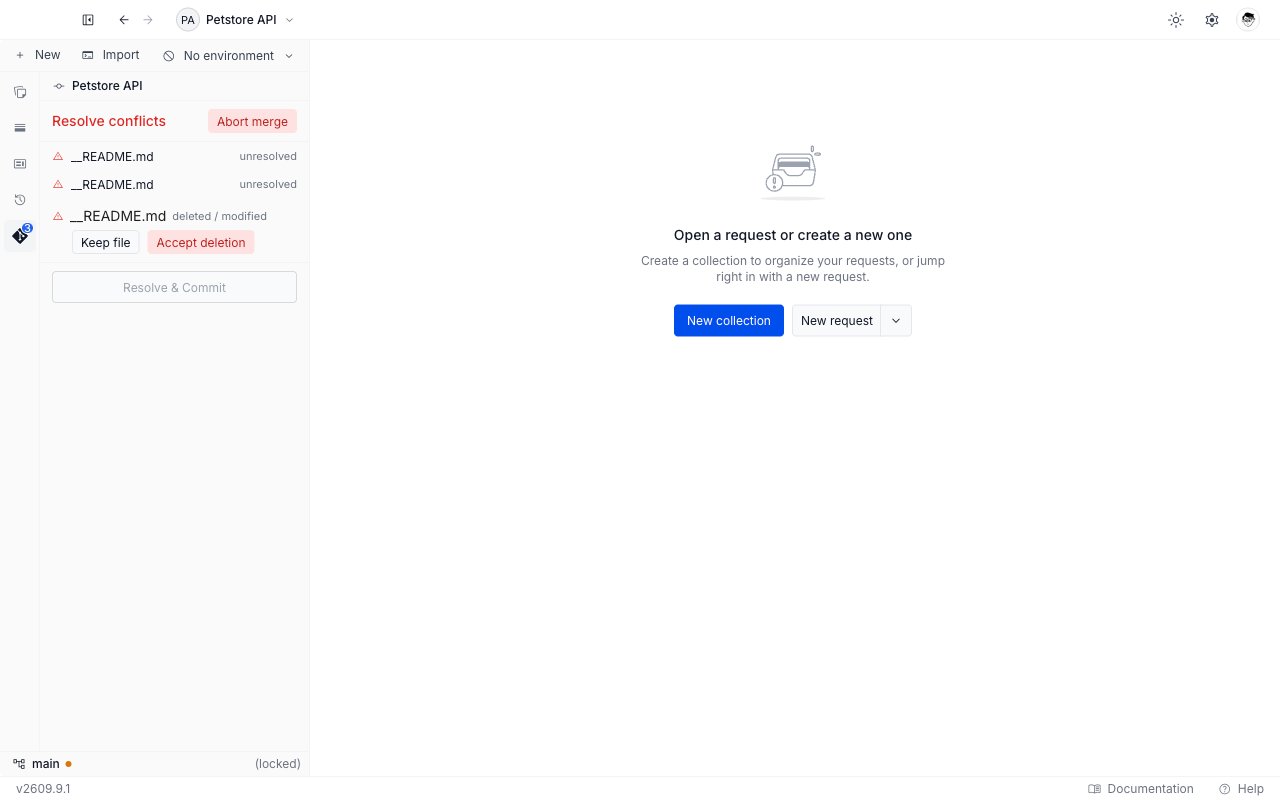
A conflict raises no toast. The Git panel changes instead, and the change is hard to miss.- The panel body is replaced by the conflict surface, headed Resolve conflicts in red.
- The commit box, the Changes and Staged sections, and the Commits, Stashes, Remotes, and Sync sections are all hidden. The panel gives its whole height to the conflict.
- The sidebar status bar shows
(locked)in place of the ahead and behind counts, and the branch name stops opening the branch picker.
Read the conflicted file list
The surface lists one row per conflicted file, under the Abort merge button.
While Requestly reads the list the panel shows “Loading conflicts…”. A merge with nothing left to resolve reads “No conflicted files.”
Resolve a file in the merge editor
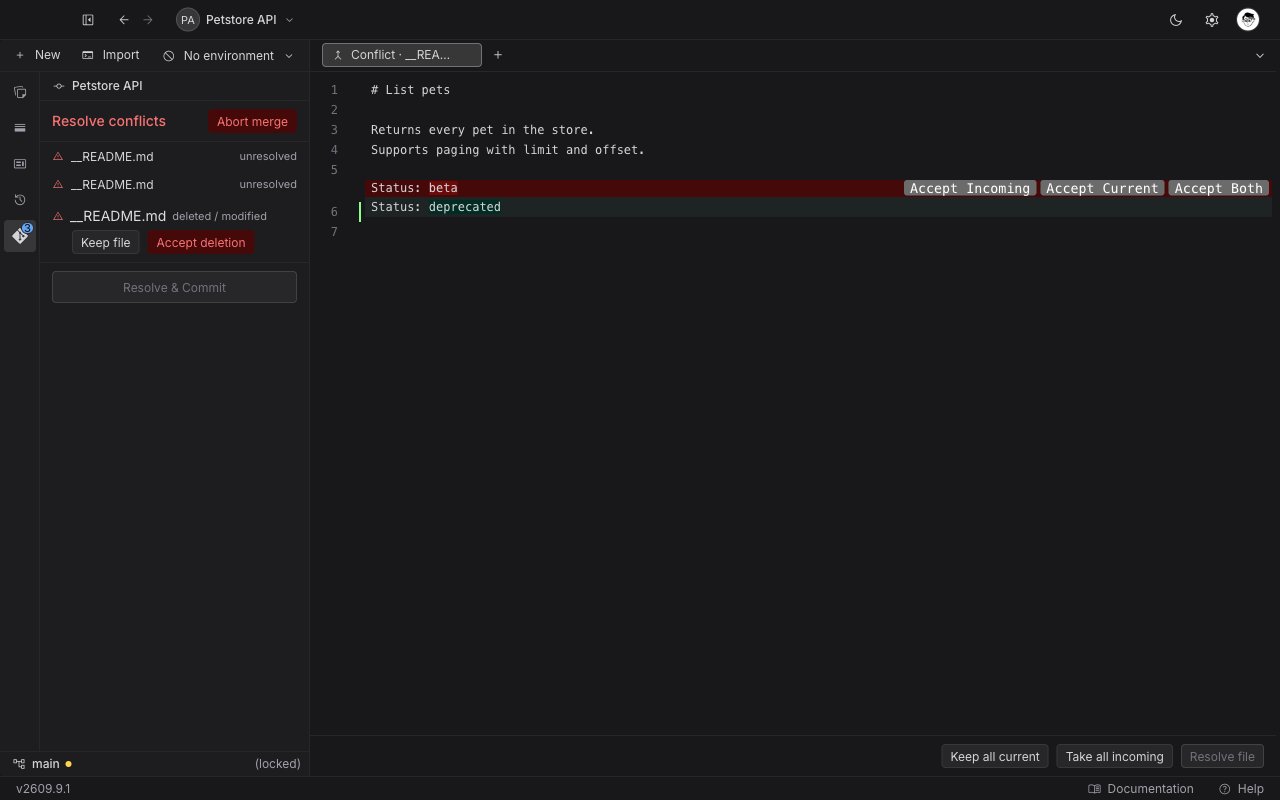
Click a file name to open it as a tab beside your requests, namedConflict · <file name>. The editor shows the file with every block the two sides disagree about marked, and three buttons on each block. The text itself is read-only: you settle the file with the buttons rather than by typing in it.
The three buttons read left to right in this order.
1
Open the file
Click its name in the Resolve conflicts list.
2
Settle every block
Work down the file, choosing a button on each block. Two buttons in the footer settle the whole file at once: Keep all current takes your side everywhere, and Take all incoming takes theirs everywhere.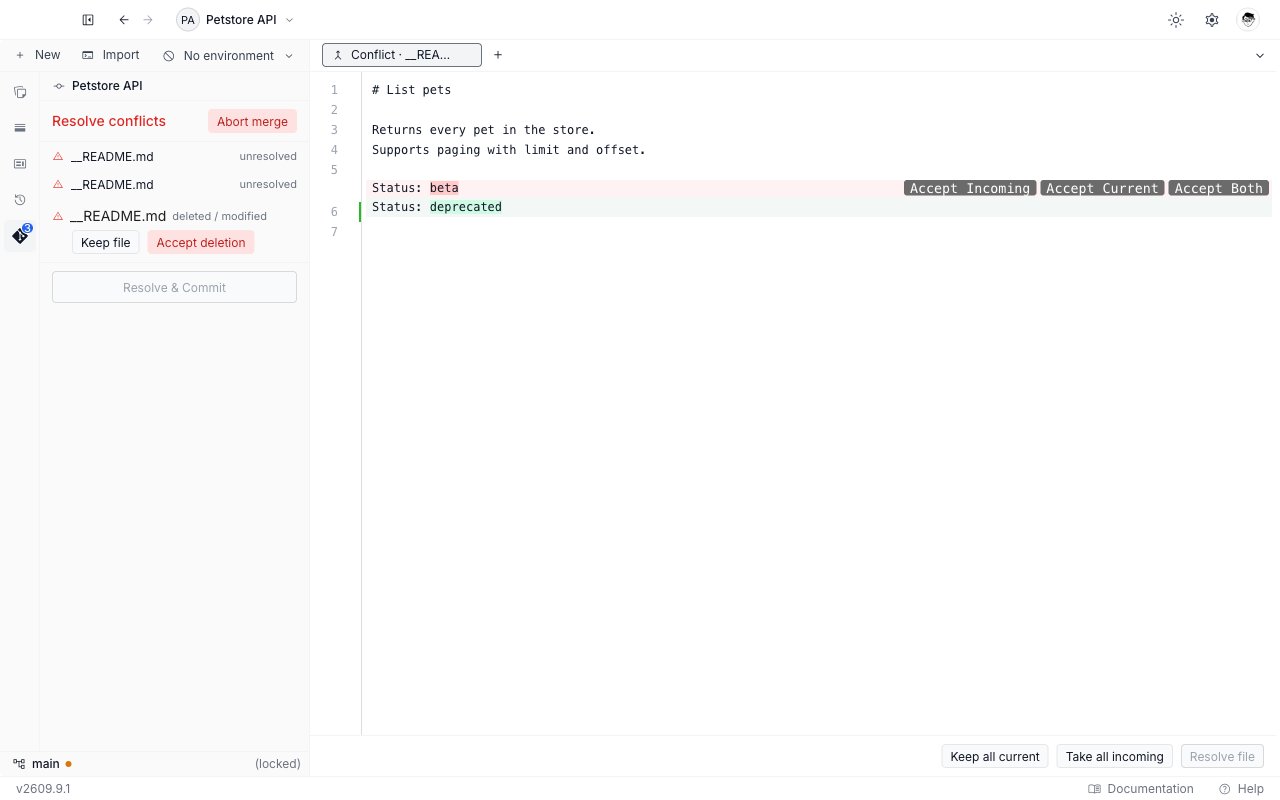
3
Resolve the file
Resolve file in the footer stays disabled until no block is left. Click it. The tab closes, and the file’s row in the panel turns to a green check.
Resolve file records your merged text for the final commit. It does not write the file to disk on its own. Requestly writes every resolved file when you finish the merge.
When a file is too large or binary
A file Requestly cannot render in the editor opens on a panel headed “File too large to resolve here”, which explains that the file is binary or larger than the diff size limit. It offers one action, Keep current version, which resolves the whole file with your copy.Resolve a deleted and modified file
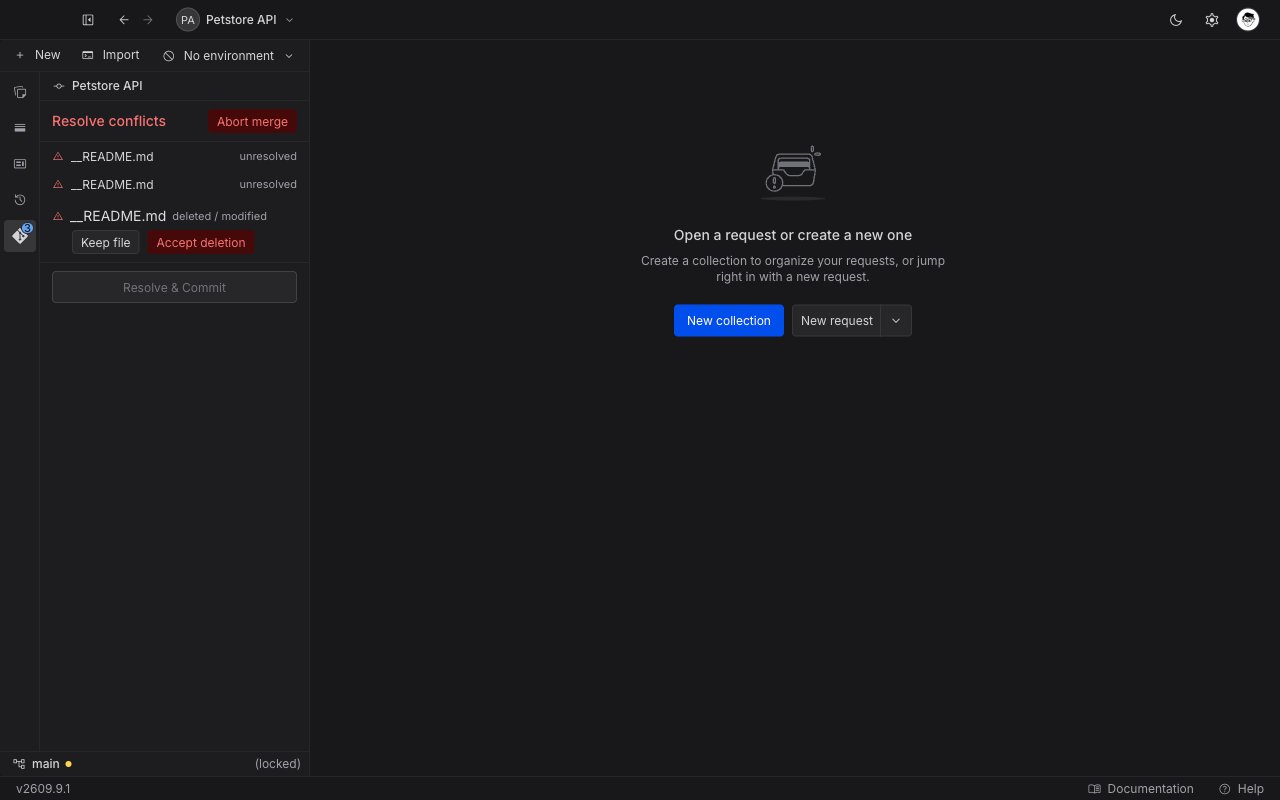
When one side deleted a file and the other side changed it, there is no text to merge. The row carries two buttons instead of opening an editor.
Both resolve the file immediately, and the row turns to a green check.
Finish the merge
Resolve & Commit sits at the bottom of the surface. It stays disabled until every file in the list carries a green check.1
Check the list
Every row should show a green check. A row still on the red warning icon is not resolved yet.
2
Click Resolve & Commit
Requestly writes each merged file to disk, stages it, and records the merge commit. The panel returns to its usual change list.
The merge commit’s message is written for you and reads “Merge: resolve conflicts”. You cannot change it before the commit, so amend it afterwards if you need a different one.
Abort the merge
Aborting throws the merge away and puts your working tree back the way it was before the pull.1
Click Abort merge
The button sits at the top right of the Resolve conflicts header.
2
Confirm
The Abort merge window explains that this restores your working tree to before the merge and discards any conflict resolution in progress. Click Abort merge to confirm, or Cancel to stay in the merge.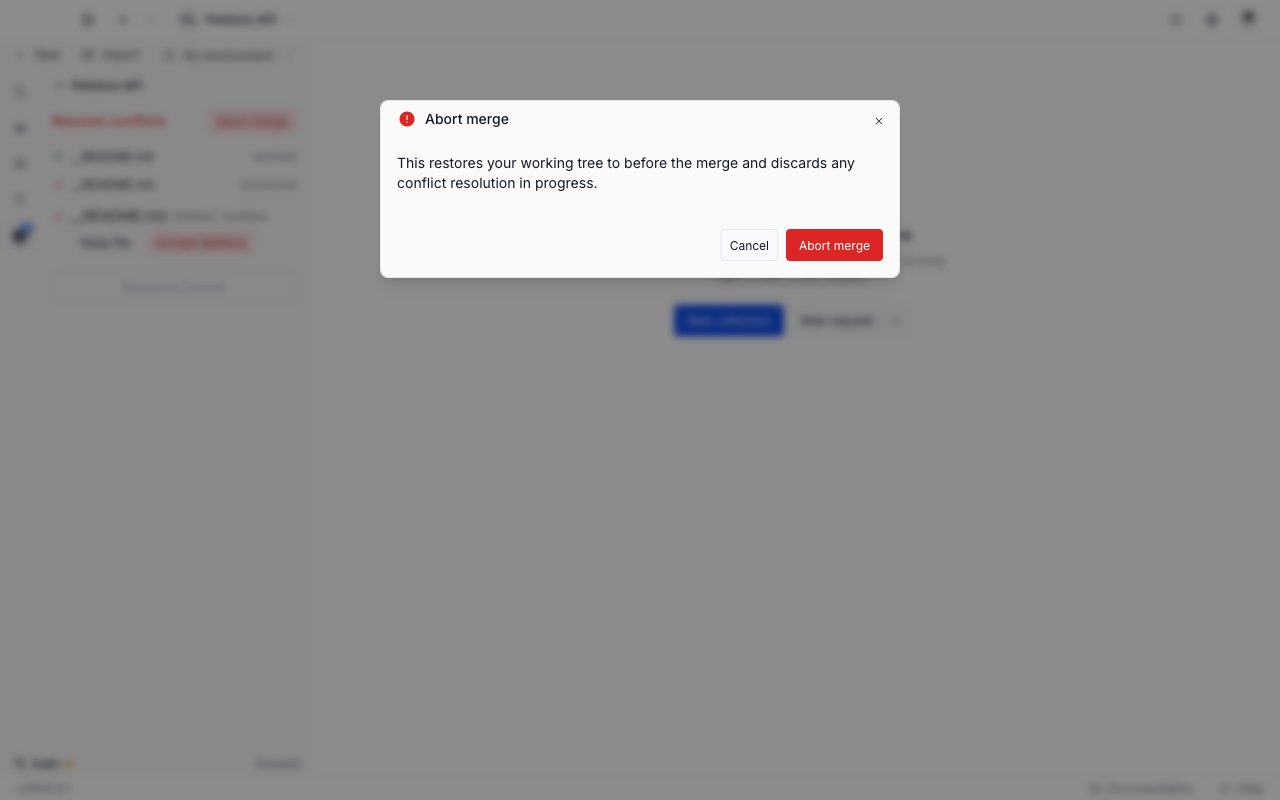
Next steps
Push and pull
Fetch from the remote, read the ahead and behind counts, and sync your work.
Stash changes
Park uncommitted work before a pull, and resolve a stash that applies with conflicts.
Stage and commit changes
Read the change list, stage or discard files, and write a commit.
Browse history and diffs
Read the commit graph, and open a read-only diff for a commit or a changed file.