

Git requires the desktop app. Download Requestly.
Requirements
- The Requestly desktop app on macOS, Windows, or Linux.
- A local project. Git does not apply to team projects, whose data lives in the cloud rather than on your disk. The Git tab is hidden while a team project is active.
- The
gitcommand installed on your machine. Requestly runs your owngitbinary rather than bundling one.
Where Git lives in the app
The Git tab
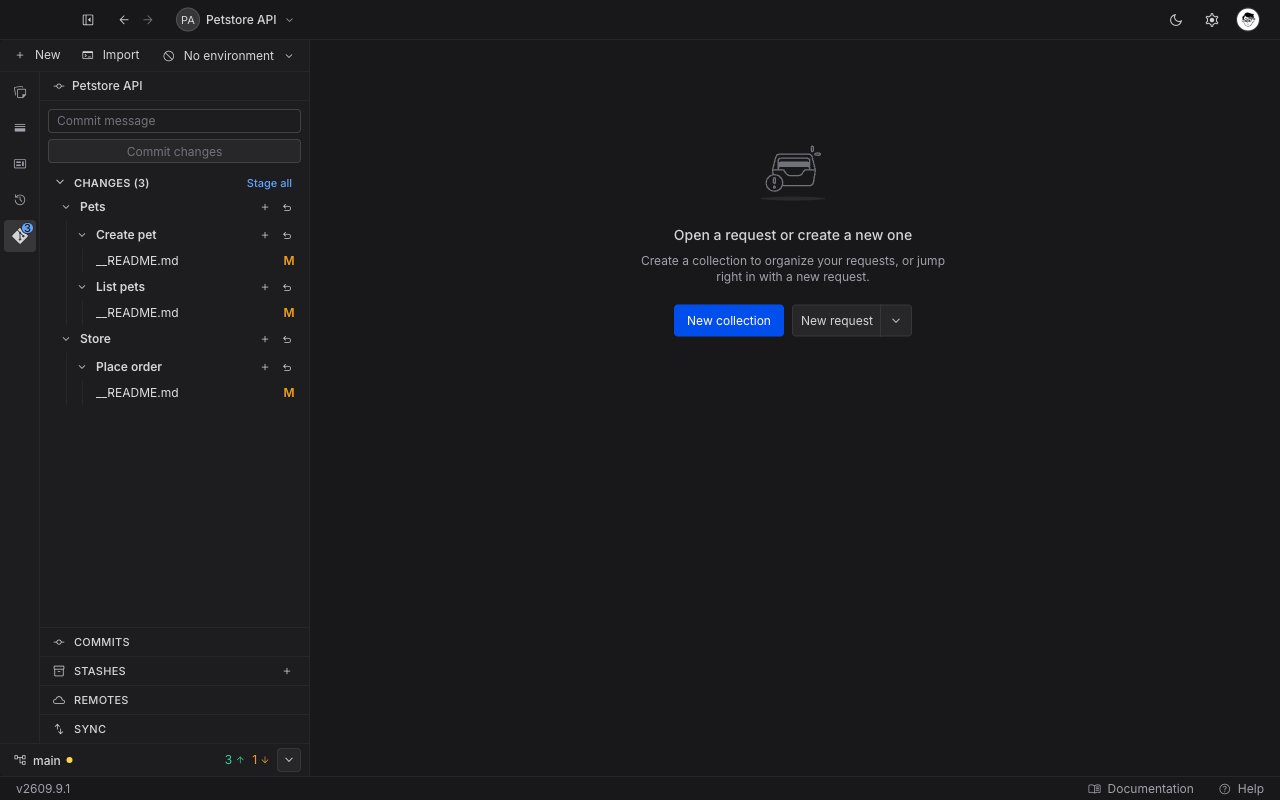
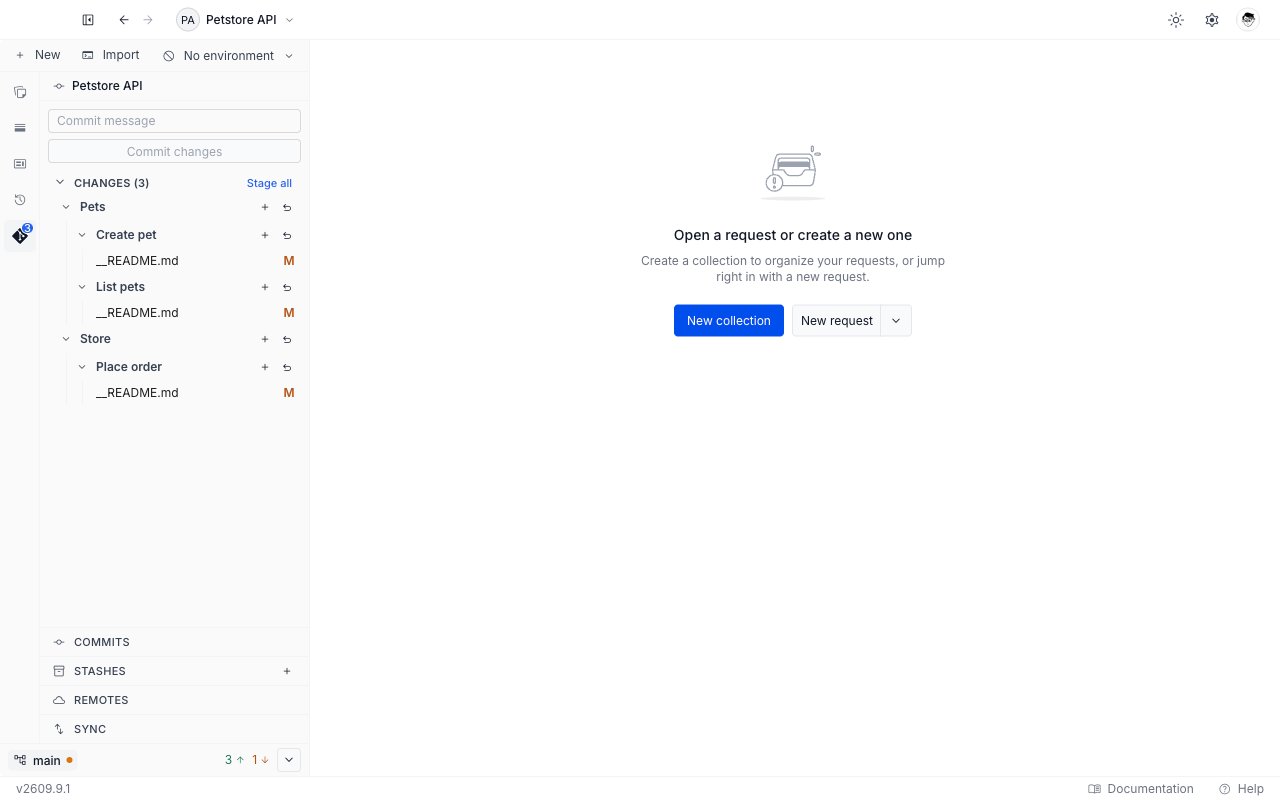
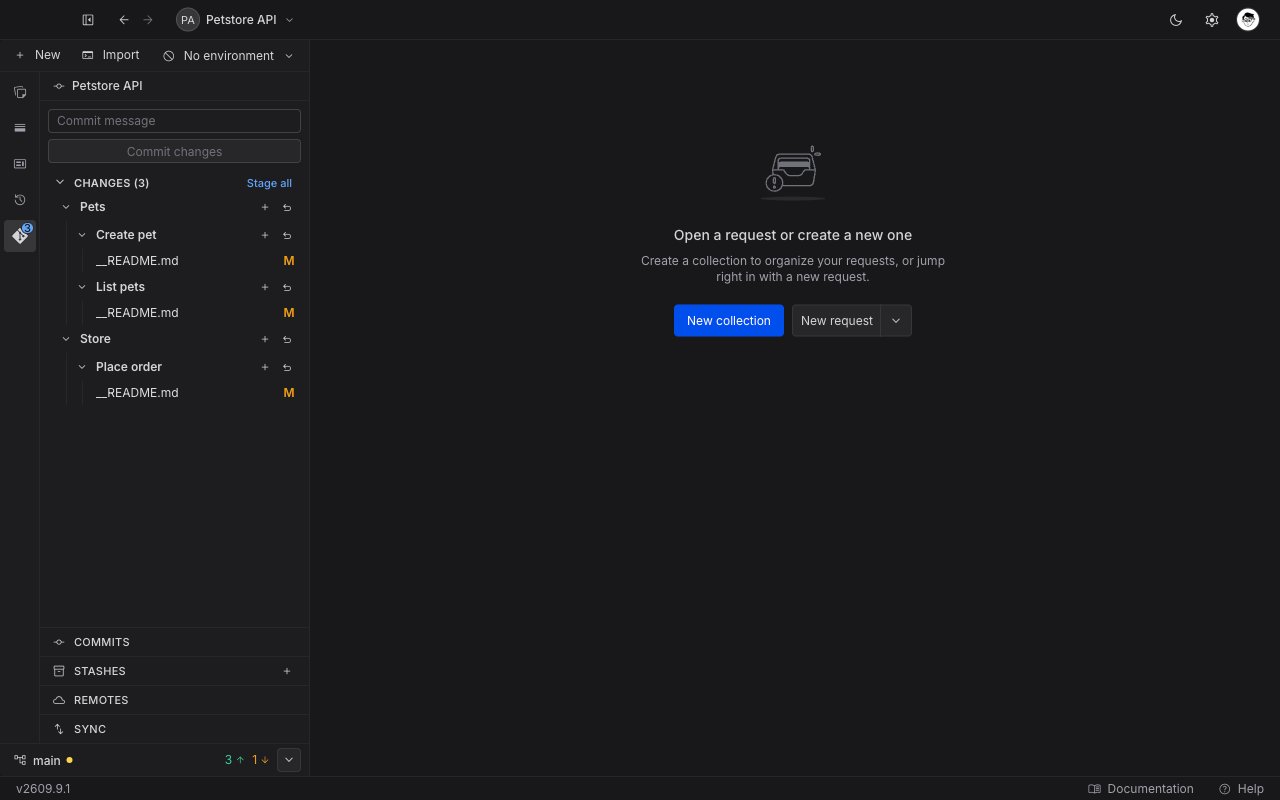
The API Client sidebar shows a Git tab whenever a local project is active. A badge on the tab icon counts the files with changes. In multi-project view the badge adds up the changed files across every open local project.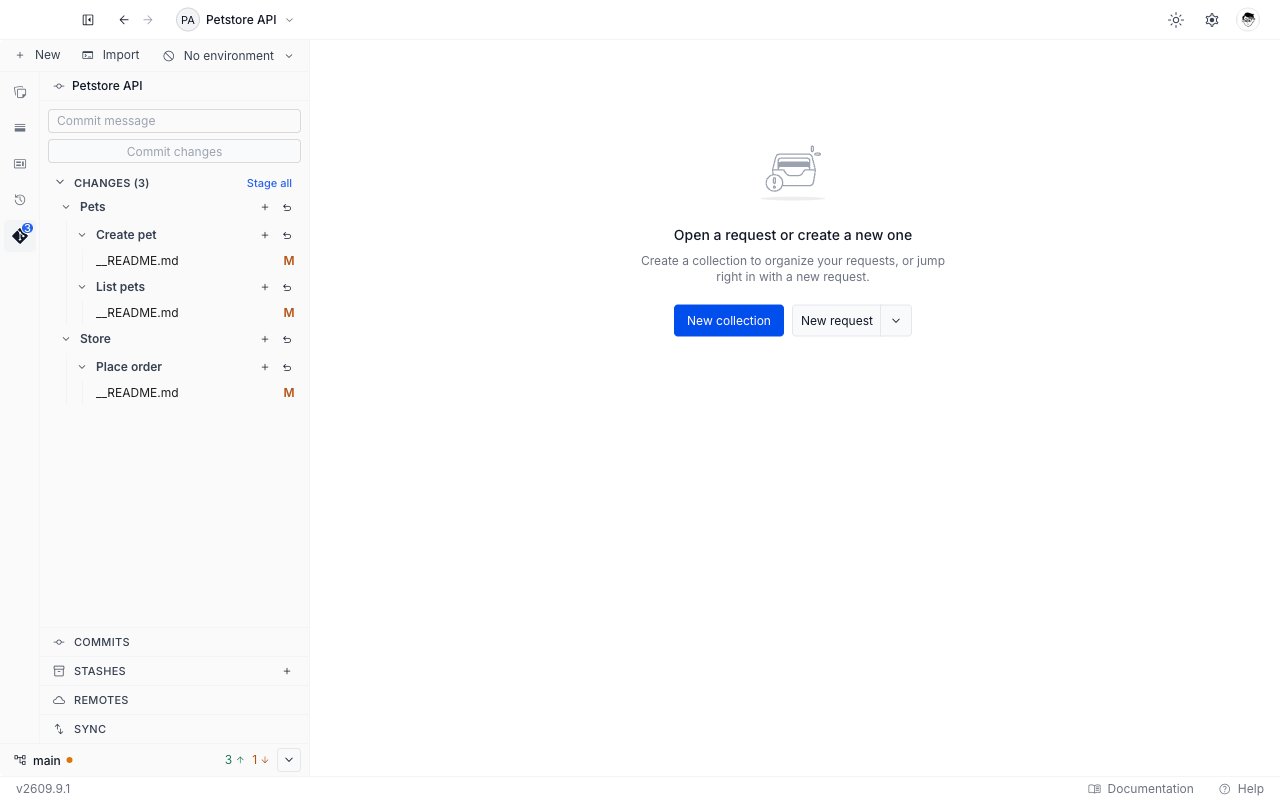
The Git panel
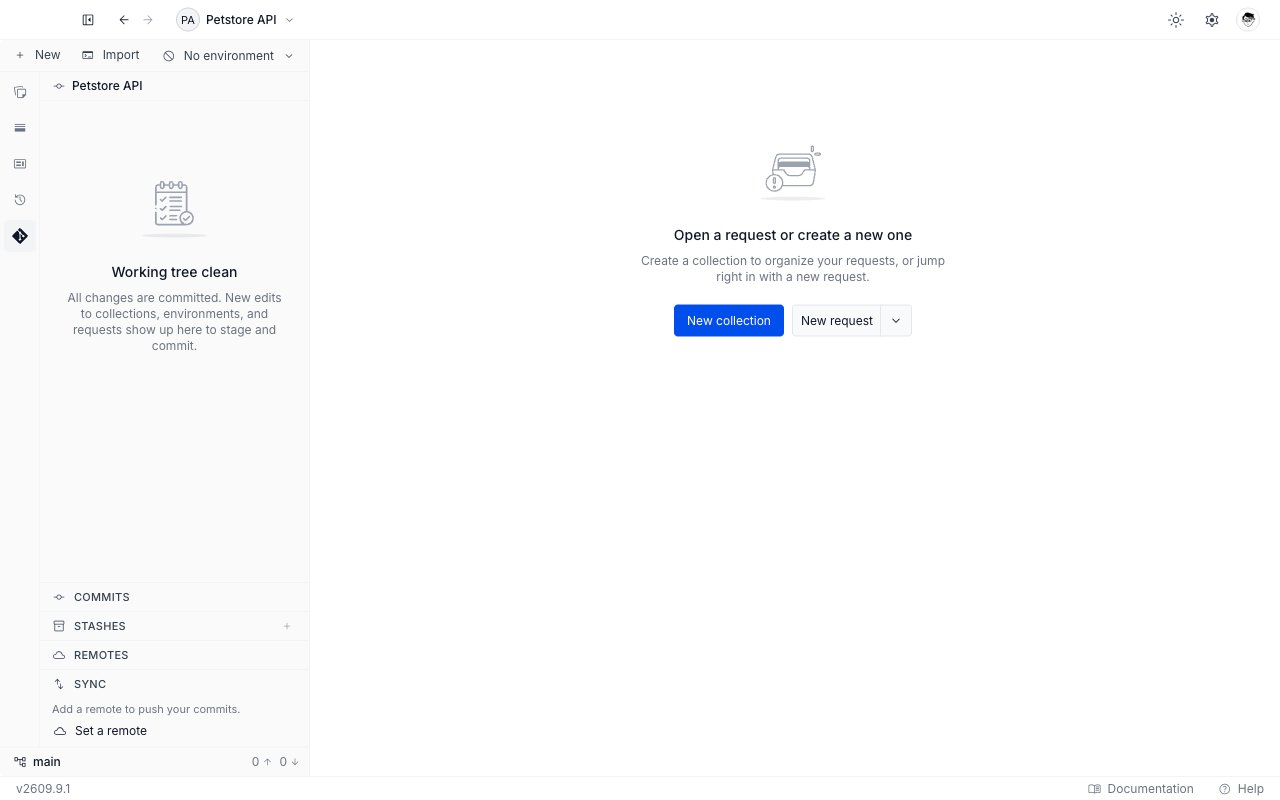
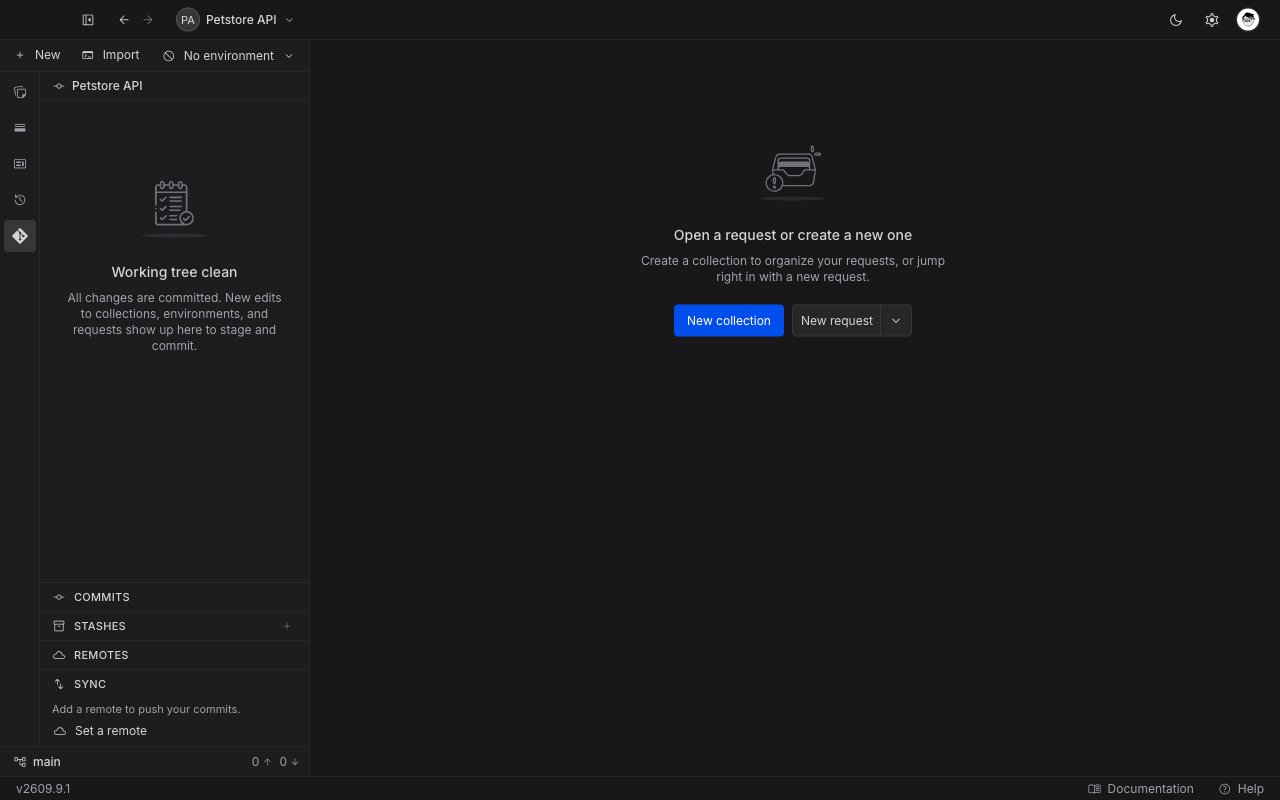
Open the Git tab to see the panel for the active project. The project name sits at the top. Below it, the panel shows one of four states.
In the first three states the Commits, Stashes, and Remotes rows sit below the file area, followed by the collapsible Sync section. All four are there before you initialize anything, so even the No git repo panel shows the whole stack. A merge in progress hides all four and gives the panel’s whole height to the conflict.
Sync has one exception. It is hidden on a repository you have just initialized, and comes back as soon as you make the first commit or add a remote.
The status bar
A status bar sits at the bottom of the sidebar on every tab, not only on the Git tab. It shows:- The current branch name. Click it to open the branch picker.
- An amber dot when the working tree holds uncommitted changes.
- The number of commits to push and to pull, next to an up arrow and a down arrow. Hover them for “N to push” and “N to pull”.
- A chevron that opens the Sync controls. On the Git tab the chevron expands the inline Sync section. On any other tab it opens the same controls in a small popover.
On branch main · uncommitted changes. While a merge or a rebase is in progress, the bar shows (locked) in place of the counts, and the branch picker does not open.
Multi-project view
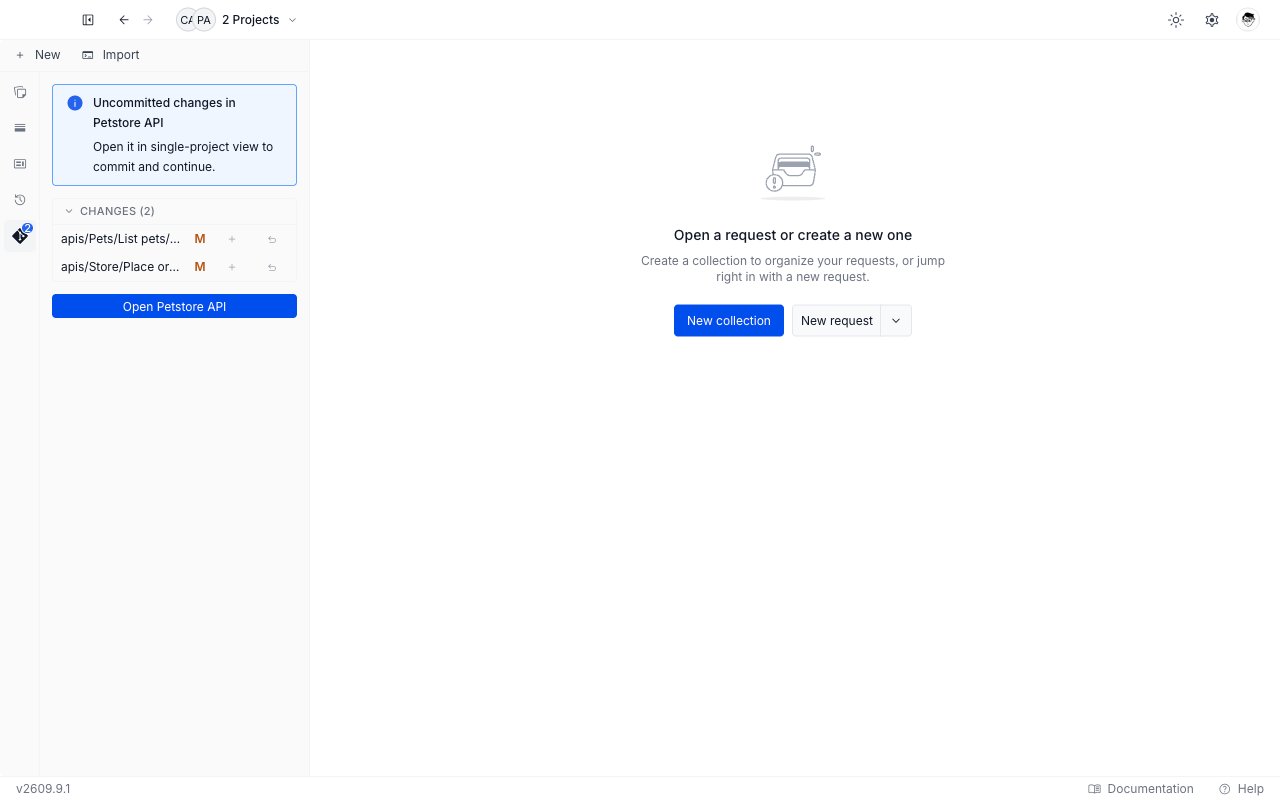
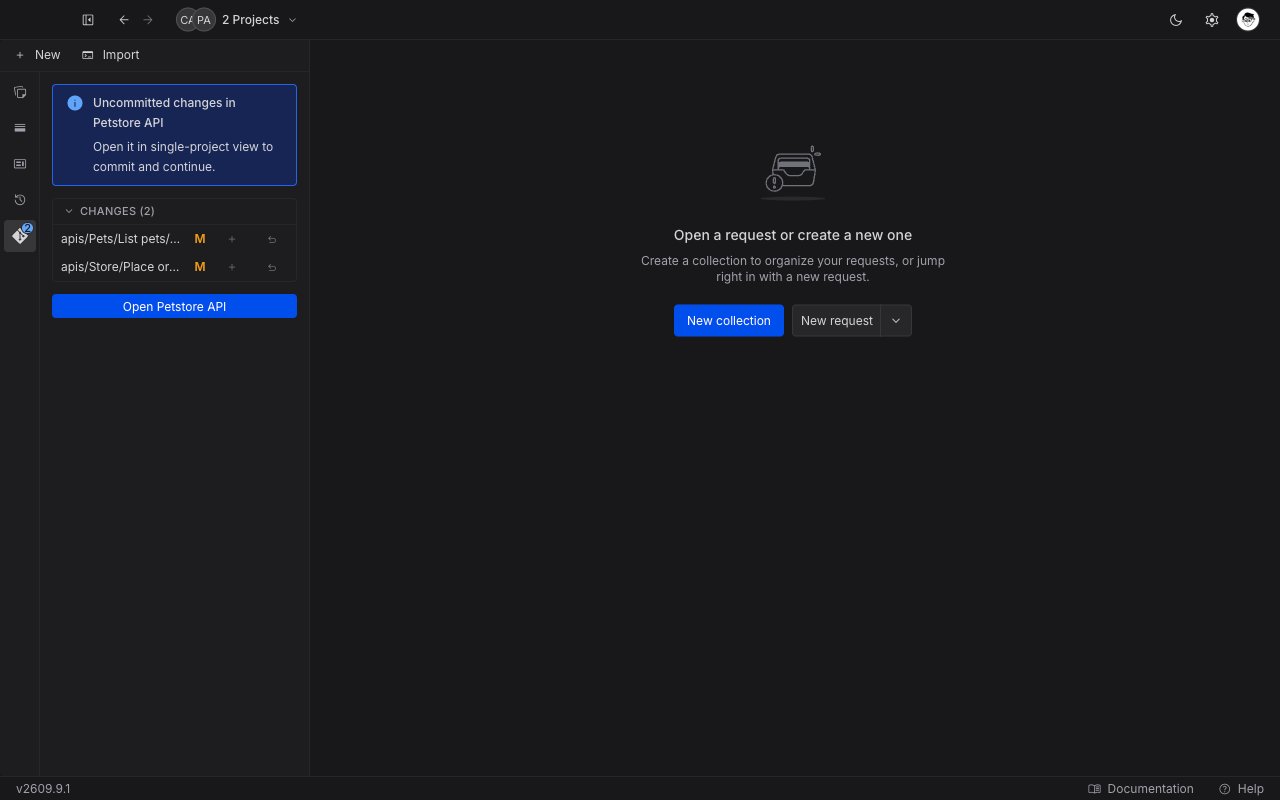
Git acts on one project at a time. In multi-project view the panel is informational only:- With no pending changes it shows Git isn’t available in multi-project view and a Switch project button.
- With one project holding changes it shows Uncommitted changes in
<project>, a Changes list, and an Open<project>button. - With several projects holding changes it shows Uncommitted changes in N projects and a Switch project button.
What Requestly tracks
Requestly tracks the project folder as it sits on disk. That includes your collections and requests underapis/, your environments, the project’s __requestly.json marker, and any API Design files the project holds. The change list groups files by the collection and request they belong to. Files that live outside apis/, such as the project’s own configuration, appear as their own rows at the top level of the change list.
Messages you may see
Git failures appear as a toast in the corner of the app. Some toasts carry an action button that fixes the problem in one click.A missing credential raises its own message with an Add token action. That action opens the credential form for the remote’s host.
While connecting an account
Connecting a GitHub or GitLab account reports its failures in the dialog or panel you are working in, not as a toast. See Providers and authentication for the flows these belong to.While browsing repositories
The Browse my GitHub repos and Browse my GitLab repos tabs of the clone dialog report their own failures above the list. Each message names the provider whose tab you are on, so the GitLab tab shows the GitLab wording of the same message.
When no credential is saved, the tab shows a connect prompt instead of an error.
While browsing branches, commits, and diffs
These report in the window, section, or tab you are working in, not as a toast.While stashing, resolving conflicts, and editing remotes
These report in the section, tab, or window you are working in, not as a toast.A stash that applies with conflicts raises no toast. The conflicted file lands in the Changes list with a conflict badge. See Stash changes.
Next steps
Connect a project to Git
Initialize a repository in an existing local project, or clone one into a new project.
Stage and commit changes
Read the change list, stage or discard files, and write a commit.
Push and pull
Fetch from the remote, read the ahead and behind counts, and sync your work.
Providers and authentication
Connect a GitHub or GitLab account, pick sign-in or a token, and reconnect when one is rejected.
Switch and create branches
Open the branch picker to switch, create, or delete a branch, and handle a switch with uncommitted changes.
Browse history and diffs
Read the commit graph, and open a read-only diff for a commit or a changed file.
Stash changes
Park uncommitted work, apply it back later, drop it, and resolve an apply that conflicts.
Resolve merge conflicts
Work through a merge that stopped on conflicting files, finish it, or abort it.
Manage remotes
See the repository your project pushes to, add one, correct its URL, or remove it.