

origin, on a tab of its own, so you can see it, correct it, or remove it without a terminal. Git applies to local projects only, so the Git tab is hidden while a team project is active.
Git requires the desktop app. Download Requestly.
Open the Remotes tab
Two places open it, and both land on the same tab, named Remotes.- The Remotes row at the bottom of the Git panel, below Commits and Stashes. Unlike those two, it does not expand in place. It opens the tab.
- The Set a remote button in the Sync section, which appears only while the repository has no remote. See Push and pull.
The Remotes row is hidden while a merge is in progress, along with the rest of the panel’s sections. Finish or abort the merge first. See Resolve merge conflicts.
Read the remotes table
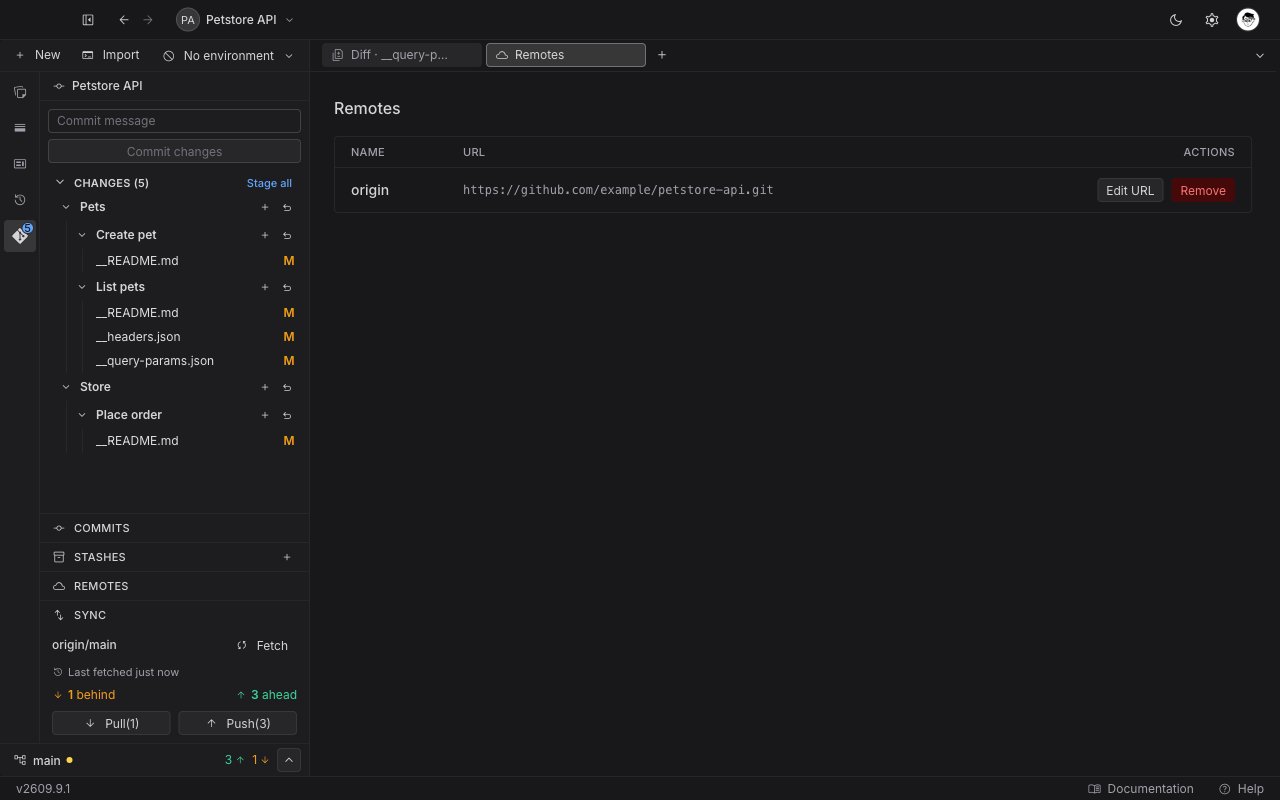
With a remote configured, the tab shows a single-row table under the heading Remotes.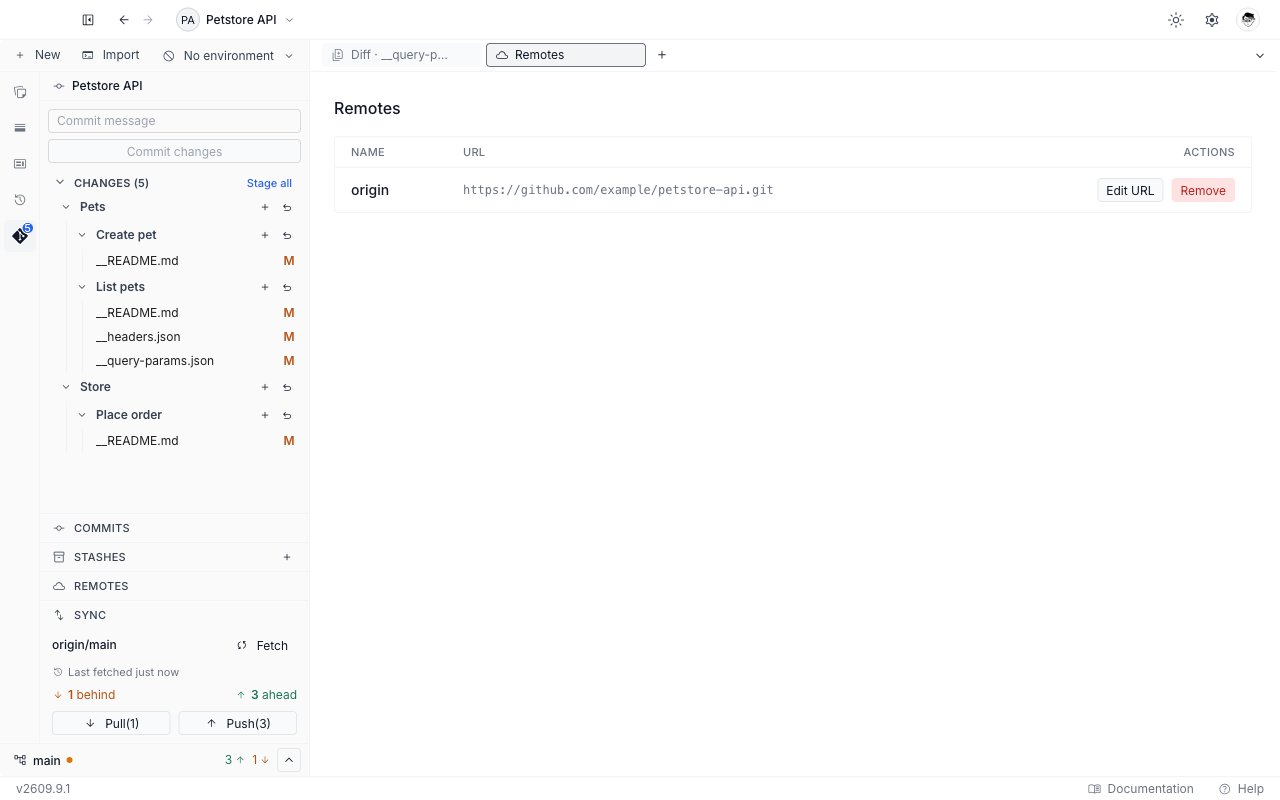
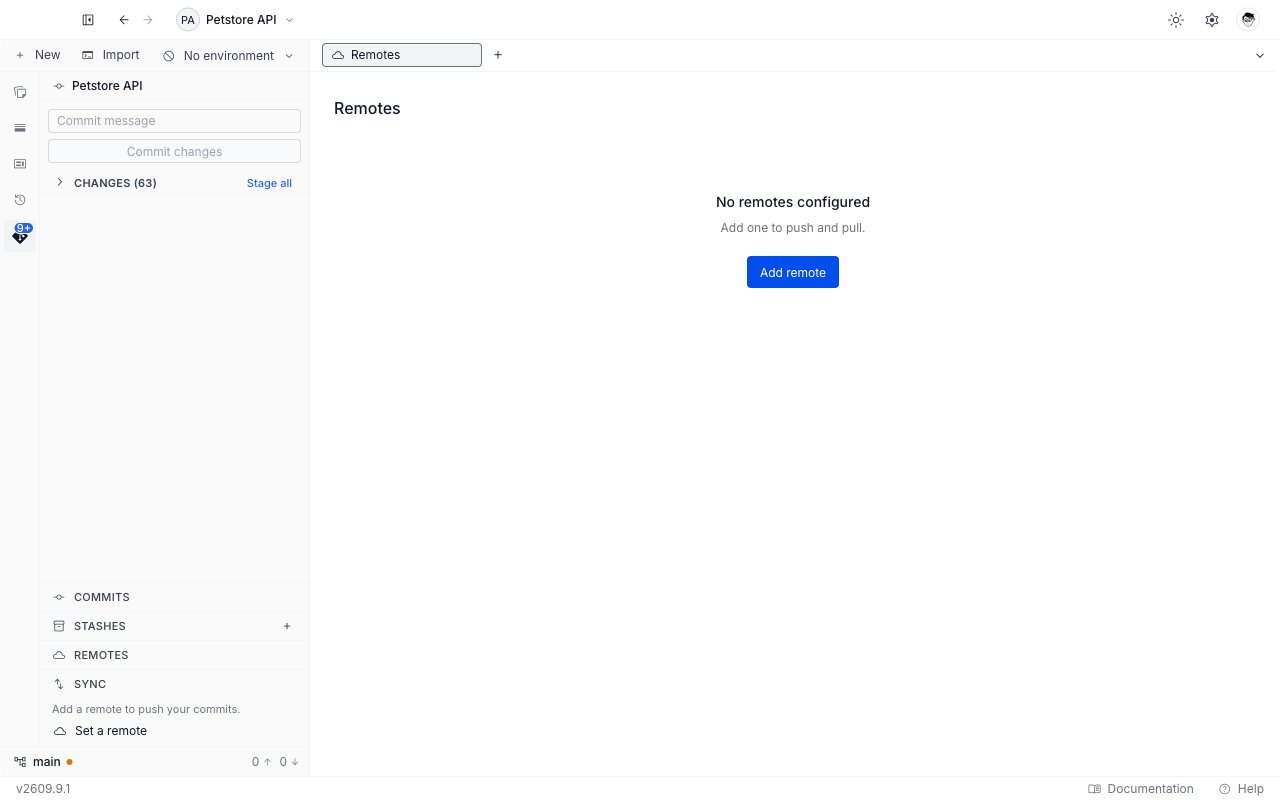
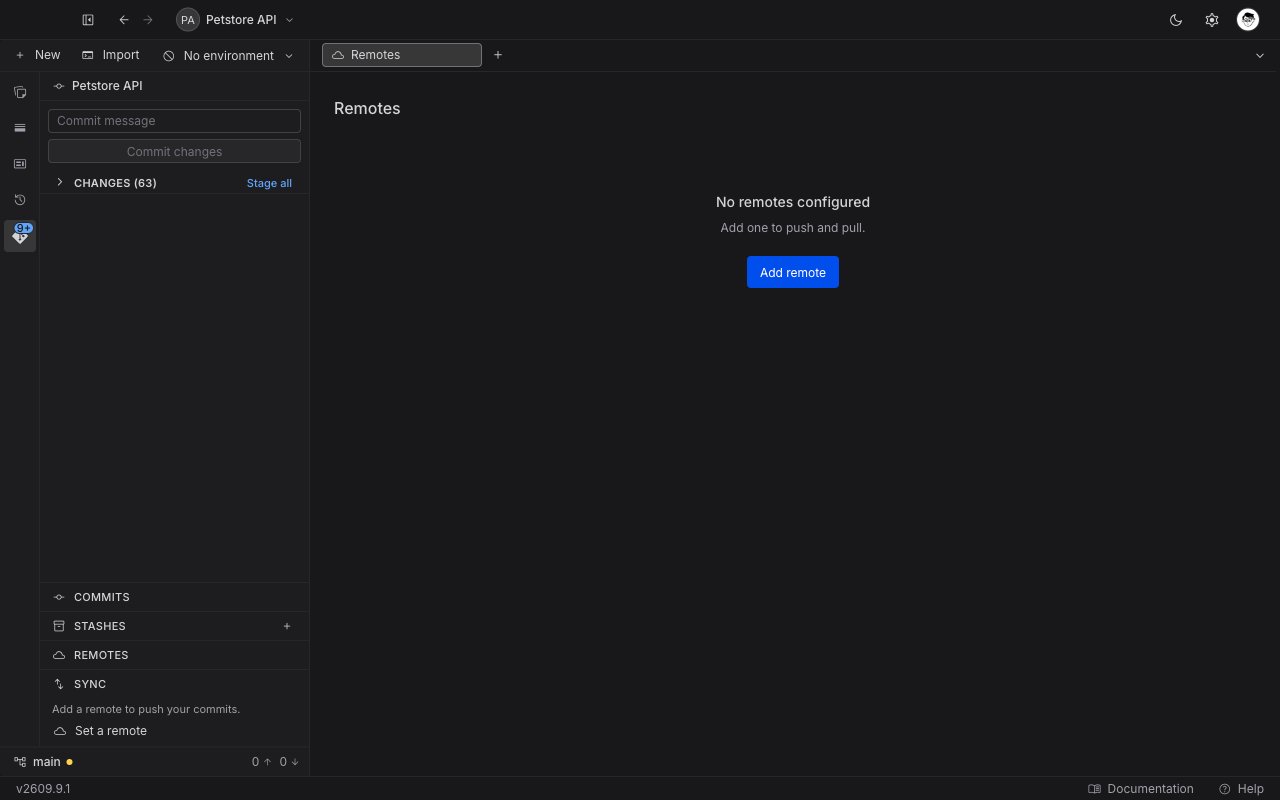
Add remote appears only in the empty state. Once a remote exists there is nothing to add, because Requestly keeps exactly one. To point the project somewhere else, use Edit URL.
Add a remote
1
Open the Remotes tab
Click Remotes in the Git panel, or Set a remote in the Sync section.
2
Click Add remote
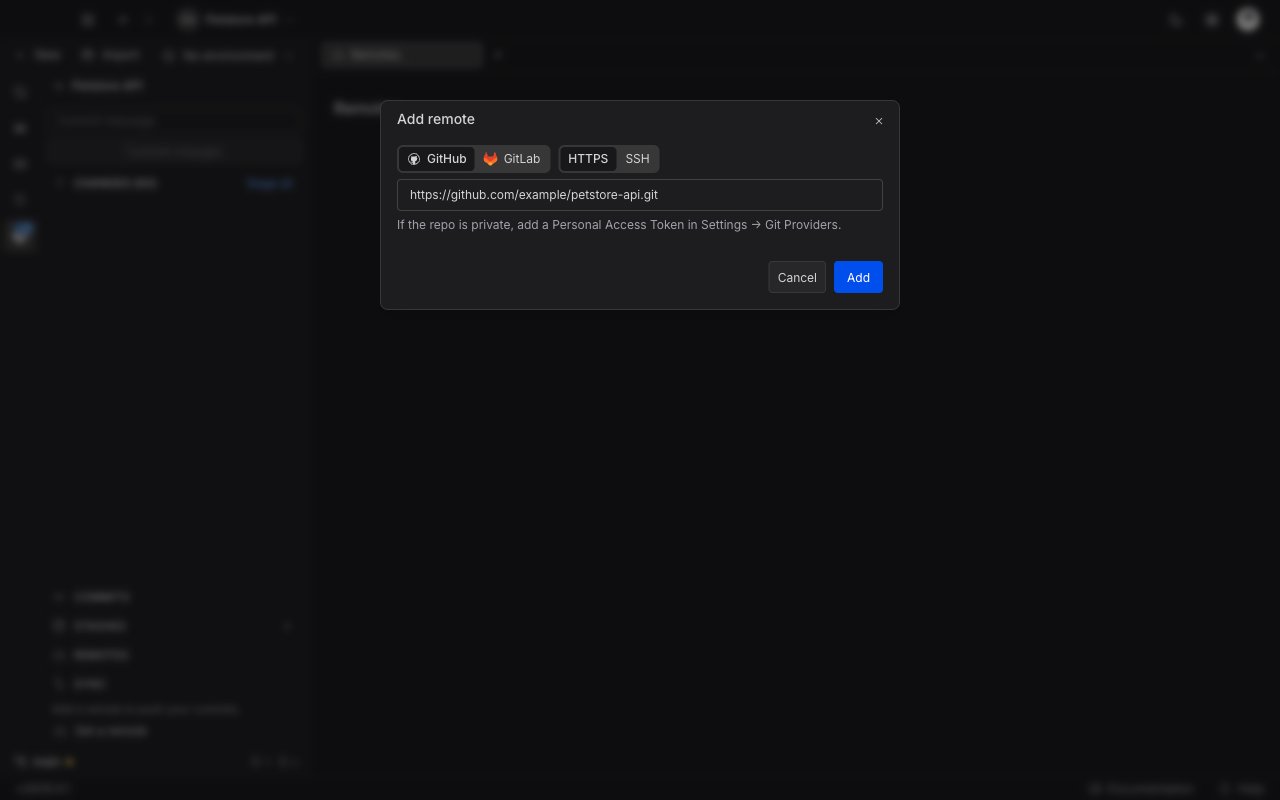
The Add remote window opens with two toggles and a URL field.
3
Pick the example you want
The first toggle chooses GitHub or GitLab, and the second chooses HTTPS or SSH. Together they set the example URL shown in the field. The toggles are guidance only. The field accepts any provider and either protocol whatever you pick.
4
Paste the URL
Type or paste the repository URL. Add stays disabled until the URL is a shape Requestly accepts.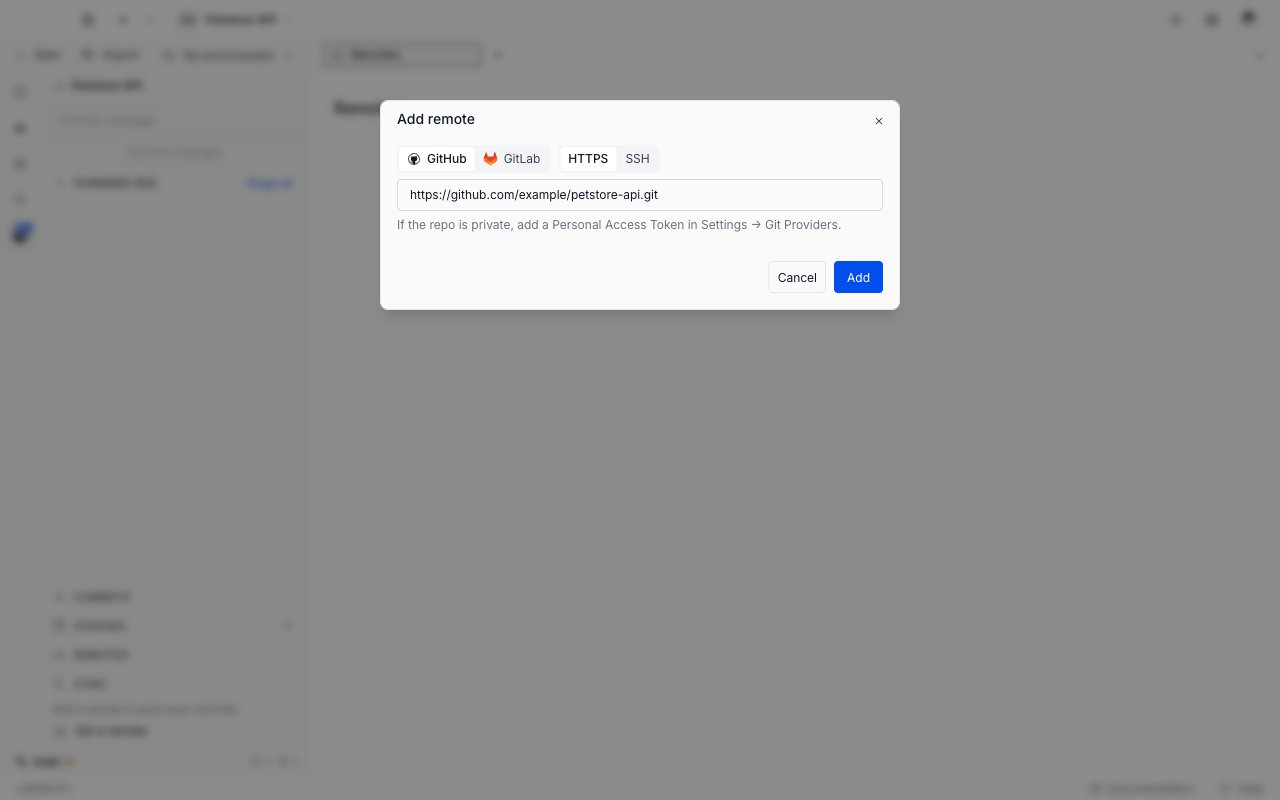
5
Add
Click Add. The table appears with the remote in it, and the Sync section switches from the Set a remote nudge to the fetch, pull, and push controls.
URLs Requestly accepts
A URL Requestly does not recognise shows “Enter a valid git remote URL (HTTPS or SSH).” under the field, and Add stays disabled.
The window also shows a hint for the protocol it detects as you type.
- An HTTPS URL reads “If the repo is private, add a Personal Access Token in Settings → Git Providers.”
- An SSH URL reads “SSH keys must be set up at the OS level (ssh-keygen + ssh-add). Requestly does not manage SSH keys.”
Requestly does not create, store, or manage SSH keys. An SSH remote uses the keys your operating system already holds, which is why it never asks you for a credential.
Edit the remote URL
Use this to correct a typo, or to point the project at a different repository.1
Click Edit URL
The button sits in the Actions column of the table row. The Edit remote URL window opens with the current URL filled in.
2
Change the URL
Edit it in place. The same shapes are accepted as when adding, and Save stays disabled until the URL is valid.
3
Save
Click Save. The table shows the new URL, and the next fetch, pull, or push uses it.
Remove the remote
1
Click Remove
The button sits beside Edit URL in the table row.
2
Confirm
The Remove remote? window explains that you can add it back later, and that removing does not affect the repository itself. Click Remove to confirm, or Cancel to keep it.
Next steps
Push and pull
Fetch from the remote, read the ahead and behind counts, and sync your work.
Providers and authentication
Connect a GitHub or GitLab account so an HTTPS remote can push and pull.
Connect a project to Git
Initialize a repository in an existing local project, or clone one into a new project.
Git overview
The panel states, the sidebar status bar, and the messages Requestly shows.